Overview
In this article, we will review how to add a referral to a prospect profile.
Adding a Referral to a Prospect Profile
Step 1: Navigate to the Prospect you would like to add a Referral to and click on the Relationship tab.

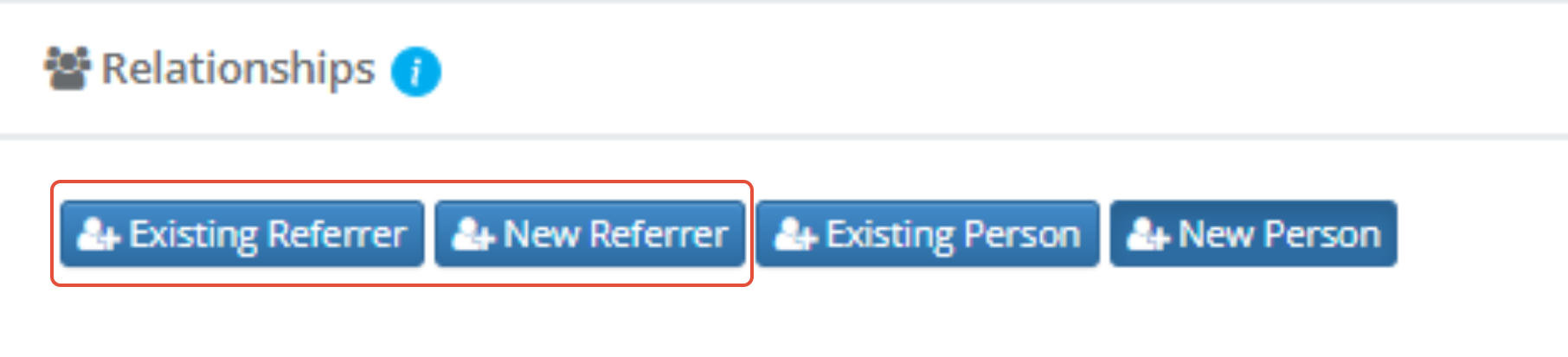
Step 2: Click Existing Referrer if the Referral Source already exists. If the Referral Source doesn't exist, click New Referrer.
Note: If you're adding an existing referral source, you will have the option to search referral sources by a company/account or all individuals.
Step 4: To search by company/account, click into the "Optionally select a(n) Company to filter the list of people below" drop down and search for a company and select a result. The "Search for a person" drop down will now only search for individuals at the selected company. Once a company and individual has been selected, click Add.

Step 5: If you would like to search for all individuals, leave the first company/account drop down blank and search using the "Search for a person" drop down. Once an individual has been selected, click Add.

Note: The "Search for a person" drop down will only return active individuals.
Was this article helpful?
That’s Great!
Thank you for your feedback
Sorry! We couldn't be helpful
Thank you for your feedback
Feedback sent
We appreciate your effort and will try to fix the article