Overview
In this article, we'll detail the various features and functionalities included in Aline CRM Prospect Profiles. While many features/functionalities remain the same, the new Aline CRM user interface (UI) changes the look, feel, and efficiency of many of them.
Specifically, we'll cover the following:
- Add, Send To, More, and Notification Bell buttons
- Adding organizational communities to prospects
- Log, Schedule, Email, Text, and Call Action Buttons
- Contact Cards
- Sales Stage
- Opportunity Score
- Prospect Details Panel
- Aline AI Lead Summary
- Activity Management
- Information
- Notes Management
- Relationships Management
- Reviewing Conversations
- Campaign Management
- Waitlist Management
- Recording Transactions
- Reservation Management
Please note: not all features and functionalities may be available to all users as each senior living organization utilizes custom Aline CRM packages and configurations.
Aline CRM Prospect Profiles
Whether receiving a prospect from an interfaced referral source or whether manually adding in the details yourself, each individual, or prospect, will have their own profiles in Aline CRM. These profiles can be fleshed out with contacts, referral sources, demographic data, activities (both scheduled and completed), communication chains, and so on and so forth.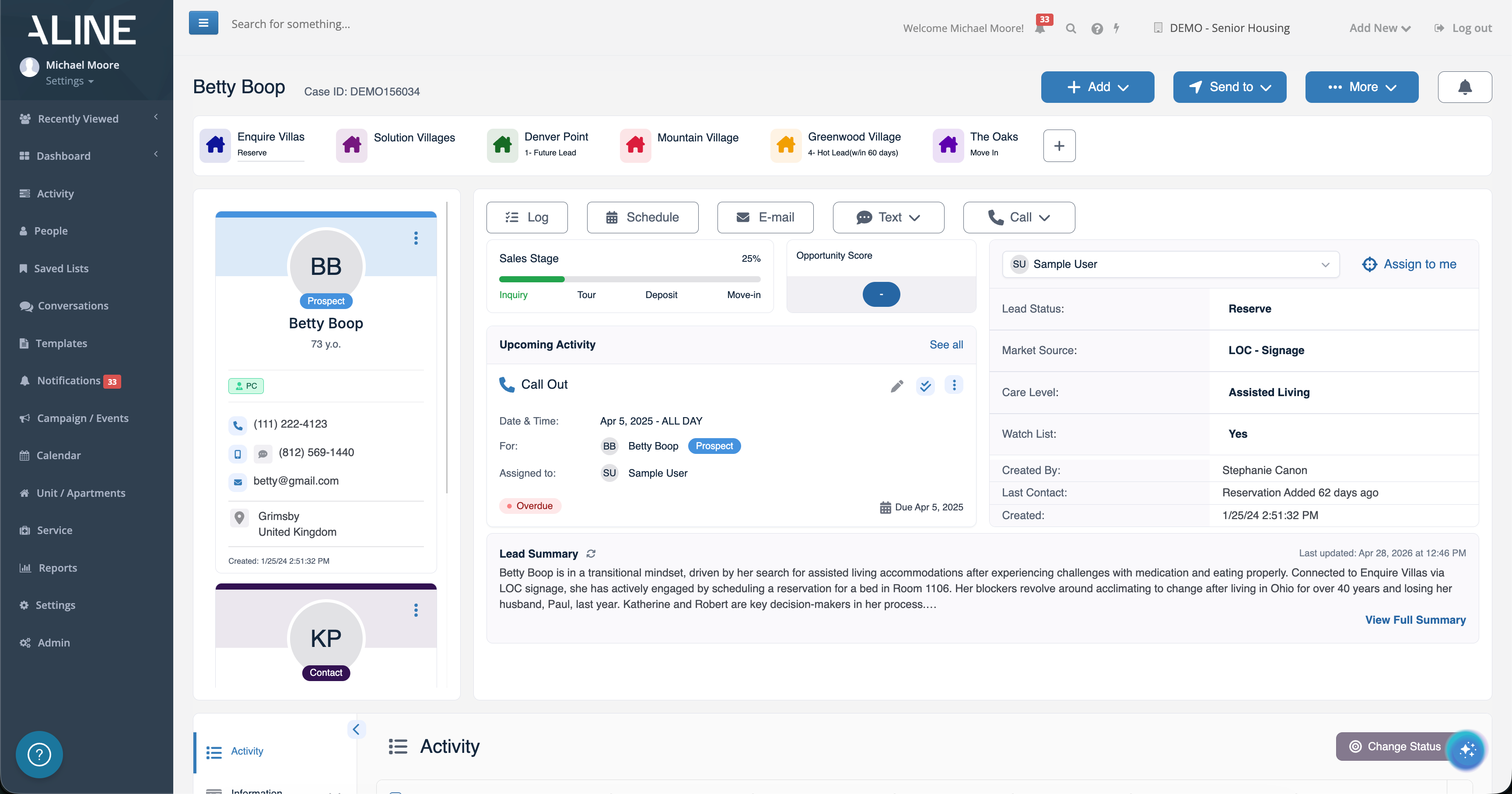
With so many available functions and tools, its important to understand how they all work and intertwine with one another as prospects are moved throughout the sales stages - ultimately, hopefully, ending with a reservation and a move in into your senior living or post-acute community.
Let's begin by isolating the top of the prospect profile.
Add, Send To, More, and Notification Bell Buttons
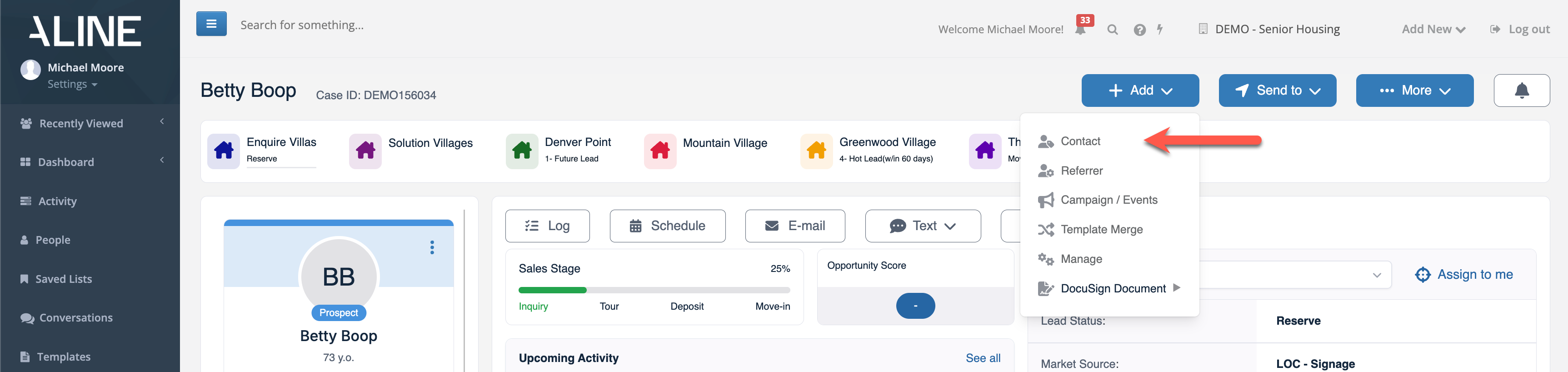
At the top of the prospect profile, you can find several blue buttons. In this demonstration environment, we have all three displaying (+Add, Send To, and More) in addition to the Notification Bell. Note, the Send To button will only display for organizations with active integrations and is used for exports to integrated applications such as Aline Care and/or Aline Leasing & Billing, MatrixCare, Yardi, PointClickCare, etc. 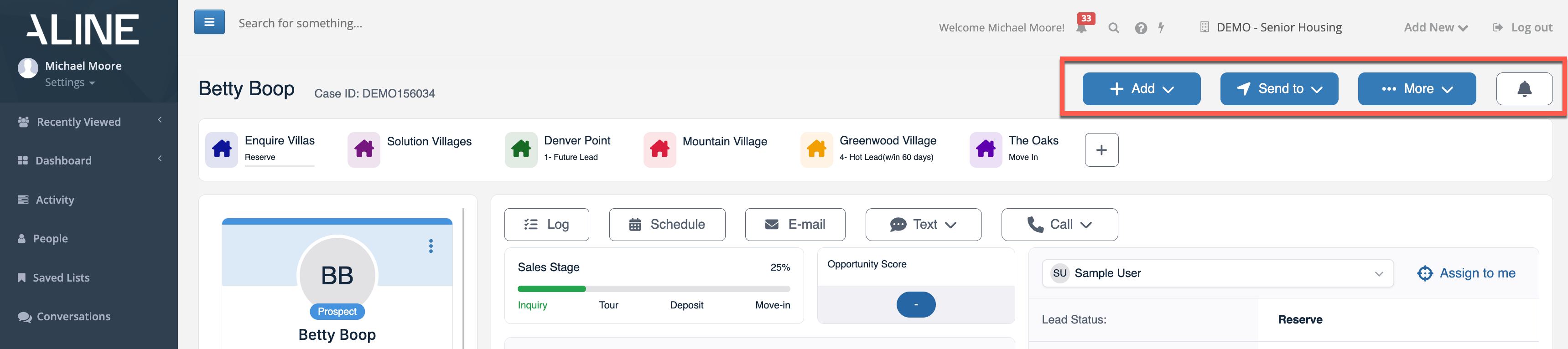 The +Add button allows users to add a whole host of items to the prospect profile page, including additional contacts and referral sources, campaigns and events, and DocuSign documents (for organizations with the DocuSign integration enabled).
To add a contact, for example, users would select +Add, select Contact, and then simply fill in the new contacts details before saving it to the prospect profile.
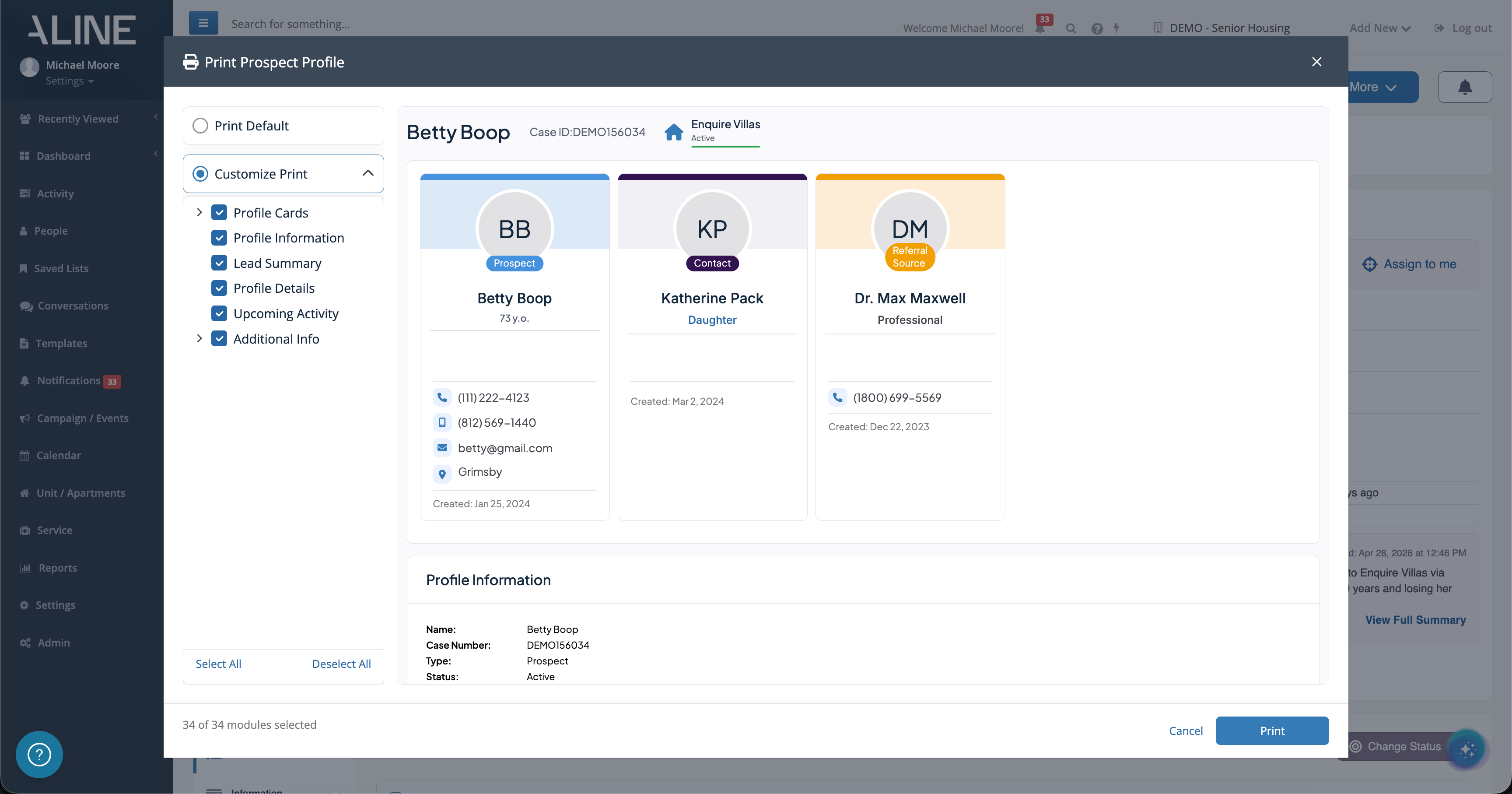
Selecting Send To will display the various integrated application available for prospect profile export. To learn more about profile exports to your supported applications, dive into additional knowledge base articles related to those specific integrations. 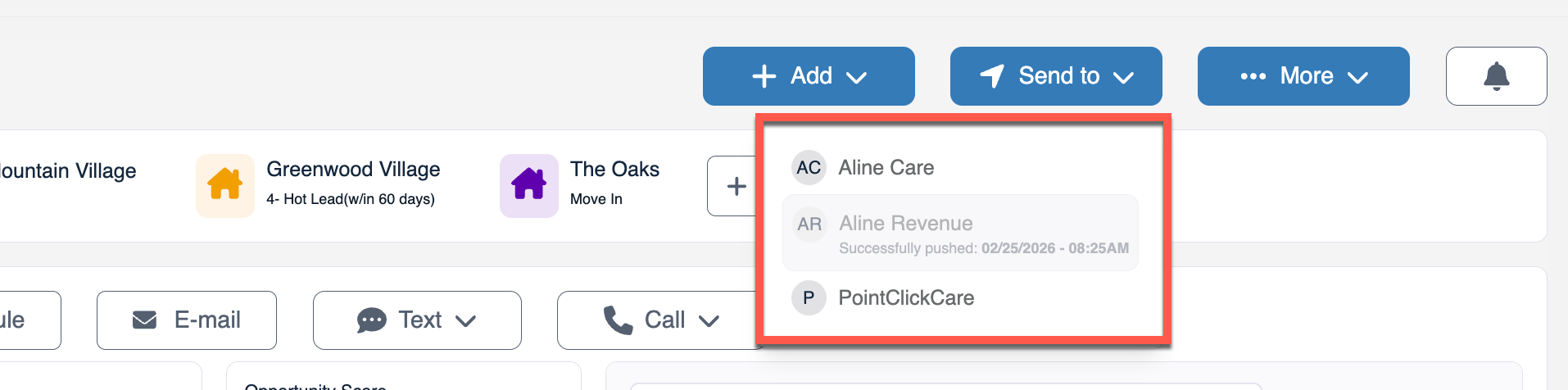 Selecting More will display two options: the ability to print the prospect profile and the ability to delete the prospect profile. Printing the profile allows for custom selections to be included in the printout, so be sure to edit the custom selections in order to print the necessary profile sections desired.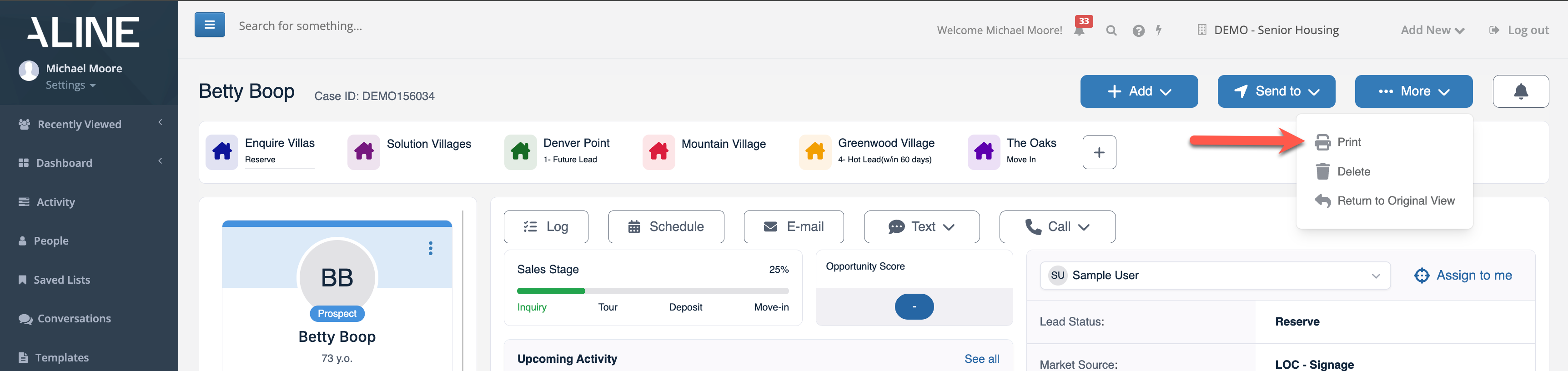
Please note: before deleting a prospect profile, ensure deletion is actually necessary. Additional tools like profile merging, marking profiles as inactive, transferring profiles to sister communities, etc. are available.
Finally, the Notification Bell icon will call attention to any necessary notifications regarding the prospect profile. All notifications can be cleared at the same time using the Read All and Close option listed on the popup. 
Adding Additional Organizational Communities to Prospects
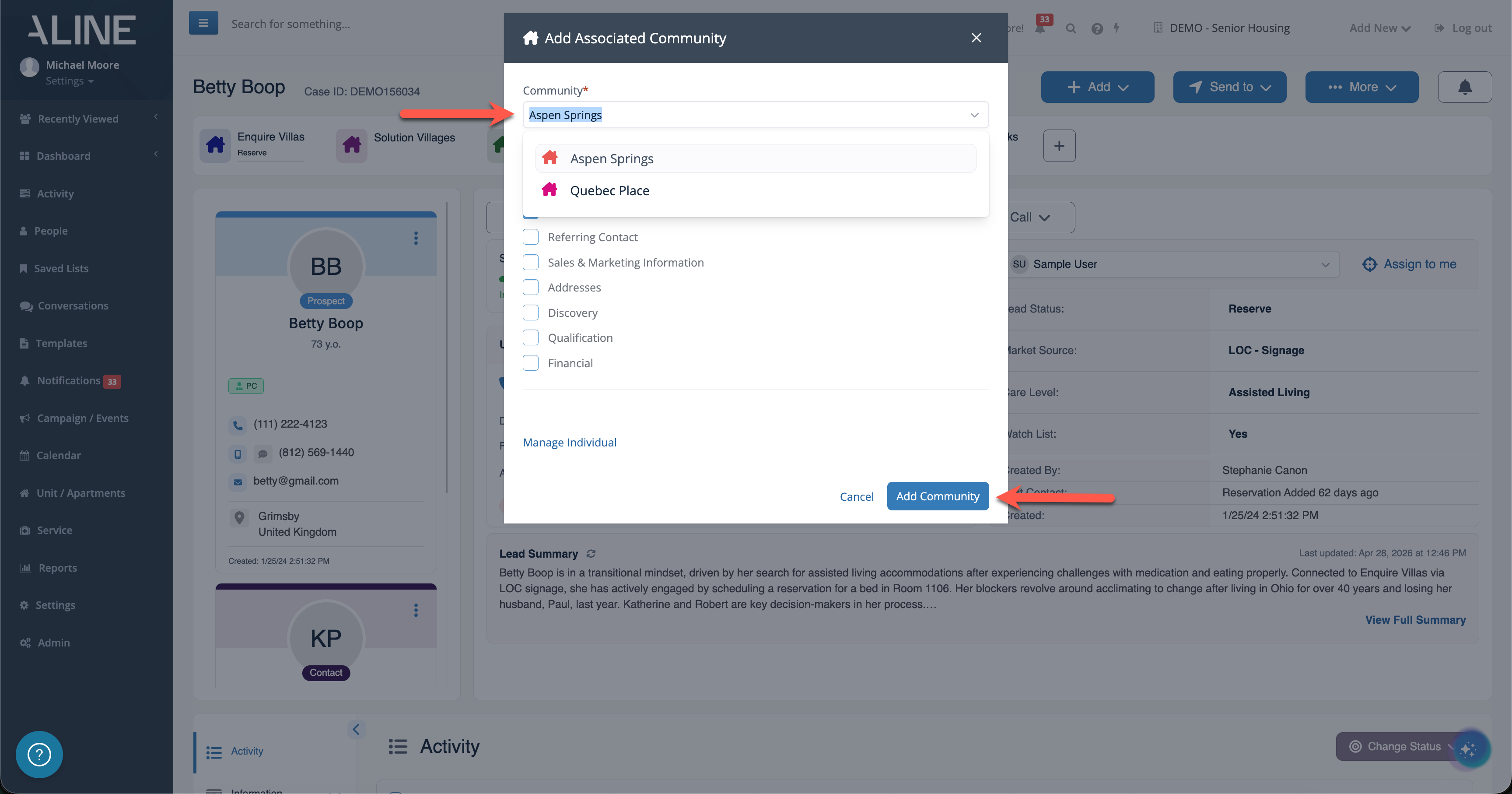
After a prospect has been added to your organization and specific community, other communities within the organization may need to work with the same prospect. Prospects can be shared across all available communities within the organization by using the add community tool at the top of the profile page. You'll see all current shared access communities listed at the top of the profile as well. 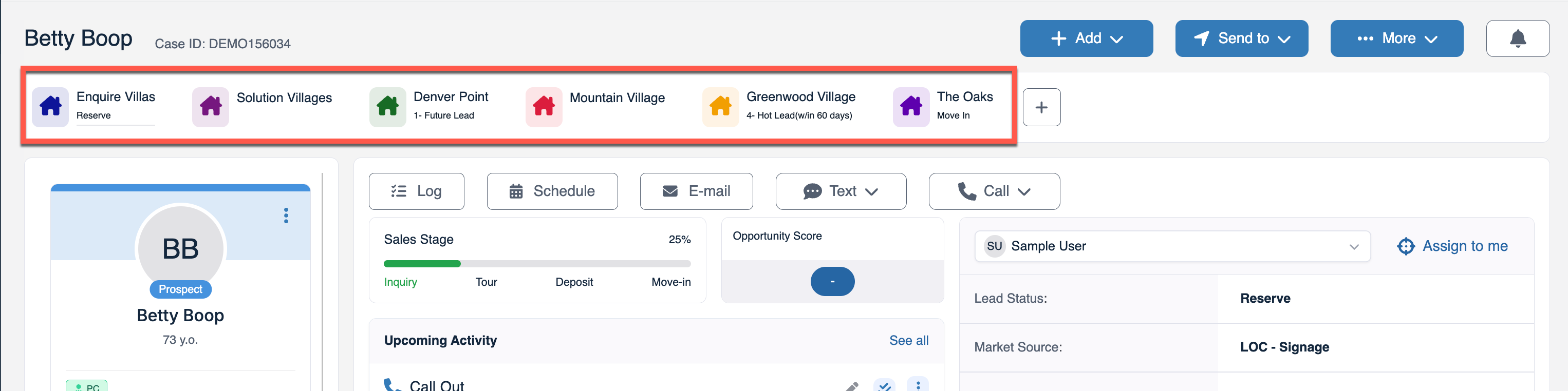
Each associated community within the organization has their own unique access to the prospect profile - meaning, changes made to one community would not reflect onto the others.
As an example using the communities listed in the above photo, while Denver Point has the prospect's status marked as a Future Lead, Greenwood Village has the prospect marked as a Hot Lead.
To add new community access to the prospect profile, select the Plus Icon (+) and then select the appropriate community before saving by selecting Add Community. 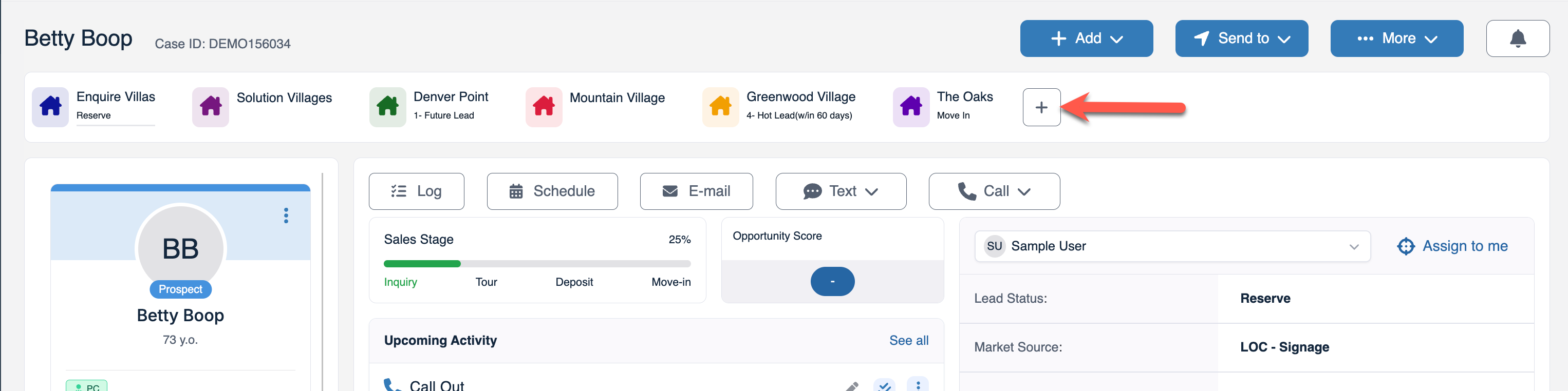
Log, Schedule, Email, Text, and Call Action Buttons
The prospect profile sports convenient action buttons front and center. These actions include logging completed activities, scheduling upcoming activities, drafting emails to prospects and contacts, texting prospects and contacts, and calling prospects and contacts.
Keep in mind, your organization will have to have the Aline CRM communications package enabled in order to utilize emailing, texting, and calling directly from the profile page. So, too, will the individuals need valid email addresses and phone numbers on file within the CRM. To learn more about the communications package and these action buttons specifically, refer to their dedicated articles within the knowledge base. 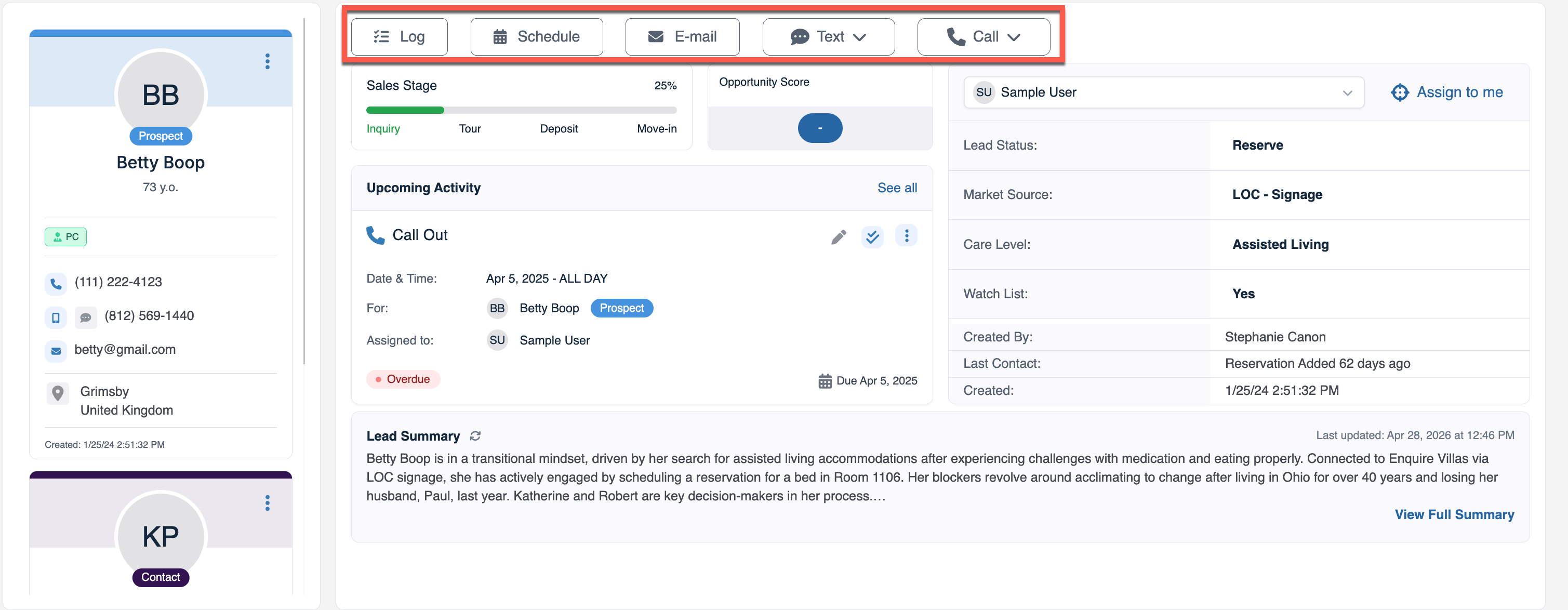
Contact Cards
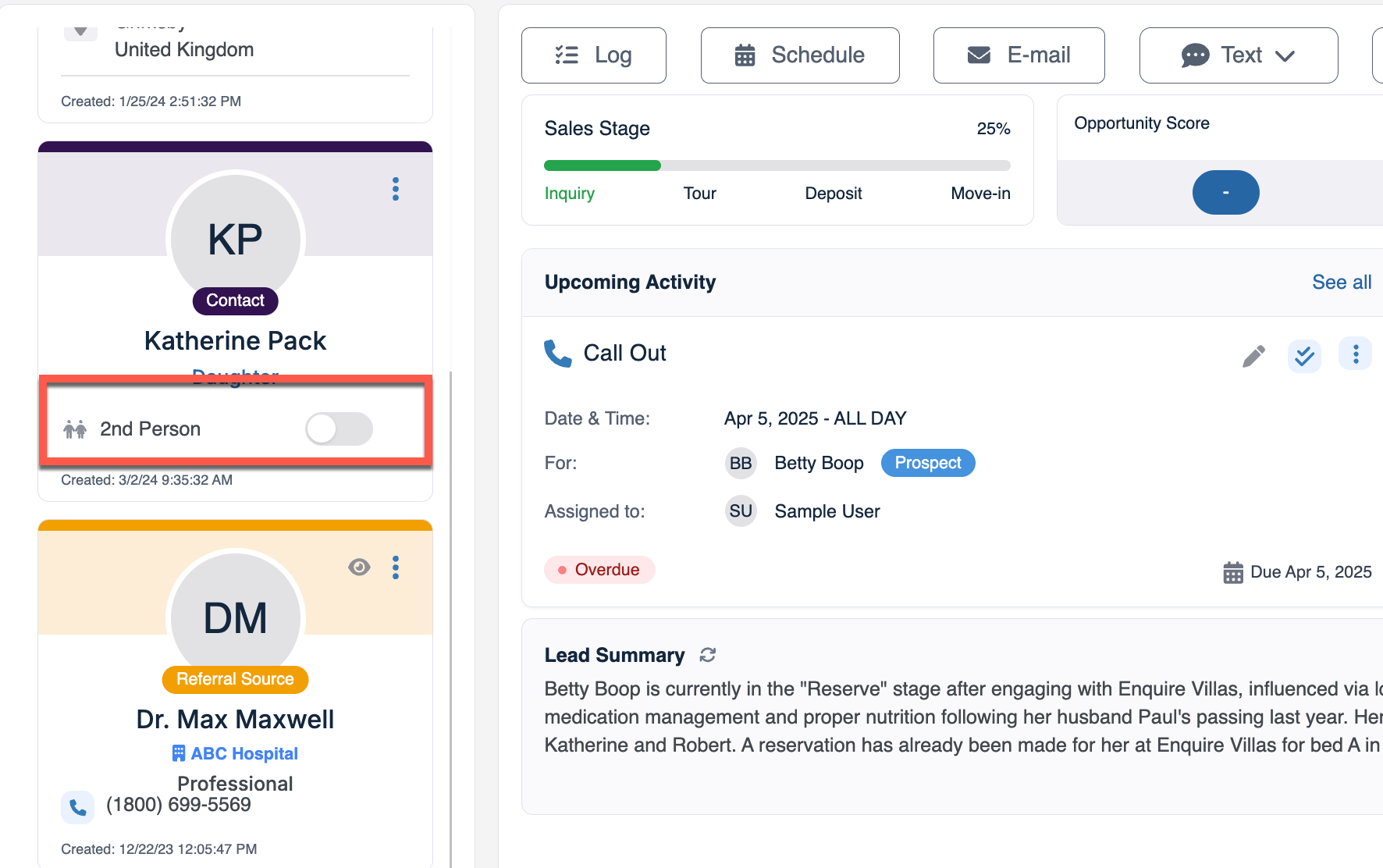
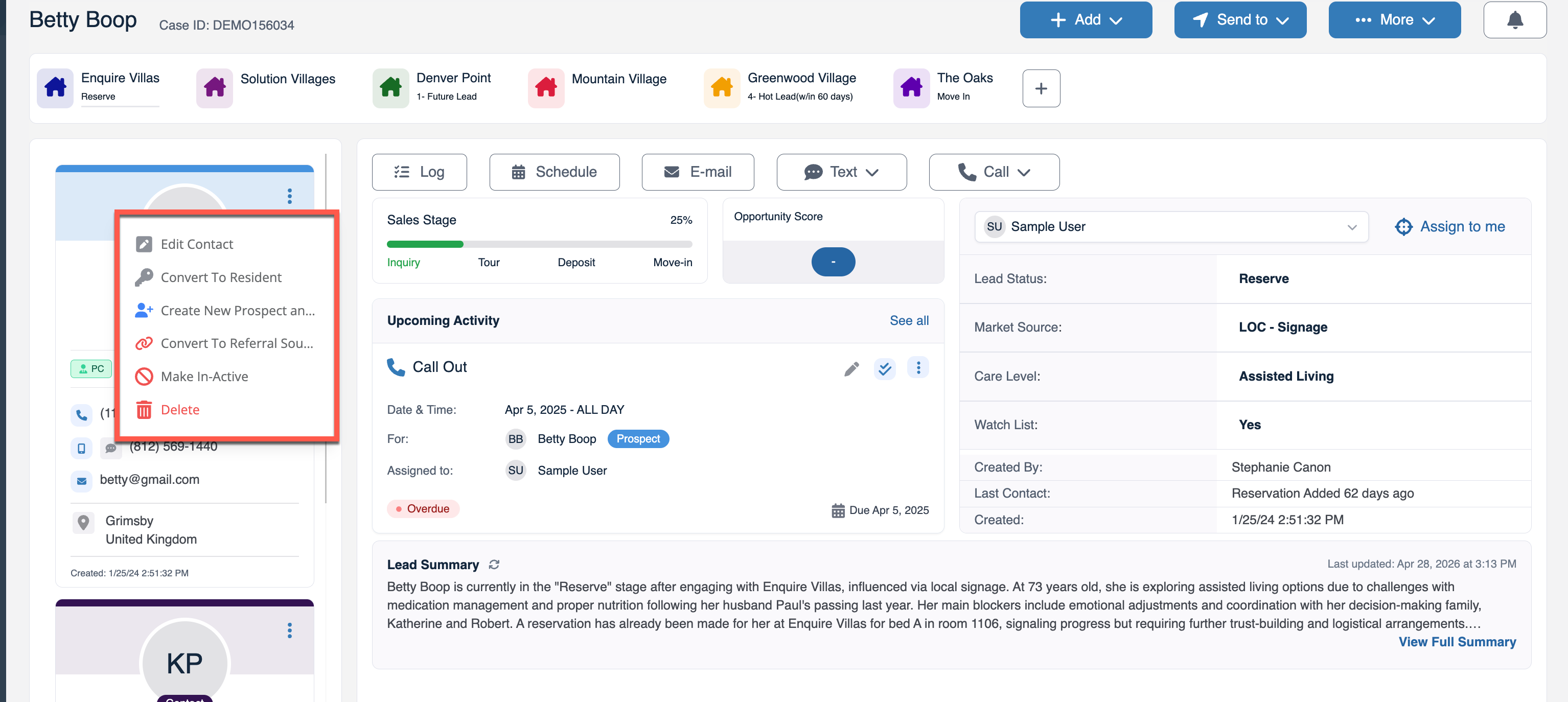
You can find all associated individuals on a prospect profile as Contact Cards displaying on the upper lefthand side of the page. Any prospects, contacts, and referral contacts will be listed. 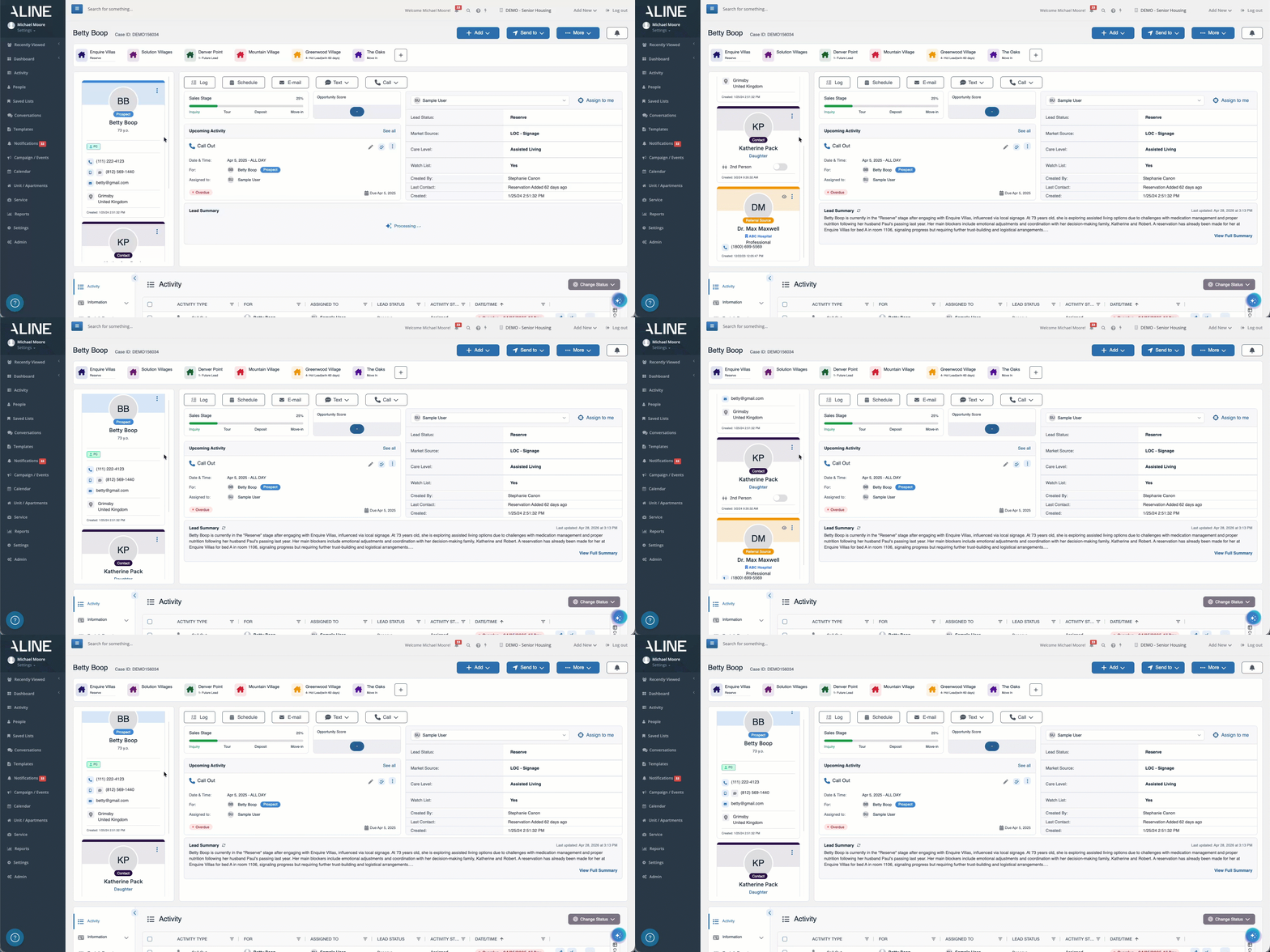 Individual contact cards will display the individual type, like prospect, contact, referral source, resident, etc. along with contact information. Referral sources will display associated referral agency. Contacts will display a 2nd Person toggle. If contact will be a second prospect, the toggle can be flipped.
  Edit individuals and more from their contact cards by selecting the three-dot menus displaying on the card's upper righthand corner. Prospect contact cards allow for:
- Edit Contact
- Convert to Resident
- Create New Prospect and Convert to Contact
- Convert to Referral Source
- Make In-Active
- Delete
Contact contact cards allow for:
- Edit Contact
- Convert to Resident
- Reassign Primary Lead
- Convert to Referral Source
- Make In-Active
- Unlink
- Delete
Referral Source contact cards allow for:
- Edit Contact
- Convert to Resident
- Convert to Contact
- Convert to Primary Lead
- Make In-Active
- Unlink
- Delete
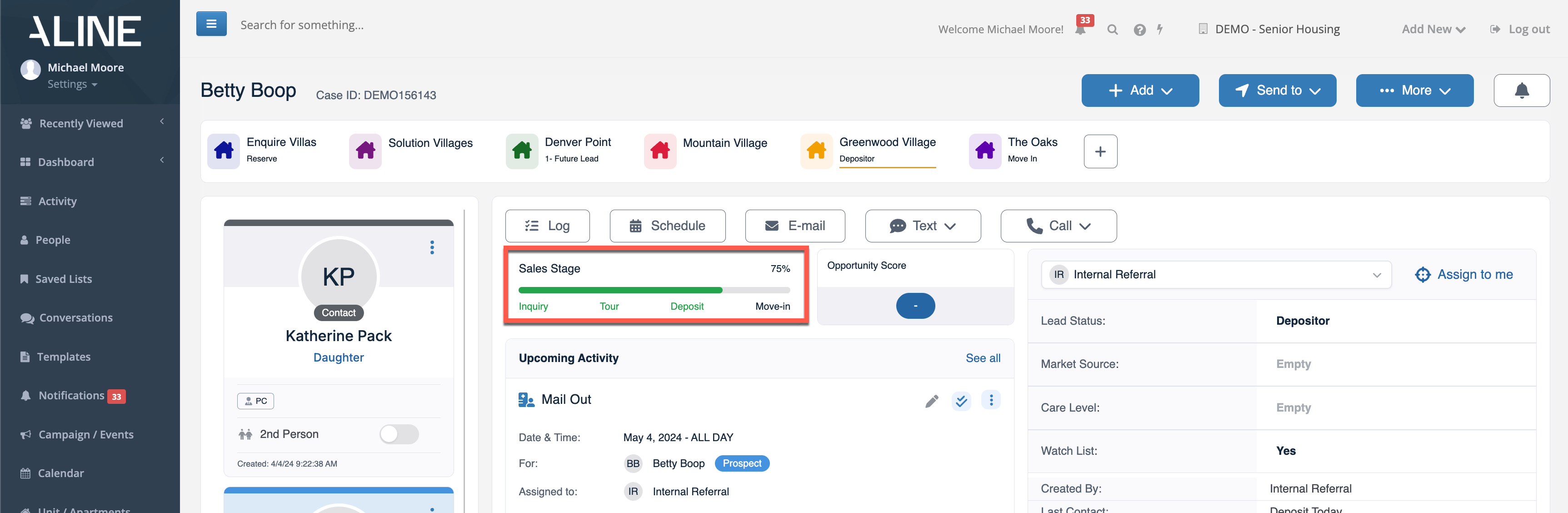
Sales Stage Indicator
The Sales Stage Indicator can be found center-stage on the prospect profiles and includes four stages: inquiry, tour, deposit, and move in. The stages will fill in with green automatically based on activities/transactions completed and is intended to serve as a quick visual reference of the prospects journey towards moving into your community.
Fully filled in Sales Stage Indicators display once:
- The original inquiry has been added to Aline CRM as a prospect.
- A tour activity has been marked as completed.
- A deposit transaction has been recorded.
- A move in activity has been marked as completed.
Opportunity Score
A prospect's Opportunity Score (named Lead Score in some organization's configurations) will display next to the Sales Stage Indicator and will display a calculated score based on the prospect's promise and progress so far through the sales stage. The opportunity score will generally be configured to start calculating after a tour activity has been marked as completed. 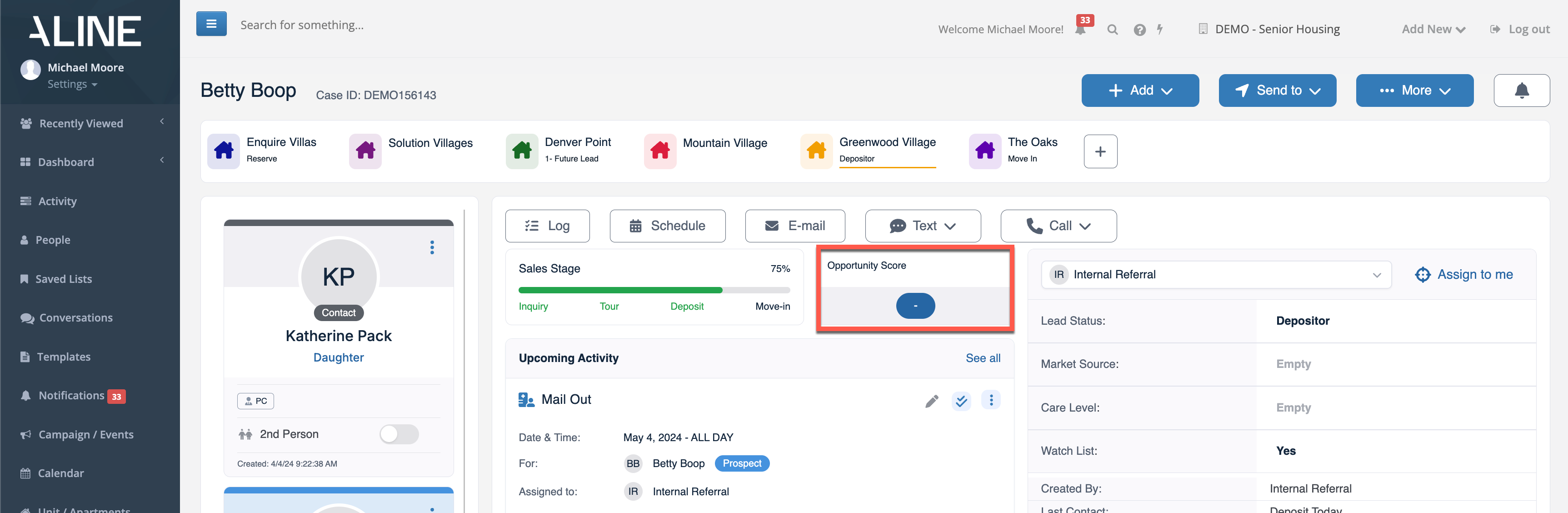
Prospect Profile Details Panel
A prospect's details will display in the Prospect Details Panel on the righthand side of the page. Various details, generally customized for each organization specifically, will display such as lead status, market source, estimated care level, watch list, etc.
The top of the panel will display the sales/marketing team member currently assigned to the prospect. The Assign to me allows users to assign the prospect to themselves. Alternative team members can be selected from the top of the panel.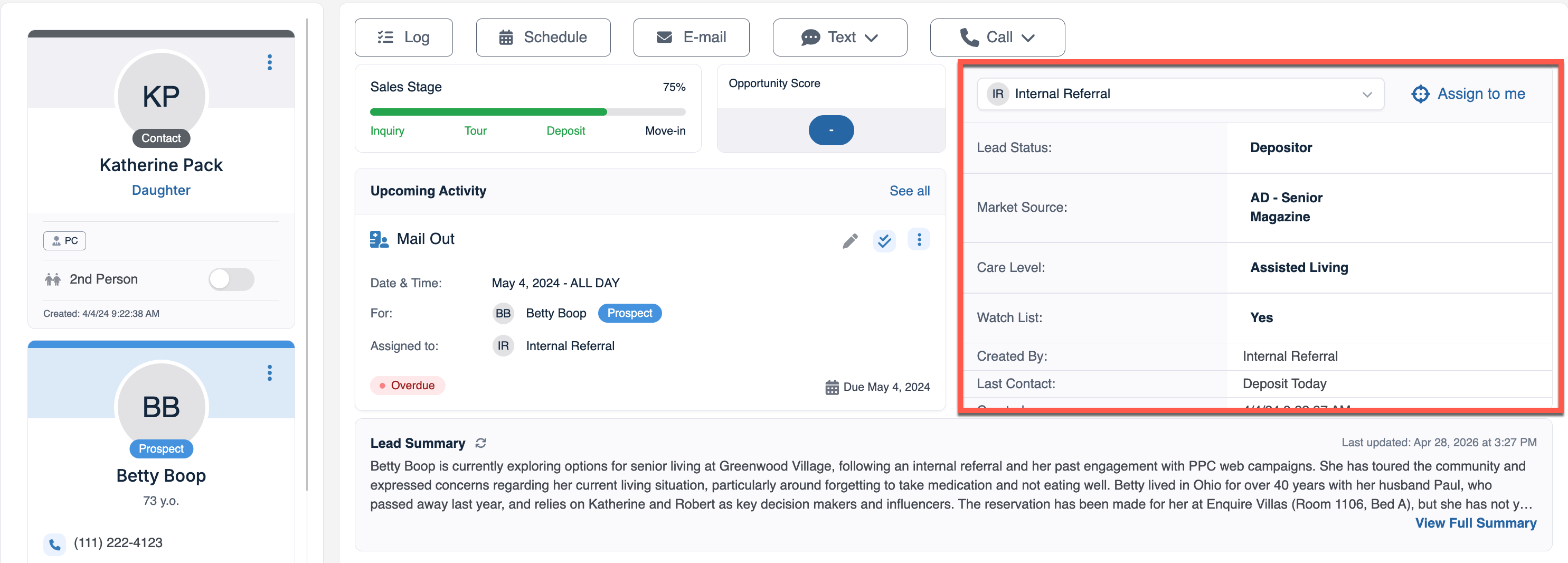
These details within the panel can be dragged and dropped to place them in an order that works best for your organization's workflow and requirements.
Aline AI Lead Summary
A lead summary, calculated by Aline AI, will automatically display and respond to various factors such as lead status, market source, completed and scheduled activities, background data, and more. Select View Full Summary to view the entire lead summary.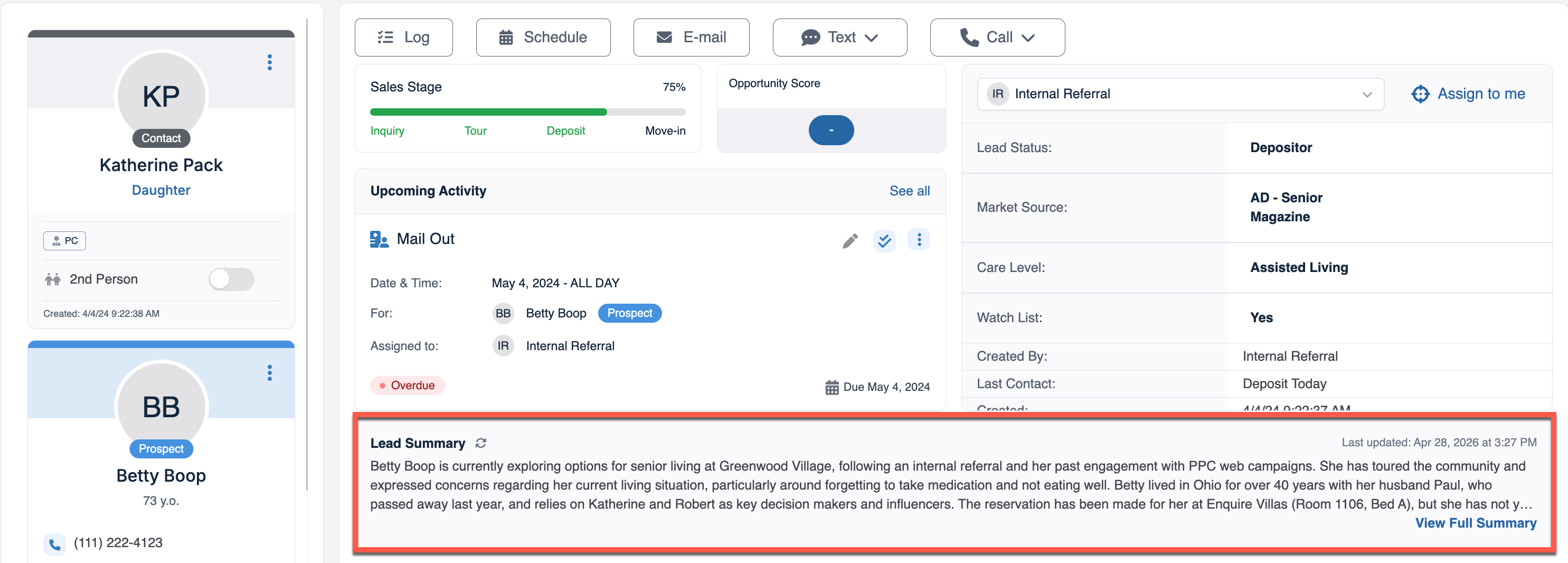 To manually refresh the lead summary, users can select the refresh button at the top of the summary.
Upcoming Activity / Aline AI Recommended Activity
At the very center of the prospect profile, users can find either their soonest due upcoming activity that has already been scheduled OR an Aline AI Recommended Activity based upon the prospect's Aline AI Lead Summary and assumed next steps. 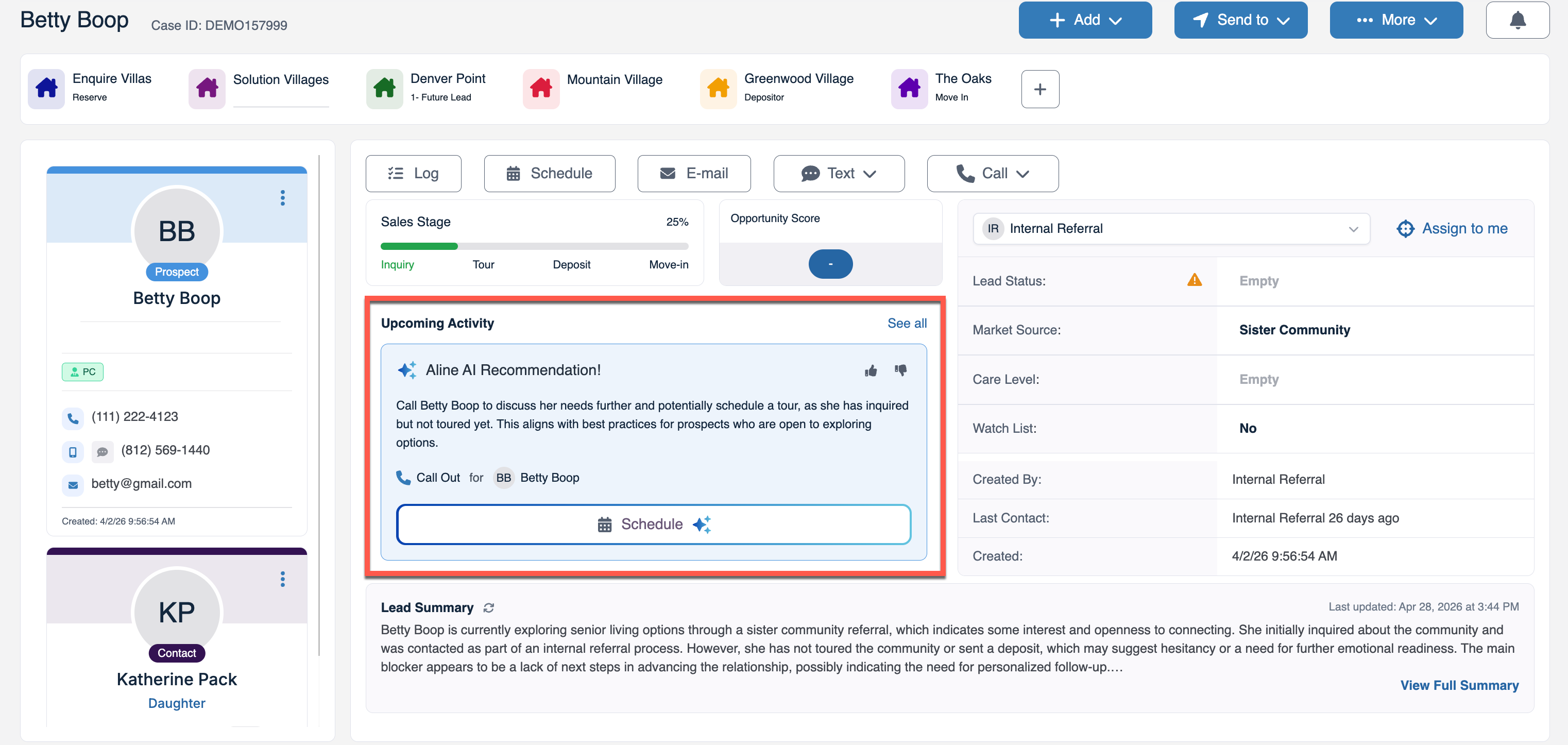 Selecting Schedule will open the Schedule Activity screen wherein users can fine tune the activity details auto generated by the recommendation. To view additional recommendations, users can select See All.
Prospects with activities already scheduled will display the activity due soonest or the most overdue activity. While activities can be completed in the Activity Page below, activities can also be edited, completed, and more directly from the top of the page where displaying.
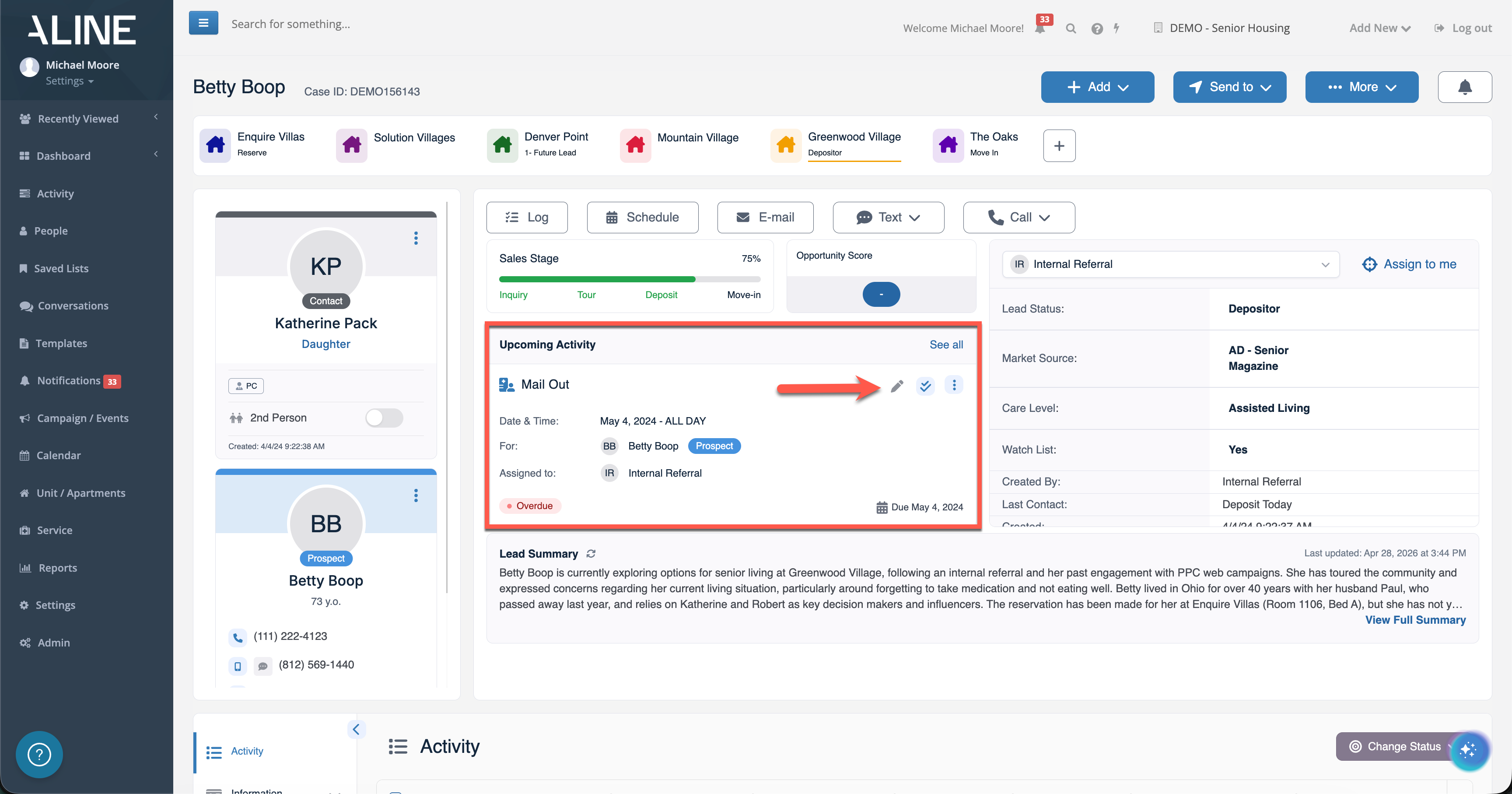
Refer to additional knowledge base articles regarding activity management to learn more about managing your prospect's, contact's, and referral source's activities.
Prospect Profile Activity Management
Activities (due, overdue, rescheduled, and completed) can be found at the bottom of the profile when Activity is selected from the lefthand panel. Displayed in Aline CRM's AG Grid format, users can fine tune activity data by sorting, filtering, reordering columns, and enabling/disabling columns from the grid.
Please Note: Aline CRM users can access and manage all prospect/contact activities via the main Activity Page. 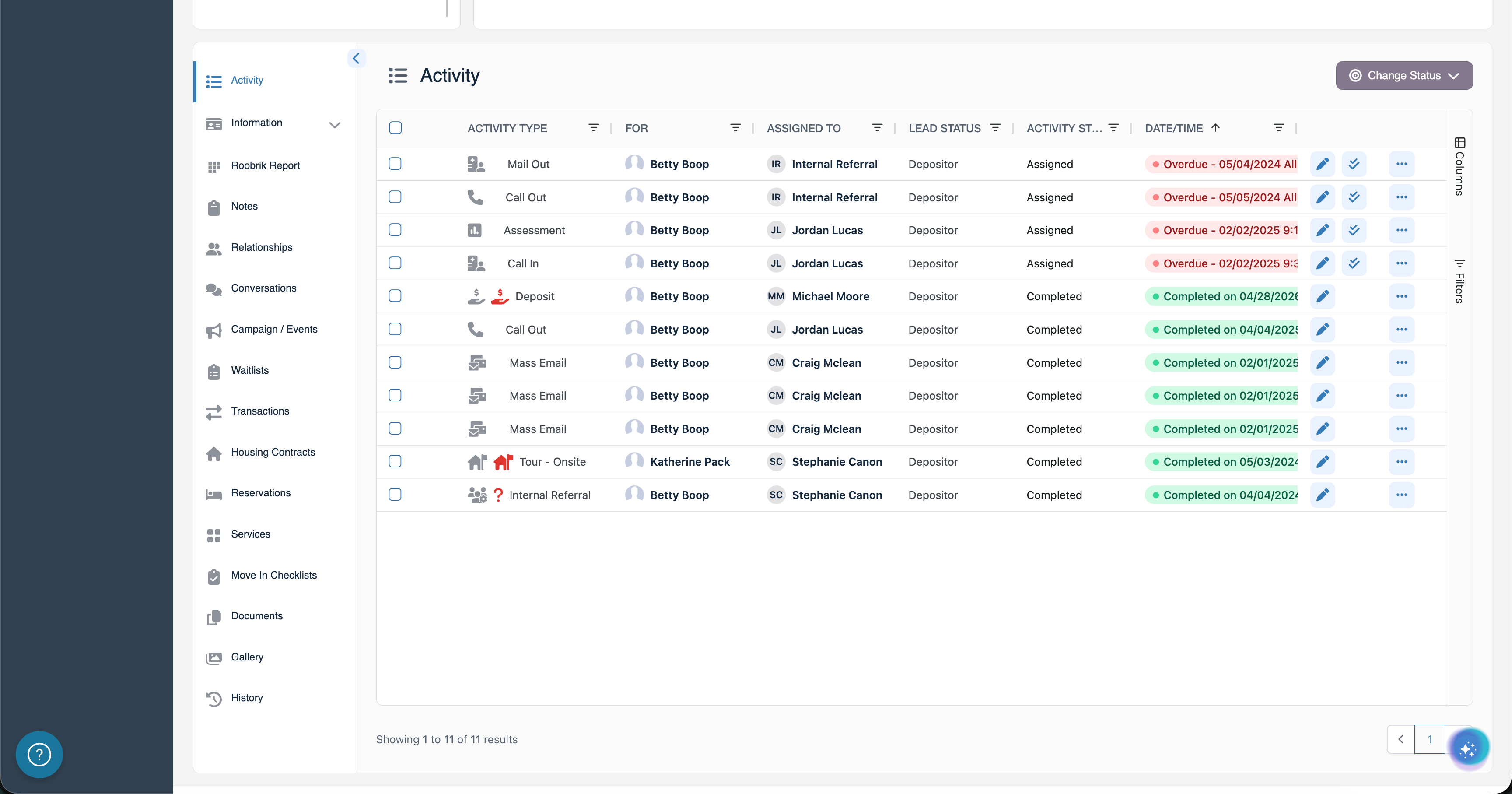 The pencil icon allows for the editing of the activity, the checkmark icon allows for the completing of the activity, and the three-dots icon allows for various additional activity items like rescheduling, canceling, deleting, etc.
Activities of the same type can also be completed together, in bulk, by selecting them and then selecting the Change Status button and then selecting Complete. Just keep in mind, this only applies to activities of the same Activity Type as each Activity Type has its own completion options.
Bulk activities of any kind can be canceled, marked as a no show, or deleted. 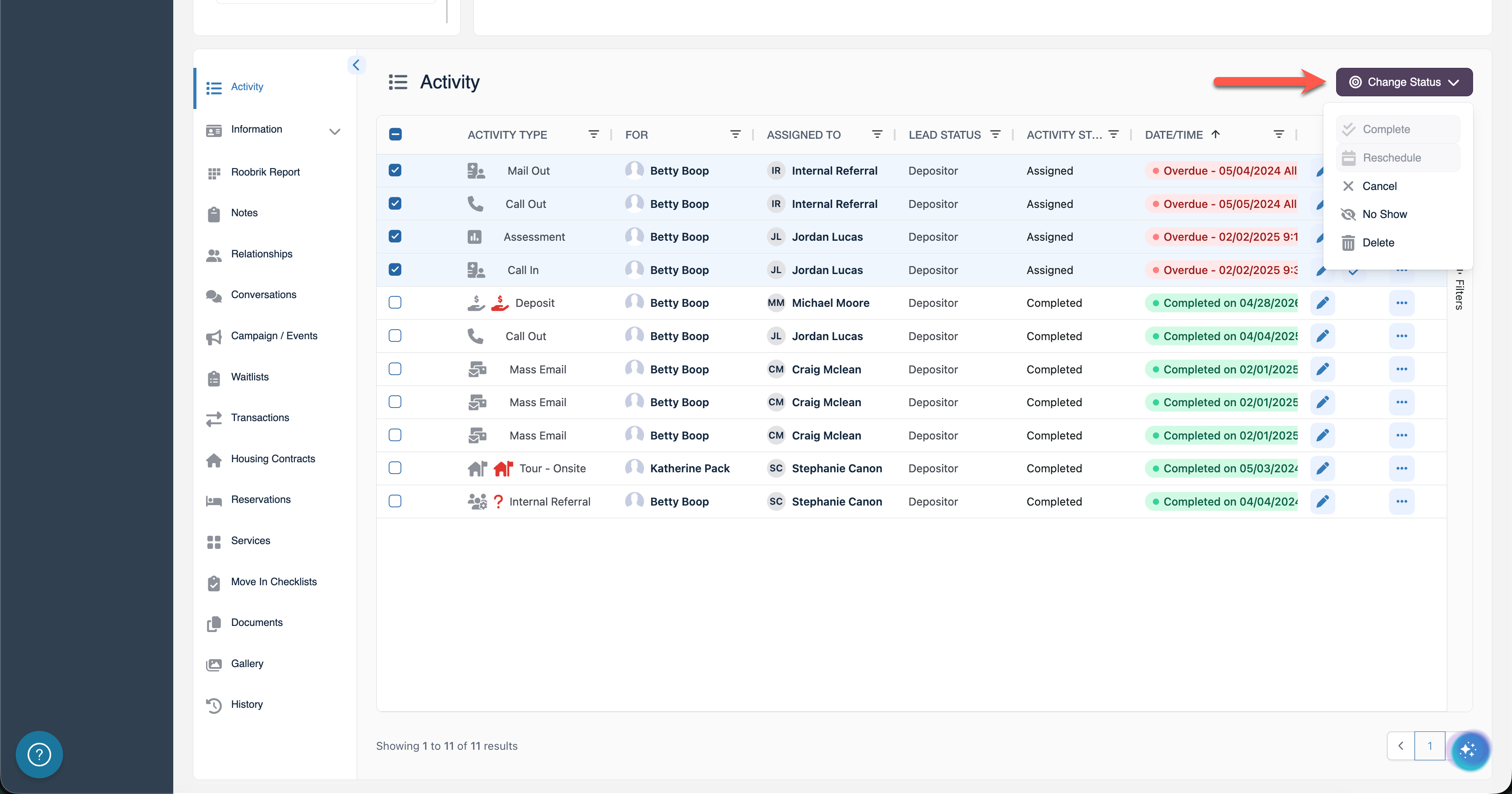 Refer to additional knowledge base articles regarding activity management to learn more about managing your prospect's, contact's, and referral source's activities.
Information Collection
At the heart of fielding prospects comes information collection, be it discovery information, demographic information, medical information, contact information, and the like. By selecting information on the prospect profile's lefthand panel, users can view the various subsections within and enter data where required and desired.
The data that you collect depends on organization policy and procedures as well as typical operating workflows.
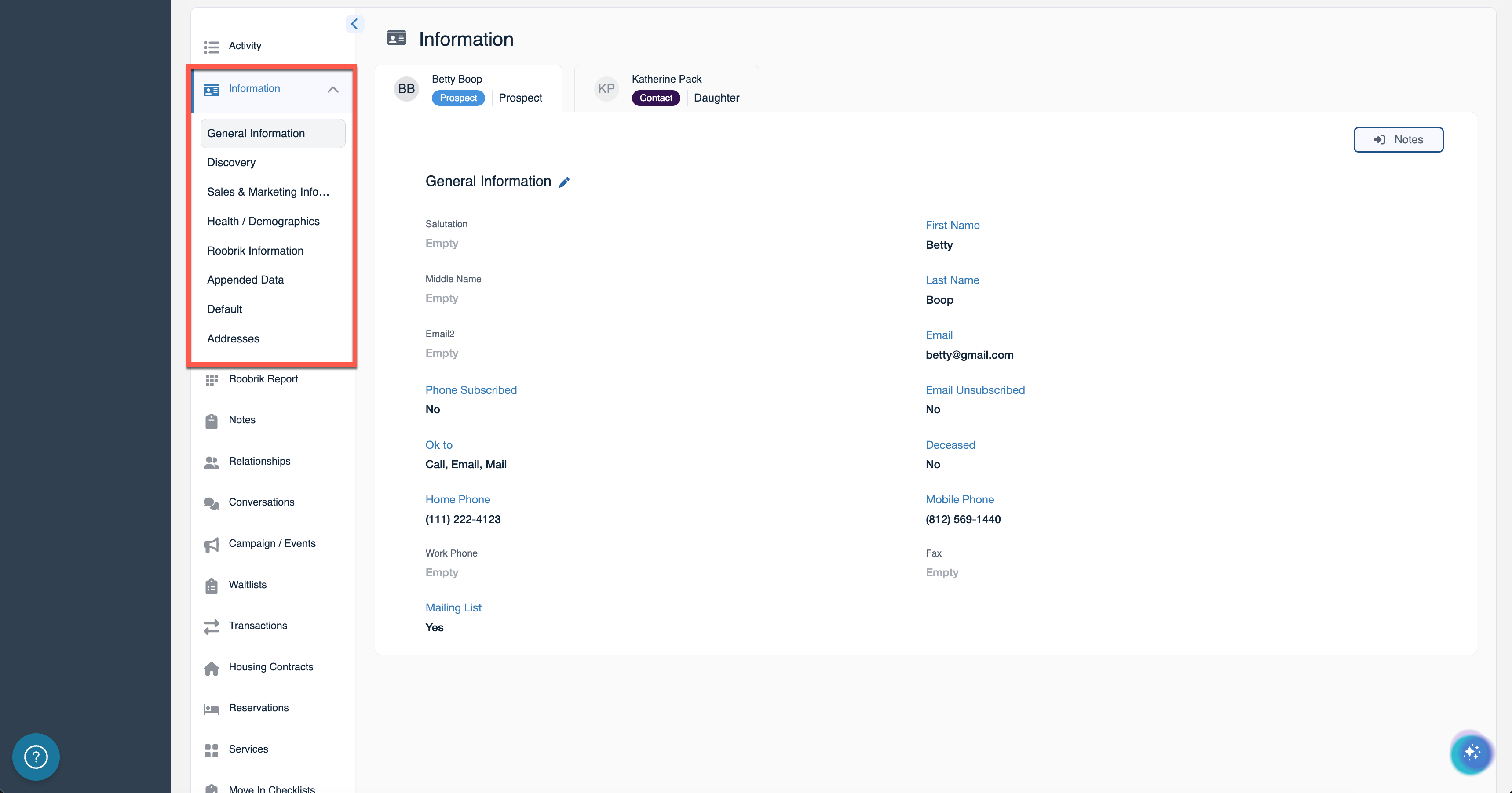 Note that the various data fields and subsections are customized for each organization and certain integrations may present their own data collection subsections, so your setup may appear different than the demonstration environment used in this article.
Notes
Notes can be found at the bottom of the profile when Notes is selected from the lefthand panel. Notes added from all sales and marketing personnel will display by default. Some notes may be added manually (by selecting + Add Note) while other notes may be created automatically from other processes like activity management, reservations, profile exports, and the like. 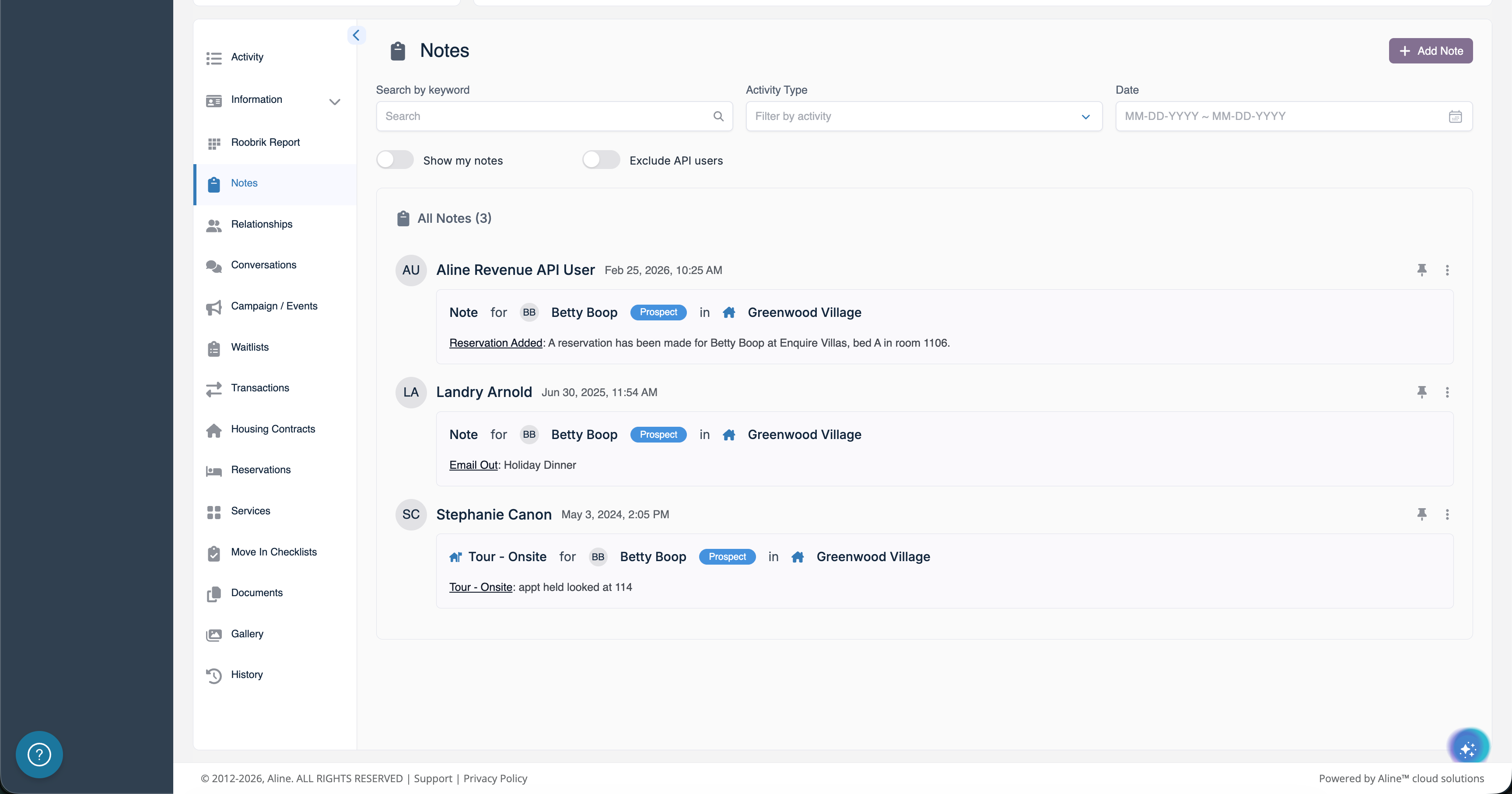 Notes can be sorted via keyword search, by activity type, by date range, and by user. Notes can be pinned to the top of the notes page by select the pin icon, and notes can be edited/deleted by selecting the three-dots icon.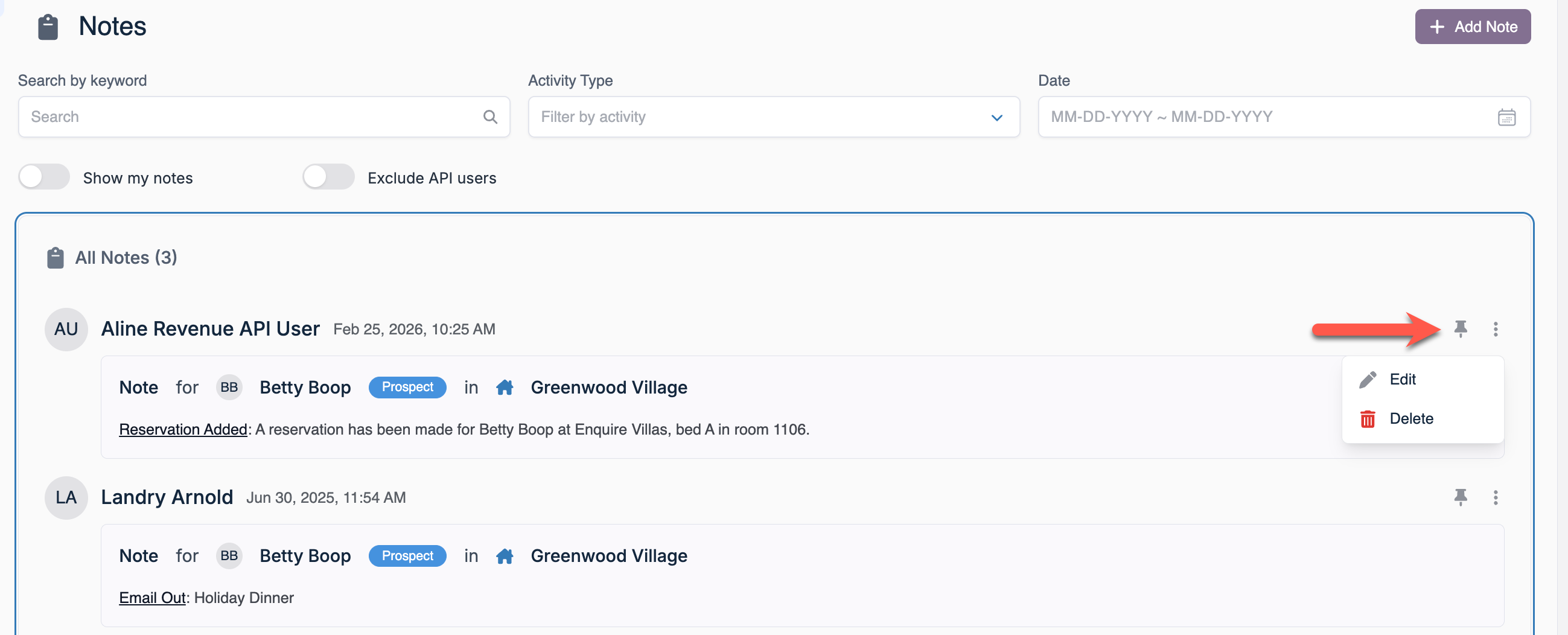
Relationships
Relationships can be found at the bottom of the profile when Relationships is selected from the lefthand panel. Similar to the Contact Cards found at the top of the profile, the Relationships section will display all associated individuals, including their relevant details like:
- Name
- Individual Type
- Relationship Type
- Phone
- Primary Contact Designation
- Emergency Contact Designation
- and Power of Attorney Designation
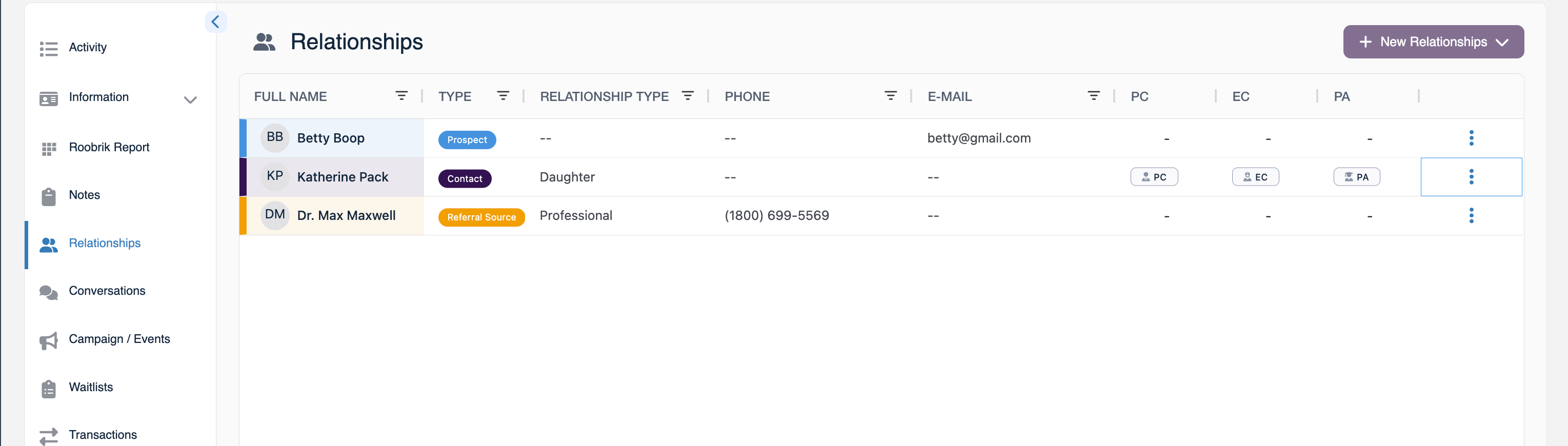
Existing Relationships can be managed by selecting the three-dots icon and new Relationships can be added by selecting + New Relationships and supplying the necessary details.
Conversations
Conversations can be found at the bottom of the profile when Conversations is selected from the lefthand panel. Conversations will display ongoing conversations with individuals associated with the prospect profile. Aline CRM users will be able to text individuals directly from the application via the Conversations module.
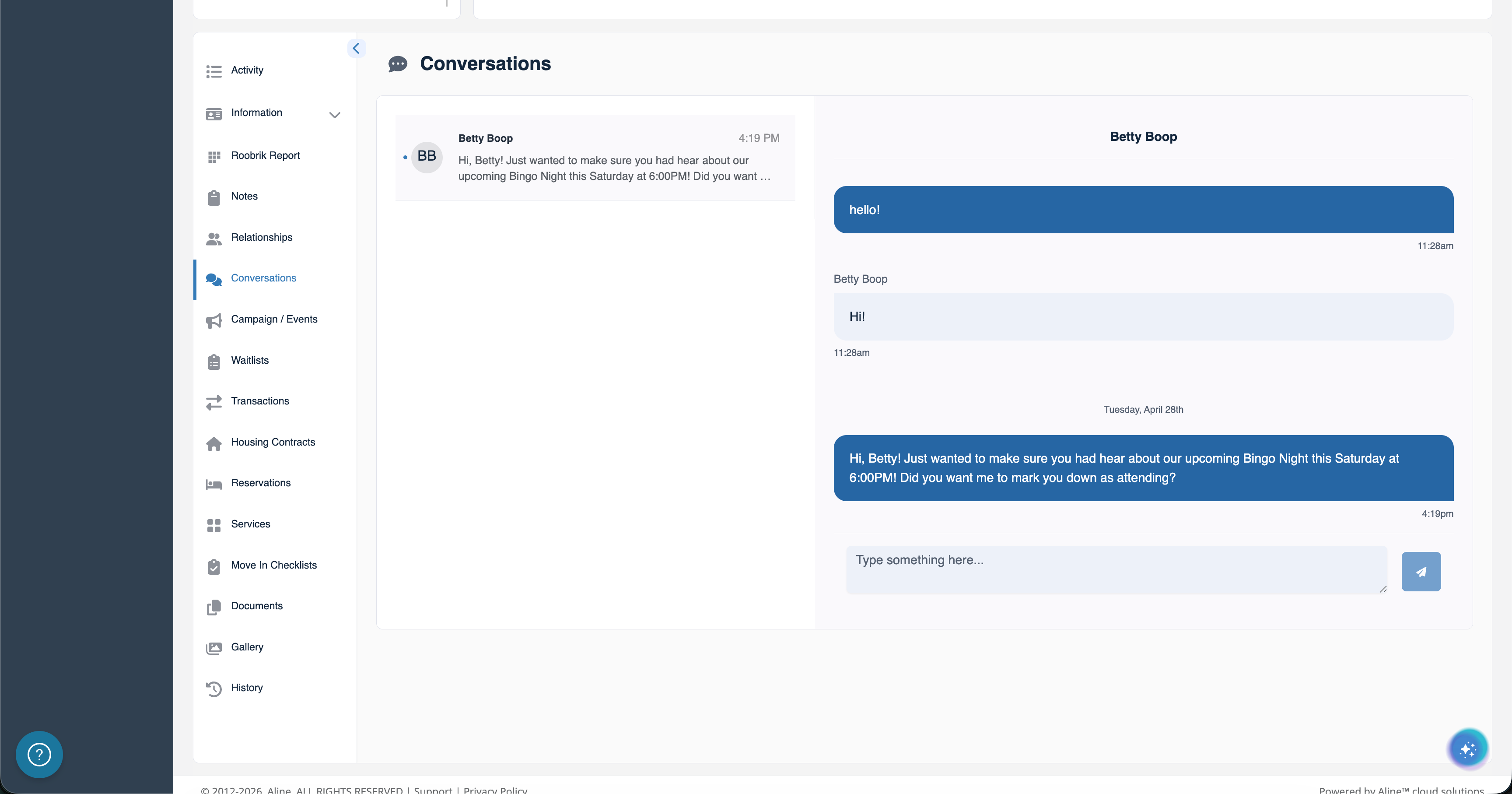
Please note: your organization must have the Aline CRM communications package enabled to utilize this feature. In addition, valid contact information must be on file in Aline CRM in order to text, call, and email.
Campaign / Events
Campaign / Events can be found at the bottom of the profile when Campaign / Events is selected from the lefthand panel. Campaigns, along with their relevant data, associated with the individuals on the prospect profile can be viewed and managed from this location. Data presented includes:
- Event Name
- Event Status
- Community
- Response
- Market Source
- Inquiry
- and First Event Status
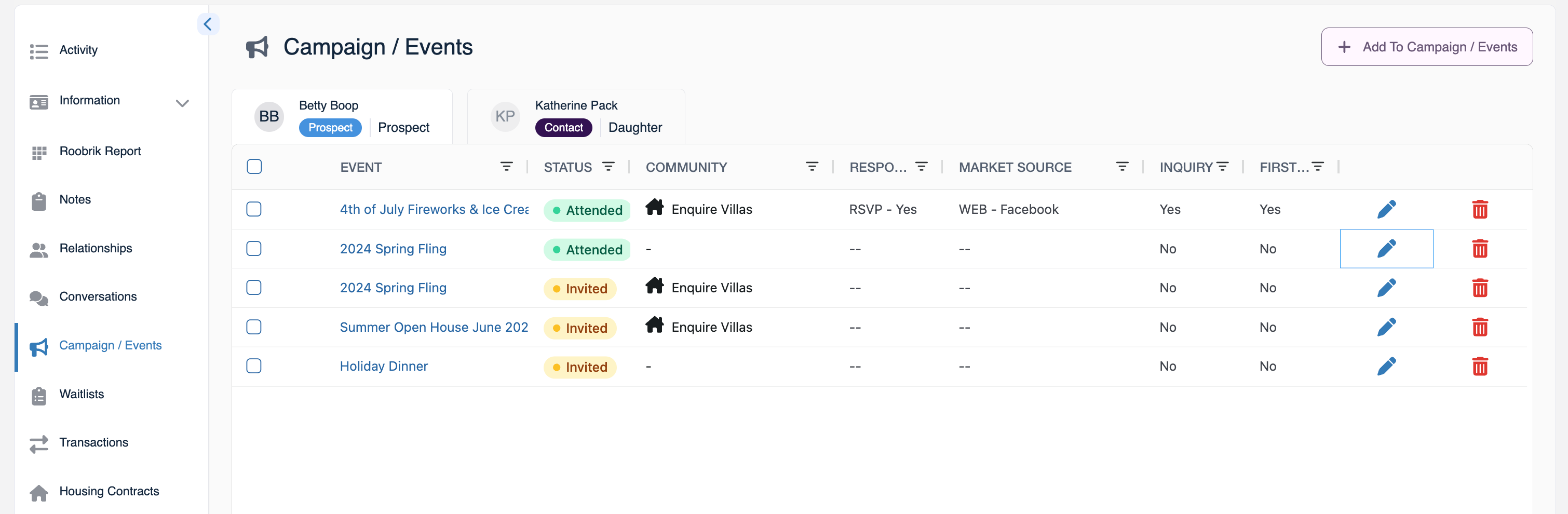
Users can edit an individual's event involvement via the edit icon and delete the event from the individual by selecting the red trash can icon. To assign new campaigns or events, users can select + Add To Campaign / Event and then fill in the necessary details.
Note that events and campaigns can be managed for all individuals via the main Campaign / Events page.
Waitlists
Waitlists can be found at the bottom of the profile when Waitlists is selected from the lefthand panel. When at full occupancy, prospects may need to be added to a waitlist. Multiple waitlists can be added, such as in the example photo, if the prospect would like to provide multiple choices at differing priorities.
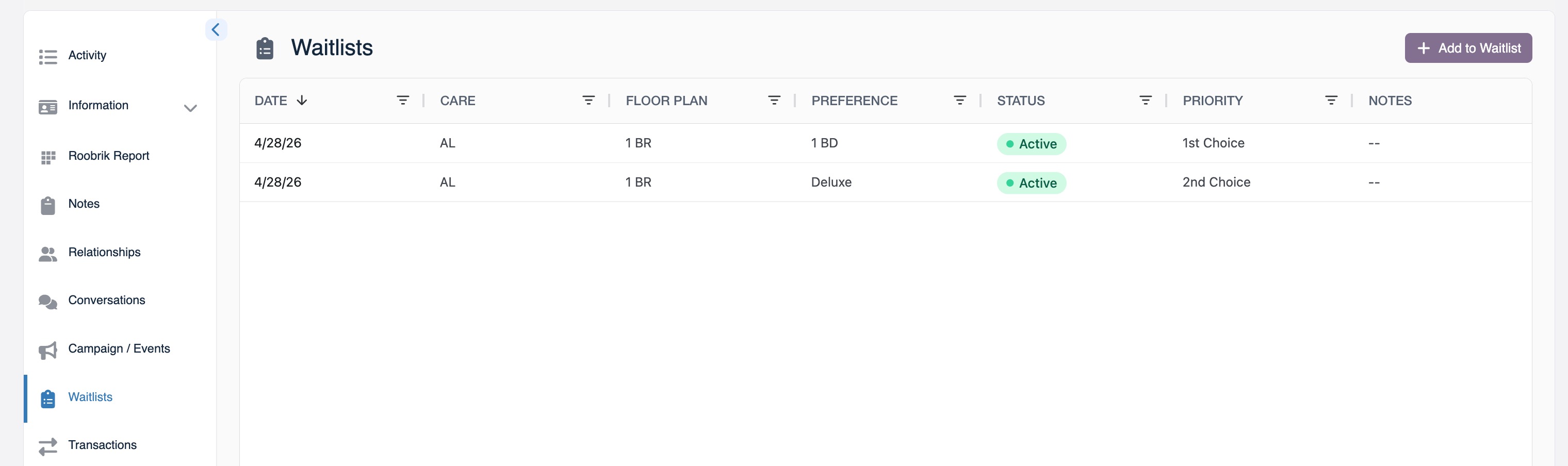
Data displaying on the Waitlists page includes:
- Date entered
- Care Type
- Floor Plan
- Preference
- Status
- Priority
- and Notes
Existing Waitlists can be edited with the edit icon and can be deleted with the red trash can icon. New Waitlist items can be added to the prospect's profile by selecting + Add To Waitlist and then providing the necessary details.
Transactions
Transactions can be found at the bottom of the profile when Transactions is selected from the lefthand panel. While only for documentation purposes, Transactions can also be used to move prospects through the Sales Stage. Various transaction items can be entered such as deposits, application fees, concessions, waitlist fees, etc.
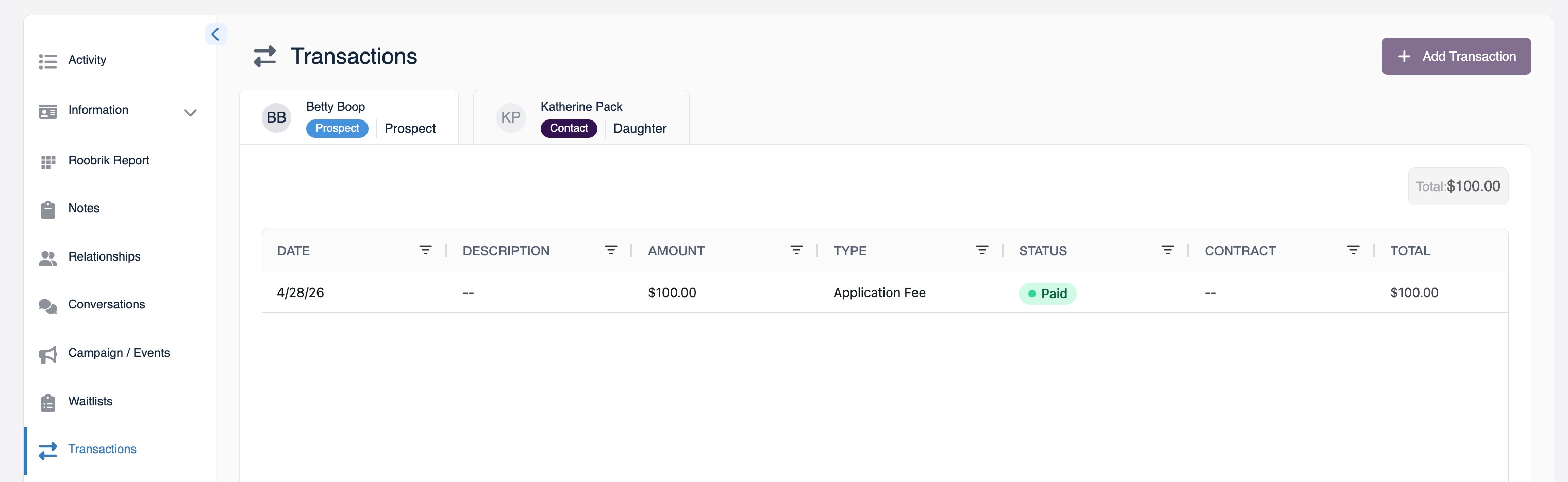
To add a new transaction for an individual, users can select the + Add Transaction button and enter in the date, amount, transaction type, status of the transaction, housing contract associated with the transaction, and an optional note before selecting the Add button.
Transaction totals can be viewed in the upper right side of the Transactions panel. 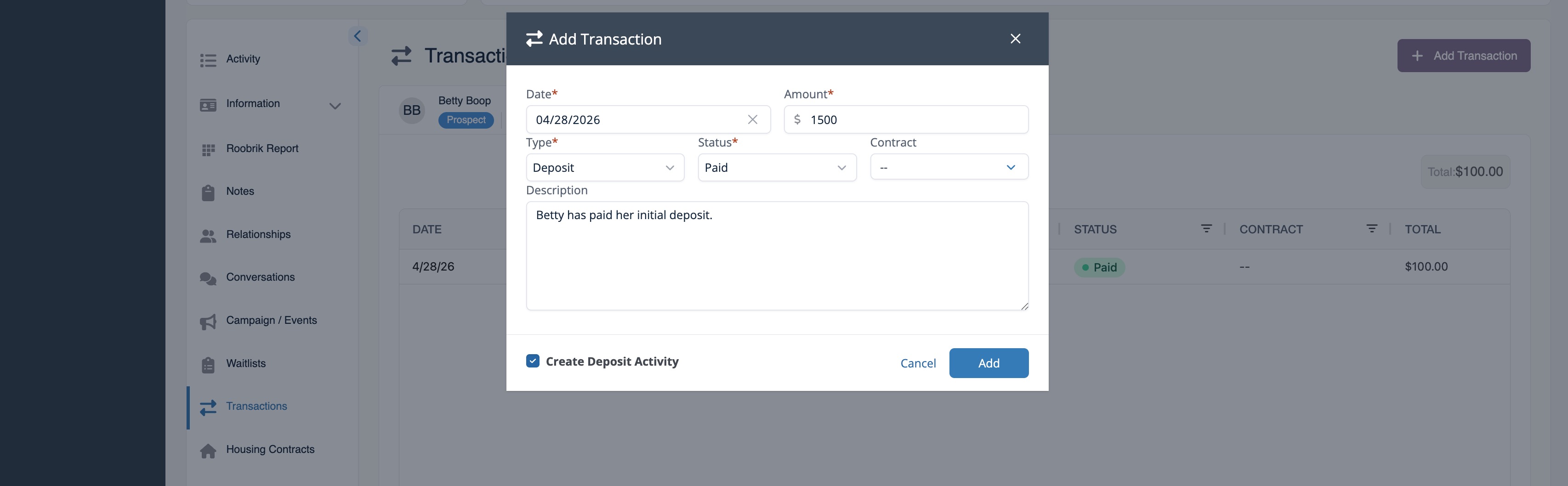
Please Note: your organization likely has a standard operating procedure for accepting and charging for the various transaction types. Ensure, those policies and procedures are followed even when transactions have been added into Aline CRM.
Reservations
Reservations can be found at the bottom of the profile when Reservations is selected from the lefthand panel. While some organizations may utilize Housing Contracts, some Reservations, and some both Housing Contracts and Reservations combined, we'll cover reservations as they pertain to the Aline Leasing & Billing integration in this article.
Please refer to your specific process via the knowledge base for more information about Housing Contracts and general Reservations.
Completed reservations will display along with its various details like community, desired date of move in, deposit amount, payment method, payor type, and unit. Generally, when Aline Leasing & Billing is integrated, crafting a reservation for the prospect will export the prospect's profile into Leasing & Billing wherein the Business Office can conduct a Move In.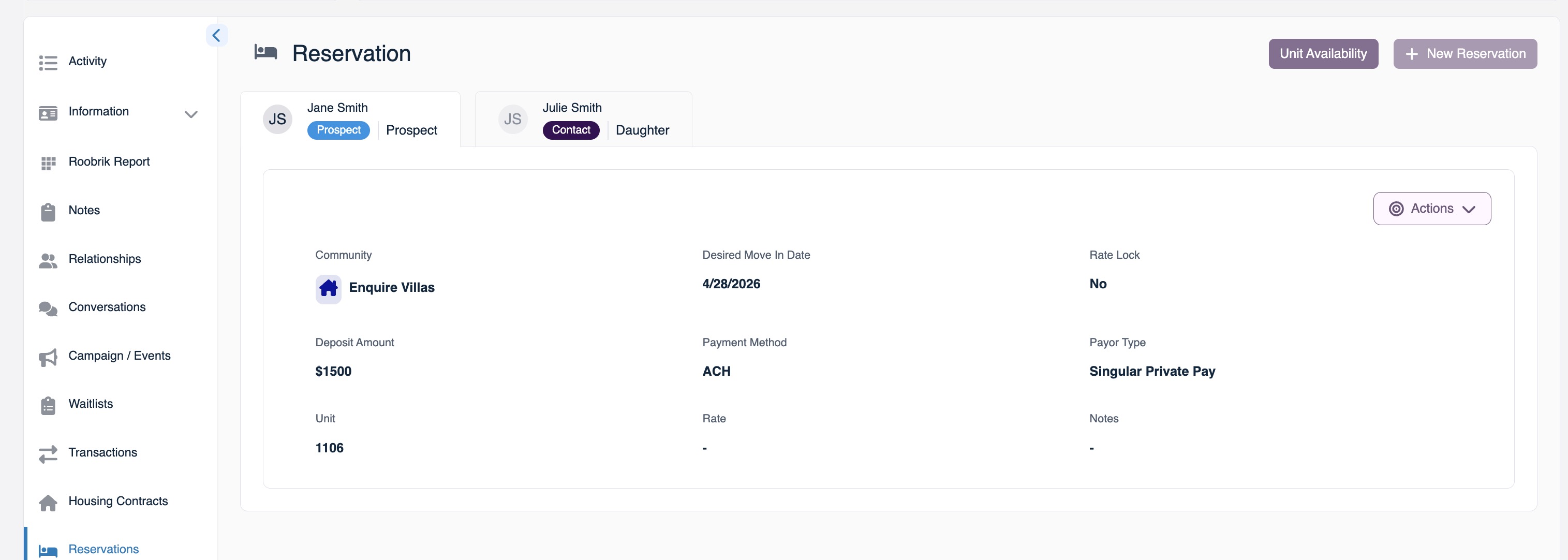
To create a new Reservation, users can select + New Reservation and fill in all of the required fields. Required fields are denotes with a red asterisk. Optional fields, generally, will not transmit over to the Leasing & Billing app but will be saved for documentation purposes. 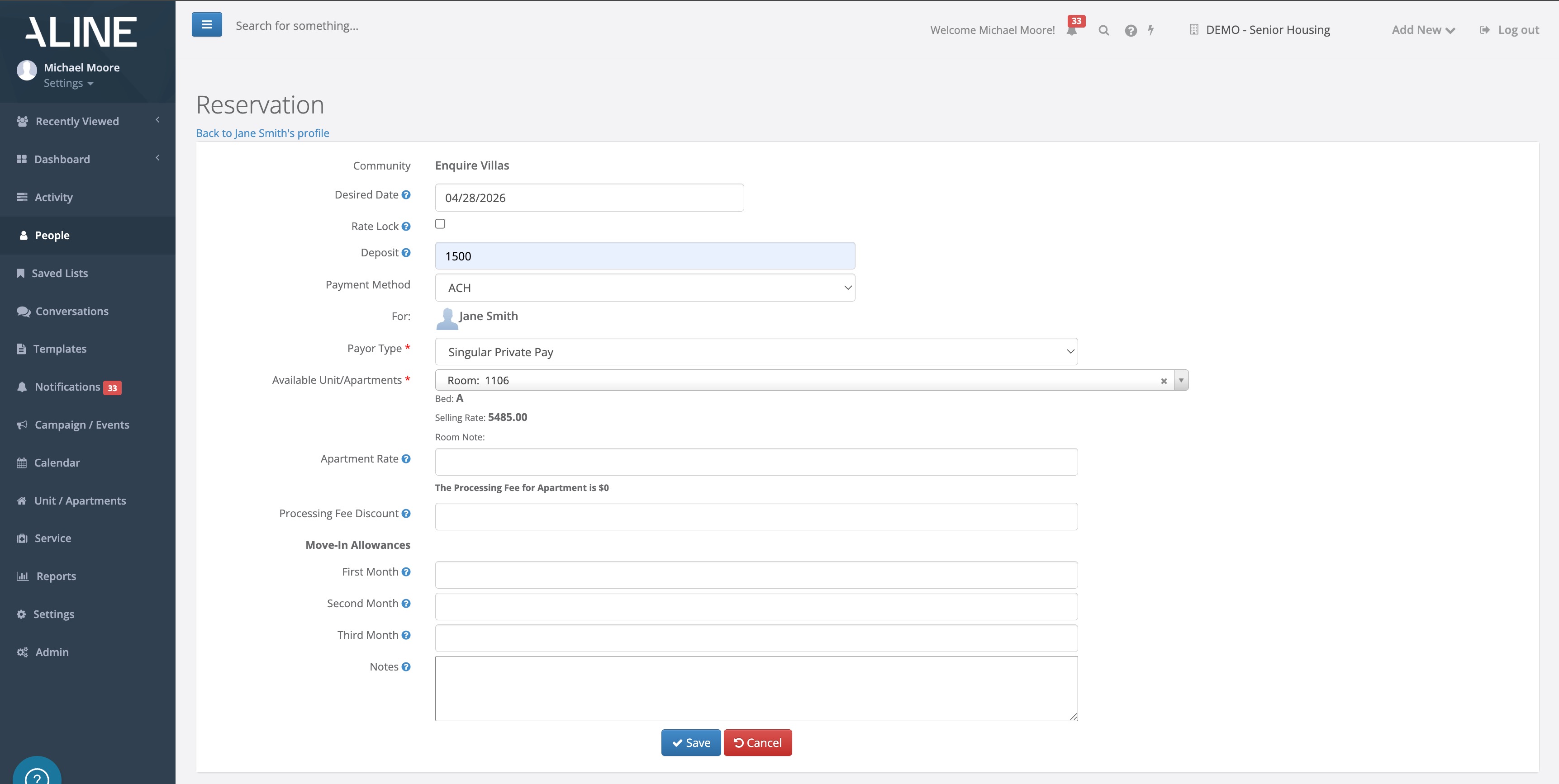
Existing reservations can be edited or deleted altogether until the Business Office has processed the Move In within Aline Leasing & Billing. For created reservations that fall through, keep in mind that the only place to cancel the reservation and remove it from the Leasing & Billing application is in the CRM via the Reservation panel.
Finally, selecting Unit Avilability will display all available units that ay be reserved. 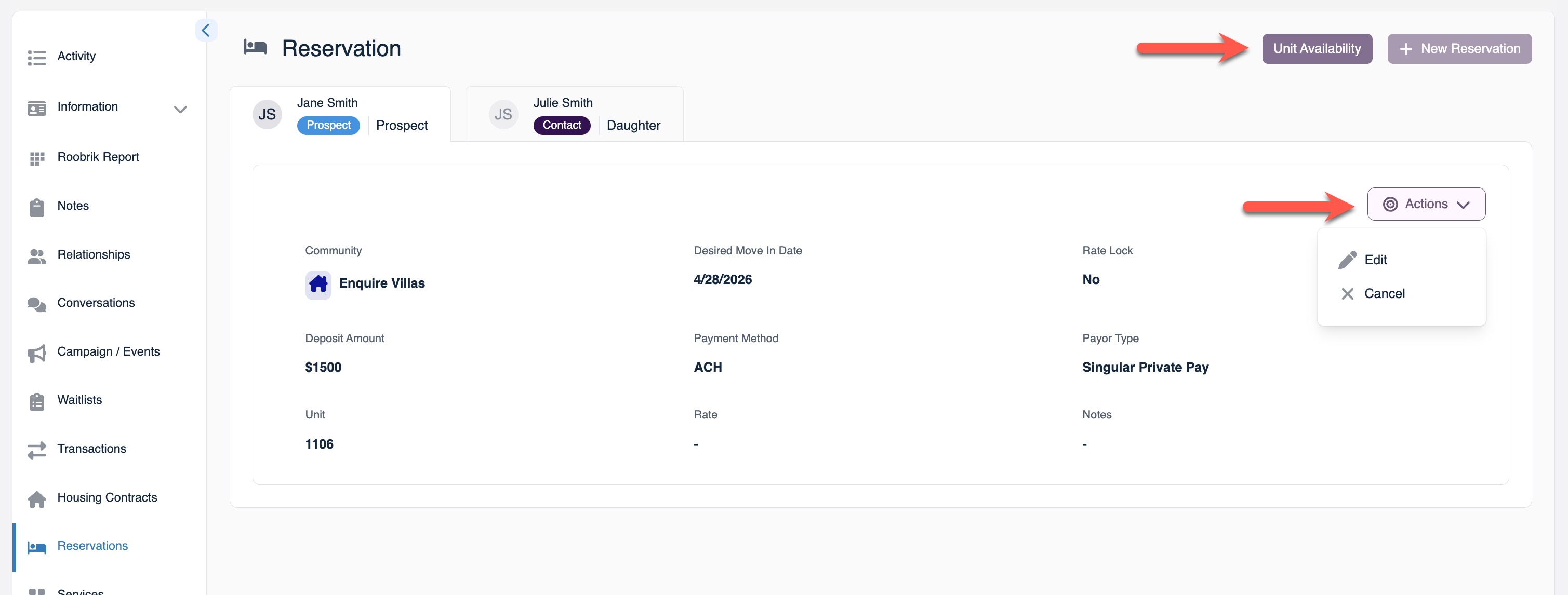
Was this article helpful?
That’s Great!
Thank you for your feedback
Sorry! We couldn't be helpful
Thank you for your feedback
Feedback sent
We appreciate your effort and will try to fix the article