Overview
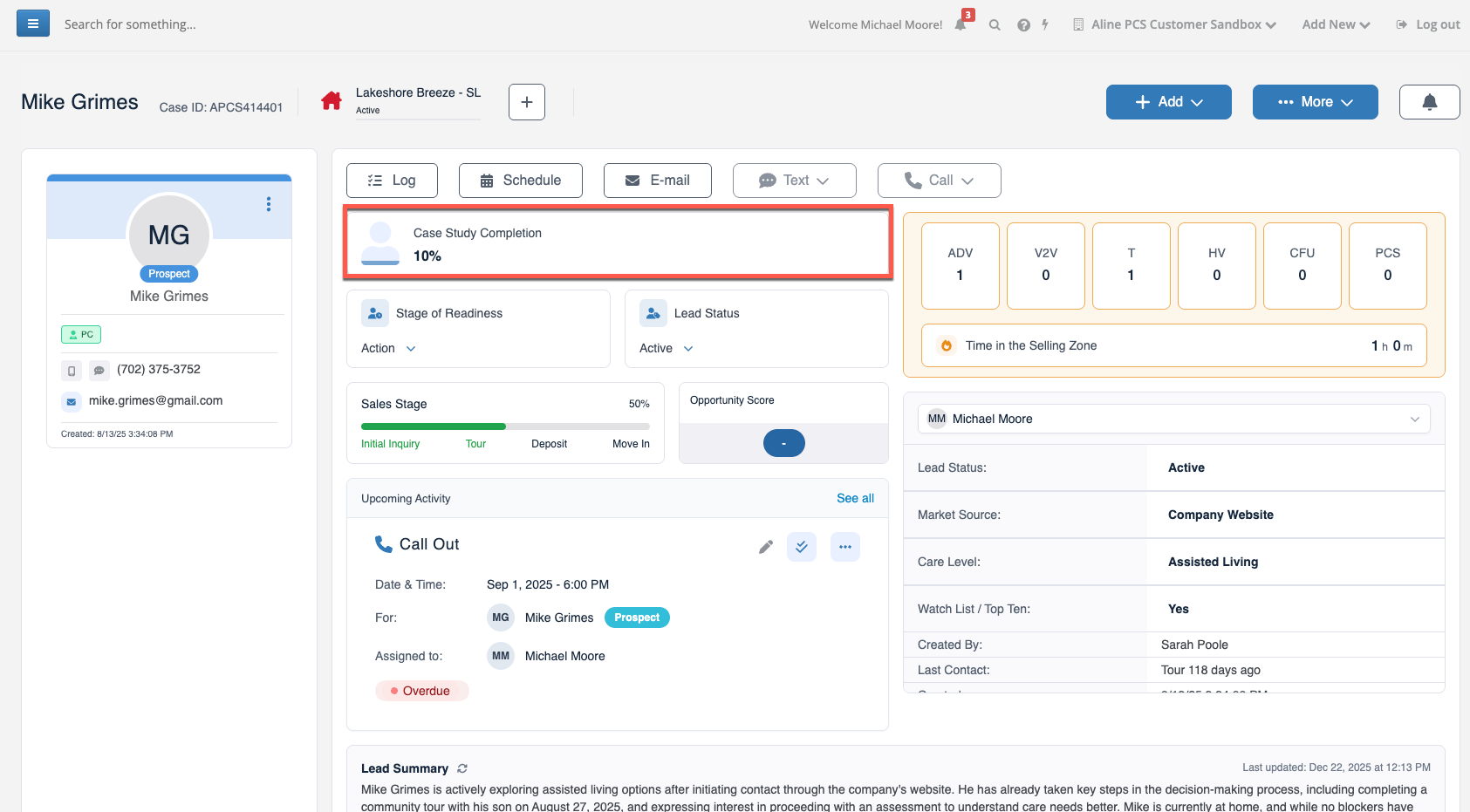
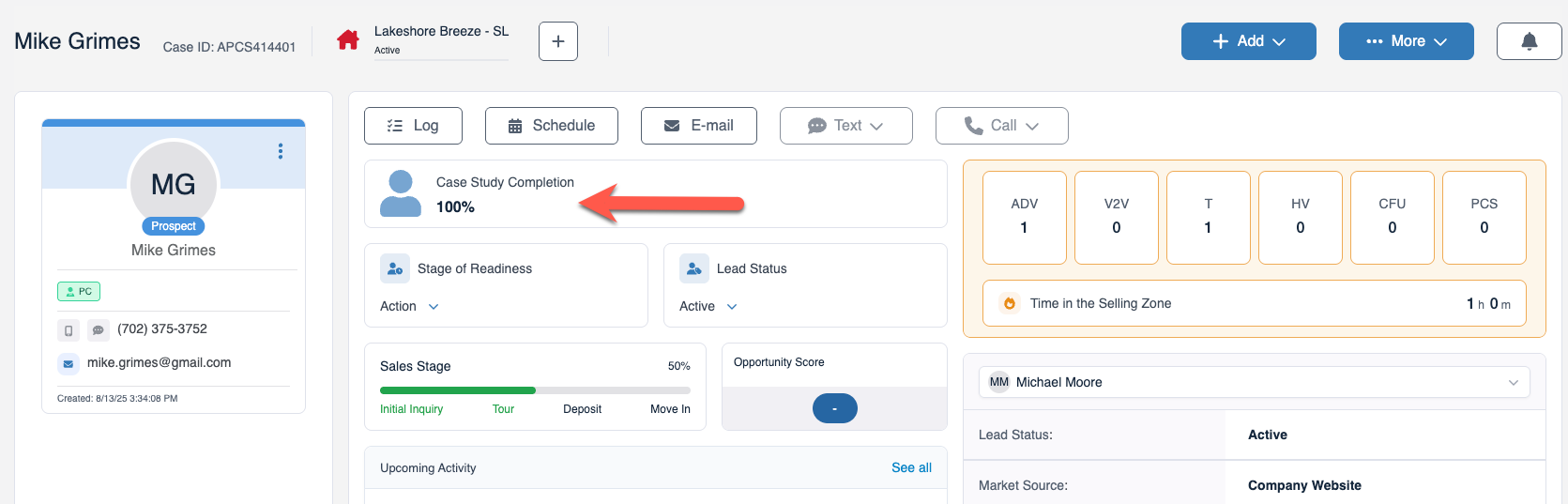
Aline CRM with PCS users will be able to take advantage of the Case Study Completion Avatar present on all prospect profiles in order to monitor how much information about the potential resident they have been able to collect thus far in the process.
To learn more, dive into the details below to see what, and how, case study fields are completed!
Using the Case Study Completion Avatar
Step 1: Access a prospect's profile. You'll find the Case Study Completion Avatar towards the top of the profile, with the avatar itself shaded at a certain percentage acting as a representation of how complete the case study information currently is.
Note, in the screenshot below, the case study is currently 10% complete.
Step 2: Ideally, you'll want as much case study information as is possible.
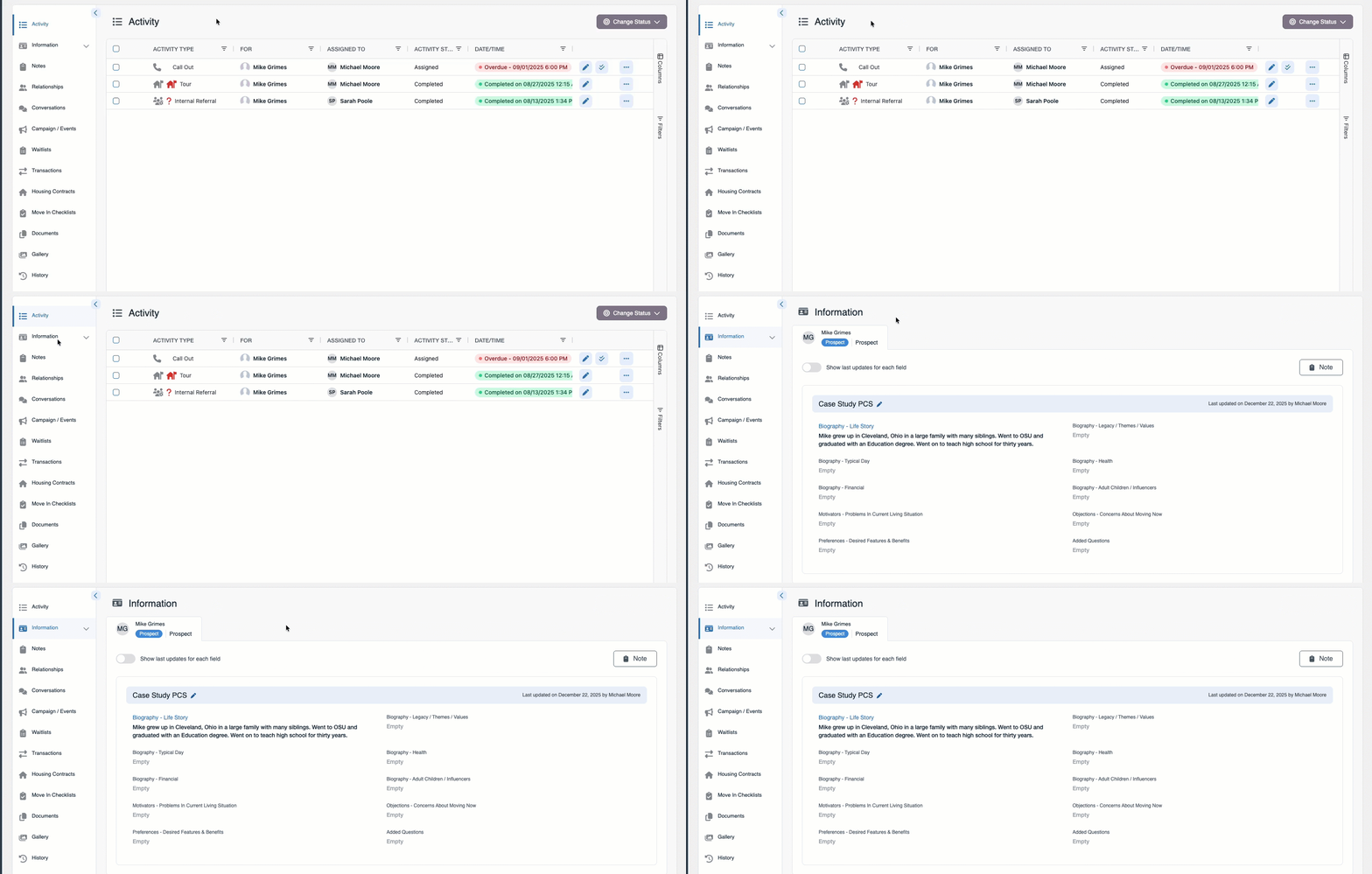
To access the Case Study quickly, click on the Case Study Avatar, as this will anchor you down to the bottom half of the profile and expose the fields. Some companies may choose to have the Case Study be the default page whenever the profile initially loads. Additionally, you can always scroll down on the prospect's profile until you're on the bottom half, where you'll see a panel of items on the lefthand side of the page. Select the Information tab to view the various case study fields.
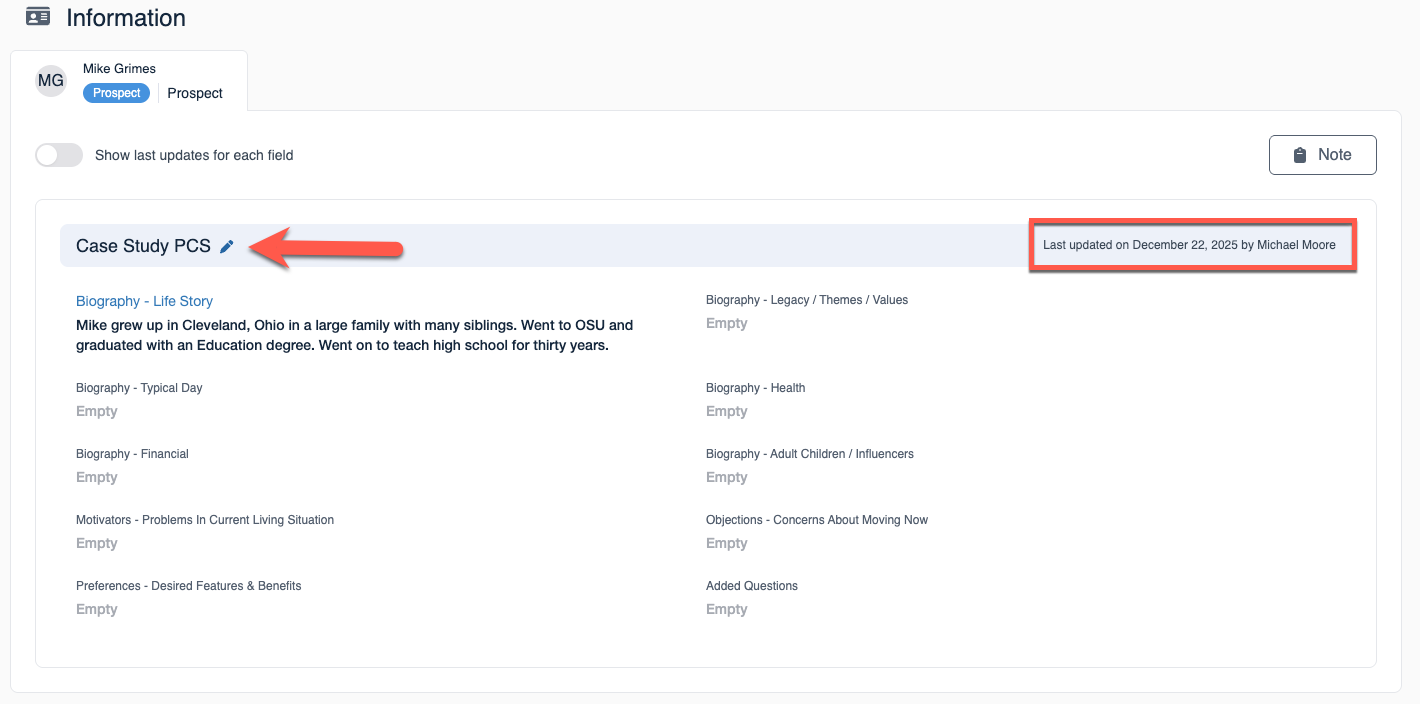
Step 3: You can easily see when the case study fields were last edited and by which user by reviewing the information on the top right of the form.
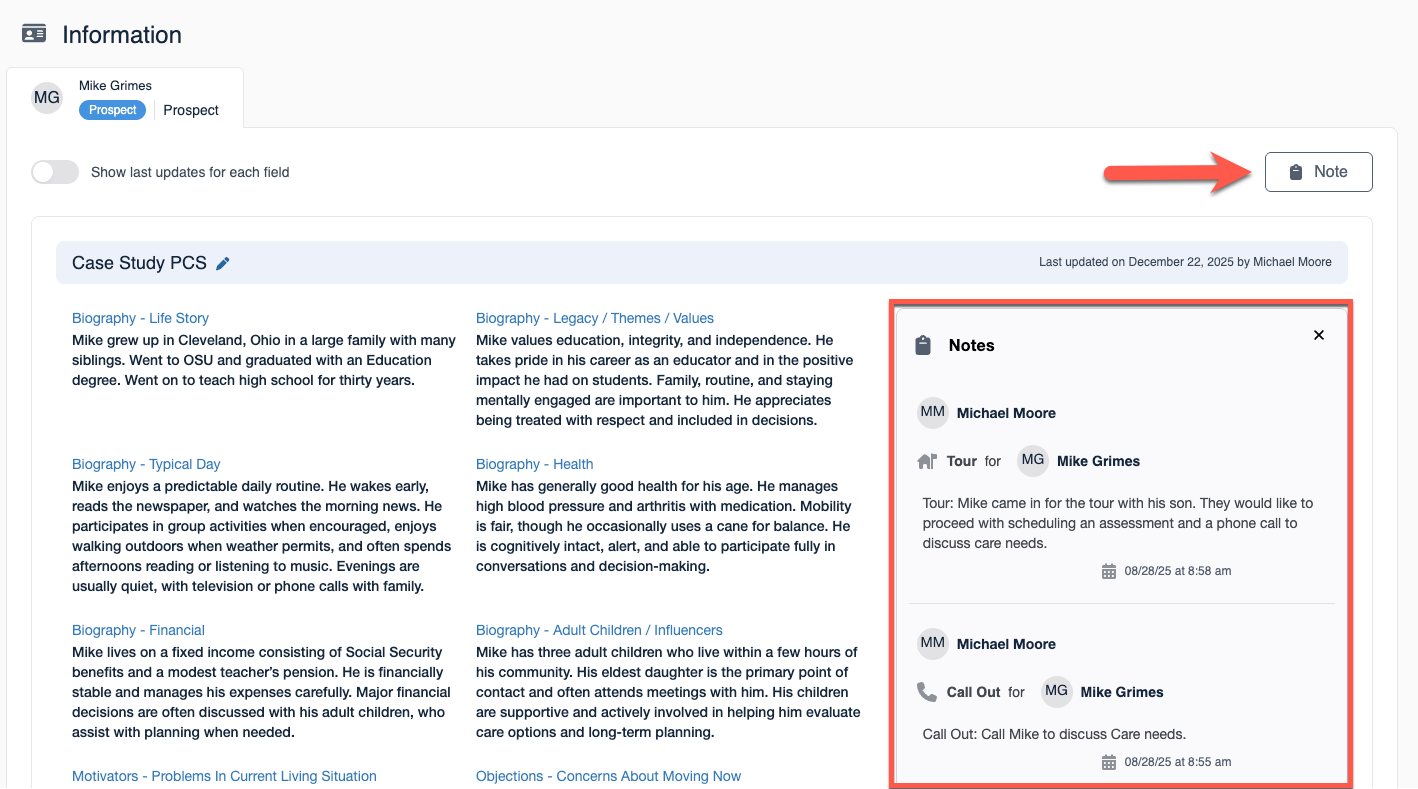
In addition, see the Note button? If you need to reference previous notes or previous Sales Activity entries, you can simply select the Note button to open your notes directly next to your case study fields making copying and pasting previously added information a breeze!
To edit the case study fields, select the blue pencil icon to open the form.
Step 4: Once the form is open, you can enter in any desired information. Select save once all desired fields have been filled in.
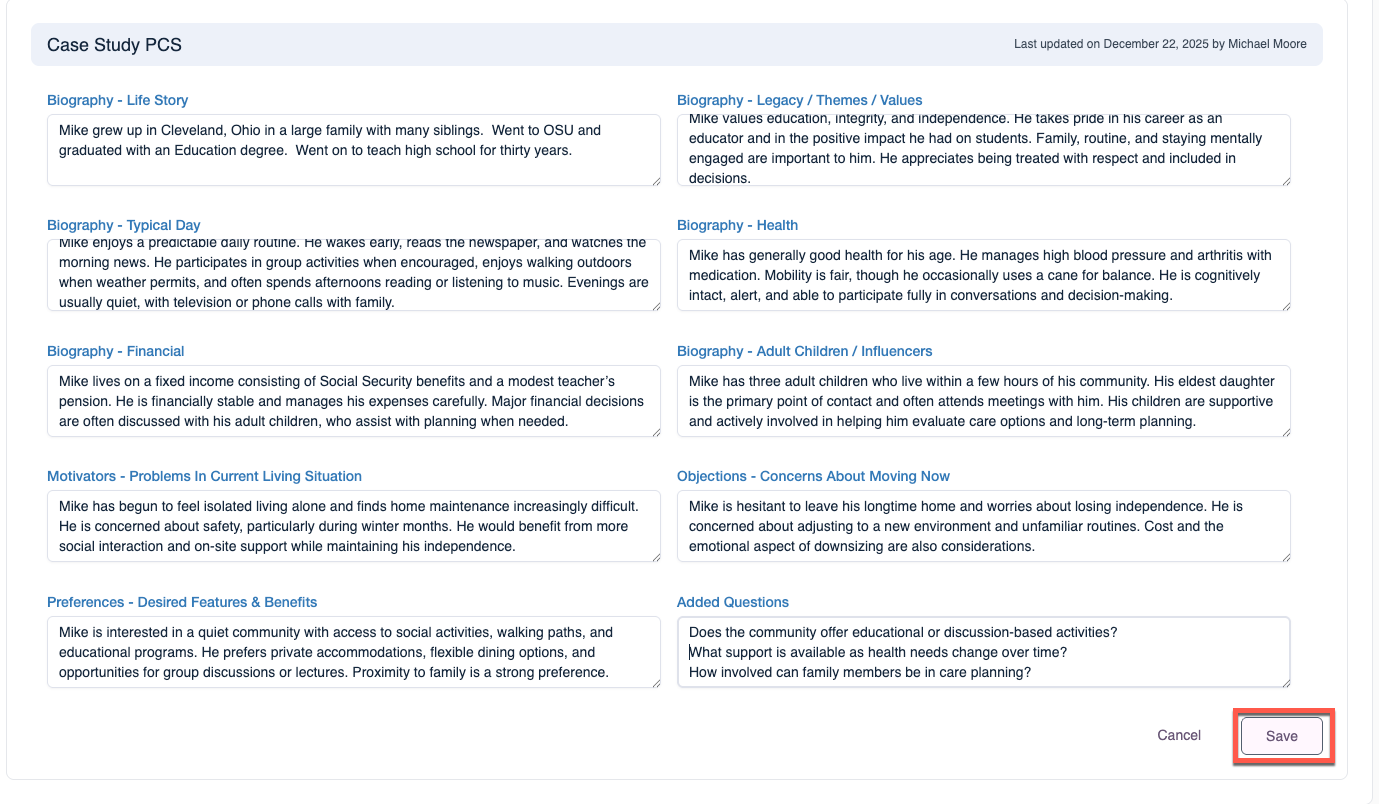
After saving, the data displaying in the Last Updated field will update along with the percent complete shading on the Case Study Completion Avatar at the top of the profile.
Was this article helpful?
That’s Great!
Thank you for your feedback
Sorry! We couldn't be helpful
Thank you for your feedback
Feedback sent
We appreciate your effort and will try to fix the article