Overview
Viewing upcoming activities and scheduling new activities on the prospect's profile are made simple with Aline CRM. In this article, we'll take a look at how to view a prospect's upcoming activities along with scheduling new activities to ensure the conversations stay ongoing.
Viewing Upcoming Activities
When on a prospect's profile, there's more than one place to peek at a resident's upcoming activities. Let's take a look at where we can view these upcoming activities and their associated details.
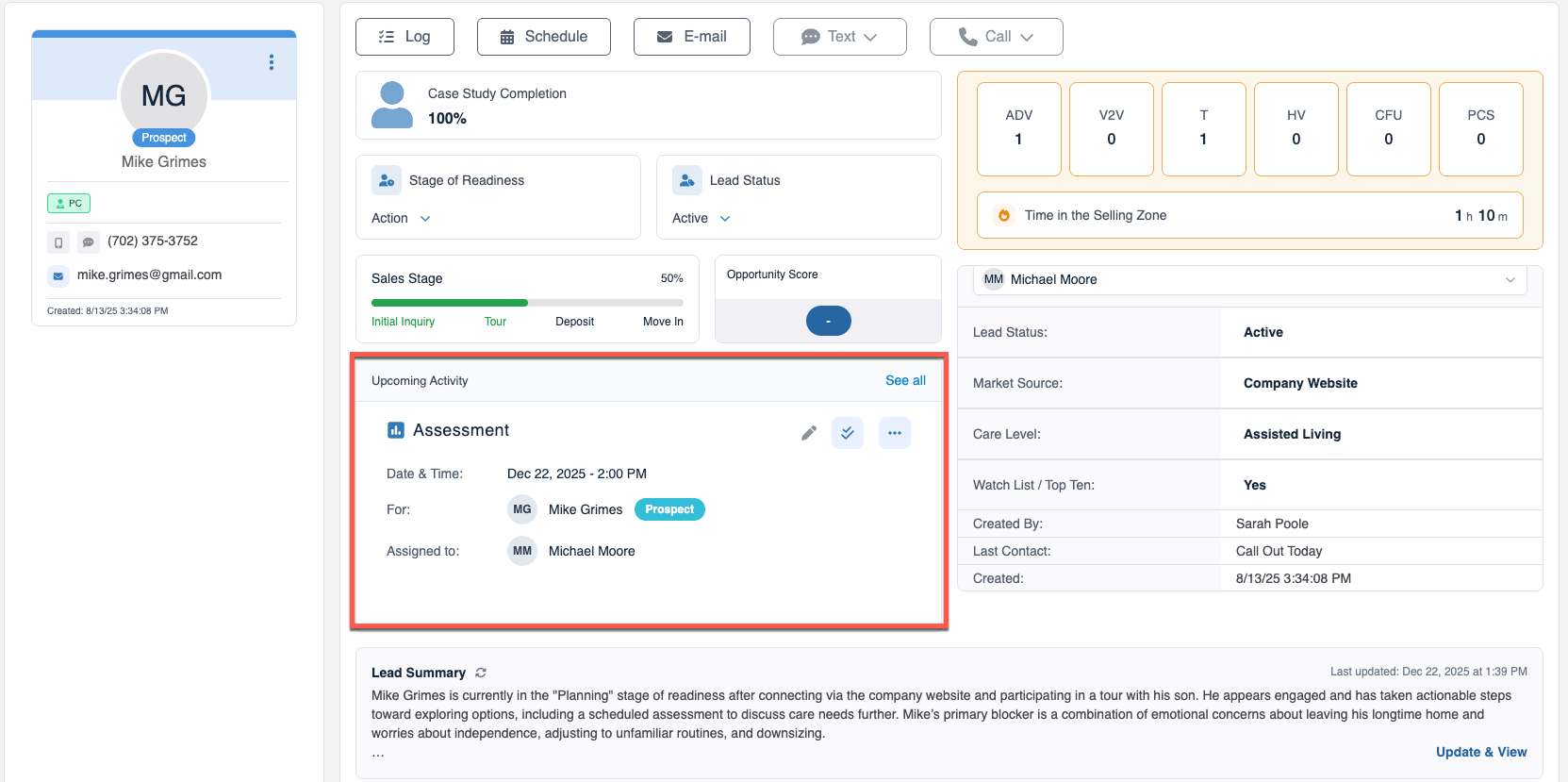
Step 1: Select the desired prospect's profile. Prospect's with activities scheduled will display the activity that is due the soonest directly in the center of the profile.
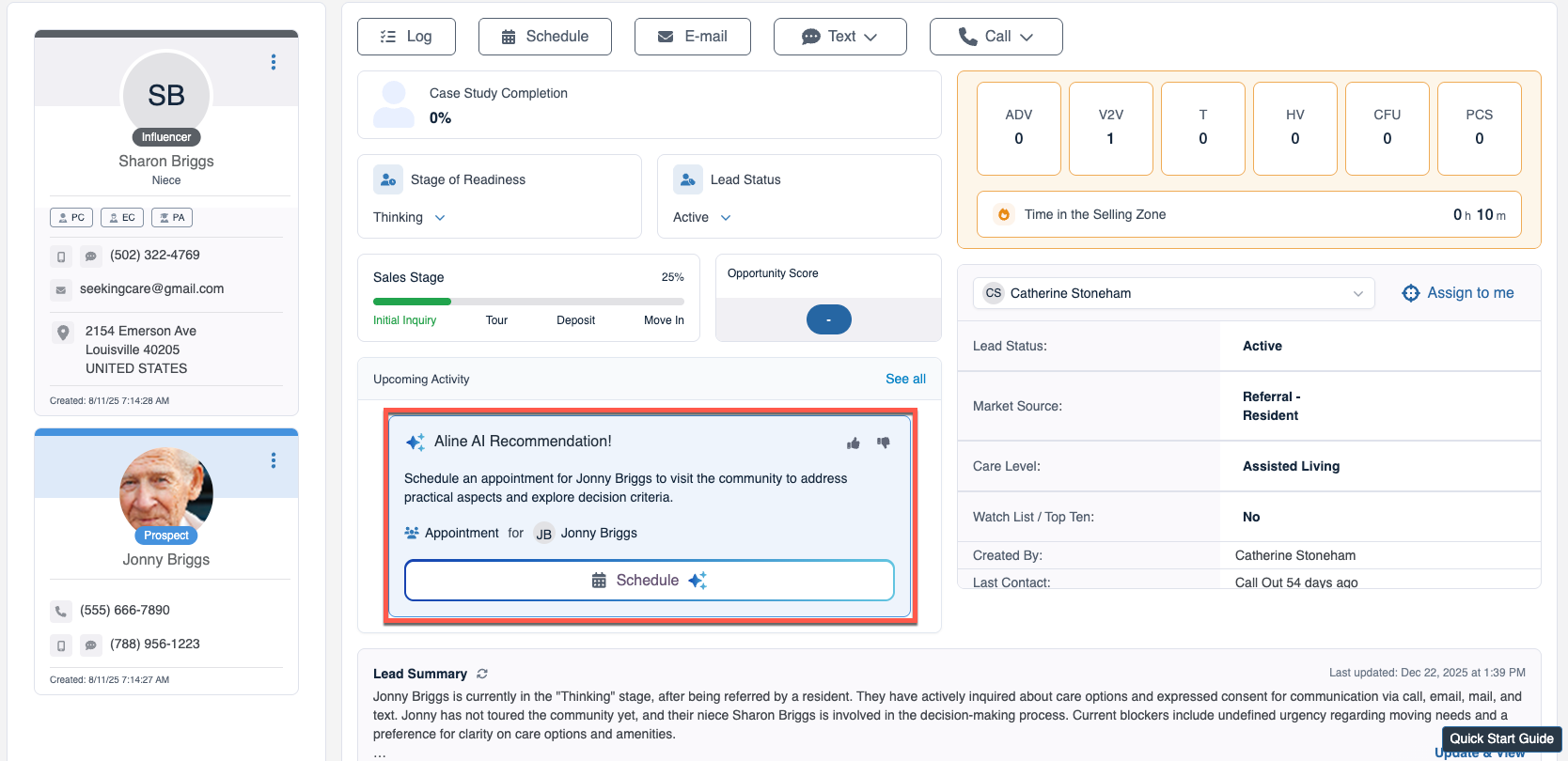
When prospect's have no upcoming activities scheduled, Aline AI Recommendations will suggest an activity based on the prospect profile's data and position within the Sales Stage. You'll be able to jump right into scheduling the suggested activity by selecting the Schedule button.
You'll also be able to supply Aline AI with feedback via the Thumbs Up or Thumbs Down buttons.
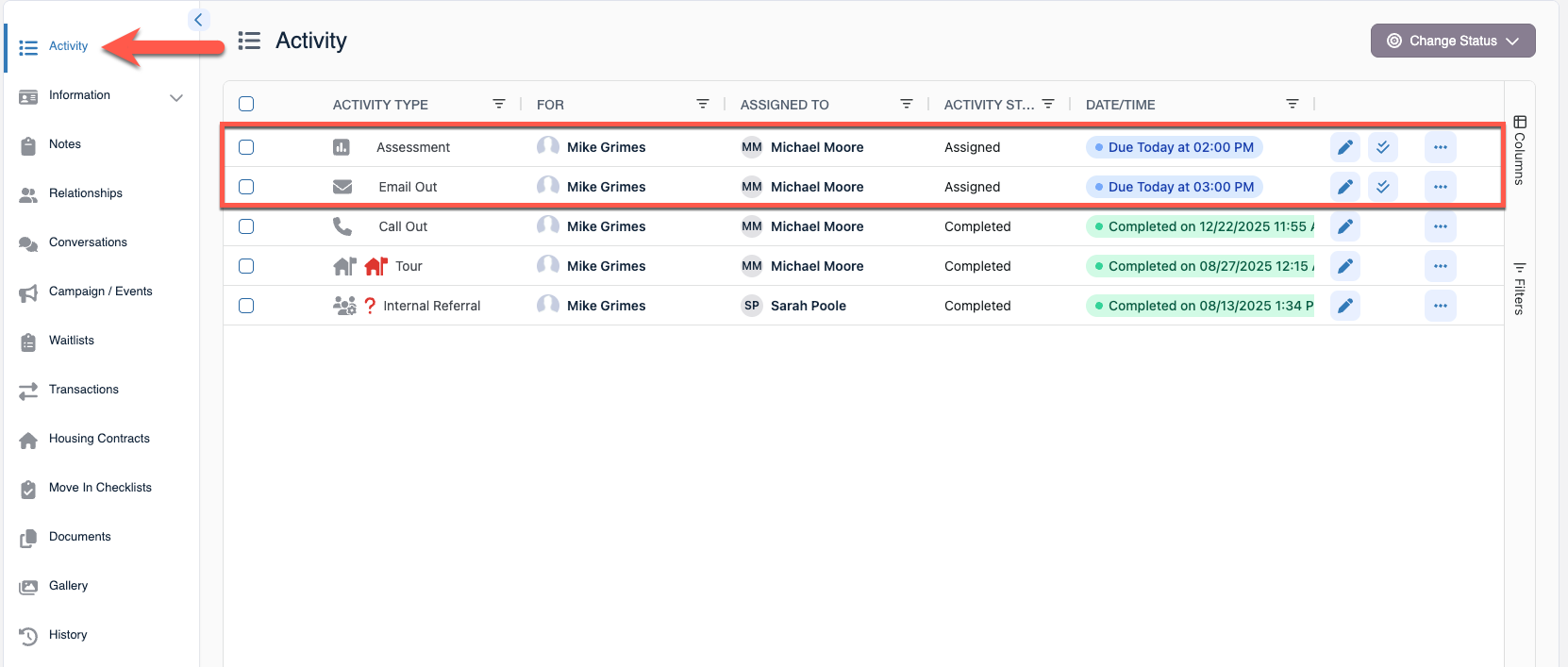
Of course, you'll also be able to view all of a prospect's upcoming activities by scrolling down and selecting the Activities tab on the lefthand panel. Activities viewed on the activities panel can be filtered in a wide variety of ways.
Scheduling New Activities
Prospect's without any upcoming activities will have Aline AI recommend suggested activities. You'll be able to schedule an activity directly from there by selecting Schedule. Alternatively, you can select the Schedule button at the top of the profile to schedule a new activity from scratch.
Let's take a look at the steps required to schedule a new activity from scratch:
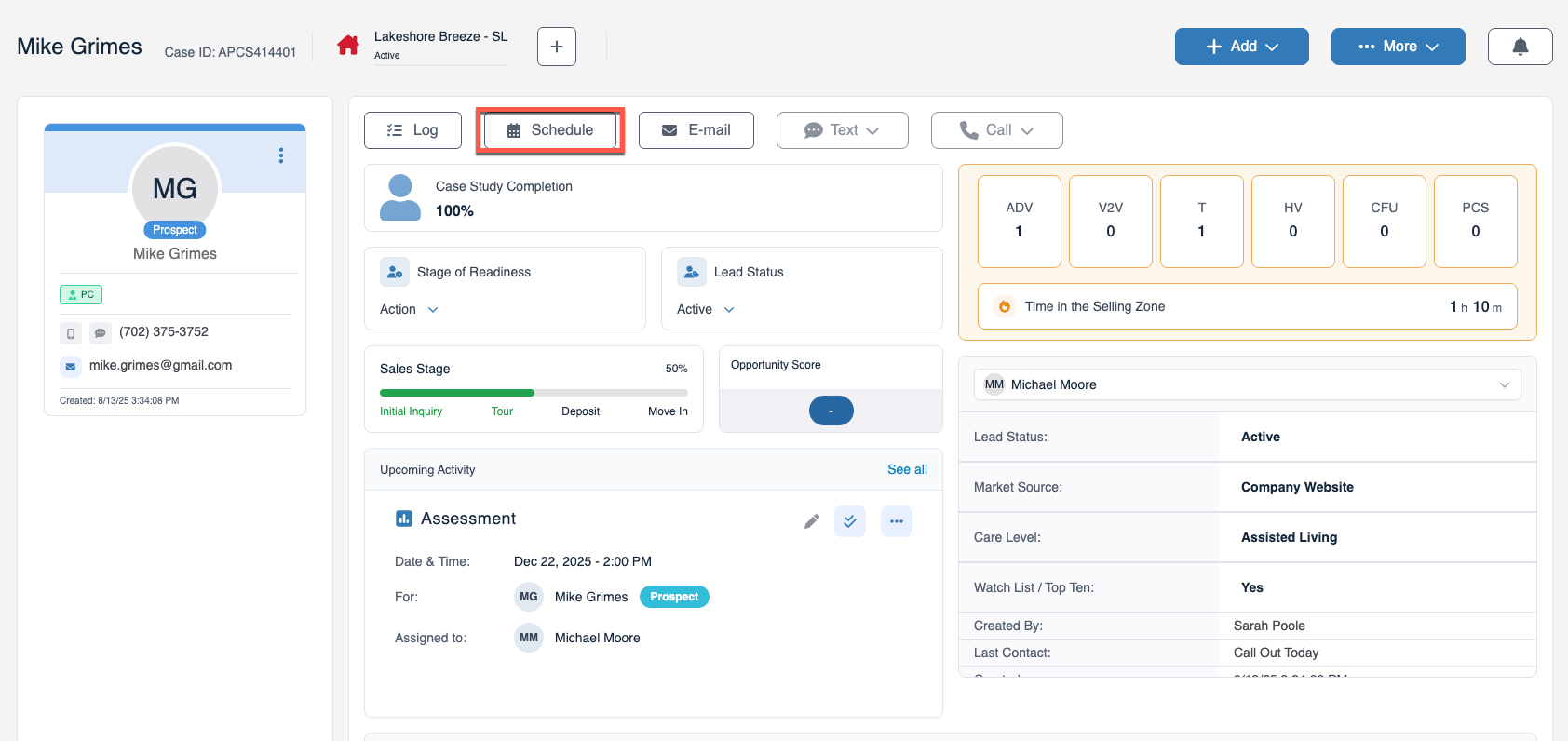
Step 1: After selecting the desired prospect's profile, you'll find the Schedule button at the top of the page. Select the schedule button to open the Schedule Activity form.
Step 2: The Schedule Activity form will display. Form fields will display on the left side while your sales calendar will display on the right. Previously completed activities will display on the calendar alongside scheduled upcoming activities in order for you to manage your time efficiently and effectively.
Fields denoted with a red asterisk * are required fields. All other fields are optional.
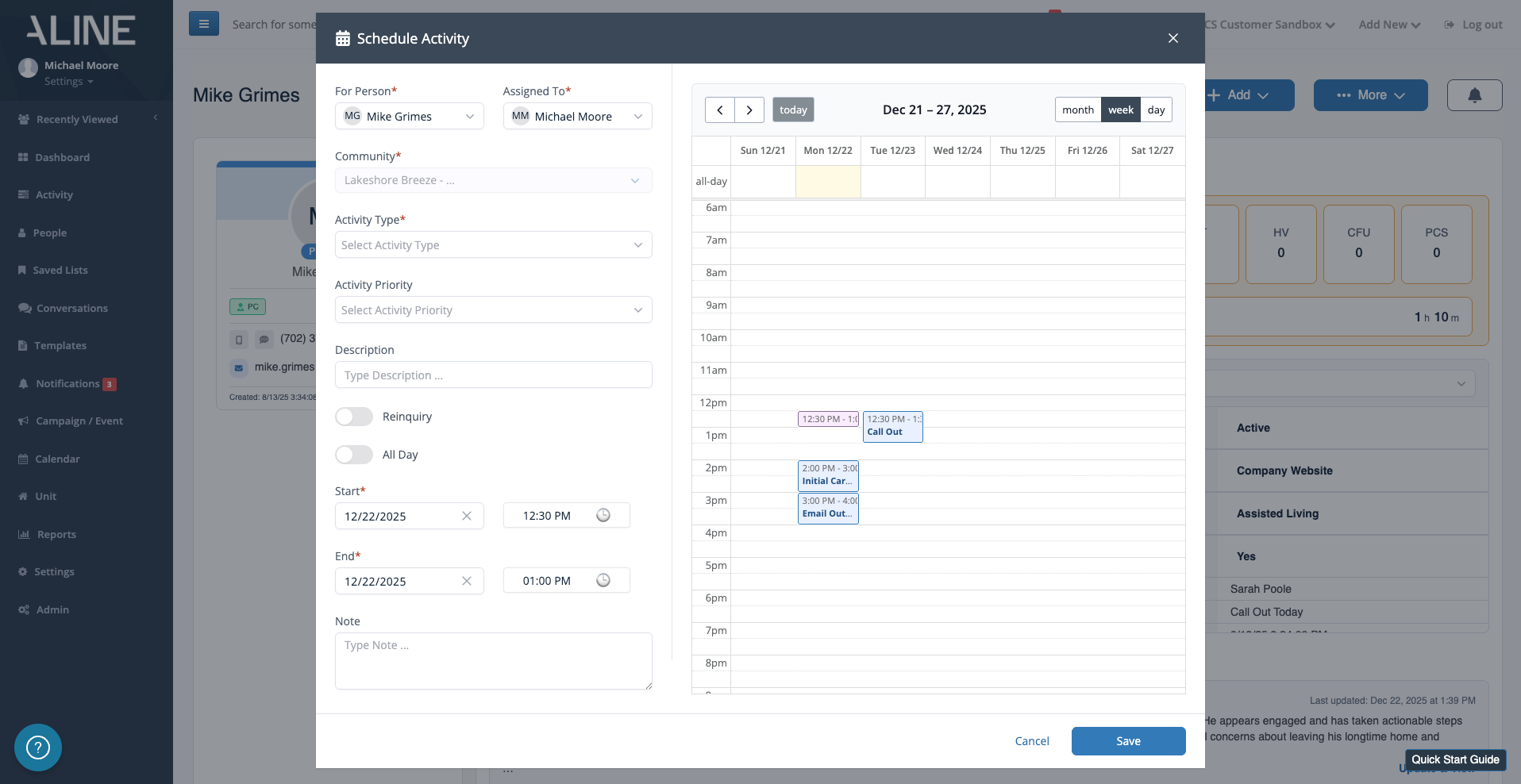
- Ensure the For Person field is set to the correct individual - be it the prospect, the referral source, etc.
- Ensure the Assigned To field is set to the correct community team member
- Select from the list of available Activity Types
- Select the Activity Priority (High, Medium, or Low) - though, these Activity Priorities may be customized specifically for your operation, and this is an optional field
- Type in the description of the activity - this is to help recall what you wanted to accomplish when it appears on your calendar (e.g., Call Out to follow up after her visit with her daughter, etc.)
- Denote whether the activity will take place over the course of the day (enabling the All Day selection will remove the specific Start and End time requirements).
- Enter the Start and End dates/times of the activity. You can also select free time slots from the calendar view on the right.
- Enter in an optional note if you'd like to save additional details about the activity
PRO TIP! The fastest way to schedule a next step is to click on the calendar date and time on the right. For example, if you know you want to schedule a Call Out for tomorrow as an All Day activity (without a specific time), then just click the rectangle on the calendar at the top of the day for tomorrow. Boom! One click and your activity date and time fields automatically are populated in the respective fields on the left.
Step 3: Once all required and optional fields are complete, select Save to save the scheduled activity. And, remember, you'll see the next due activity displaying front and center on the prospect's profile while all other scheduled activities can be found on the activities page.
To learn more about completing scheduling activities or logging previously completed activities, check out the article titles Completing & Logging Activities.
Was this article helpful?
That’s Great!
Thank you for your feedback
Sorry! We couldn't be helpful
Thank you for your feedback
Feedback sent
We appreciate your effort and will try to fix the article