Overview
Aline CRM makes it simple to complete previously scheduled activities or to log completed unscheduled activities right from the comfort of the prospect's profile. In this article, we'll detail the steps on how to do both!
Completing Previously Scheduled Activities
On the prospect's profile, you'll see the activity due next displayed front and center on the page. You can complete the activity right then and there, or you can complete activities from the Activities panel below.
Let's take a look at both methods!
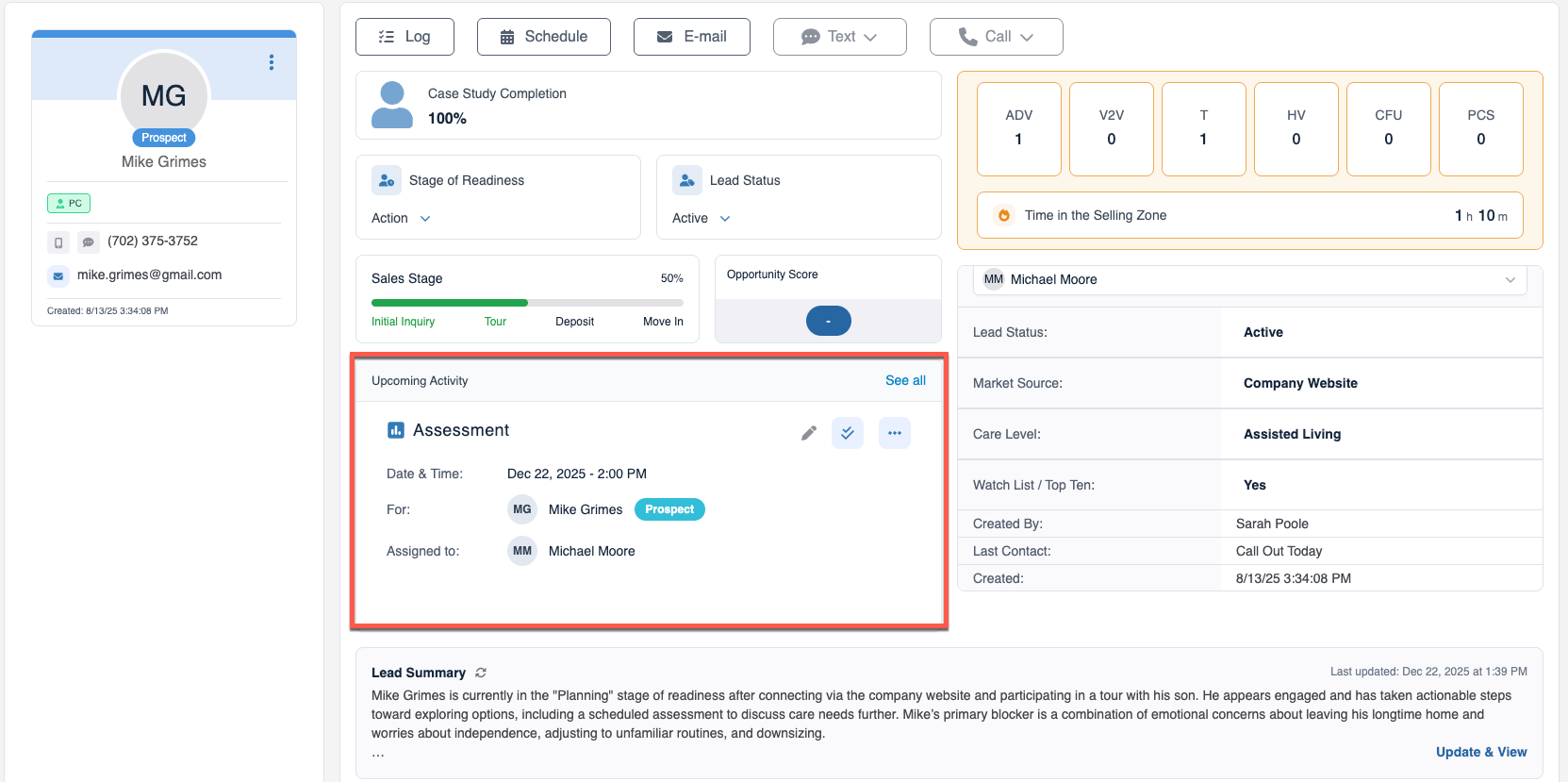
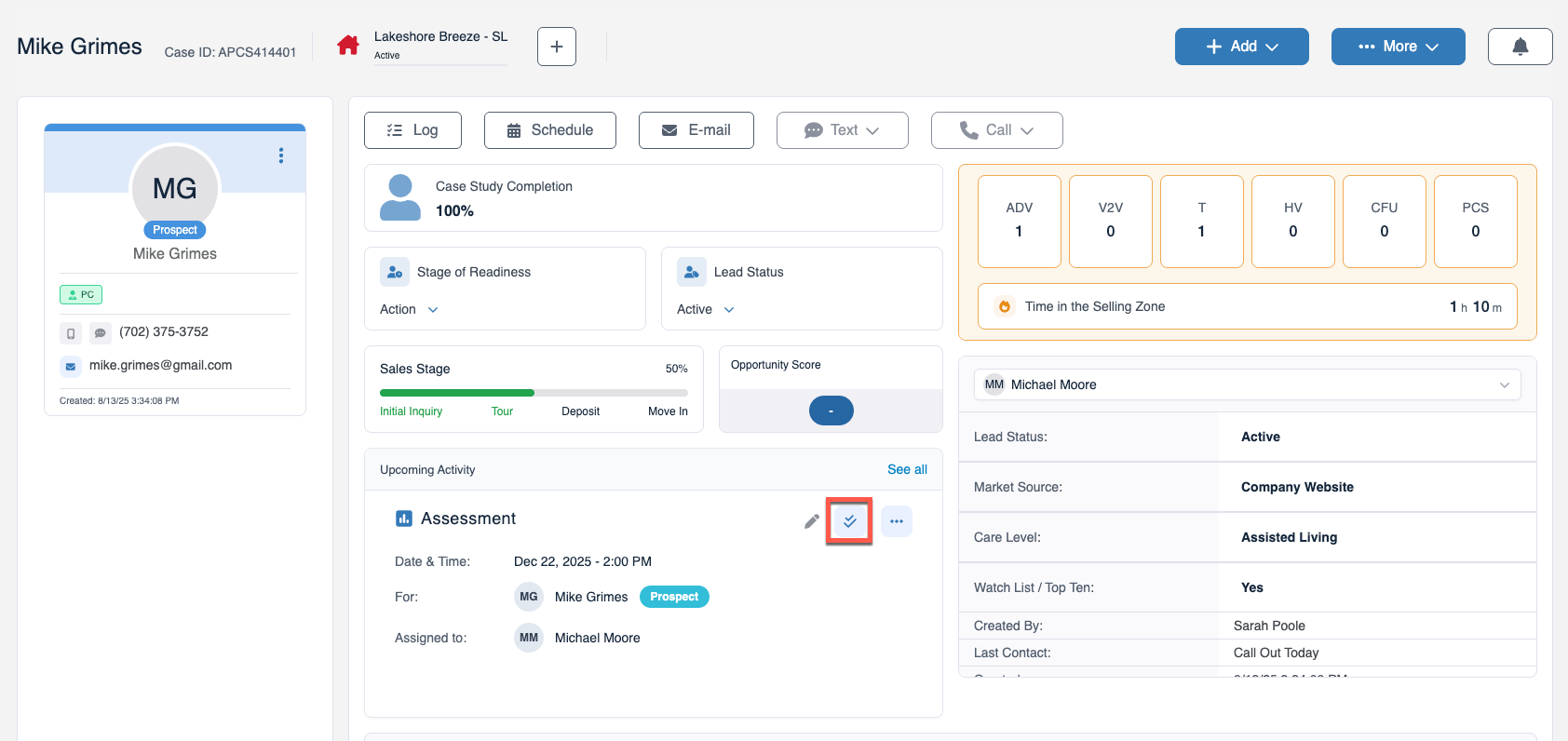
Step 1: To directly complete an activity displaying in the Upcoming Activity panel, you can select the Checkmark Icon to enter in the additional details.
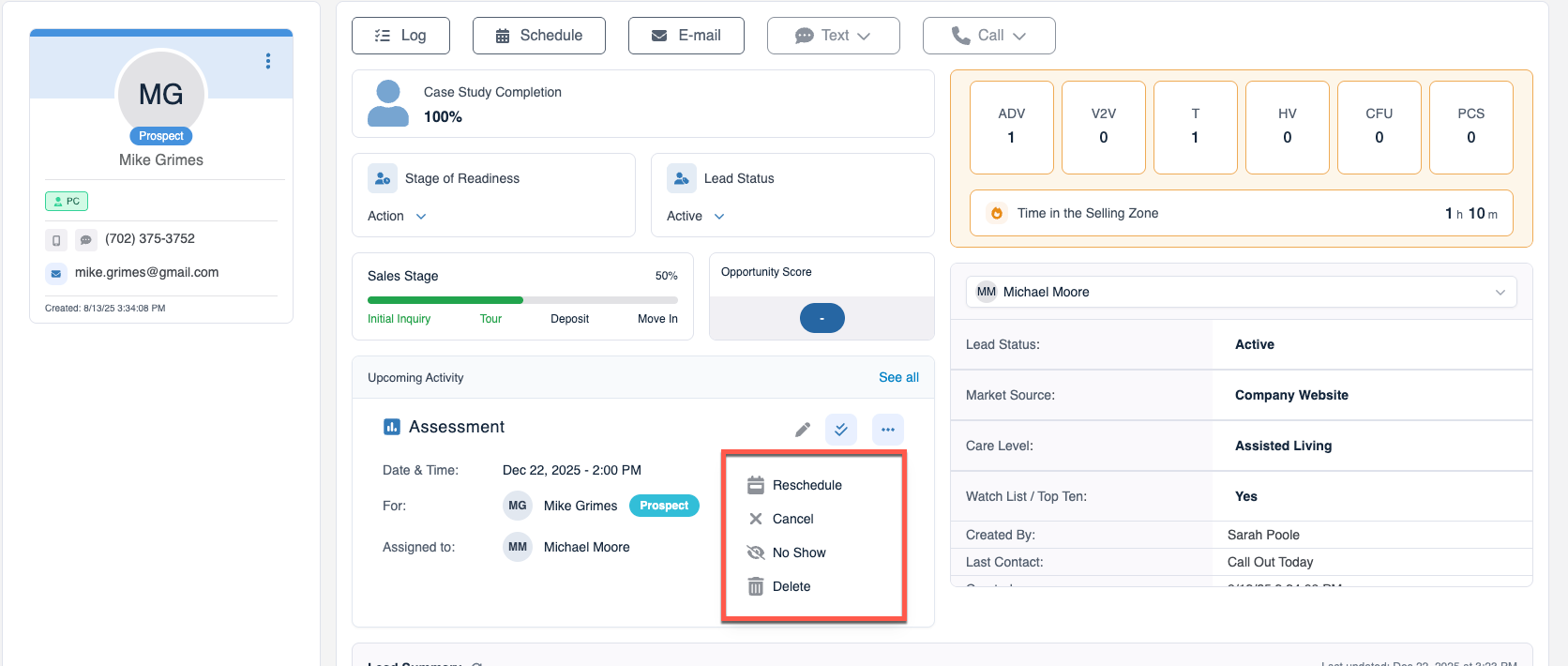
Note, you can also select the Pencil Icon to edit the scheduled activity or the Three Dots Menu to reschedule the activity, cancel the activity, mark the activity contact as a No Show, or delete the activity:
Step 2: After selecting the Checkmarks Icon to mark the scheduled activity as completed, you'll be required to complete the following fields: Activity Result, Time in the Selling Zone (TSZ), Completion Date, and Assigned User.
Of course, you can also include an optional note for additional details!
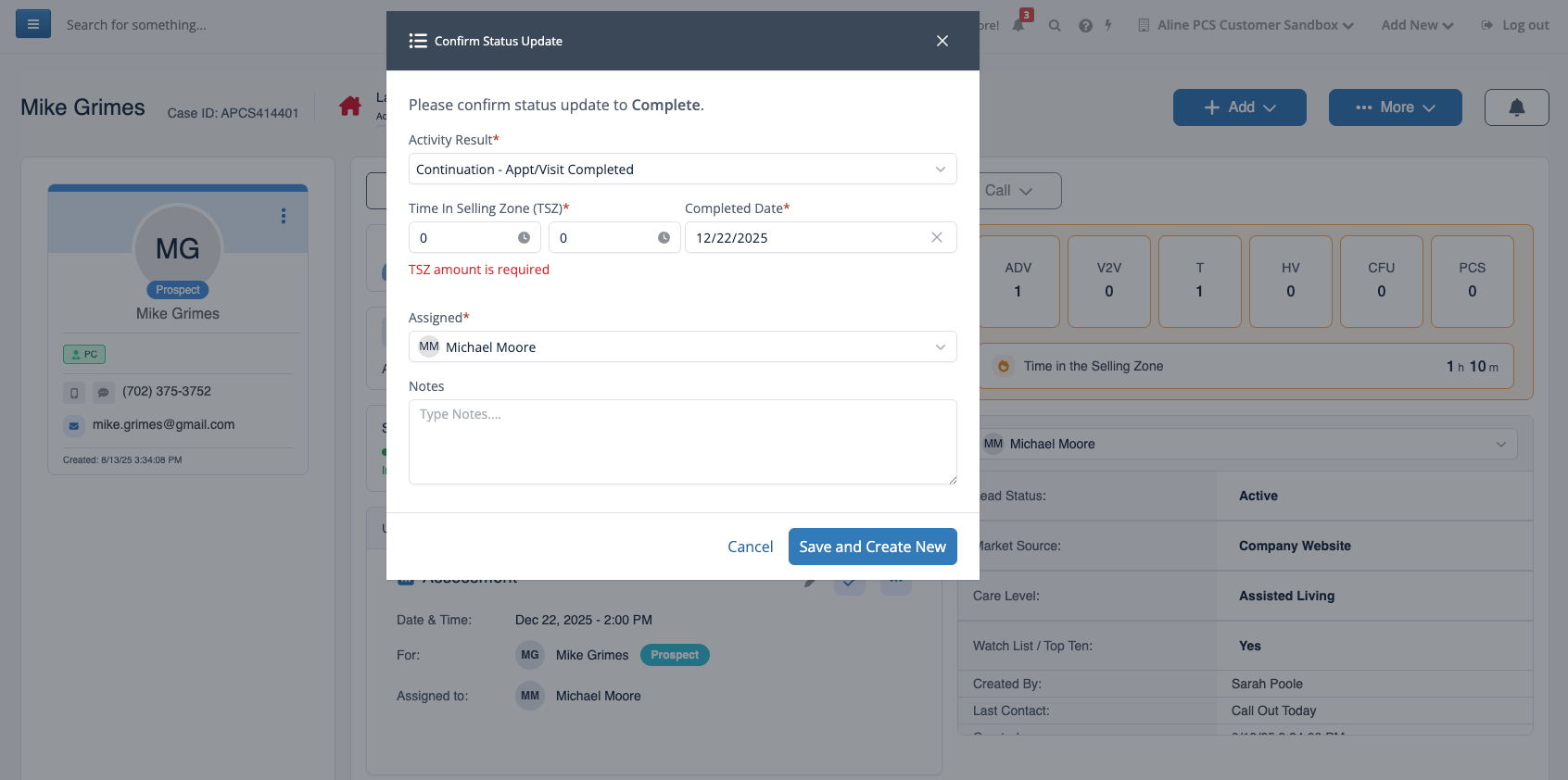
Step 3: After supplying all necessary details, select Save and Create New to complete the scheduled activity.
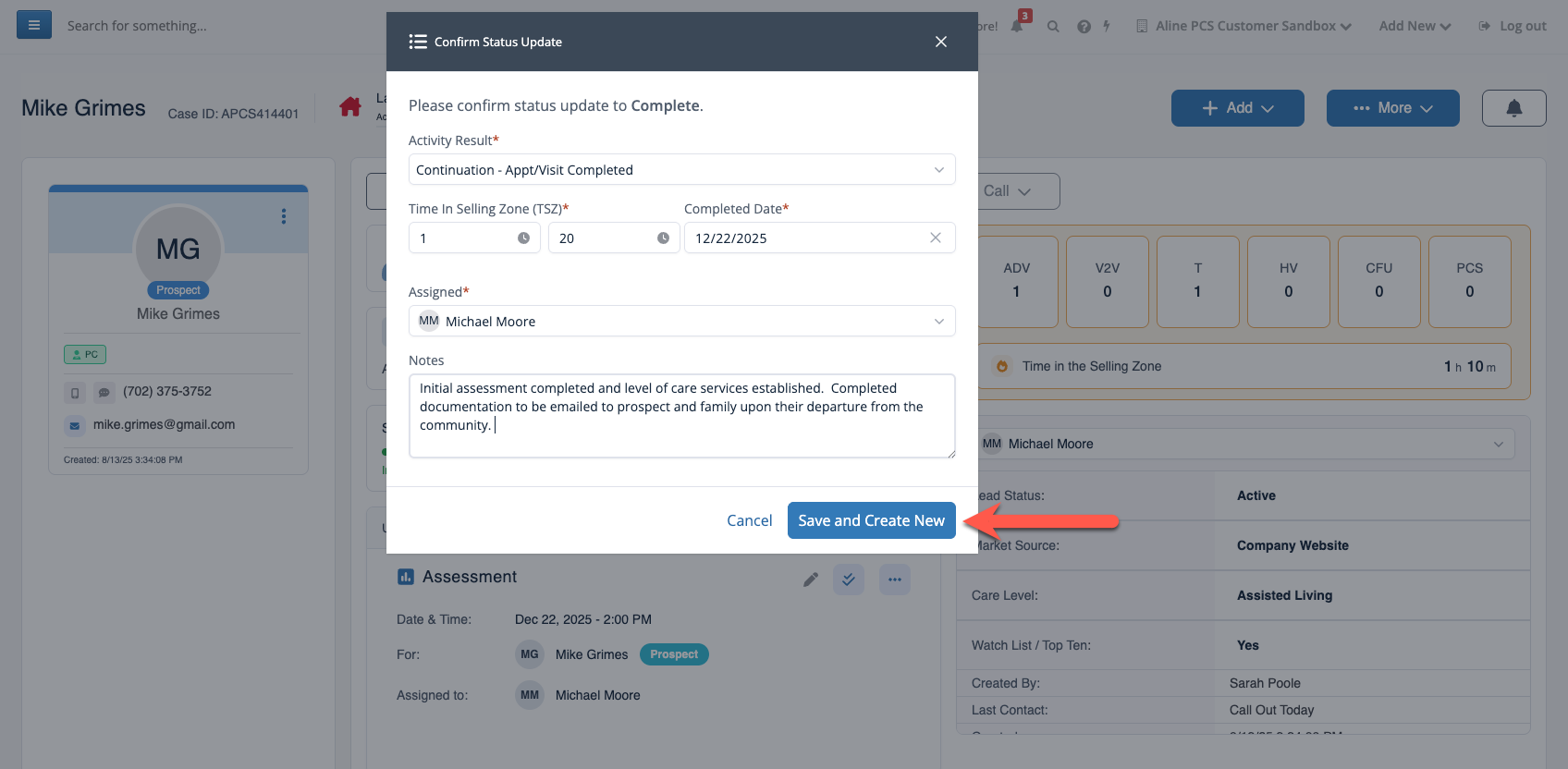
A new Schedule Activity form will display for next steps. If no next steps are currently required or able to be scheduled, select Cancel to close the Schedule Activity form. Your completed activity has been logged and can be found in the prospect's Activity panel.
Now, the same process can be completed by using the Activity Panel at the bottom of the page:
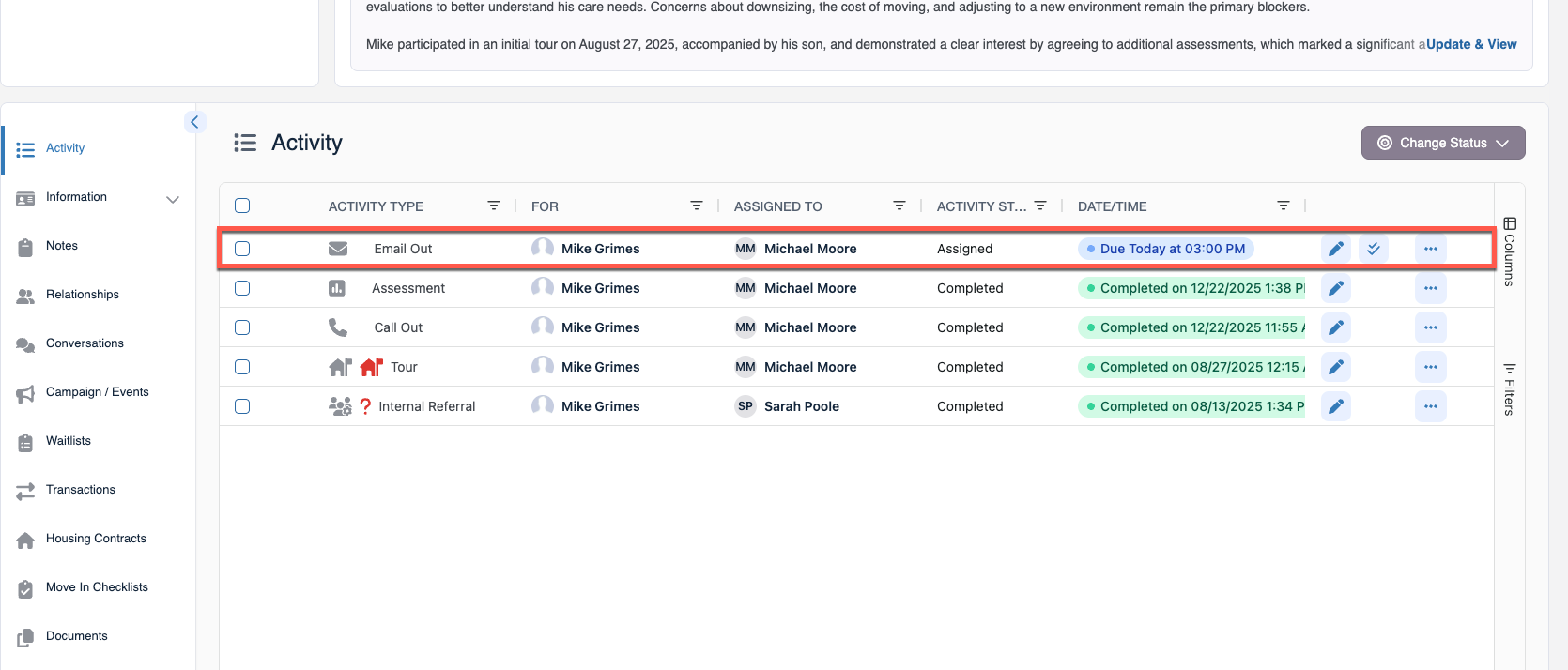
Once again, you'll be able to select the Checkmarks Icon to complete the scheduled activity, or you can select the Pencil Icon to edit the scheduled activity, or the Three Dots Menu to reschedule the activity, cancel the activity, mark the activity contact as a No Show, or delete the activity.
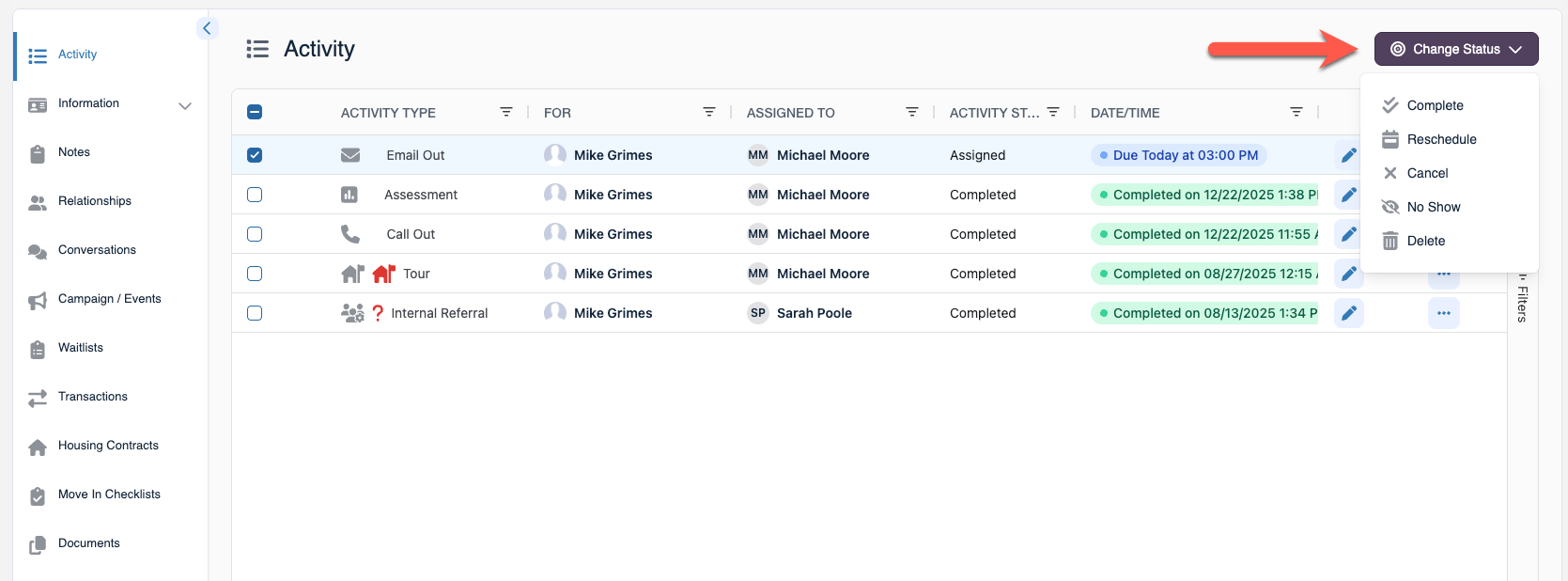
Note, the Change Status button can also be used to work with multiple activities at once. For instance, you can select the checkbox next to multiple activities in order to complete, reschedule, delete, etc. in one go.
Logging Activities
When activities are completed, but they have not previously been scheduled, best practice would be to log those activities. Logging unscheduled activities is as easy as completing scheduled activities. Let's take a look at how to do just that!
Step 1: To begin, select the Log button at the top of the prospect's profile.
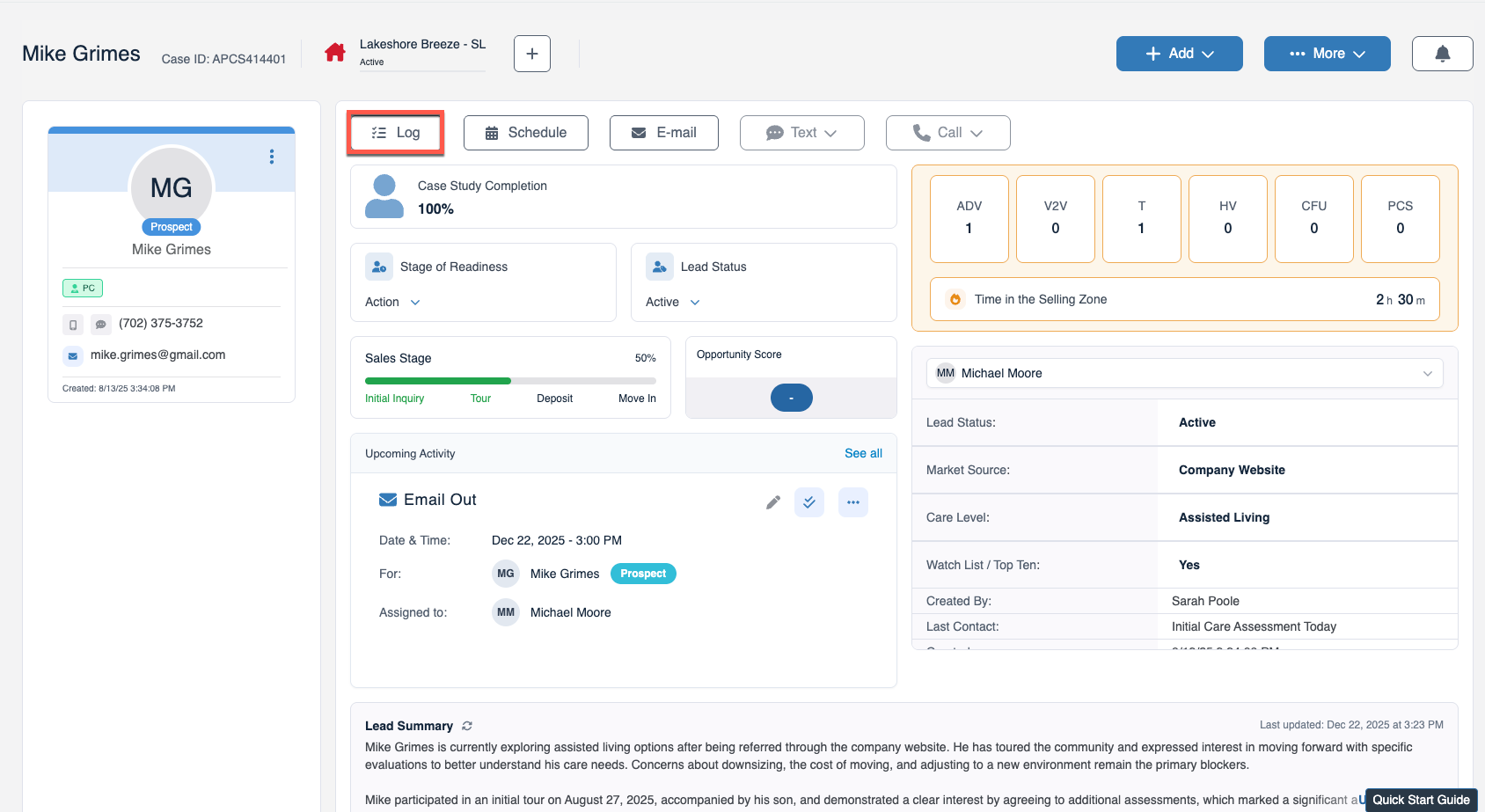
Step 2: After selecting Log, Aline CRM will display the Log Activity page which is quite similar to the Schedule Activity and Complete Activity pages - the key difference here being that you'll be inputting all necessary information in at once since the activity has already taken place.
Like before, any fields denoted with a red asterisk * are required fields.
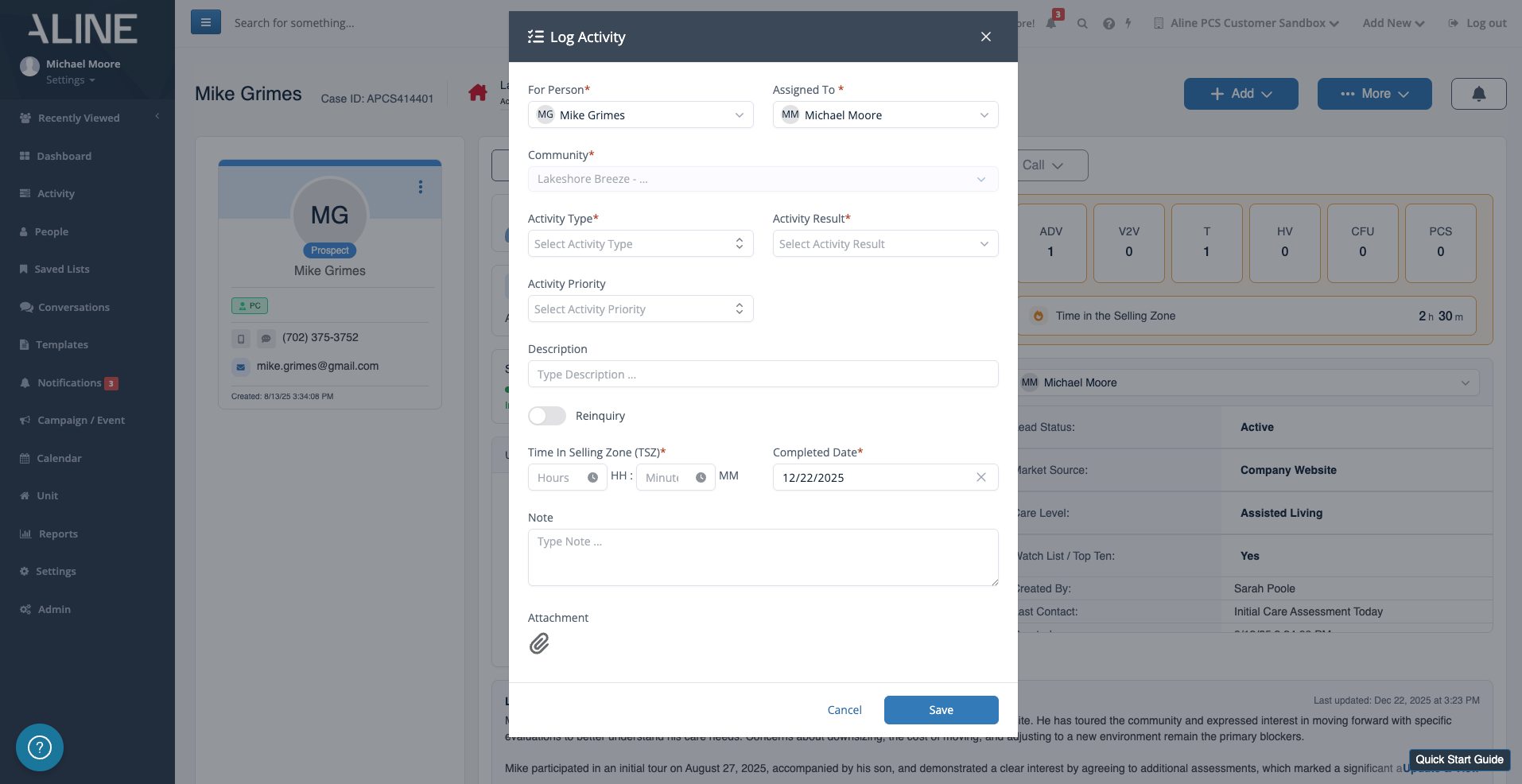
Complete the necessary form fields:
- For Person - be it the prospect, referring contact, etc.
- Assigned To field
- Activity Type
- Activity Results
- Description of the Activity
- Whether the activity is a reinquiry
- Time in the Selling Zone (TSZ)
- Note for additional details
- Attachments
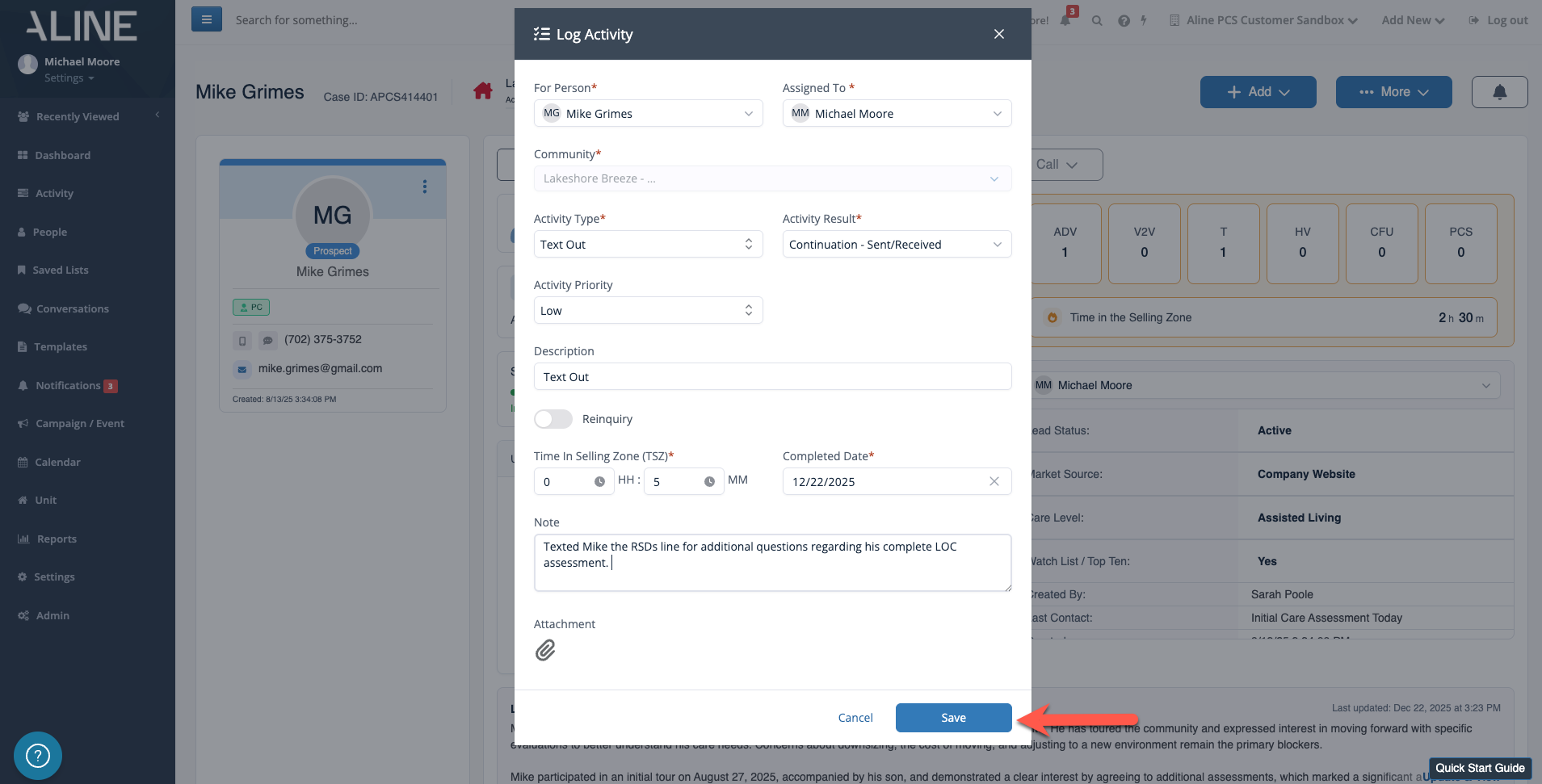
Step 3: Once all required and optional fields are complete, select Save to save the logged activity.
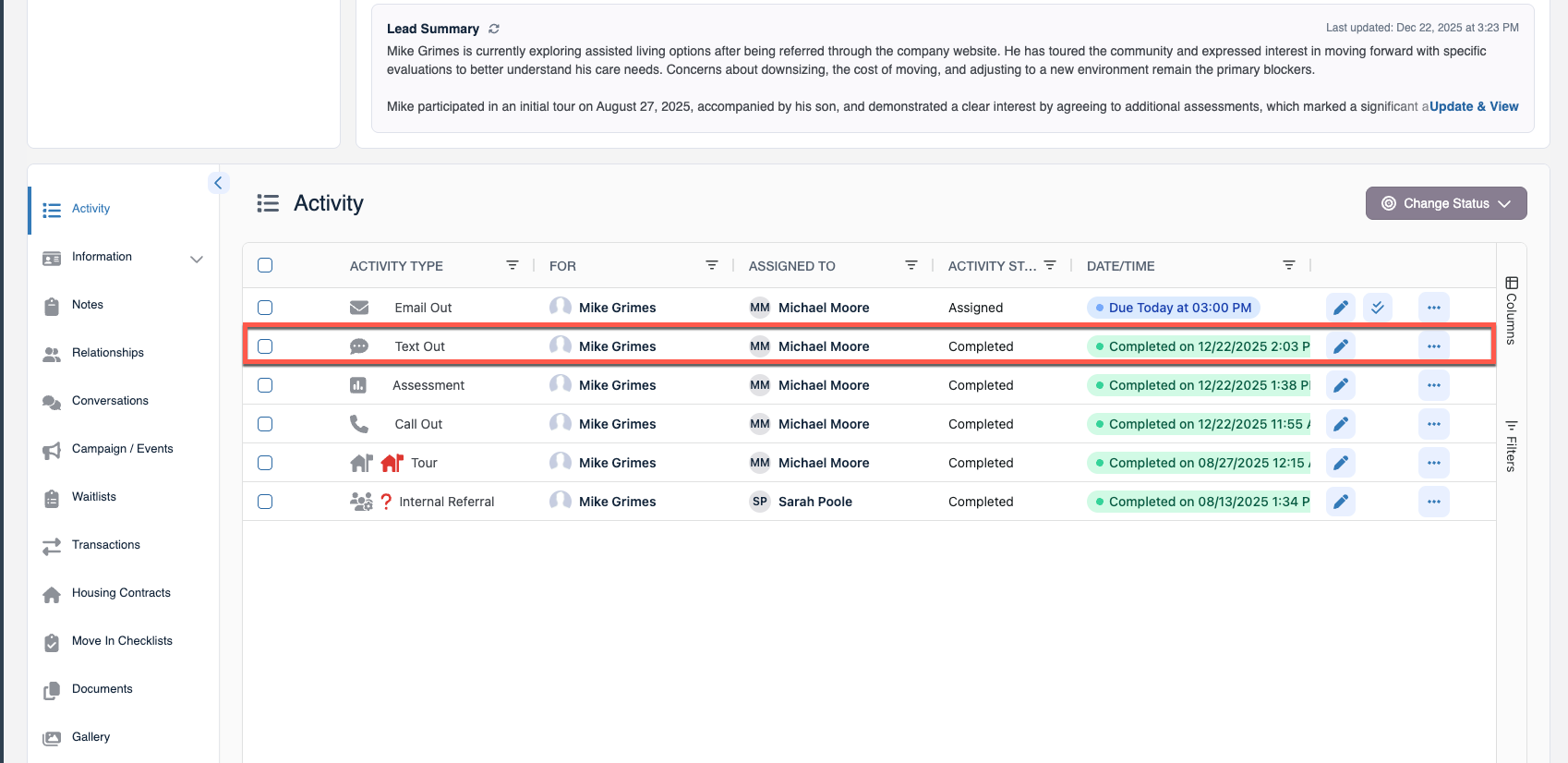
You'll find the logged activity along with the rest of the scheduled and completed activities on the prospect's Activity Panel at the bottom of the page.
Was this article helpful?
That’s Great!
Thank you for your feedback
Sorry! We couldn't be helpful
Thank you for your feedback
Feedback sent
We appreciate your effort and will try to fix the article