Overview
You'll find many useful fields, both actionable and informational, located at the top of the prospect profile - these fields will include the prospect's Lead Status and the Scorecard panel.
To learn more about interacting with the Lead Status and Scorecard, dive into the details below!
Interacting with the Prospect's Lead Status
Whether your prospect is Active, Unqualified, a Future lead, or somewhere in between, its important to mark the prospect accurately so that your Sales activities actions match the potential outcomes.
Let's update a lead status to see how it works.
Let's say you have a prospect with a lead status, or lead score, currently set to Future. Recently, the prospect has indicated that they are now actively seeking a place in your community. If that's the case, you'll want to update their lead status!
Step 1: Select the desired prospect's profile. From the profile, you'll find the lead status, or lead score, essentially front and center on the profile.
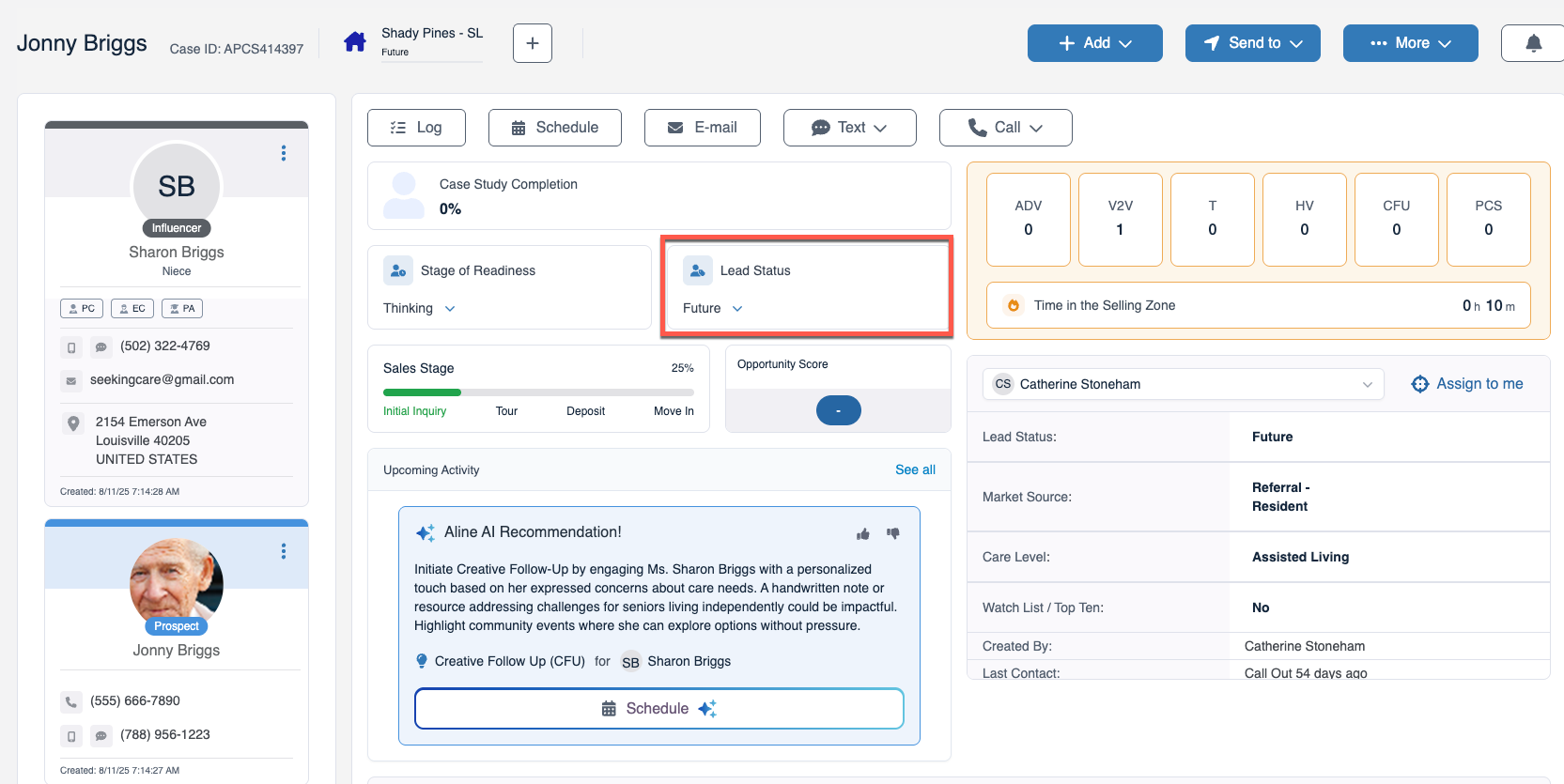
Step 2: Change the lead status. With in-line editing, you'll simply select the current lead status and then choose an updated status from the drop down list.
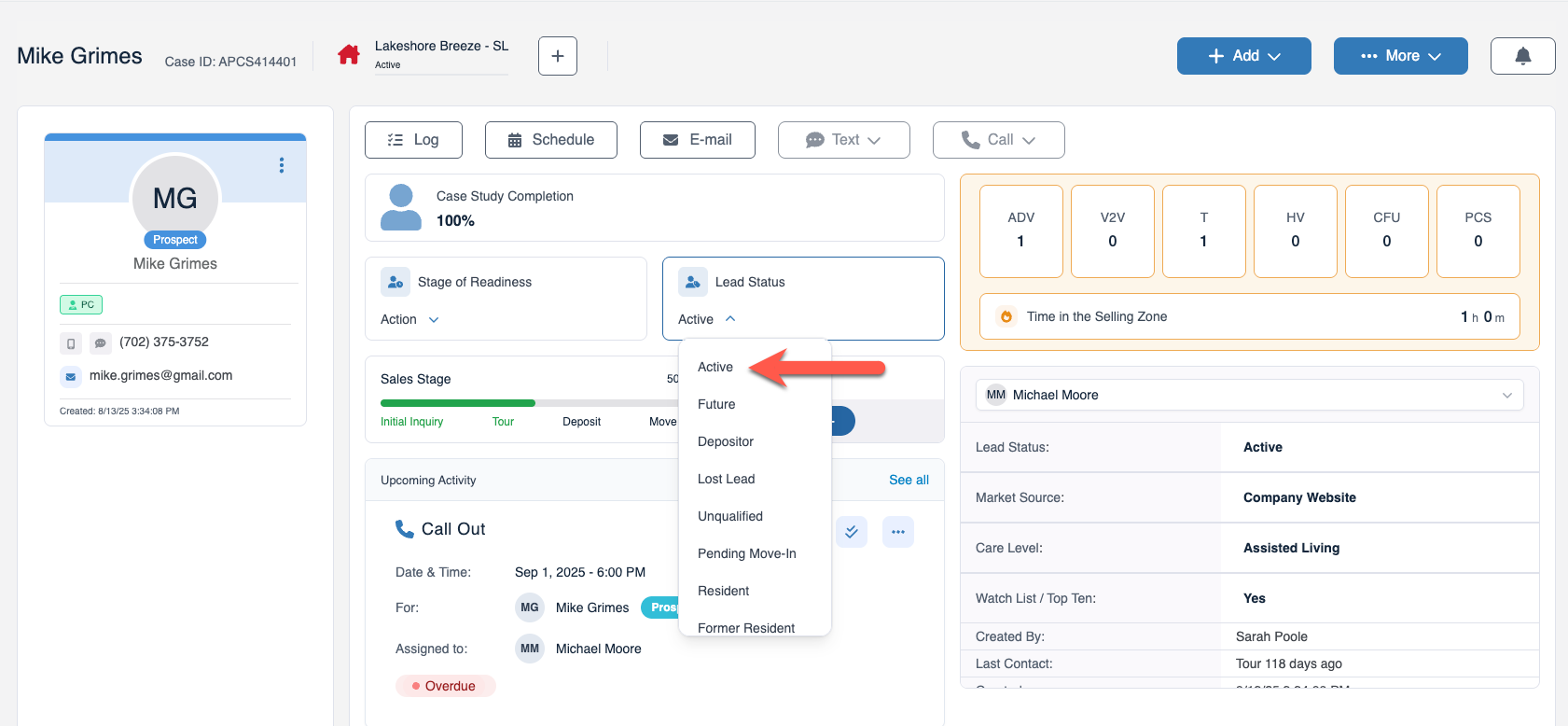
The lead score will now update on the prospect's profile and all corresponding documentation.
Interacting with the Prospect's Scorecard
In addition to setting the prospect's lead status, the Scorecard panel allows you to edit multiple fields like the market source of the lead, the care level the individual is seeking, the lead status, and more.
Just keep in mind that this score card is quite configurable, and the fields you may see in your Scorecard may differ from the fields displayed in this article.
Step 1: Select the desired prospect's profile. From the profile, you'll find the Scorecard on the upper right-hand side of the page.
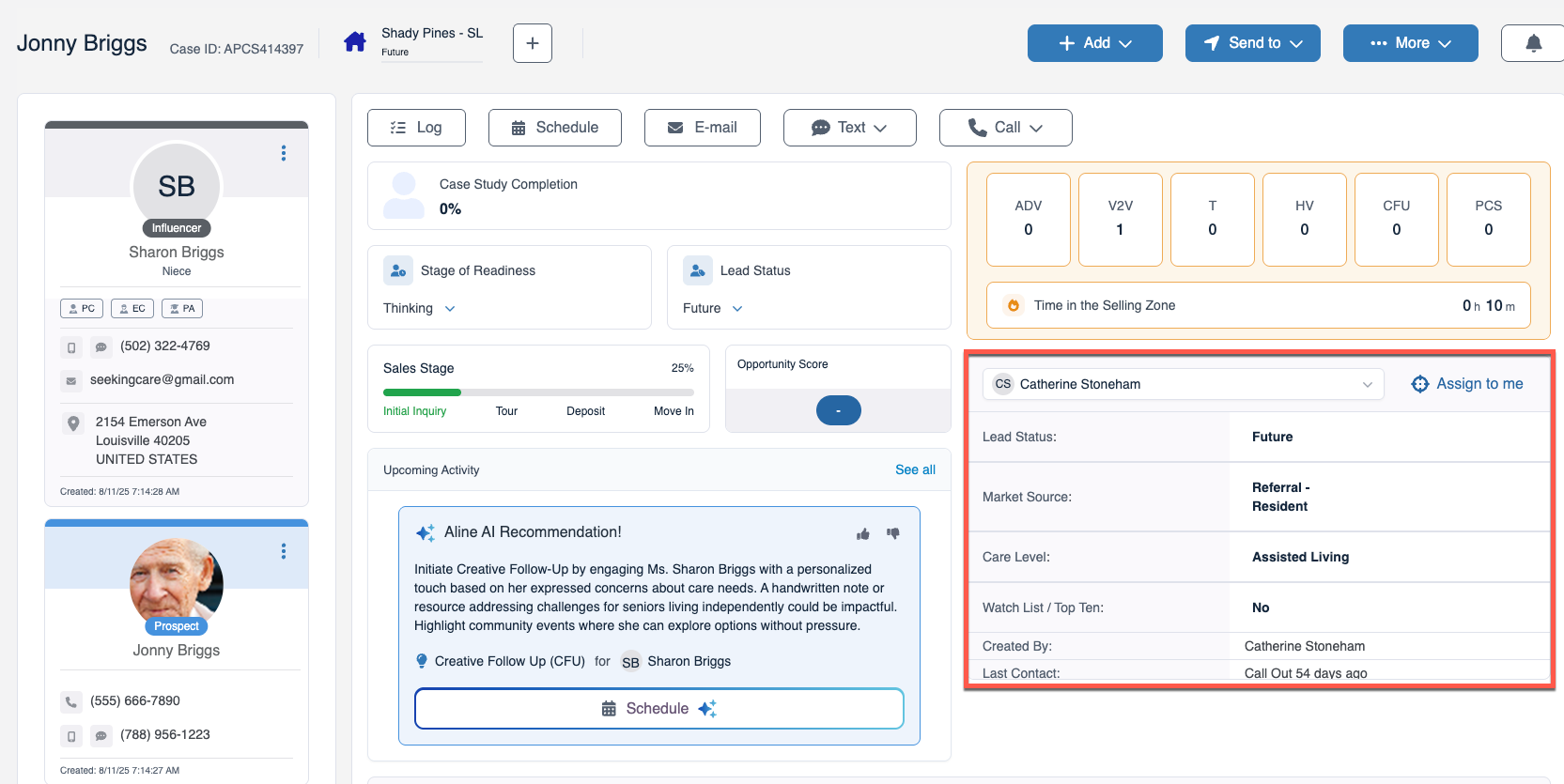
Step 2: Many fields from the scorecard can be edited directly via in-line editing. Simply select the field to update and then select the corresponding desired field. Note that the prospect can also be assigned to different users, including yourself.
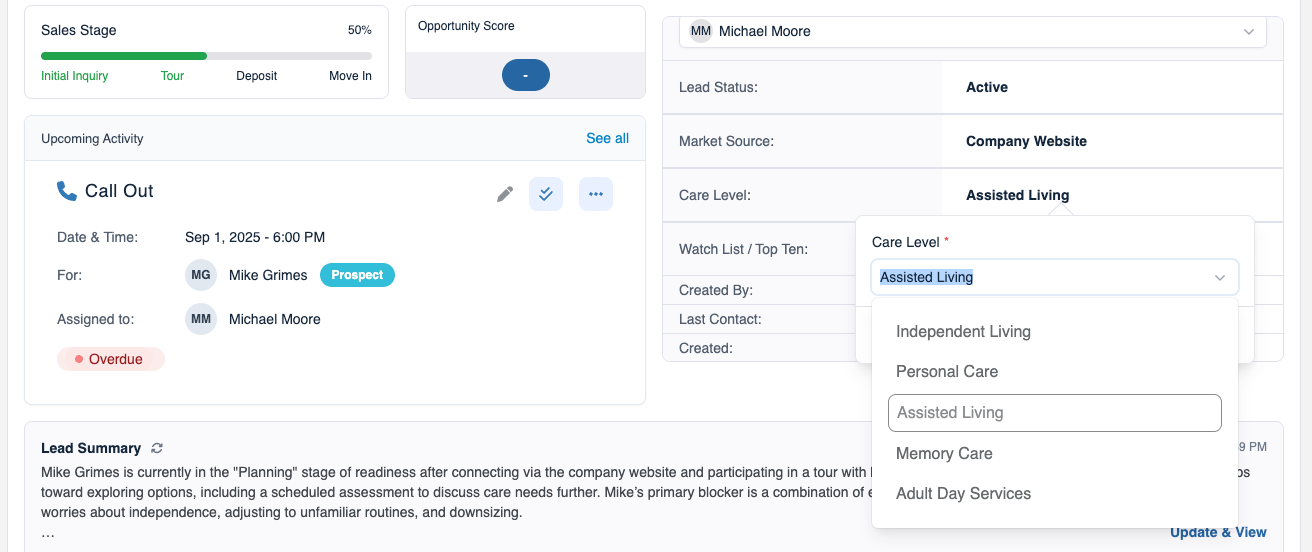
Please note: administrative Aline CRM users will also be able to reorder the fields within the Scorecard by dragging and dropping them in a preferred order.
Was this article helpful?
That’s Great!
Thank you for your feedback
Sorry! We couldn't be helpful
Thank you for your feedback
Feedback sent
We appreciate your effort and will try to fix the article