Overview
The "Manage" feature allows you to merge duplicate or matching profiles.
Note: If you do not see the Manage option within the "Add" dropdown within a Prospect's profile, please reach out to your system admin, as your user role does not have this permission.
How to Merge a Duplicate Prospect
1. From the profile you want to keep and consider the dominant profile, click the [+Add] at the top right of profile, and select “Manage”.
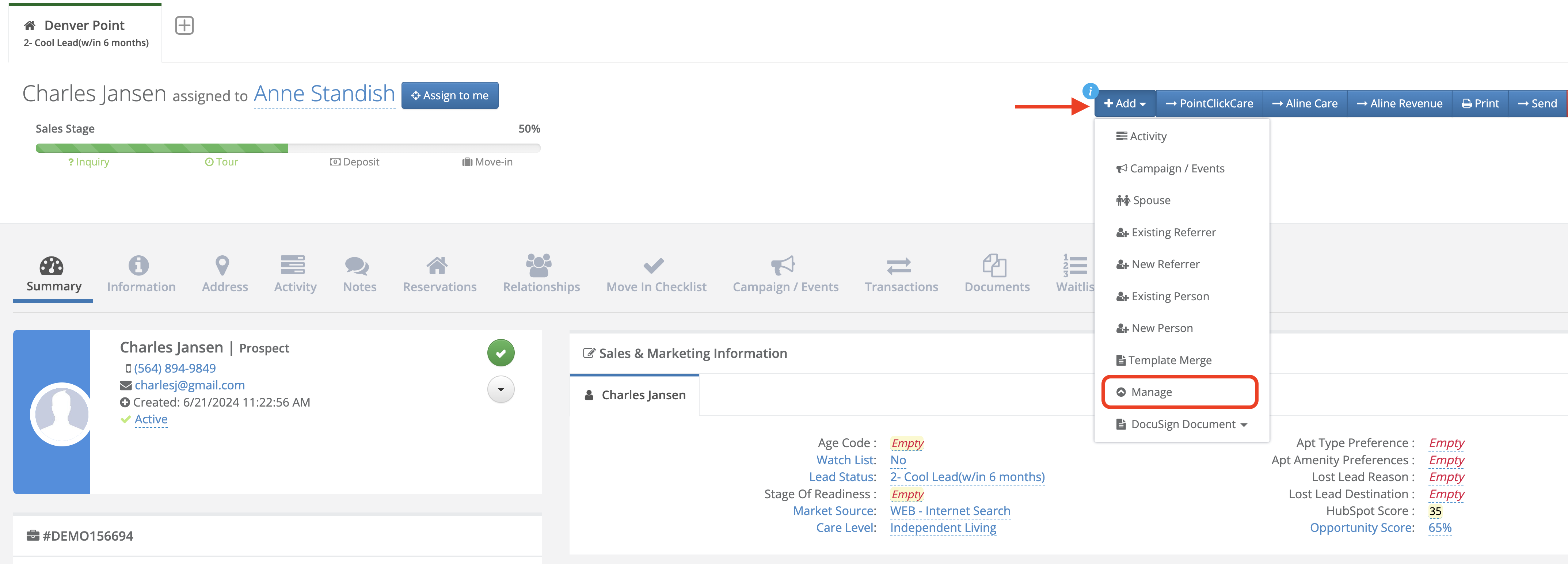
By default, the ‘Individual Management’ capability is enabled for all Admin users. This option may be added as a permission to any Role(s) by navigating to Admin > Roles > Enable Individual Management by checkbox as applicable to the desired Role.
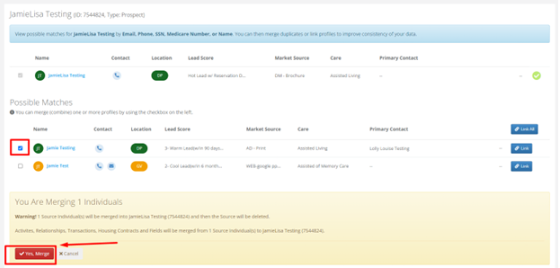
2. After initiating the “Manage” feature, the CRM will identify potential matches throughout your organization based on matching values for the prospect’s name, email, phone, SSN, and Medicare number. Where applicable, duplicate profiles within the same location can be merged.
3. Merge duplicates by checking the box next to the profiles you want to merge into a single record and clicking the red “Yes, Merge” button at the bottom of the screen.
Note: all activities, notes, relationships, and field values will be combined on a single case record upon completion of the merge. If conflicting values exist for the same field (i.e. care level = independent living on one case and assisted living on the other case) the value from the profile you started the merge process on will be retained and other conflicting values will be lost.
Linking Profiles from Different Locations
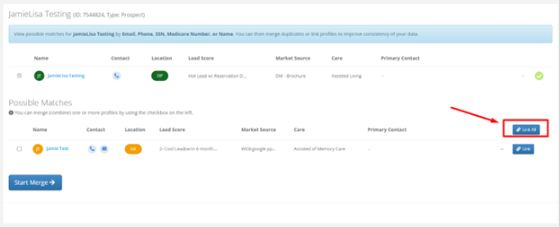
Often, different buildings in your portfolio will be working leads for the same individuals or families. Enquire’s location tabbing feature allows users to share visibility of those leads to better understand the needs and wants of the family creating a better user experience. Enquire’s manage feature allows users to create this link through location tabbing. After initiating the “Manage” feature, either check the [Link] button on the right hand side for each person you want to link, or click the link all button.
Once you complete the link, your profiles will look like this. Users can toggle between each profile to view the notes and field data at each location, but they will not be able to edit information at other locations unless they have access to that specific location.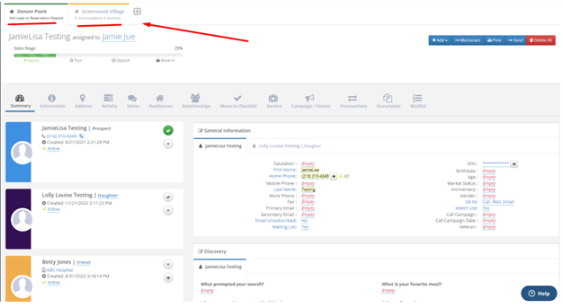
Was this article helpful?
That’s Great!
Thank you for your feedback
Sorry! We couldn't be helpful
Thank you for your feedback
Feedback sent
We appreciate your effort and will try to fix the article