Overview
Template Merging allows you to easily create documents using the fields from your database in Enquire CRM.
How to find your company's Available Fields
These fields will be used to fill in the information to a Template.
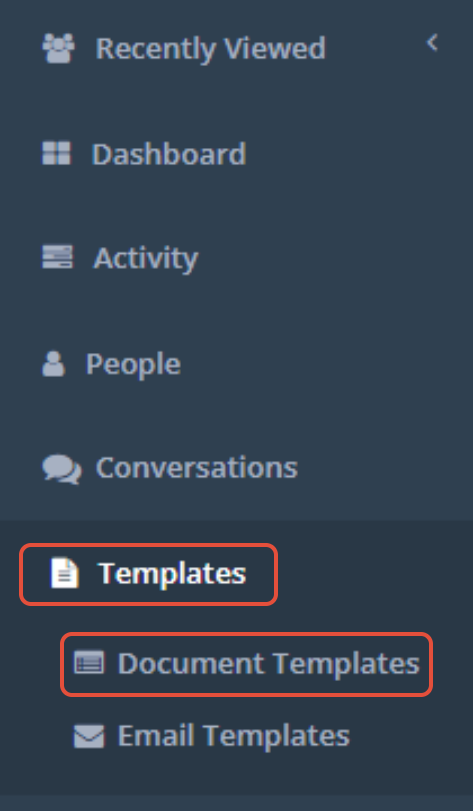
Step 1: Click Templates on the left hand menu then click Document Templates
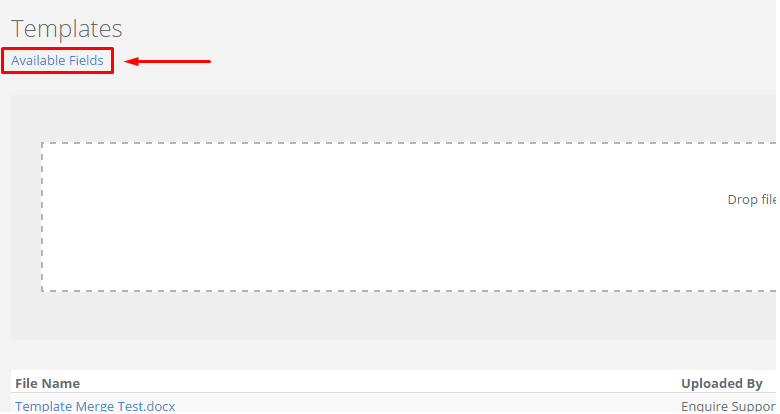 Step 3: This will display a list of fields that you can use for creating a Template
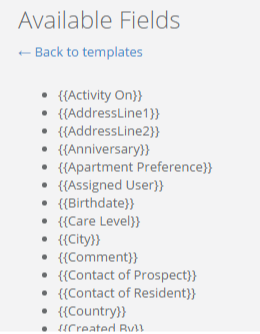

How to create a Template
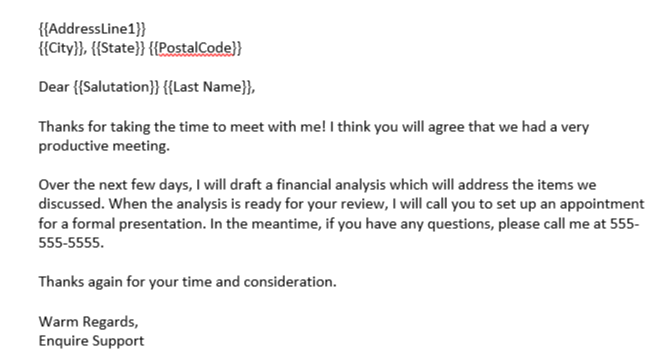
Step 1: Create a document using Microsoft Word with your company's Available Fields.
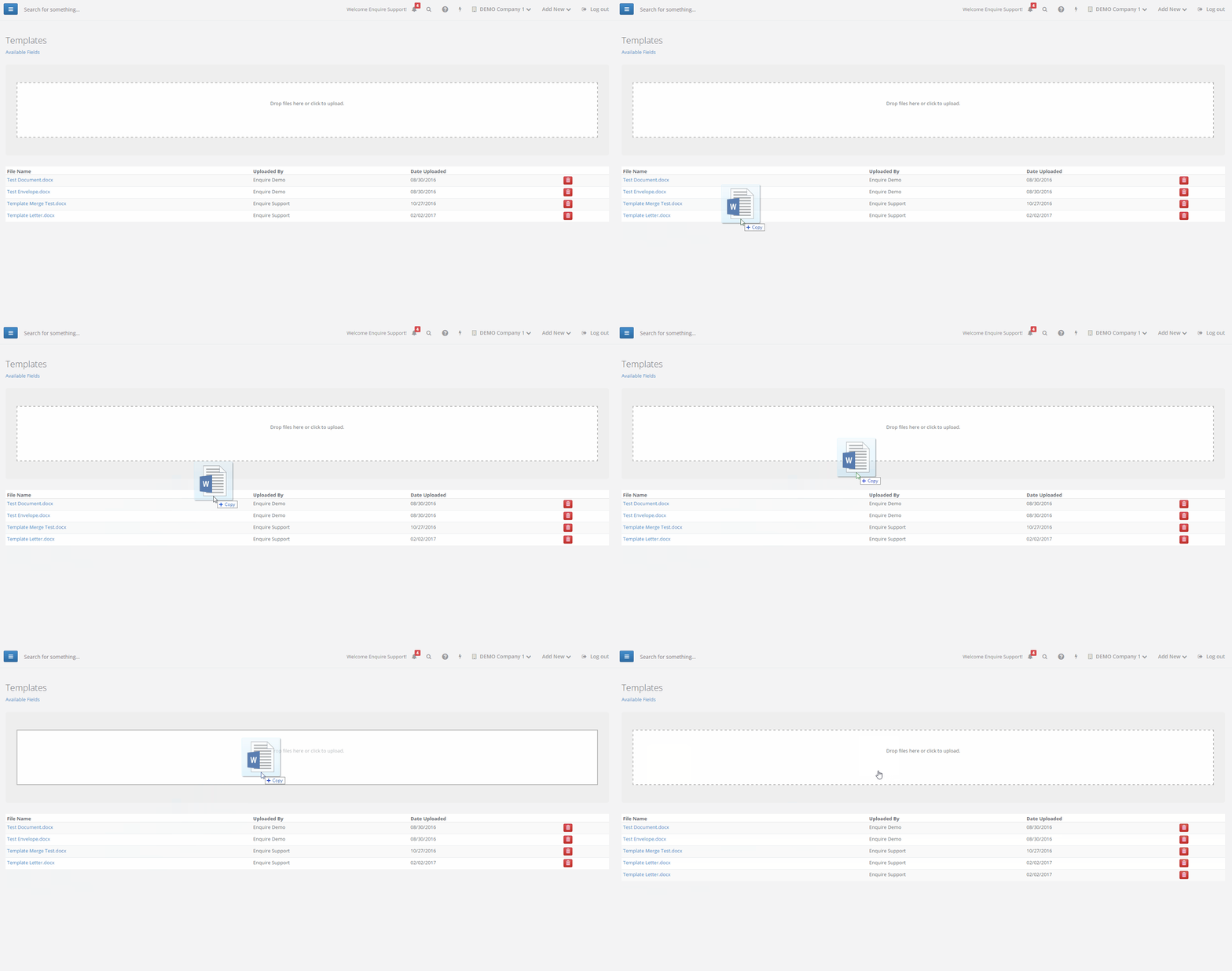 Note: The maximum file size upload for Document Templates is 10 MB.
How to use your Templates
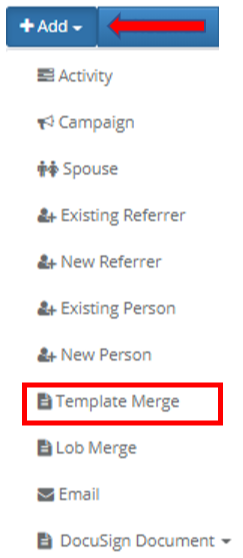
Step 1: Navigate to the profile you would like to send your document to and click the Add button in the top right and find template merge
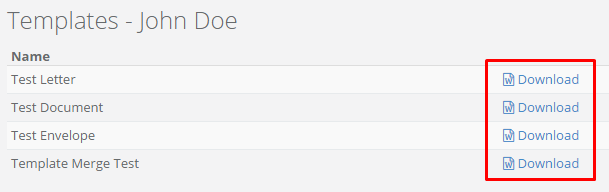
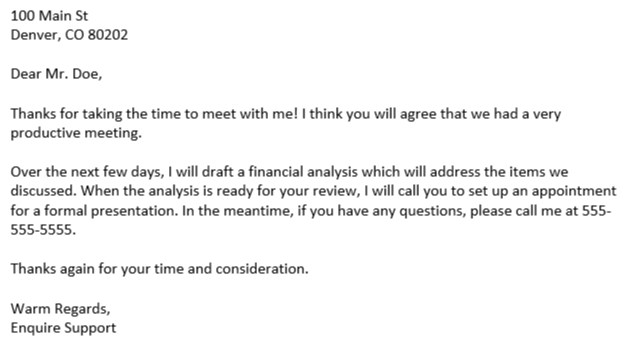
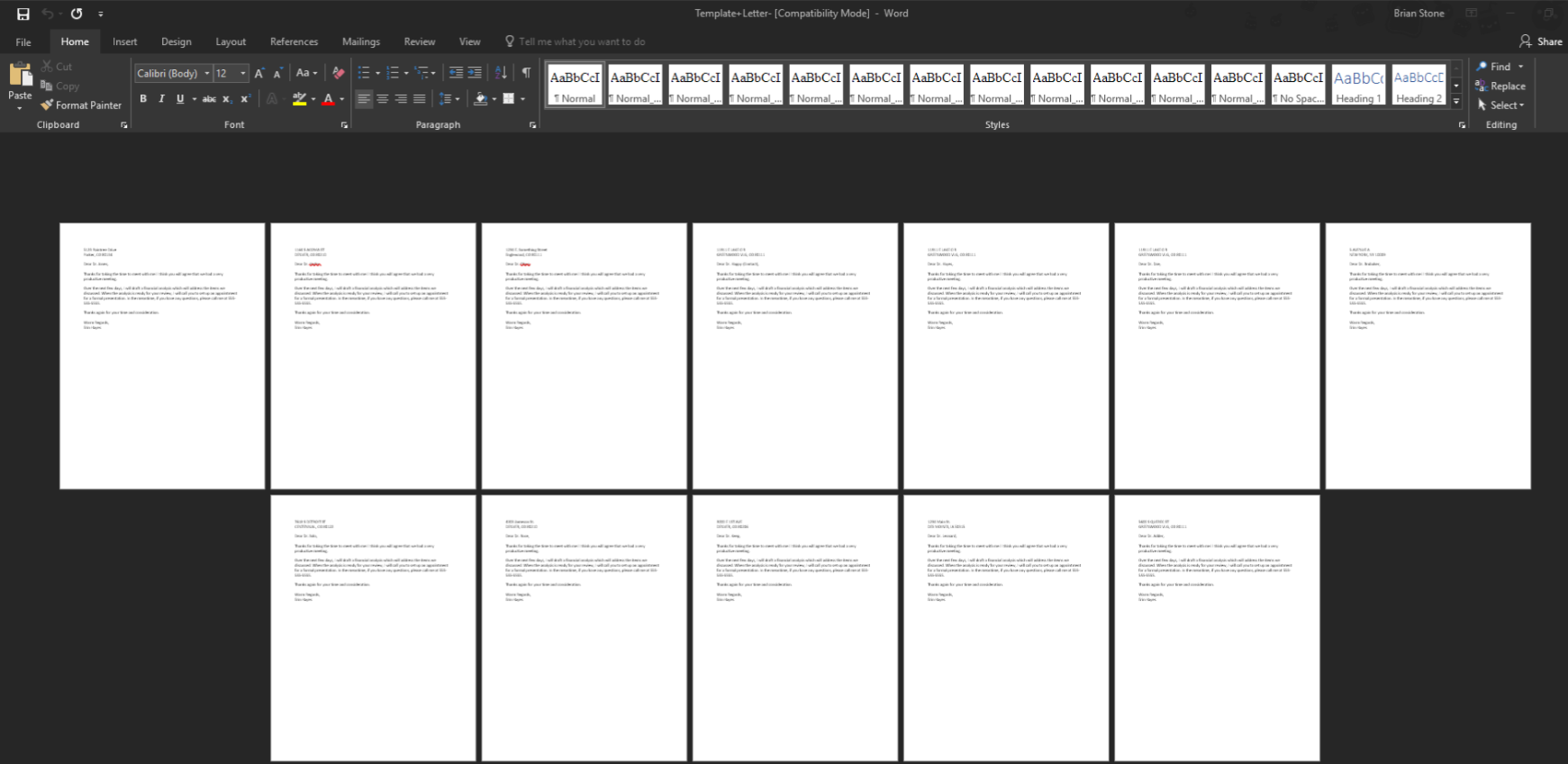
Step 3: Once the download has finished, open the document in Microsoft Word and the designated fields will be filled out with the profile's information.

Using your Templates with Lists
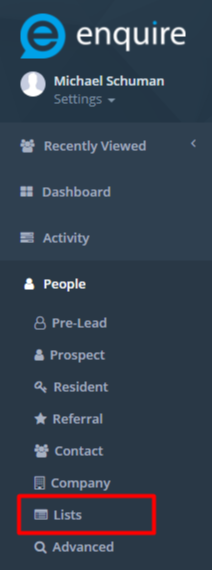
Step 1: Click People on the left menu, then click Lists
Step 2: From the list of buttons to the right of each list, click the blue Merge to Document button for the list you would like to merge into a template

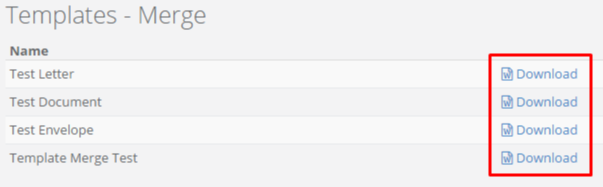
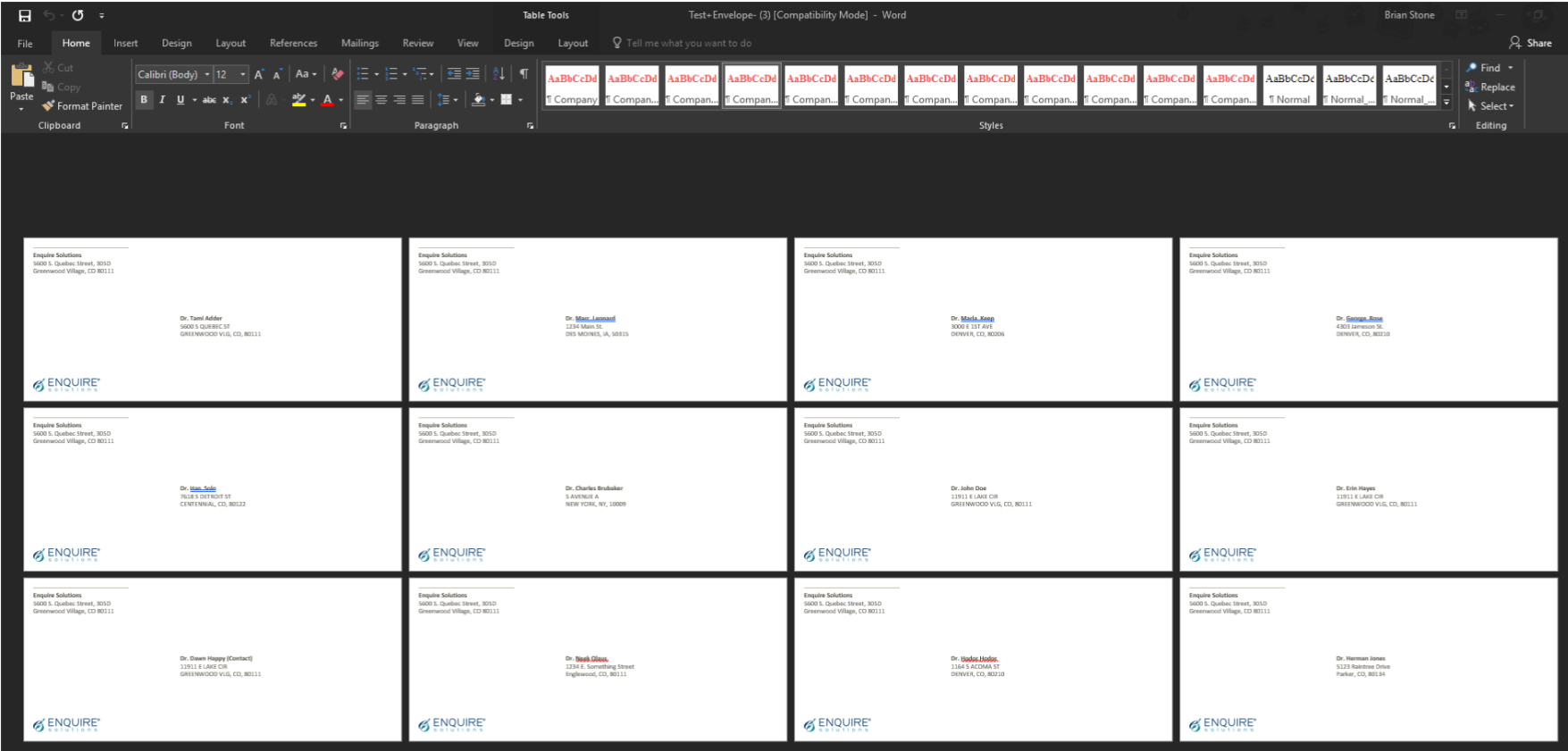

Using your Templates with a Campaign
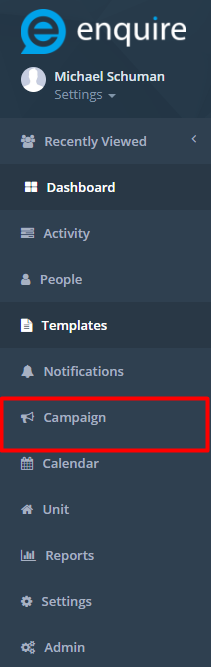
Step 1: Click Campaign on the left menu
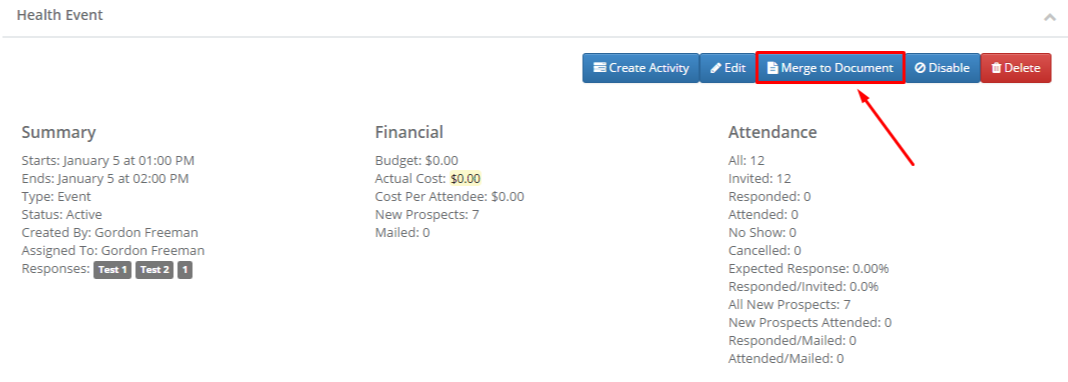
Step 2: Click the blue document icon to the right of a campaign or click on the name of a campaign and click the blue Merge to Document button

Was this article helpful?
That’s Great!
Thank you for your feedback
Sorry! We couldn't be helpful
Thank you for your feedback
Feedback sent
We appreciate your effort and will try to fix the article