Overview
In this article we will review how to send out emails from Aline CRM and how to utilize email templates to quickly send information to Individuals in your database. Please keep in mind that Enquire does not allow mass emailing without our MAP product.
Note: You will need to have the Exchange integration set up to use this feature.
Create a New Email Template
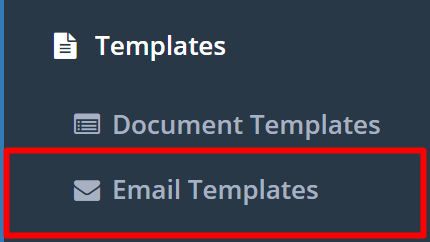
Step 1: On the left menu, click Templates, then click Email Templates
Step 2: In the upper right of the Email Templates page, click the blue + Create button
Step 3: In the Template Name field, enter what you would like the template to be called. We recommend making it unique, this will help you locate it later when you want to use it.
Step 4: For the Subject field, enter the subject for your email. Something like, "Tour Follow Up" or "Thanks for visiting!".
Step 5: The Display field will allow you to make your Email Template Public or Private. Making an Email Template Public means that anyone in your Community can view and use the Template and a Private Email Template will only be visible and usable by you.
Step 6: The Body text area is where you will put what you want your email to say. You can make these Email Templates smarter and more personal by using fields found on a profile. This is done by putting the field names in curly braces: {{Field Name}} or by clicking the blue bubble(s) containing the field you would like to use on the right side of the create Email Template page. You may also search for fields using the search field above the blue field bubbles.
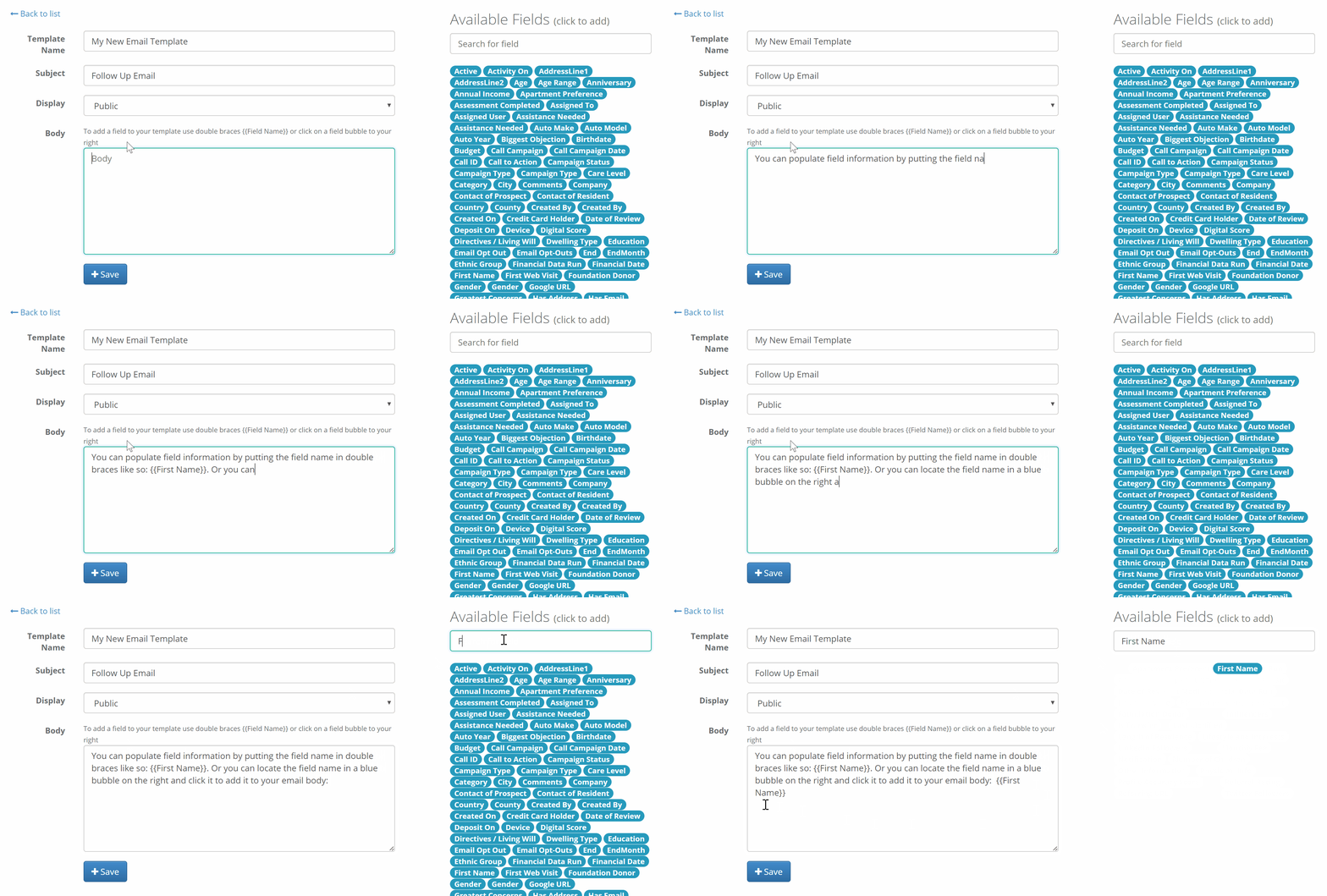
Step 7: Once you have finished your email template. Click the blue + Save button.
Sending an Email using your Email Template
Step 1: Navigate to an Individual's profile and click the Activity button along the top of the profile
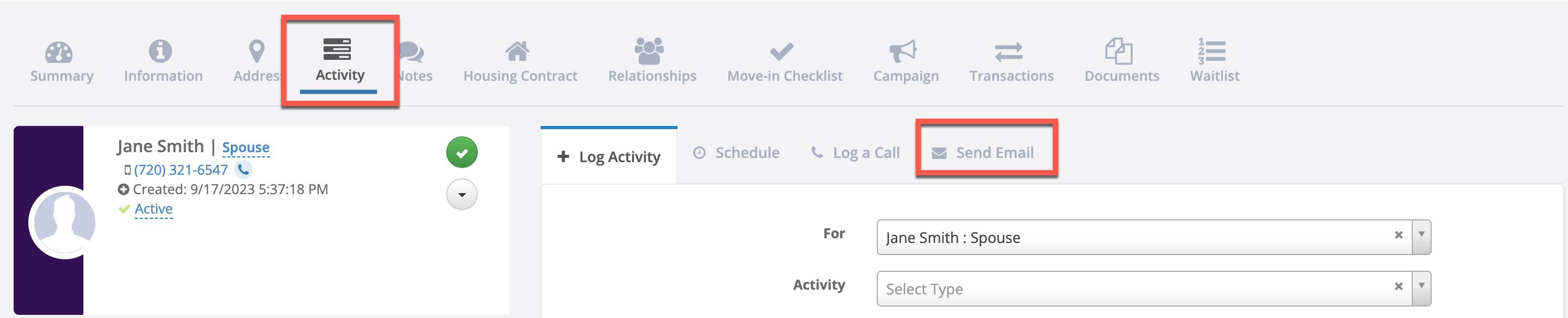
Step 2: Click the Send Email tab
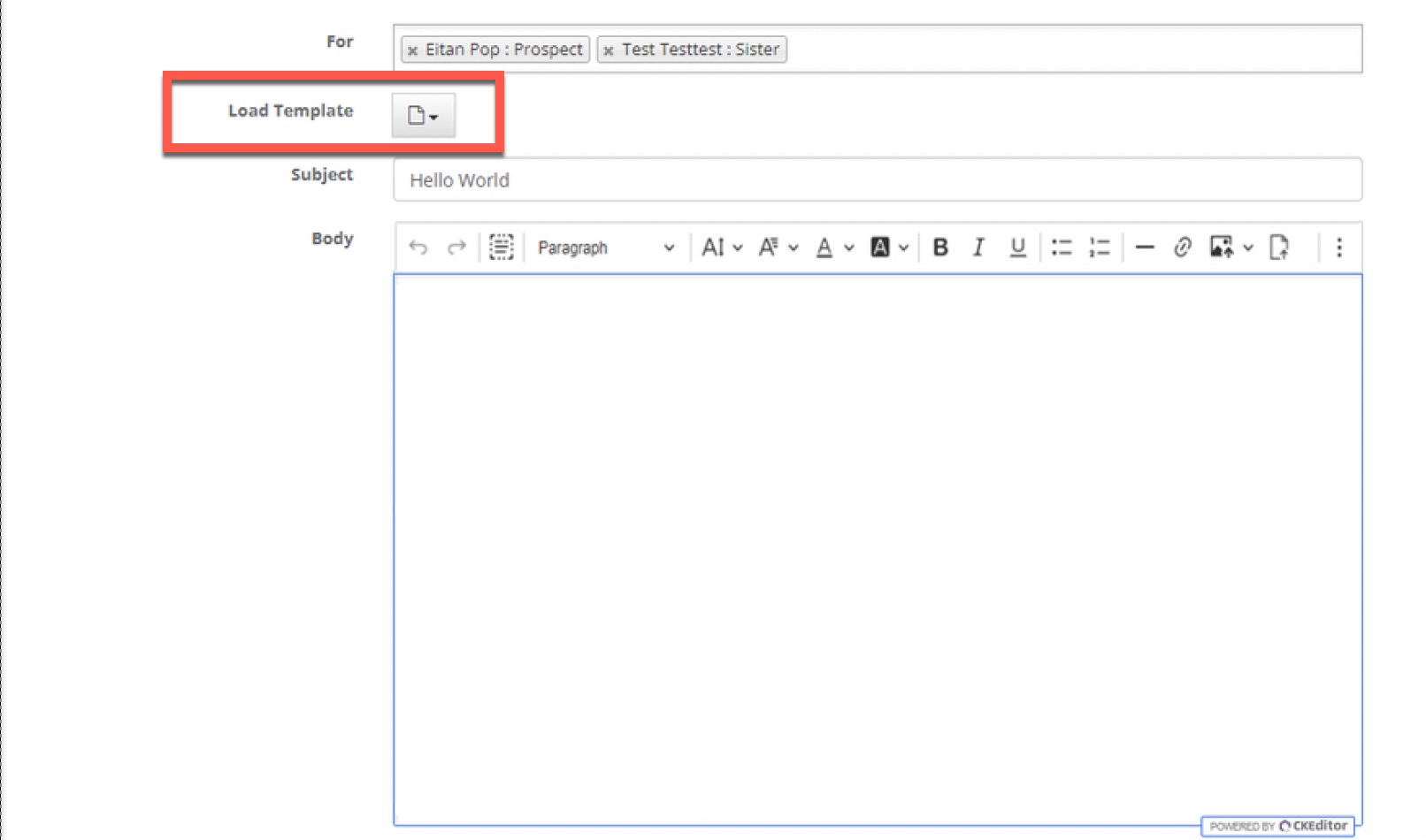
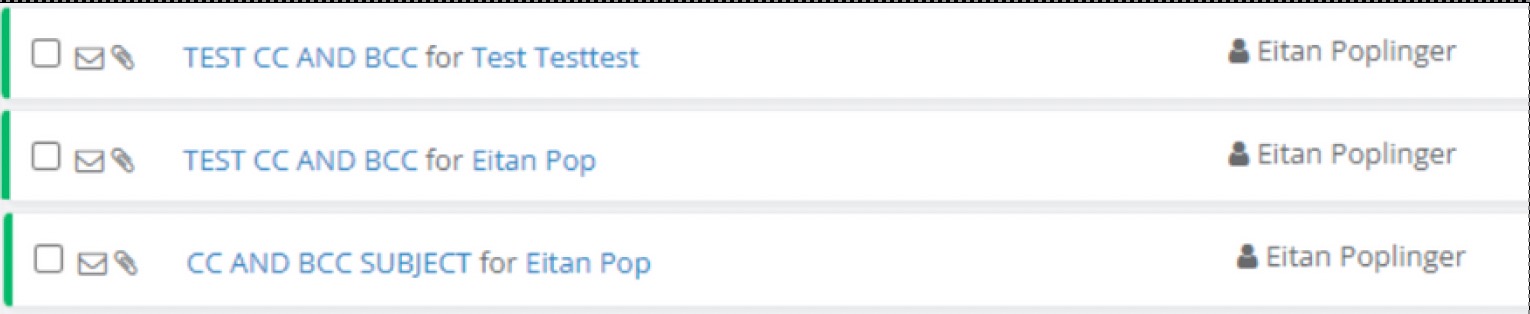
Step 3: In the For field, enter the name of the individual. Any entities included in the "To", "CC"", or "BCC" fields will have an activity entry from the email available on their CRM profile.
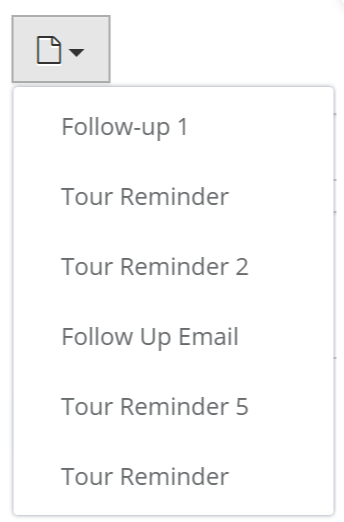
Step 4: Click the Load Template button and select your template from the list
Step 5: Choosing your template will then auto populate the Subject and Body
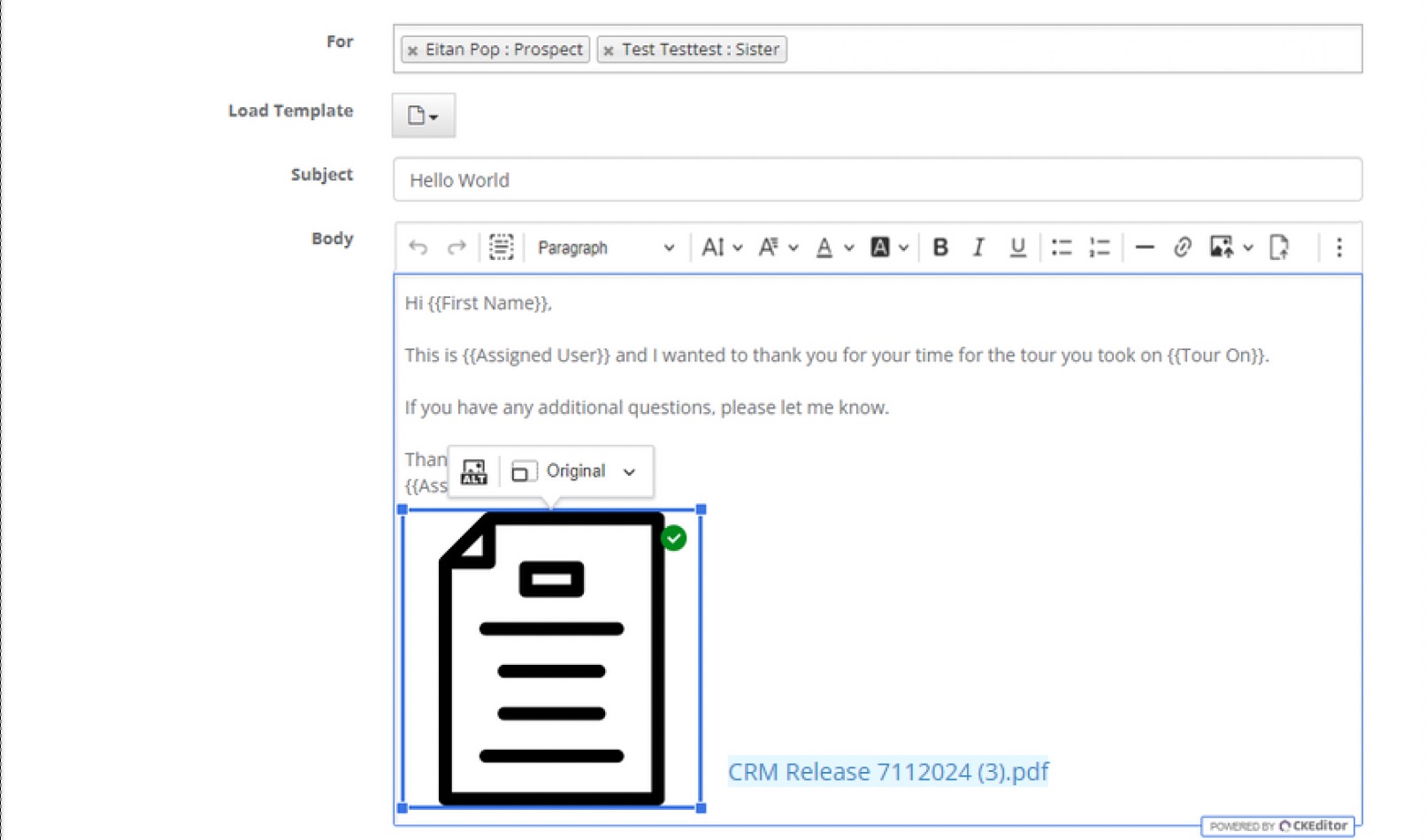
Step 6: Use the rich text editor to format the email. Documents and photos can be attached to the email by selecting "Add Attachment" and "Add Photo".
Step 7: Click the blue "Send" button to send the email and save the email activity to the individual's profile.
Was this article helpful?
That’s Great!
Thank you for your feedback
Sorry! We couldn't be helpful
Thank you for your feedback
Feedback sent
We appreciate your effort and will try to fix the article