Overview
In Aline CRM, there are three primary Action Buttons present on each Prospect Profile including Email, Call, and Text buttons that allow for easy communications with your prospects and referral sources across multiple communication methods. In this article, we'll take a look at the Email functionality specifically.
Sending an Email from the Prospect Profile
At the top of the Prospect Profile, you'll find an Action Button labeled Email.
Naturally, this functionality enables you to reach out to your individuals via email - moreover, this action not only allows you to sync your office emails directly into and out of Aline CRM, but also, you'll be automatically creating a logged activity for the individual at the same time!
Please Note: Note that all communication methods available in Aline CRM, including Email, do require some initial setup to be operational. If you run into any technical issues or need assistance with your ability to use these tools, please contact your systems IT administrator.
Step 1: Select your desired prospect. At the top of the prospect profile, you'll see an Email button listed. 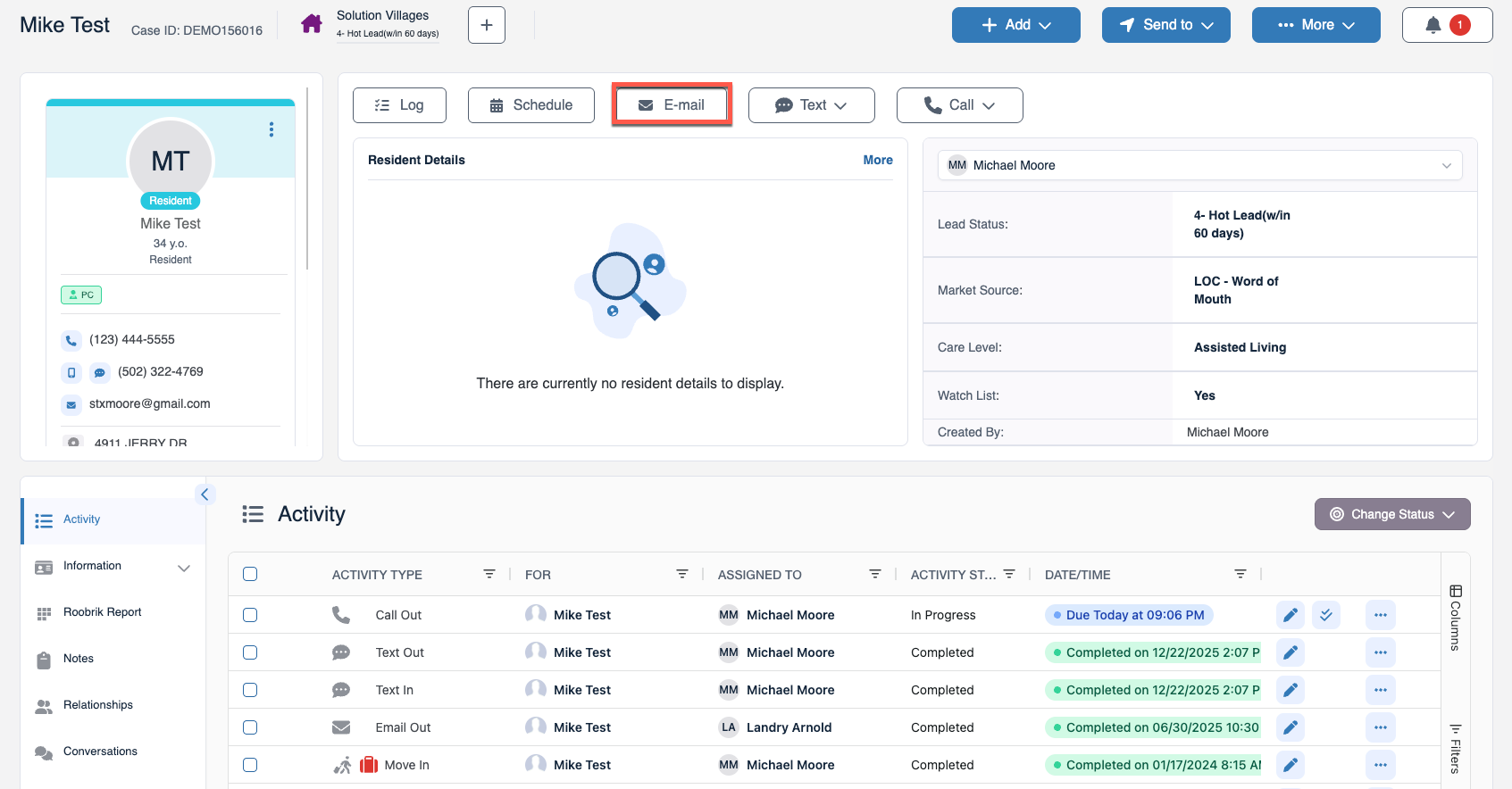
As mentioned in the note above, the email functionality will require some initial setup. Users without an installed email host will see the Email Action Button grayed out.
Step 2: To draft a new email, select the Email Action Button. This will open the Email communications page.
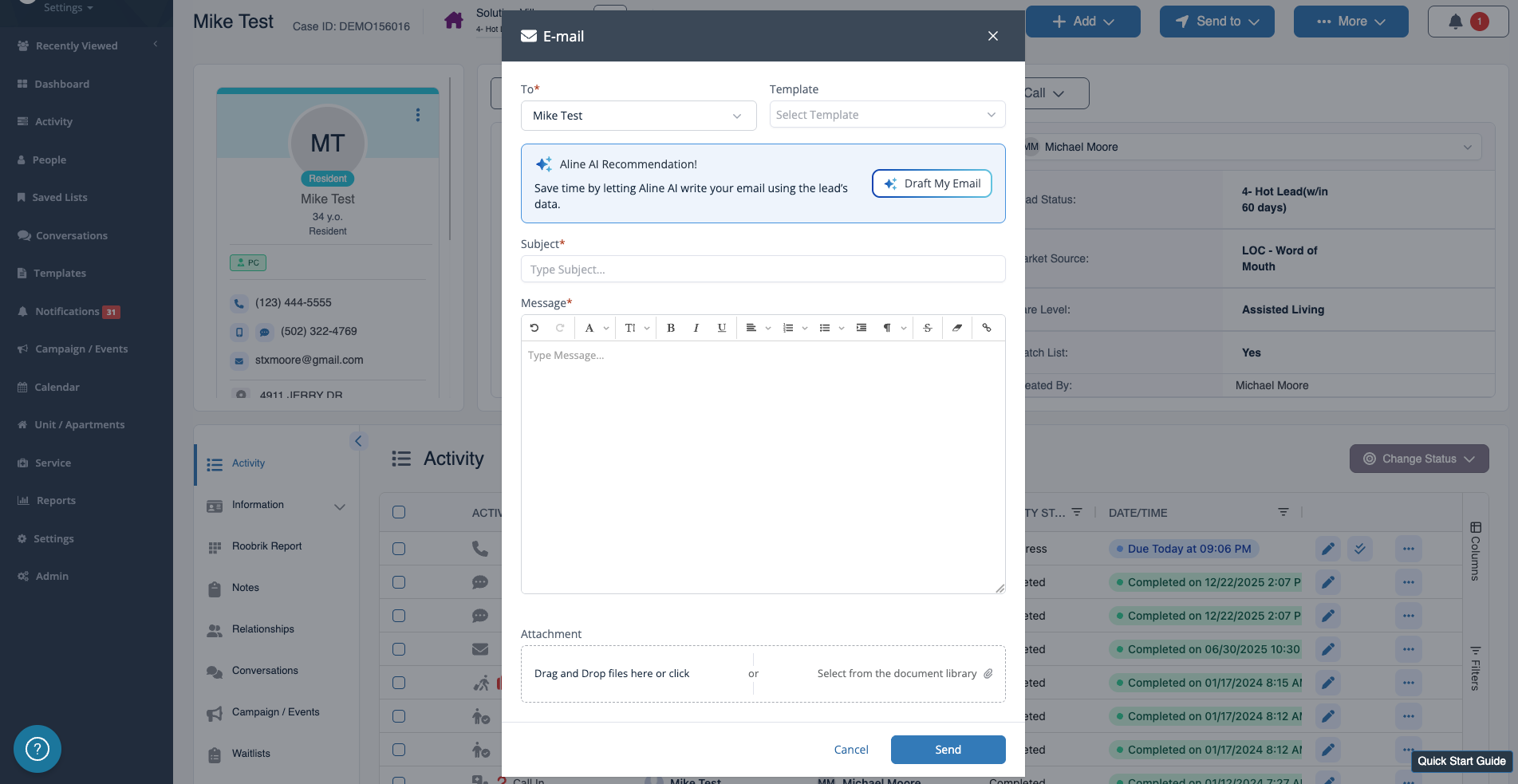
Step 3: Draft your new email!
Of course, you'll want to ensure all of the details are present and accurate before sending. If the profile has multiple contacts, like a prospect, a referral sources, additional interested parties, etc., ensure that the correct recipient is selected in the To field. Your organization may also be using customized email templates. These templates can be selected from the Template field and may automatically import mapped data from the prospect profile.
The Subject and Message fields can be manually filled in by you or automatically filled in via Template if one has been selected. You can make manual changes to any selected template. Also note that you can use Aline AI to draft a recommended email communication.
Finally, attachments, either from your local device or the Aline CRM document library, can be added at the bottom of the page.
Step 4: Select the Send button to send the email communication from Aline CRM to the recipient.
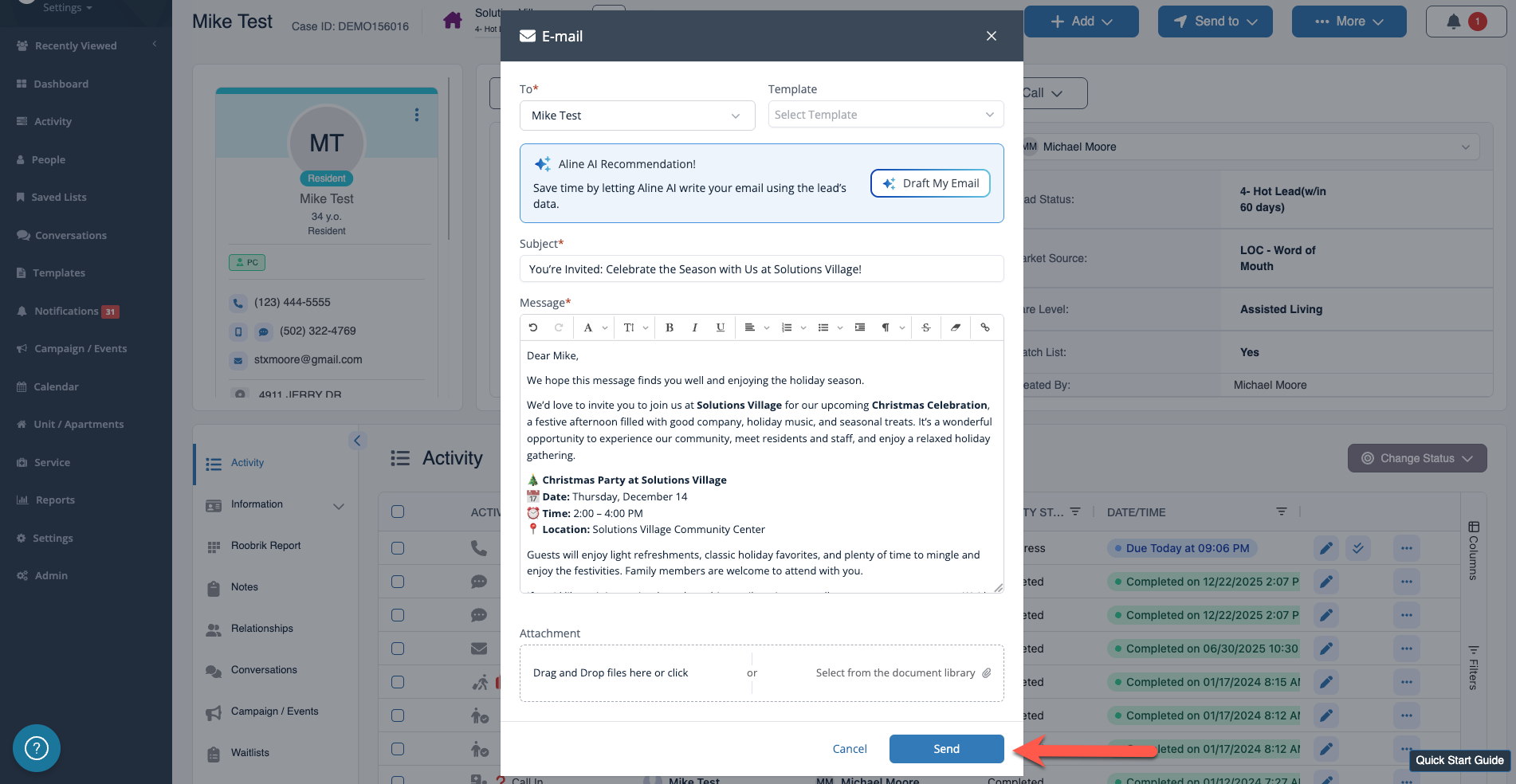
The email will also copy into the activity panel as a logged activity once it has been sent to the recipient.
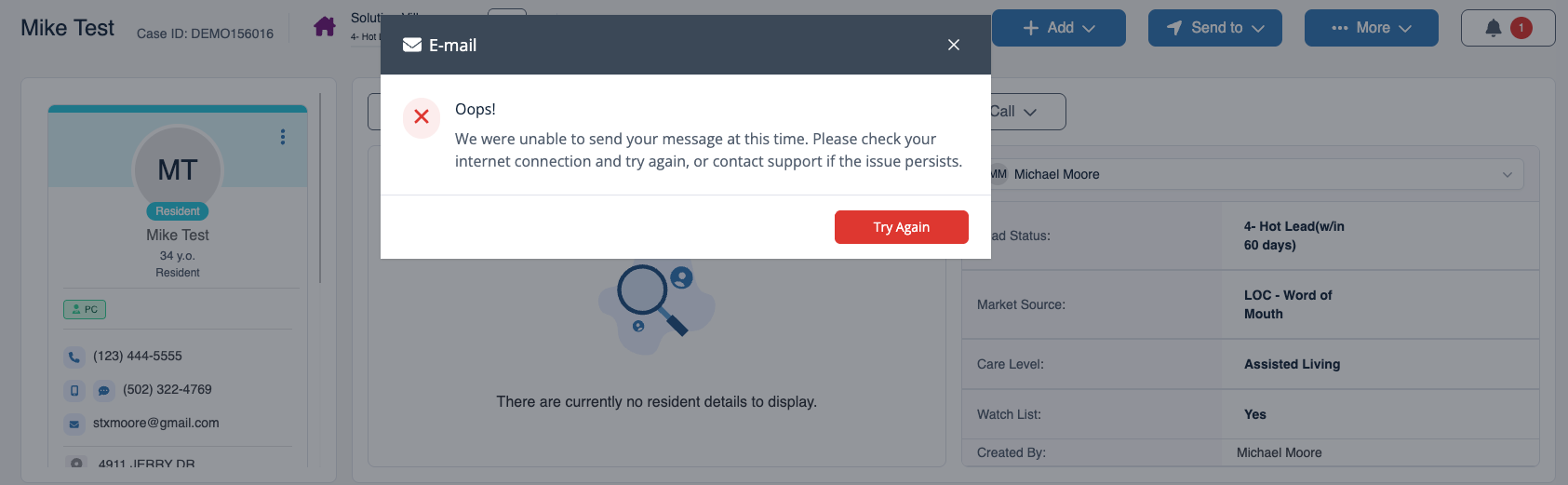
And, remember, if you run into any technical issues, there may be additional components of the tool that still require setup. Please contact your systems IT administrator for assistance.
Was this article helpful?
That’s Great!
Thank you for your feedback
Sorry! We couldn't be helpful
Thank you for your feedback
Feedback sent
We appreciate your effort and will try to fix the article