Overview
In Aline CRM, there are three primary Action Buttons present on each Prospect Profile including Email, Call, and Text buttons that allow for easy communications with your prospects and referral sources across multiple communication methods. In this article, we'll take a look at the Text functionality specifically.
Sending a Text from the Prospect Profile
At the top of the Prospect Profile, you'll find an Action Button labeled Text.
Naturally, this functionality enables you to reach out to your individuals via Mobile Phone Text - moreover, this action allows you to sync your texts with parties directly into Aline CRM, automatically creating a logged activity for the individual at the same time!
Please Note: Note that all communication methods available in Aline CRM, including Text, do require some initial setup to be operational. Namely, both the Aline CRM user and the recipient must have a valid mobile phone number entered into the CRM. If you run into any technical issues or need assistance with your ability to use these tools, please contact your systems IT administrator.
Step 1: Select your desired prospect. At the top of the prospect profile, you'll see an Text button listed. 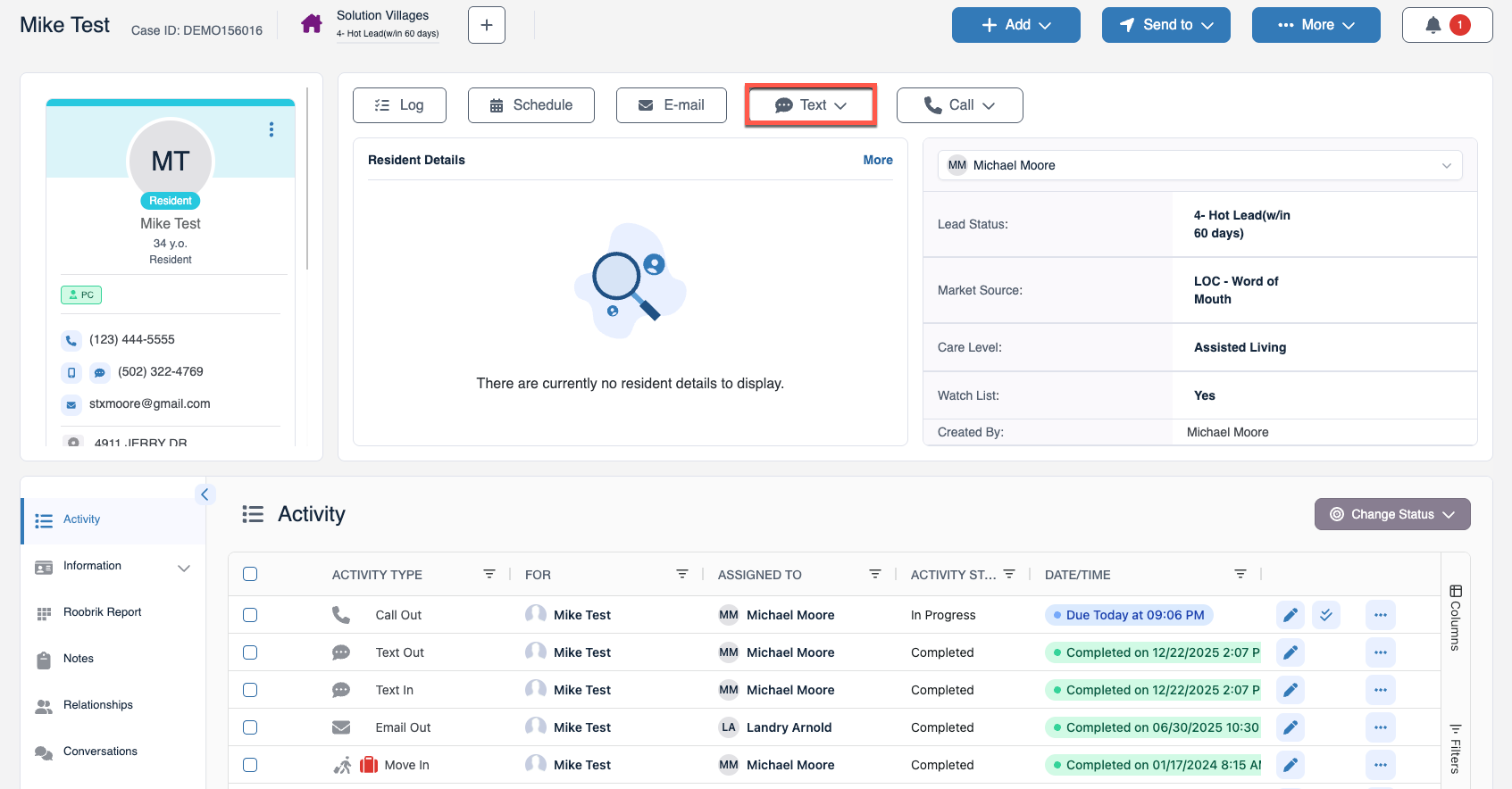
Step 2: Select the Text button and confirm which contact and mobile number you would like to text.
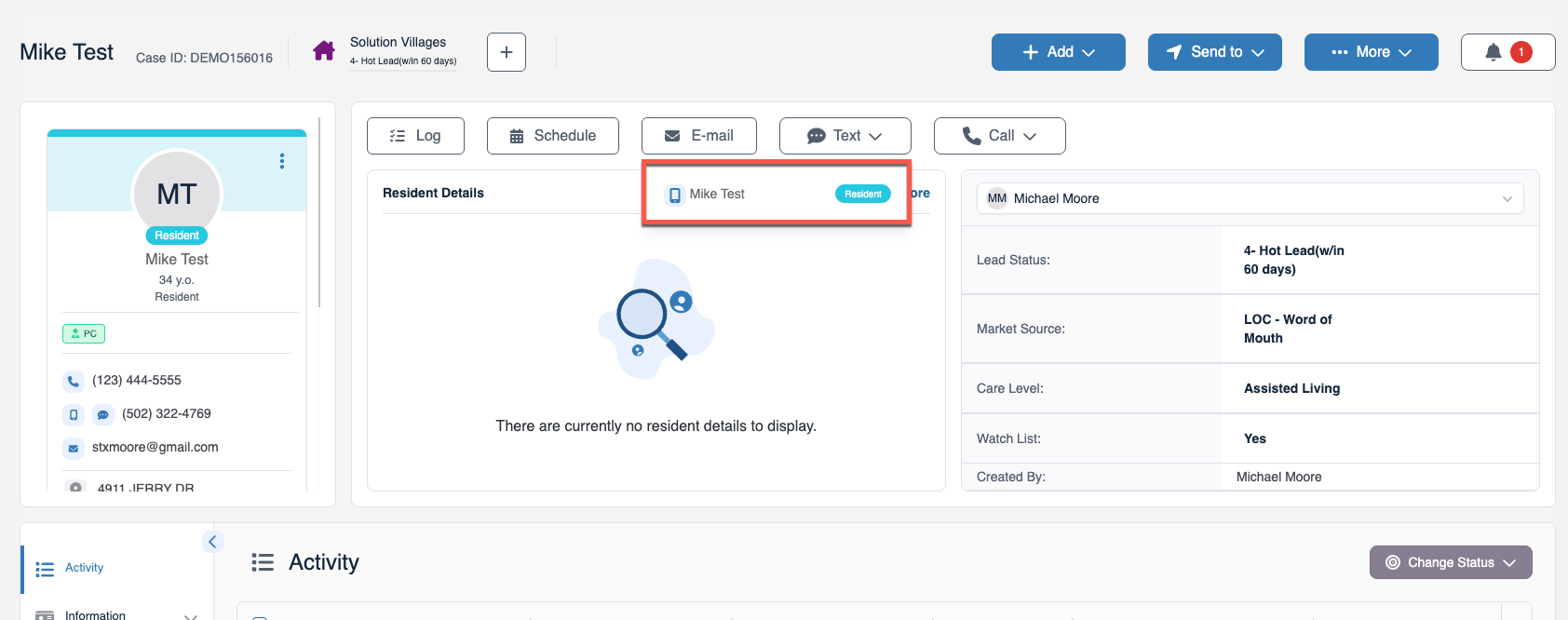
Step 3: Aline CRM will then launch the Text Page and connect to the recipient's mobile phone number. Texts can be typed in exactly as if they were coming from your own mobile phone. Aline CRM will display a record for all texts sent and received from the recipient in the Text Page window. Select the Send Button to send texts.
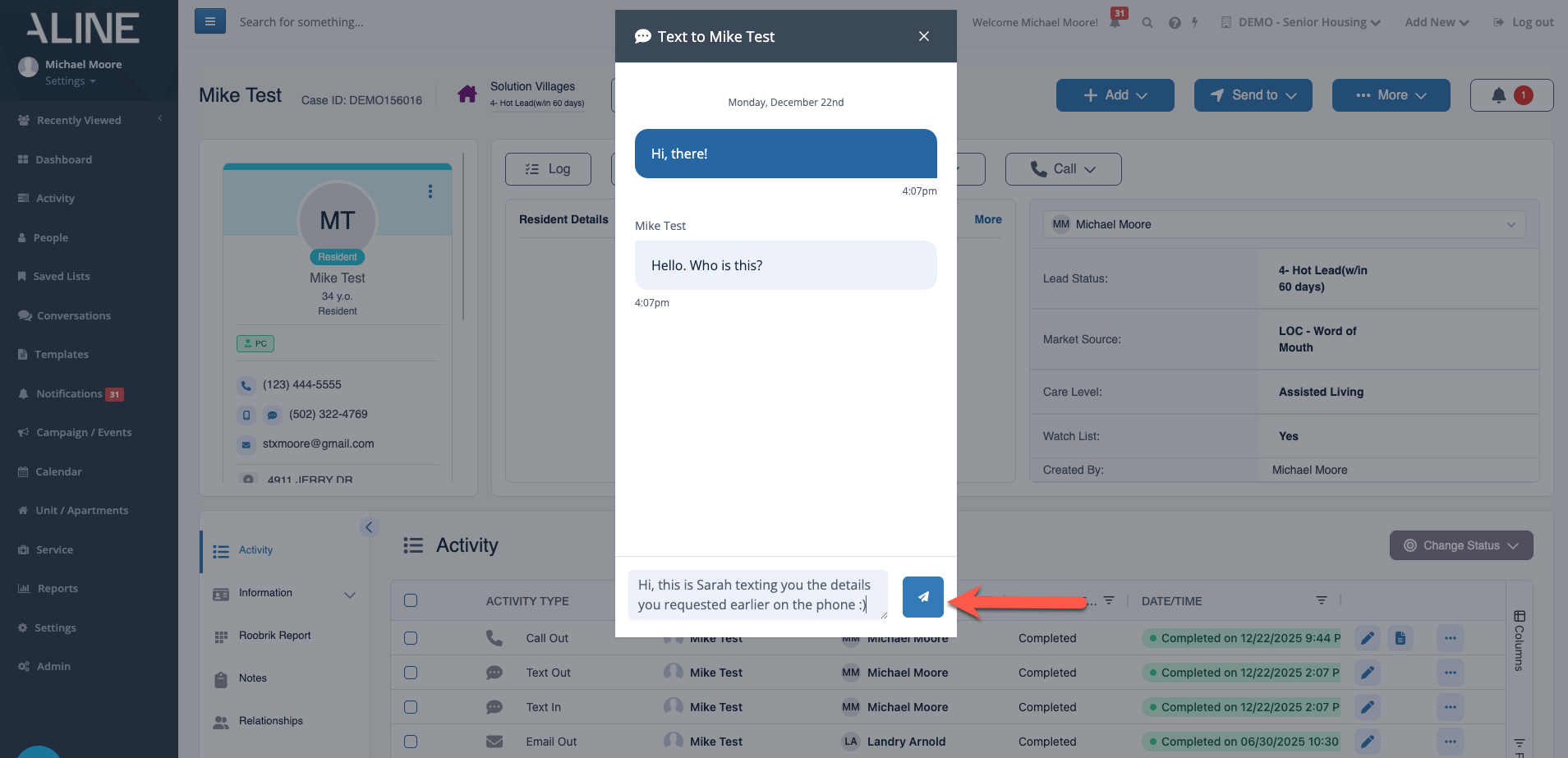
Text records between your various contacts will automatically store as Text In / Text Out activity types on the prospect's Activity Panel. Full transcripts of the text exchange will also automatically copy into the prospect's Notes Page.
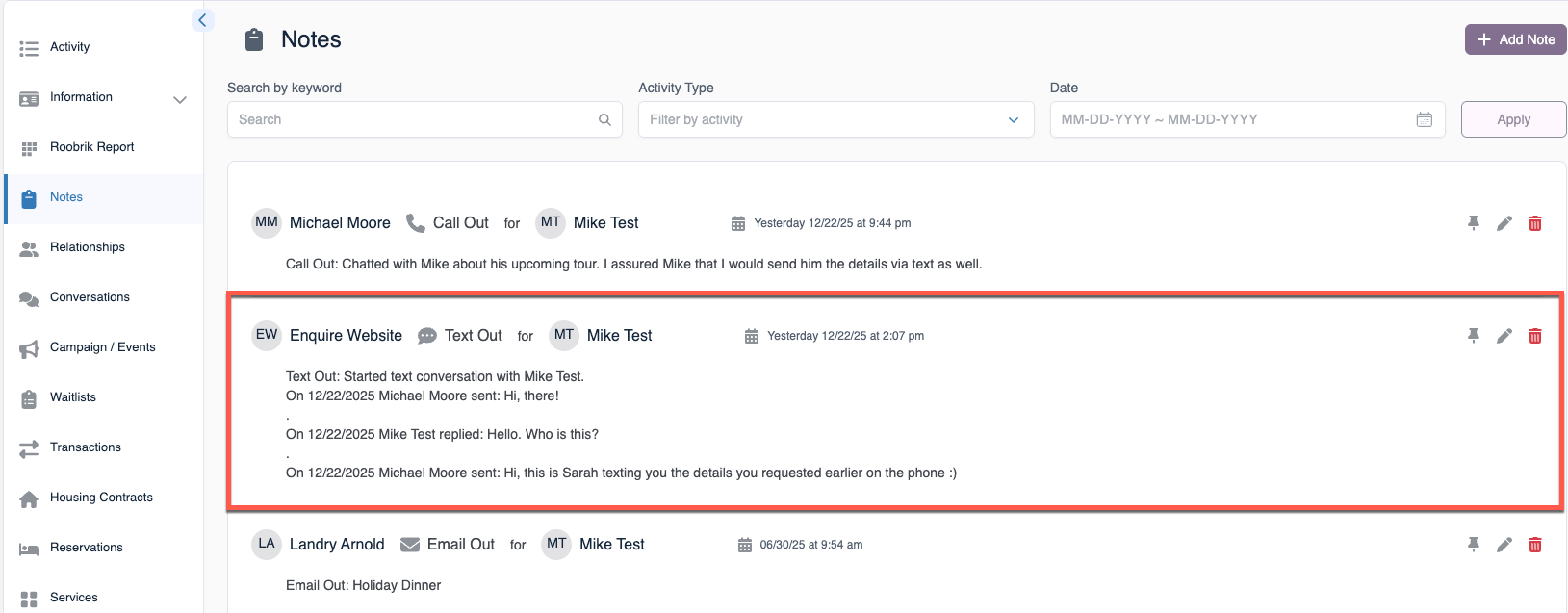
Text records between your various contacts will automatically store as Text In / Text Out activity types on the prospect's Activity Panel. Full transcripts of the text exchange will also automatically copy into the prospect's Notes Page.
Was this article helpful?
That’s Great!
Thank you for your feedback
Sorry! We couldn't be helpful
Thank you for your feedback
Feedback sent
We appreciate your effort and will try to fix the article