Overview
In this article, we will review best practices and requirements for creating a Webform Integration.
Required
The following fields are required for creating for a webform push:
- Community ID > NameUnique
- On all Individuals:
- First Name
- Last Name
Note: All influencers (Contact) must be connected to a lead (Prospect).
Best practices
The following are best practices to create a better profile, user experience and reportability:
- Do not push a contact/Influencer as a Lead.
Ask "Is this for yourself or a loved one?", if they answer as "loved one" then create the inquiring individual as a Contact and connect to a prospect. If they answer as "self" then create the inquiring individual as a Prospect
Example: Jane Smith is inquiring for her mother and answers this is for a loved one.
Options
- Create an additional pop-up questions to ask for the Prospects first and last name, and possibly their relationship to prospect to create the correct prospect individual. ("Contact" is default value for unknown relationship)
- No additional Questions, instead create a generic prospect using inquiring individuals last name: "Prospect Smith", or with relationship "Mom Smith"
Note: ("Unknown Prospect" is bad input for reportability and identifying leads)
- If requesting phone number - Ask for phone type.
- This allows the phone number to be pushed to appropriate field(Home/Mobile/Work/Fax) and work with our Click-to-Call and Text features
- Have a confirmation of submission.
- Have a pop-up confirmation of submission and a Thank You email for inquiring about the community.
- Duplicate the submission to an email inbox.
- Having a dedicated inbox for webform auditing is always a good idea to verify all transmissions are coming into the CRM as expected. This will allow the onsite team to audit and retrieve any submission in case of any unexpected transmission error.
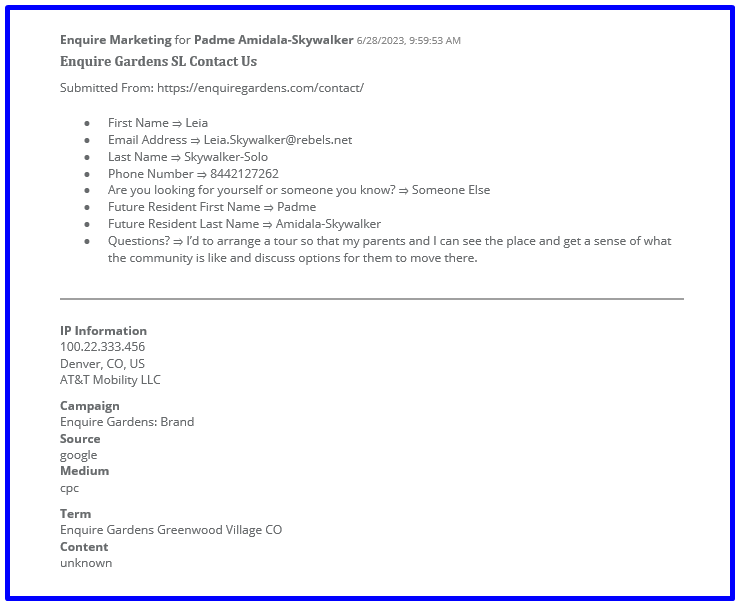
- Push the full submission as a note (message field)
- Not only capture notes from the webform, push the full transmission for user reference and transmission auditing.
Push to Note(message field) example shown in CRM
Common Form Fields
- Inquirer First and Last Name
- Individual Type -> "Is this for yourself or a loved one?"
- Relationship Type -> Inquirers relation to Lead
- Lead First and Last Name
- Inquirer Email Address
- Inquirer Phone # and type
- Lead Care Level
- Market Source (Hidden on form)
- Note
Duplicate Check with API
Enquire has a built in duplicate check for digital created webform leads. Any submission that has a matching Phone Number or Email to an existing record in the target CRM community will be merged into the existing profile. Duplicates are not matched on names as this may not be a duplicate.
Duplicate Phone or Email Found
- New record will not be created
- Existing record will be updated with "webform" activity and Profile Note.
- No fields will be updated
Note: CRM Workflow can be added to create a notification for the profile assigned user to alert them of a re-inquiry.
Market Source Options
- Market Source can be applied via workflow within the CRM i.e. "Web Form".
- Or values can be included in webform push for more granular sources per webform origin.
- UTM Mapping can be utilized to a apply a Digital CRM Source (and master type), Examples:
- Google Paid (Paid Search)
- Google Display (Paid Display)
- Google Organic (Organic Search)
- Facebook Paid (Paid Social)
- Facebook Organic (Organic Social)
- Options: Send full UTM in note(message field) for reference and auditing.
Developer Portal
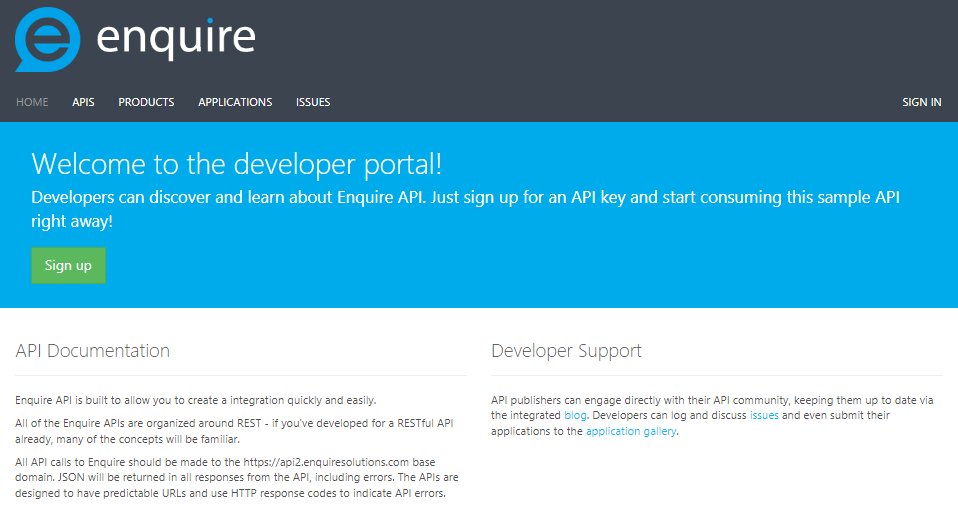
To establish an API key and for additional rules, fields and examples on creating the API push please visit our API Developer site: https://developer.enquiresolutions.com/
Note: A Third-Party-Agreement and Vendor Integration agreement may be required to get started if working with outside vendor to build webforms.
Was this article helpful?
That’s Great!
Thank you for your feedback
Sorry! We couldn't be helpful
Thank you for your feedback
Feedback sent
We appreciate your effort and will try to fix the article