In this article we will review the HubSpot Integration setup and use for webforms and list syncing
- TABLE OF CONTENTS
Getting Started - Register for an Enquire 3.0 API Key
Go to the Developer Portal and create a developer account
Send an email to Integrations.support@alineops.com with 1) client company name 2) subscribing user name and email address requesting the developer account.
Once approved you will be able to access your 3.0 API key through the portal
NOTE - If a third-party vendor is managing your HubSpot account, they will need to first establish an Integration Agreement and Third-party Agreement
Setting up HubSpot Connection and Gather Integration Credentials
Create a Private APP Token and gather HubSpot Portal ID
Register or Login to your HubSpot account.
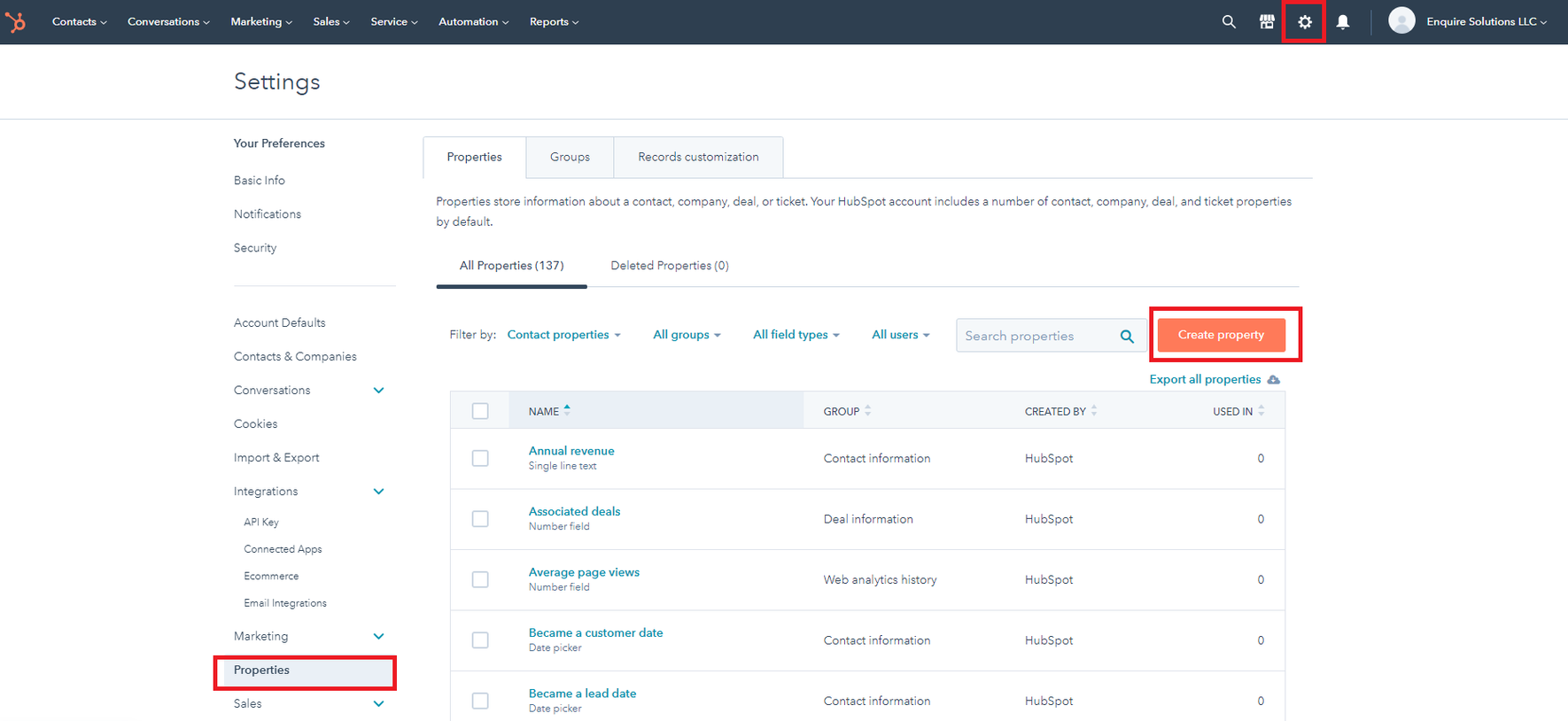
Navigate to HubSpot Settings -> Integrations -> Private Apps > Click Create A Private App (Example Pictured);
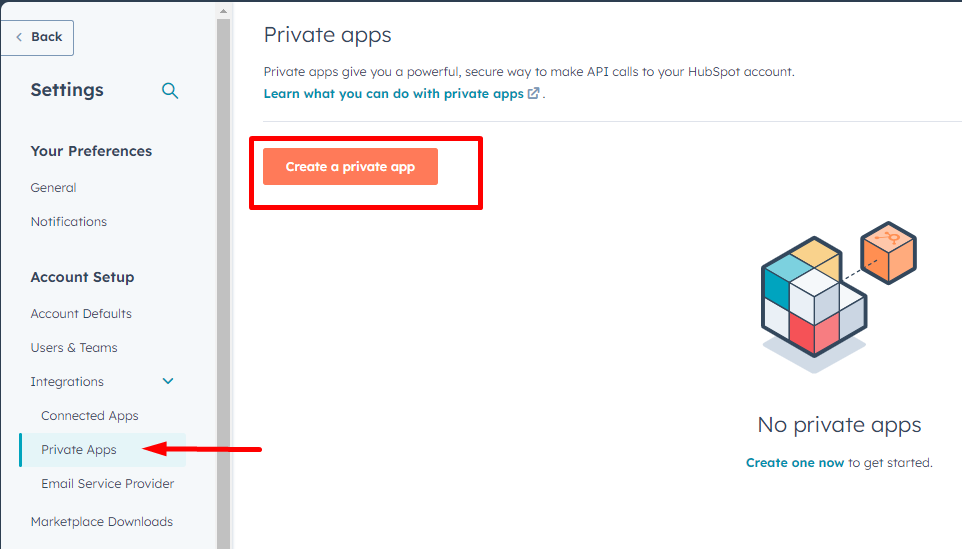
3. Get your portal ID - After clicking “create a private app” copy the URL to send to Aline. The number shown in the URL is your HubSpot Portal ID

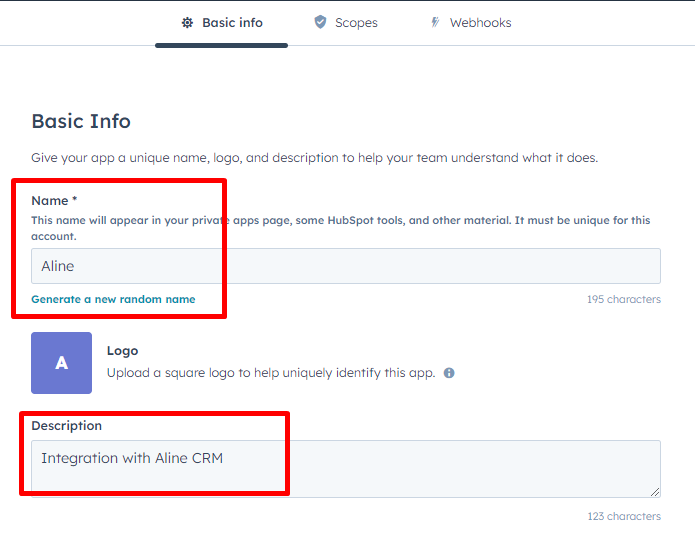
4. Enter the App’s Name & Enter description for you app
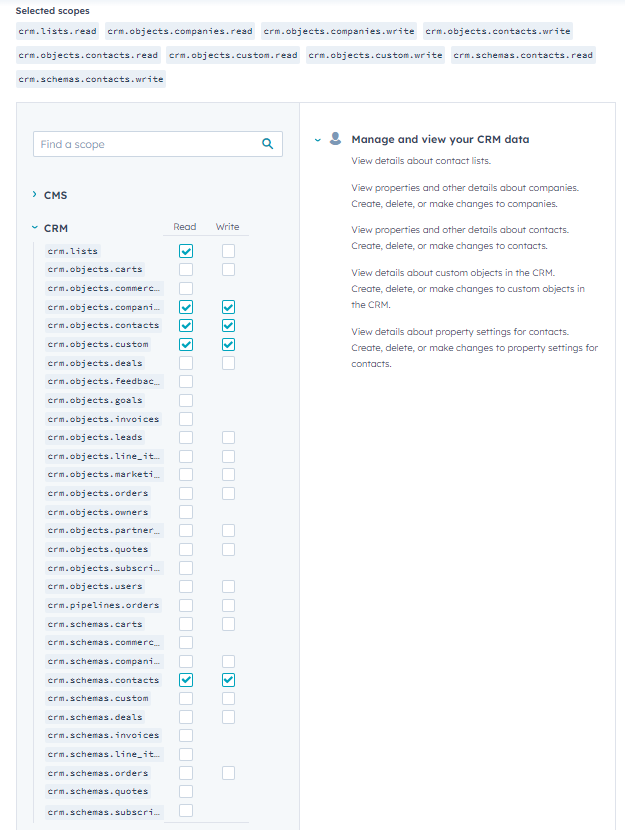
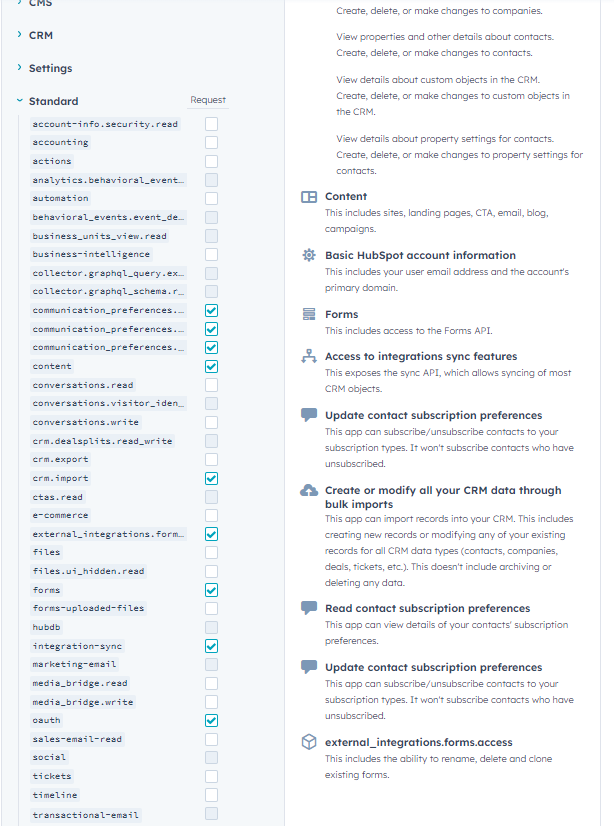
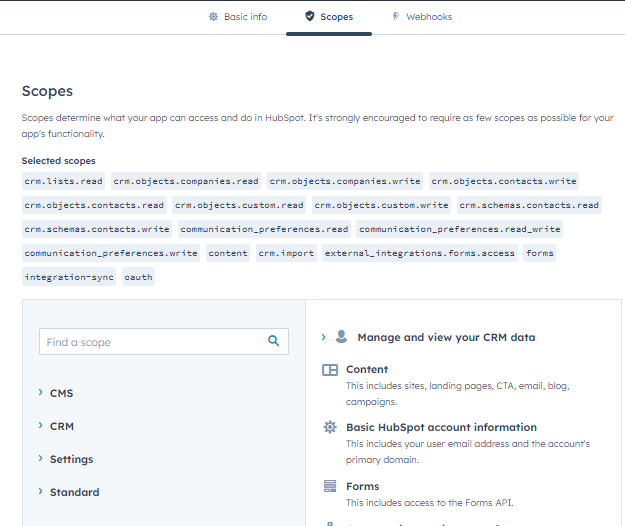
5. Click Scopes tab > Grant Read and Write permissions to the following Scopes
CRM (read/write):
crm.lists - Read & Write
crm.objects.companies – Read & Write
crm.objects.custom – Read & Write
crm.objects.contacts – Read & Write
crm.schemas.contacts - Read & Write
Standard (request):
communication_Preferences.read
communication_Preferences.read_write
communication_Preferences.write
content
crm.import
external_integrations.form.access
forms
integration-sync
oauth
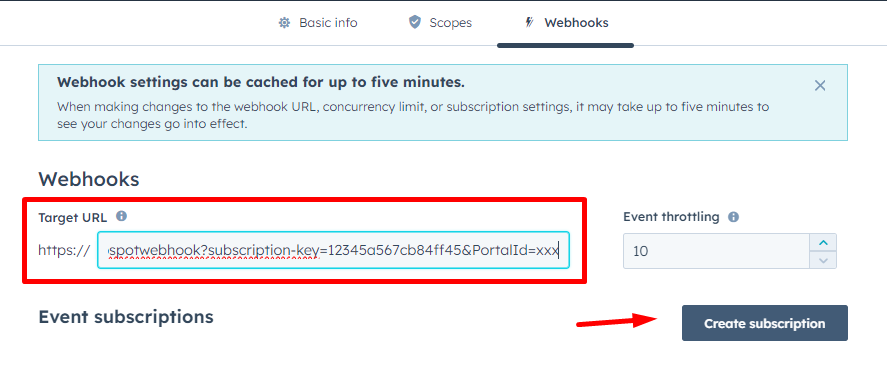
Click Webhooks tab > Create and add the Webhook Target URL of: https://api2.enquiresolutions.com/v3/hubspotwebhook?subscription-key=12345a567cb84ff45&PortalId=xxx (where the subscription-key=Your Primary API 3.0 Subscription Key; and PortalId=Your Enquire Portal Id)
NOTE - Aline CRM Portal ID is located by logging into the CRM > Click Admin > end number on the URL is your Aline Portal ID.
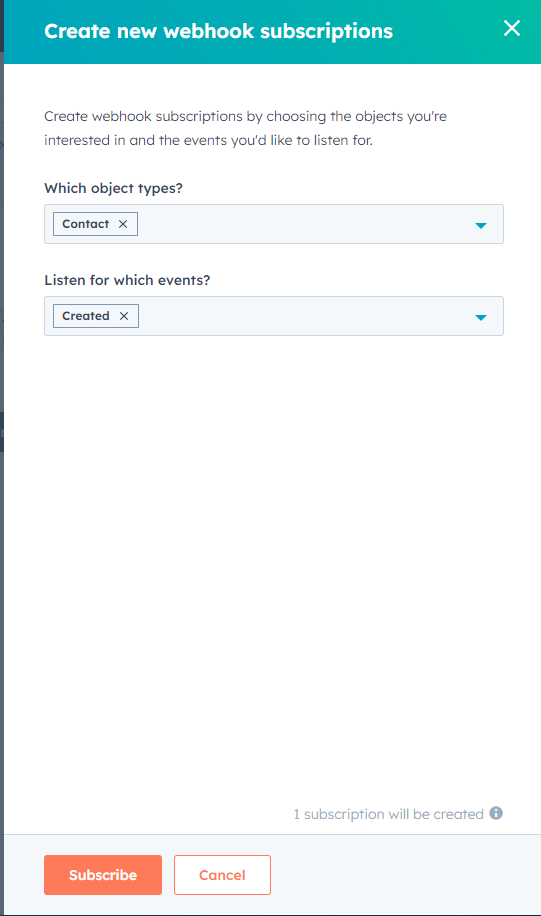
Click “Create Subscription” > Webhook Subscription = Contact & Which Events = Created > “SubScribe” button
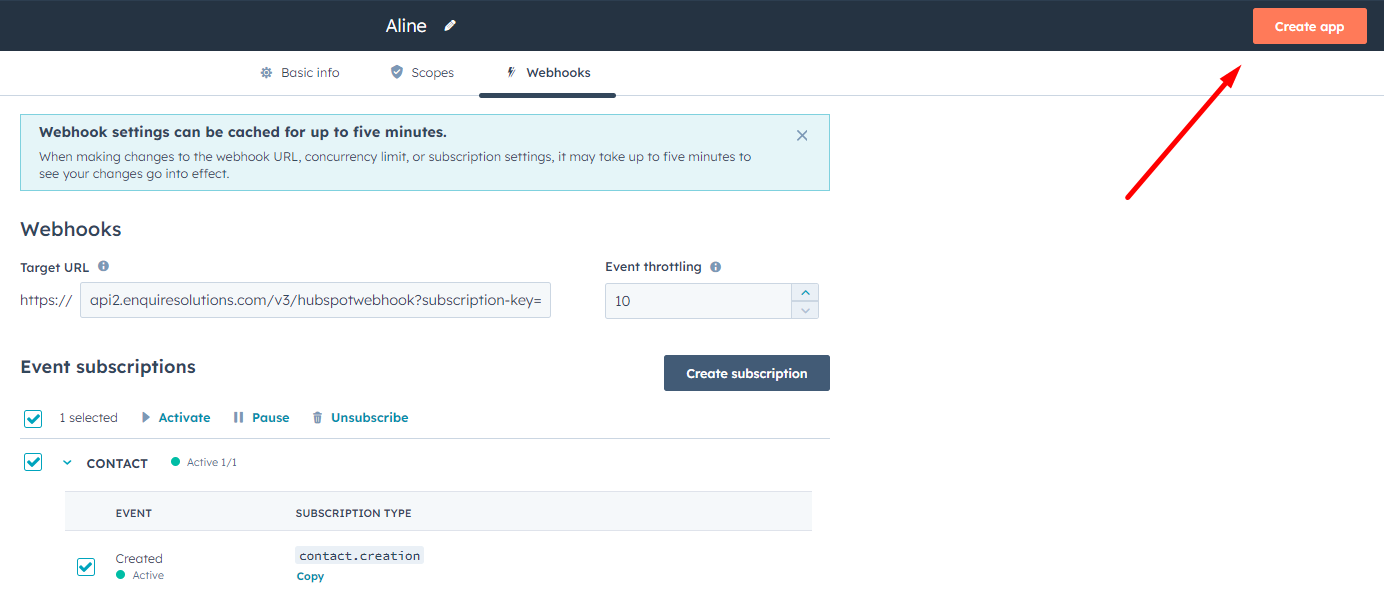
8. Select “Create app” in top right corner > “Continue Creating”
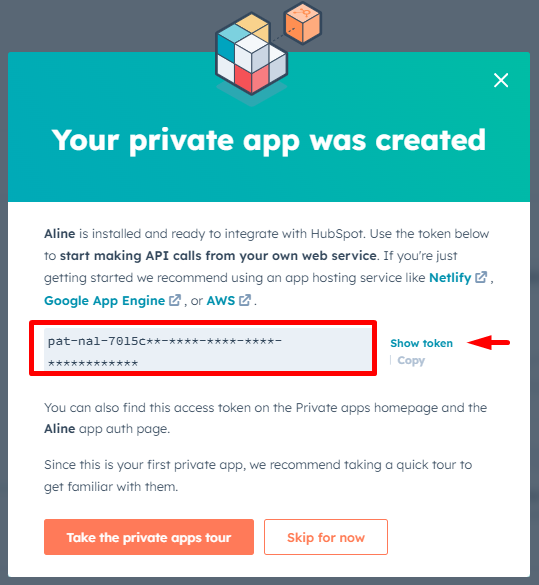
Copy your Private App Token to send to Aline
CRM Plugins and Setup
NOTE: All integrations require an Enquire team member to complete setup of the Integration Plug-ins.
Send Aline Integrations your Integration Credentials
Send an email to Integrations.support@alineops.com with the following credentials
HubSpot Private App Token
HubSpot Portal ID
Webforms
HubSpot Community Field /Custom field Setup:
NOTE: Community is the only required custom field for basic webform. Others may be possible to add.
If it doesn't exist already, Setup the "community" Property for Contacts/Contact Information inside HubSpot (Reference -
 Create and edit properties );
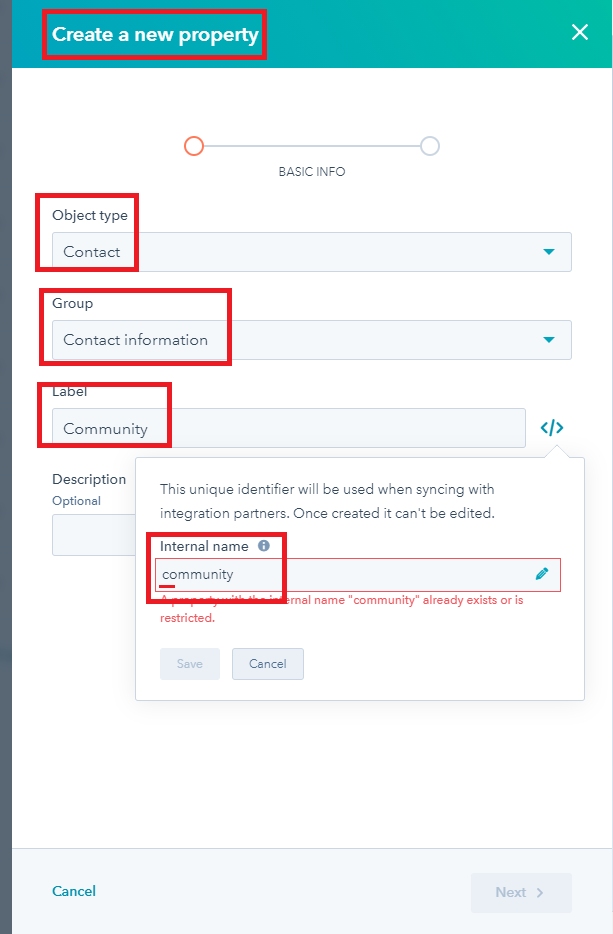
2. Create a New Property, then select Next
Object type = Contact
Group = Contact Information
Label = Community
Internal Name = Community
Optional description can be left blank
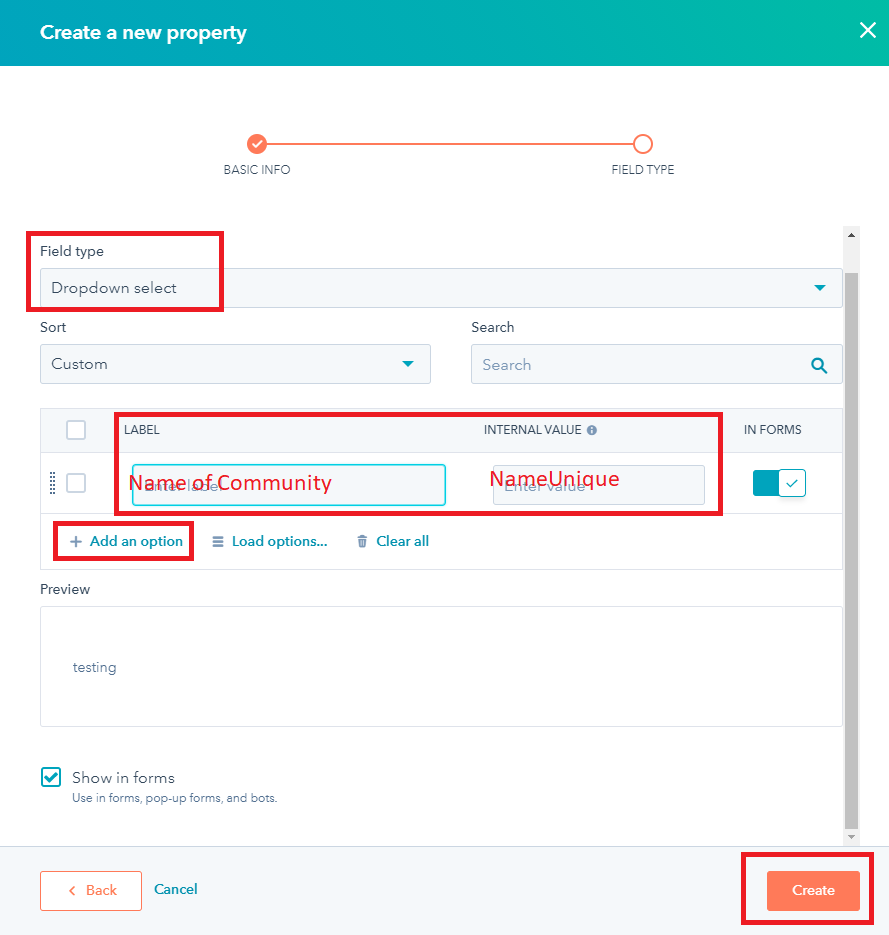
3. Add the below field values, then click “Create”
Field type = Dropdown select
Label = Community Name/s (+ Add an option to add more community names) (NameUnique values can be found by clicking on the Community Details Pages in Enquire and clicking the 'Summary' tab)
Internal Value = CRM NameUnique
Webform Field Reference list:
* Community (community), required - can be hidden field in transmission or selectable on corporate page (Custom property within HubSpot)
* First Name (firstname), required
* Last Name (lastname), required
Care Level (care_level), optional (Custom property within HubSpot)
Email (email), optional but Best Practice
Phone (phone), optional but Best Practice (Must be Phone Field and not Mobile Phone Field)
Message (message), optional but Best Practice
Market Source (market_source), optional - hidden value (Custom property within HubSpot) (also basic “webform” or “HubSpot” can be added via workflow within the CRM)
Individual Type is auto-added to HubSpot submission of prospect
Activity Type is defaulted to first master type activity of Webform.
Note: * Indicates required. Other properties are optional. Almost all Properties can be marked hidden and/or have a default value set if needed
Note: Your community's NameUnique is a unique identifier specifically for your community. This ensures that individuals are sent to the correct community. If you aren't sure where to find your community's NameUnique, follow our help desk article on Locating your Community UniqueName
Setup the Webform Processing Workflow
Requirements
Your Enquire Primary API 3.0 Subscription Key
Your Enquire Portal Id
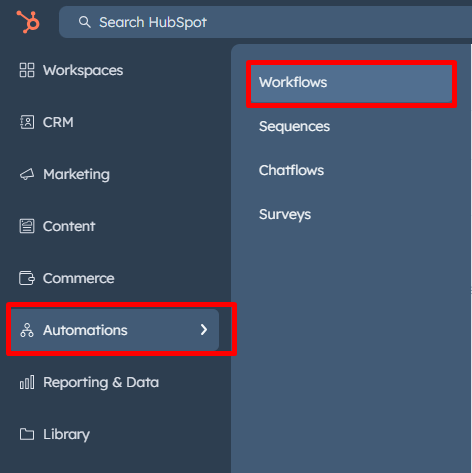
1. Click Automation, then Workflows.
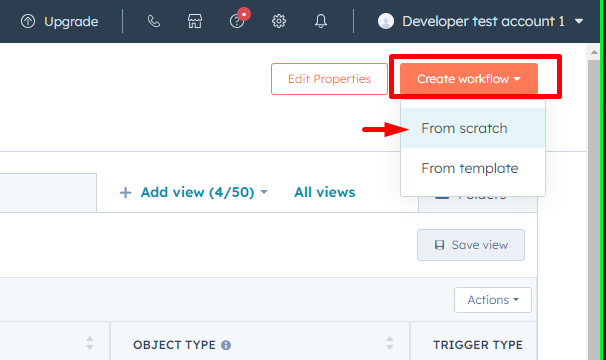
2. Click Create workflow in the upper right., then select From scratch.
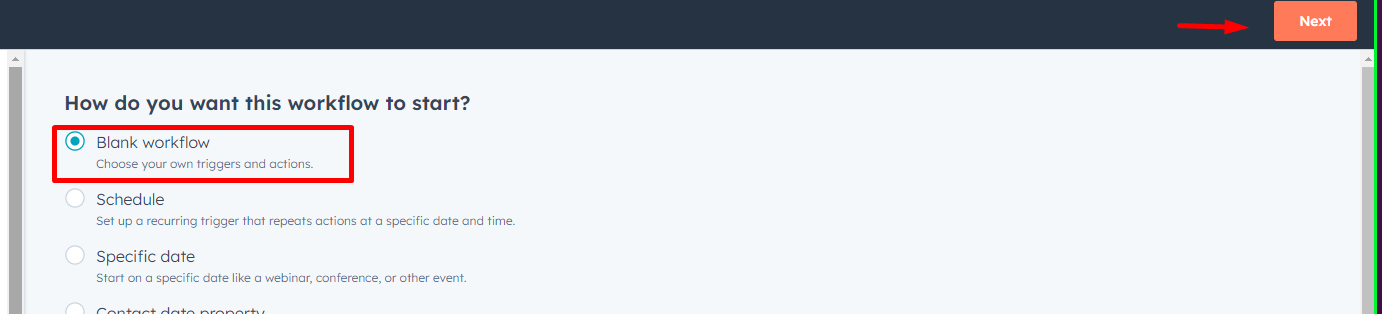
3. Select Blank workflow and Next.
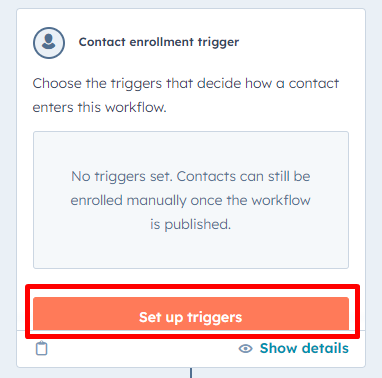
4. Click on Set up triggers
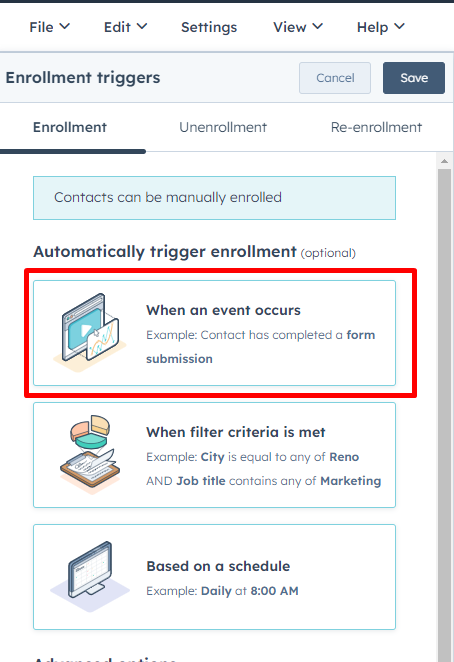
5. Select When an event occurs.
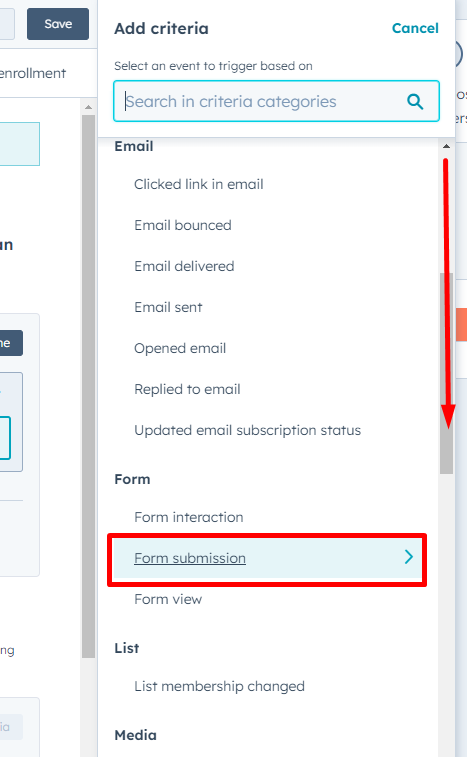
6. In the center below “Add Criteria”, scroll down and select Form Submission.
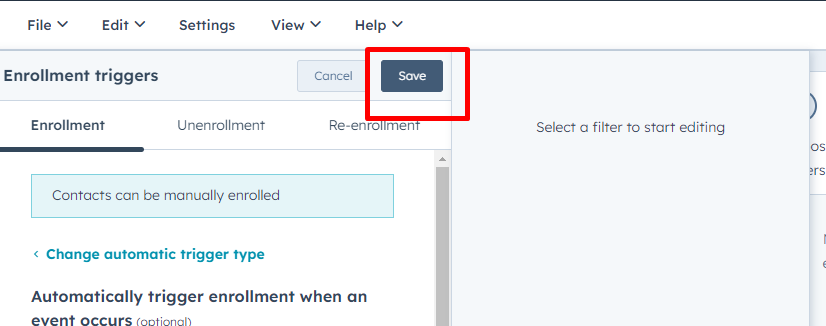
7. Now that “Has completed: Form Submission” is added on the Enrollment > Group 1, Click Save.
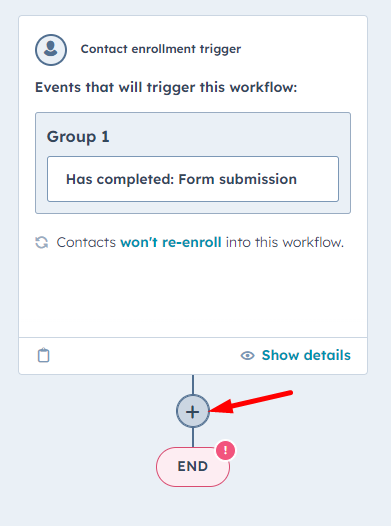
8. Now click the “+” Symbol to add the the result action.
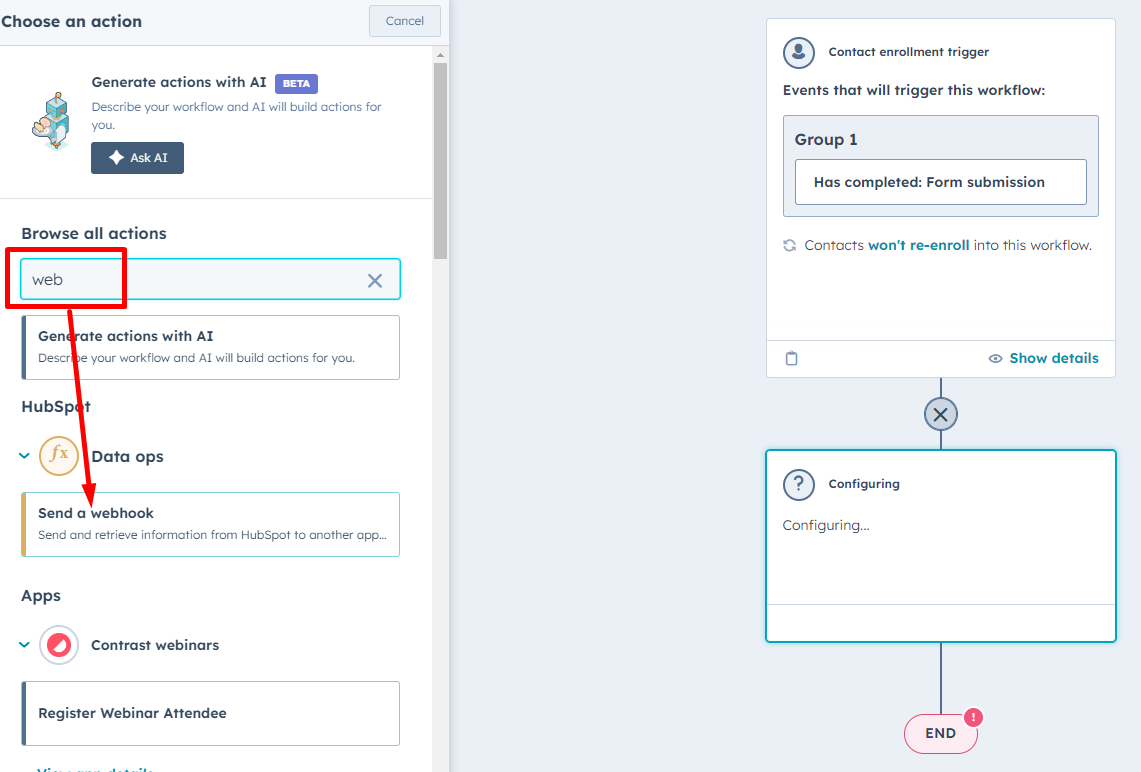
9. In the Browse all actions search bar type “Web” and then select Send a webhook.
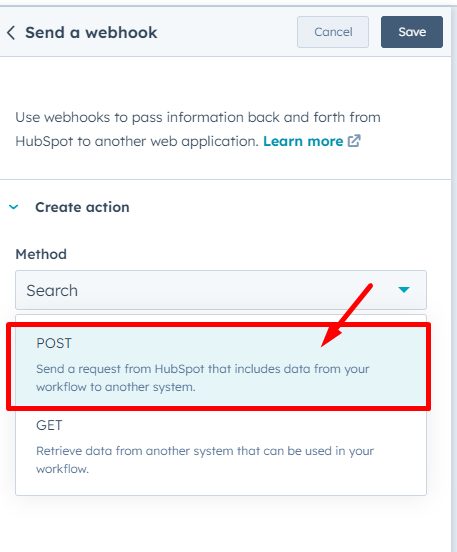
10. In the method search type select “Post”.
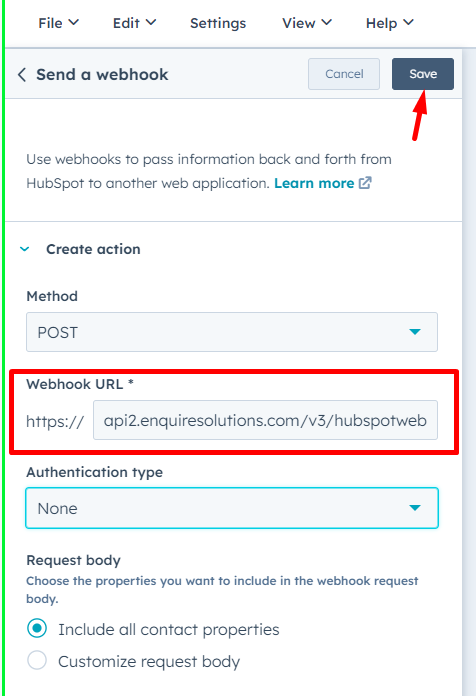
11. Now add the CRM webhook URL = https://api2.enquiresolutions.com/v3/hubspotwebhook?subscription-key=12345a567cb84ff45&PortalId=xxx (where the subscription-key=Your Enquire Primary API 3.0 Key; and PortalId=Your Enquire Portal Id) and then Save
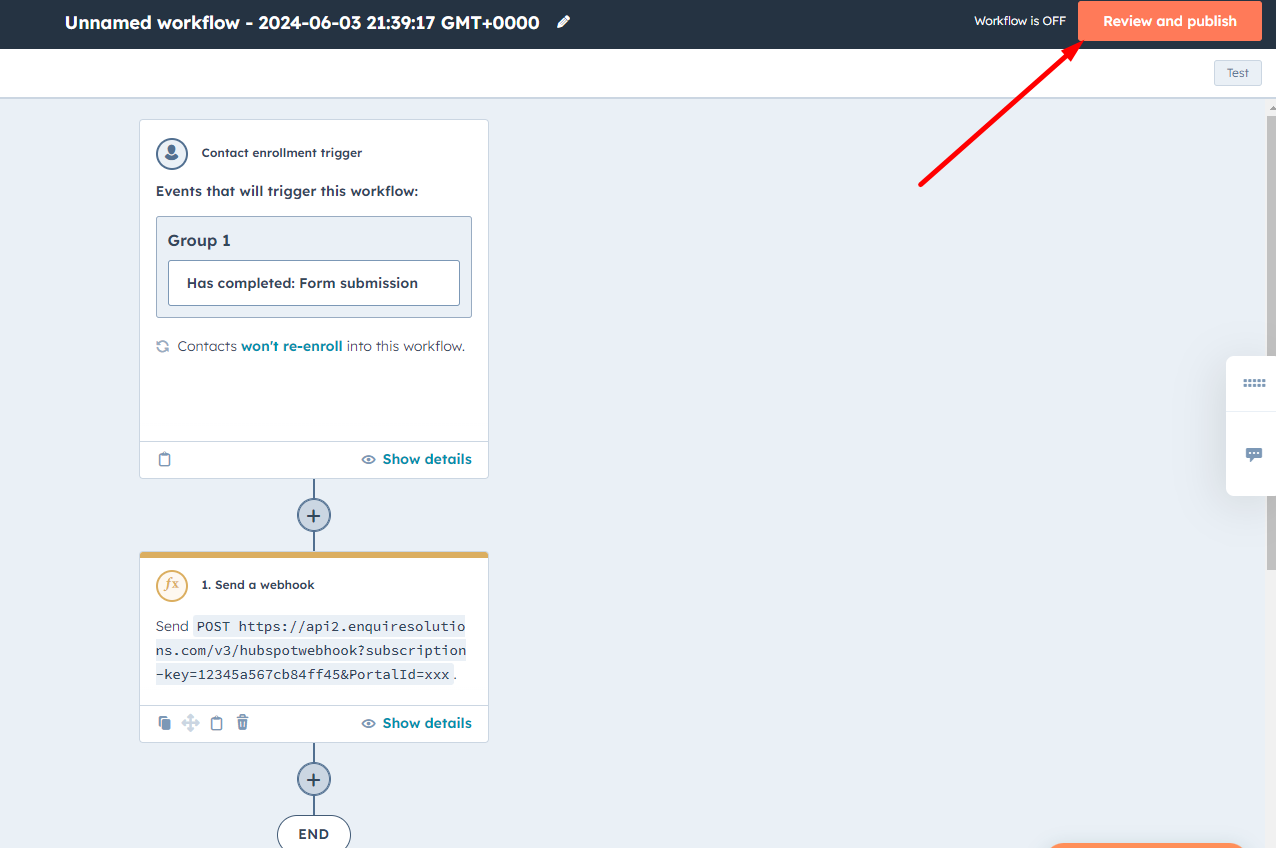
12. Now your flow will look like then and then click Review and Publish.
13. Then “next” through the Enrollment tabs and click Turn on Workflow.
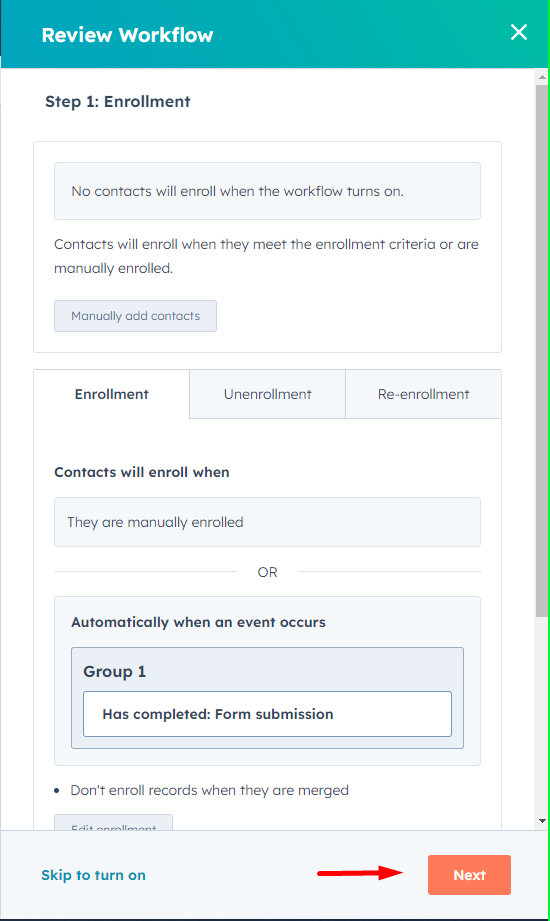
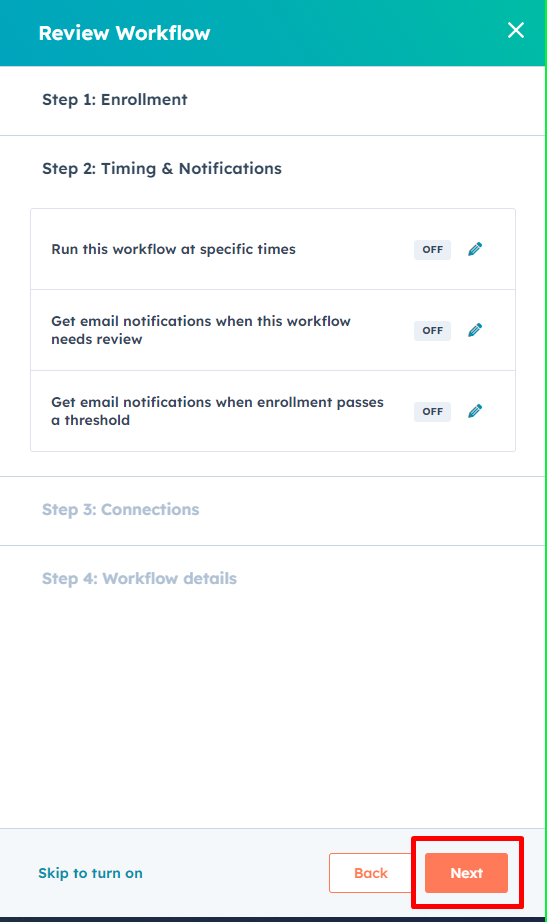
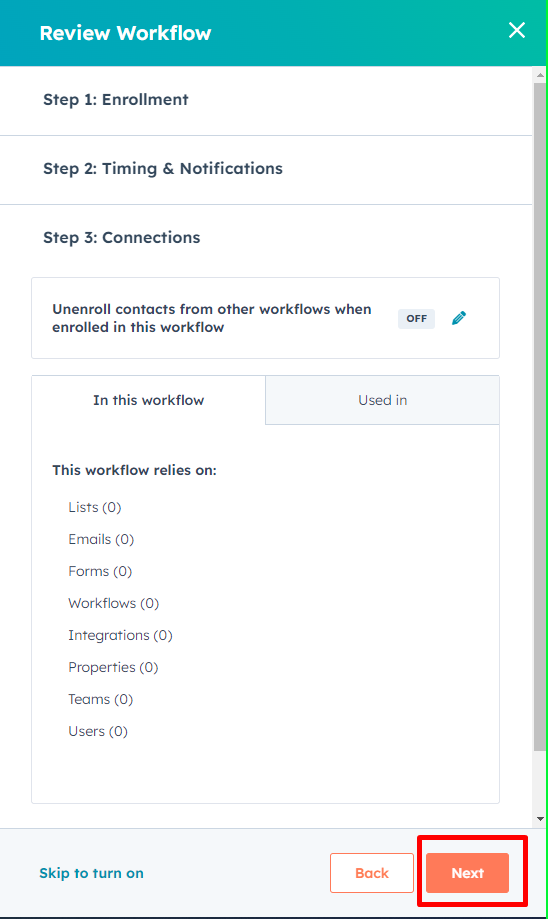
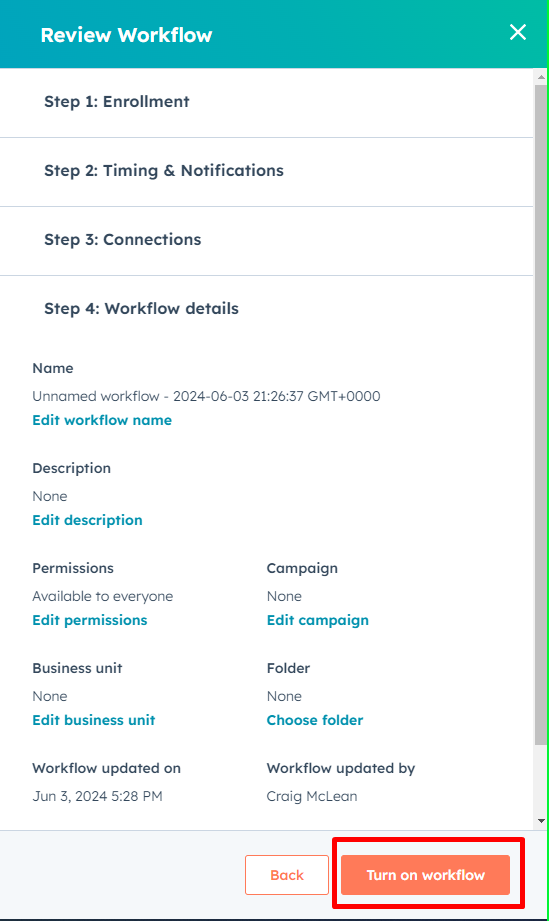
Workflow is now complete.
Setup HubSpot Webform
Note: You only need to follow these setup steps if you would like to use a HubSpot Form to push individuals into Enquire CRM.
1. Create your HubSpot Webform
- Log in to your HubSpot account.
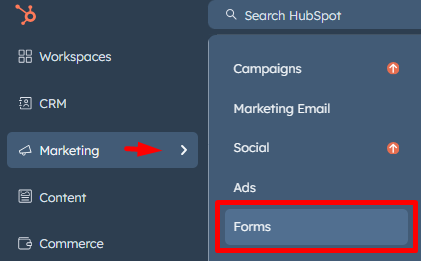
2. Along the top menu, click Marketing, then click Forms.
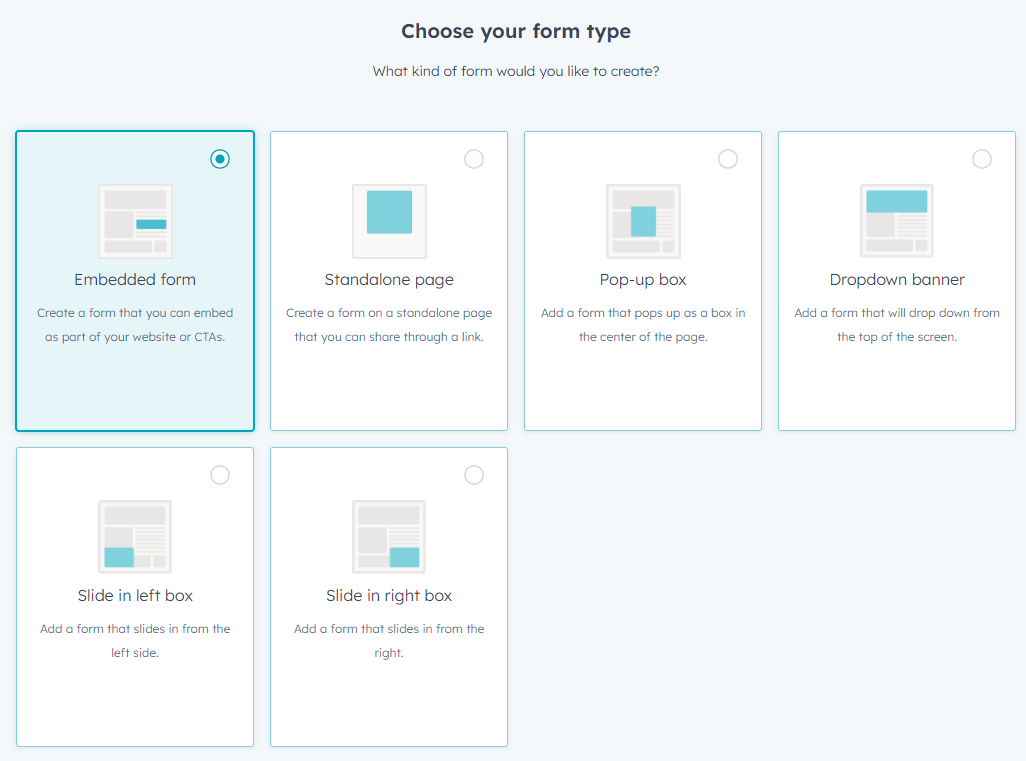
3. Choose your form type(Embedded Form), then Click “Next” in top right corner
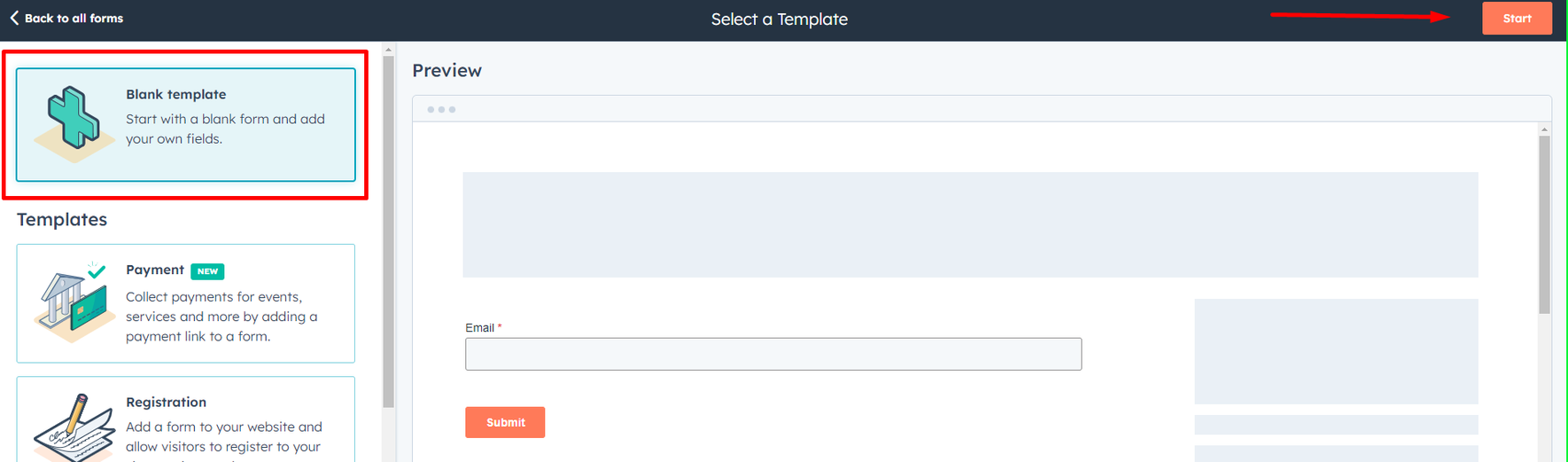
4. Select “Blank template” and then click Start.
5. Drag over your fields and sort. You will need to search for “Community” and “Message” fields.
First Name (*required)
Last Name (*required)
Email (*required)
Phone Number (do not use Mobile Number
Community (default to targeted Community)
Message
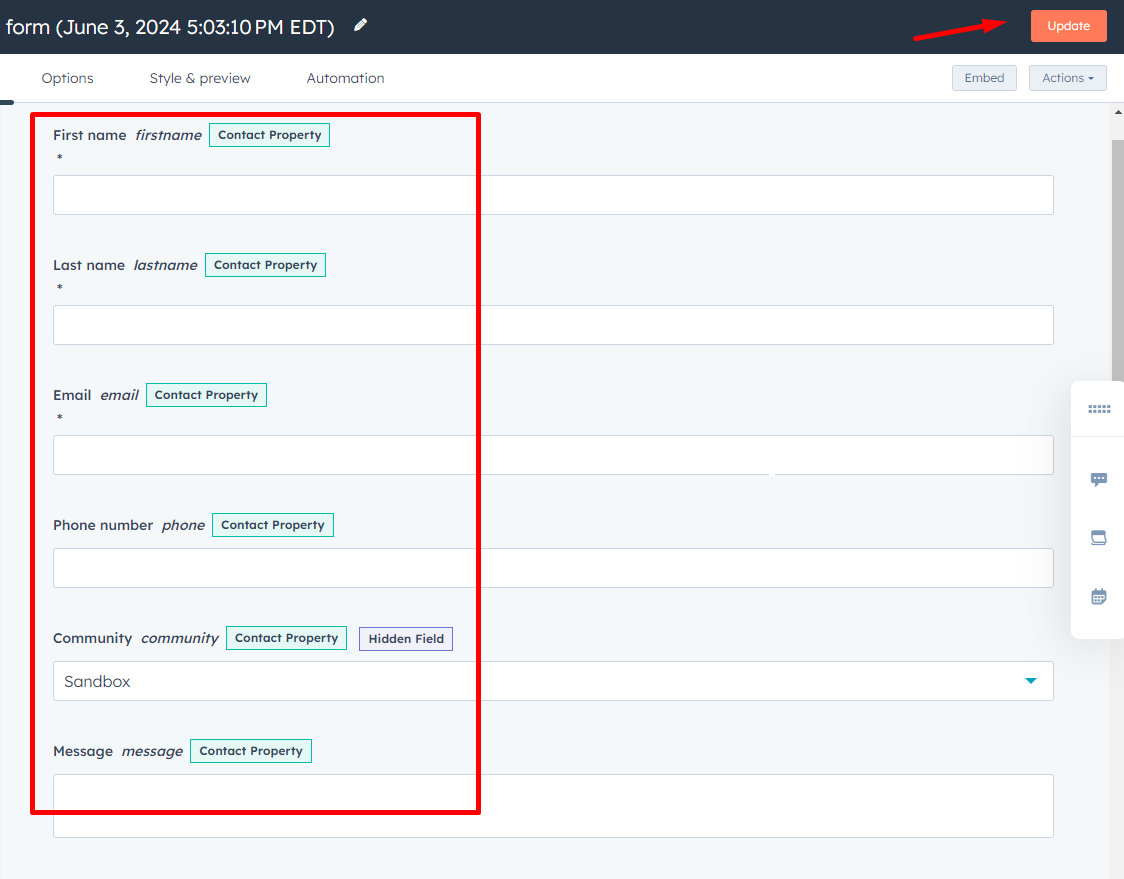
6. Ensure the First name, Last Name and Email are set to Required fields
7. Community should be set to a hidden fields and defaulted to the webpage community unless on a corporate site.
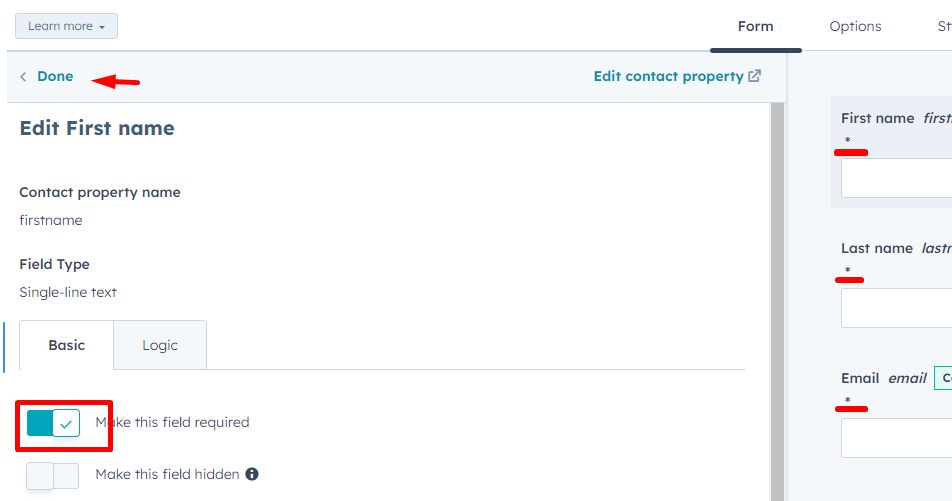
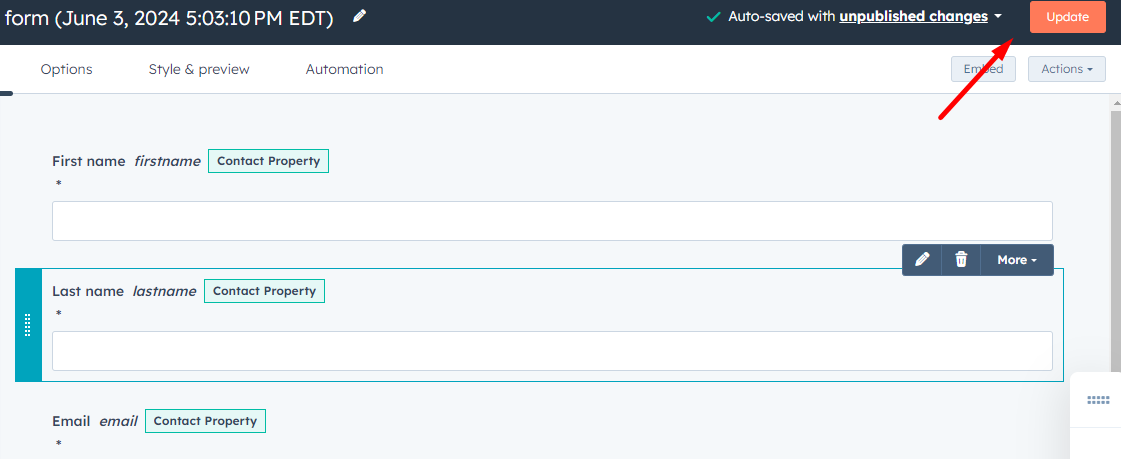
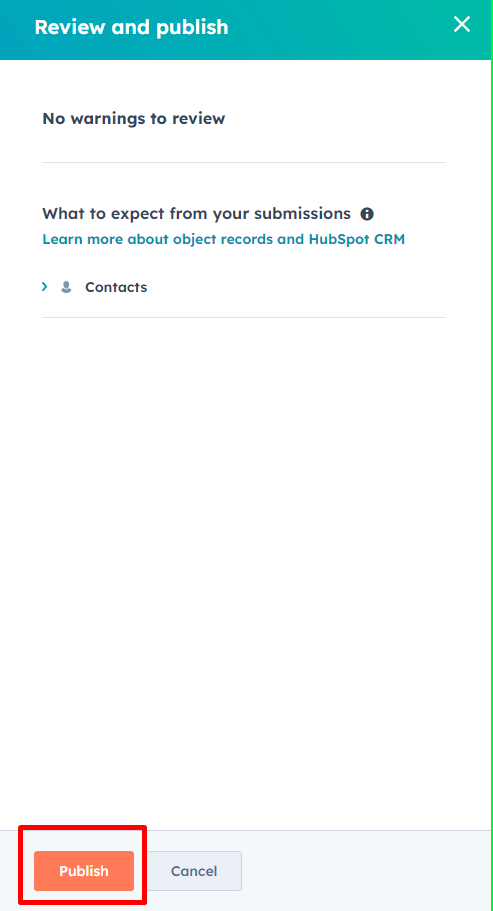
8. Once all fields are added and modified click the “Update” button., then “Publish”.
Test your form:
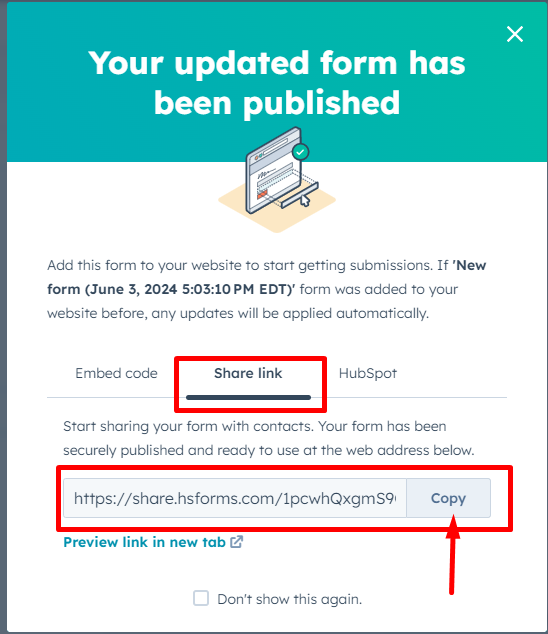
Use the Share link tab to copy the test URL.
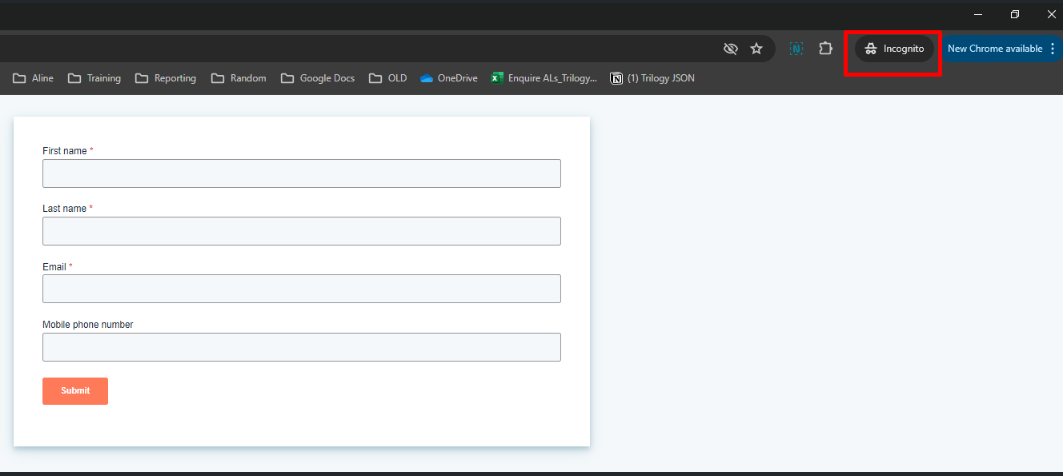
Open the URL in a new incognito window. (best to close all incognito windows and re-paste link for each test submission, or profile within HubSpot will be updated rather than creating new.
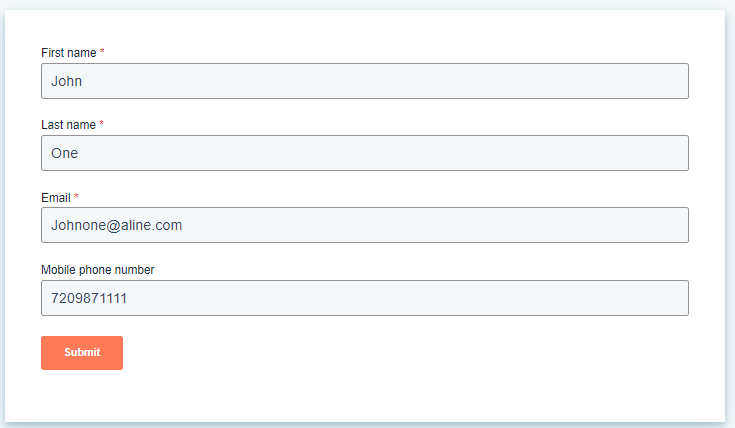
Ensure all fields are populating as expected in the CRM from the test webform submission.
Follow HubSpot instructions to place webform on your website.
NOTE: if you send a matching Phone or Email to the CRM, they will be merged into the existing profile creating an activity and note. No profile fields will be updated
Recommended:
Other Form Elements:
CAPTCHA is recommended for all webforms to prevent spam submissions
CRM List Usage
Sync lists to HubSpot
Step 1: Create a list using Enquire CRM's Advanced Search. Make sure to include the filter of Addresses --> Has Email --> Yes. An email address is required for individuals to sync to HubSpot.
Step 2: Once your list is created, click People on the left menu, click Lists.
Step 3: In the List 'Sync?' column for the lists you would like to sync with HubSpot, click the OFF switch to the ON position.
NOTE: only the creating user to remove existing lists and set the Sync to ON/OFF.
View HubSpot Display
Step 1: On a profile, click the Plug-ins menu item along the top of the profile.
Step 2: To the right of the HubSpot option, click View Activity.
Step 3: Expand each section to view details about the individual.
HubSpot FAQs
The lists I chose to sync aren't displaying in HubSpot
Make sure that you have followed the setup steps above and that the list you are syncing includes the filter of Addresses --> Has Email --> Yes. Each individual in a list must have an email address for a list to successfully sync to HubSpot.
Note: If any individual in your list doesn't have an email address or a valid email address, the list in its entirety will not sync.
Make sure that all parts of every individual's email is spelled correctly. For example: If an individual's email is entered as john.doe@gmail.come, the entire list with this individual will fail to sync because it should be @gmail.com.
An activity wasn't created based on what I had setup. Why?
Ensure the activity Type and Result match exactly what you have in Enquire including capitalization and spacing.
Was this article helpful?
That’s Great!
Thank you for your feedback
Sorry! We couldn't be helpful
Thank you for your feedback
Feedback sent
We appreciate your effort and will try to fix the article