Integration Overview
In this article, we will review the Aline Care and Revenue integration.
- If a Prospect is pushed to Aline Revenue first, the Prospect will also be pushed to Aline Care
- If a Prospect is pushed to Aline Care first, the Aline Revenue button will still be available for the user to reserve a room for the Prospect
- For all integration support needs, please reach out to our Integrations Team at integrations.support@alineops.com
Aline Care and Revenue Integration Workflow
In order to send a profile to either Aline Care or Aline Revenue, you first will update the Individual Type for a single Prospect to Resident, and for a couple from a Prospect and a Contact to both being Residents.
Update Individual Types
For a single Prospect (rather than a couple), navigate to the individual's profile.
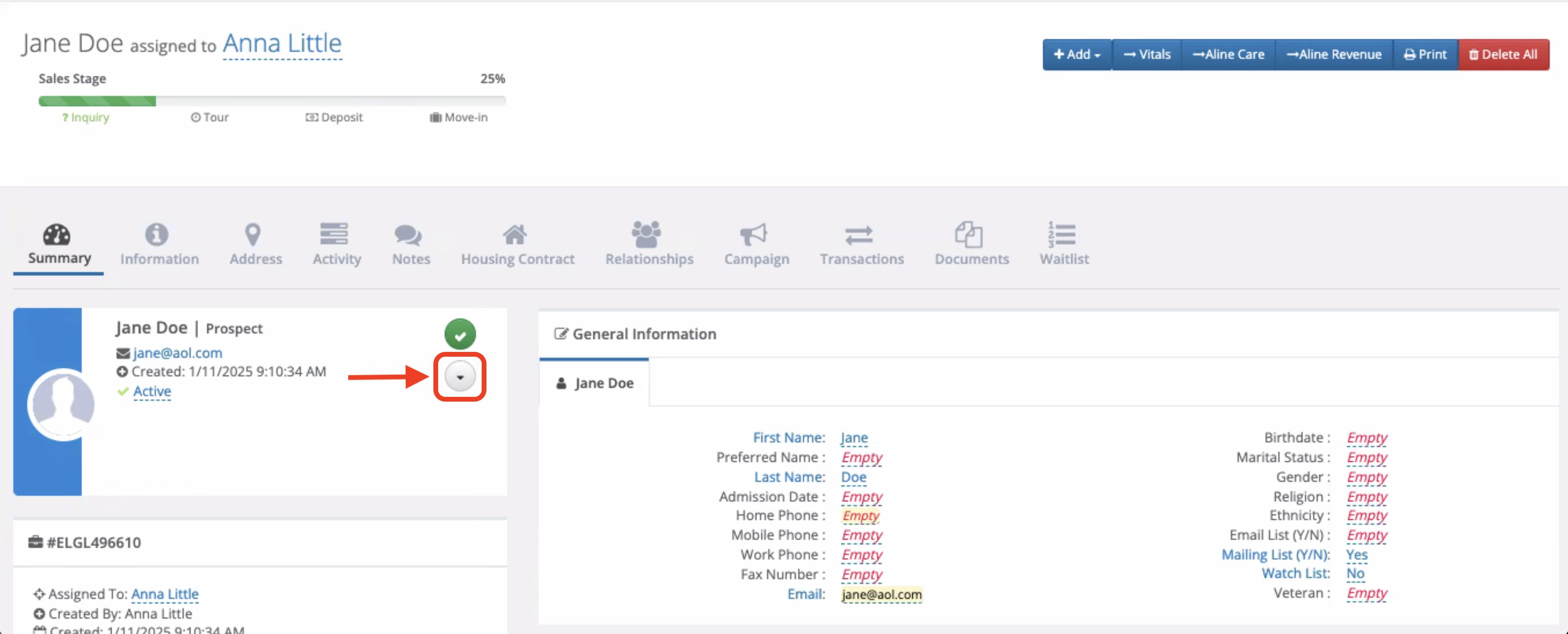
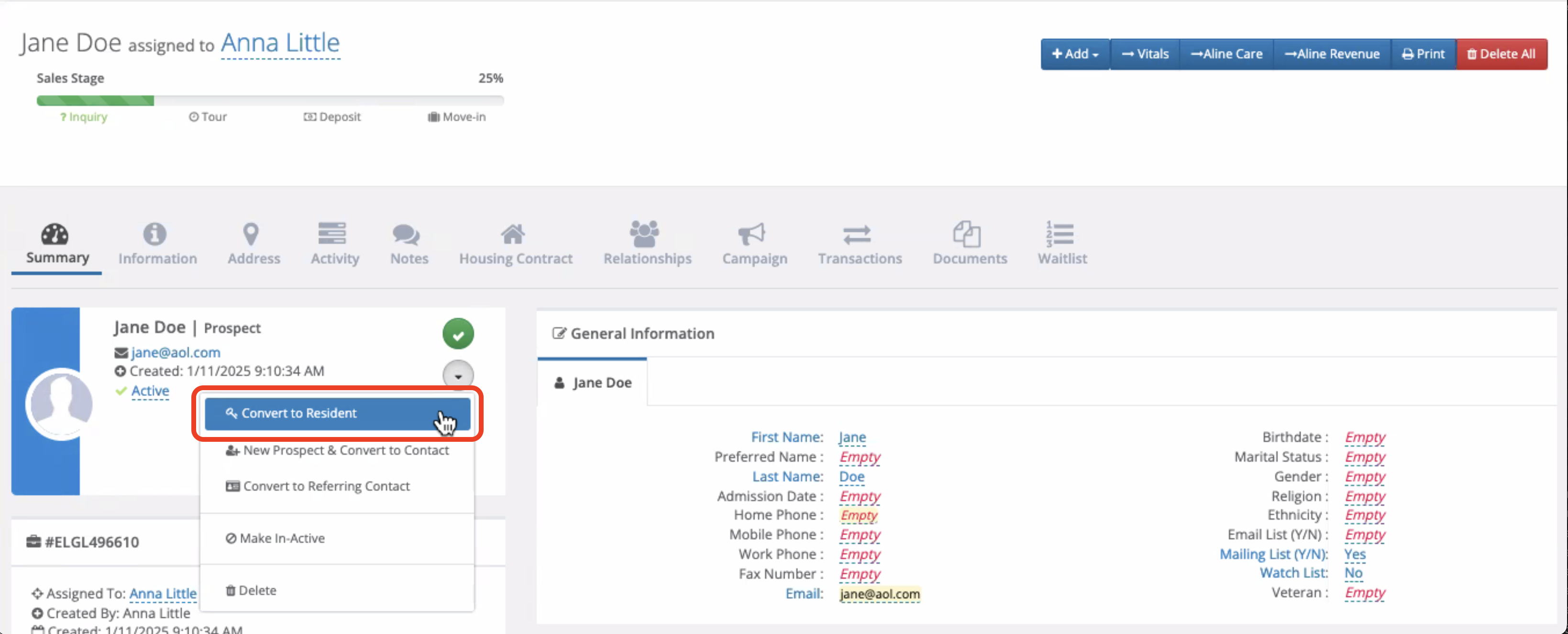
Before clicking the Send to Aline Care or Send to Aline Revenue button, you should first update the Individual Type to Resident by clicking on the arrow in the individual's card.
Select Convert to Resident.
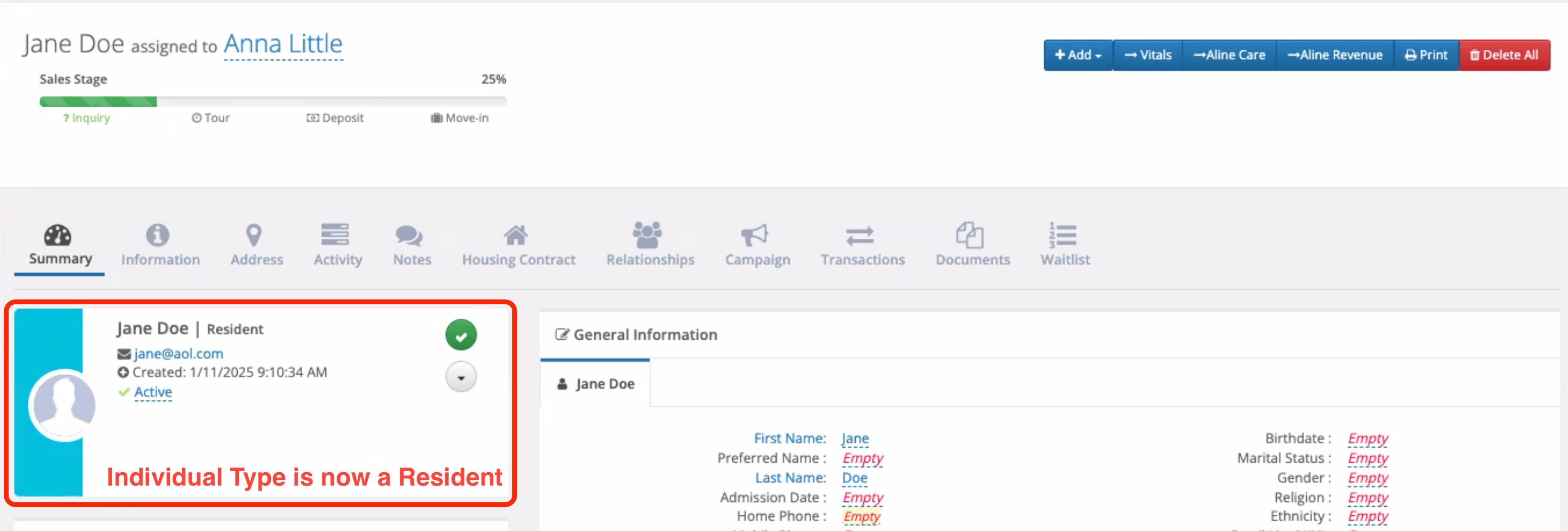
The Individual Type is now a Resident.
To update the Individual Types for a couple, navigate to the correct profile. You should first see that you have one as a Prospect and one as a Contact.
NOTE: We should never have two individuals as Prospects on the same profile.
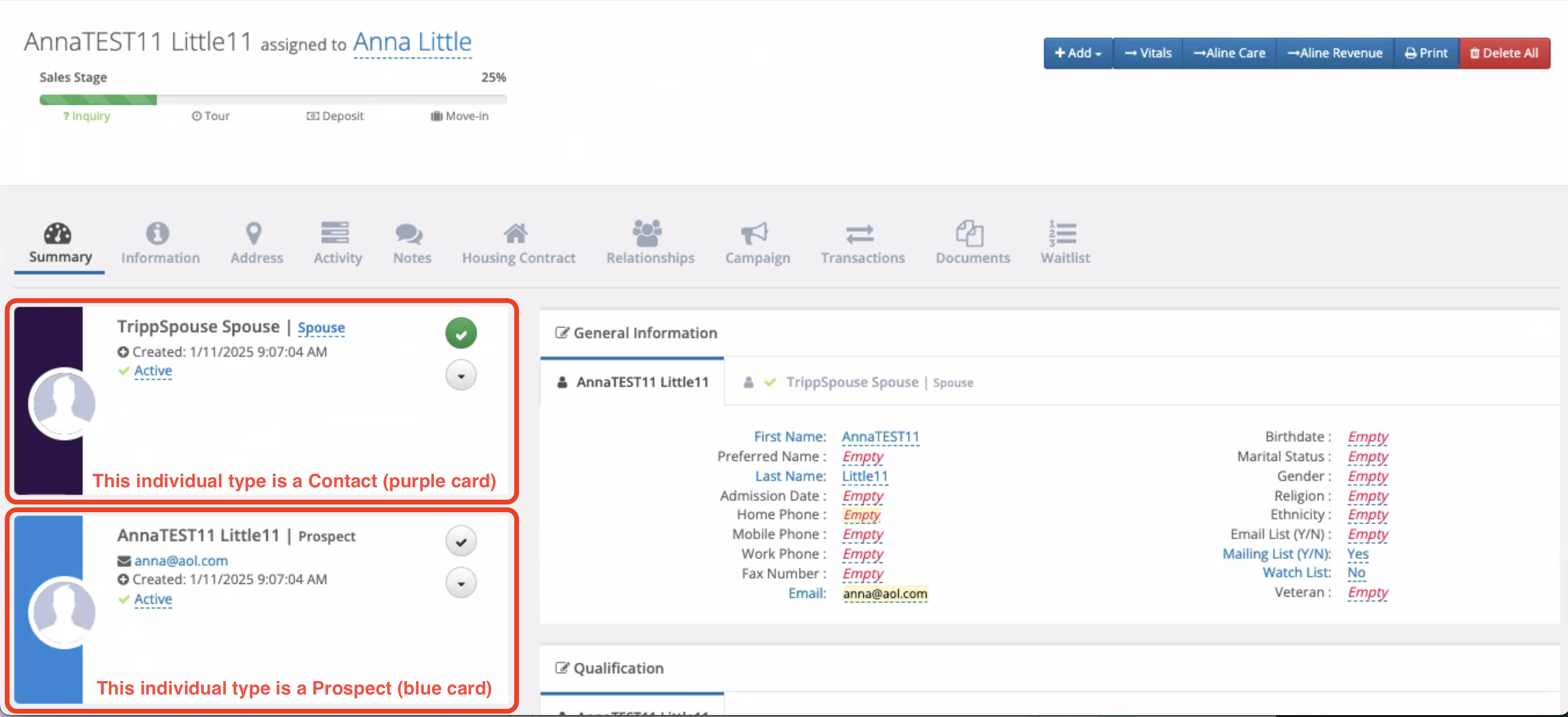
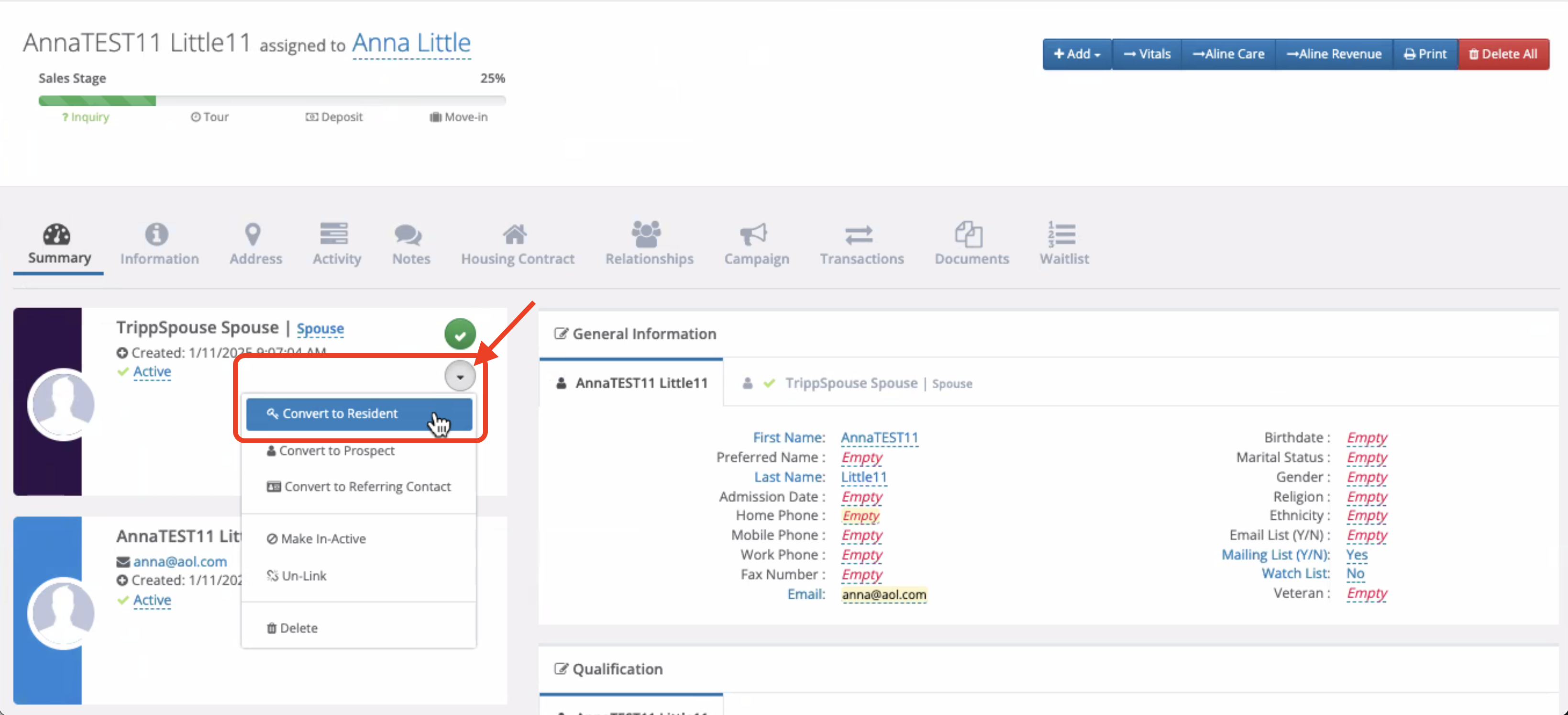
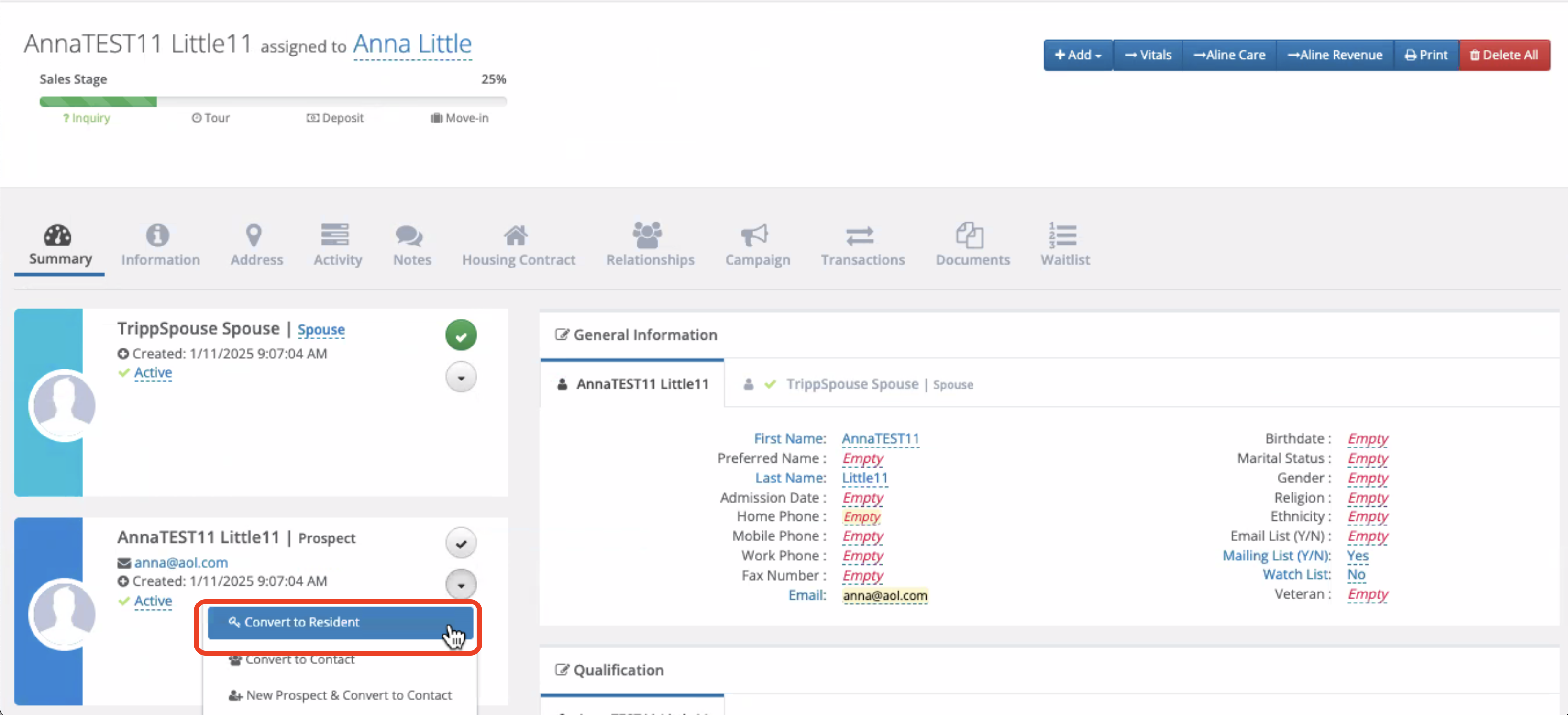
Update the Individual Type for each person to Resident by clicking on the arrow in the individual's card.
Select Convert to Resident for the Contact.
Select Convert to Resident for the Prospect.
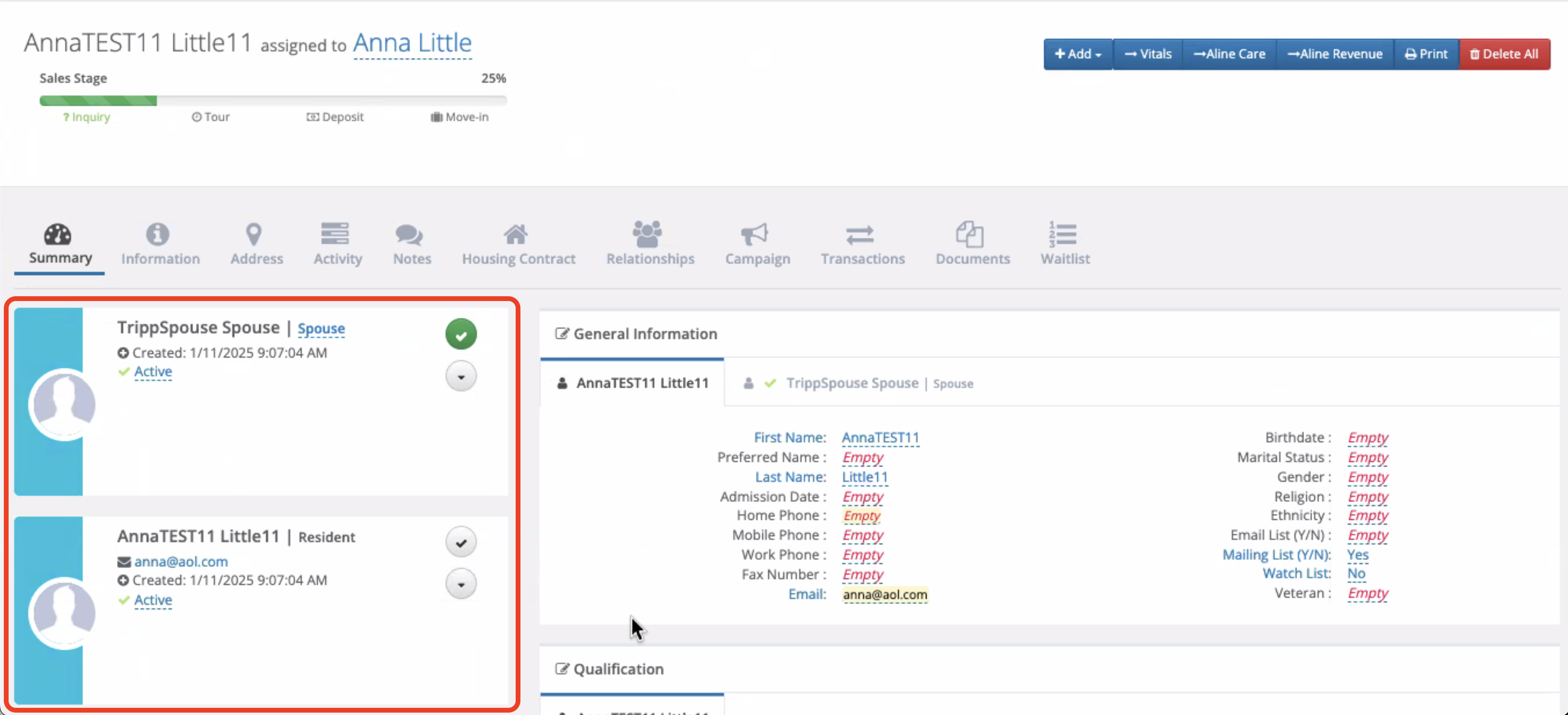
Now, the couple should both have an Individual Type of Resident.
Sending to Aline Care
Now that the individual is a Resident, you can click on the Send to Aline Care button to push the record to Aline Care, which will allow your care team to complete a pre-move in assessment.
(Don't worry, if the person ends up not moving into your community, you can always convert the individual back to a Prospect, or a couple back to a Prospect and Contact, respectively.)
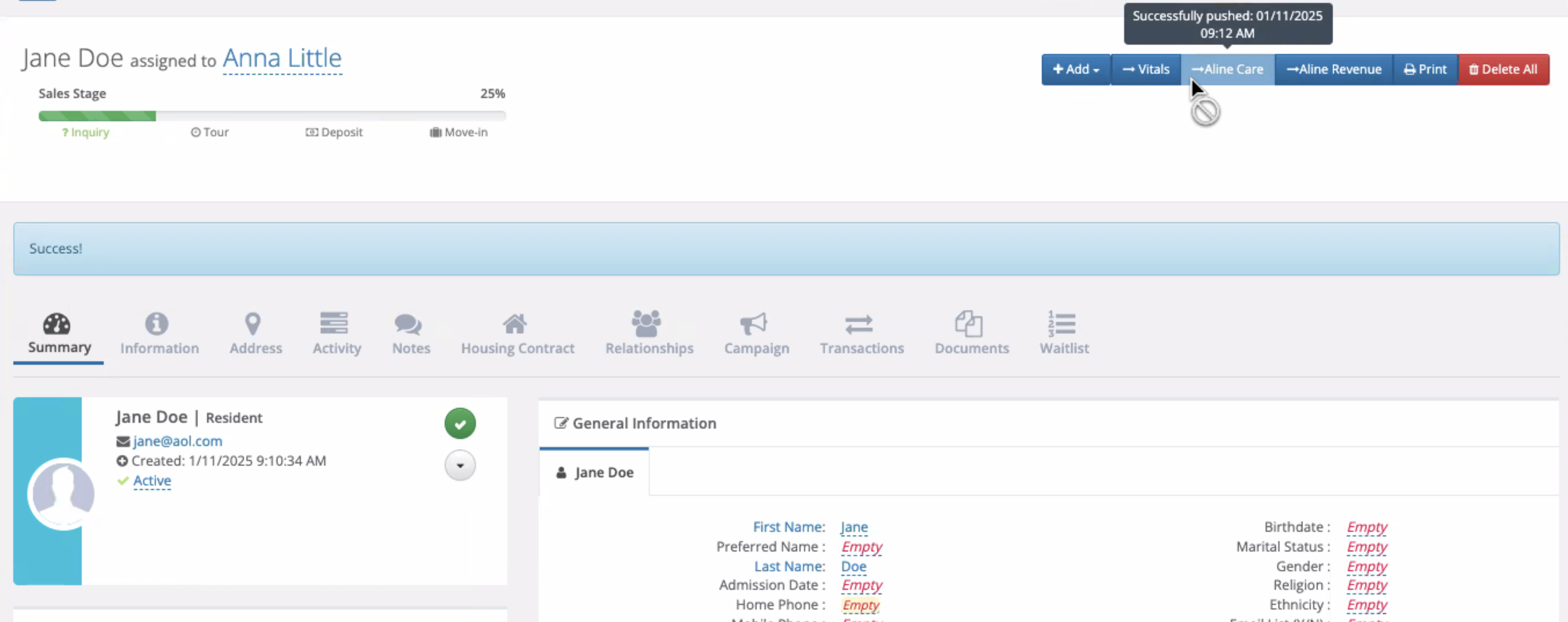
After clicking on the Send to Aline Care button, you should now see a Success banner appear at the top of your screen, and the button will be grayed out, along with a date/time stamp showing when the individual was successfully sent.
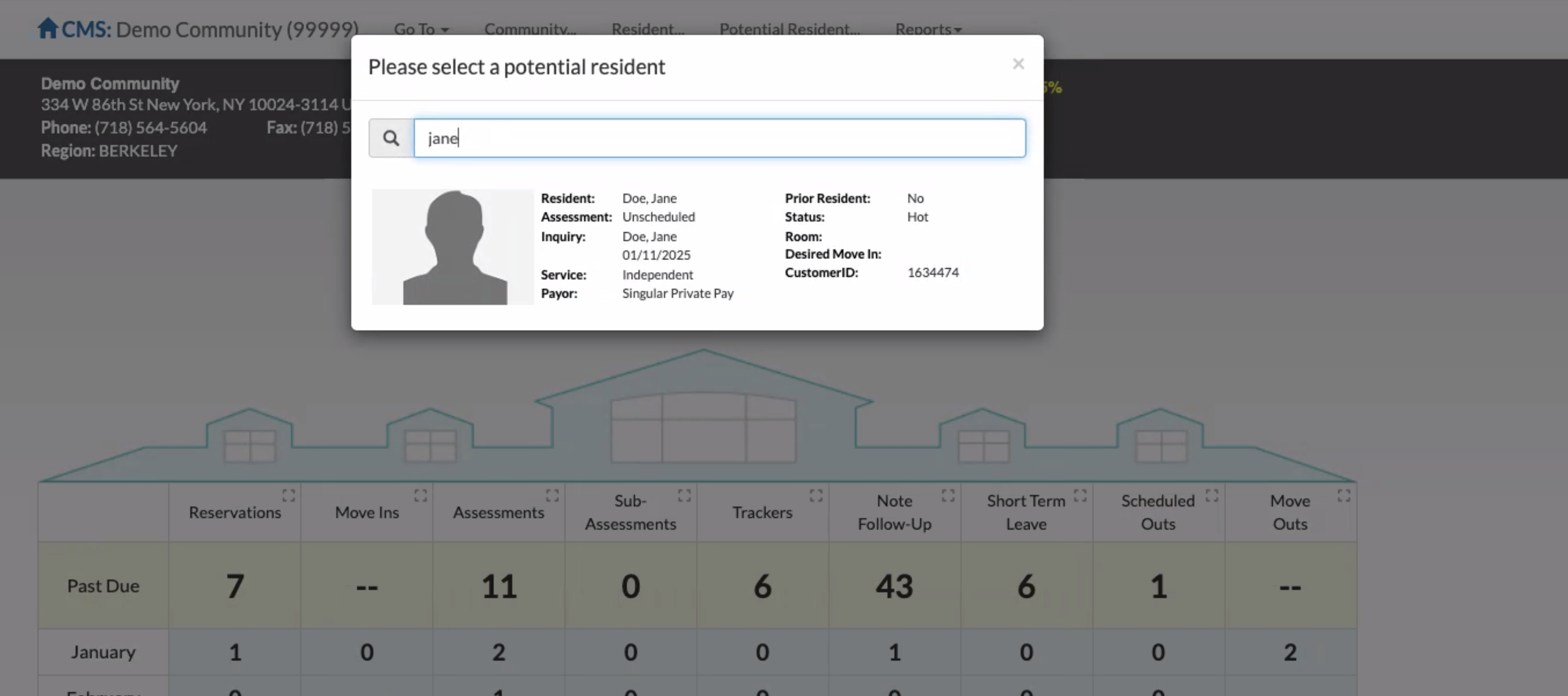
Within the Aline Care platform, you will now be able to search for the potential resident by name, and your care team will be able to complete the assessment.
Sending to Aline Revenue
Now that the Individual Type(s) are updated to Resident, you can proceed with sending the profile to Aline Revenue.
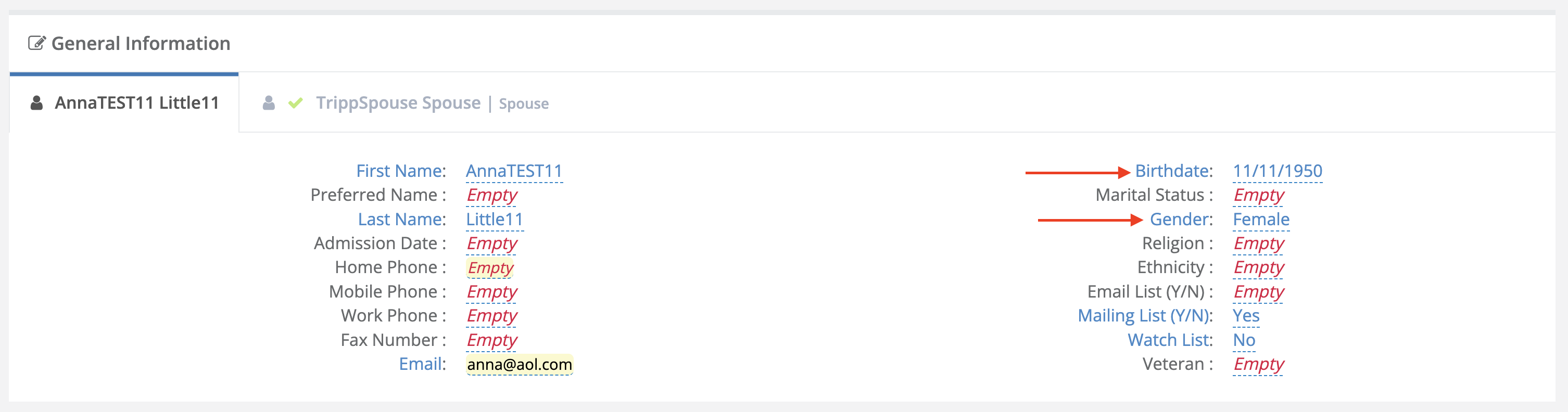
NOTE: Before clicking the Send to Aline Revenue button, Birth Date and Gender are required fields for each converted Resident.
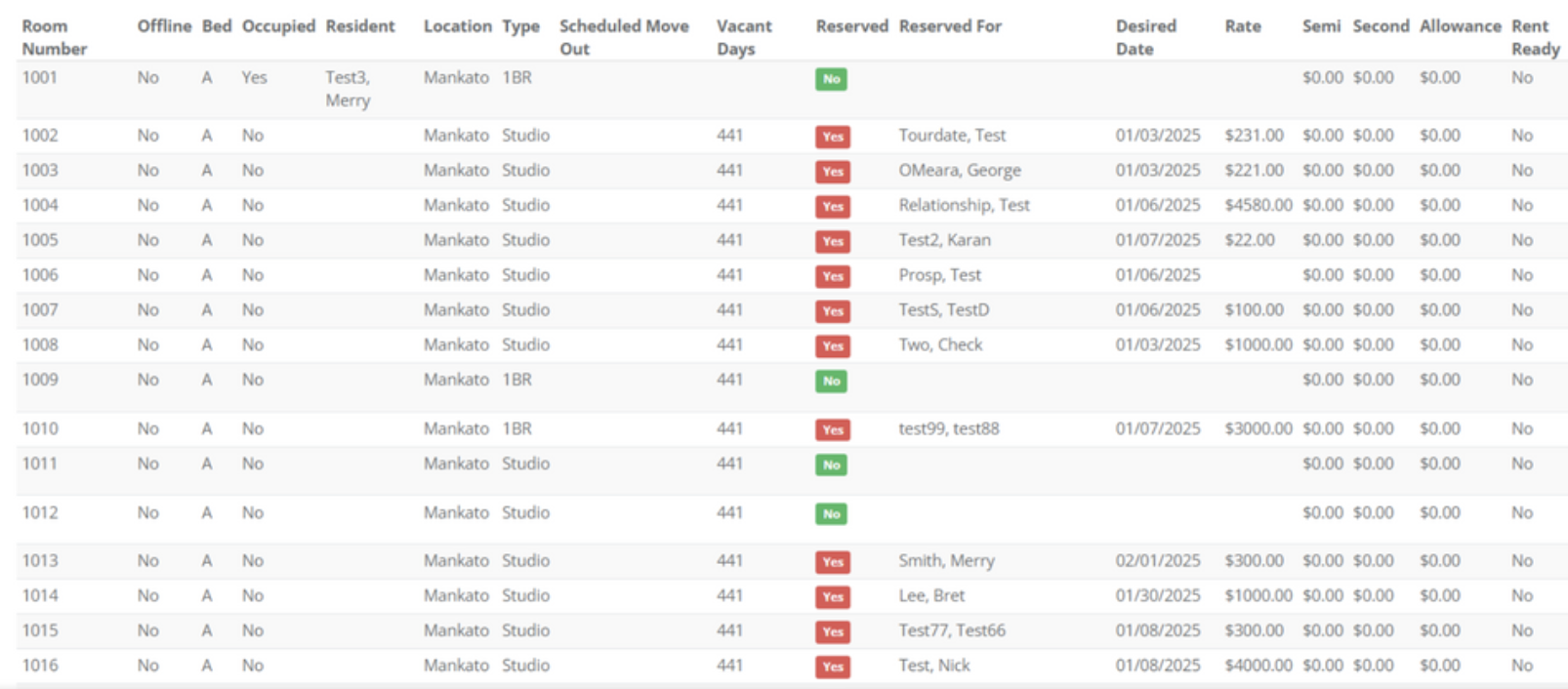
If you would like to see the Unit Availability Board prior to sending the record, you can click on the Unit Availability Board button to open your unit inventory from the Aline Revenue platform.

When you are ready to send the profile, click on the Send to Aline Revenue button.
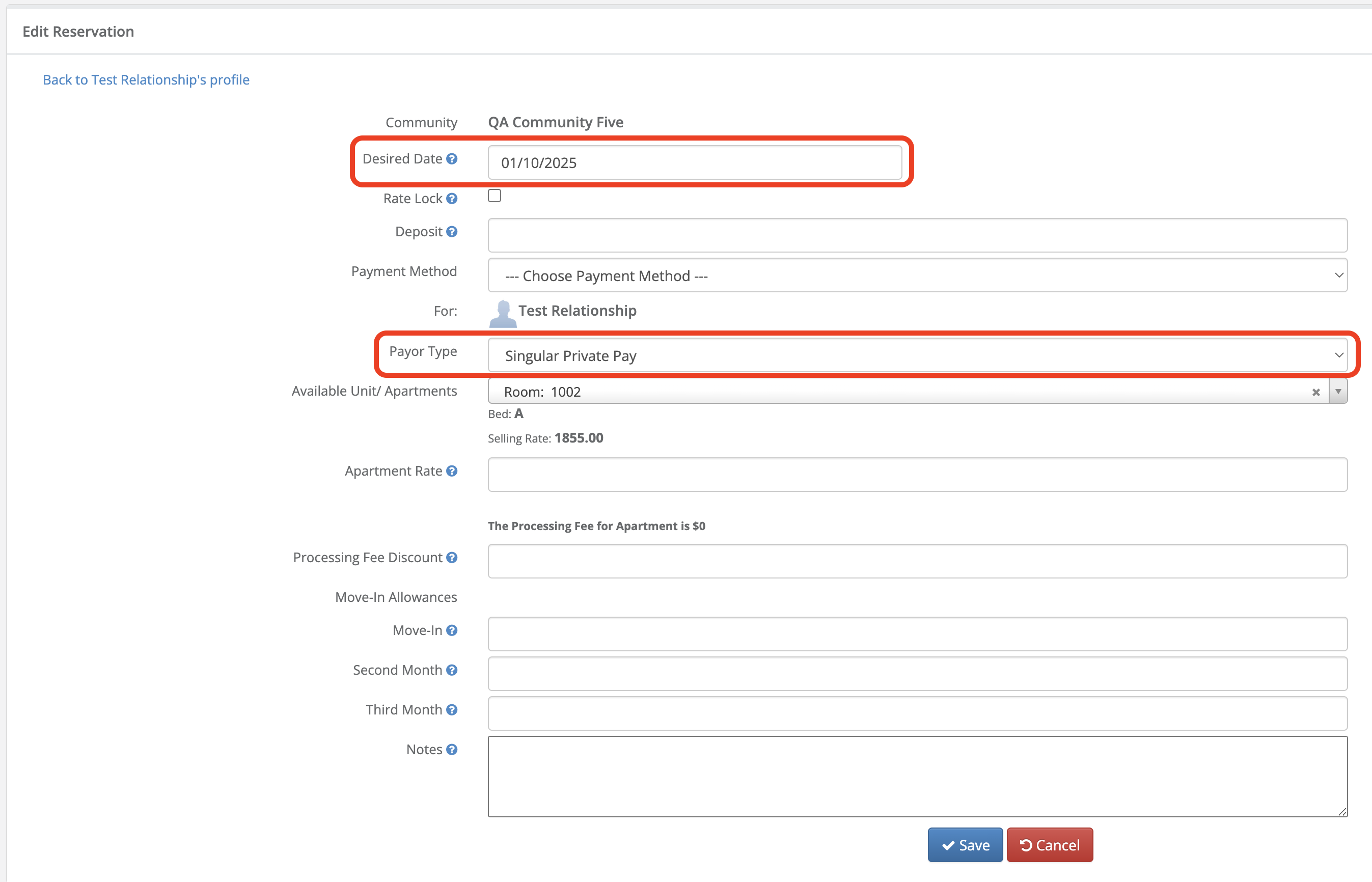
This will open the Reservations module.

When adding a new Reservation, note that your Available Unit/ Apartments dropdown menu is dynamically updated based on your inputs for Desired Date and Payor Type.
First enter Desired Date and Payor Type, then select the unit from the dropdown and enter other pertinent information before clicking Save.
You should now see a Success banner and the Send to Aline Revenue button grayed out with a date and time stamp of when the record was successfully pushed.
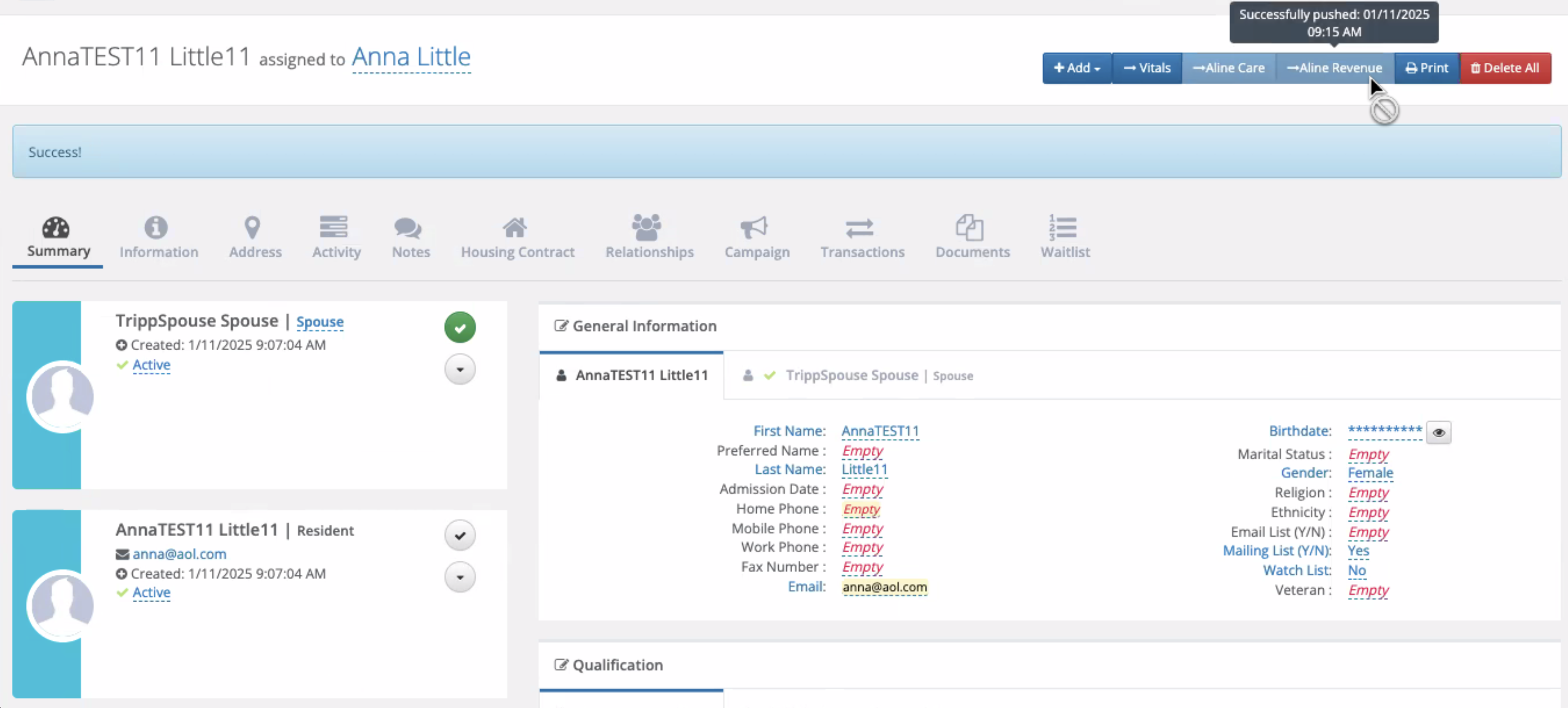
NOTE: The remaining steps will be completed within the Aline Revenue platform, and not within Aline CRM.
Within the Aline Revenue platform, you should see the record populate within the Reservations area.
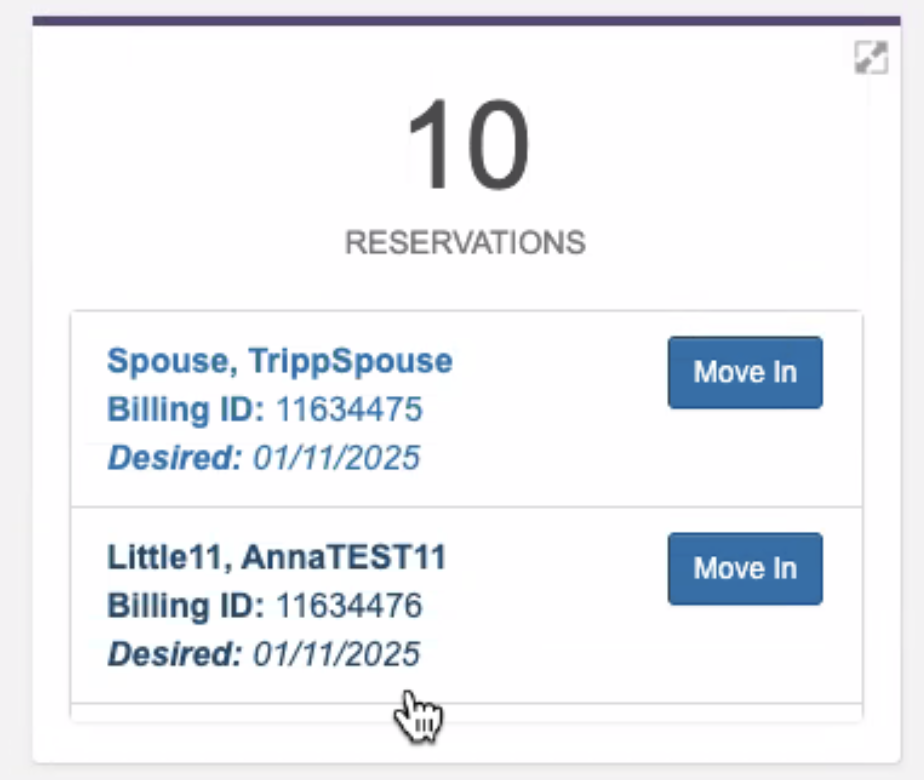
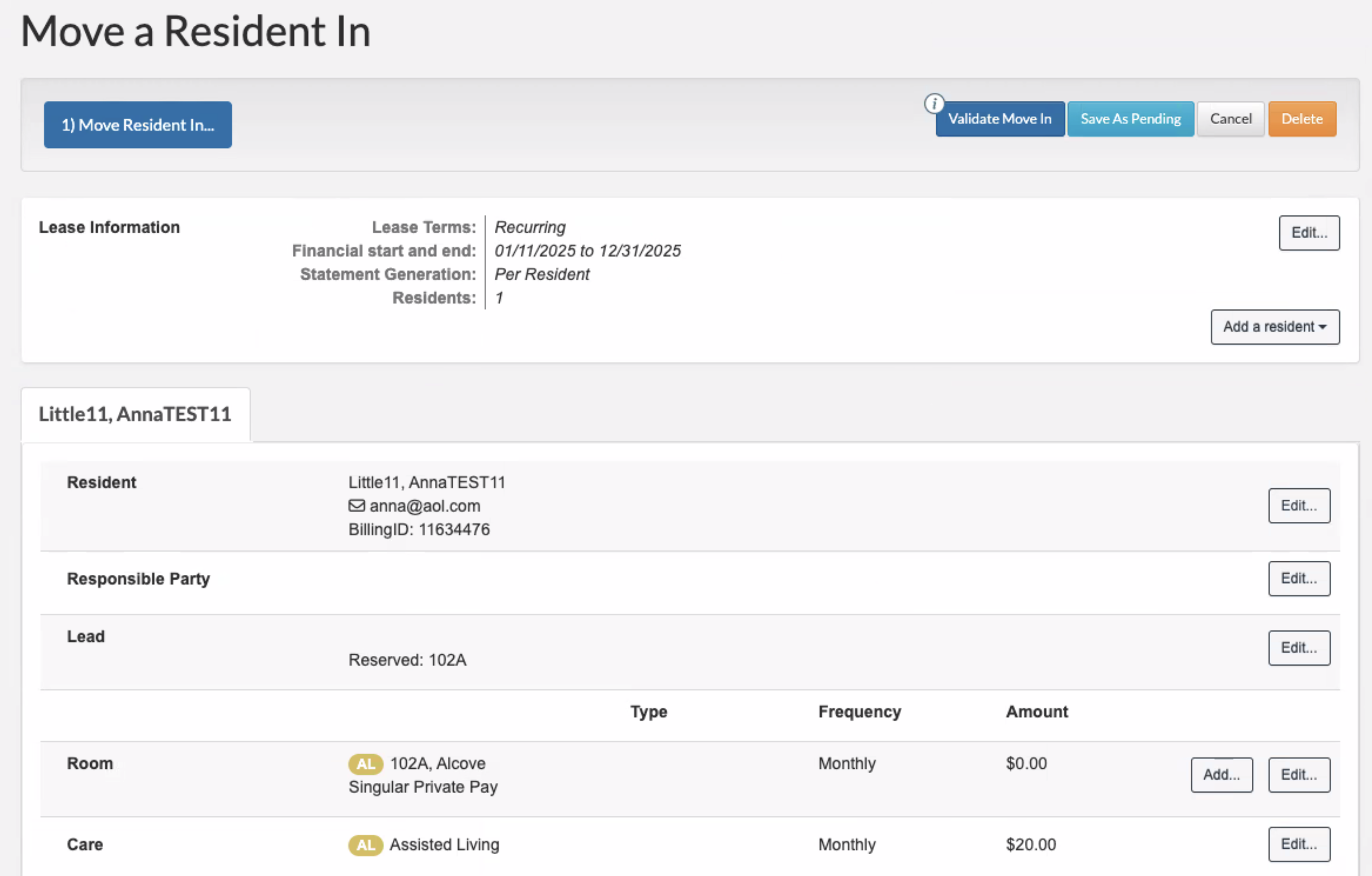
When clicking Move In, you will be directed to the Move In Validation page.
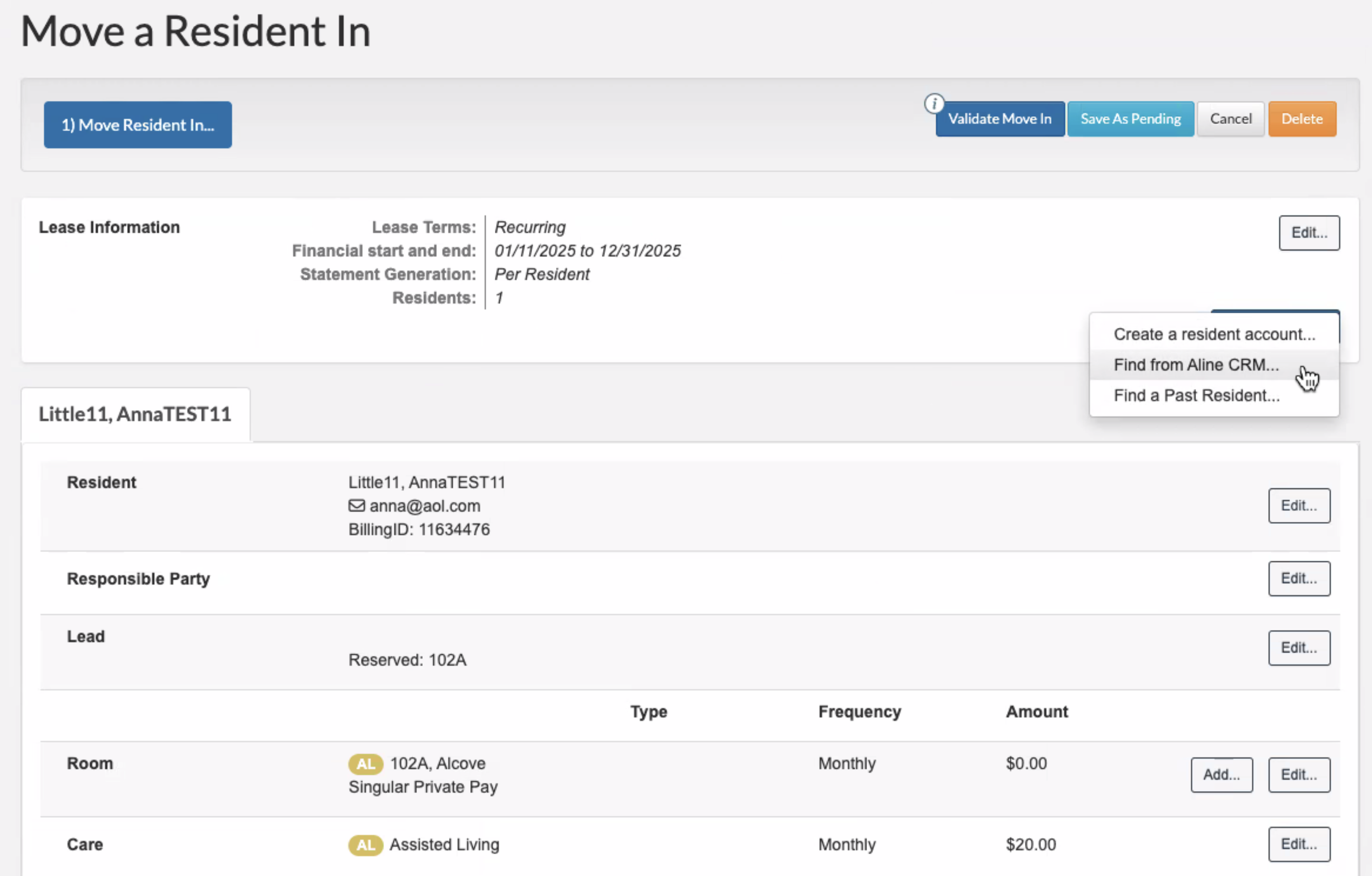
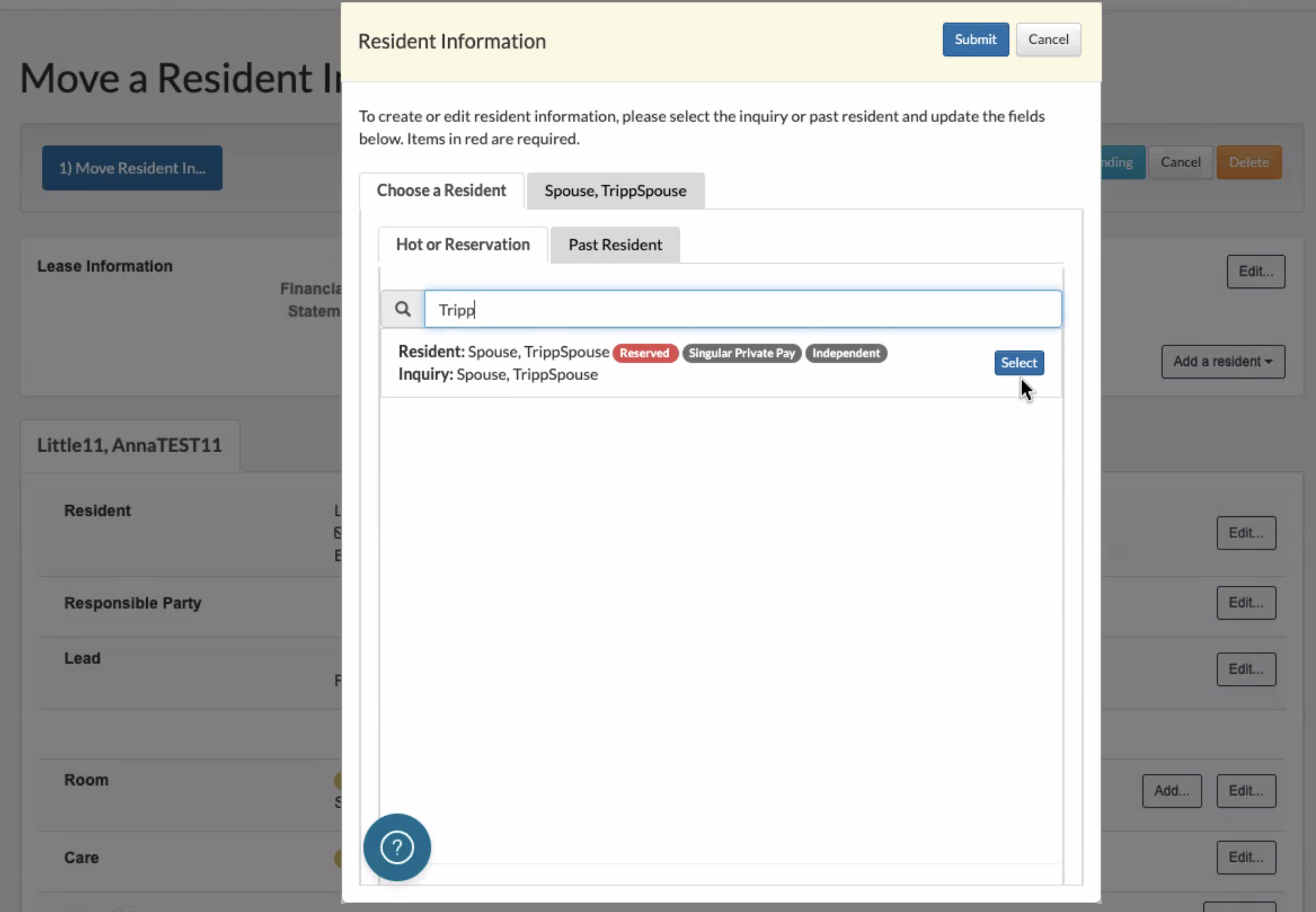
If you need to add a second Resident, click on the Add a resident button, and select the Find from Aline CRM... option.
Use the search feature to type in the name of the second Resident and click on Select.
Fields that Pass
| Referral | Inquiry | Number | Residents | Number | Contacts | Referrer | Reservation* |
| Company GUID | Inquiry ID | Work Phone Number | Resident ID | Work Phone Number | Contact ID | Lead ID | Bed ID |
| Environment | First Name | Cell Phone Number | First Name | Cell Phone Number | First Name | First Name | Desired DT |
| Communities | Middle Name | Email Address | Middle Name | Email Address | Last Name | Last Name | |
| Community Number | Last Name | Relation to Resident | Last Name | Birth Date | Corporation ID | ||
| Address 1 | Birth Date | Address1 | Marital Status | Home Phone | Corporation Name | ||
| Address 2 | Date | Address 2 | Notes | Cell Phone | Referral Type | ||
| City | Address 2 | Address 1 | |||||
| State | State | Address 2 | |||||
| Postal Code | Postal Code | City | |||||
| Country Code | Home Phone | State | |||||
| Home Phone | Country | ||||||
| Zip Code | |||||||
| Relation ID |
* - Sends to Revenue only
Was this article helpful?
That’s Great!
Thank you for your feedback
Sorry! We couldn't be helpful
Thank you for your feedback
Feedback sent
We appreciate your effort and will try to fix the article