Overview
The Enquire CRM and Eldermark integration is designed to help your team keep census information, like move ins, move outs, and transfers, between the two systems up to date with ease.
Setup
Step 1: Verify your Care Groups are setup correctly in your Enquire CRM database and that they match your Eldermark care types.
Step 2: Provide Eldermark with your company's Portal Id.
Step 3: Map your Community Unique in Enquire CRM to your Eldermark Company account number + community number (e.g. 10052.500)
Note: Your community unique name is used by all external integrations. Updating this will cause these integrations to stop working. Please reach out to the correct contacts for your integrations prior to updating your community's unique name.
Verifying Inventory
You will need to make sure that the Unit numbers match between Enquire CRM and Eldermark. The Unit number is what Enquire CRM and Eldermark use to ensure individuals are synced to the correct Unit when a Transfer or Move Out occurs. We recommend exporting the Inventory Report to Excel and using the Unit ID column.
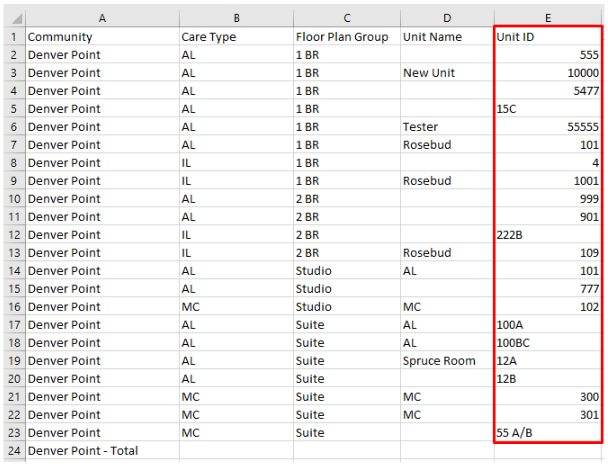
Note: You only need to verify units if you already have inventory setup in Enquire CRM.
Enquire ID
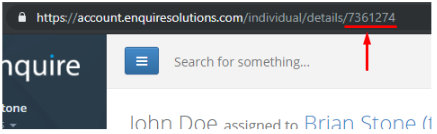
Once the integration is setup, individuals sent to Eldermark using the send to Eldermark button on a profile in Enquire will populate the Enquire ID field found in Eldermark.
Note: You will only need to manually add the Enquire ID in Eldermark if the individual existed prior to the integration.
Plugins
All integrations require an Enquire team member to complete setup of the Plugins. Please reach out to your Enquire Client Success Manager or Integrations Team at integrations.support@alineops.com for further assistance.
Usage
Send a Resident to Eldermark
Step 1: Navigate to the profile of the individual you would like to sync to Eldermark.
Step 2: In the upper right of the profile, click the blue button labeled Eldermark. This button will appear once the housing contract is created.

Step 3: A blue banner will appear at the top of the profile indicating the individual has been successfully synced to Eldermark.

Note: The first and last name of the Resident as well as a Housing Contract with a Move In date is required for the Eldermark button to appear and an individual to sync to Eldermark.
Fields syncing from Enquire to Eldermark
Below is the list of fields that can sync to Eldermark from Enquire:
| Salutation | First Name* | Last Name* | SSN |
| Birthdate | Gender | Care (Individual) | Marital Status |
| Ethnicity | Veteran | Language | Current Arrangement |
| Move In Date* | Unit Number* | Home Phone | Mobile Phone |
| Work Phone |
* - required to send a Resident to Eldermark
Data syncing from Eldermark to Enquire
Eldermark can send Housing Contract Data, including Move Out Dates, Transfer Information, and Newly-created Housing Contracts to Enquire, which will automatically update the Housing Contract Data inside the Enquire profile for the Individual.
Setup and usage in Eldermark
Please refer to the attached document titled Eldermark_Marketing_Interface_Enquire.pdf (found in the Attachments section at the bottom of this article) for setup and usage steps in Eldermark. If you have any questions regarding the setup and usage within Eldermark, the following email address and phone number can be used to receive support from the Eldermark team:
- 866-833-2270
Eldermark FAQs
I don't see the Resident I sent from Enquire to Eldermark- Make sure the Resident you are sending from Enquire has a First Name, Last Name, and Housing Contract with a Move In Date. These criteria are required for a Resident to successfully send to Eldermark. If any of these are missing, a blue notification in Enquire will appear when clicking the Eldermark button to let you know what's missing.
- Make sure the Resident you are sending from Enquire has a First Name, Last Name, and Housing Contract with a Move In Date. These criteria are required for a Resident to successfully send to Eldermark. If any of these are missing, a blue notification in Enquire will appear when clicking the Eldermark button to let you know what's missing.
Was this article helpful?
That’s Great!
Thank you for your feedback
Sorry! We couldn't be helpful
Thank you for your feedback
Feedback sent
We appreciate your effort and will try to fix the article