Overview
In this article, we will review the CarePort set up and functionality. The CarePort Health integration populates referrals real-time into Aline CRM.
Setup
Step 1: Request and Sign Letter of Authorization (LOA) and Facility Mapping
- Send an email with your Allscripts account manager requesting a letter of authorization to enable the Aline CRM and Allscripts integration. On this email, please cc your Aline CRM account manager.
- Once the letter of authorization has been signed, download the Excel document titled AlineCRMAllscriptsFacilityMapping.xlsx in the "Attachments" section at the bottom of this article. Fill out the Aline CRM Facilities column and send it to Allscripts. This document must be finalized prior to activating the integration.
Step 2: Aline CRM Field and Type Mapping
Allscripts will send patients into Aline CRM with information populated to certain fields. To ensure values are correctly populated with each patient, you may need to add fields to your forms in Aline CRM.
The following table contains the field's label in Allscripts and the Aline CRM field library and type needed to correctly populate the field from Allscripts:
| Allscripts Field Name | Aline CRM Field Library | Aline CRM Field Name |
|---|---|---|
| Facility Name | Referring Source | Source Affiliation |
| Facility Level of Care* | CareID/Preference | Care Level |
| Financial Class* | PayMethodId | Payment Method |
| Residence Type | CurrentArrangementId | Current Arrangement |
| Hospital Name | Market Source | Sending Org/Source |
| Hospital Name | Company | Account |
| Primary Diagnosis | Comment | Primary Diagnosis |
| DRG Code | Medical | DRG |
| DRG Description | Medical | DRG |
| Plan Description | Call Source | Primary Plan Name |
| Plan Number | textinput | Primary Plan Number |
| Group Name | textinput | Primary Group Number |
| Primary Insured First Name | textinput | Primary Insured |
| Primary Insured Last Name | textinput | Primary Insured |
| Secondary Insured First Name | textinput | Secondary Insured |
| Secondary Insured Last Name | textinput | Secondary Insured |
| Projected Discharge Date | textinput | Projected Discharge Date |
| Placement Term | textinput | Placement Term |
| Reimbursement | textinput | Reimbursement |
| Hosp Patient Type | textinput | Hospital Patient Type |
| Hosp Unit | textinput | Hospital Unit |
| Hosp Bed | textinput | Hospital Bed |
| Mental Status | textinput | Mental Status |
| Medications | textinput | Medications |
| Equipment | textinput | Equipment |
| Functional Limitations | textinput | Functional Limitations |
| Height Inches | textinput | Height |
| Weight Ounces | textinput | Weight |
| Allergies | textinput | Allergies |
*Dynamic Type Create (if the type is not present in the field's drop down, it will be created)
If you have any questions about adding the above fields, you can read our Customizing the Form Builder article or reach out to your Aline Client Success Manager.
The following fields in Aline CRM will need the specified options in order to populate the field's value correctly:
Financial Class
- Commercial
- MMO
Placement Term
- Short-term
- Long-term
DRG
- Code + Description
Functional Limitations
| Amputation | Contracture | Hemiplegia |
| Paralysis | Paraplegia | Prosthesis Care |
| Quadriplegia | Auditory Limitation | Able To Make Needs Known |
| Verbal Limitation | Visual Limitation |
Mental Status
| Oriented | Forgetful | Confused |
| Lethargic | Comatose | Mental Other |
| Cooperative | Depressed | Withdrawn |
| Agitated | Paranoid | Hallucinations |
| Disruptive | Wandering | Verbally Abusive |
| Danger to Self | Danger to Others | Behavioral Other |
Step 3: Adding the Allscripts Referral user
Note: The CRM will add a user named Allscripts Referral to your database. New referrals will be created by and assigned to this user.
Plugins
All integrations require an Aline team member to complete setup of the Plugins. Please reach out to your Aline Account Manager for further assistance.
Usage
Patient Information
Allscripts sends Aline CRM patient information via an XML request. In addition to the above fields, The CRM will pull in the values from the following matching fields (in addition to the above fields):
| Allscripts Field Name | Aline CRM Field Name |
|---|---|
| First Name | First Name |
| Middle Name | Middle Name |
| Last Name | Last Name |
| Home Phone | Home Phone |
| Mobile Phone | Mobile Phone |
| Work Phone | Work Phone |
| SSN | SSN |
| Birth Date | Birth Date |
| Marital Status | Marital Status |
| Gender | Gender |
| Religious Affiliation | Religion |
| Race | Ethnicity |
| Address | Address Line 1 |
| City | City |
| State | State |
| Zip | Postal Code |
| Employer Name | Occupation |
Referral Notes
Notes from the CarePort Health referral will be created in the CRM containing the following information (if provided):
- Creator (the referral creator)
- Comment (comments from the referral creator)
- Note (history and physical notes)
- Admitting Physician
- Attending Physician
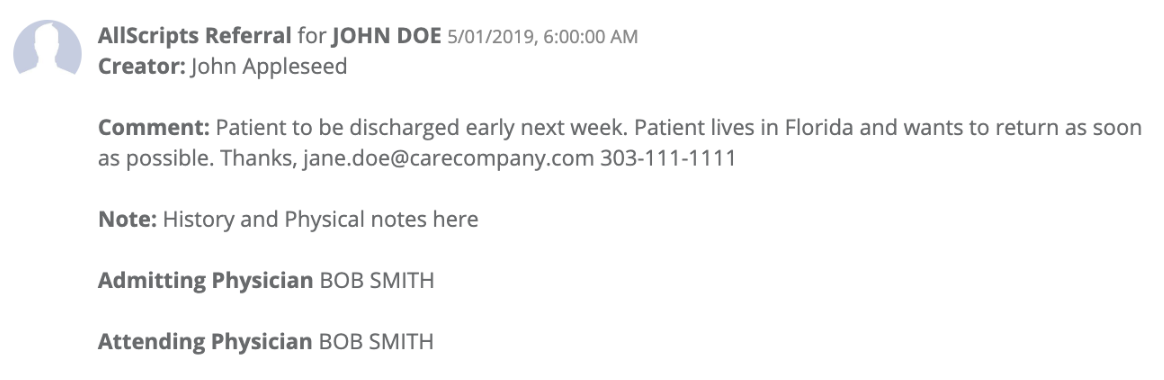
All referrals from CarePort Health will follow Aline CRM's digital lead functionality and populate to the New Leads box on your Dashboard with the Created By column set to the AllScripts Referral user.

Contact fields and Relationships
Contacts associated with each patient will be sent from Allscripts and Aline CRM will create relationship types for this integration. This means that if a patient is sent from Allscripts to the CRM with a contact with a relationship not currently found in your Aline CRM database, a new relationship type will be created. The following are relationship types that may be created:
| Allscripts Relationship | Aline CRM Relationship |
|---|---|
| Emergency Contact | Emergency Contact |
| Guarantor Contact | Guarantor |
| Financial Contact | Financial Contact |
| Medical Contact | Medical Contact |
| Referral Creator | Referral Creator* |
| Referring Physician | Referring Physician |
| Primary Care Physician | Primary Physician |
| Attending Physician | Attending Physician |
| Other | Other |
| Contact | Contact |
* - Relationship Master Type of Referral (in the CRM)
Note: If the patient is sent with a Referring Physician, they will be linked as the referrer of the patient.
Each contact of the patient will have values populated to the following fields (if present):
| Allscripts Field Name | Aline CRM Field Name |
|---|---|
| First Name | First Name |
| Middle Name | Middle Name |
| Last Name | Last Name |
| Relationship Name | Relationship Type |
| Address 1 | Address Line 1 |
| City | City |
| State Name | State |
| Zip Code Short | Postal Code |
| Home Phone | Home Phone |
| Work Phone | Work Phone |
| Alternate Phone | Mobile Phone |
Was this article helpful?
That’s Great!
Thank you for your feedback
Sorry! We couldn't be helpful
Thank you for your feedback
Feedback sent
We appreciate your effort and will try to fix the article