Overview
In this article, we will review how to update the drop down types.
Navigating to the Types section
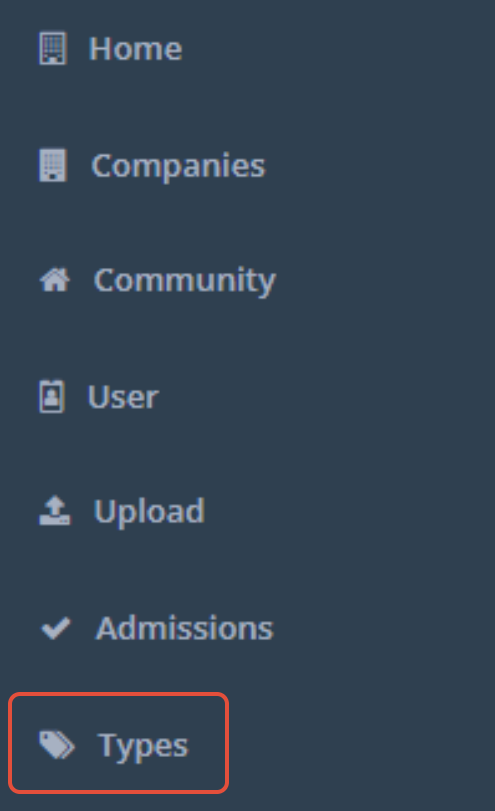
Step 1: Navigate to the Admin section and click on Types on the left hand menu.
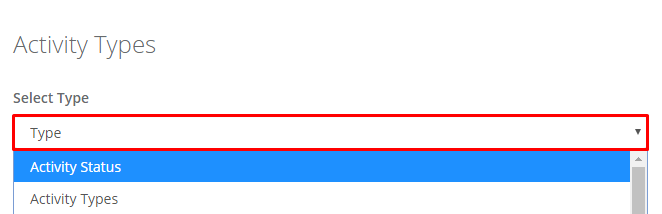
 Step 2: Use the Select Type drop down to select the field you want to edit or add to. This will load the current drop down options for the selected field.
Add New Type Options
Step 1: After selecting a type, fill out the form above the added types

- Name: The name of the new Type
- Date Created: The date the type was created (defaults to the current day)
- Last Modified By: The name of the user creating the type (defaults to the signed in user)
- Master Type: If the type you are adding uses Master Types, select the appropriate Master Type for the new type you are adding.
- Active?: The status of the type (can be Active or Inactive (unchecked). Will default to Active when creating a new type.)
Step 2: Click Add.
Master Types
Some fields allow you to select a Master Type. Master Types are useful for categorizing your field options and to standardize your reporting.
Master Type of 'Inquiry'
All Activity Types that are created with a Master Type of 'Inquiry', and only those types, will show up in the drop-down selection when adding a new lead to your database
Arranging Field Options
- You can arrange your field options alphabetically by clicking on Sort All.
- You can also customize the order of field options by clicking the three lines on the left hand side of an option and dragging it to the location you would like.

Removing Options from a Drop Down
Use the Active? column next to each option to remove or show that option in the drop down.
- No: This option will remove the selection from the drop down list. Selecting No will keep any existing field data intact.
- Yes: This option will show the selection in the drop down list.
Note: If you delete the type, you will lose all historical data tied to that type. It is best to mark it as inactive instead.
Was this article helpful?
That’s Great!
Thank you for your feedback
Sorry! We couldn't be helpful
Thank you for your feedback
Feedback sent
We appreciate your effort and will try to fix the article