Overview
In this article, we will review how to set up the admissions checklist. The admissions checklist is a customizable list of items used to track the steps of admitting a patient to your communities.
Setup
Setting up the admissions checklist will require Admin permissions to create admission checklist items and activities.
Add checklist items
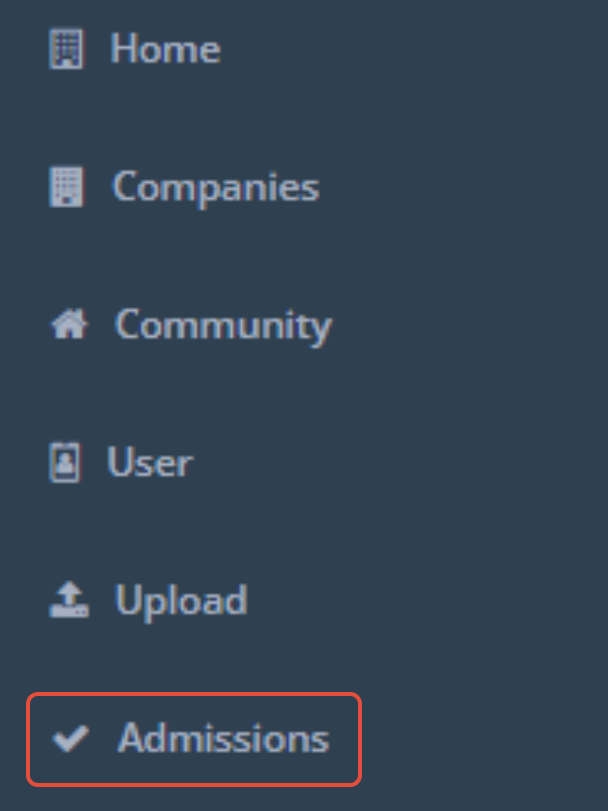
Step 1: Navigate to the admin section and click on admissions on the left hand menu.
Step 3: Click into the Community drop down and select the community you would like to create an Admissions Checklist for.

Step 4: Click the blue Add button and a Name and Description field will appear.

Step 5: Enter a name for the checklist item and description of what the checklist item is (both are required), and click Save.
 Step 6: Once you save the new checklist item, you can add a specific role to the item by selecting the Role option on the right side of the screen.

Step 7: Click the dropdown and choose the preferred role for the checklist item.
Note: The Admissions Checklist is community specific. You will need to repeat the following steps for each community needing an Admissions Checklist.
Edit a checklist item
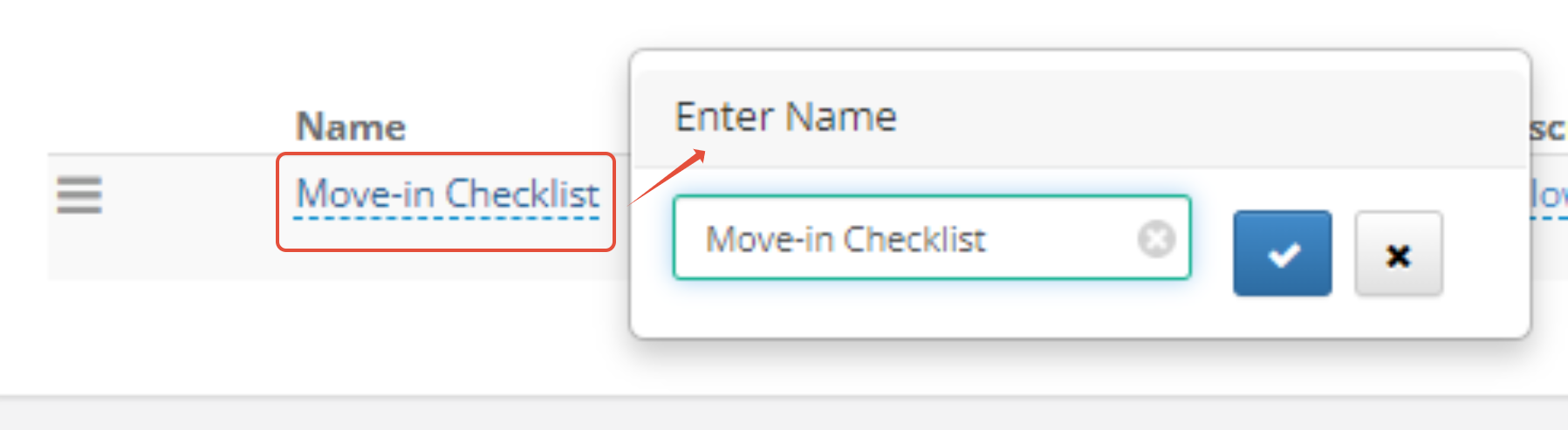
Step 1: To edit a checklist item, click the current field value with a blue dotted underline, update your values and click the blue check mark to save your changes. To discard changes, click the grey "x" button.
Delete a checklist item
Step 1: To delete a checklist item, click the red trash can icon to the far right of the item you would like to delete.

Sort Checklist
Step 1: To sort the checklist items in the preferred order, find the hamburger icon to drag and drop the checklist item into the preferred order.

Create Checklist Activities
The Admission Checklist will create and cancel activities for a checklist item if an activity type with the same name as the checklist item exists. For example, if you have a checklist item named "Verify Insurance", you will also need to create an activity type named "Verify Insurance". This will create an activity when a checklist item is completed. Similarly, it will also cancel the activity if the checklist item is cancelled.
Note: If you do not create the Activity Types correlating to your Admissions Checklist items, and you complete a Checklist item, the first activity under Admin-Types with an 'Inquiry' Master Type will be chosen.
Was this article helpful?
That’s Great!
Thank you for your feedback
Sorry! We couldn't be helpful
Thank you for your feedback
Feedback sent
We appreciate your effort and will try to fix the article