Overview
In this article, we will review the admissions check list.
Using the Admission Checklist

Each checklist item will have the following:
- Denotes if the checklist item is incomplete, complete, or cancelled/not applicable (N/A)
| Indicator | Status |
|---|---|
 | The checklist item is incomplete. |
 | The checklist item has been completed. |
 | The checklist item has been cancelled or is not applicable for the patient. |
Notes
- An optional field to enter more information for the checklist item and patient.
- A required field to choose the result of the checklist item. This will be a list of your company's current Activity Resolutions and may be filtered if your company is using Activity Result Tiering.
Assign or Unassign a checklist item
Step 1: Locate the checklist item and click on the blue Assign to me on the right side of the checklist item
Step 2: Once the checklist item is self-assigned, the button will auto-change to an un-assign option or additional dropdown menu to mark it as N/A.
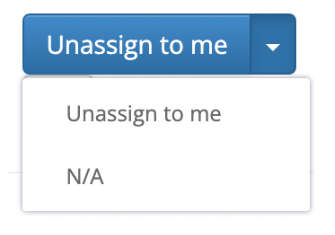
All Checklist items show on Profiles, however, different options show based on the following:
- The “Assign to me”, “Unassign to me” button displays on the profile when your User role is the same as the Role assigned to the checklist item.
- When a Role is not assigned to a checklist item, you will only see the Green "Complete" and N/A buttons.
- When a Role is assigned to a checklist item, but the Role is not the same as your User Role, you will only see the “Notes” and “What Happened” fields.
- The “What Happened” field is open to select when the checklist item is assigned to a user and when a user role is not assigned to an item, and when a user role is not assigned to an item.
Send Checklist Notification
- When accessing the admissions section in an individual profile you will see a bell icon to the right of the checklist item.
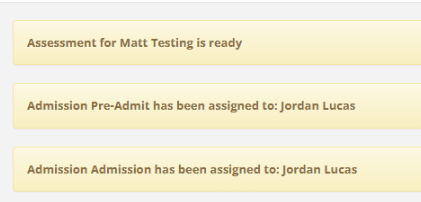
- Once the notification button is clicked, every user assigned to that role will receive notifications that will be found in the notification section of the CRM. The notification will direct them to the checklist item.
View New Notifications
Notifications for Admissions Checklist status appear on the bell icon in the top menu bar of the Profile.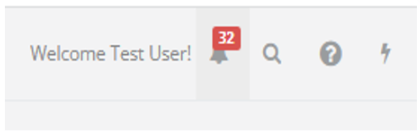
Select an item in the Notification and the notification will direct to the profile of the checklist item and A Note Pin Alerts of the status change of the checklist item
Complete a checklist item
Fill out the Notes field and choose a resolution and click the Complete button. The checklist item will now be complete. A green complete banner will display with the date of completion and the user that completed the item.
And a completed activity with the same name as the checklist item will be created (if setup).

Cancel a checklist item
If a checklist item has already been completed, you can cancel it by clicking the Cancel button.
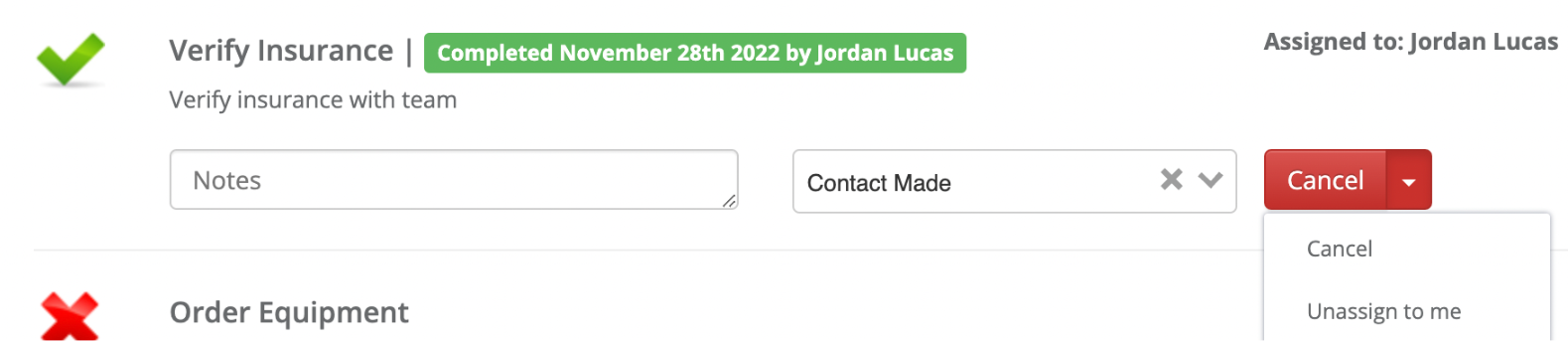
The checklist item will return to a status of incomplete, but will retain the values entered in the Notes and Result drop down (this is to retain historical data) and the corresponding activity will be cancelled.


Mark a checklist item as not applicable
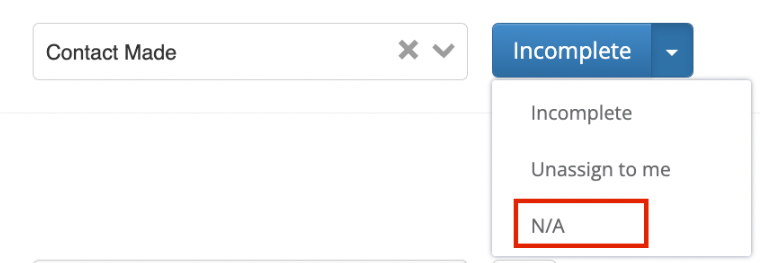
The checklist item will be marked as "N/A" with a banner displaying the date the item was marked N/A and the user that marked the item as N/A.

FAQ's
What if I don't see a drop down option in the admissions checklist section?
- Please reach out to your admin to add the dropdown options.
Was this article helpful?
That’s Great!
Thank you for your feedback
Sorry! We couldn't be helpful
Thank you for your feedback
Feedback sent
We appreciate your effort and will try to fix the article