Overview
Enquire's integration with Homecare Homebase is bi-directional. Individuals are pushed into the HCHB system and ADT events are received and updated in the Enquire system as they occur.
All integrations require an Enquire team member to complete setup. If you'd like to add this integration, please work with your HomeCare HomeBase Account Manager to get the interface credentials please reach out our integrations team at integrations.support@alineops.com.
Setup
Make sure you have the following Types and corresponding Master Types entered into Enquire. These types will be used to properly populate the fields above and create activities with the correct type and resolution for ADT events.
Lead Scores
Make sure you have the following Types and corresponding Master Types entered into Enquire. These types will be used to properly populate the fields above and create activities with the correct type and resolution for ADT events.
| Type | Master Type |
|---|---|
| Admit | Move In |
| Death | Death |
| Discharge | Move Out |
| Leave | Leave |
| Room Reserve | Room Reserve |
Activity Types
| Type | Master Type |
|---|---|
| Admit | Admission |
| Death | Move Out |
| Discharge | Move Out |
| Leave | Leave |
| Return from Leave | Leave Return |
| Room Reserve | Room Reserve |
| Transfer | Transfer |
Activity Resolutions
| Type | Master Type |
|---|---|
| Contact Made | Contact Made |
If you have any questions about adding the above types, you can read our Updating Dropdown Types article or reach out to your Client Success Manager.
Plugins
All integrations require an Enquire team member to complete setup of the Plugins. Please reach out to your Client Success Manager, our Integrations Team, or put in a ticket for our Support Team for further assistance.
You will need to provide the Enquire team with the following information:
- HCHB Application Name
- HCHB Facility ID(s)
- HCHB API Key
Usage
An individual can be sent to Homecare Homebase with the following fields and their values.
Fields we send to HomeCareHomeBase:
| First Name* | Last Name* | Gender* | Date of Birth* |
| Address Line 1** | Address Line 2** | City** | State** |
| Postal Code** | Phone** | Race | Religion |
| Marital Status |
* - Required to send an individual to HomeCare HomeBase.
** - A single form of contact must be present on at least one individual, whether it be home phone, mobile phone, work phone, email, or a full mailing address.
Note: Only one phone number is sent to Homecare Homebase. Enquire selects a phone depending on which phone number is populated: If populated, home phone is sent. If home phone is not populated and mobile phone is populated, mobile phone is sent. Finally, if home and mobile are not populated, work phone is sent.
Sending an individual to HCHB
Step 1: Navigate to the individual you would like to send to Homecare Homebase.
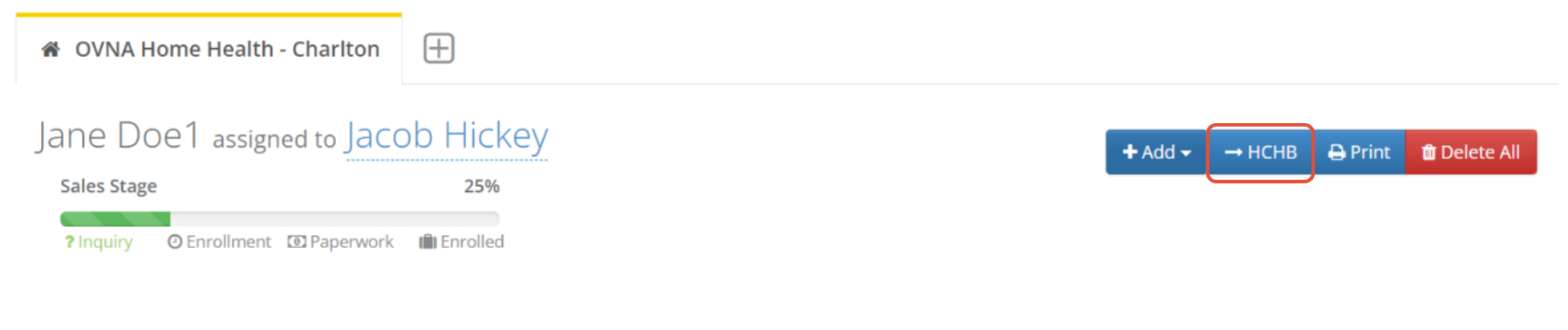
Step 2: In the upper right, click the blue HCHB button.
Message Banners
If the individual was successfully sent to Homecare Homebase, you will see a success message similar to the following:

If the individual is missing any required information, you will see a notification similar to the following:


Note: Upon a successful send to Homecare Homebase, the "-> HCHB" button will be removed from the profile to help prevent sending duplicates to Homecare Homebase.
ADT Events from HCHB to Enquire
Upon Enquire receiving Admit, Discharge, and Transfer events from HCHB, the following updates will occur on an individual profile depending on the event:
Admit
When an Admit event is received, the following profile updates will occur in Enquire:
- Prospect will be converted to a Resident
- Lead Score will be updated to Admit
- A note is added to the profile with the following text:
- “An Admit occurred for individual’s name”
- The user assigned to the profile will receive a notification saying:
- “An Admit occurred for individual’s name”
- A Completed activity will be created with:
- An Activity Type of Admit
- An Activity Resolution of Contact Made
- A Completed Date set to the date/time Enquire received the ADT message
Discharge
When a Discharge event is received, the following profile updates will occur in Enquire:
- Lead Score will be updated to Discharge
- A note is added to the profile with the following text:
- “A Discharge occurred for individual’s name”
- The user assigned to the profile will receive a notification saying:
- “A Discharge occurred for individual’s name”
- A Completed activity will be created with:
- An Activity Type of Discharge
- An Activity Resolution of Contact Made
- A Completed Date set to the date/time Enquire received the ADT message
Transfer
- A note is added to the profile with the following text:
- “A Transfer occurred for individual’s name”
- The user assigned to the profile will receive a notification saying:
- “A Transfer occurred for individual’s name”
- A Completed activity will be created with:
- An Activity Type of Transfer
- An Activity Resolution of Contact Made
- A Completed Date set to the date/time Enquire received the ADT message
Death
When a Death event is received, the following profile updates will occur in Enquire:
- Lead Score will be updated to Death
- A note is added to the profile with the following text:
- “A Death occurred for individual’s name”
- The user assigned to the profile will receive a notification saying:
- “A Death occurred for individual’s name”
- A Completed activity will be created with:
- An Activity Type of Discharge
- An Activity Resolution of Contact Made
- A Completed Date set to the date/time Enquire received the ADT message
- Lead Score will be updated to Death
- A note is added to the profile with the following text:
- “A Death occurred for individual’s name”
- The user assigned to the profile will receive a notification saying:
- “A Death occurred for individual’s name”
- A Completed activity will be created with:
- An Activity Type of Discharge
- An Activity Resolution of Contact Made
- A Completed Date set to the date/time Enquire received the ADT message
Room Reserve
When a Room Reserve event is received, the following profile updates will occur in Enquire:
- A note is added to the profile with the following text:
- “A Room Reserve occurred for individual’s name”
- The user assigned to the profile will receive a notification saying:
- “A Room Reserve occurred for individual’s name”
- A Completed activity will be created with:
- An Activity Type of Room Reserve
- An Activity Resolution of Contact Made
- A Completed Date set to the date/time Enquire received the ADT message
- A note is added to the profile with the following text:
- “A Room Reserve occurred for individual’s name”
- The user assigned to the profile will receive a notification saying:
- “A Room Reserve occurred for individual’s name”
- A Completed activity will be created with:
- An Activity Type of Room Reserve
- An Activity Resolution of Contact Made
- A Completed Date set to the date/time Enquire received the ADT message
Leave
- A note is added to the profile with the following text:
- “A Leave occurred for individual’s name”
- The user assigned to the profile will receive a notification saying:
- “A Leave occurred for individual’s name”
- A Completed activity will be created with:
- An Activity Type of Leave
- An Activity Resolution of Contact Made
- A Completed Date set to the date/time Enquire received the ADT message
Return from Leave
When a Return from Leave event is received, the following profile updates will occur in Enquire:
- A note is added to the profile with the following text:
- “A Return from Leave occurred for individual’s name”
- The user assigned to the profile will receive a notification saying:
- “A Return from Leave occurred for individual’s name”
- A Completed activity will be created with:
- An Activity Type of Return from Leave
- An Activity Resolution of Contact Made
- A Completed Date set to the date/time Enquire received the ADT message
Notes from HCHB on Integration response:
1. When the user declines the referral request in HCHB, this will enable the patient to be a NON-ADMIT patient. This will then trigger an "Non-Admit Episode" to be sent to Aline.
2. When the user accepts the referral as a new episode in HCHB, this will create a new episode ID and sends an updated episode ID within the Event message to Aline.
3. If the user decides to add the new referral to the existing episode in HCHB, no new episode is created and events may land on a prior linked profile case in Aline. This should only be used if the new episode was manually created in HCHB prior to pushing the profile from the CRM. Otherwise, new referrals should not be linked to prior episodes.
Was this article helpful?
That’s Great!
Thank you for your feedback
Sorry! We couldn't be helpful
Thank you for your feedback
Feedback sent
We appreciate your effort and will try to fix the article