Overview
Download and fill out our template to quickly and easily upload people to your database. Be aware that the assigned user will receive a notification email for each individual uploaded. Uploading individuals to your database using our template is limited to 2,000 individuals at a time. If your template has more than 2,000 individuals, it will NOT upload. Check out the attached template upload guide for more information on required fields and recommended data input.
Downloading the Template
Step 1: Navigate to the admin section and click upload on the left hand bar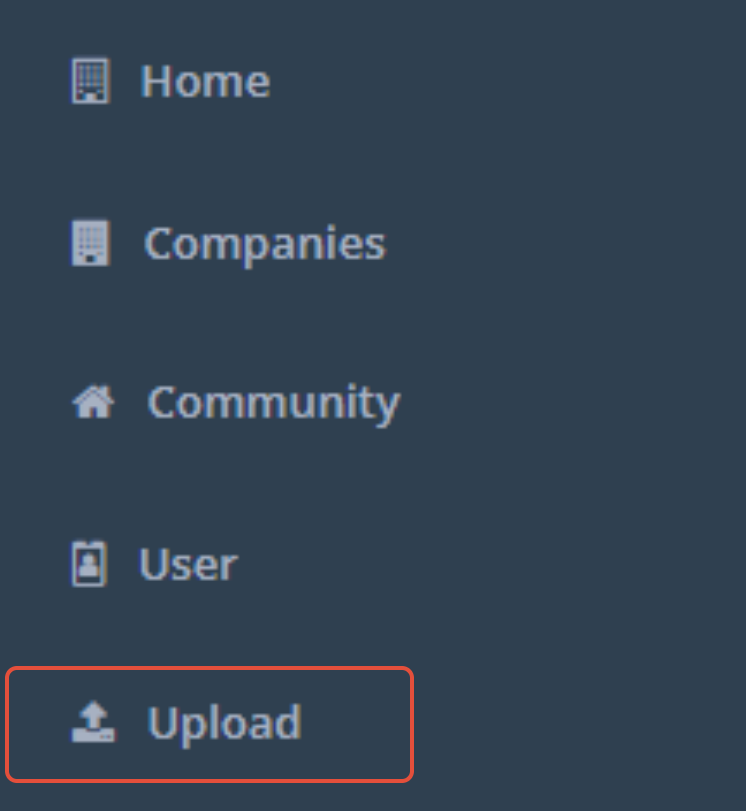 Step 3: In the upper right of the page, click the grey Download Template button

Step 4: This will download a Microsoft Excel file titled Template.xlsx
Filling out the Template
| HEADER | RULES |
| * Community | CRM Match to Community - NameUnique. (Cannot be numerical) |
| * Individual Type | Profile Type of: Prospect, Contact, Resident, Referral, or Pre Lead |
| * Assigned User | User Id # can be found in the users profile in the URL |
| Create Date | 0/00/0000 Date Format (Cannot start with "0") |
| Inquiry Date | 0/00/0000 Date Format (Cannot start with "0") |
| Inquiry Activity Type | CRM match to Inquiry activity(Type) in "Types" section |
| Salutation | CRM Match to Salutation in "Types" section |
| * First Name | Text |
| * Last Name | Text |
| Home Phone | 1234567890 Format (No special characters) |
| Mobile Phone | 1234567890 Format (No special characters) |
| Work Phone | 1234567890 Format (No special characters) |
| Address Line 1 | Text |
| Address Line 2 | Text |
| City | Text |
| State | XX abbreviation Format |
| Zip code | 12345 Format |
| Text (No Hyperlinks) | |
| Primary Contact Relationship | CRM match to Relationships in "Types" section |
| Primary Contact Salutation | CRM Match to Salutation in "Types" section |
| Primary Contact First Name | Text |
| Primary Contact Last Name | Text |
| Primary Contact Address Line 1 | Text |
| Primary Contact City | Text |
| Primary Contact State | XX abbreviation Format |
| Primary Contact Zip code | 12345 Format |
| Primary Contact Home Phone | 1234567890 Format (No special characters) |
| Primary Contact Mobile Phone | 1234567890 Format (No special characters) |
| Primary Contact Work Phone | 1234567890 Format (No special characters) |
| Primary Contact Email | Text (No Hyperlinks) |
| Company | CRM match to Company added within the CRM |
| Market Source | CRM match to Market Source in "Types" section |
| Lead Score | CRM match to Lead Status in "Types" section |
| Category | CRM match to referrer type Category in "Types" section |
| Preference / Care Level | CRM match to Care Level in "Types" section |
| Birthdate | 0/00/0000 Format (Cannot start with "0") |
| Notes | Text - shows in note section only |
| IntegrationId | n/a |
Note: When adding a ZIP/Postal Code to the template, make sure you are only entering the five-digit code. Do not enter the ZIP+4. Including this ZIP+4 code will cause the list to fail uploading. For example: if the ZIP code is 80207-1234, you only need to enter 80207. When adding a Phone Number to the template, make sure you are only entering numbers. Do not add any formatting or special characters (i.e. ( and -) to the phone number fields.
Uploading the Template
If you plan on uploading a large number of individuals. We recommend uploading a small sample size of individuals (maybe 5-10) to verify and make sure they are uploading as you expect.
Before you upload, please review the following.File Type
- Your file is in a XLS or XLSX format
File Data
- The required fields are correctly filled out (Community, Individual Type, Assigned User, First Name, and Last Name)
Inquiry Date and Type
- If no Inquiry Date or Method is chosen, the first Inquiry activity type will be chosen and the Inquiry date will be the date of upload.
Created Date
- If no Created Date is specified, the Created Date will be the date of upload.
No Merging will Occur
- I understand that individuals with the same phone number or email address will NOT be merged and I have verified and deduplicated information prior to upload.
Uploading the Template
Read through and check the boxes next to each acknowledgement statement. Once you have checked each box, the upload manager section will appear.
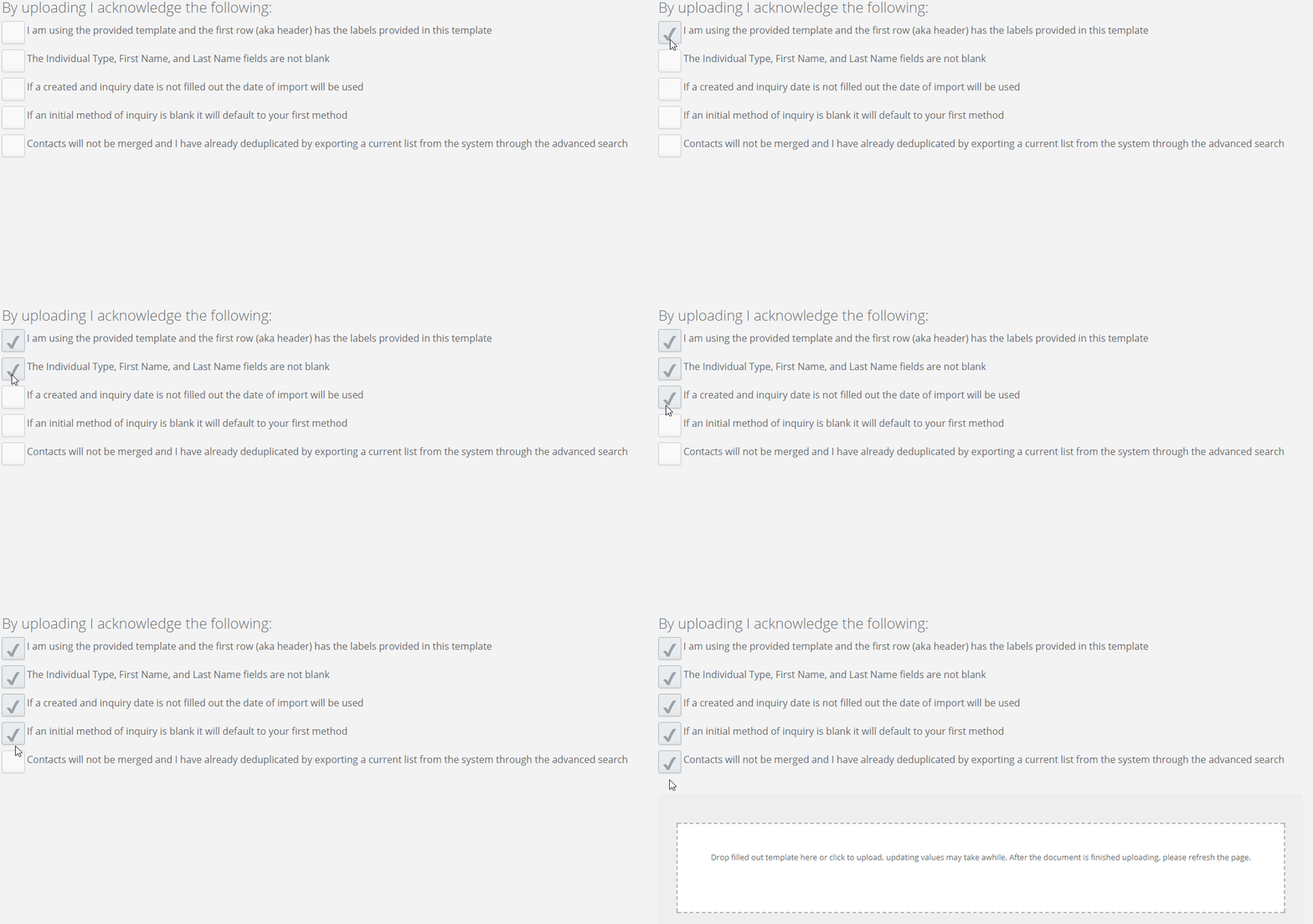
Drag and drop your completed template file onto the download manager section or click into the download manager section to locate the file on your computer.
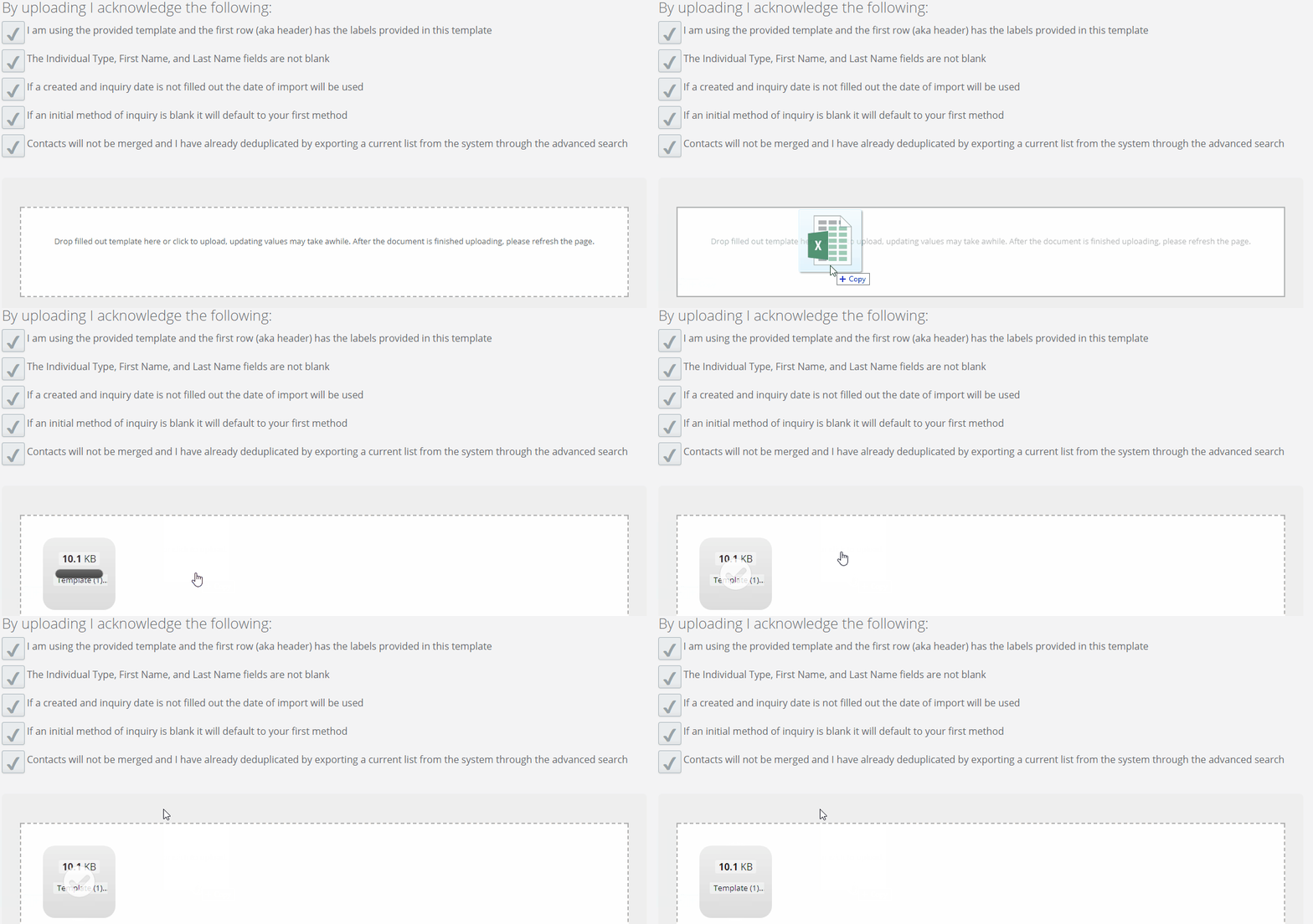
After your template has been uploaded successfully (denoted by the light grey check mark that will appear), refresh the page.
Note: We recommend checking the first few individuals on the list and the last few individuals on your list to make sure all individuals made in the CRM. To test the template, you can upload one lead to the CRM to see how it will reflect in the CRM.
Was this article helpful?
That’s Great!
Thank you for your feedback
Sorry! We couldn't be helpful
Thank you for your feedback
Feedback sent
We appreciate your effort and will try to fix the article