Overview
In this article, we will review how to add a primary contact to a leads profile.
Adding a New Primary Contact to an existing profile
Step 1: Navigate to the profile you would like to add a new Primary Contact to.
Step 2: Click the Relationships tab.

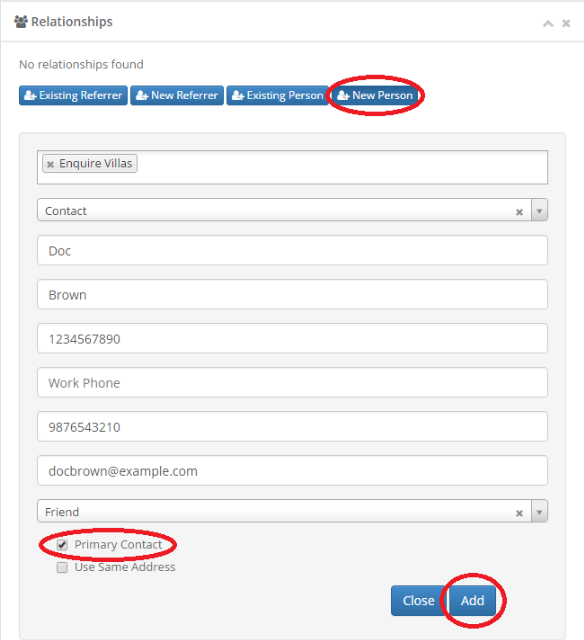
Step 3: Click New Person, fill out the form, click the checkbox next to Primary Contact and click Add.
Creating a Prospect and a Primary Contact at the Same Time
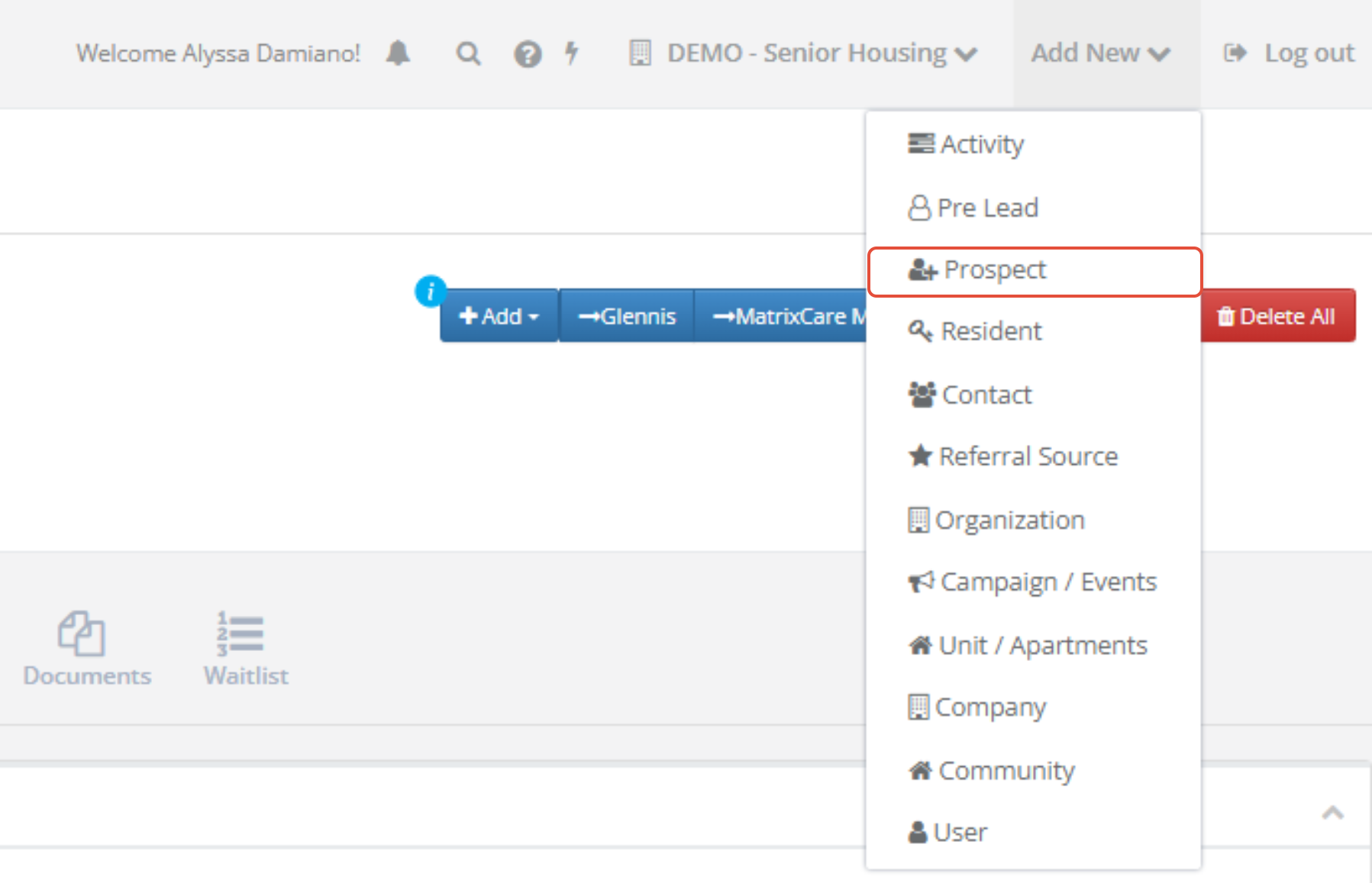
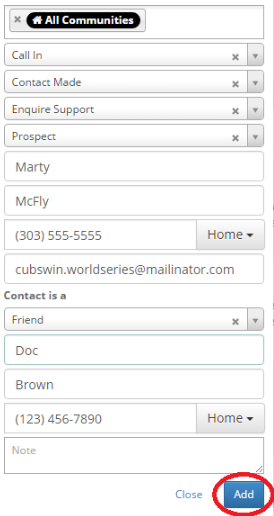
Step 1: Click Add New at the top right of the page and click prospect.
Change an Existing Contact/Relationship to a Primary Contact
Step 1: Navigate to the profile whose current relationship you would like to make a primary contact and click the Relationships tab.

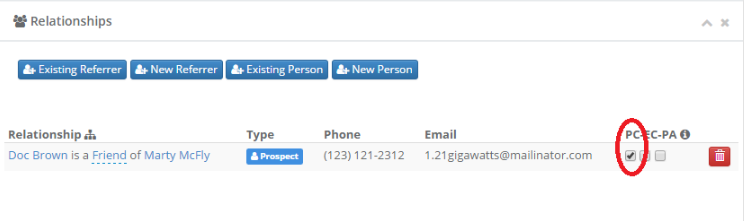
Step 2: Click the check mark below PC. This will mark that contact as the Primary Contact.
Was this article helpful?
That’s Great!
Thank you for your feedback
Sorry! We couldn't be helpful
Thank you for your feedback
Feedback sent
We appreciate your effort and will try to fix the article