TABLE OF CONTENTS
- Overview
- O365 Calendar Sync App Registration setup instructions
- Aline CRM Calendar Sync self-service setup instructions
- Usage
- FAQ's
Overview
For Outlook O365 we offer two integration functions:
1) Calendar sync and Direct email from CRM.
2) Two-way email sync that will auto-record emails as CRM activities and notes.
This article is a step-by-step setup instructions for Outlook Calendar sync / Aline CRM (Enquire) integration. This integration also allows emails to be sent directly from the CRM activity section.
Enquire uses an OAuth 2.0 user consent flow. If you are not an admin in your Azure Active Directory, please share these instructions with our Microsoft Office365 administrator.
NOTE: The previous connection version uses an Impersonation account to Authenticate and connect to each users account. For digital security, it is recommended to no longer use this method.
NOTE: We will provide instructions to setup two separate app registrations in your Azure portal app for 1) Two-way Email Sync & 2) Calendar Sync.
Outlook EWS Calendar Sync App Registration Setup Instructions
Step 1: Login to your Azure Portal (https://portal.azure.com) and search for "App Registrations". You will select the option under Services for 'App Registrations' and continue with the instructions below.

Step 2: Click 'New registration'

Step 3: Give app your preferred name and under Redirect URI choose 'Web' in the dropdown and paste the redirect URL: https://account.enquiresolutions.com/integrate/authorizeews and then click 'Register'.
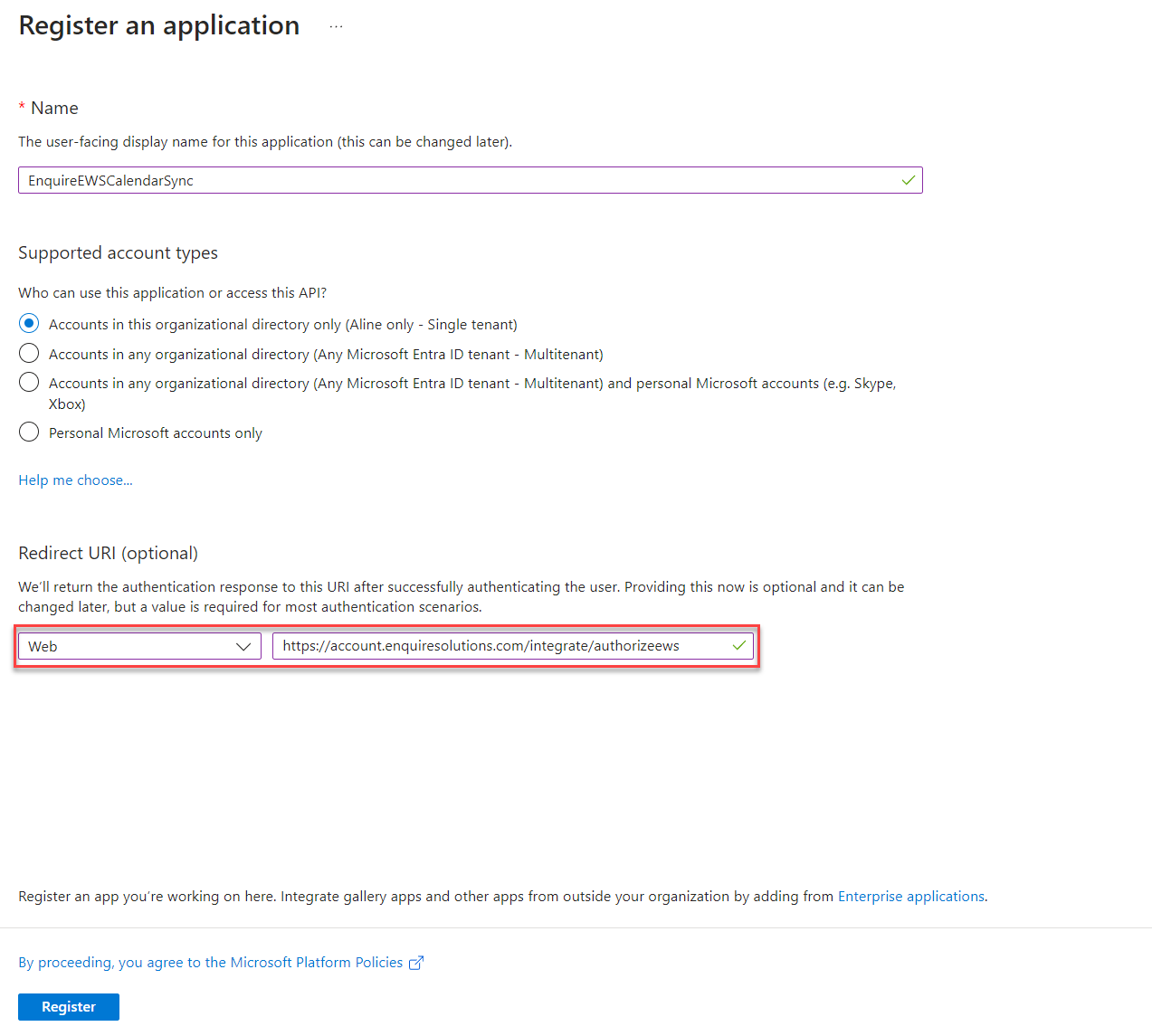
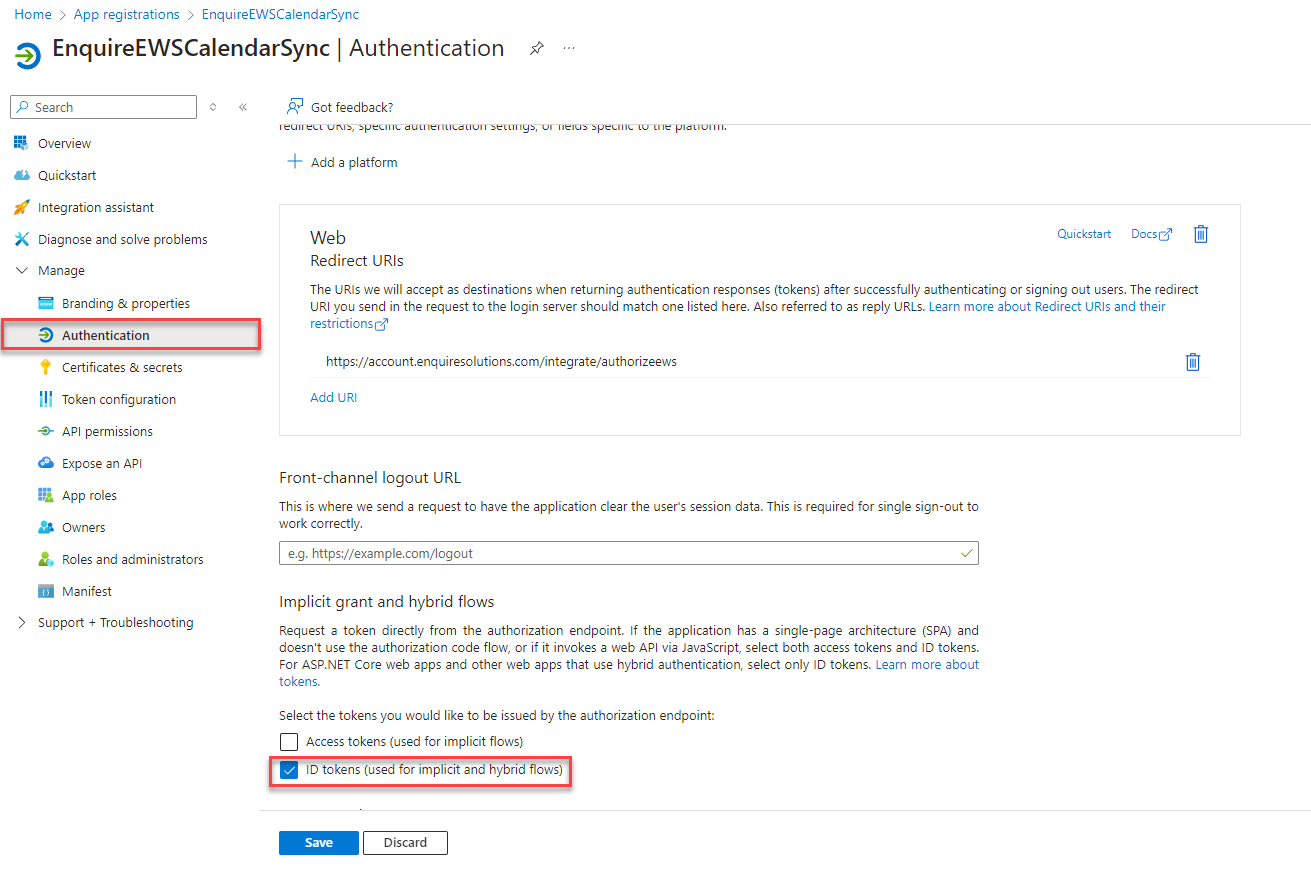
Step 4: In the left-hand menu, choose "Manage" and then "Authentication" Select check box 'ID Tokens' Then click "Save".
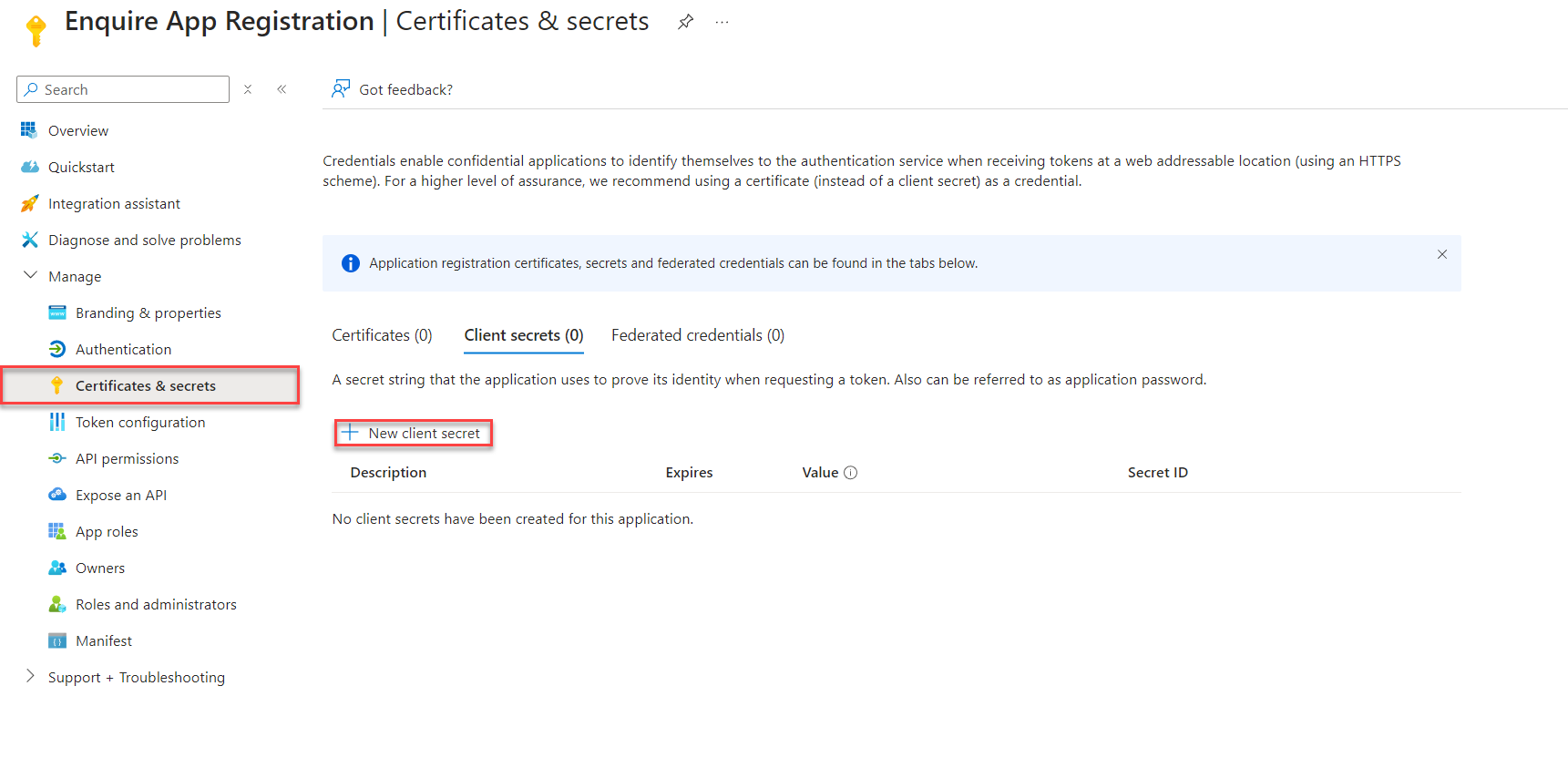
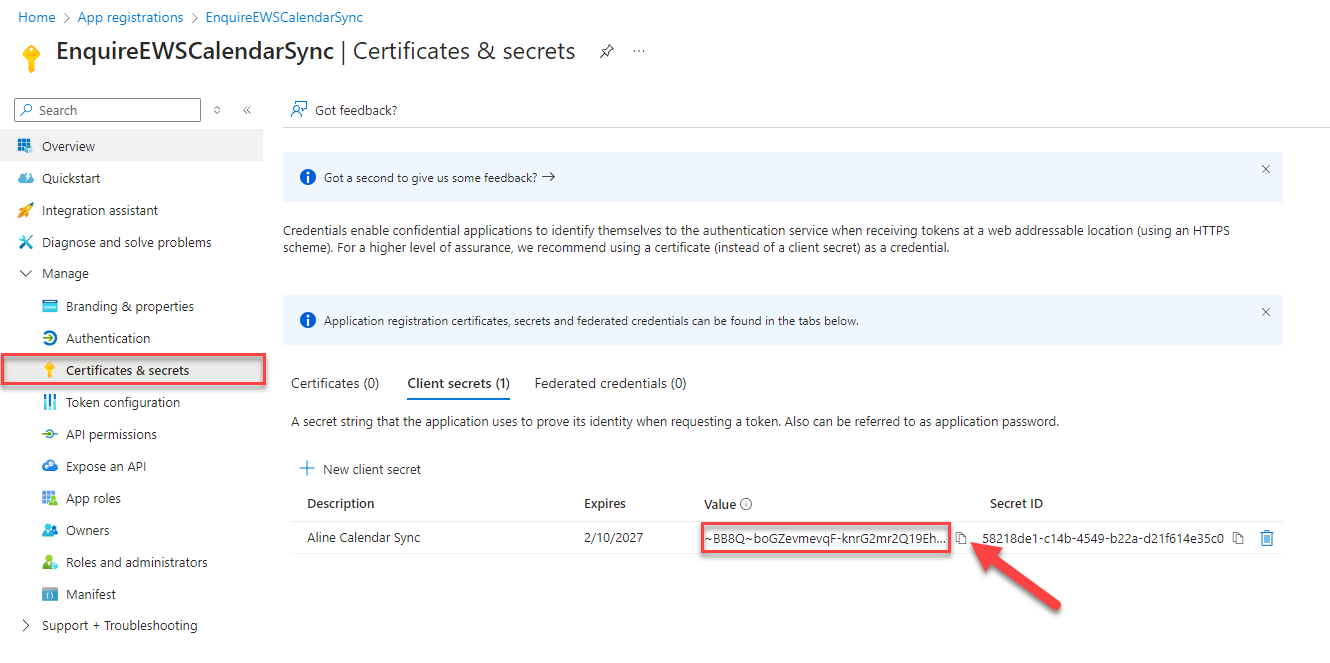
Step 5: In the left-hand menu, choose 'Certificates & Secrets' and then click '+ New Client Secret'.
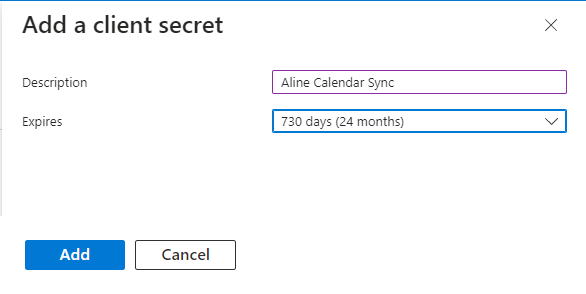
Step 6: Give the Client Secret a description (i.e. Aline Calendar Sync) and adjust the expiration length of the Client Secret (Recommended to change 90 days default to 24 Months) and then a new client secret will be created.
Step 7: Click the copy icon next to Secret Value and paste it into a note pad. This will be needed later to complete the setup.
Note: Save the client secrets value and store it somewhere as you will no longer be able to access it after leaving the page.
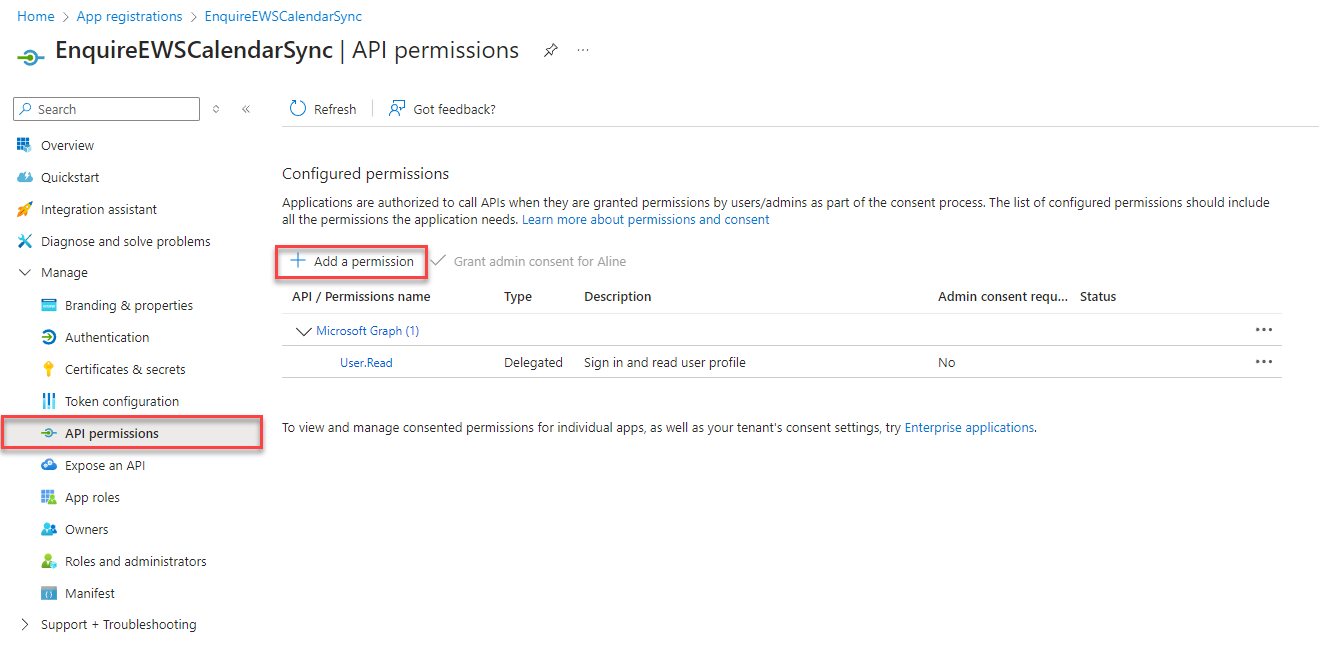
Step 8: Next, choose 'API permissions' in the left-hand menu and then click '+ Add a Permission'.
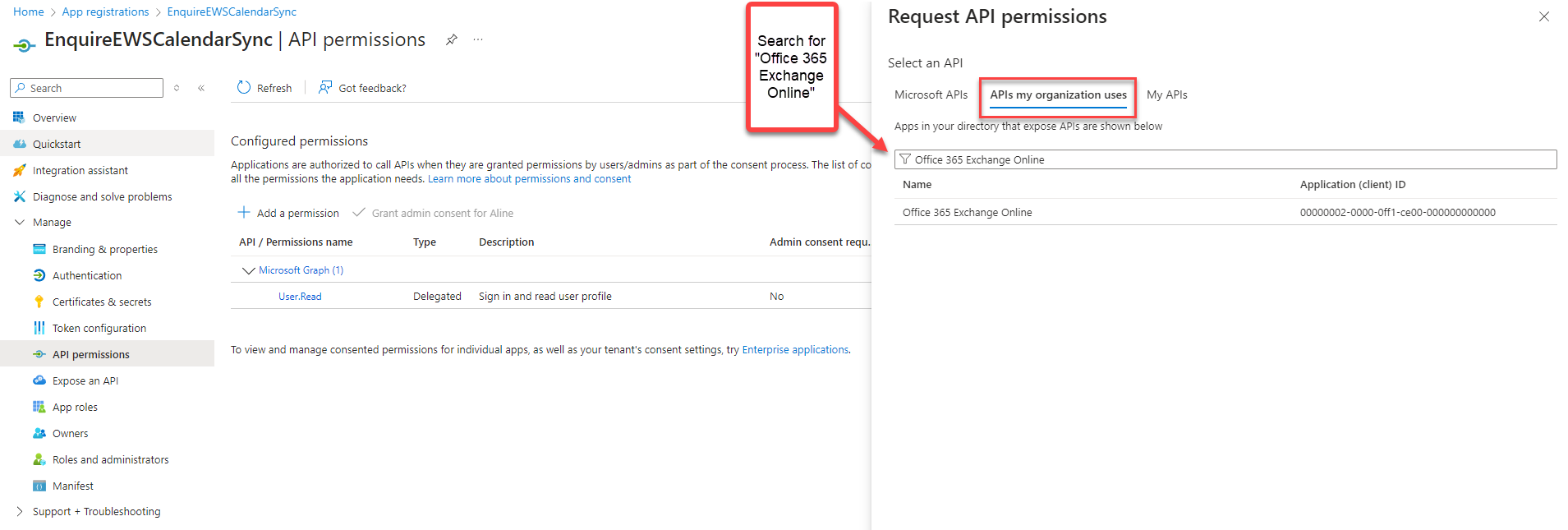
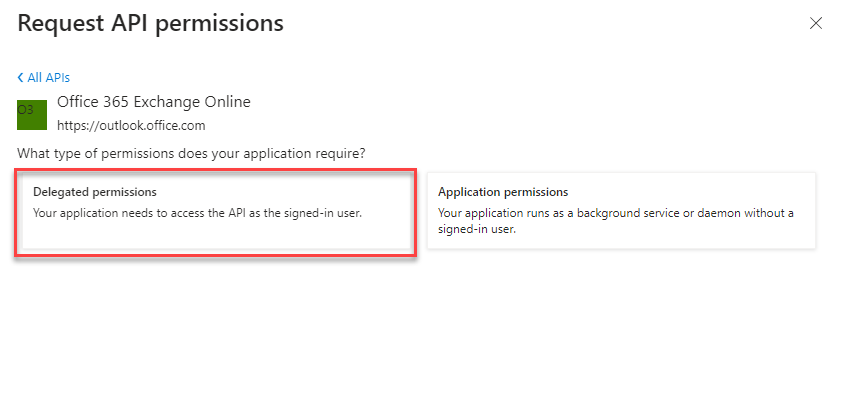
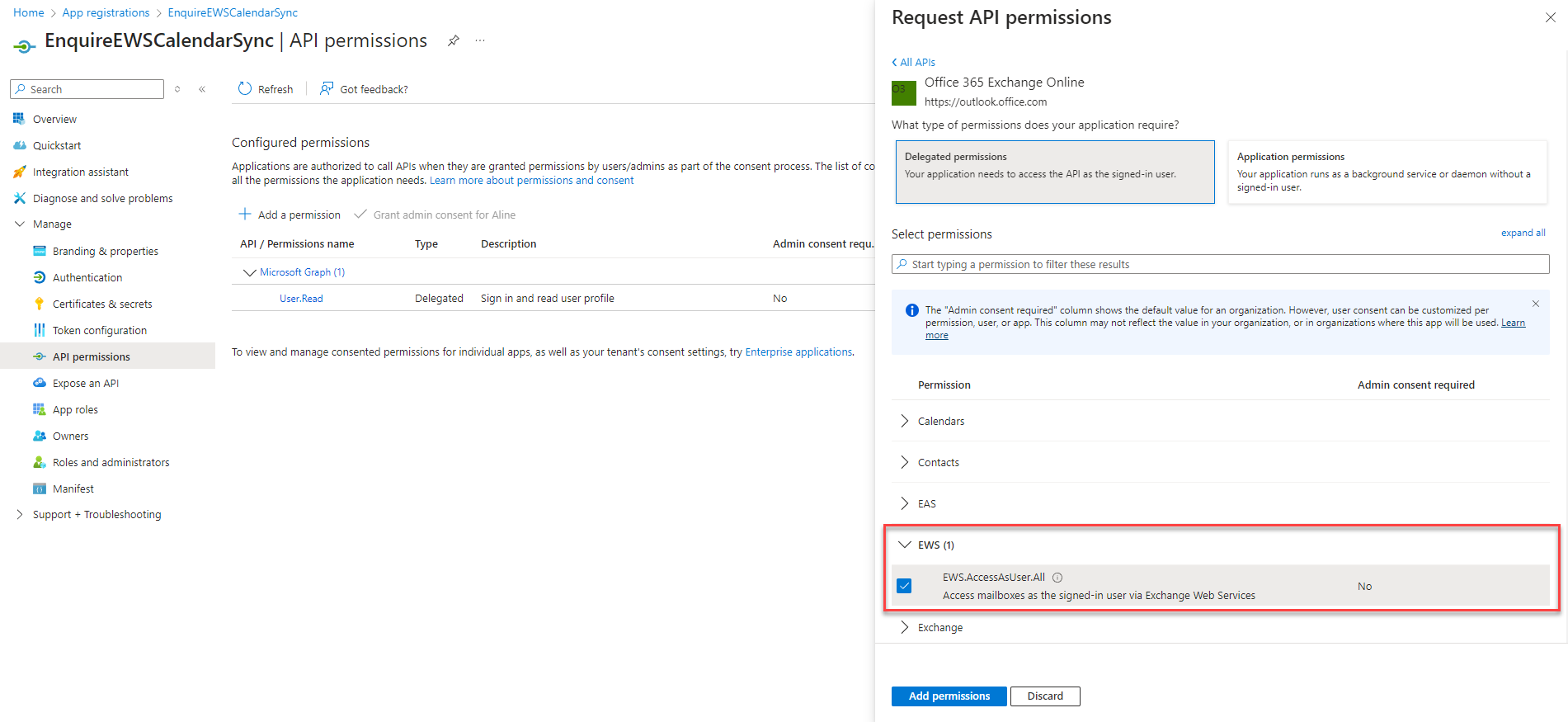
Step 9: Select the tab APIs my organization uses. In the search, type in "Office 365 Exchange Online" and select it in the results. In the next screen, select 'Delegated permissions'.
Step 10: Expand the group 'EWS' and check EWS.AccessAsUser.All and click 'Add permissions'.
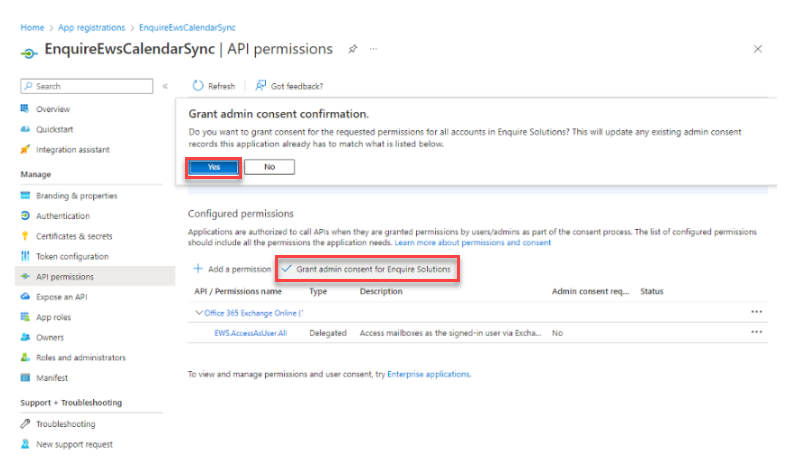
Step 11: After you click 'Add permissions', you should see the EWS.AccessAsUser.All scope listed under Office 365 Exchange Online. Choose the option 'Grant admin consent for {your organization}'.
Step 12: Lastly, choose 'Overview' in the left-hand menu to view your Application (Client) ID and Directory (Tenant) ID and record them.
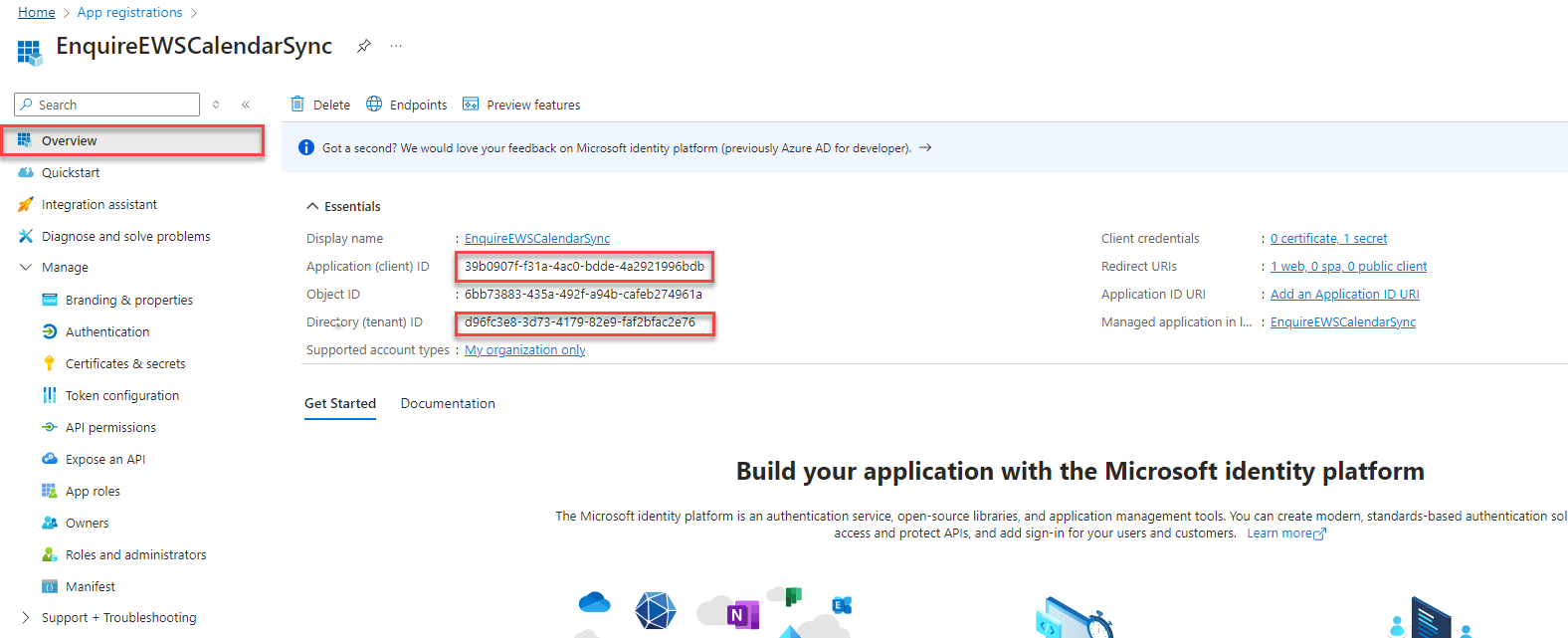
Step 13: After completing the steps above, please ensure you have the credentials below for the CRM setup portion.
- Client Secrets 'Secret ID'
- Tenant ID
- Client Secrets 'Value'
Note: The Client Secrets 'Value' is NOT the Client Secrets 'Secret ID'.
Your App registration is now complete. Proceed to CRM self-service setup.
Aline CRM Calendar Sync setup instructions for Admin
Note: You will need CRM admin user permission to setup this portion.
CRM LOGIN:
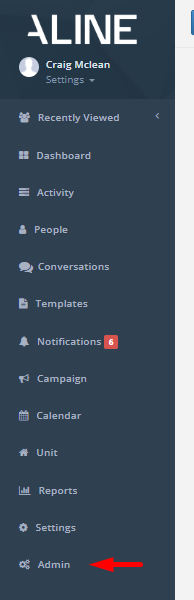
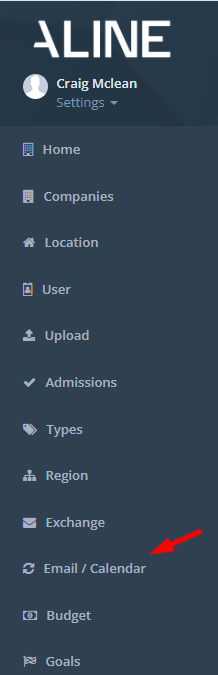
Step 1: Login to Aline CRM (Enquire) and then access 'Admin' section from left-hand menu.
Step 2: Select 'Email/Calendar' in the left hand menu.
 |  |
ADD HOST:
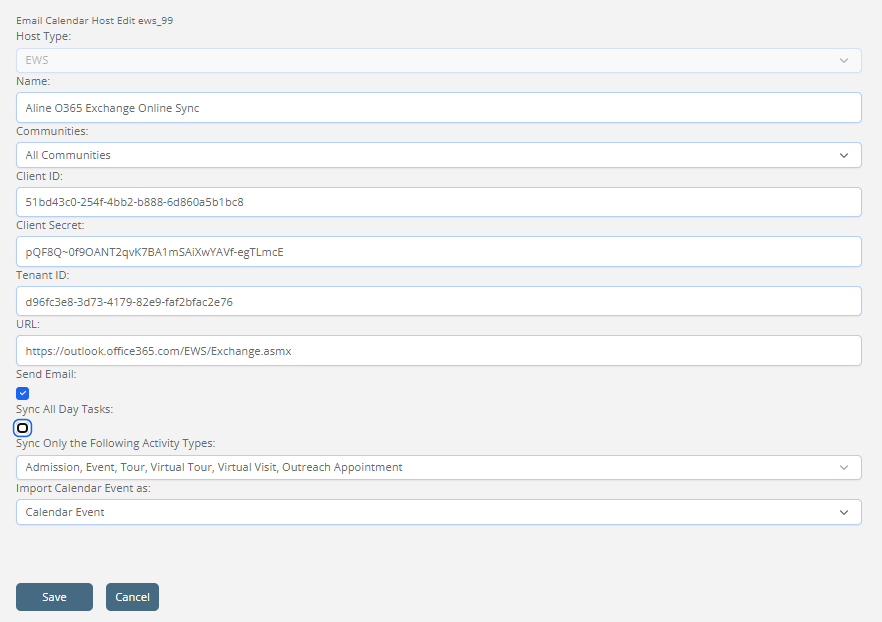
Step 3: Click 'Add Host' button in top-right of exchange Hosts visual.

Step 4: Complete the new host form and save:
- Select "EWS" as host type
- Create a host name (i.e. "Client Calendar Sync")
- Leave community field as "All Communities", unless adding community specific host
- Add the three App registration credentials captured from your EWS registration app. Note: if you do not have the 'Client Secrets Value' saved, you will have to repeat the app registration in Azure.
- For O365, add this URL: https://outlook.office365.com/EWS/Exchange.asmx
- 'Send Email' should be checked to allow users ability to send emails directly from CRM activities module
- 'Sync All Day Tasks' should be unchecked. This allows scheduled events set to all day to also be synced to Outlook tasks section.
- Select the Activity Types you want to have sync from CRM to Outlook. It is recommended to select "face-to-face" type events.
- Select an Activity Type for 'Import Calendar Event as' to show events in CRM calendar. Can use default such as "Appointment", or add a new activity type specific to sync such as "Calendar Appt"
ADD USERS:
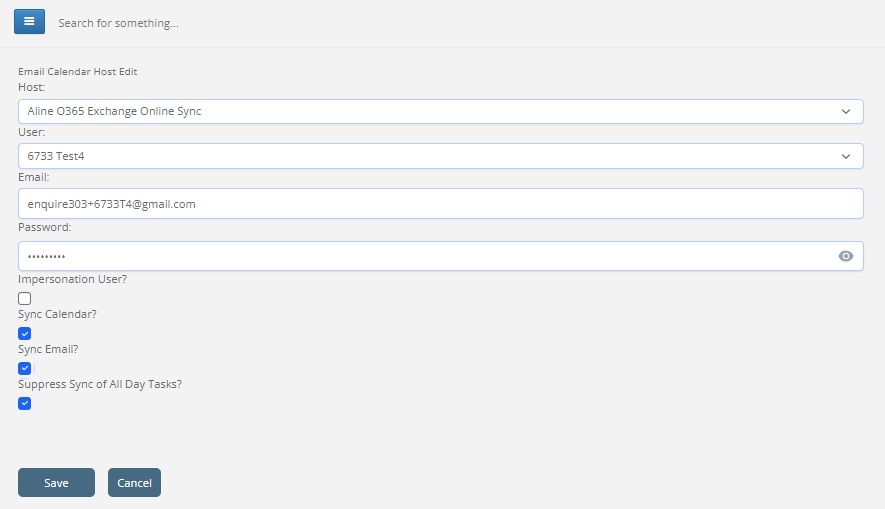
Step 5: Click 'Add EWS Account' to add users to sync.

Step 6: Complete the User form:
- Add Calendar Host name
- Select User to add. (NOTE: Users can add themselves once the host is added.)
- Password and 'Impersonation user' checkbox will be left blank. This is only used when adding an impersonation account.
- Check 'Sync Calendar'
- Check 'Sync Email'
- Check 'Suppress Sync of All Day Tasks' to prevent all days tasks from syncing into Outlook Task Section.
- Then click 'Save'
Step 7: Continue to add all desired users by repeating steps 5-6 for them to be able to use the Calendar sync and email directly from CRM feature.
Note: Users may also add themselves with our "Outlook User-Setup for Calendar Sync" Article.
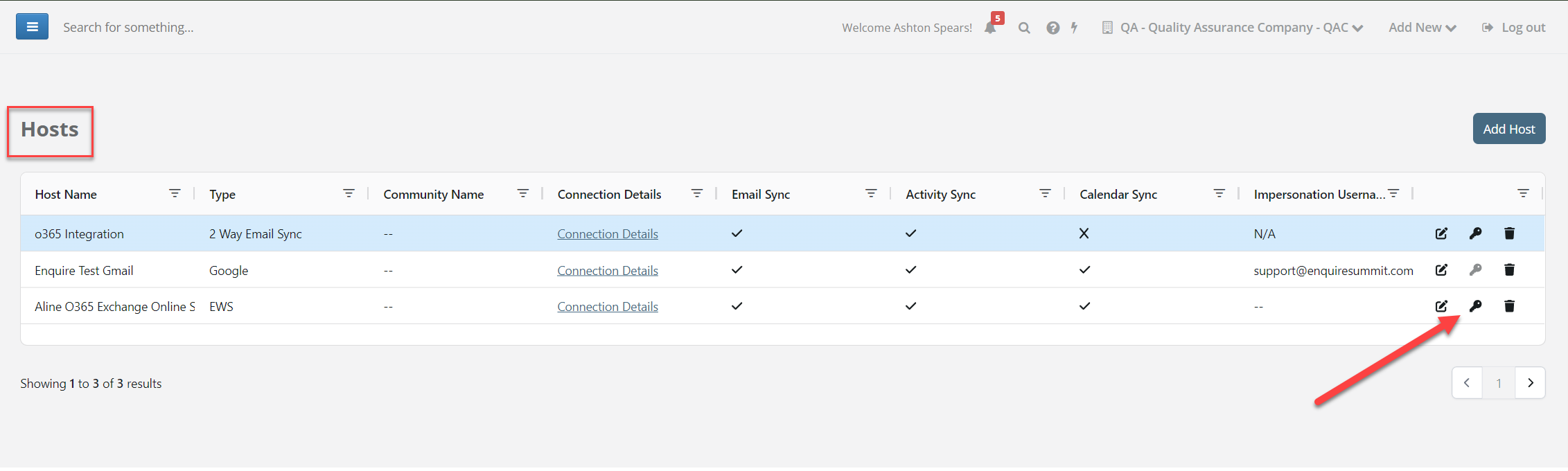
Step 8: Refer back to the 'Hosts' section. For Office 365, click the Key icon to send a notification banner to all users to authenticate.
The CRM Admin portion is now complete.
NOTE: Sync will not work until the user has authenticated their account to establish the OAuth user token. OR if you are using an impersonation account and have authenticated the impersonation account.
Usage
Enquire to Outlook Calendar Sync
Note: The calendar sync with Enquire will sync events to and from your default Outlook calendar. You can verify or change your default calendar by following Microsoft's Change the default calendar support article.
The calendar sync portion of our Exchange/Outlook integration works in the background and is continually syncing when activities are created. Enquire will sync Timed activities, and All Day activities if selected in server setup.
Timed Activities:
Activities with a start and end time will sync to the calendar in Outlook. When a timed activity is successfully synced to your Outlook calendar, it will display at the date and time specified in Enquire and the subject set to the name of the activity in Enquire. The event notes/detail will contain a link to the activity and individual in Enquire.
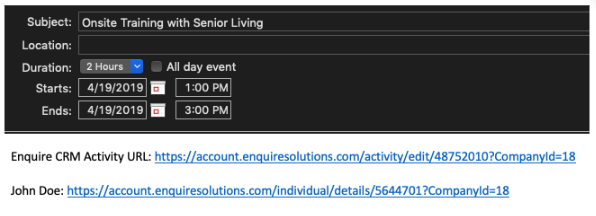
All-Day Activities:
Activities marked as All Day will sync to the tasks section in Outlook. When an all day activity is successfully synced to your Outlook tasks folder, it will display with the date specified in Enquire and the title set to the activity description in Enquire. The task notes/detail will contain a link to the activity and individual in Enquire.

Outlook to Enquire Calendar Sync
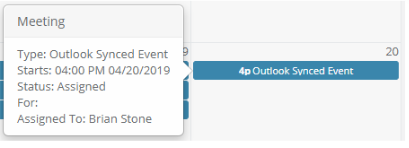
When events from your Outlook calendar are successfully synced to your Enquire calendar, they will display on your calendar at the time specified in Outlook and as the activity type setup by your Admin. Hovering over the activity will display additional information about the activity.
Activity Updates
Cancelling Activities/Events
Cancel an activity in Enquire:
- If an activity that was synced to Outlook is cancelled in Enquire, it will be removed from your Enquire and Outlook calendar.
Cancel an event in Outlook:
- If an event that was synced to Enquire is cancelled in Outlook, it will be removed from your Outlook and Enquire calendar.
Rescheduling Activities/Events
Reschedule an activity in Enquire:
- If an activity that was synced to Outlook is rescheduled in Enquire, the original activity will be removed from your Enquire and Outlook calendar and a new activity will be created at the rescheduled date and time.
Reschedule an event in Outlook:
- If an event that was synced to Enquire is rescheduled in Outlook, the original event will be removed from your Enquire and Outlook calendar and a new event will be created at the rescheduled date and time.
Deleting Activities/Events
Delete an activity in Enquire:
- If an activity that was synced to Outlook is deleted in Enquire, it will be removed from your Enquire and Outlook calendar.
Delete an event in Outlook:
- If an event that was synced to Enquire is deleted in Outlook, it will be removed from your Outlook and Enquire calendar.
Send Email from CRM
The Send Email functionality allows you to send emails from Enquire using the Send Email tab on the activity box.
Step 1: Navigate to the individual you would like to send an email to.
Step 2: Click the Send Email tab along the top of the activity box.
Note: If your account does not have the Send Email functionality setup, you will receive the following warning:

Note: If the individual you are attempting to send an email to doesn't have an email address entered, you will receive the following warning:

Result = Success:
If your email was sent successfully, you will see the following success message:

and a Completed activity with a Description of the email's Subject and a corresponding note with the Email's body will be created:


Note: Enquire does not handle the replies to emails sent from Enquire CRM. Replies to these emails will only be sent to the user's Outlook.
Note: If using the legacy connection method with an impersonation account, the Impersonation account sends the email on behalf of the user and will not show in the users outbox in Outlook.
 and a Cancelled activity with Failed to Send appended to the Description will be created
Templates:
Emails can be pre-populated using templates. Please visit the following Templates Help link to learn more about using templates .
NOTE: Email sends from CRM require a success response from Outlook before creating the "Email Out" activity. This causes a few minute delay in the activity creation on the profile.
FAQ's
When will the sync be active?
- Each user will need to authenticate themselves in the CRM prior to their sync to be active.
NOTE: if using an impersonation account, the sync is active once the impersonation user is authenticated.
Can I set up multiple O365 Hosts?
- Yes, each community can have their own host, Communities with no location specific host will default to company level host.
What if I have a separate O365 host for a small group of communities?
- You will need to setup a community specific host for each location in your small group and then add the same app registration credentials to each community level host.
Will events synced from Outlook pull into reports?
- No, even though we will label an event on your CRM calendar that is synced from outlook with an activity name, none of these events will count as a traditional activity in the reporting database.
How far in the past or in the future do we import Outlook Events on my CRM calendar?
- The calendar in the CRM will display Outlook activities that have occurred within the last 2 calendar days and scheduled Outlook events in the next 90 days.
- Because the calendar in the CRM displays 90 days in the future, you will be able to see each occurrence of a recurring Outlook event up till the 90th day.
- This can happen for a few reasons, so make sure the following are correct:
- When scheduling an activity, make sure that the All Day checkbox isn't checked. Remember: all day activities will show in the Tasks section of Outlook and not on the calendar (if you have this option enabled).
- Make sure the start time of the activity is prior to the end time.
- Updates from the CRM to Outlook are not real time, it can take up to 45 minutes for an activity to appear on your Outlook calendar if created in the CRM.
How do I troubleshoot if the sync stops for a specific user?
- Admin users can view each user's sync status by verifying if the user's token is valid.
- 1) Go to the Email / Calendar module on the left-hand side of the screen, and then scroll down to the Exchange Accounts table.
- 2) Locate the user, and then click on 'Token Details' to see if the user token is still valid. You should see "Yes" next to "Is Valid".
- 3) If you see "No" next to "Is Valid" then the user may need to re-authenticate themselves. You can click the key icon in the user's row which will generate a new authorization banner for that user which will allow them to re-authenticate.
NOTE: CRM User Tokens will be blank if using an Impersonation user to authenticate and connect
How do I troubleshoot if the sync has stopped for everyone?
- All OAuth Client Secret values will expire based on the number of days you selected when creating your app registration. When this happens, all user tokens will be become invalid. The admin will need to create a new app registration, which will then generate a new Client Secret value. You will need to click the edit icon next to the existing host and enter your updated Client Secret value. (Do not delete the host and create a new one, or you will need to then re-add all of your users to the Exchange Accounts table.) Lastly, you will prompt each user to self-authenticate by clicking the key icon next to the host.
- Each user will be prompted to re-authenticate their User Token to restart the sync.
How do I troubleshoot if my host is using an impersonation account?
- If your token has expired for your impersonation account, we will help guide you in transitioning to our updated method of user-generated authentication, which has added security benefits.
Former Instructions: - The impersonation user will show in the Admin > Exchange > EWS user section to validate the token and look for errors. The impersonation user may need to be re-authenticated if the token becomes invalid, or if you need to update the OAuth Client Secret value.
- NOTE: All Admin users should get notified once the Token is no longer valid for the impersonation user.
- If you are having troubles with Syncing your Outlook or Exchange here are some things to try.
- Check with your Network Administrator to confirm everything has been setup with your company's Exchange Web Services (EWS)
- Your Network Administrator must authorize your Exchange account to use Exchange Web Services (EWS) with Enquire CRM.
- Make sure you are using the correct Exchange Network credentials when setting up your Exchange Sync in Enquire CRM.
- Note: These are not your Enquire CRM credentials. Please check with your Network Administrator if you are unsure what your credentials are.
How do I re-authenticate a Impersonation user?
- Gather the Impersonation user Email and Password.
- Authenticate the account by going to https://account.enquiresolutions.com/integrate/exchange
- Once the Impersonation user has a valid token, the calendar sync will resume for all connected users.
My prior connection used an Impersonation account, how do I change?
- If you have an existing impersonation user/account, users can still authenticate themselves.
- You can trigger users to self-auth by clicking the Key symbol in Admin Calendar Module next to their account. You can also initiate the process for all users at the same time by clicking the Key symbol next to the host in the Email / Calendar module.
- Auth will always look for a individual token before looking to use impersonation user account to connect.
- Deleting the impersonation account does not affect users that already have their own token established. Only users missing their own token will stop syncing. It will re-establish once they self-authenticate.
Can I update the host after creation?
- Yes, but currently you will need the Client Secret Auth value to re-enter to make any updates. For example, updating which activities will sync from the CRM to Outlook or what activity name will be given to appointments from Outlook within the CRM.
Was this article helpful?
That’s Great!
Thank you for your feedback
Sorry! We couldn't be helpful
Thank you for your feedback
Feedback sent
We appreciate your effort and will try to fix the article