TABLE OF CONTENTS
Overview
This article will review CRM user instructions to setup and authenticate O365 Calendar Sync.
User Setup Instructions
Note: If your CRM Admin user has successfully set up the O365 Calendar integration host for your company/community and triggered your request, you will see a 'call-to-action' (shown below) on your dashboard prompting you to authorize your O365 account for access to calendar syncing.
The "Opt-Out" button simply closes the banner.
If you do not see this banner and your host server is setup, proceed to Step 1 to manually authenticate.

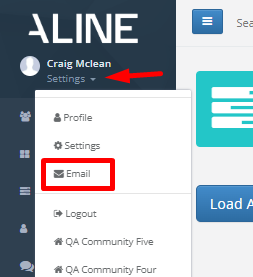
Step 1: On the left-hand menu, go to 'Settings' just under your name. Then click 'Email' in the dropdown.
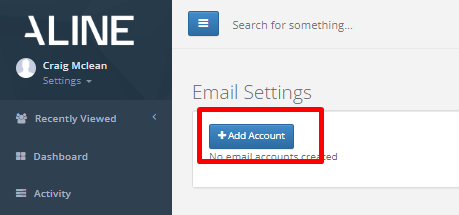
Step 2: Click on '+ Add Account' on the Emails Setting visual.
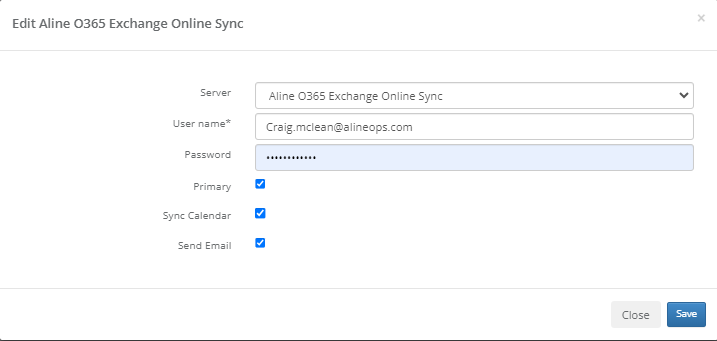
Step 3: Complete the Add Account pop-up and 'Save'
- Server: Select the calendar sync server set by your admin
- User Name: Add your email address
- Password: Add your email password
- Primary: should be checked as your primary email account
- Sync Calendar: should be checked to allow the calendar sync
- Send Email: should be checked to allow emails to be sent directly from CRM Activity module.
Your account is now saved to the CRM.
Step 4: Click the Key icon to be redirected and authenticate your account:

If you receive a completed response, you are now syncing. Your account is now pending and may take up to a half hour to initiate sync.

If you receive an error response, please reach out to your CRM Admin to check on your status and host status for the connection.
Usage
Enquire to Outlook Calendar Sync
Note: The calendar sync with Enquire will sync events to and from your default Outlook calendar. You can verify or change your default calendar by following Microsoft's Change the default calendar support article.
The calendar sync portion of our Exchange/Outlook integration works in the background and is continually syncing when activities are created. Enquire will sync Timed activities and All Day activities if selected in server setup:
Timed Activities:
Activities with a start and end time will sync to the calendar in Outlook. When a timed activity is successfully synced to your Outlook calendar, it will display at the date and time specified in Enquire and the subject will be set to the name of the activity in Enquire. The event notes/detail will contain a link to the activity and individual in Enquire.
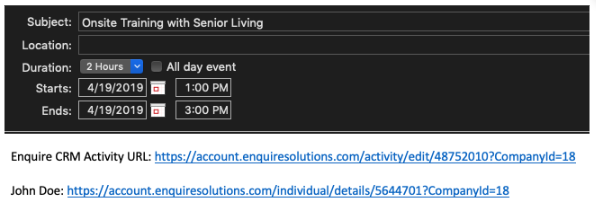
All Day Activities:
Activities marked as All Day will sync to the tasks section in Outlook. When an All Day activity is successfully synced to your Outlook tasks folder, it will display with the date specified in Enquire and the title will be set to the activity description in Enquire. The task notes/detail will contain a link to the activity and individual in Enquire.

Outlook to Enquire Calendar Sync
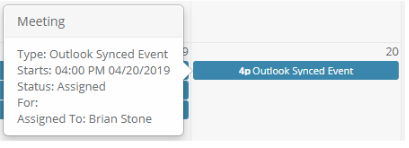
When events from your Outlook calendar are successfully synced to your Enquire calendar, they will display on your calendar at the time specified in Outlook and as the activity type setup by your Admin. Hovering over the activity will display additional information about the activity.
Activity Updates
Cancelling Activities/Events
Cancel an activity in Enquire:
- If an activity that was synced to Outlook is cancelled in Enquire, it will be removed from your Enquire and Outlook calendar.
Cancel an event in Outlook:
- If an event that was synced to Enquire is cancelled in Outlook, it will be removed from your Outlook and Enquire calendar.
Rescheduling Activities/Events
Reschedule an activity in Enquire:
- If an activity that was synced to Outlook is rescheduled in Enquire, the original activity will be removed from your Enquire and Outlook calendar and a new activity will be created at the rescheduled date and time.
Reschedule an event in Outlook:
- If an event that was synced to Enquire is rescheduled in Outlook, the original event will be removed from your Enquire and Outlook calendar and a new event will be created at the rescheduled date and time.
Deleting Activities/Events
Delete an activity in Enquire:
- If an activity that was synced to Outlook is deleted in Enquire, it will be removed from your Enquire and Outlook calendar.
Delete an event in Outlook:
- If an event that was synced to Enquire is deleted in Outlook, it will be removed from your Outlook and Enquire calendar.
Send Email from CRM
The Send Email functionality allows you to send emails from Enquire using the Send Email tab on the activity box.
Step 1: Navigate to the individual you would like to send an email to.
Step 2: Click the 'Send Email' tab along the top of the activity box.
Note: If your account does not have the Send Email functionality setup, you will receive the following warning:

Note: If the individual you are attempting to send an email to doesn't have an email address entered, you will receive the following warning:

Result = Success:
If your email was sent successfully, you will see the following success message:

and a Completed activity with a Description of the email's Subject and a corresponding note with the Email's body will be created:


Note: Enquire does not handle the replies to emails sent from Enquire CRM. Replies to these emails will only be sent to the user's Outlook.
Note: If using the legacy connection method with an impersonation account, the Impersonation account sends the email on behalf of the user and will not show in the users outbox in Outlook.
 and a Cancelled activity with Failed to Send appended to the Description will be created
Templates:
Emails can be pre-populated using templates. Please visit the following Templates Help link to learn more about using templates .
NOTE: Emails sent from CRM require a success response from Outlook before creating the "Email Out" activity. This causes a few minute delay in the activity creation on the profile.
NEW! - Email Send Editor for O365 connections
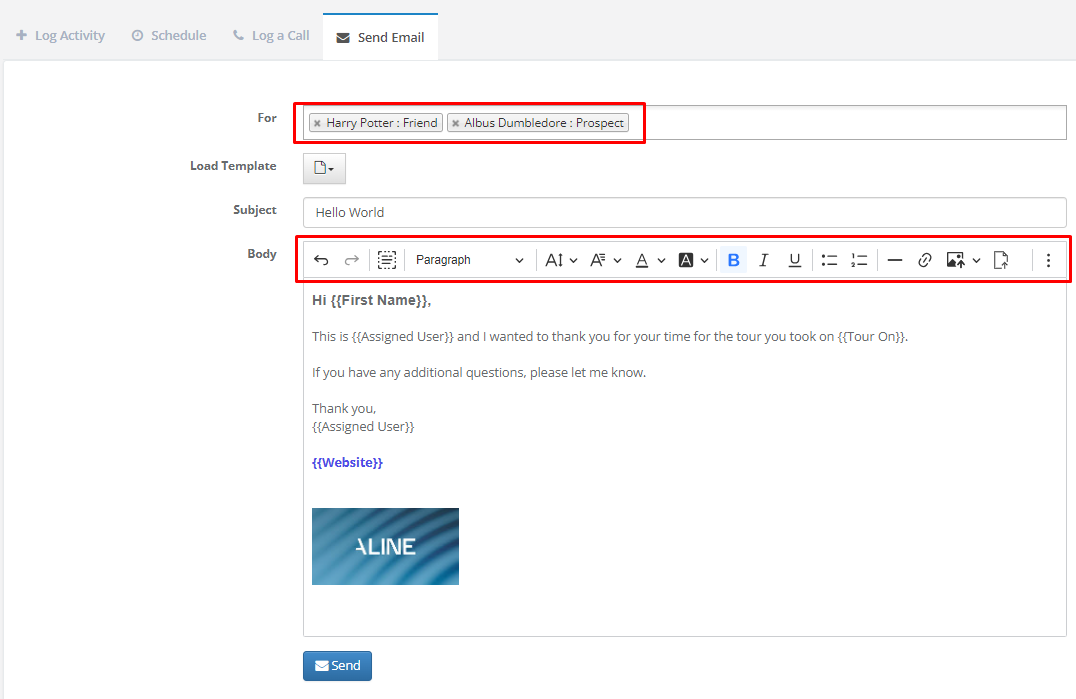
We have added new functionality when sending emails directly from the CRM.
NOTE - These new features only work with O365 connection. Older MS Office versions will not provide these enhanced features.
- Add multiple individuals from the case
- Add Images
- Add Attachments
- Add Links
- Advanced text formatting
FAQ's
When will the sync be active?
- Each user will need to their email account and password added toe the CRM and then authenticate themselves in EWS exchange to activate the sync
.
What if my community has a separate O365 host?
- Your admin can setup a community specific host that should be labeled for you community. When adding or editing your account, select your community specific host.
Will events synced from Outlook pull into reports?
- No, Events synced from Outlook will not carry into the reporting database
Can I see Outlook Events in the past or future on my CRM calendar?
- The calendar in Enquire will display Outlook activities that have occurred within the last 2 days and scheduled Outlook events in the next 90 days.
- Because the calendar in Enquire displays 90 days in the future, you will be able to see each occurrence of a recurring Outlook event up till the 90th day.
- This can happen for a few reasons, so make sure the following are correct:
- When scheduling an activity, make sure that the All Day checkbox isn't checked. Remember: all day activities show in the Tasks section of Outlook and not on the calendar.
- Make sure the start time of the activity is prior to the end time.
- Updates from Enquire to Outlook are not real time, it can take up to 45 minutes for an activity to appear on your Outlook calendar if created in Enquire.
The calendar sync is working but I cannot send emails from the CRM
- If you selected to be able to send emails in account setup and it is not working or not available, check with your CRM admin to see if this function was setup for your host.
How do I trouble shoot if the sync stops for me?
- First try to re-authenticate your account to re-establish and active token.
- Admin users can view the each user's sync status in the Exchange 2-way email visual section to look for errors. If the Host Client Secret has expired your admin will first need to update this value on the host before you can re-authenticate.
Was this article helpful?
That’s Great!
Thank you for your feedback
Sorry! We couldn't be helpful
Thank you for your feedback
Feedback sent
We appreciate your effort and will try to fix the article