Overview
In this article, we will review setting up the Google Integration and its usage.
Setup in Google
Requirements
- Your company must use Google Apps; this setup does not work for single Gmail Accounts.
- While any Gmail user can be used for authentication, it is recommended to create a new Gmail account specifically for the Aline CRM integration.
Enabling Google Apps API
Step 1: Sign in to the Google Admin Console.
Step 2: From the dashboard, click Security.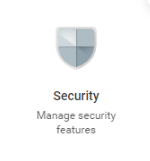 Step 3: Scroll down and click on the API controls section.
Step 4: Click Manage Domain Wide Delegation located under the Domain Wide Delegation section. Step 5: Click Add New at the top of the section to add a new API Client.
Step 6: In the pop-up window, enter the following Client ID and Scopes.
ClientId/Name
- 101231316311741472533
Scope(s)
- https://www.googleapis.com/auth/calendar
- https://www.googleapis.com/auth/gmail.send
Step 7: Click Authorize.
Note: If you would like to only sync calendar items, do not add the gmail.send scope.
Setup in Aline CRM
You can provide our Aline Integrations team with the Gmail username and password used to set up the API access in Google by sending an email to integrations@alineops.com, or follow these steps to finish setup yourself.
Step 1: Click the Admin button on the left hand bar.
Step 2: Click Exchange on the left-hand bar.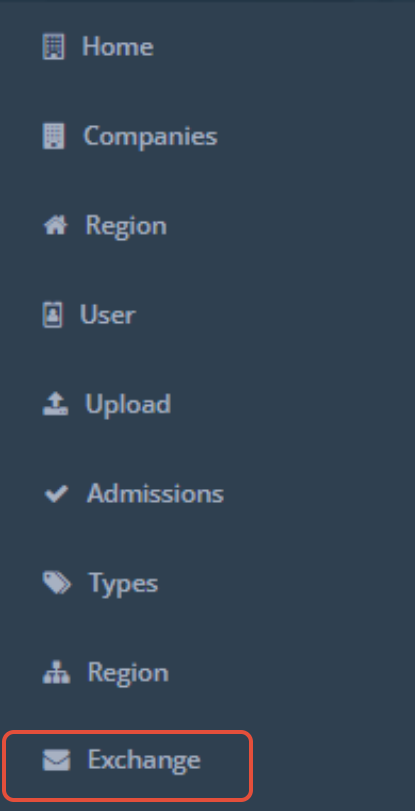 Step 3: In the upper right, click the + Add Exchange Server button.
 Step 4: On the form, please enter the following:
- In the Exchange Version drop down, choose Gmail.
- In the Name field, enter a desired name for the server (i.e. Your Company Gmail),
- In the Url field, enter https://www.googleapis.com/auth/calendar
- In the Impersonation User field, enter the username for the Google admin account you used to setup the API/integration access.
- In the Impersonation Password field, enter the password for the Google admin account you used to setup the API/integration access.
Step 5: Click Save.
Step 6: Validate all users that will be utilizing the Google Calendar/Gmail sync have been added to the Accounts section. All users will be added with a status of Pending in the Calendar Status and Email Status columns.
Step 7: To the far right of the Google server you just created, click the red sync icon. This will initiate the sync process, but please allow up to one hour for the sync to complete depending on the number of users and activities.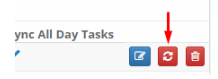 Step 8: Once the sync has finished, the status window will display sync results for each account and the Calendar status for each user will be updated based on the results of their sync:
 Step 9: The Email Status column will display Pending until the user attempts to send an email to an individual or you may test the send email functionality by clicking the blue send test email envelope button to the right of the user's account.
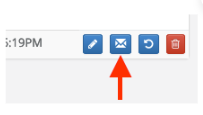 Note: This will send an email to the user with the From and To as themselves and a body with the text: "This is a test email sent from the Aline CRM to validate your email settings. It was initiated by an administrator or support user. No action or response is required." and update the status in the Email Status column based on the results:

Usage
Timed activities
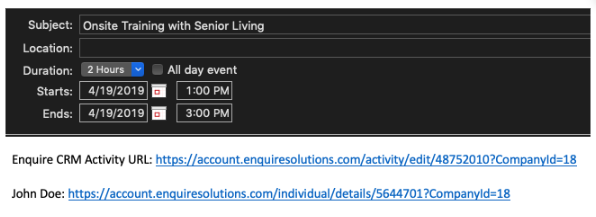
Activities with a start and end time will sync to the calendar in Google. When a timed activity is successfully synced to your Google calendar, it will display at the date and time specified in CRM and the subject set to the name of the activity in CRM. The event notes/detail will contain a link to the activity and individual in CRM.
All day activities
Activities marked as All Day will sync to the tasks section in Google. When an all day activity is successfully synced to your Google tasks folder, it will display with the date specified in CRM and the title set to the activity description in CRM. The task notes/detail will contain a link to the activity and individual in CRM.

Google to CRM Calendar Sync
When events from your Google calendar are successfully synced to your CRM calendar, they will display on your calendar at the time specified in Google and as the activity type setup by your Admin. Hovering over the activity will display additional information about the activity.
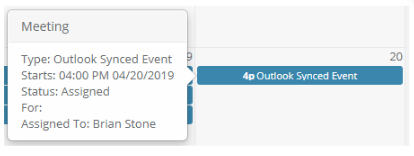
Note: All activities synced from your Google calendar will display a blank For field.
Cancelling Activities/Events
Cancel an activity in CRM
If an activity that was synced to Google is cancelled in CRM, it will be removed from your CRM and Google calendar.
Cancel an event in Google
If an event that was synced to CRM is cancelled in Google, it will be removed from your Google and CRM calendar.
Rescheduling Activities/Events
Reschedule an activity in CRM
If an activity that was synced to Google is rescheduled in CRM, the original activity will be removed from your CRM and Google calendars, and a new activity will be created at the rescheduled date and time.
Reschedule an event in Google
If an event that was synced to CRM is rescheduled in Google, the original event will be removed from your CRM and Google calendar and a new event will be created at the rescheduled date and time.
Deleting Activities/Events
Delete an activity in CRM
If an activity that was synced to Google is deleted in CRM, it will be removed from your CRM and Google calendars.
Delete an event in Google
If an event that was synced to CRM is deleted in Google, it will be removed from your Google and CRM calendars.
Note: Aline does not handle the replies to emails sent from Aline CRM. Replies to these emails will only be sent to the user's Google.
Was this article helpful?
That’s Great!
Thank you for your feedback
Sorry! We couldn't be helpful
Thank you for your feedback
Feedback sent
We appreciate your effort and will try to fix the article