Overview
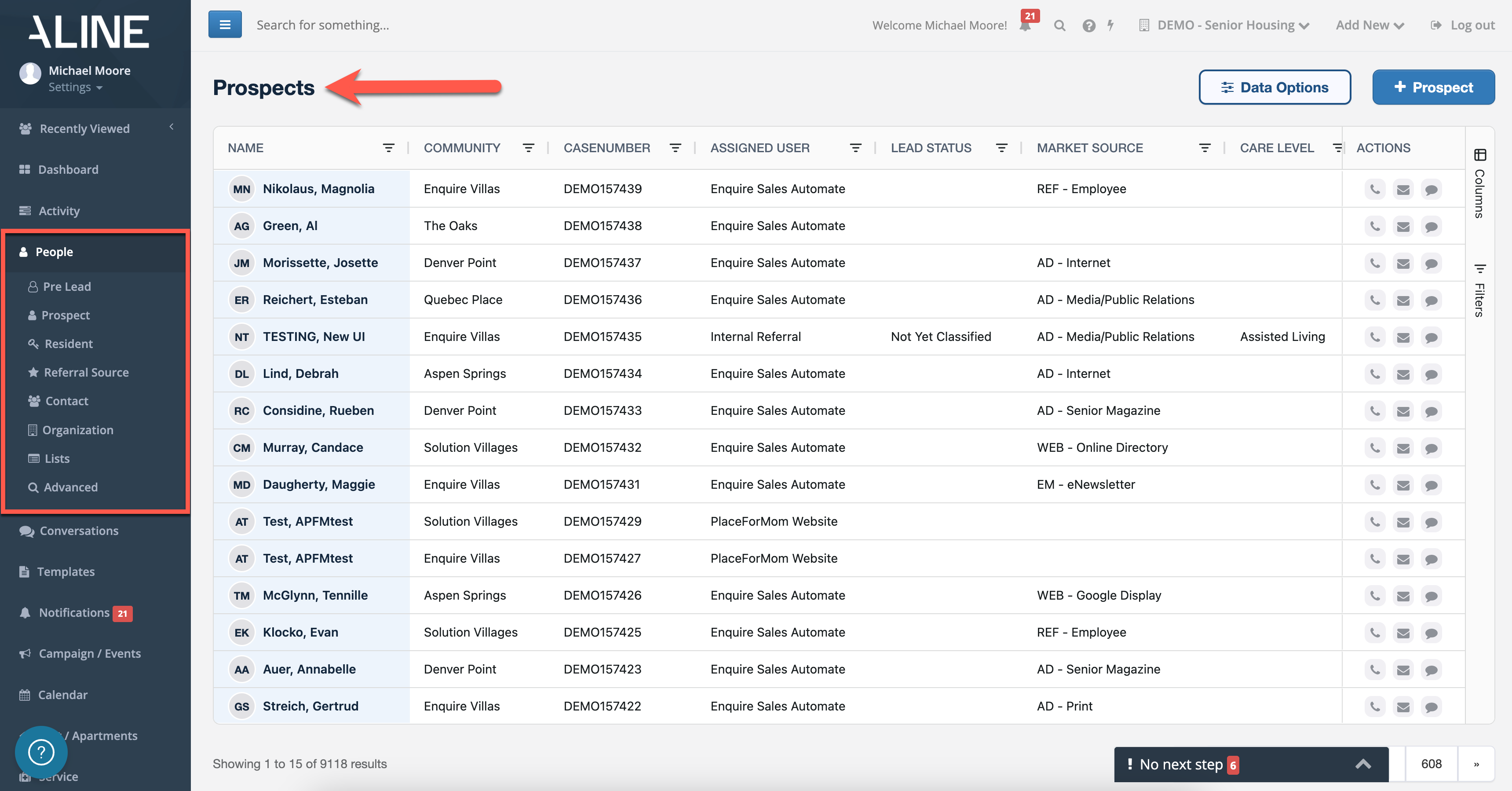
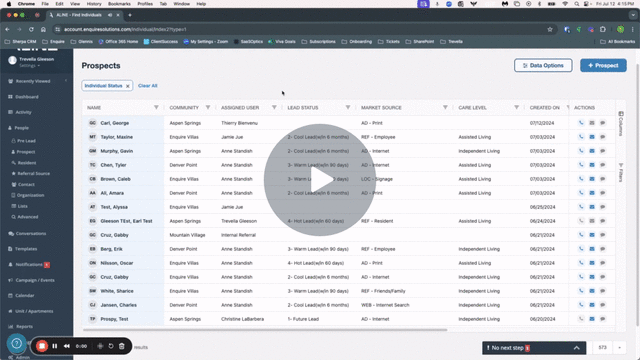
The People List View allows you to see a list of different types of Individuals within your system, including Pre-Leads, Prospects, Contacts, Residents, and Referring Contacts.
With this tool, you can:
- Add or remove datapoints (columns)
- Rearrange columns by dragging them to your desired location
- Sort by data within the columns
- Apply filters to the data in the the columns
- Take action by making a phone call, sending a text, or composing an email (Communications Package only)
- Click on the individual's name to open the profile
- Export your list to Excel or as a .csv file
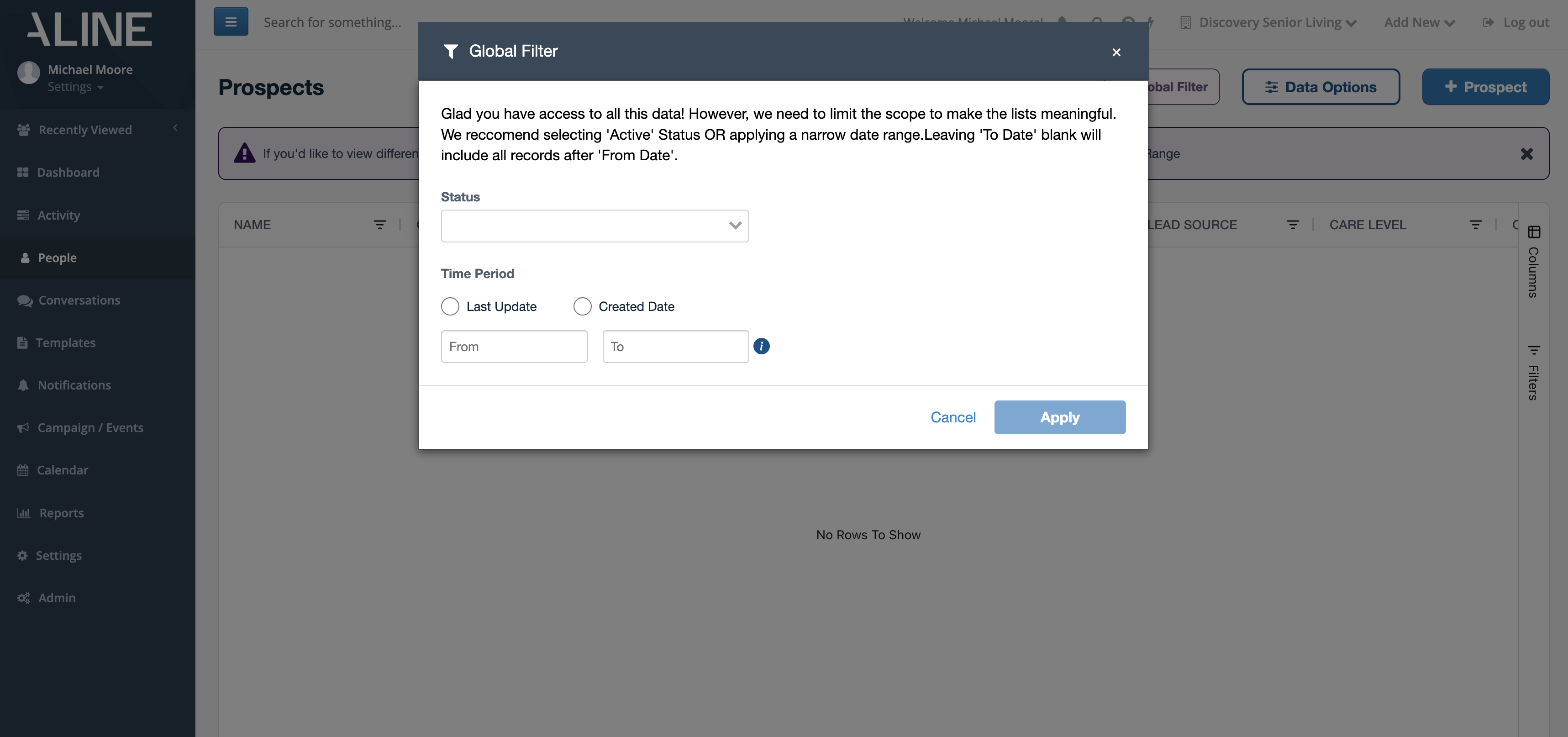
Please note: for Prospect lists that exceed 150,000 results, a Global Filter panel will automatically display in order to fine-tune the search results based on Status (active or inactive) and Time Period (last updated or date created).
How to Add or Remove Datapoints (Columns)
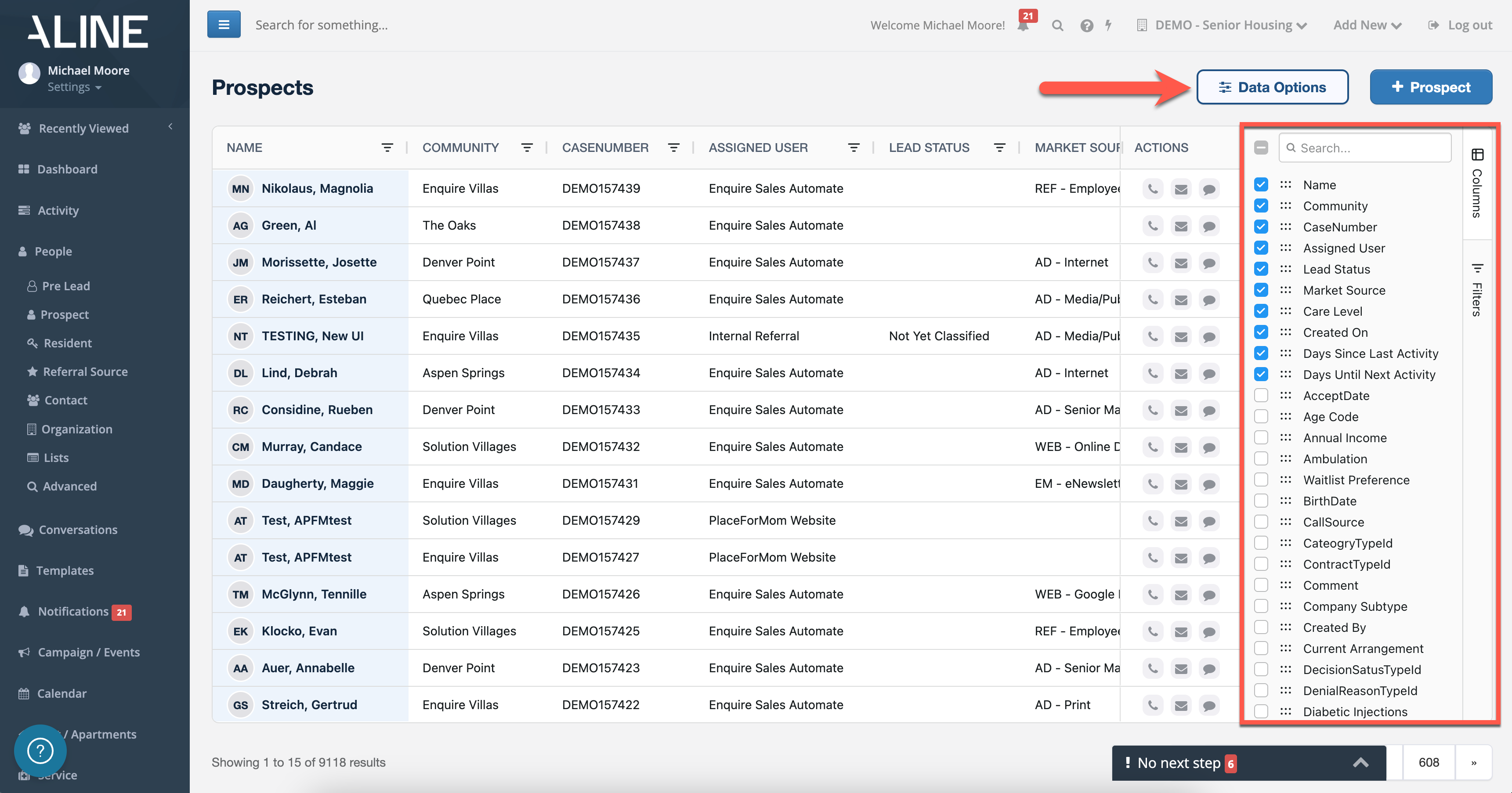
Select the Data Options button, then Columns (or, just directly click on Columns on the right)
a. Use the checkbox next to the datapoint to add or remove
b. You can use the search bar to filter the list of columns
c. Select or deselect all datapoints by selecting the "-" icon in the top left of the selector next to the search feature
d. Exit the columns selector by selecting "Columns" again
QUICK TIP: Within the Prospects list view, you can add Primary Contact as one of the columns if you would like to see the name of the person on the profile designated as Primary Contact (sometimes an adult child). You can also add the column of Individual Status if you would like to be able to apply a filter to only see Active individuals and exclude Inactive individuals.
How to Rearrange Columns
Columns can be rearranged to arrange the data as you see fit! Select the column header and drag it from left to right to your desired location within the table
a. The page will remember your selected columns and the order in which you have them
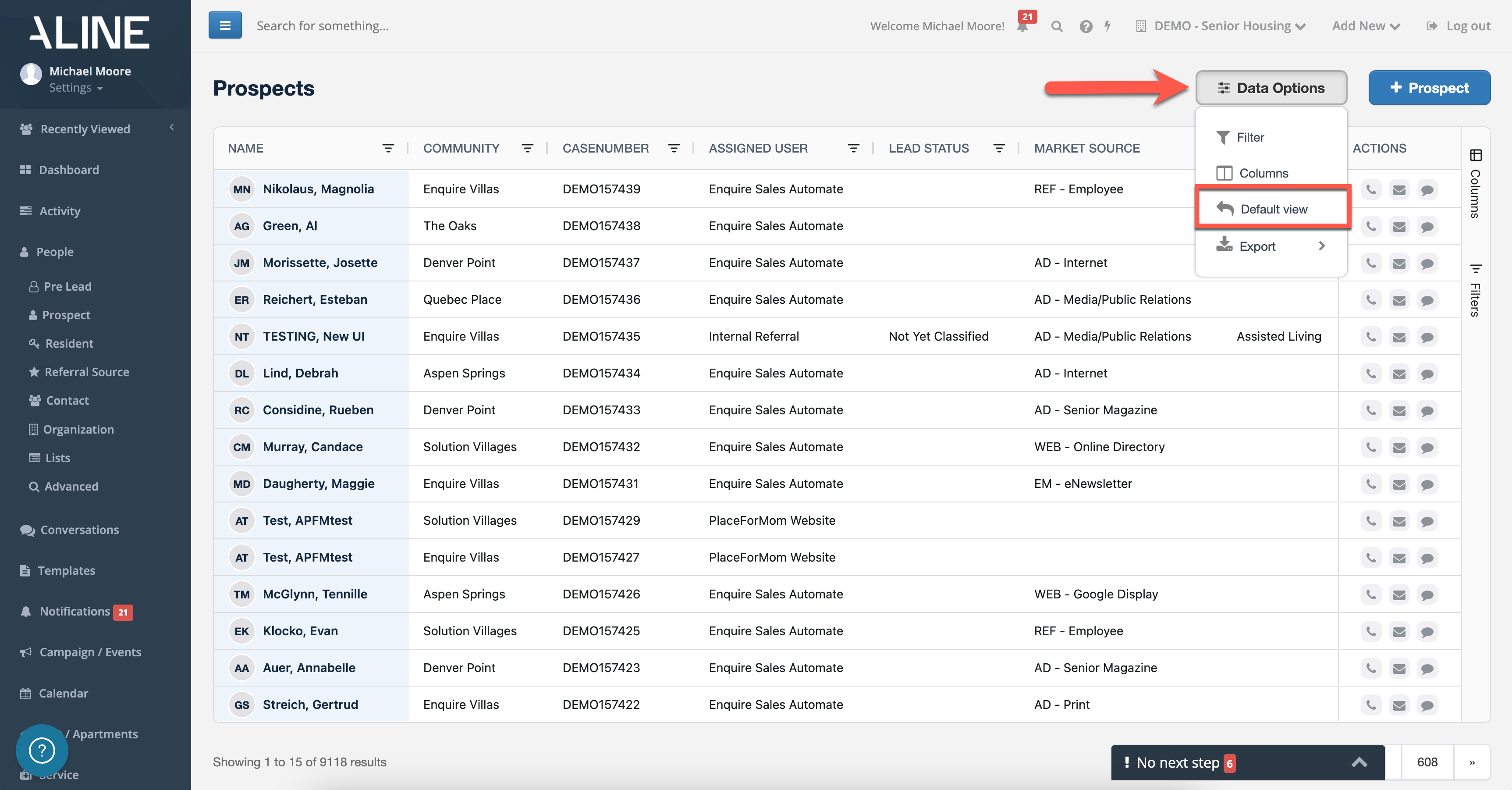
b. To return to a list of default datapoints and column order, select Data Options and then Default view
How to Sort by Columns
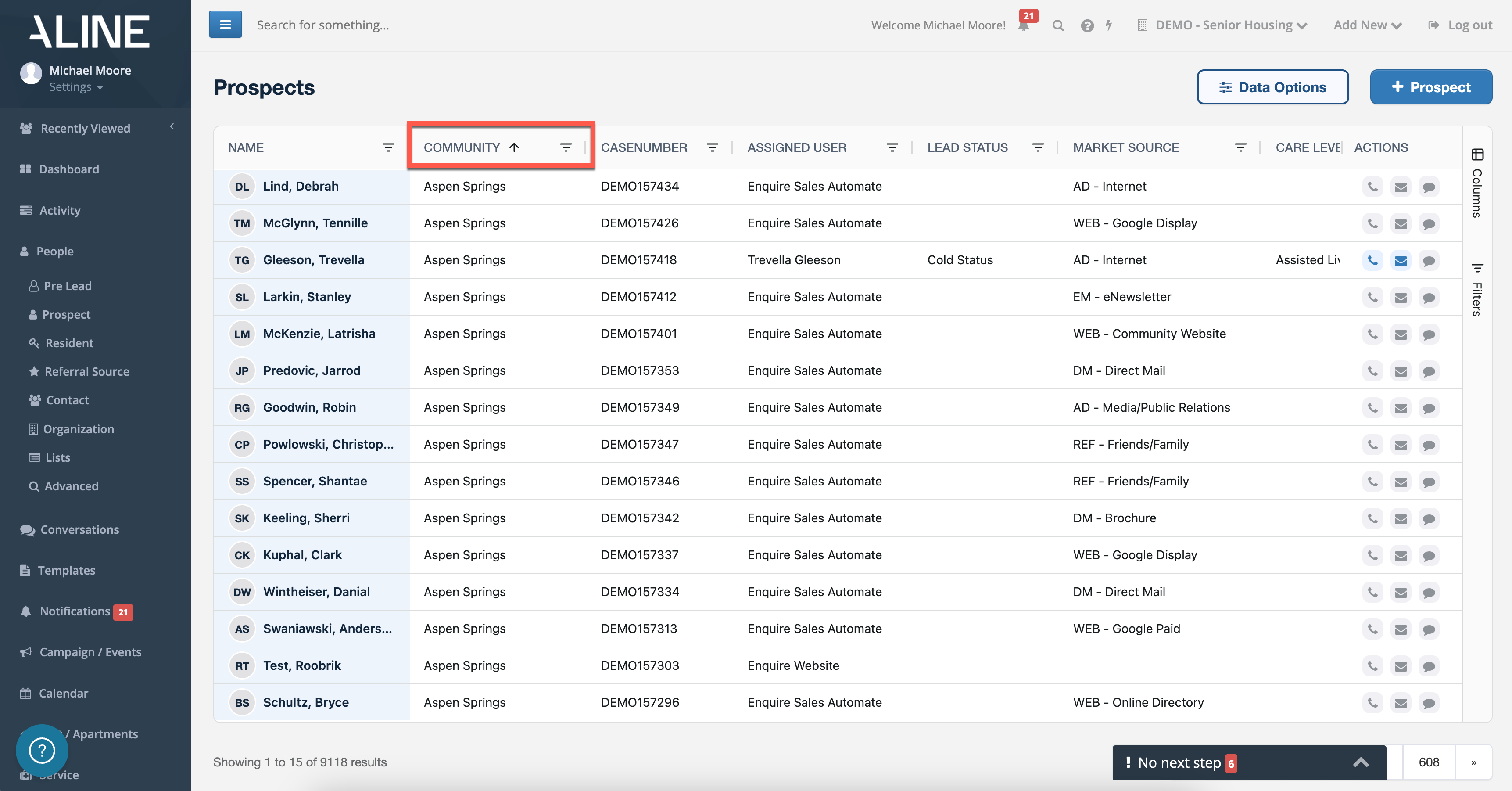
Select the column header:
a. Once to sort the data in ascending order
b. Twice to sort the data in descending order
c. Three times to return to the original oder
d. You will be able to tell the sort order by the arrow icon within the column
How to Apply Filters
There are two ways to apply filters:
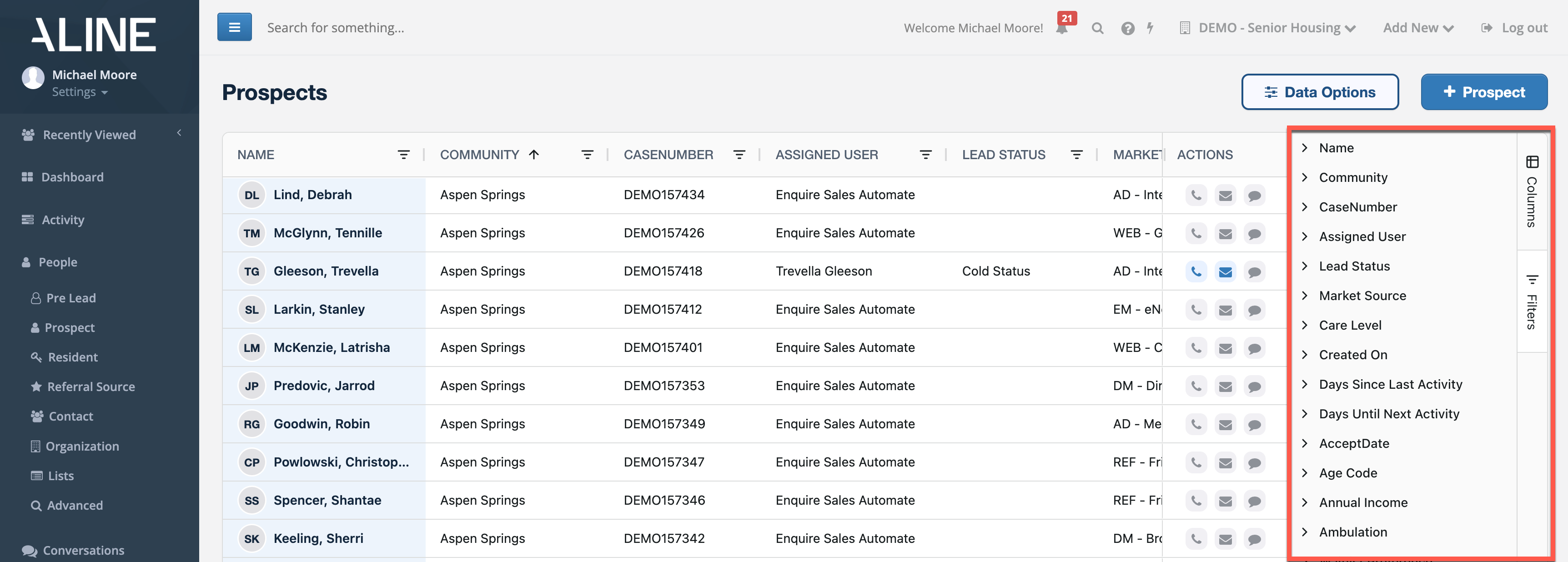
Option 1: Select Data Options, then Filter (or, just directly click on Filters on the right)
a. Select the filter you would like to add from the list
b. You can enable multiple filters at the same time
c. Exit the filters selector by clicking on Filters again
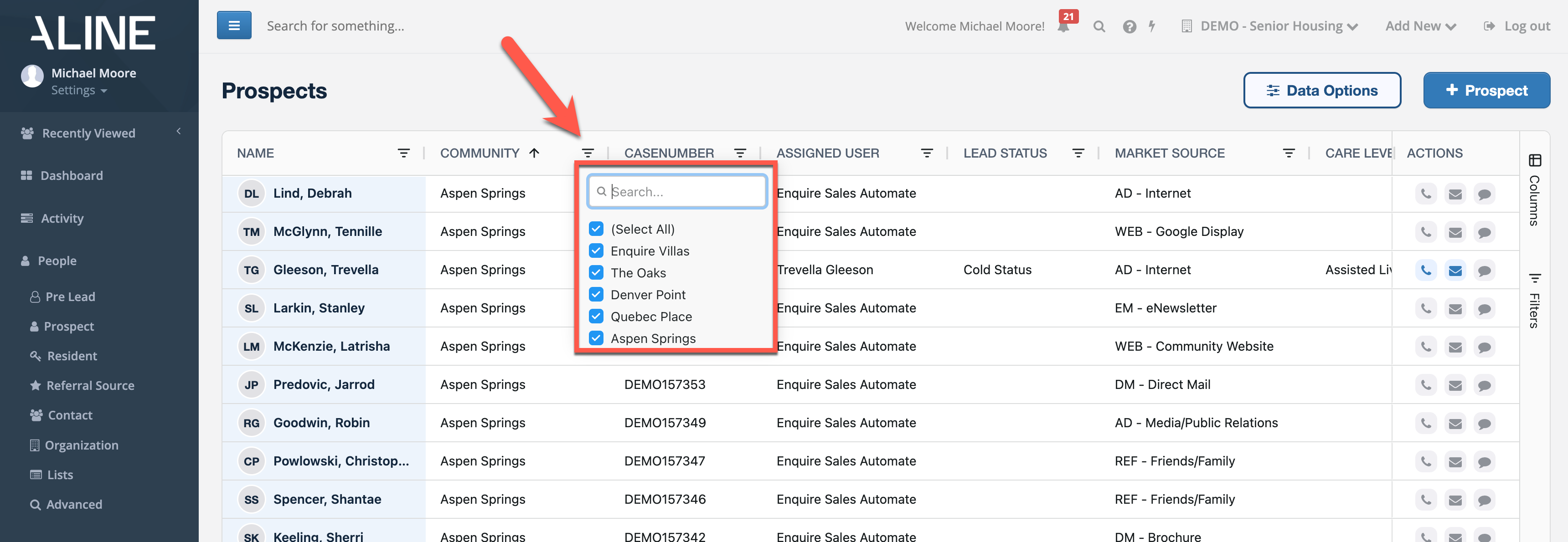
Option 2: Click on the filter icon within the column header
a. Select your desired filter for each column after clicking on the filter icon
b. You must apply each filter one at a time within each column using this method
How to Export to Excel or to .CSV File
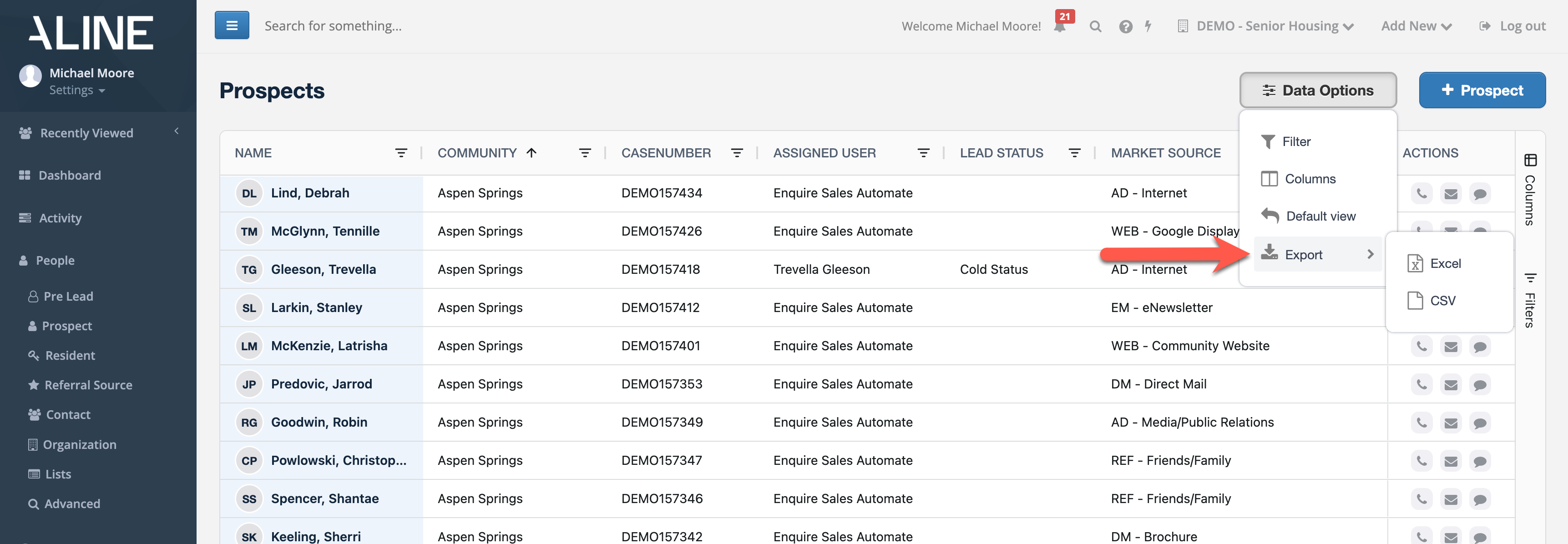
Select Data Options, then Export, and choose your preferred file type
Video Tutorial
Was this article helpful?
That’s Great!
Thank you for your feedback
Sorry! We couldn't be helpful
Thank you for your feedback
Feedback sent
We appreciate your effort and will try to fix the article