Quick Overview
The following updates were released on August 8th, 2024:
- Office365 Outlook Integration Enhancement (Two-Way Email Sync, Communications Package Only)
- Emails sent to multiple individuals within Outlook (including the To, CC, and BCC fields) will create a separate Email Out activity for each person within the Prospect profile
- If a Prospect or Contact email address exists on a profile that is tabbed to multiple locations, an email sent to that address will create an Email Out activity within the respective tab if the user sending the email from Outlook is the Assigned User
- Send Email from CRM Enhancement (Available for all Office365 Users)
- Users can now attach documents (up to 15MB) when sending an email from within the CRM
- There is a new rich text editor bar where users can bold, italicize, underline, bullet point, and more
- Users can now send to multiple recipients listed within the profile, and if using an email template, the tagged fields will update for each person automatically
- A "Success" or "Error" message will display after clicking "Send"
- Note: To use this feature, you must first configure your email account by going to Settings > Email Settings, and following the prompts
- People List View Enhancements
- The Individual Status filter was initially applied when this feature was released, only showing Active individuals - this has now been removed, so both Active and Inactive individuals will appear in all searches
- This list now respects the filters applied when using the links within the Sales Pipeline report
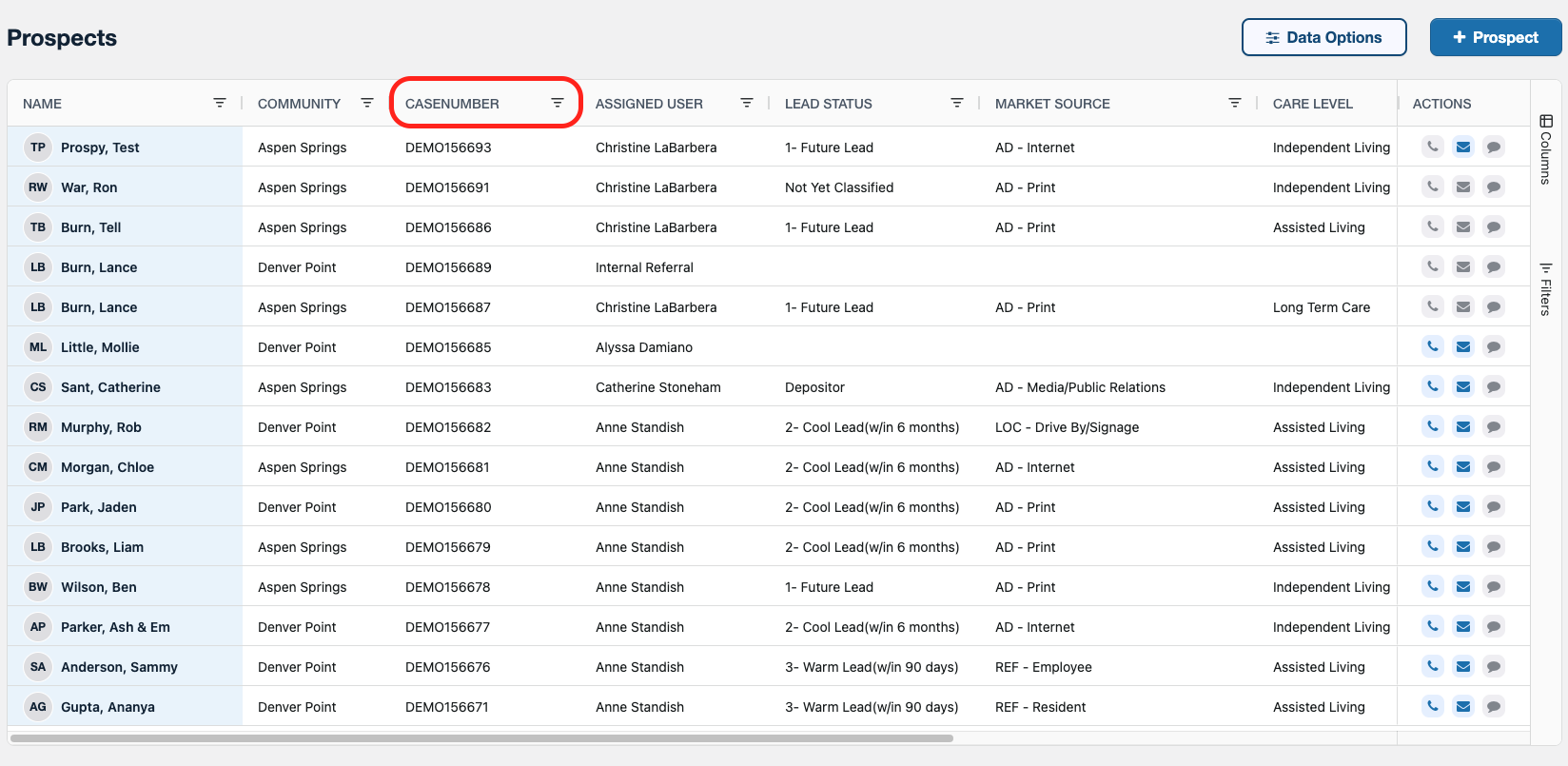
- The Case Number has been added to the default column view for easy searching or filtering
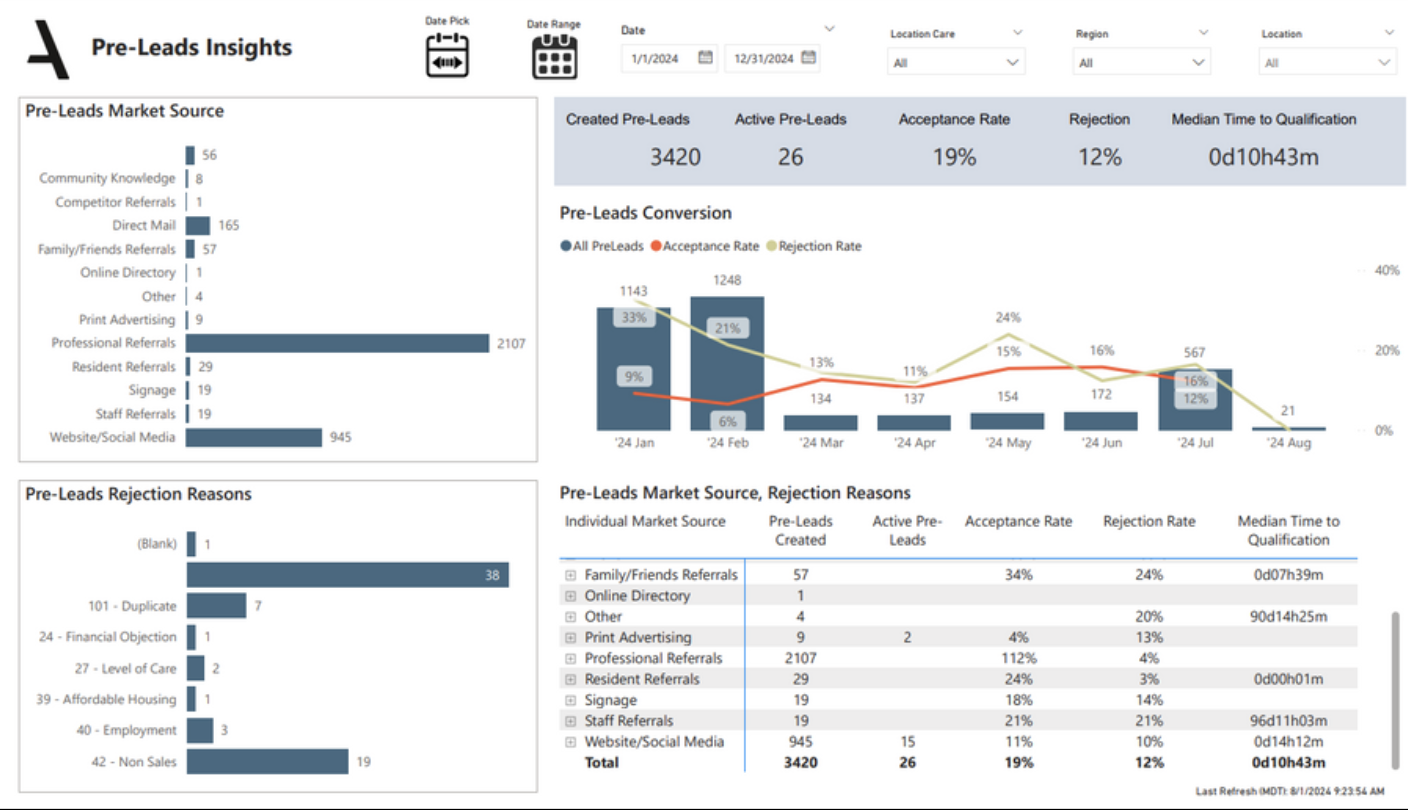
- New Report: Pre-Lead Conversions
- For customers using the Individual Type of Pre-Lead, this report will show acceptance vs. rejected rate
- Note: Pre-Lead acceptance date is a new data metric to accommodate this report that will be a go-forward datapoint and not applied to past Pre-Lead conversions
Keep reading below for more details and screenshots!
Office365 Outlook Integration Enhancement
(Two-Way Email Sync, Communications Package Only)
Email Out Activity Recorded for Multiple Recipients
a. Within Outlook, you can choose to send an email to someone by putting their email address in the "To" field, "CC" field, or "BCC" field
b. Regardless of the number of email addresses included, and the field in which the email address is placed, the integration will now record an Email Out activity for each person with a matching email address within the CRM
c. If an individual has an email address and is tabbed to multiple locations, each location will record an Email Out activity as long as the user who sent the email is the Assigned User to that profile
Send Email from CRM Enhancements
Note: You must first configure your email account by going to Settings > Email Settings
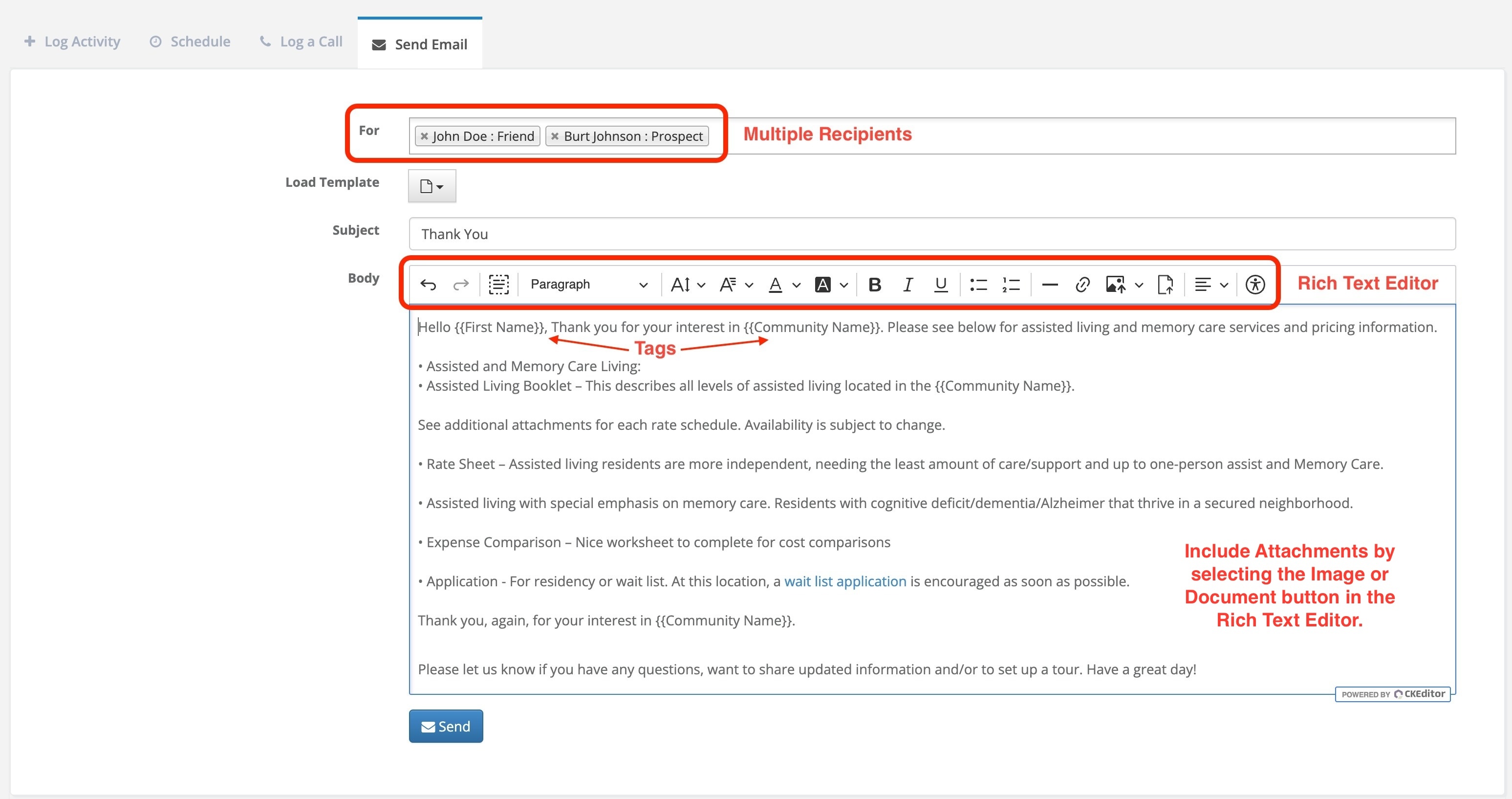
Rich Text Editor
a. There is a new rich text editor bar where users can bold, italicize, underline, bullet point, change text or background color, add hyperlinks, and change text size
b. Note that color will send to the recipient, but may not save in the notes section
Multiple Recipients
a. Users will now have the option to add multiple recipients to the email activity in the CRM
b. The dropdown will only show cards listed on the profile, whether or not there is a valid email address within that contact card
c. If you select an individual who does not have a valid email address, you will see an error message when attempting to send the email
Templates with Tags Support Emails Sent to Multiple Individuals
a. For customers using email templates with tags (for example, {{First Name}} as a placeholder), the system will support this when multiple recipients are selected
b. The user will see the tag, but the recipient will see the appropriate element (for example, the user will see {{First Name}}, but the recipient will see their first name as listed in the system)
Attach Documents
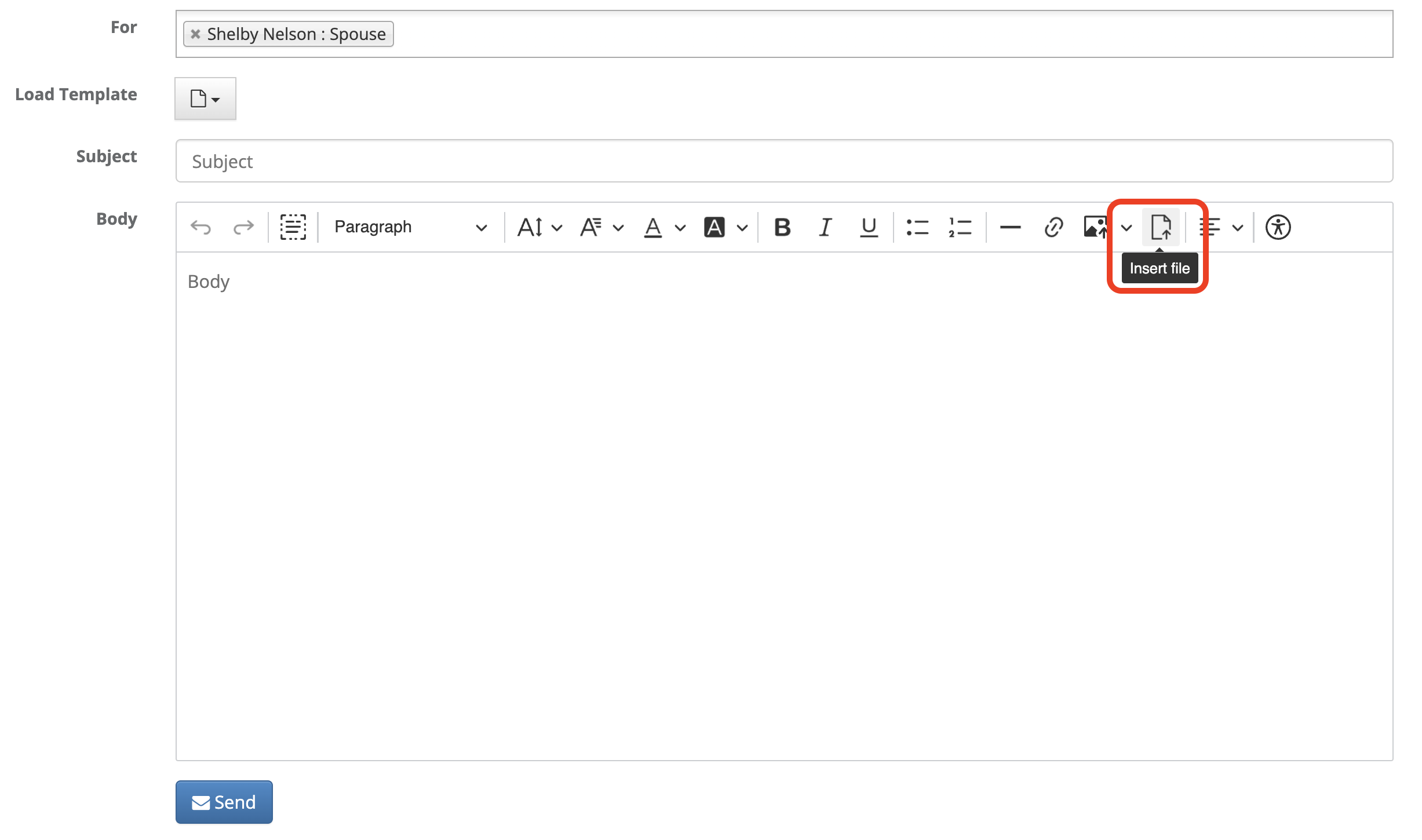
a. Users can now attach documents to the email activity function
b. Click on the Insert File icon
c. When the email is received, the attachment will show as an attachment in the email along with the link
d. Please note that the save button will gray out when the file is loading
Success Message or Error Message
a. A success message will appear when the email is sent successfully
b. An error message will appear when the email does not send
c. One reason an error message would appear is if the individual does not have an email address, or if the email address listed in the contact card is invalid
People List View Enhancements
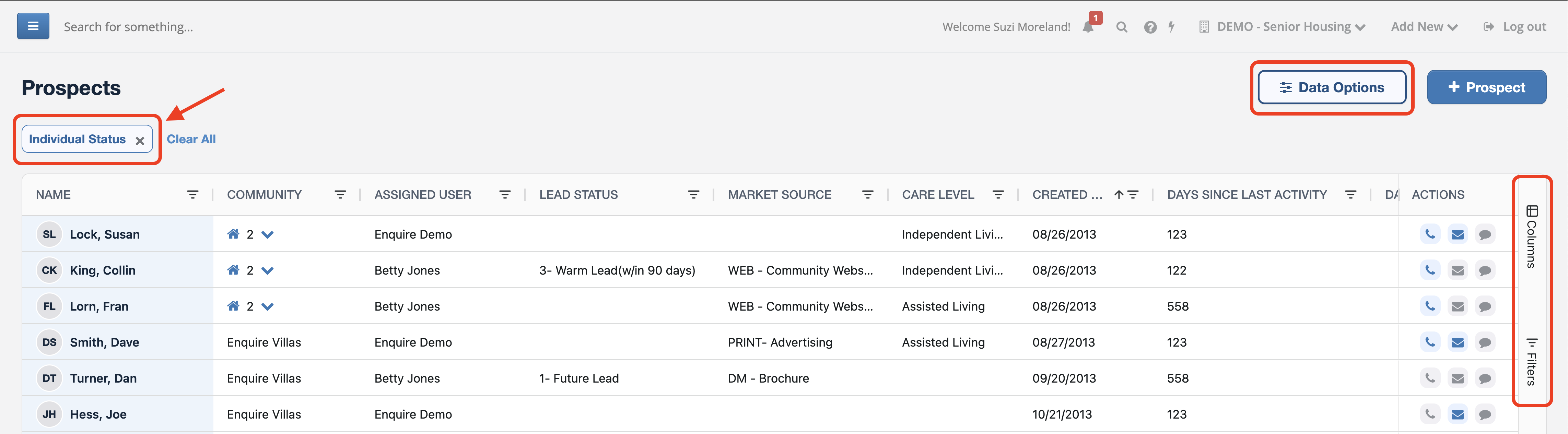
Individual Status Filter Removed Upon Initial Load
a. The "Individual Status" filter was initially applied, only showing Active individuals - this has now been removed, so both Active and Inactive individuals will appear in all searches
b. This will ensure all records are returned in search results
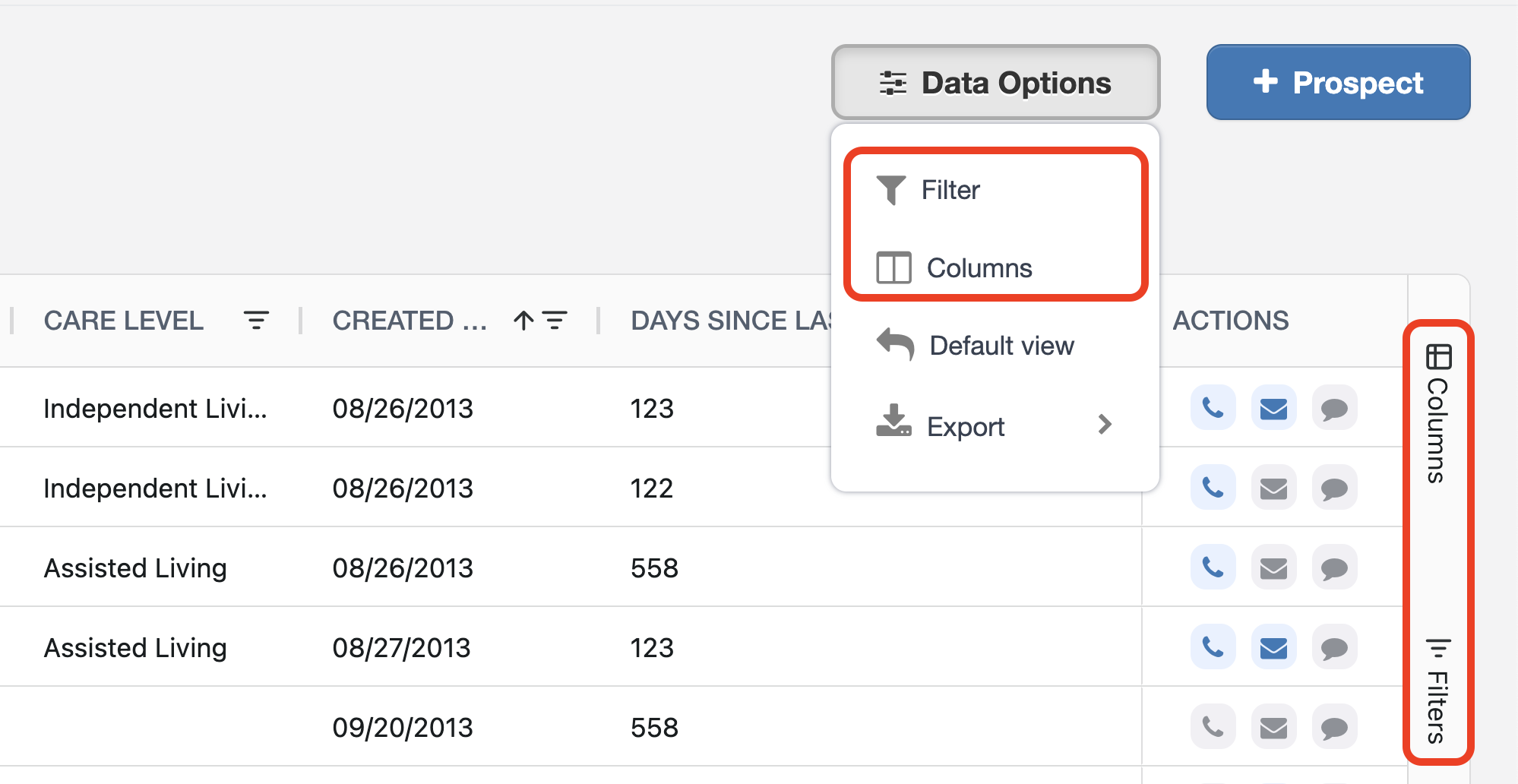
c. If you prefer to only see Active individuals in your People List view, you can add this filter to your view - any filters you add to your view will remain the next time you visit the page
Case Number Now Included in Default View
- This list now includes the Prospect's Case Number when looking at the Default View option
- Case Number can be used to search for individual's in Aline and ensure correct selection if you have multiple individuals with a similar name
Sales Pipeline Report Links Now Flow Through to People List View
a. This list now respects the filters applied when using the links within the Sales Pipeline report

New Report: Pre-Lead Conversions
Report Now Available
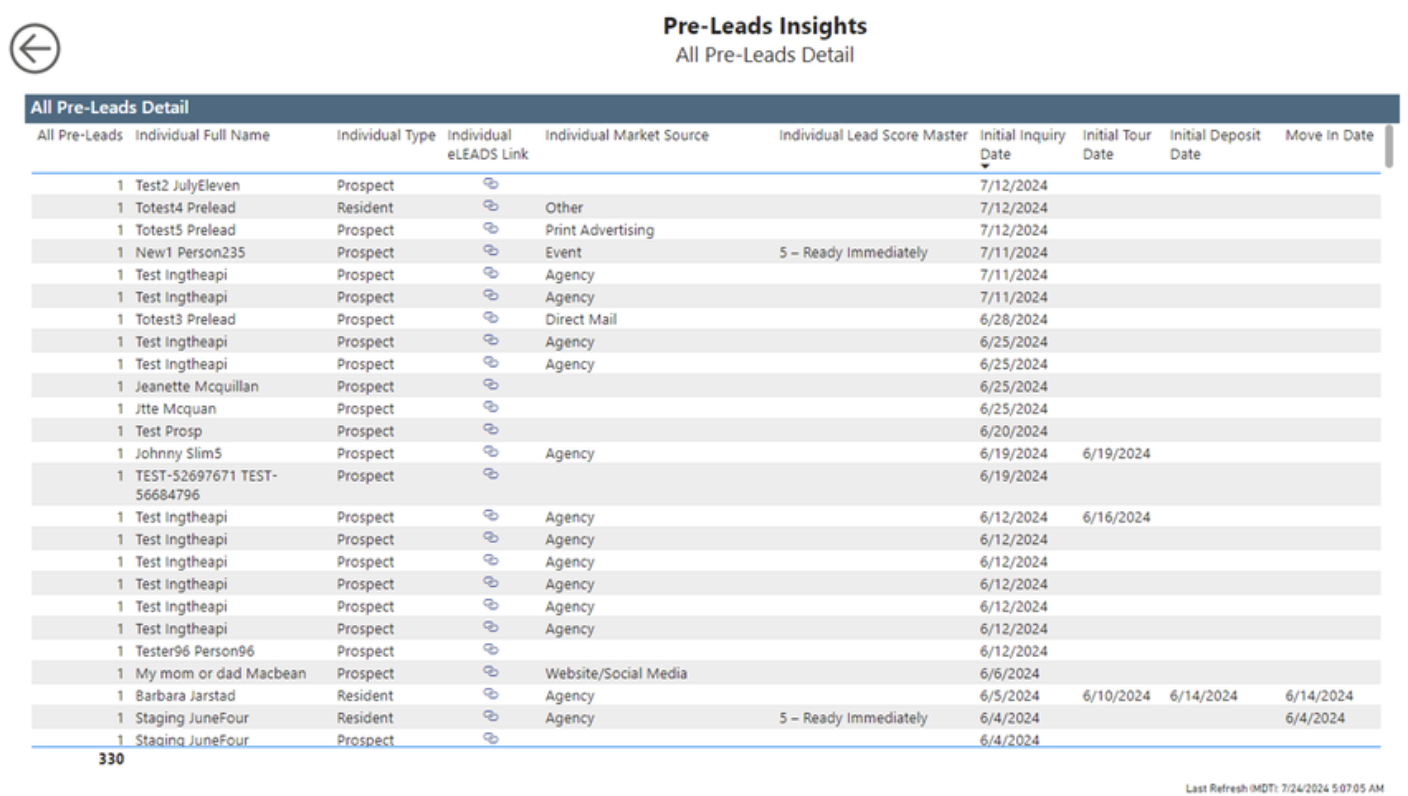
a. This is a standalone report that will only be visible for companies who are using the Pre-Lead Individual Type
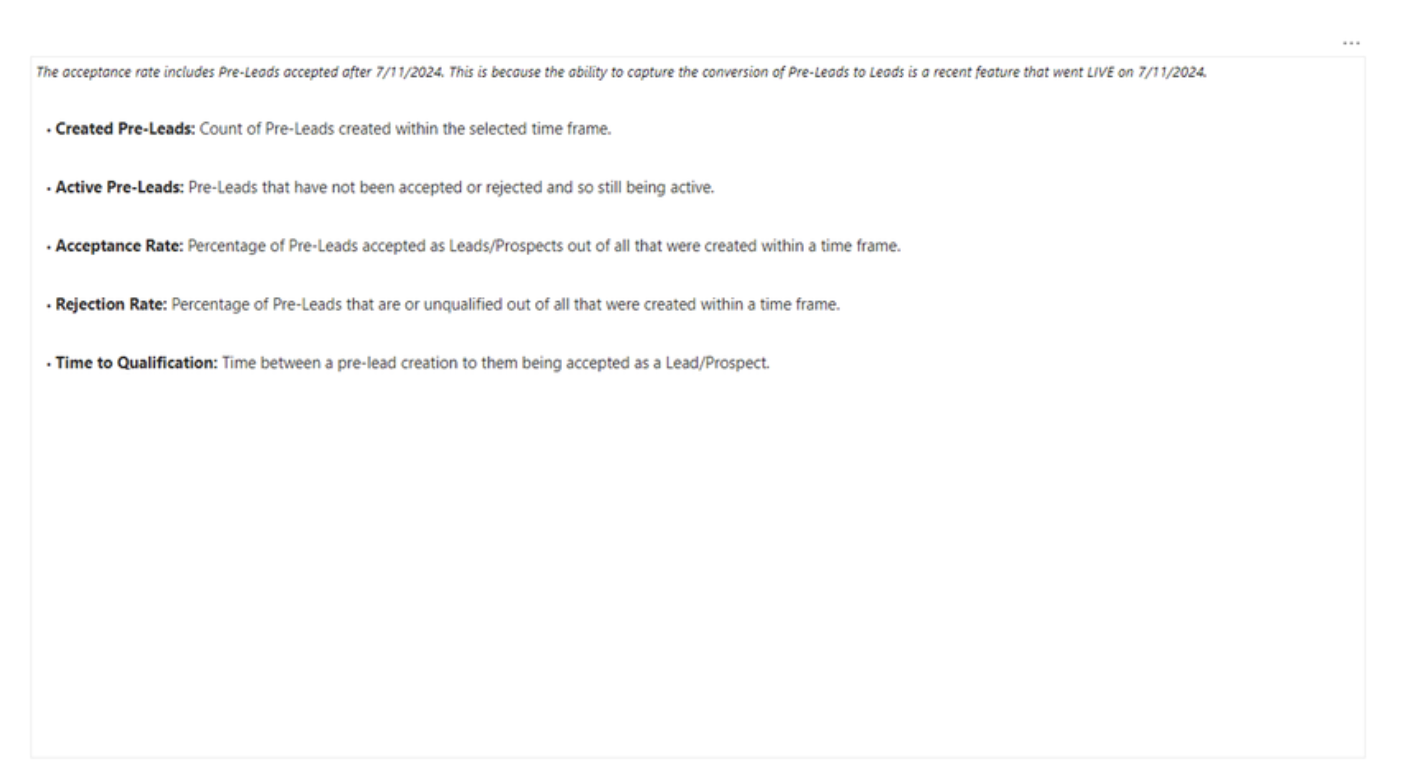
b. Pre-Lead Acceptance Date is a new data metric to accommodate this report that will be tracked for new Pre-Leads going forward, and not something that will be applied to previous Pre-Leads that were converted
c. Users will be able to drill down in the report and see the detail view
d. The Logic Page will explain how the data is presented
For more detail on the Pre-Lead Insights report, you can view the full article HERE.
Was this article helpful?
That’s Great!
Thank you for your feedback
Sorry! We couldn't be helpful
Thank you for your feedback
Feedback sent
We appreciate your effort and will try to fix the article