Overview
The PointClickCare (PCC) integration for skilled nursing allows users to pass referrals/patients, contacts, and associated demographic information from the Aline CRM to PCC. The integration is bi-directional such that once a patient is admitted in PointClickCare, Admit, Discharge, Transfer (ADT) data will populate in the Aline CRM as updates are made in PCC. Thanks to a recent update, attachments that exist on an individual’s profile in the Aline CRM can also be sent to PCC along with the patient. Some features and functions of the integration may incur a monthly fee. Please contact your Aline Customer Success Manager or PCC Account Manager for more information.
Please note this integration is optimized for our Post-Acute clients. While it can be activated and utilized for senior living communities, you may find it lacking certain functionalities. Please contact your sales representative or customer success manager with any questions.
Setup
PointClickCare Self-Service Activation Request
Step 1: Log in to PointClickCare.
Step 2: Navigate to PointClickCare's Help Section, click SNF or ALF, click Admin, and then click Self-serve Activation for Marketplace Applications. All documents (including demos) needed to request and complete the PointClickCare activation process will be found at this location.
Step 3: Once the activation of Enquire with PointClickCare has been approved by PointClickCare, please send an email to Enquire containing the list of your company's locations and their Property Ids. Enquire will need these Property Ids to complete the setup.
Note: If you have any questions about the self-serve activation process, please reach out to your PointClickCare account manager.
Plugins
All integrations require an Enquire team member to complete setup of the Plugins. Please reach out to your Client Success Manager, our Integrations Team, or put in a ticket for our Support Team integrations.support@alineops.com for further assistance.
CRM / PCC Config
PointClickCare relationship values will need to be updated to match all the CRM relationship values for successful contact pushes. CRM admin users view relationship values by logging into the CRM > Left-hand Manu > Admin > Types > Select "Relationship Type" in drop-down. This is allow to see all values to create a match with PCC.
Enquire Field Mapping and Type Setup
When ADT events are sent back from PCC, the following activity, resolution, and lead score types (along with the specified master types) are required for the integration to function correctly. These types should also be sorted above any other types with the same master type.
Lead Scores
| Type | Master Type |
|---|---|
| Admit | Move In |
| Death | Death |
| Discharge | Move Out |
| Leave | Leave |
| Room Reserve | Room Reserve |
Activity Types
| Type | Master Type |
|---|---|
| Admit | Admission |
| Death | Move Out |
| Discharge | Move Out |
| Leave | Leave |
| Return from Leave | Leave Return |
| Room Reserve | Room Reserve |
| Transfer | Transfer |
Activity Resolutions
| Type | Master Type |
|---|---|
| Contact Made | Contact Made |
Note: If you have any questions about getting fields or options added to a form, you can read our Customizing the Form Builder article and our Updating Dropdown Types article. If you need further assistance, please reach out to your Customer Success Manager.
Note: Please know that you will need to provide the OrgUuid and FacilityID’s from PCC to complete the addition of the plugin.
Usage
Enquire can send a profile to PointClickCare with the following fields and their values:
| First Name* | Last Name* | Middle Name | Date of Birth* |
| Gender* | Health Card Number** | Medicare Number | SSN |
* - required to send an individual to PointClickCare.
** - This field should be used when creating a record in Canadian facilities ONLY.
Enquire will also send all Contacts for the individual with the following fields and their values.
| PatientId* | First Name* | Last Name* | Address Line 1 |
| Address Line 2 | City | State | Postal Code |
| Country | Home Phone | Mobile Phone | Work Phone |
| Fax Number | Gender | Date of Birth | |
| Relationship |
* - required to send a Contact to PointClickCare. Patient Id will automatically be assigned.
Note: Relationship types must be identical between PointClickCare and Enquire. This includes spelling, capitalization, and any special characters like dashes and periods. If relationship types don't match, the Contact will fail to send, but the Prospect and other contacts with correct relationship types will be sent. the prospect will be sent as their own contact as well.
Send an Individual to PointClickCare
Step 1: In the upper right section of the profile, click the blue button labeled PointClickCare. This will send the individual to the External Pending section of PointClickCare with the above fields and their values.

If the individual is successfully sent to PointClickCare, you will see the following message and the PointClickCare button will no longer be visible:

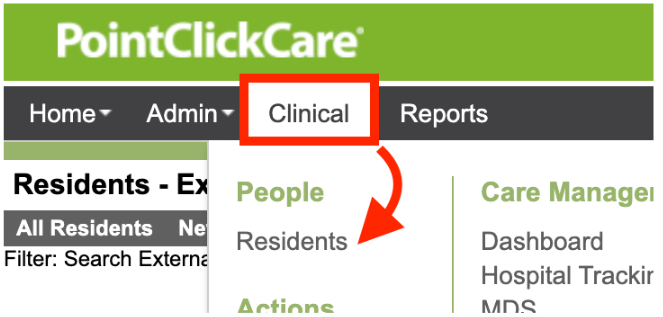
Step 2: Log in to PointClickCare, hover over the Clinical tab and click Residents in the People section.
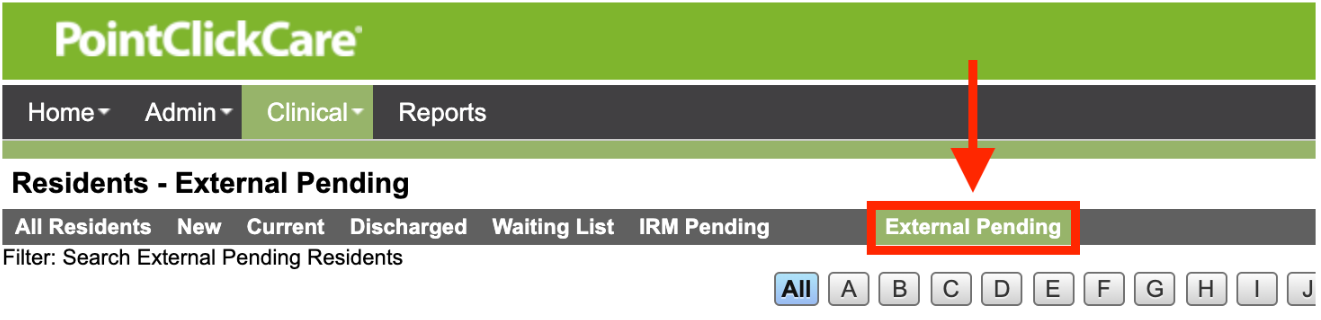
Step 3: Click the External Pending tab.
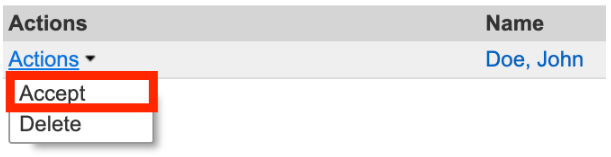
Step 4: Search for the individual using the letter buttons along the top of the page. Once the individual has been located, to the far left in the Actions column, click the blue Actions link and choose Accept.
Step 5: Continue with the acceptance process and follow your organization's best practices for accepting a pending patient in PointClickCare. After the individual has been accepted, ADTs for the individual can be processed and contact information will be sent from Enquire to PointClickCare. For further guidance on accepting patients, please review the PointClickCare Procedure section below.
Note: Contact information may take a few minutes to fully populate from Enquire to PointClickCare. Second Residents will be pushed as a contact.
Message Banners
If an error occurred when attempting to send an individual, you will see the following message:

If you attempt to send an individual that has already been sent to PointClickCare, you will receive a message similar to the following:

Note: All individuals will be sent to the External Pending tab in PointClickCare. You must accept an individual as a Resident in PointClickCare in order for ADT messaging to process and for Contact information to be sent from Enquire to PointClickCare. All documents (10mb or less) that were in the leads profile in Enquire will fall in the MISC section on the profile in PCC.
PointClickCare Procedures
Once an individual is sent from Enquire to PointClickCare, follow these procedures to locate the individual in PointClickCare based on their level of care. (Click below to expand and collapse each procedure)
Locate Skilled Nursing individuals in PointClickCare
Residents can be created two ways in PCC from a third-party integration:
- If there are no matching residents, a new resident is automatically created in the New tab.
- If potential resident matches exist, a pending resident record is automatically created in the External Pending tab. You must review pending resident records and accept or delete them.
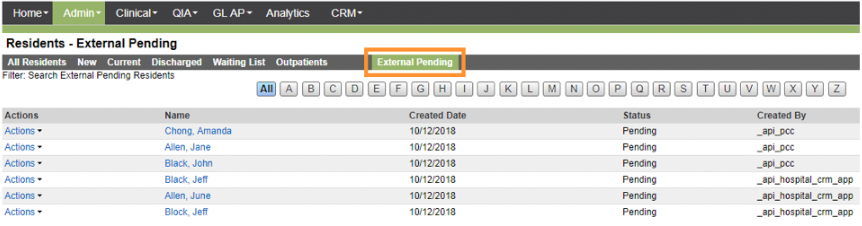
Step 1: Click a Resident name to review their demographic information.
Step 2: Next to a resident name, click Actions.
- Click Accept and complete the remaining steps below.
- Click Delete and at the prompt, click OK. The pending resident record is deleted, and no further steps are required.
Step 3: In the New Resident Entry screen, click Search.
Step 4: Review the potential matches.- Select the 1st option. Click Continue and create a new resident in the Resident Detail - New Resident screen.
- Select the 2nd option. Click Continue and complete the fields as required for the existing resident in the Resident Detail - Edit Resident screen.
Step 5: Click Save.
Locate Senior Living individuals in PointClickCare
Residents can be created two ways in PCC from a third-party integration:
- If there are no matching residents, a new resident is automatically created in the New tab.
- If potential resident matches exist, a pending resident record is automatically created in the External Pending tab. You must review pending resident records and accept or delete them.
Billing or Care Services > Residents > External Pending
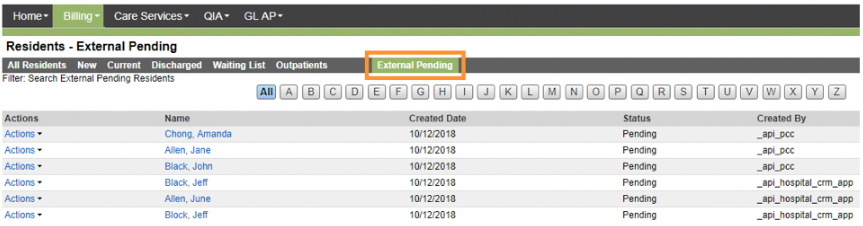
Step 2: Next to a resident name, click Actions.
- Click Accept and complete the remaining steps below.
- Click Delete and at the prompt, click OK. The pending resident record is deleted, and no further steps are required.
Step 3: In the New Resident Entry screen, click Search.
Step 4: Review the potential matches.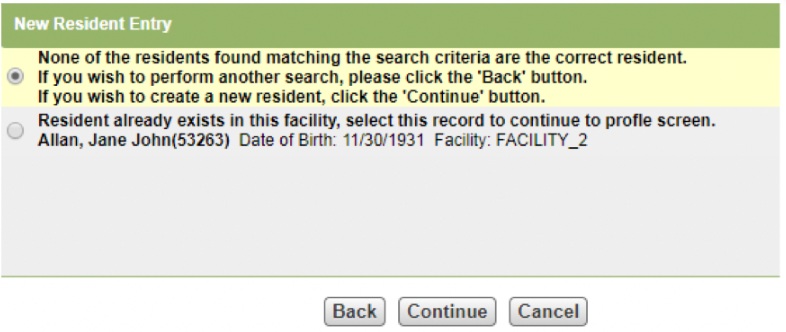 Do one of the following:
- Select the 1st option. Click Continue and create a new resident in the Resident Detail - New Resident screen.
- Select the 2nd option. Click Continue and complete the fields as required for the existing resident in the Resident Detail - Edit Resident screen.
Do one of the following:Step 5: Click Save.
Locate and link Contacts of Leads in PointClickCare
All contacts (emergency contacts, influencers, personal/familial relationships, etc.) linked to the resident in Aline will pass to PointClickCare. However, there is additional configuration that your PointClickCare system administrator must complete to allow users to access these contacts. Please follow the instructions in our {{PointClickCare Resident Contact Role Configuration}} article to complete that setup.
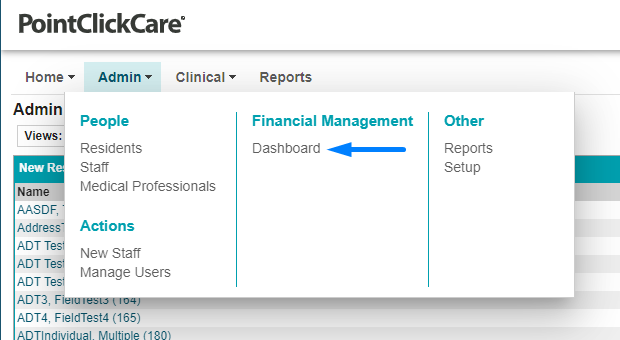
OR
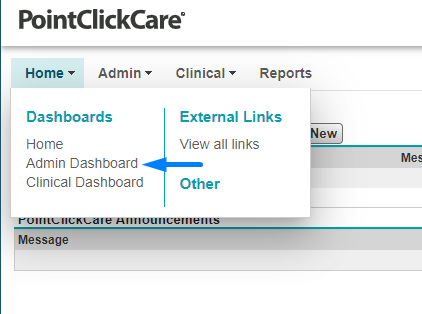
Step 2: Next to a resident name, click Actions.
Documents
Once a new resident is accepted in PCC, documents that are currently stored in the CRM for this patient will be pushed over to PCC. This is a one-time push and will not push any added documents after being accepted. Also re-admit residents that link to an existing PCC profile will not push over any documents.
ADT Events from PointClickCare to Enquire
Upon Enquire receiving Admit, Discharge, and Transfer events from PointClickCare, the following updates will occur on an individual profile depending on the event.
Admit
- Prospect will be converted to a Resident
- Lead Score will be updated to Admit
- A note is added to the profile with the following text:
- “An Admit occurred for individual’s name”
- “An Admit occurred for individual’s name”
- The user assigned to the profile will receive a notification saying:
- “An Admit occurred for individual’s name”
- “An Admit occurred for individual’s name”
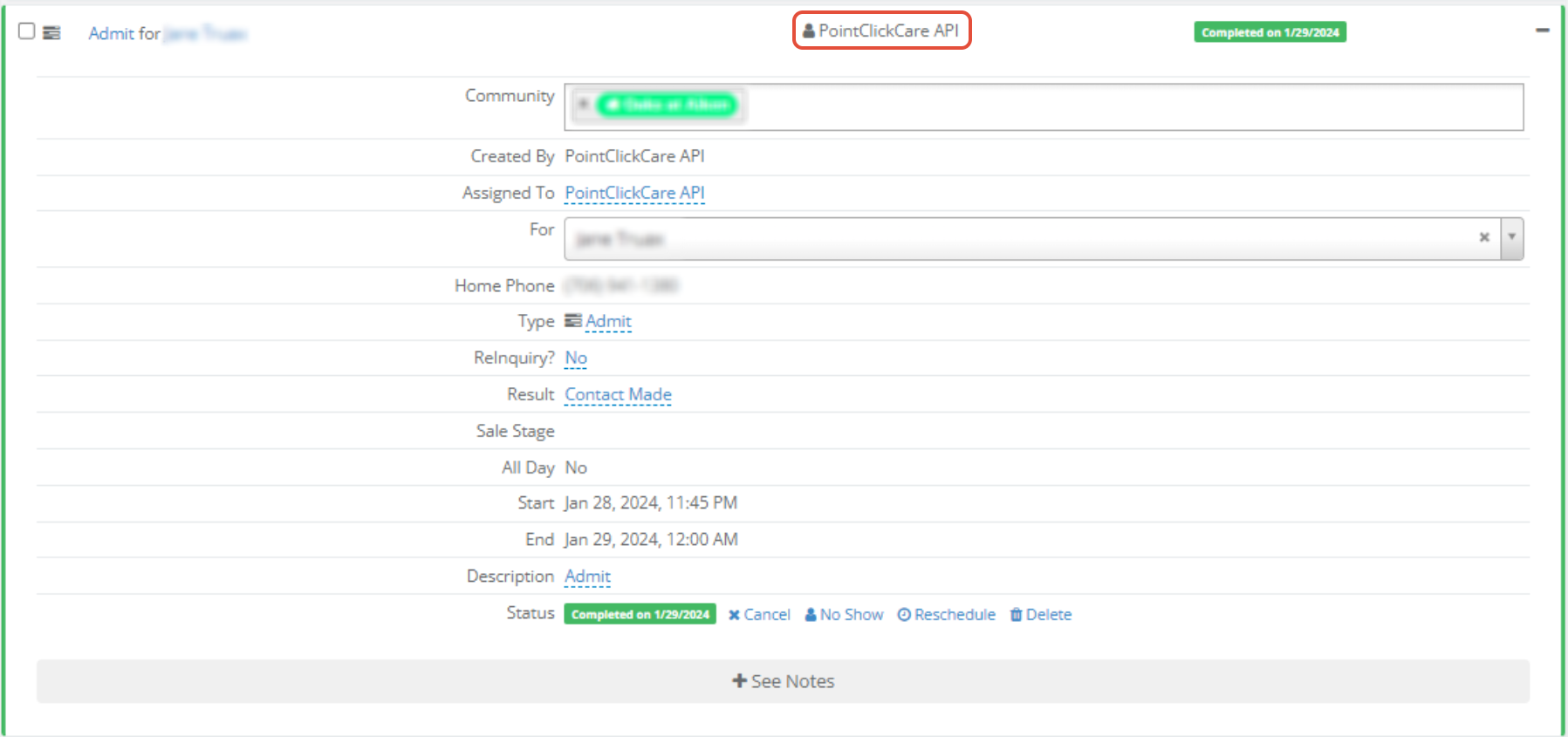
- A Completed activity will be created with:
- An Activity Type of Admit
- An Activity Resolution of Contact Made
- A Completed Date set to the date/time Enquire received the ADT message
Discharge
When a Discharge event is received, the following profile updates will occur in Enquire:
- Lead Score will be updated to Discharge
- A note is added to the profile with the following text:
- “A Discharge occurred for individual’s name”
- The user assigned to the profile will receive a notification saying:
- “A Discharge occurred for individual’s name”
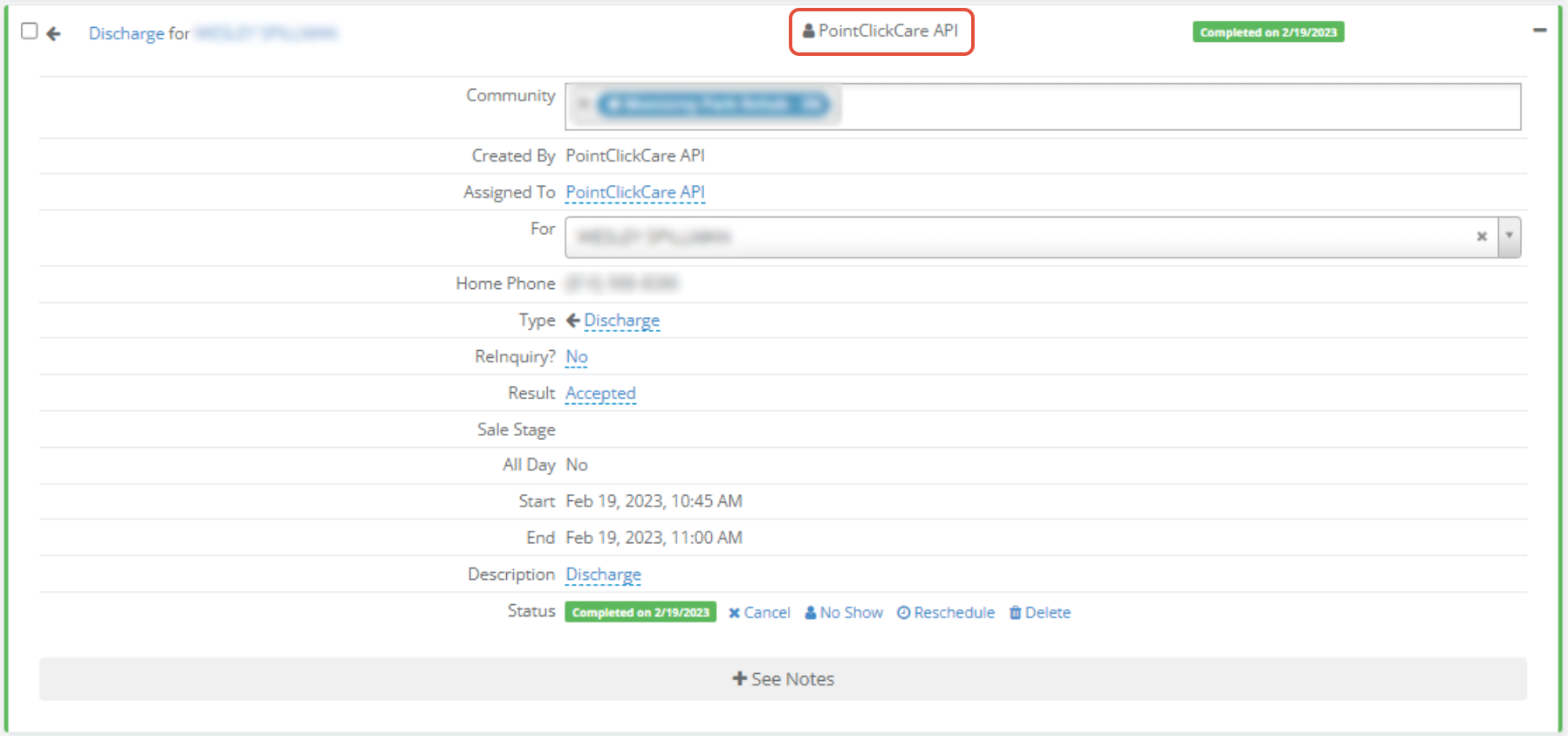
- A Completed activity will be created with:
- An Activity Type of Discharge
- An Activity Resolution of Contact Made
- A Completed Date set to the date/time Enquire received the ADT message
Transfer
When a Transfer event is received, the following profile updates will occur in Enquire:
- A note is added to the profile with the following text:
- “A Transfer occurred for individual’s name”
- The user assigned to the profile will receive a notification saying:
- “A Transfer occurred for individual’s name”
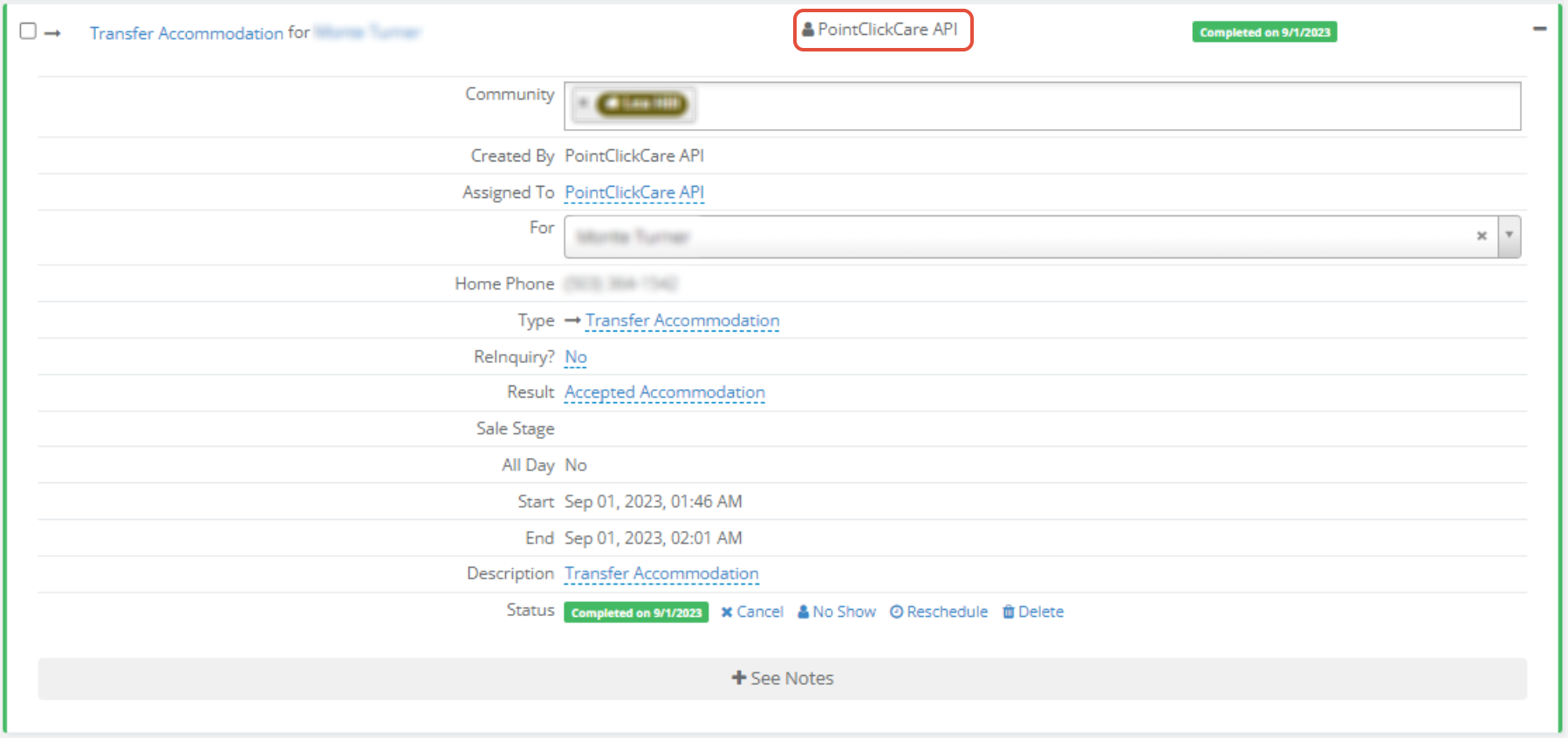
- A Completed activity will be created with:
- An Activity Type of Transfer
- An Activity Resolution of Contact Made
- A Completed Date set to the date/time Enquire received the ADT message
- A note is added to the profile with the following text:
- “A Transfer occurred for individual’s name”
- The user assigned to the profile will receive a notification saying:
- “A Transfer occurred for individual’s name”
- A Completed activity will be created with:
- An Activity Type of Transfer
- An Activity Resolution of Contact Made
- A Completed Date set to the date/time Enquire received the ADT message
Death
When a Death event is received, the following profile updates will occur in Enquire:
- Lead Score will be updated to Death
- A note is added to the profile with the following text:
- “A Death occurred for individual’s name”
- The user assigned to the profile will receive a notification saying:
- “A Death occurred for individual’s name”
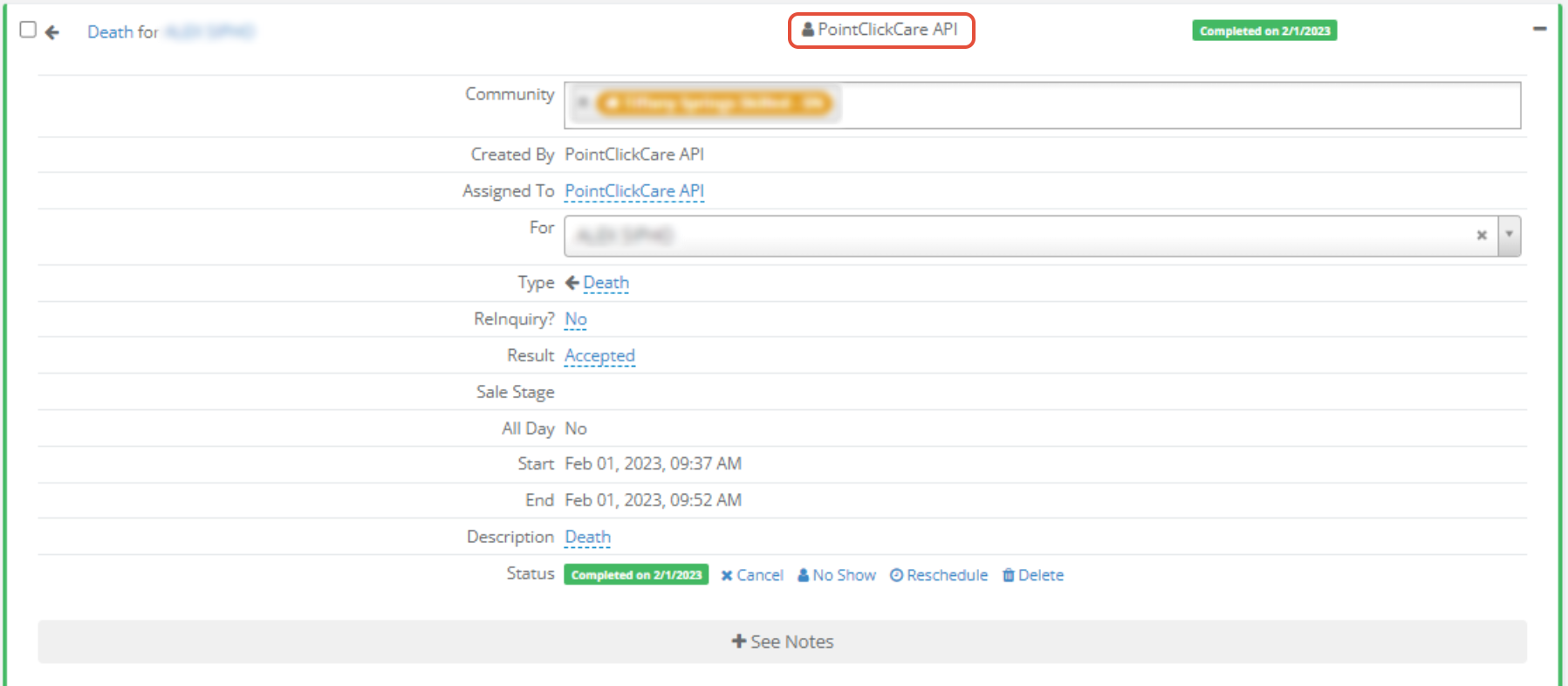
- A Completed activity will be created with:
- An Activity Type of Discharge
- An Activity Resolution of Contact Made
- A Completed Date set to the date/time Enquire received the ADT message
Room Reserve
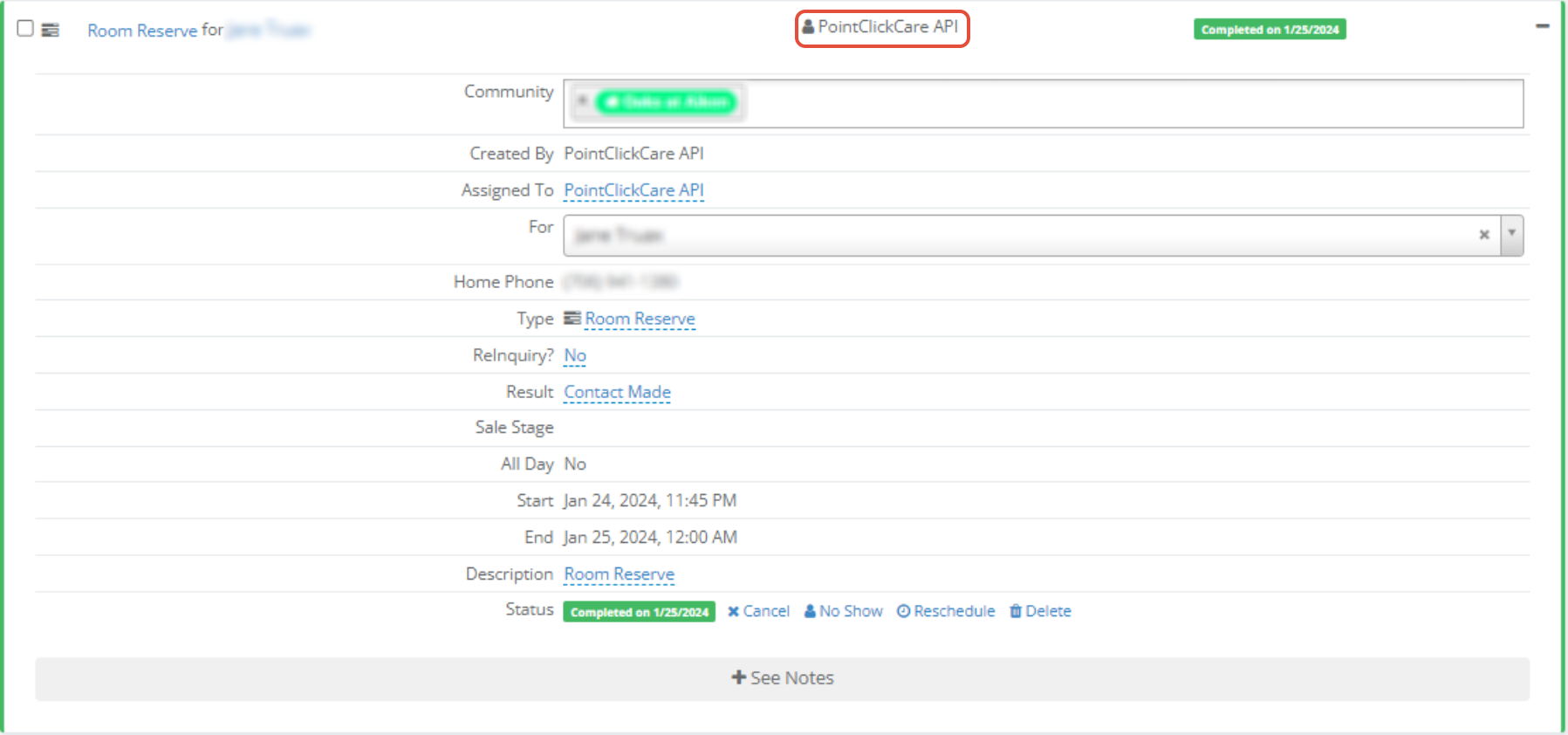
When a Room Reserve event is received, the following profile updates will occur in Enquire:
- A note is added to the profile with the following text:
- “A Room Reserve occurred for individual’s name”
- The user assigned to the profile will receive a notification saying:
- “A Room Reserve occurred for individual’s name”
- A Completed activity will be created with:
- An Activity Type of Room Reserve
- An Activity Resolution of Contact Made
- A Completed Date set to the date/time Enquire received the ADT message
- Lead Score will be updated to Death
- A note is added to the profile with the following text:
- “A Death occurred for individual’s name”
- The user assigned to the profile will receive a notification saying:
- “A Death occurred for individual’s name”
- A Completed activity will be created with:
- An Activity Type of Discharge
- An Activity Resolution of Contact Made
- A Completed Date set to the date/time Enquire received the ADT message
Room Reserve
When a Room Reserve event is received, the following profile updates will occur in Enquire:- A note is added to the profile with the following text:
- “A Room Reserve occurred for individual’s name”
- The user assigned to the profile will receive a notification saying:
- “A Room Reserve occurred for individual’s name”
- A Completed activity will be created with:
- An Activity Type of Room Reserve
- An Activity Resolution of Contact Made
- A Completed Date set to the date/time Enquire received the ADT message
Leave
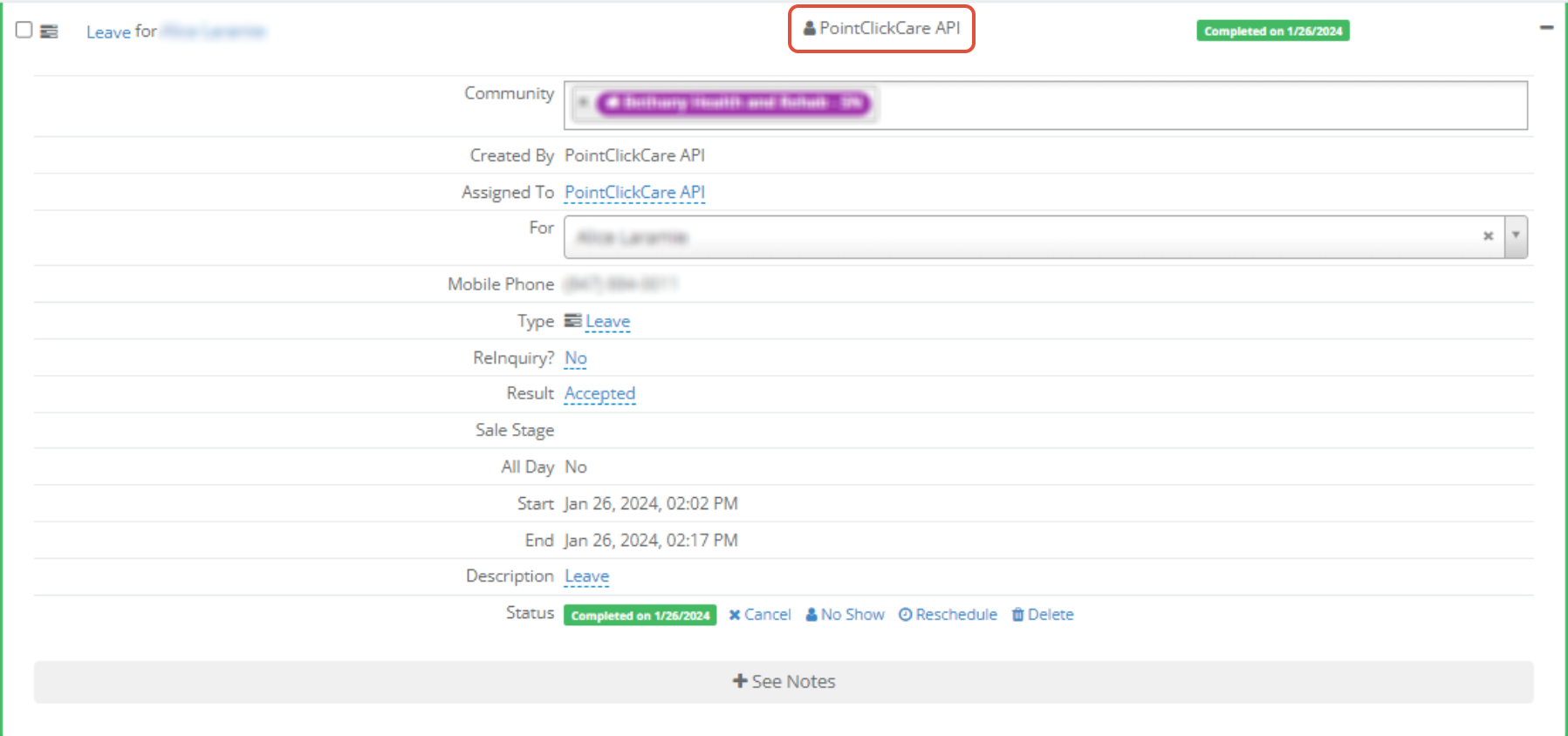
When a Leave event is received, the following profile updates will occur in Enquire:
- A note is added to the profile with the following text:
- “A Leave occurred for individual’s name”
- The user assigned to the profile will receive a notification saying:
- “A Leave occurred for individual’s name”
- A Completed activity will be created with:
- An Activity Type of Leave
- An Activity Resolution of Contact Made
- A Completed Date set to the date/time Enquire received the ADT message
- A note is added to the profile with the following text:
- “A Leave occurred for individual’s name”
- The user assigned to the profile will receive a notification saying:
- “A Leave occurred for individual’s name”
- A Completed activity will be created with:
- An Activity Type of Leave
- An Activity Resolution of Contact Made
- A Completed Date set to the date/time Enquire received the ADT message
Return from Leave
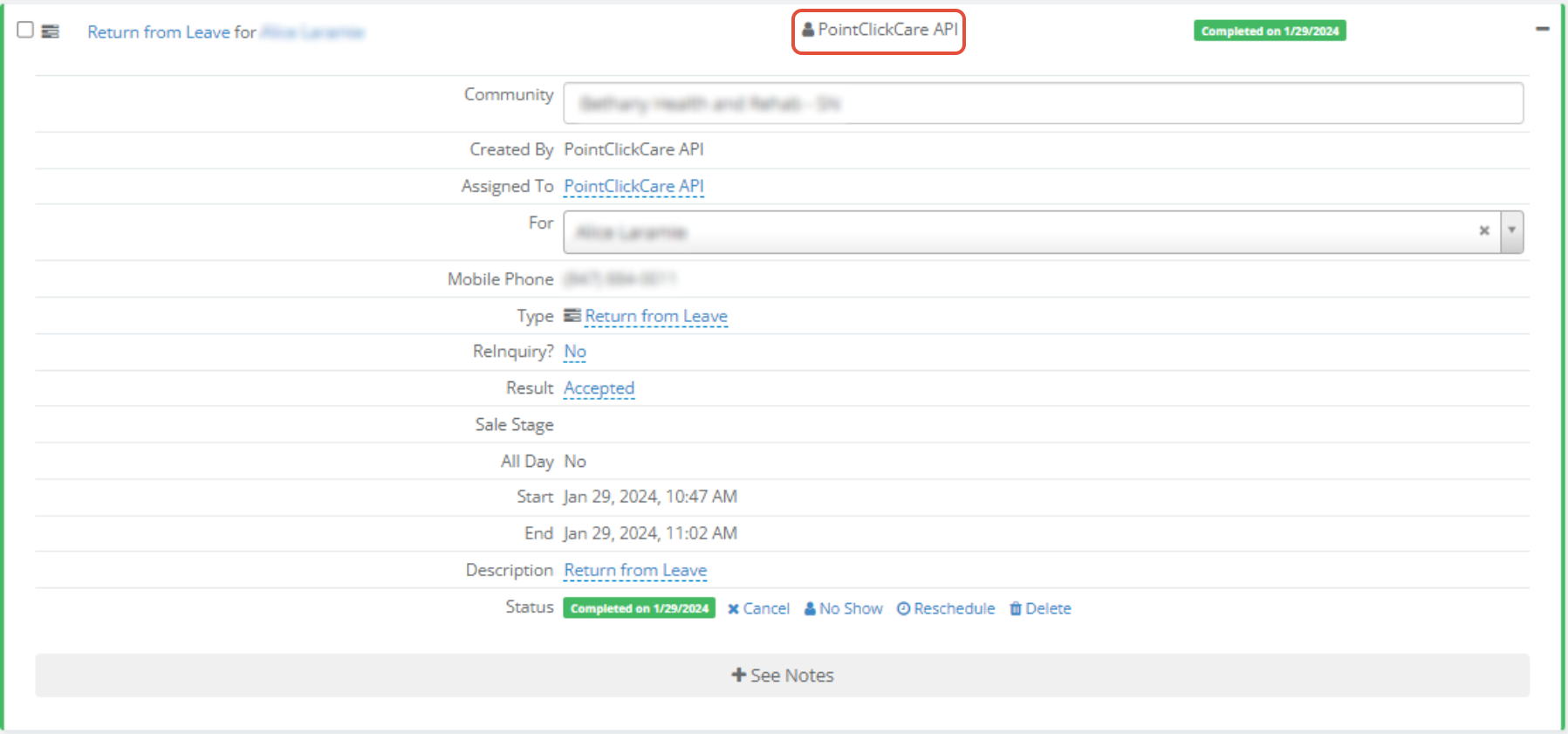
When a Return from Leave event is received, the following profile updates will occur in Enquire:
- A note is added to the profile with the following text:
- “A Return from Leave occurred for individual’s name”
- The user assigned to the profile will receive a notification saying:
- “A Return from Leave occurred for individual’s name”
- A Completed activity will be created with:
- An Activity Type of Return from Leave
- An Activity Resolution of Contact Made
- A Completed Date set to the date/time Enquire received the ADT message
- A note is added to the profile with the following text:
- “A Return from Leave occurred for individual’s name”
- The user assigned to the profile will receive a notification saying:
- “A Return from Leave occurred for individual’s name”
- A Completed activity will be created with:
- An Activity Type of Return from Leave
- An Activity Resolution of Contact Made
- A Completed Date set to the date/time Enquire received the ADT message
Was this article helpful?
That’s Great!
Thank you for your feedback
Sorry! We couldn't be helpful
Thank you for your feedback
Feedback sent
We appreciate your effort and will try to fix the article