Overview
In this article, we will review how to use the PointClickCare (PCC) integration. This includes pushing leads to PCC and how to accept them in the PCC platform.
PointClickCare Usage
Below we will walk through the steps once a lead is pushed to PCC. New and potential matches will land on External Pending. Exact matches will link automatically.
Step 1: Click on Clinical.

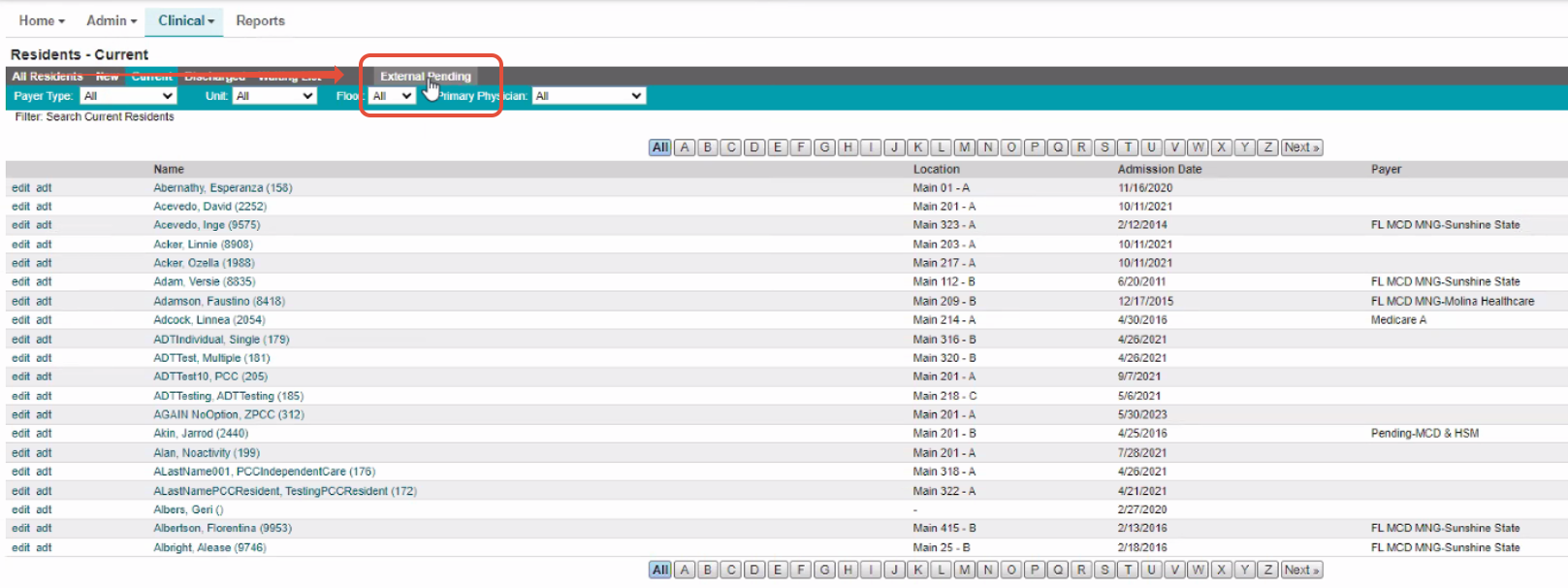
Step 2: This will take you to the next screen where the "External Pending" leads button is located. Click on the "External Pending" button to review the leads from Enquire.
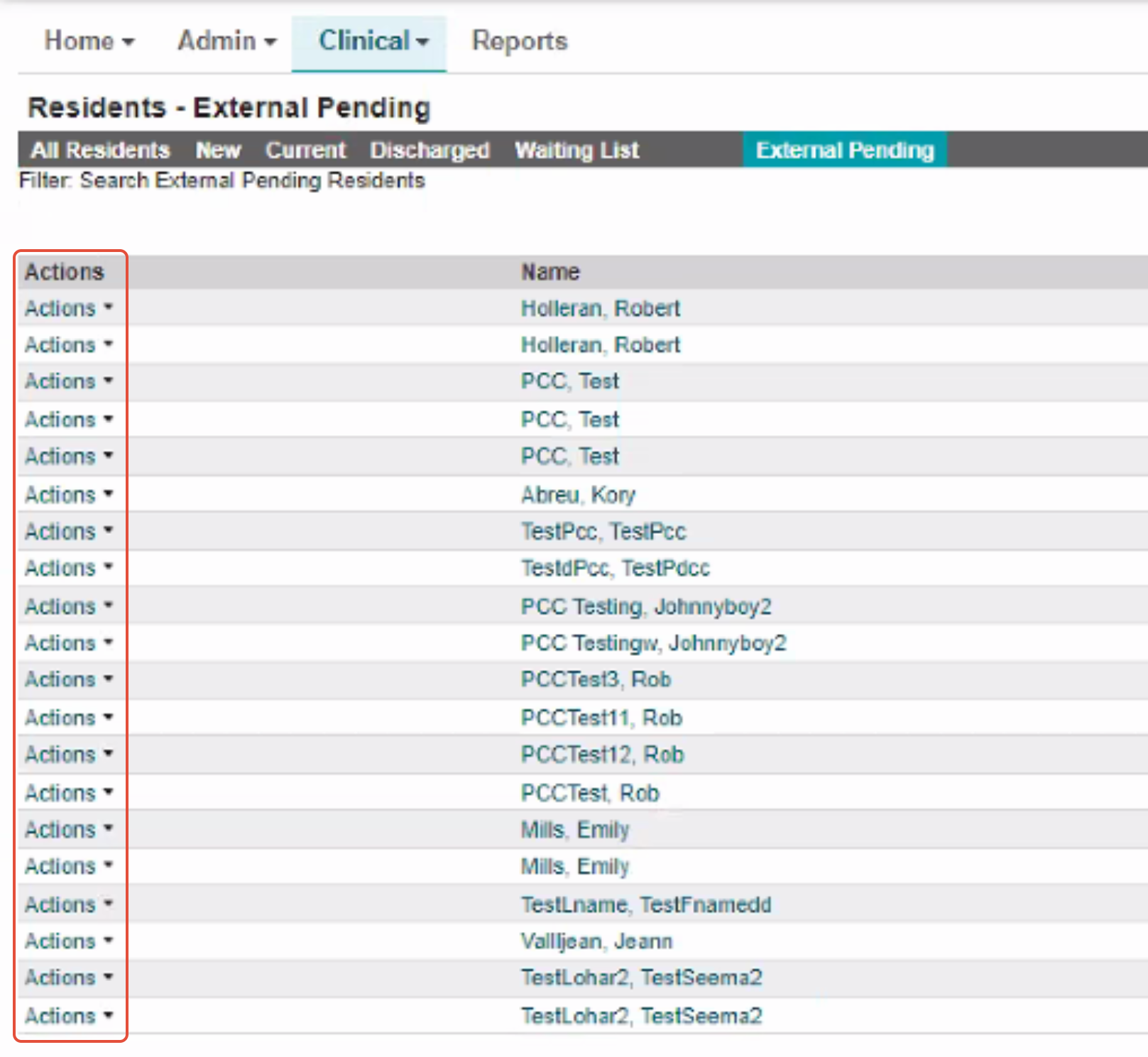
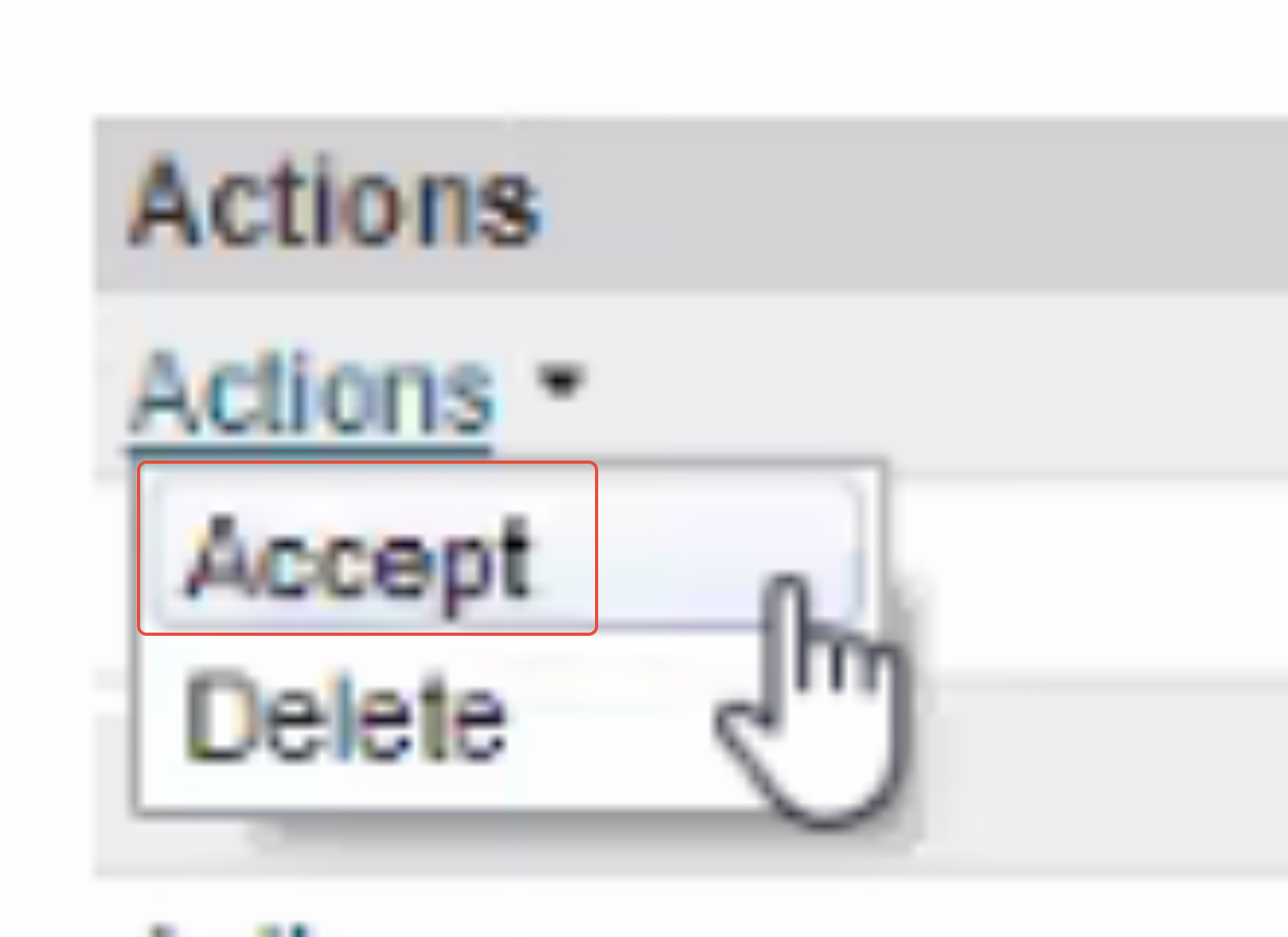
Step 3: Once you click on the "External Pending" button, this will take you to all the leads that have been pushed from Enquire to PCC. To accept a lead, click on Actions
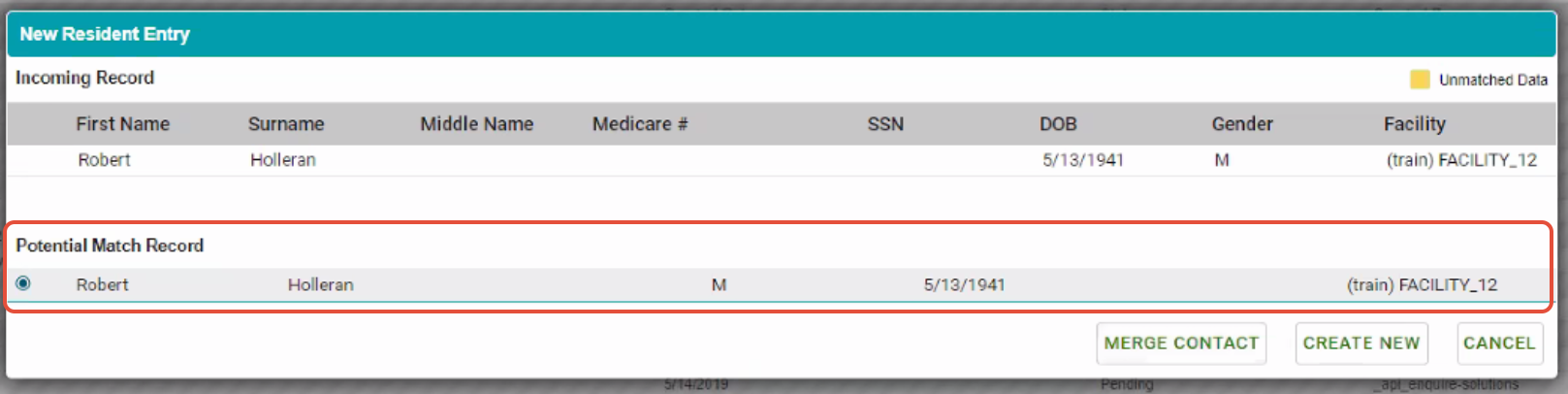
Step 4: Once accepted, you will be directed to a new screen where the lead can be either linked (merged) to the existing profile in the system or a new profile can be created by clicking on the create new button.
Note: Merge button allows you to link to the existing profile that is in PCC already
Step 5: A new screen will appear to fill out additional information
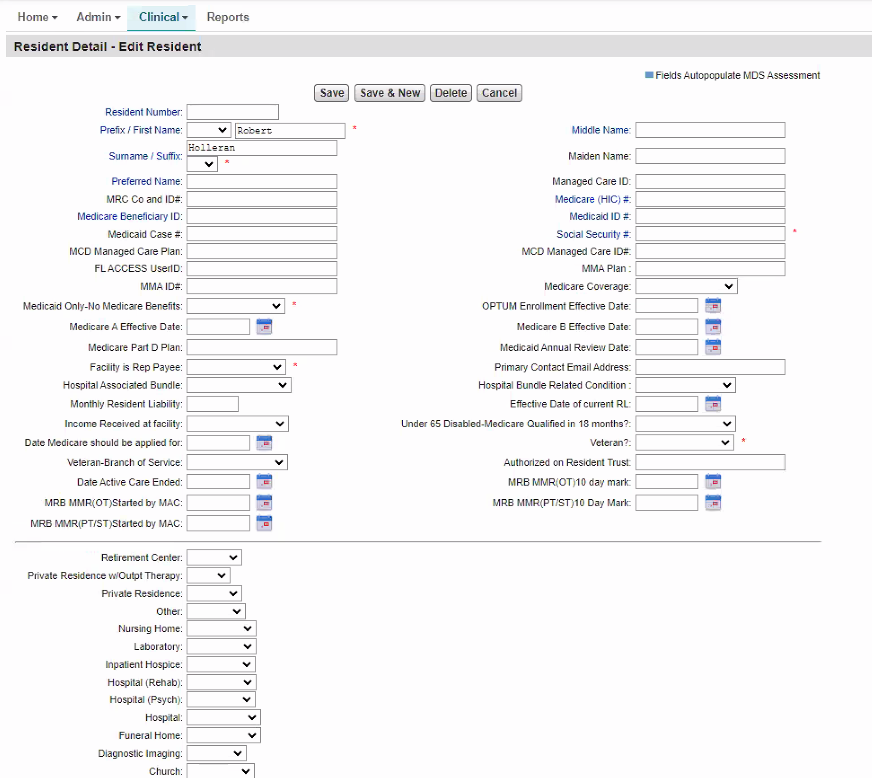
Note: This section will not populate if the message after the push in the CRM says "duplicate was found and linked in PCC".
Contacts
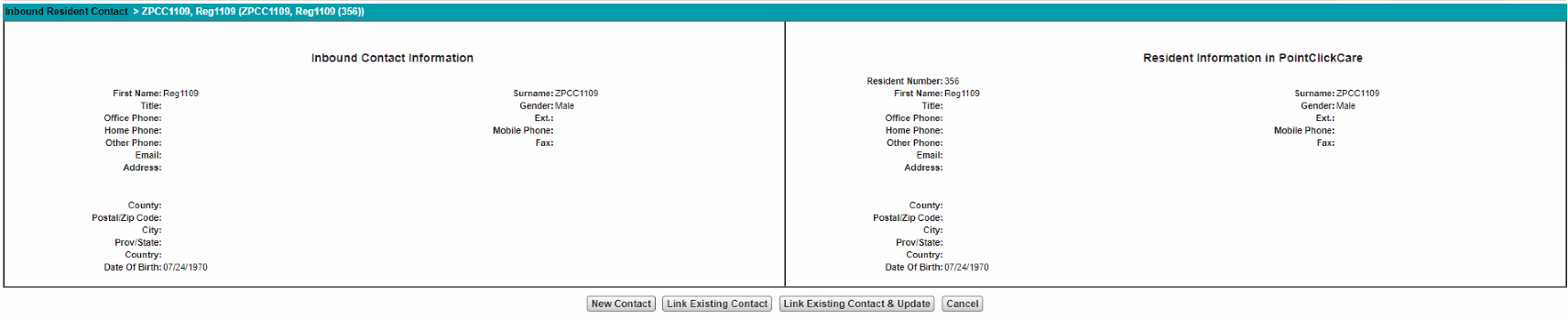
On the PCC dashboard, there is an 'Inbound Resident Contact' section where the leads contacts will fall. We will review in this section the outcome options we have with the contacts. Contacts and Documents will not be pushed until patient is accepted. For contact push to be successful, must have a one-to-one relationship value in PCC. New contacts will then auto-link to patient. Potential duplicates will display in Inbound Resident Contact dashboard for review. Prospect Phone/email/address will push over as a contact type of "Self" and need reviewed in Inbound Resident Contact dashboard.

When selecting the contact, a screen will appear of the contact information where there are a few options to create a new contact or link and update the contact
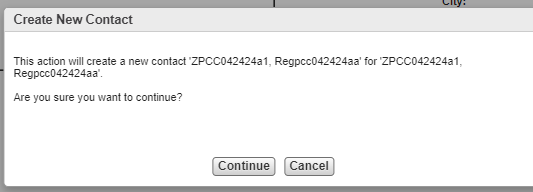
Create New Contact
This message will populate if selecting create new. We recommend doing this option if its not a referring contact. The message will display what will happen when creating a new contact in the system.
Linking and Updating a Contact
When clicking the link and update button, this message will appear with what will happen with the contact and its information.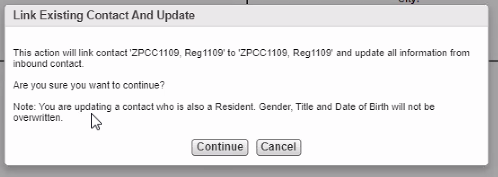
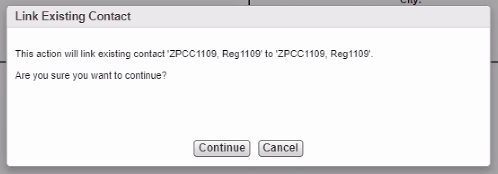
Linking Existing Contact
This message will populate if link is updated and explain what will happen to the contact when linking the existing contact.
Message Banners
If the individual is successfully sent to PointClickCare, you will see the following message and the PointClickCare button will no longer be visible:

If an error occurred when attempting to send an individual, you will see the following message:

If you attempt to send an individual that has already been sent to PointClickCare, you will receive a message similar to the following:

Note: All individuals will be sent to the External Pending tab in PointClickCare. You must accept an individual as a Resident in PointClickCare in order for ADT messaging to process and for Contact information to be sent from Enquire to PointClickCare. All documents (10mb or less) that were in the leads profile in Enquire will fall in the MISC section on the profile in PCC.
ADT Events from PointClickCare to Enquire
Message Banners
If the individual is successfully sent to PointClickCare, you will see the following message and the PointClickCare button will no longer be visible:
If an error occurred when attempting to send an individual, you will see the following message:
If you attempt to send an individual that has already been sent to PointClickCare, you will receive a message similar to the following:
Note: All individuals will be sent to the External Pending tab in PointClickCare. You must accept an individual as a Resident in PointClickCare in order for ADT messaging to process and for Contact information to be sent from Enquire to PointClickCare. All documents (10mb or less) that were in the leads profile in Enquire will fall in the MISC section on the profile in PCC.
ADT Events from PointClickCare to Enquire
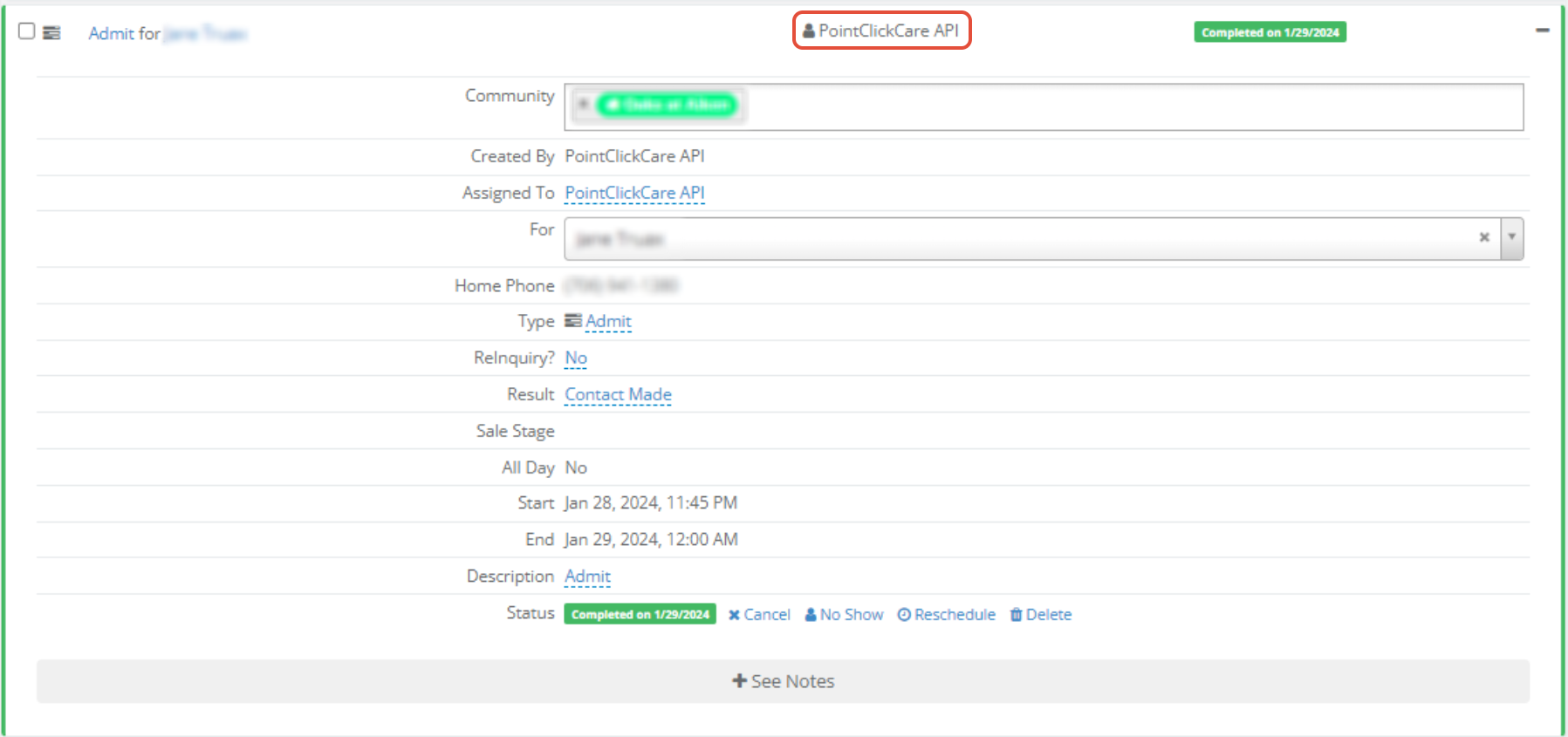
Upon Enquire receiving Admit, Discharge, and Transfer events from PointClickCare, the following updates will occur on an individual profile depending on the event.
Admit
- Prospect will be converted to a Resident
- Lead Score will be updated to Admit
- A note is added to the profile with the following text:
- “An Admit occurred for individual’s name”
- “An Admit occurred for individual’s name”
- The user assigned to the profile will receive a notification saying:
- “An Admit occurred for individual’s name”
- “An Admit occurred for individual’s name”
- A Completed activity will be created with:
- An Activity Type of Admit
- An Activity Resolution of Contact Made
- A Completed Date set to the date/time Enquire received the ADT message
Discharge
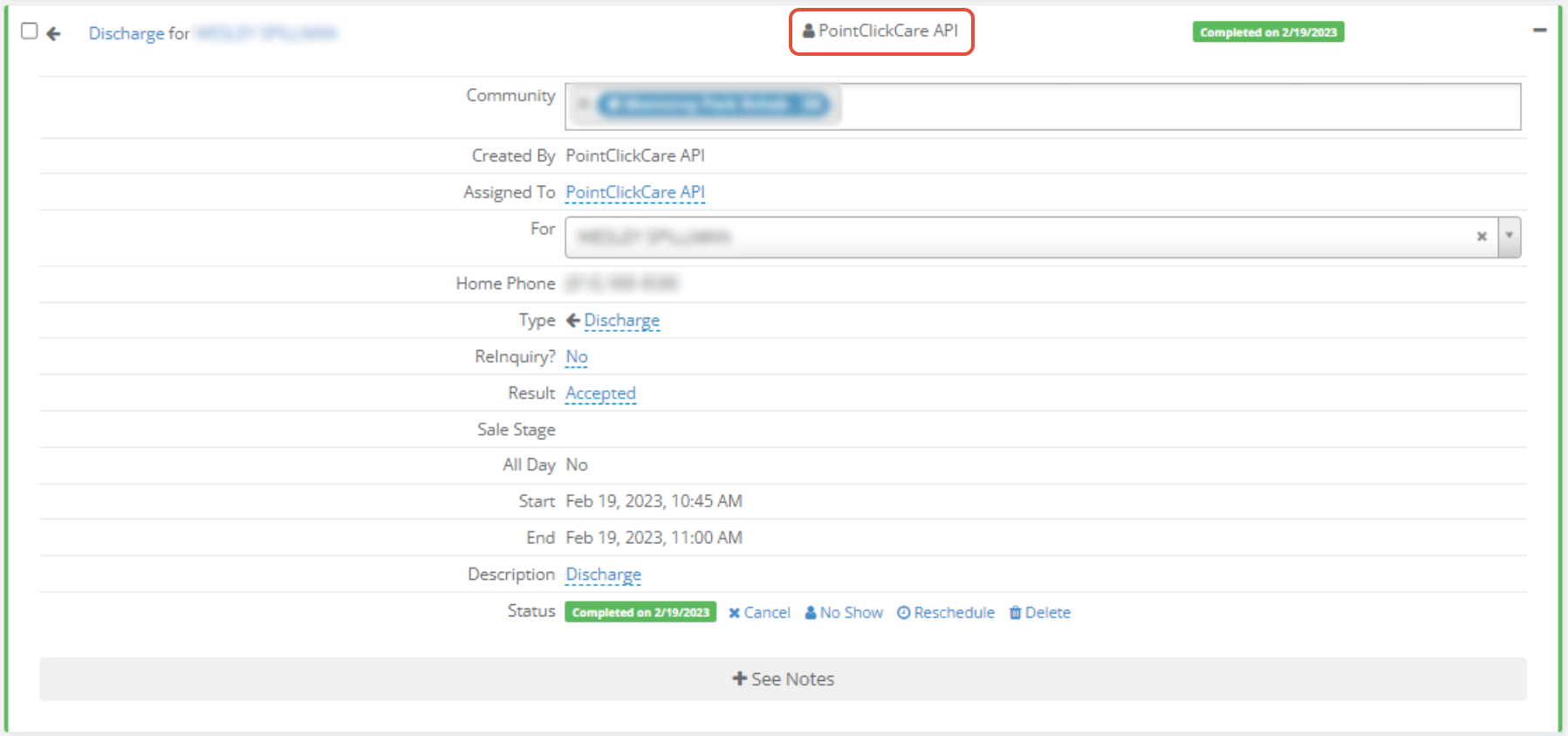
When a Discharge event is received, the following profile updates will occur in Enquire:
- Lead Score will be updated to Discharge
- A note is added to the profile with the following text:
- “A Discharge occurred for individual’s name”
- The user assigned to the profile will receive a notification saying:
- “A Discharge occurred for individual’s name”
- A Completed activity will be created with:
- An Activity Type of Discharge
- An Activity Resolution of Contact Made
- A Completed Date set to the date/time Enquire received the ADT message
Transfer
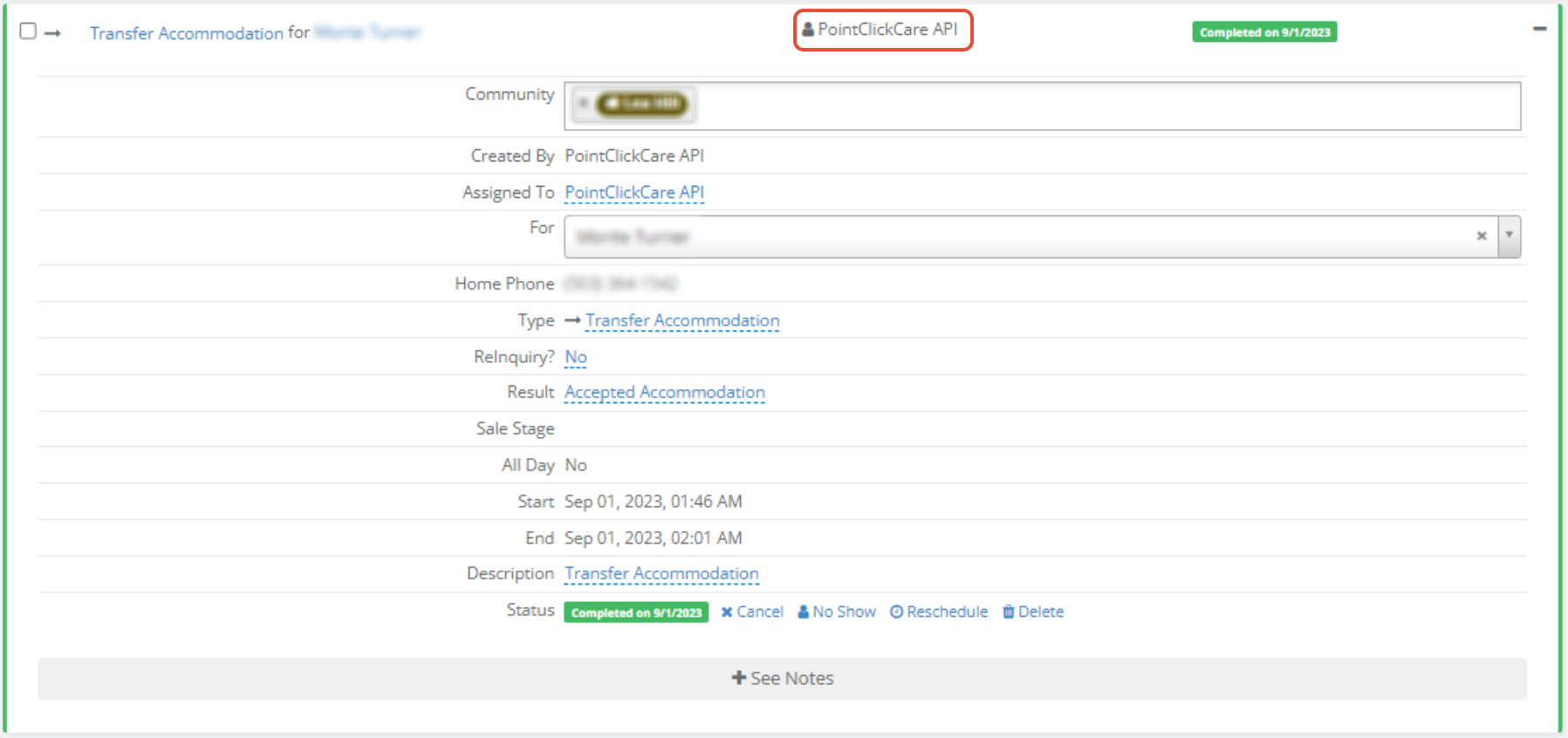
When a Transfer event is received, the following profile updates will occur in Enquire:
- A note is added to the profile with the following text:
- “A Transfer occurred for individual’s name”
- The user assigned to the profile will receive a notification saying:
- “A Transfer occurred for individual’s name”
- A Completed activity will be created with:
- An Activity Type of Transfer
- An Activity Resolution of Contact Made
- A Completed Date set to the date/time Enquire received the ADT message
- A note is added to the profile with the following text:
- “A Transfer occurred for individual’s name”
- The user assigned to the profile will receive a notification saying:
- “A Transfer occurred for individual’s name”
- A Completed activity will be created with:
- An Activity Type of Transfer
- An Activity Resolution of Contact Made
- A Completed Date set to the date/time Enquire received the ADT message
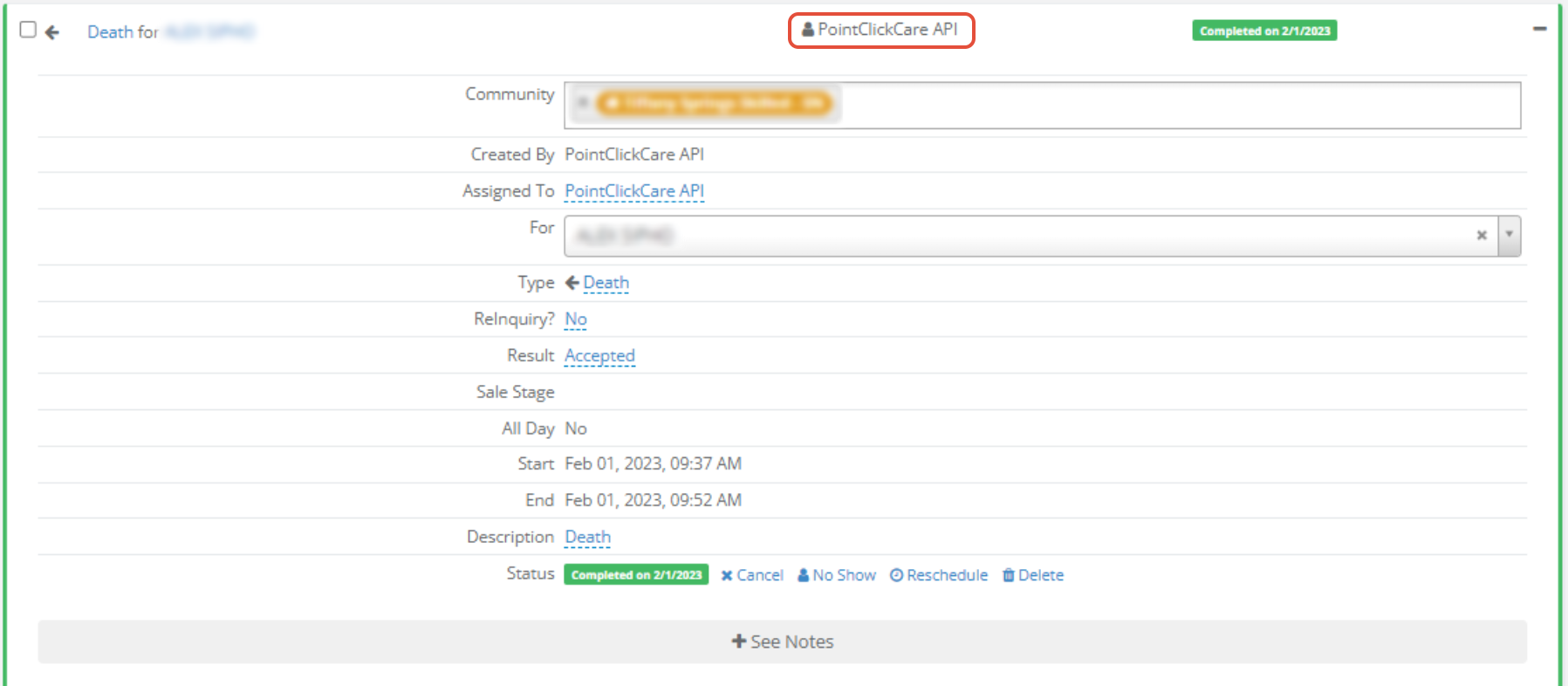
Death
When a Death event is received, the following profile updates will occur in Enquire:
- Lead Score will be updated to Death
- A note is added to the profile with the following text:
- “A Death occurred for individual’s name”
- The user assigned to the profile will receive a notification saying:
- “A Death occurred for individual’s name”
- A Completed activity will be created with:
- An Activity Type of Discharge
- An Activity Resolution of Contact Made
- A Completed Date set to the date/time Enquire received the ADT message
Room Reserve
When a Room Reserve event is received, the following profile updates will occur in Enquire:
- A note is added to the profile with the following text:
- “A Room Reserve occurred for individual’s name”
- The user assigned to the profile will receive a notification saying:
- “A Room Reserve occurred for individual’s name”
- A Completed activity will be created with:
- An Activity Type of Room Reserve
- An Activity Resolution of Contact Made
- A Completed Date set to the date/time Enquire received the ADT message

- Lead Score will be updated to Death
- A note is added to the profile with the following text:
- “A Death occurred for individual’s name”
- The user assigned to the profile will receive a notification saying:
- “A Death occurred for individual’s name”
- A Completed activity will be created with:
- An Activity Type of Discharge
- An Activity Resolution of Contact Made
- A Completed Date set to the date/time Enquire received the ADT message
Room Reserve
When a Room Reserve event is received, the following profile updates will occur in Enquire:- A note is added to the profile with the following text:
- “A Room Reserve occurred for individual’s name”
- The user assigned to the profile will receive a notification saying:
- “A Room Reserve occurred for individual’s name”
- A Completed activity will be created with:
- An Activity Type of Room Reserve
- An Activity Resolution of Contact Made
- A Completed Date set to the date/time Enquire received the ADT message
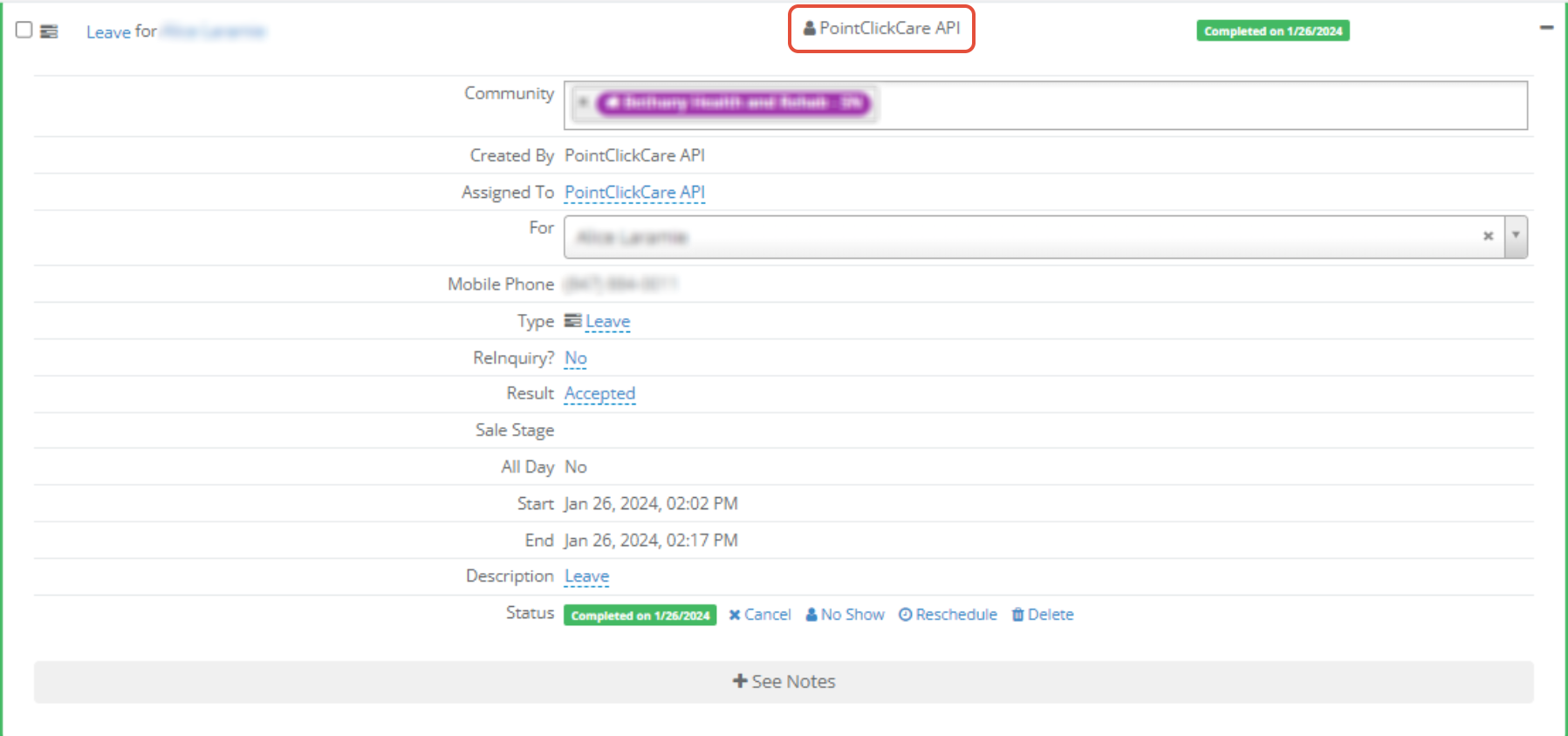
Leave
When a Leave event is received, the following profile updates will occur in Enquire:
- A note is added to the profile with the following text:
- “A Leave occurred for individual’s name”
- The user assigned to the profile will receive a notification saying:
- “A Leave occurred for individual’s name”
- A Completed activity will be created with:
- An Activity Type of Leave
- An Activity Resolution of Contact Made
- A Completed Date set to the date/time Enquire received the ADT message
- A note is added to the profile with the following text:
- “A Leave occurred for individual’s name”
- The user assigned to the profile will receive a notification saying:
- “A Leave occurred for individual’s name”
- A Completed activity will be created with:
- An Activity Type of Leave
- An Activity Resolution of Contact Made
- A Completed Date set to the date/time Enquire received the ADT message
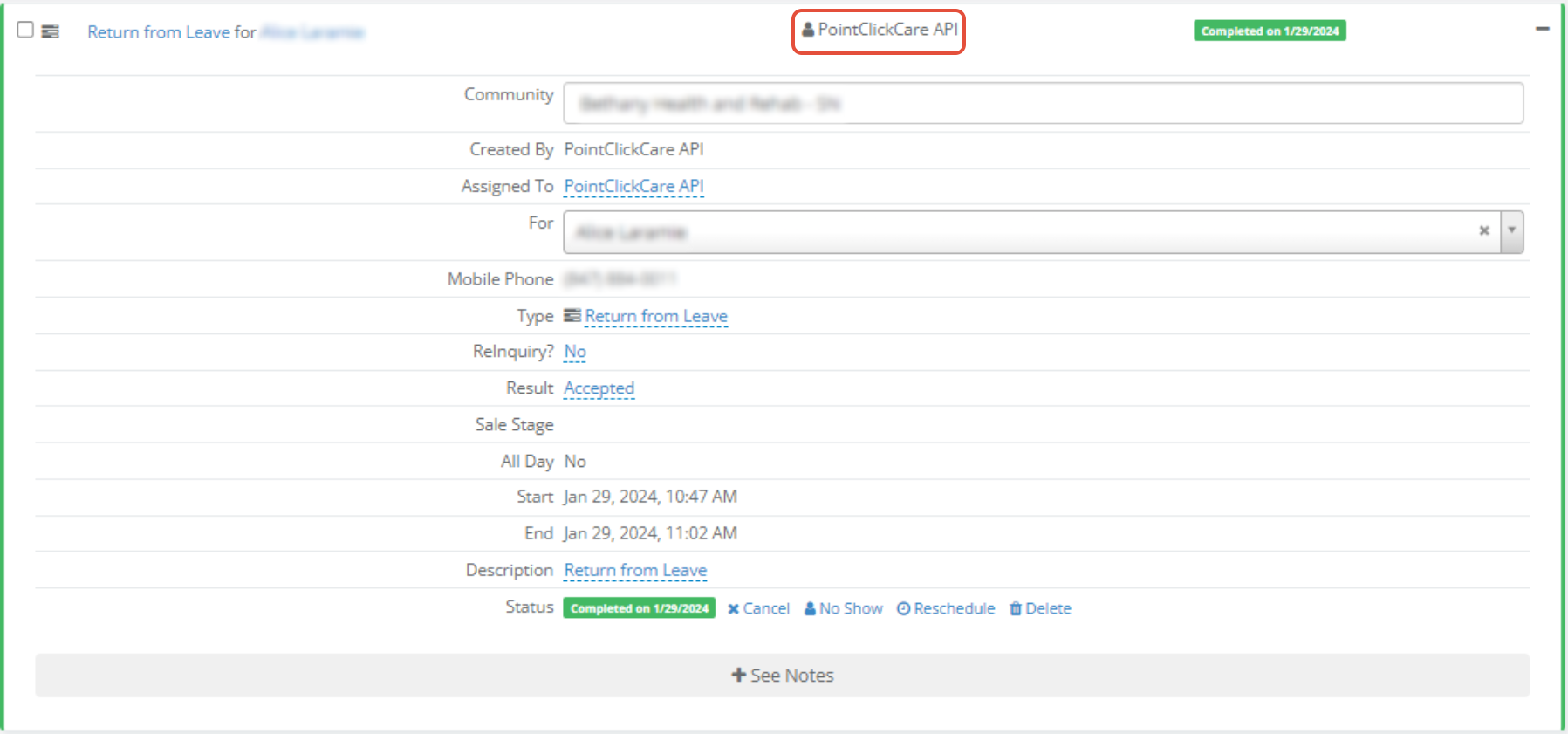
Return from Leave
When a Return from Leave event is received, the following profile updates will occur in Enquire:
- A note is added to the profile with the following text:
- “A Return from Leave occurred for individual’s name”
- The user assigned to the profile will receive a notification saying:
- “A Return from Leave occurred for individual’s name”
- A Completed activity will be created with:
- An Activity Type of Return from Leave
- An Activity Resolution of Contact Made
- A Completed Date set to the date/time Enquire received the ADT message
- A note is added to the profile with the following text:
- “A Return from Leave occurred for individual’s name”
- The user assigned to the profile will receive a notification saying:
- “A Return from Leave occurred for individual’s name”
- A Completed activity will be created with:
- An Activity Type of Return from Leave
- An Activity Resolution of Contact Made
- A Completed Date set to the date/time Enquire received the ADT message
Was this article helpful?
That’s Great!
Thank you for your feedback
Sorry! We couldn't be helpful
Thank you for your feedback
Feedback sent
We appreciate your effort and will try to fix the article