Overview
In this article, we will review how to update an activity status. We will review how to complete, cancel, no show and reschedule an activity.
Complete an Activity


Note: If you're completing an activity for someone else, you will see the Assigned User drop down that will default to your name. If desired, you can update this name if someone else should be getting credit for the activity.

Cancel an Activity
Step 1: Navigate to the activity you would like to cancel.
Step 2:Click within any of the white space of the activity.

Step 3: Click Cancel at the bottom of the activity pane.
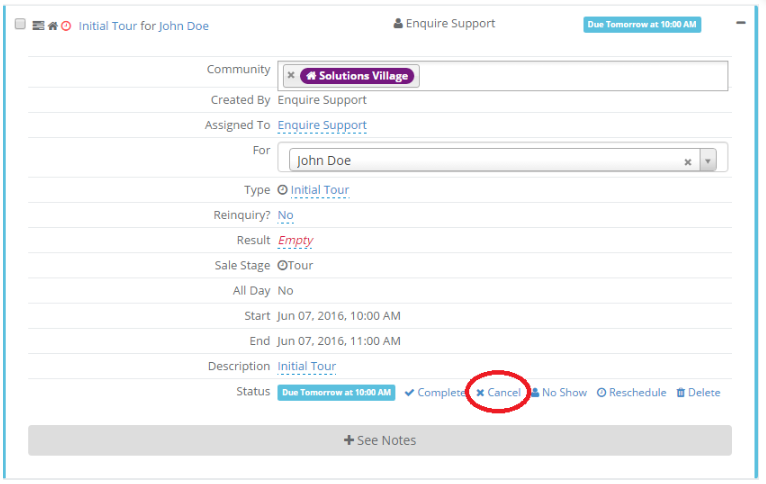
Step 4: Click Save or Save & Create New to cancel the current activity and create a follow up activity.
No Show an Activity
Step 1: Navigate to the activity you would like to mark as No Show.
Step 2: Click within any of the white space of the activity.

Step 3: Click No Show at the bottom of the activity pane.

Step 4: Click Save or Save & Create New if you would like to mark the current activity as No Show and create a follow up activity

Note: The Save & Create New button will direct you to a new screen to fill out the activity information (screenshot below). Once saved, you will be directed back to the leads profile.

Reschedule an Activity
Step 1: Navigate to the activity you would like to reschedule.

Step 2: Click within any of the white space of the activity or the + sign.
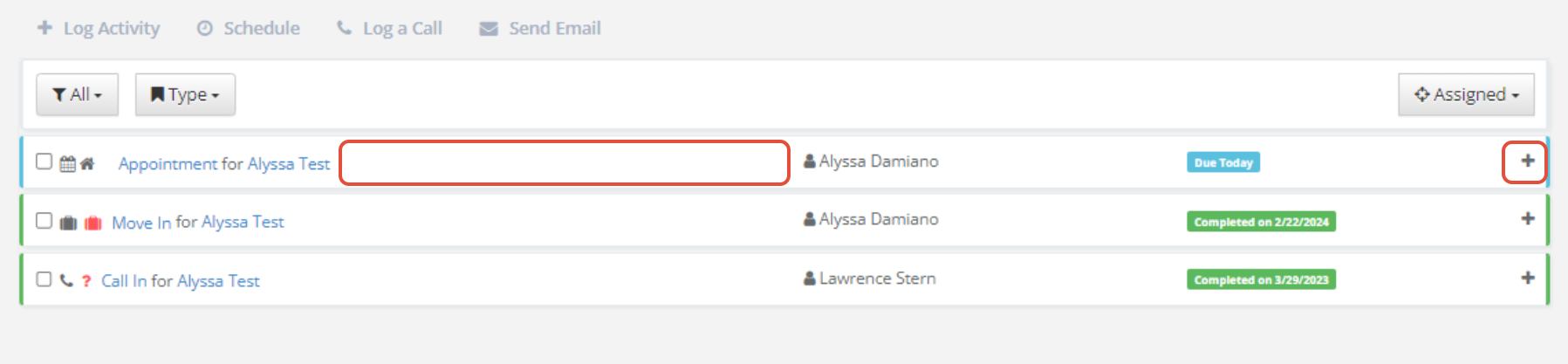
Step 3: Click Reschedule at the bottom of the activity pane.

Step 4: Edit the Start(Due) and End times and click Save.

Was this article helpful?
That’s Great!
Thank you for your feedback
Sorry! We couldn't be helpful
Thank you for your feedback
Feedback sent
We appreciate your effort and will try to fix the article