Overview
In this article, we'll review the necessary steps required to send a patient reservation from Aline CRM to Vitals.
Steps to Send Patient Reservation to Vitals
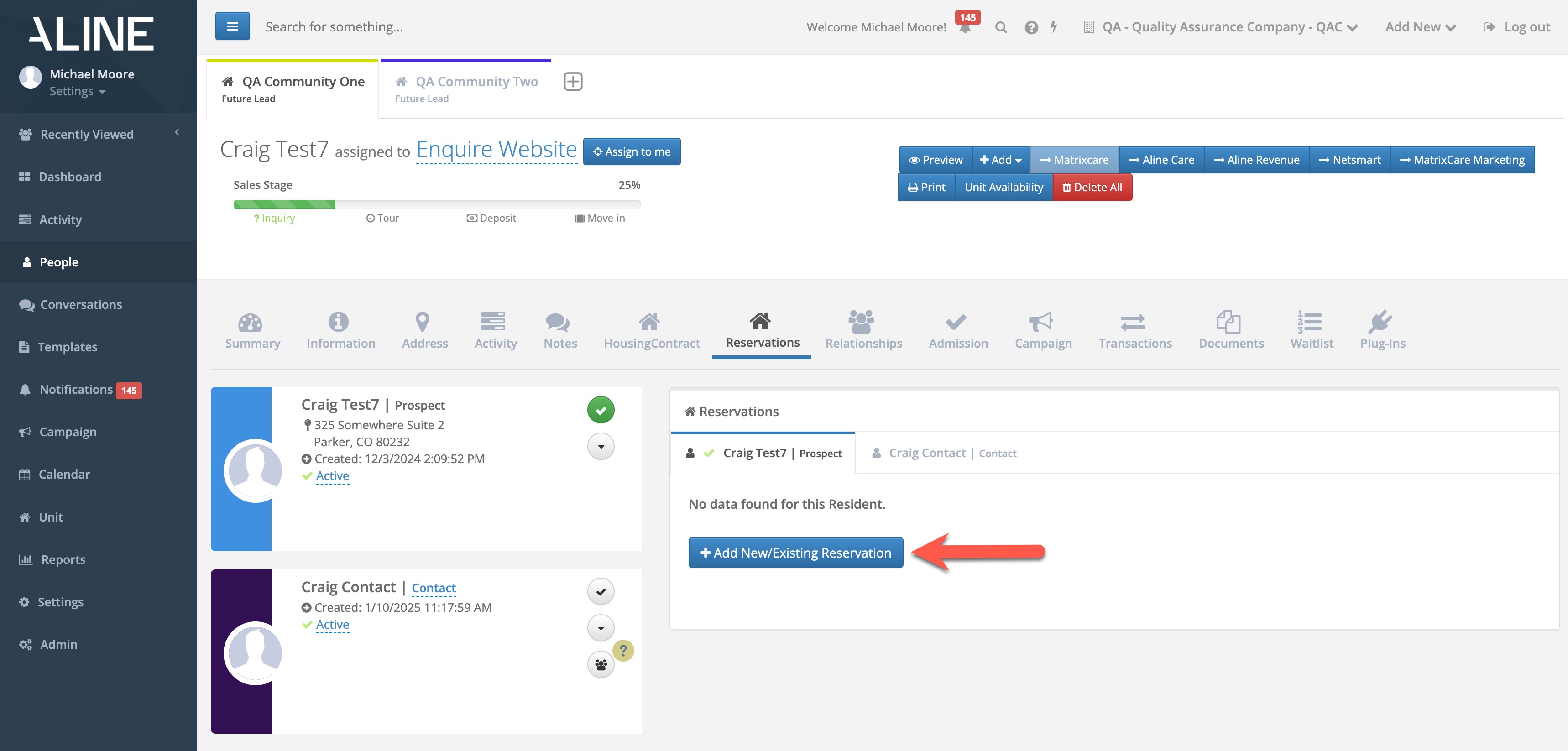
Select the Reservation Module.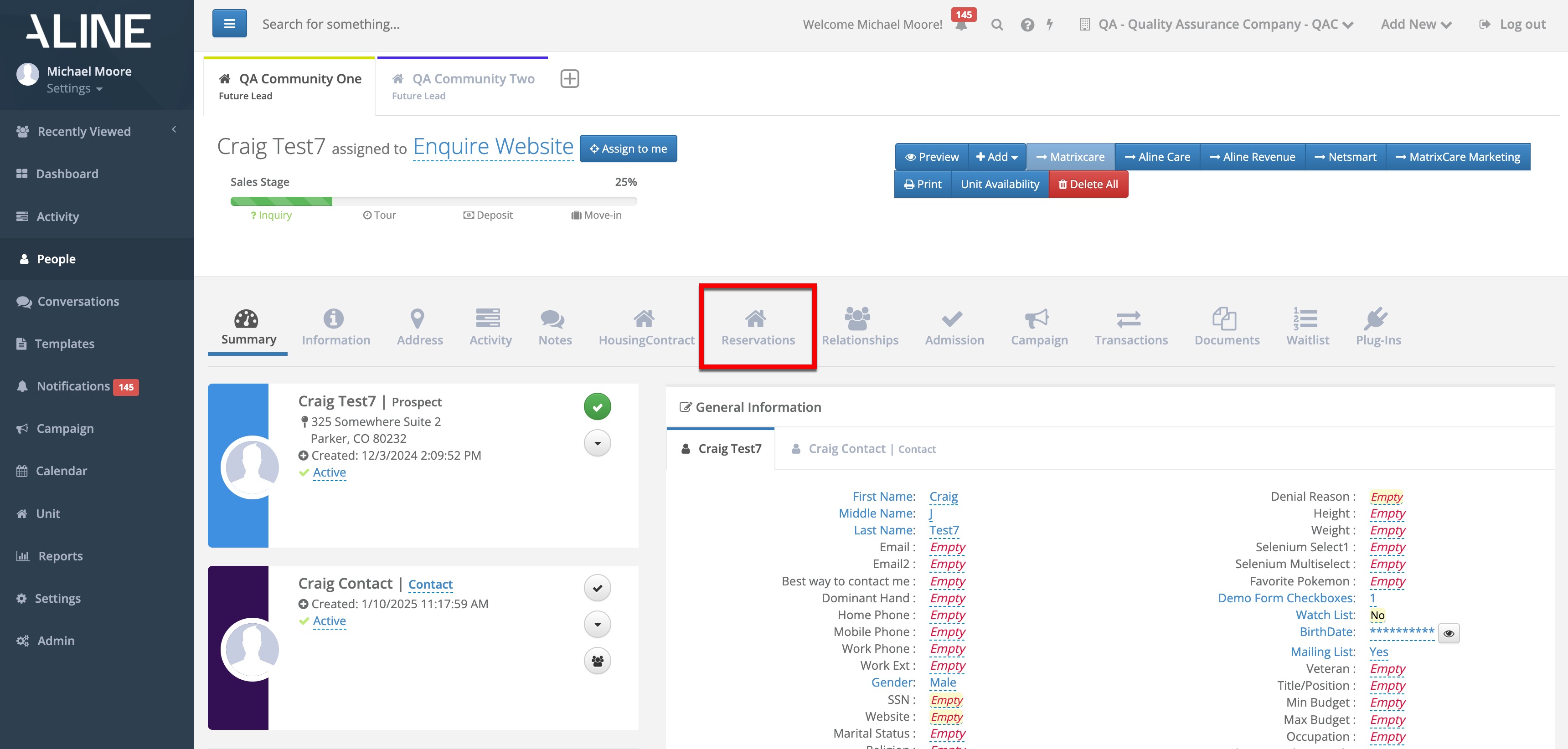 In the Reservation Module tool, Select + Add New/Existing Reservation.
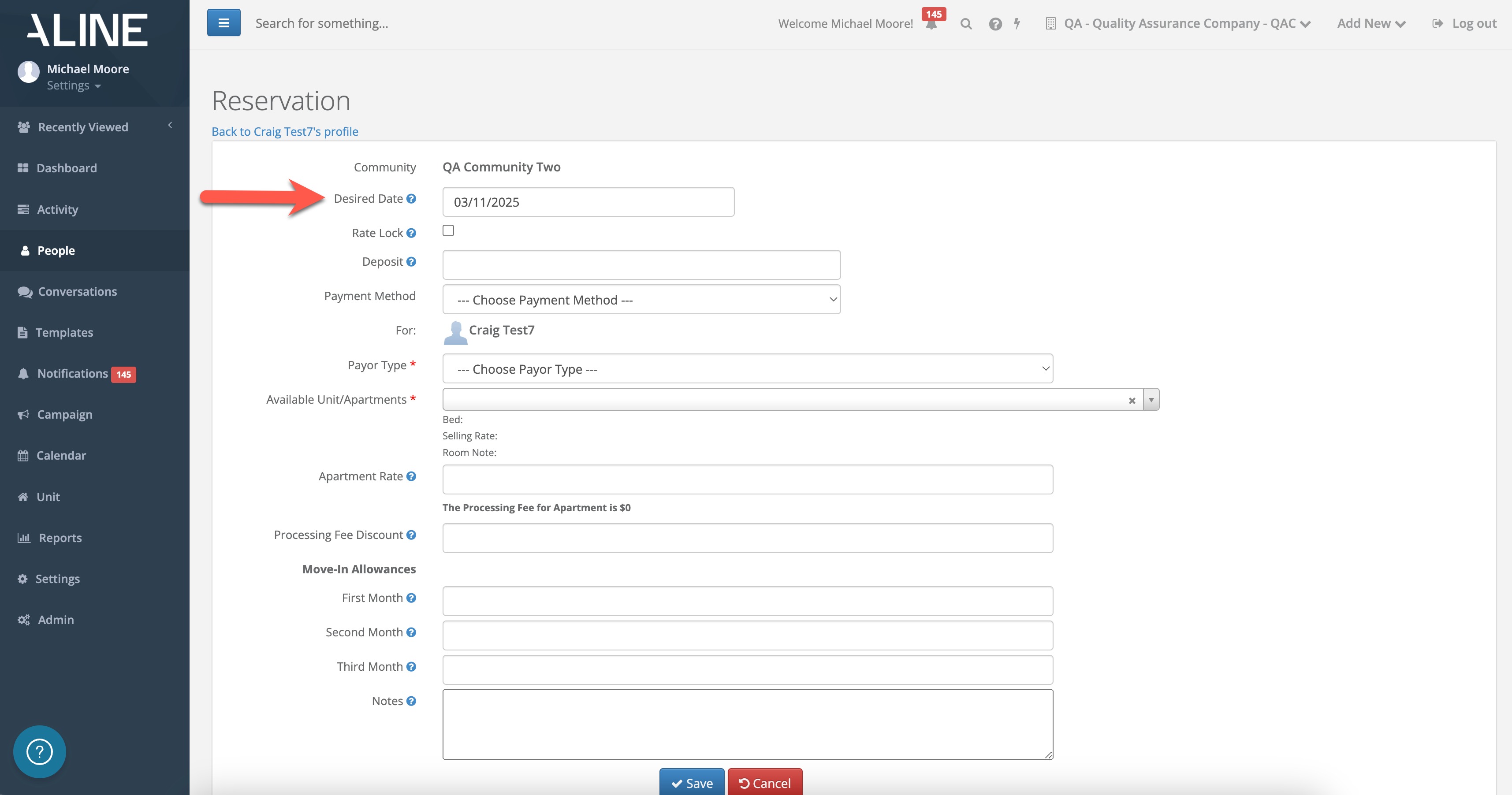
 Fill out the form fields, starting with Desired Date. Desired date is the patient's anticipated move in date.
 Indicate a Rate Lock, if necessary. Next, enter the deposit amount in the Deposit field.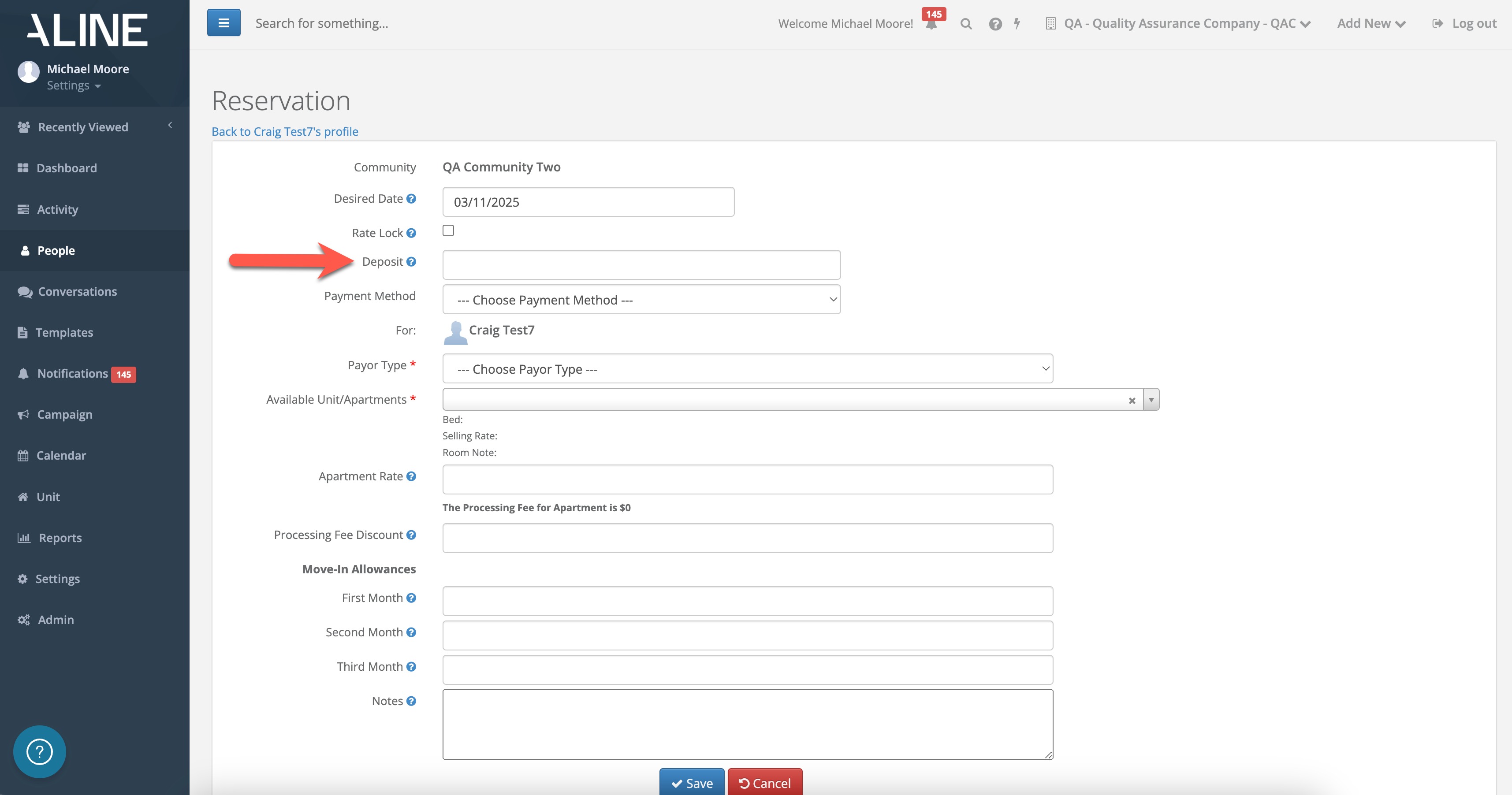
Next, choose a payment method, if necessary, and enter the Payor Type.
All reservations will require an Available Unit/Apartment selection. Select Available Units/Apartments to view a list of ALL the property's units along with their associated details. The details will include whether the room is already occupied/vacant and rent ready in addition to room number, level, rate, Bed, Grade, Vacant Days, Type, Area (Sq. Ft.), and Scheduled Move Out.
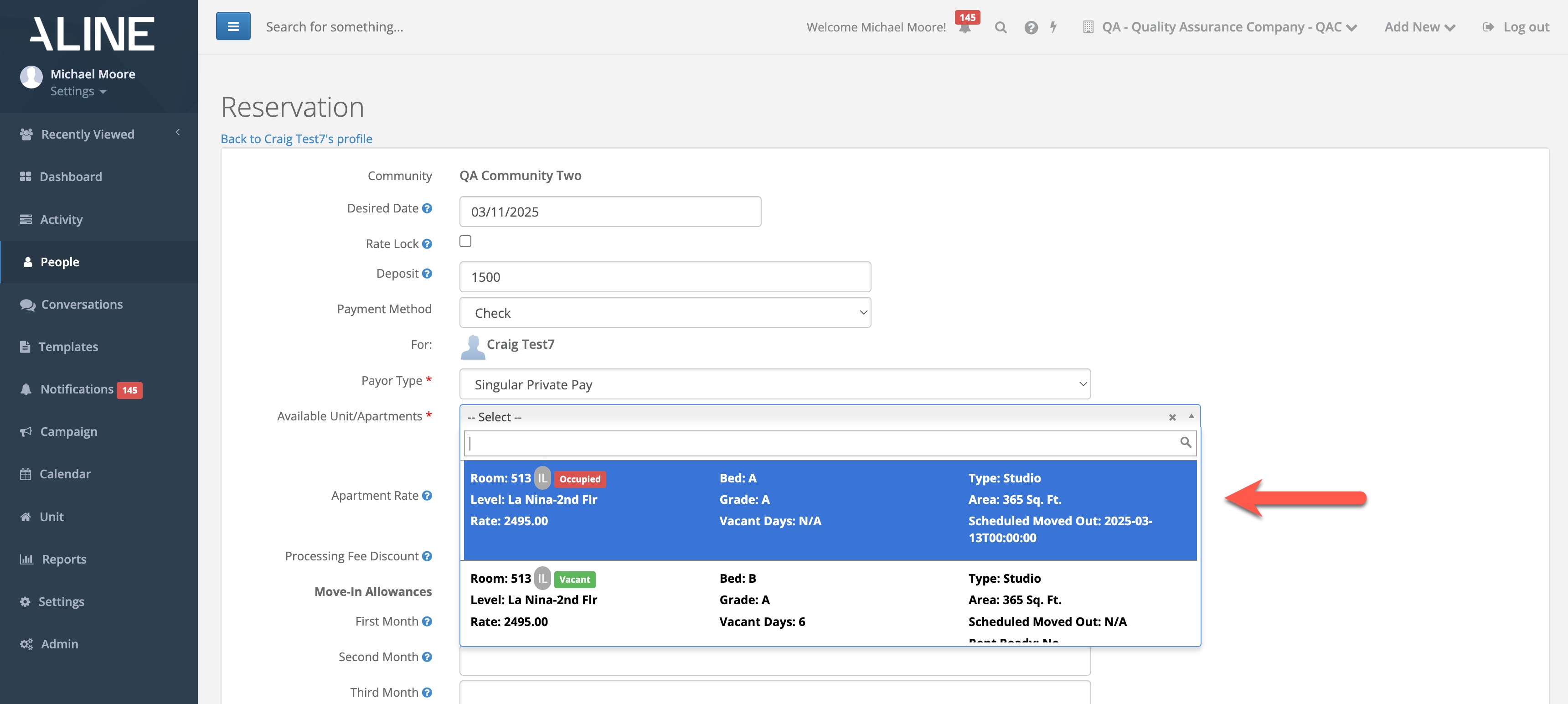
Next, fill out the Apartment Rate, Processing Fee Discount, Move In Allowances, and Notes fields as required. Finally, once all details have been entered. Select Save at the bottom of the form to save the new reservation.
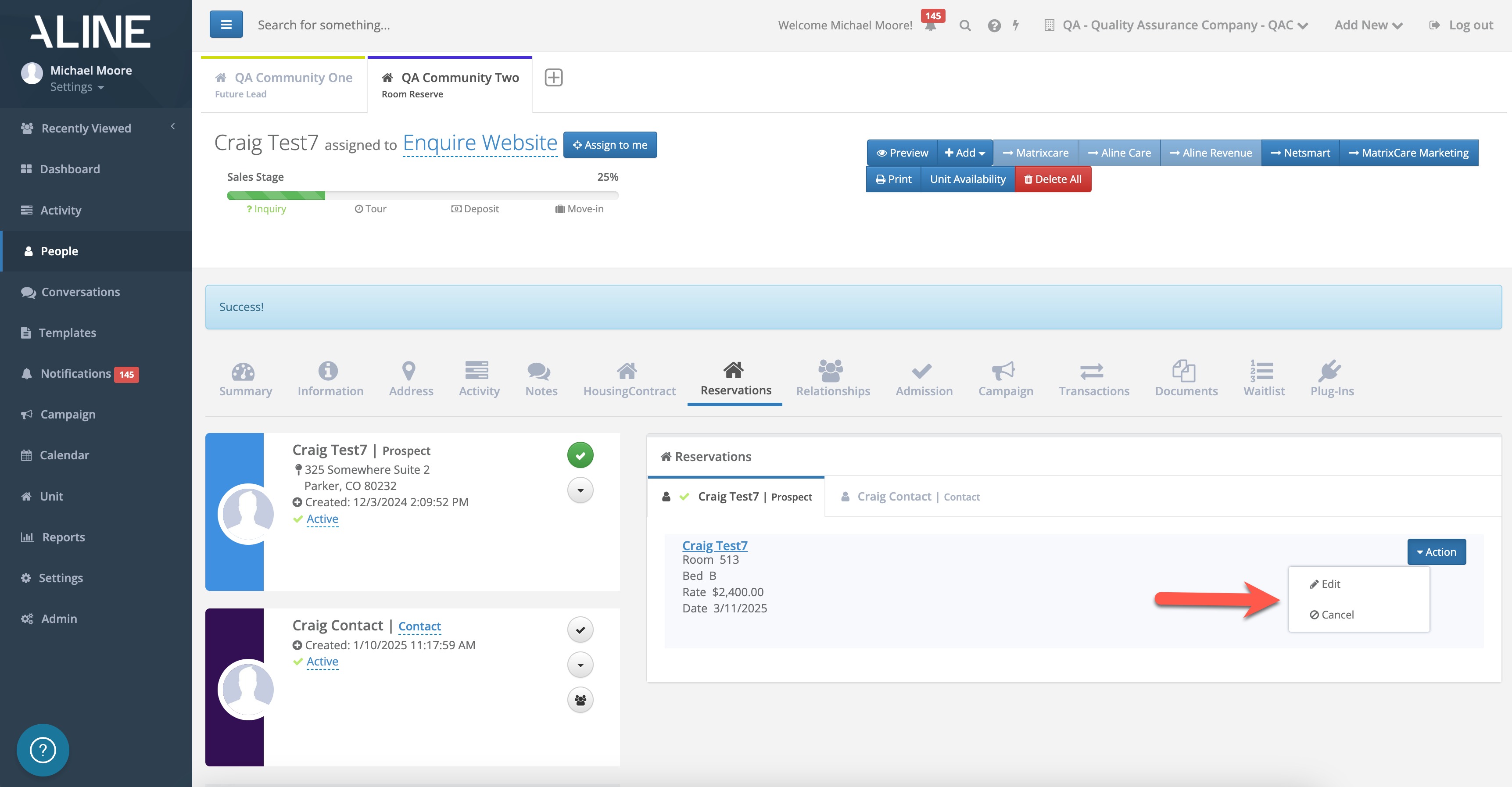
Active reservations will display on the patient's profile in the Reservations Module. Reservations can be modified or canceled all together by selection the Actions button on the existing reservation.
Was this article helpful?
That’s Great!
Thank you for your feedback
Sorry! We couldn't be helpful
Thank you for your feedback
Feedback sent
We appreciate your effort and will try to fix the article