TABLE OF CONTENTS
Overview
The Vitals integration allows you to send Patients, Contacts, and Reservations from Aline CRM to Vitals. To set up the Vitals integration, please reach out to your Client Success Manager (CSM) to get started.
Setup
Obtain Vitals Integration Credentials. Reach out to your Vitals point of contact and request your the following credentials for your company.
- API Url
- API Key
- CompanyRef
- Property Ids
Plugins
All integrations require an Enquire team member to complete setup of the Plugins. Please reach out to your Enquire Account Manager or Integrations Support Team at Integrations.support@alineops.com for further assistance.
Usage
Enquire can send a Patient to Vitals with the following fields and their values:
| Salutation | First Name* | Last Name* | Middle Name | Date of Birth* |
| Home Phone | Mobile Phone | Work Phone | Gender* | |
| Address Line 1 | Address Line 2 | City | State | Postal Code |
| Care Level (individual) | Market Source |
* - required to send a patient to Vitals.
In addition to patient information, Enquire will send each related contact with the following fields and their values:
| Salutation | First Name* | Last Name* | Middle Name |
| Home Phone | Mobile Phone | Work Phone | |
| Address Line 1 | Address Line 2 | City | State |
| Postal Code | Relationship |
* - required to send a contact to Vitals.
Send Prospect Reservation to Vitals
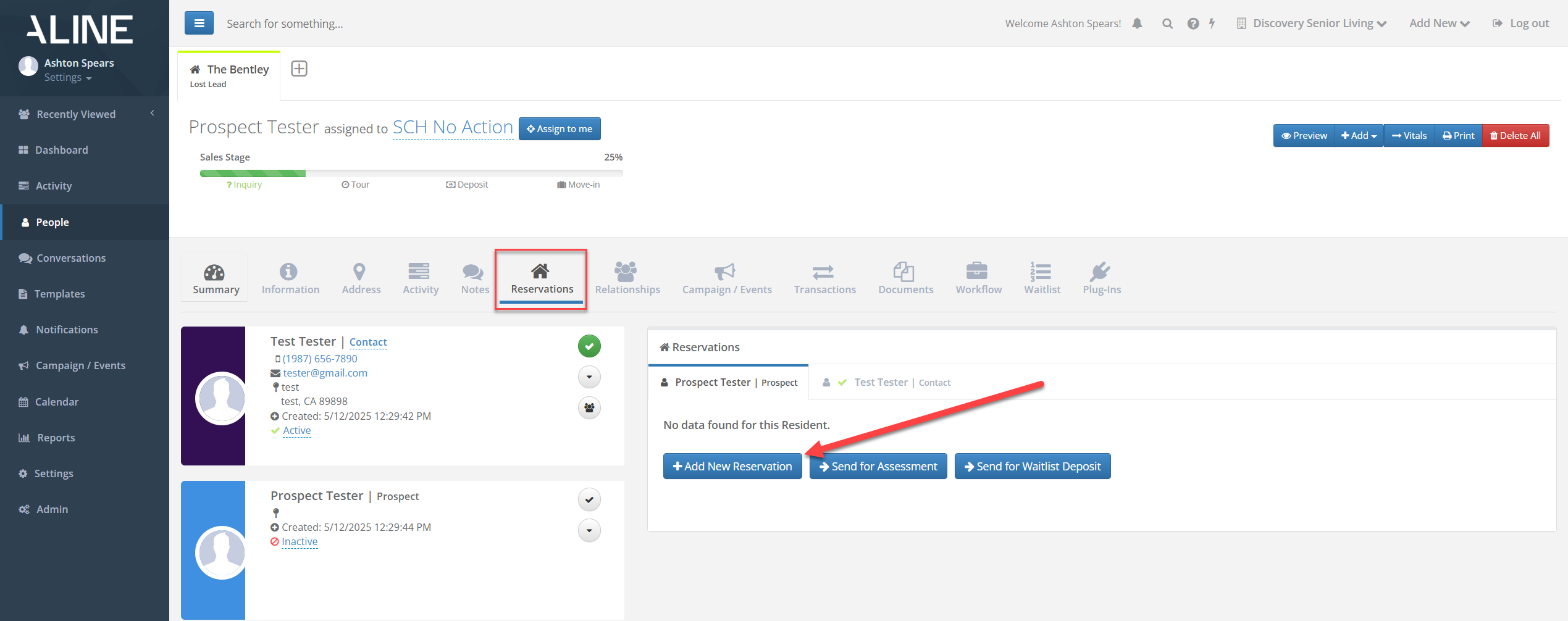
Select the Reservation Module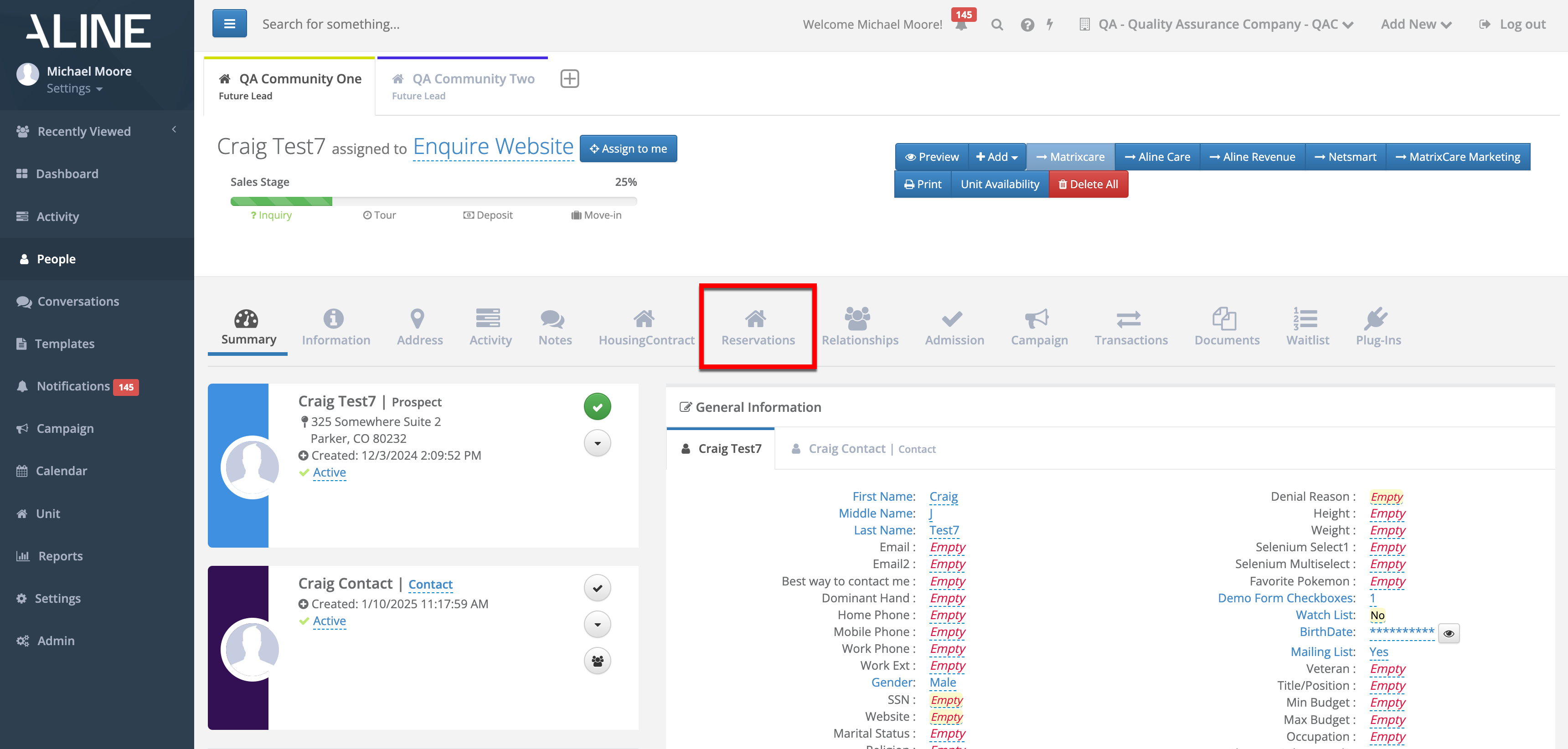 From the Reservation Module tool, Select + Add New/Existing Reservation.
Note: in place of creating reservations, users can also export the profile to Vitals for assessments and/or waitlist deposits by selecting Send for Assessment and/or Send for Waitlist Deposit, respectively.
 Fill out the form fields, starting with Desired Date. Desired date is the patient's anticipated move in date.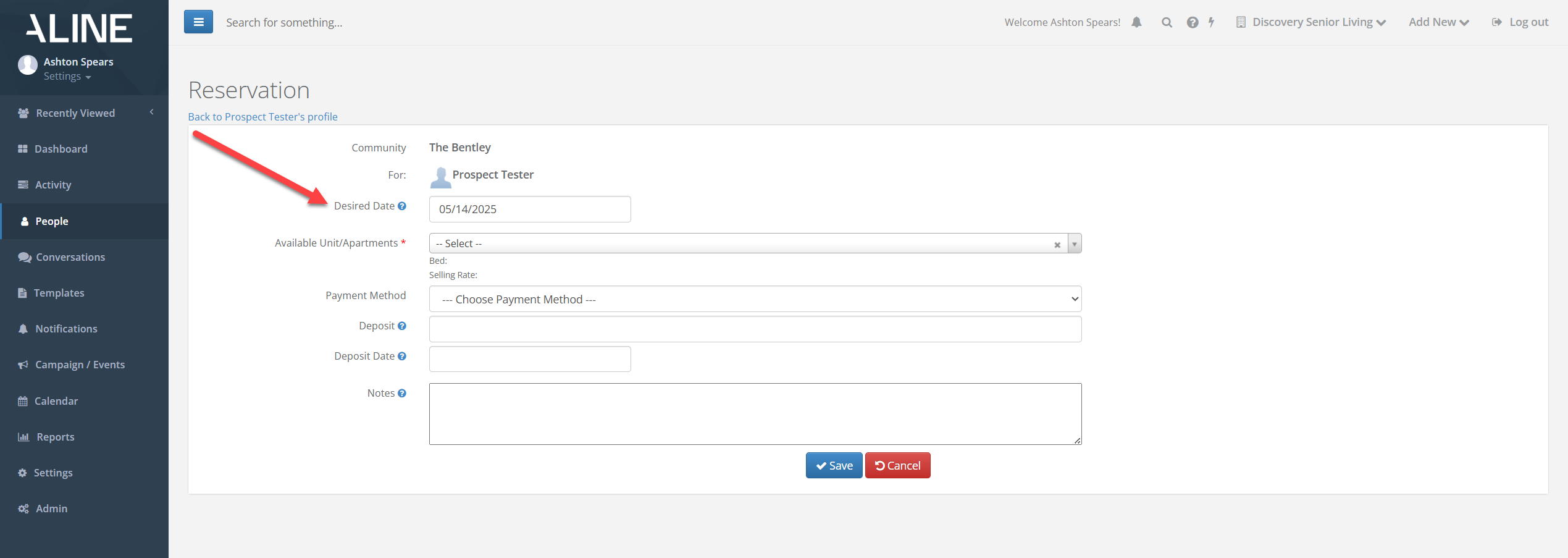
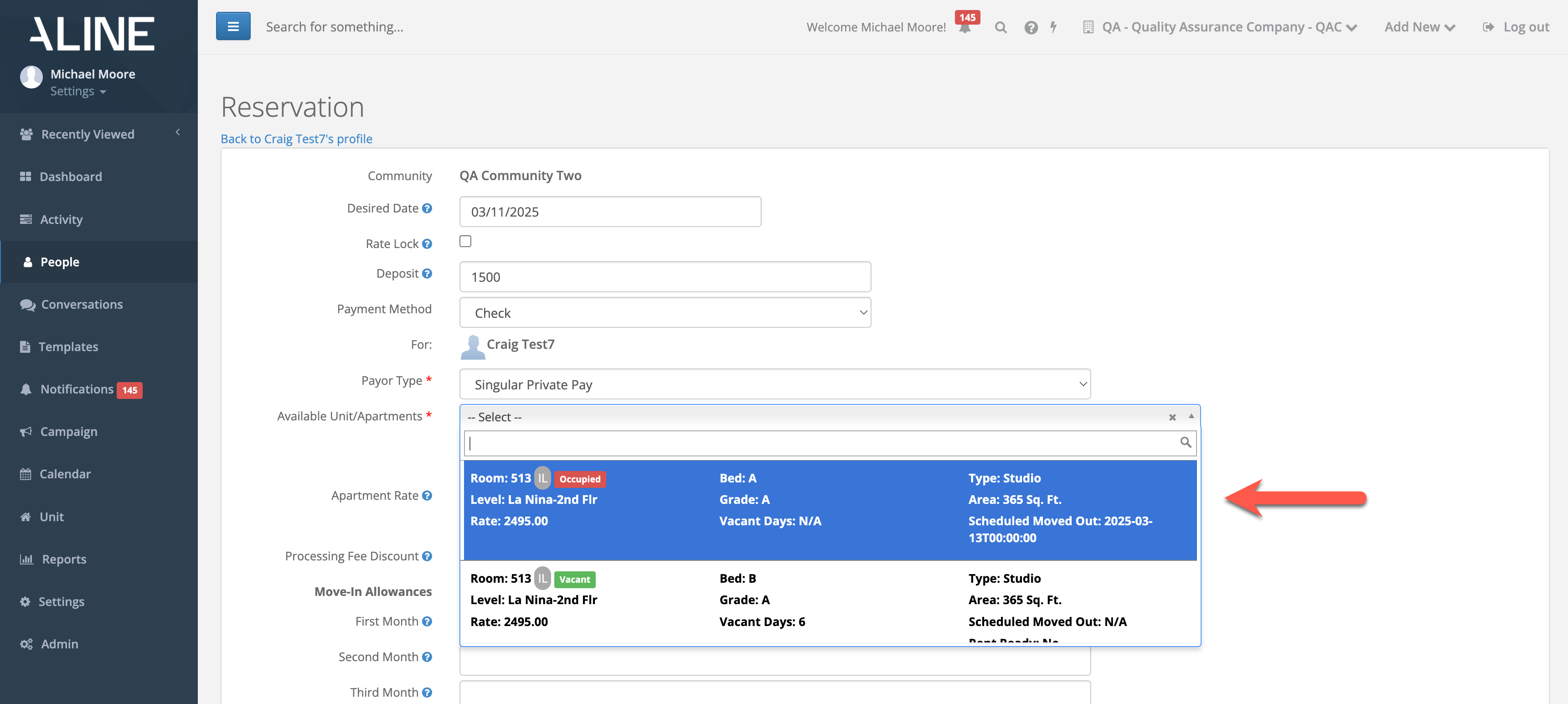
All reservations will require an Available Unit/Apartment selection. Select Available Units/Apartments to view a list of ALL the property's units along with their associated details. The details will include whether the room is already occupied/vacant and rent ready in addition to room number, level, rate, Bed, Grade, Vacant Days, Type, Area (Sq. Ft.), and Scheduled Move Out.
Next, fill out the Apartment Rate, Processing Fee Discount, Move In Allowances, and Notes fields as required. Finally, once all details have been entered. Select Save at the bottom of the form to save the new reservation.
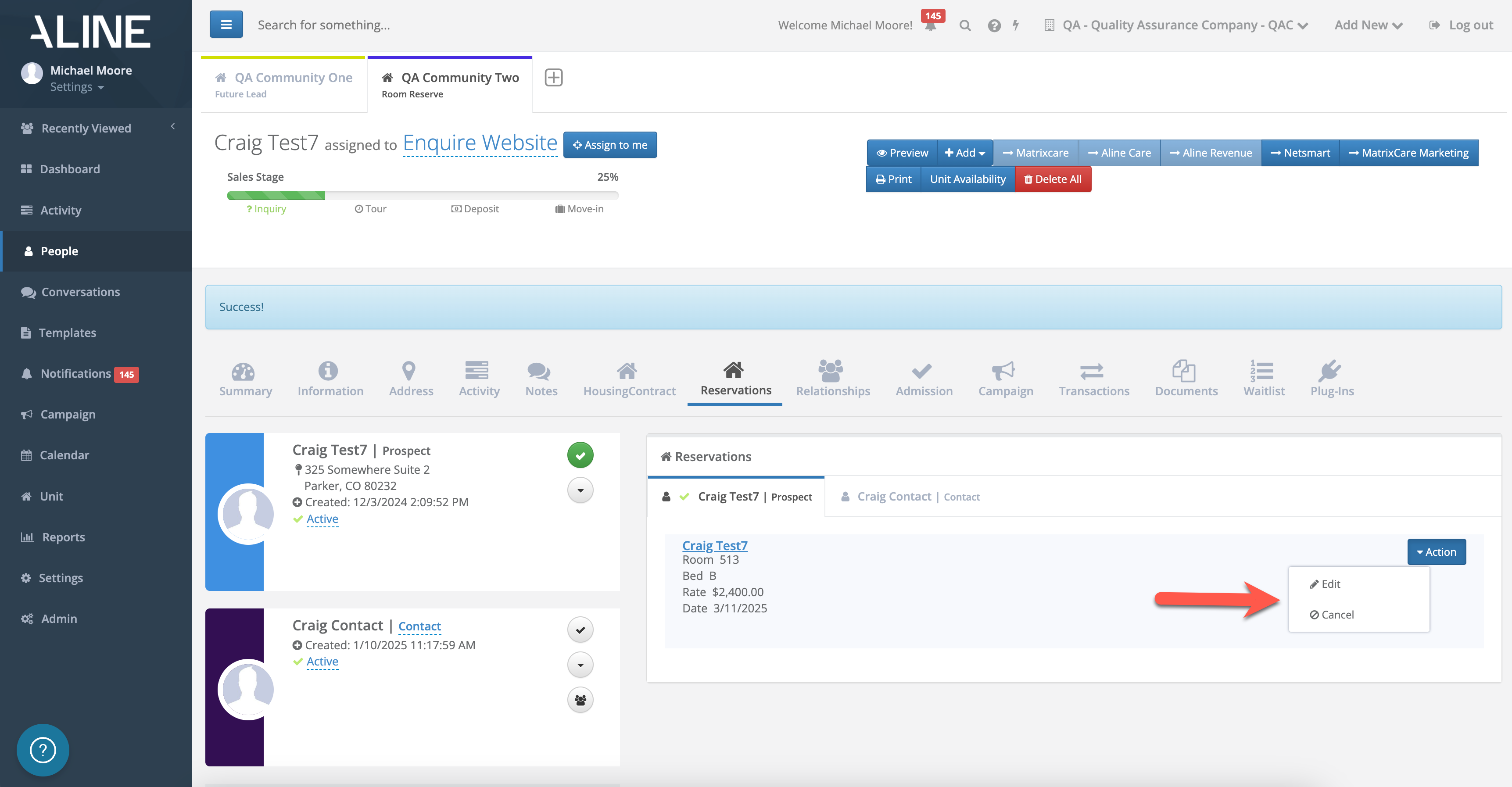
Active reservations will display on the patient's profile in the Reservations Module. Reservations can be modified or canceled all together by selection the Actions button on the existing reservation.
Send Prospect To Vitals for Pre Assessment or Waitlist Deposit
In addition, if profiles need to be sent to Vitals without a reservation on the books for assessment or deposit purposes, two additional buttons on the Reservations Module can be utilized:
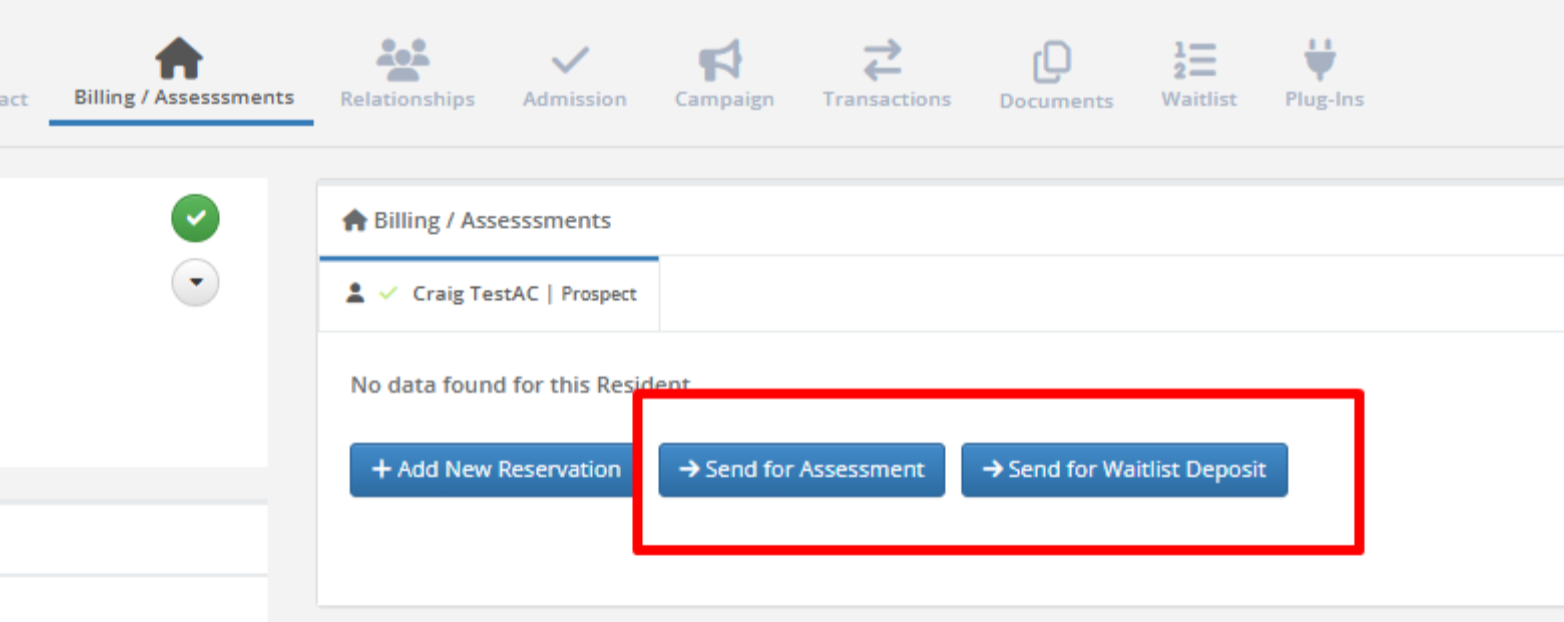
Users can select Send for Assessment to send the profile to Vitals for an assessment without creating a reservation. This action will also change the Prospect decision status to Assessment In Vitals.
Users can select Send for Waitlist Deposit to send the profile to Vitals in order to chart a deposit without creating a reservation. This action will also change the Prospect decision status to Waitlist In Vitals.
Troubleshooting
Fields: These must either be complete or deleted as partial entry's or "Null" will cause the integration to fail.
- Address
- Phone number
- Gender
- Email (Must be a valid email)
Relationship tab:
This tab must be filled out properly and define each contact on the prospects profile.
Was this article helpful?
That’s Great!
Thank you for your feedback
Sorry! We couldn't be helpful
Thank you for your feedback
Feedback sent
We appreciate your effort and will try to fix the article