TABLE OF CONTENTS
Overview
Aline CRM's integration with RealPage is a one-way integration allowing users to send individuals from Aline CRM to RealPage's OneSite product.
Setup
Step 1: Request ODE Prospect Management from RealPage
- In order for individuals to be sent to RealPage, "ODE - Prospect Management" must be enabled for each property where guest cards need to be inserted. Please reach out to your Real Page account manager to request the "ODE - Prospect Management" configuration. If this is already enabled, you do not need to reach out to your Real Page account manager.
Step 2: Creating a RealPage User with the SDE Manager Role
- To grant Aline CRM access to the prospect management web service in RealPage OneSite, you will need to create a new user with access to each Property needing the Integration (or All Properties). Once the user has been created, provide it the role of SDE Manager. This user, and its credentials, will be used in setting up the Aline CRM Plugins.
Step 3: Locating your RealPage Company and Property Ids
Log into your RealPage SDE Manager account and at the top left, click the RealPage icon (3 orange dots).

A new screen will pop-up showing you the Company OneSite ID Number and each Property OneSite ID Number. You will have to change Properties while inside RealPage to get the Property OneSite ID Number for each location wanting the Integration. These are needed for the next steps of setting up the Aline CRM Plugins.

Plugins
All integrations require an Aline CRM team member to complete setup of the Plugins. Please reach out to your Aline CRM Client Success Manager for further assistance.
Usage
Aline CRM can send a profile to RealPage with the following fields and their values.
| First Name* | Last Name* | Middle Name | Date of Birth* |
| Gender* | Home Phone | Mobile Phone | |
| Address Line 1* | Address Line 2 | City* | State* |
| Postal Code* | Comment | Market Source | Preferred Move In Date |
* - required to send an individual to RealPage.
* - While the address is not required to send, It must either be empty or complete.
Send an Individual from Aline CRM to RealPage
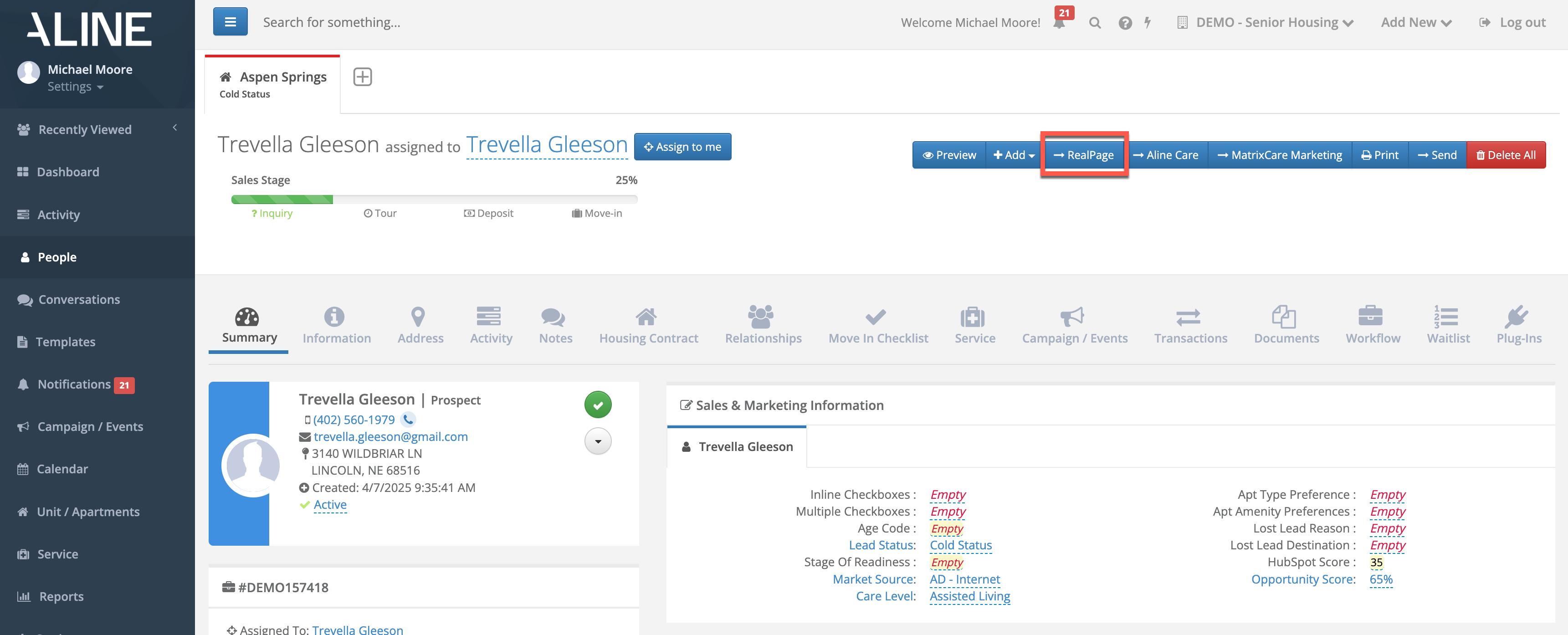
In the upper right section of the profile, select the blue button labeled RealPage. This will send the individual to RealPage with the above fields and their values.
Troubleshooting
The following are common causes for this integration to fail.
- While Address is not a required field it must either be complete or deleted.
- Anticipated move in date is not filled in
- Gender or Date of Birth is missing
- Null fields can cause failures
Was this article helpful?
That’s Great!
Thank you for your feedback
Sorry! We couldn't be helpful
Thank you for your feedback
Feedback sent
We appreciate your effort and will try to fix the article