Overview
In this article, we will review Caring.com integration with set up and how it works with the CRM.
Setup
Send an email to integrations.support@alineops.com and provide a list of the communities you would like to use with Caring.com. In order to use Caring.com, you must be an existing Caring.com member.
Note: When sending us a list of communities that you would like to use with Caring.com, please include the CommunityUnique name for each community. If you aren't sure where you can find this, follow our help desk article on locating your CommunityUnique name.
Caring.com and the CRM
Once Caring.com is set up to your environment leads will be pushed to your CRM dashboard to review. Keep in mind that email confirmation will still be emailed to the user.
Below are the fields that are pushed to the CRM from Caring.com.
Community Name
Individual Type
Primary Contact First Name
Primary Contact Last Name
Primary Contact Home Phone
Primary Contact Mobile Phone
Primary Contact Work Phone
Primary Contact Email
Prospect First Name
Prospect Last Name
Conversation notes from Caring rep.
Usage
Process Logic
- Caring does a test push first to locate if a duplicate already exists based on Matching Phone or Email. New referrals that have a duplicate found will be auto-rejected and no update will be added to the CRM.
- New leads are created via the Caring.com API user and will appear on CRM dashboard.
- Client should continue to receive emailed copies of each lead sent
- Enquire SL merge logic is used and will merge on any prior record based on matching Phone or Email for updates from Caring.
When a new lead is pushed to the CRM, it will be displayed on the dashboard like in the example below.
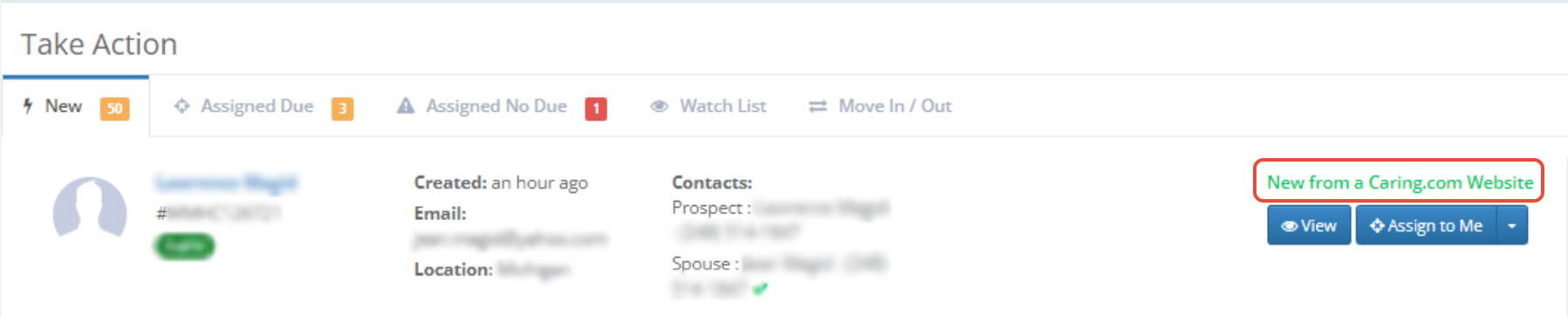
From the dashboard, the lead can be assigned to the user or the profile can be viewed by clicking the two blue buttons "View" or "Assign to Me".
Caring.com will send a referral activity to the leads profile to start the sale stage.
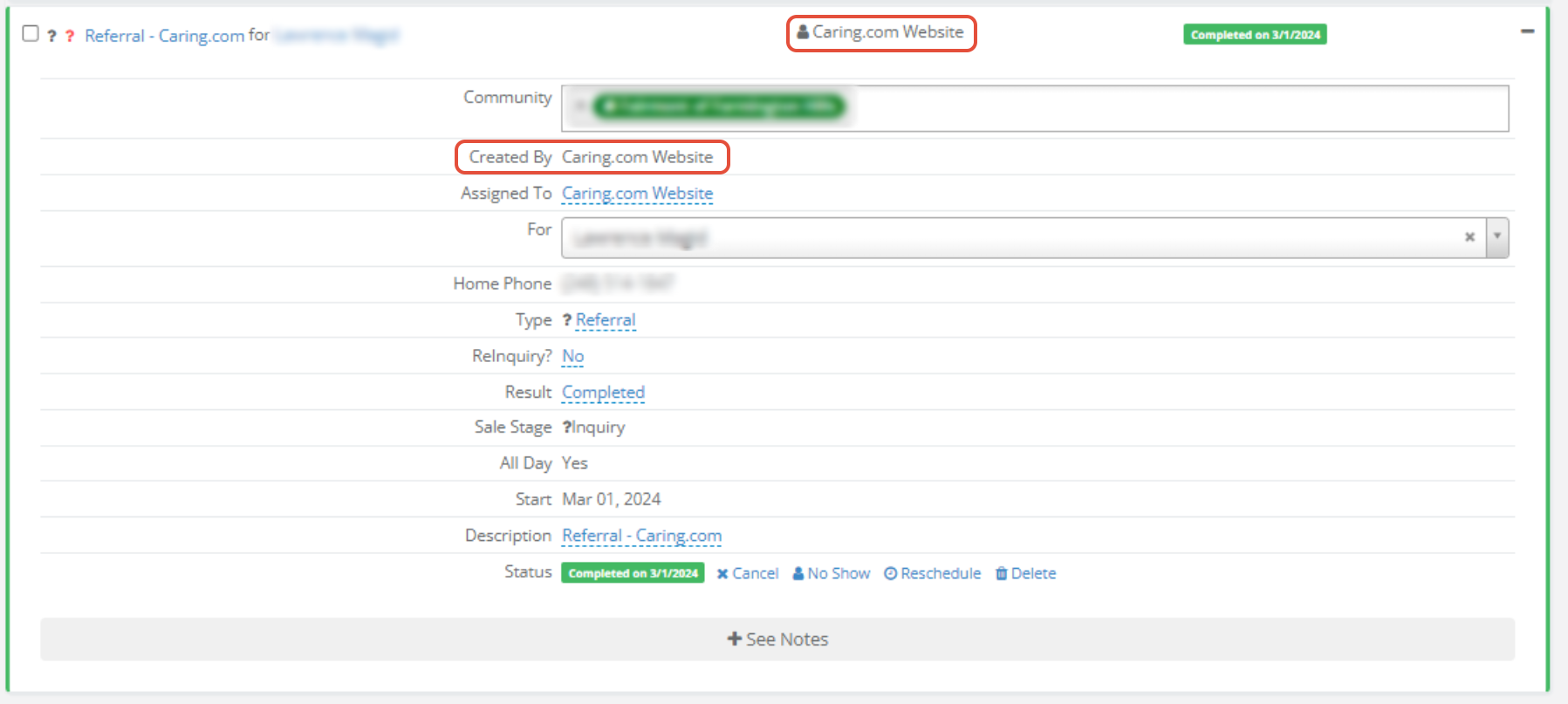
Note: If the lead is pushed again to the CRM, the referral activity will show on the leads profile, but the lead will not show on the dashboard again.
Was this article helpful?
That’s Great!
Thank you for your feedback
Sorry! We couldn't be helpful
Thank you for your feedback
Feedback sent
We appreciate your effort and will try to fix the article