Overview
In this article, we will review how to add and edit a prospect or a resident.
Adding a New Prospect or Resident
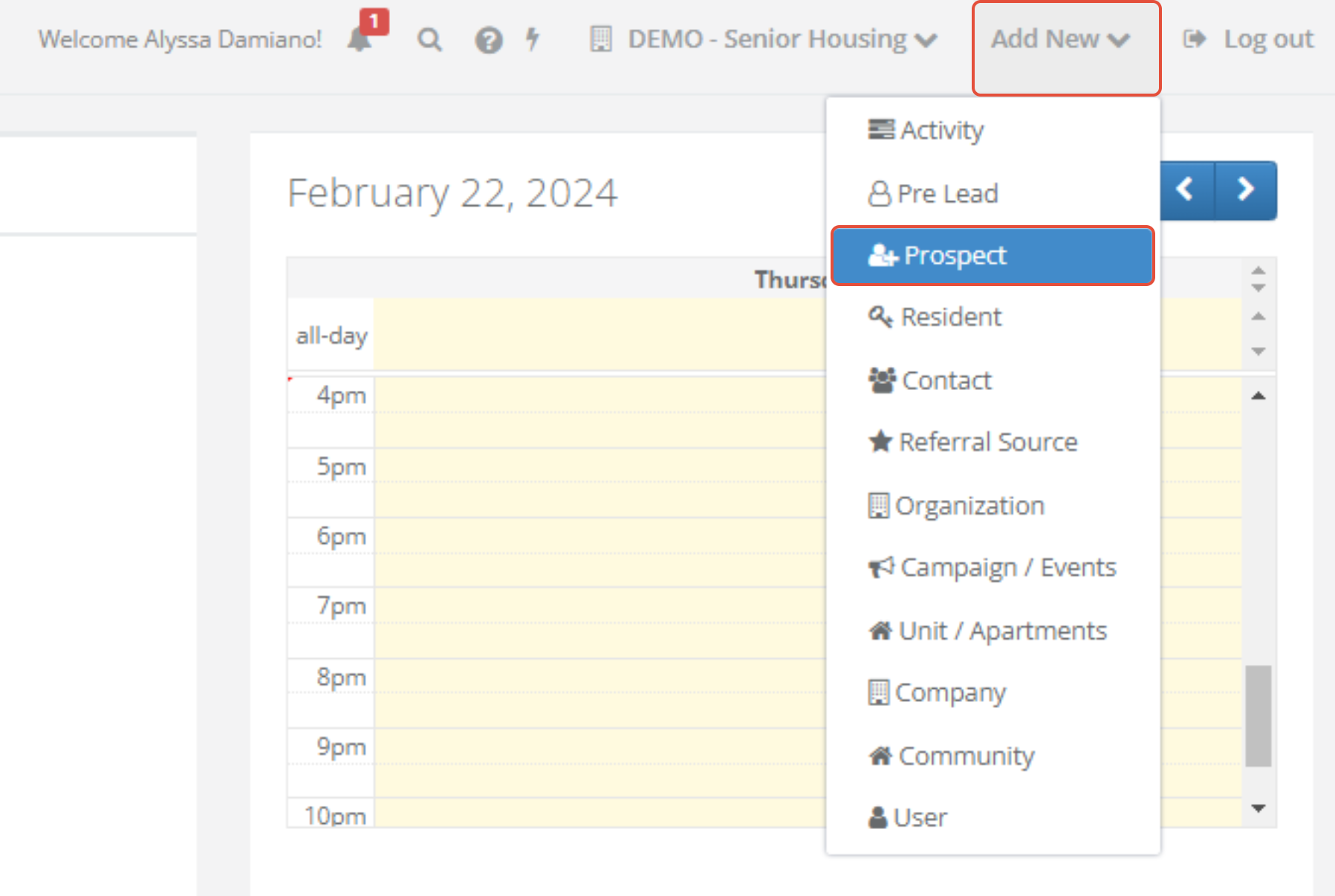
Step 1: Click Add New in the upper right. and click on Prospect
 Step 2: Fill out the Prospect form and click Add.
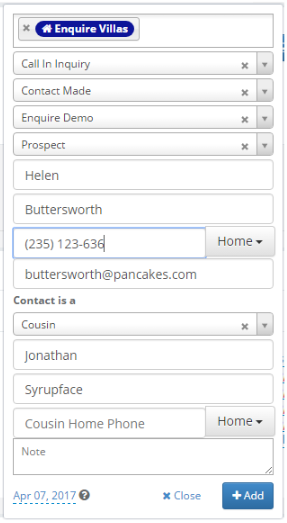
Step 3: Tap Save to create the individual
Editing a Prospect or Resident
Step 1: Navigate to the prospect profile you would like to edit.
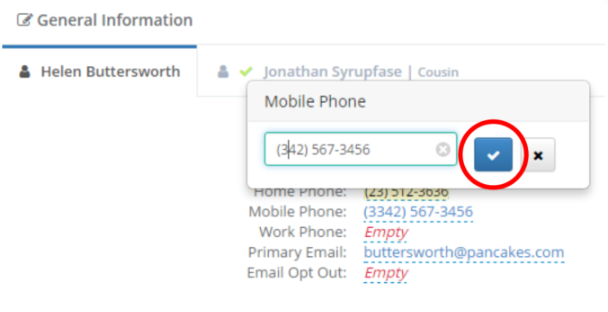
Step 2: Click on the value of the field you like to edit (Anything underlined with a blue dashed line can be edited). Step 3: Enter the information and click the blue check mark button to save any changes.
Clear a field's value
Text Field
Step 1: Navigate to the prospect profile you would like to edit and click into the field you would like to clear data from.
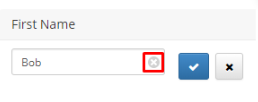
Step 2: For a text field, click the small grey "x" to the right or press your backspace/delete key to clear the text and click the blue check mark button to save.
Drop Down Field
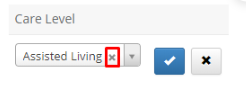
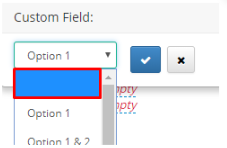
For a drop down, click the small grey "x" to the right and click the blue check mark button to save. If the drop down is a custom field, you will select the blank value at the top of the list.
FAQ's
What if I don't know the Prospect's name?
- We recommend using the relationship and last name of the contact as a place holder in the mean time. (ex: Friend Brown as the prospect)
What if I don't see the drop down option I am needing?
- Please reach out to your system admin to discuss adding the drop down option.
Was this article helpful?
That’s Great!
Thank you for your feedback
Sorry! We couldn't be helpful
Thank you for your feedback
Feedback sent
We appreciate your effort and will try to fix the article