Quick Overview
The following updates were released in July 2026:
- New Individual Duplication Detection
- One of the easiest ways to keep your CRM clean and accurate is by avoiding duplicate records. To help with this, Aline CRM now includes duplicate detection when creating new prospects and pre-leads.
Copy Activities Functionality
- Aline CRM now includes a Copy Activity feature within both the Log Activity and Schedule Activity workflows, helping reduce repetitive data entry and streamline activity management.
- Configurable Goals Dashboard Widgets
- Goals provide a powerful way to establish performance targets and monitor progress directly from your CRM dashboard.
Features and Functionality
New Individual Duplication Protection
One of the easiest ways to keep your CRM clean and accurate is by avoiding duplicate records. To help with this, Aline CRM now includes duplicate detection when creating new prospects and pre-leads.
Let's take a look at how it works.
To get started, select Add New and choose either Prospect, Pre-Lead, or Contact.
As you begin entering information into the form, Aline CRM will automatically check for existing records that may match the information you're entering.
Duplicate detection currently looks for matches based on:
- First Name and Last Name
- Email Address
- Phone Number
If a potential duplicate is found, a notification will appear directly within the Add New window.
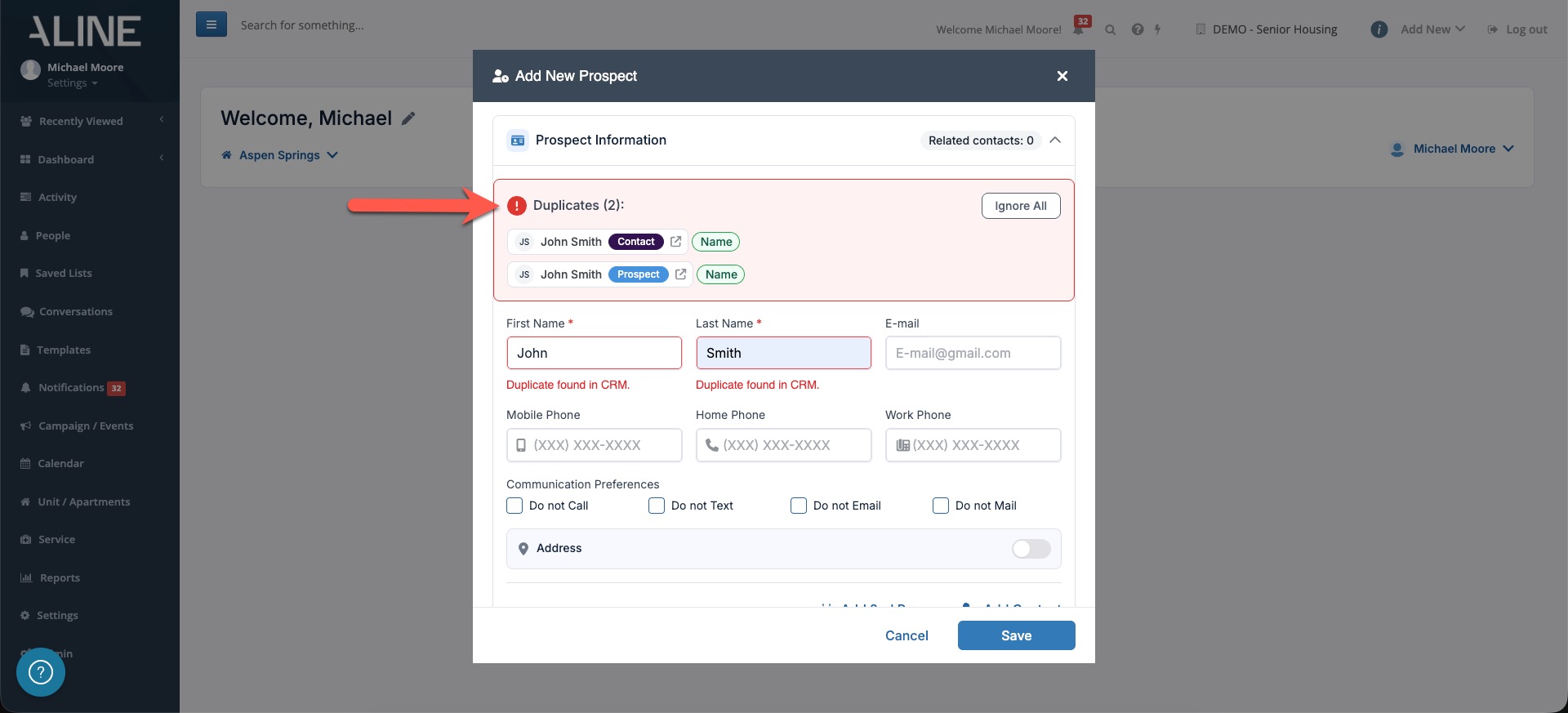
The duplicate detection panel will show you any existing individuals that match the information you've entered, along with details about what information matched. For example, you may see that one record matched based on name, while another matched based on a phone number.
If you'd like to investigate further, simply select the individual's name or the open icon. The existing record will open in a new browser tab, allowing you to review the information without losing your progress on the new record. After reviewing the existing record, you can decide whether you should continue creating a new prospect or work from the existing record instead.
It's important to note that duplicate detection does not prevent you from creating a new record. Its purpose is simply to alert you that a potential duplicate may already exist in the CRM.
You'll also notice an Ignore All option. Selecting Ignore All temporarily dismisses the duplicate notifications for the current record you're entering. However, no permanent action is taken. If the same matching information is entered again in the future, duplicate detection will continue to surface those potential matches.
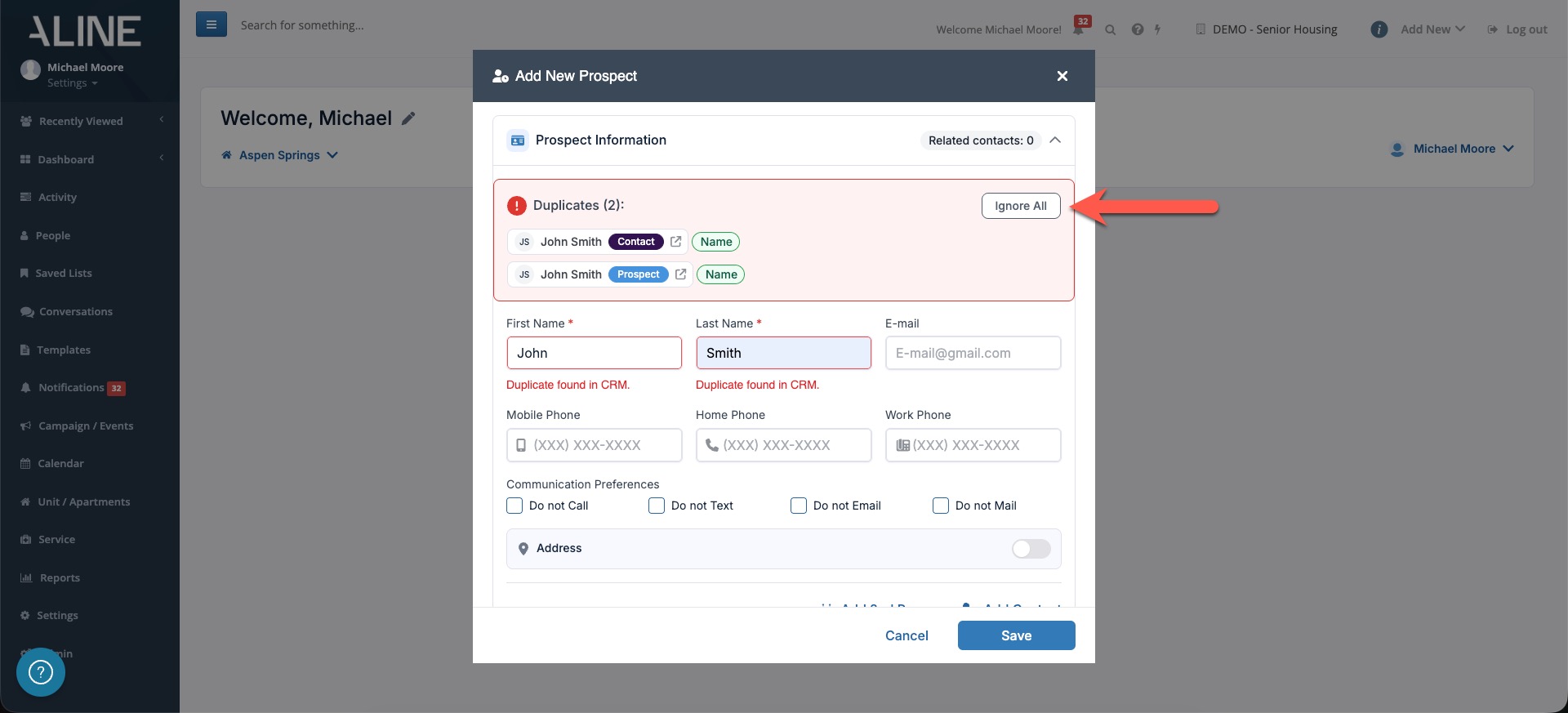
By taking a few seconds to review potential duplicates before creating a new prospect, you can help maintain cleaner data, improve reporting accuracy, and ensure your team has a complete picture of every prospect's journey.
And that's how easy it is to use Duplicate Detection when adding new prospects, contacts, and pre-leads in Aline CRM!
Copying Activities to Save Time
Creating similar activities for a prospect just got faster.
Aline CRM now includes a Copy Activity feature within both the Log Activity and Schedule Activity workflows, helping reduce repetitive data entry and streamline activity management.
Let's take a look at how it works.
When creating or reviewing an activity, you'll now see the option to Copy an existing activity.
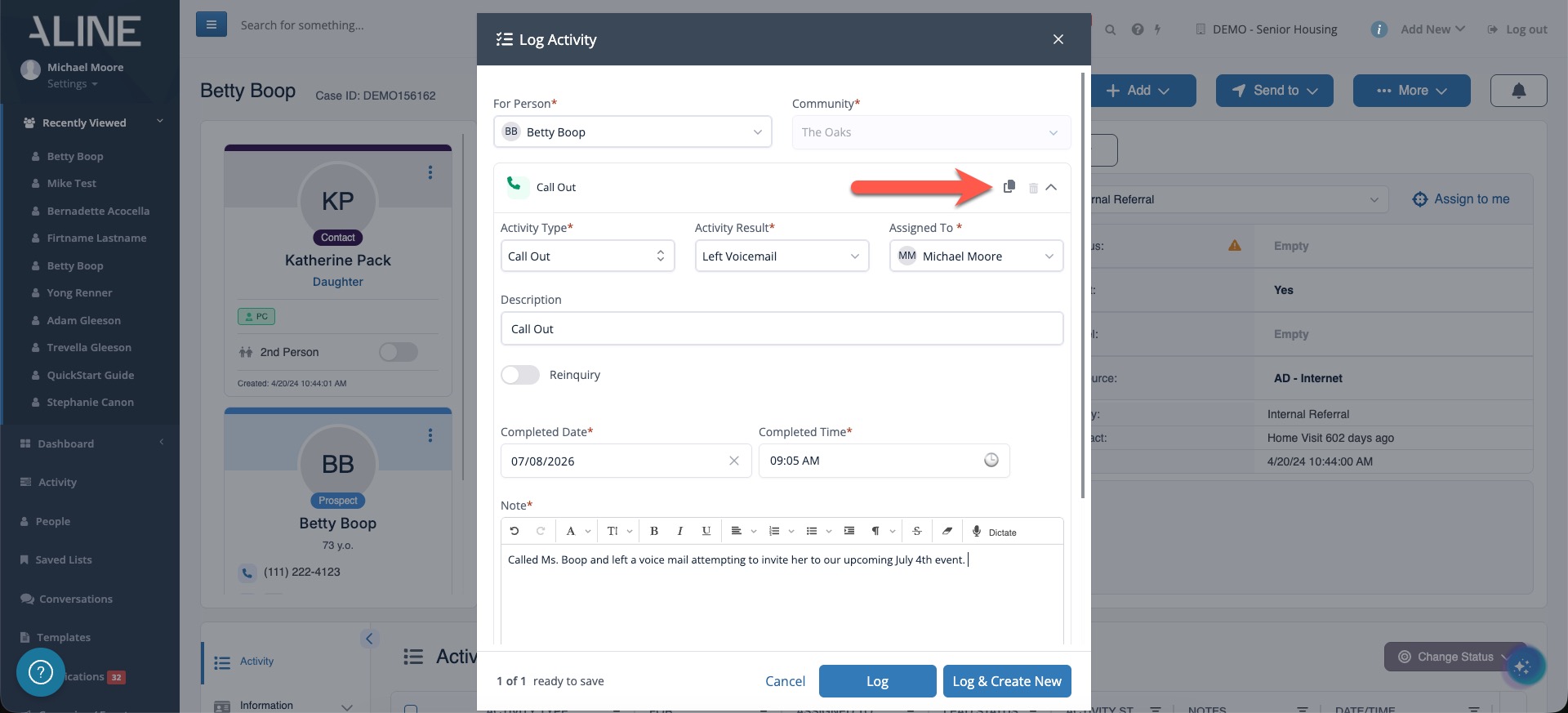
Selecting Copy automatically creates a new activity using the information from the original activity as a starting point.
This can be especially helpful when:
- Logging similar interactions
- Scheduling recurring follow-ups
- Creating activities that share the same details
- Saving time when working active prospects
To copy an activity:
- Locate the activity you'd like to use as a template.
- Select the Copy option.
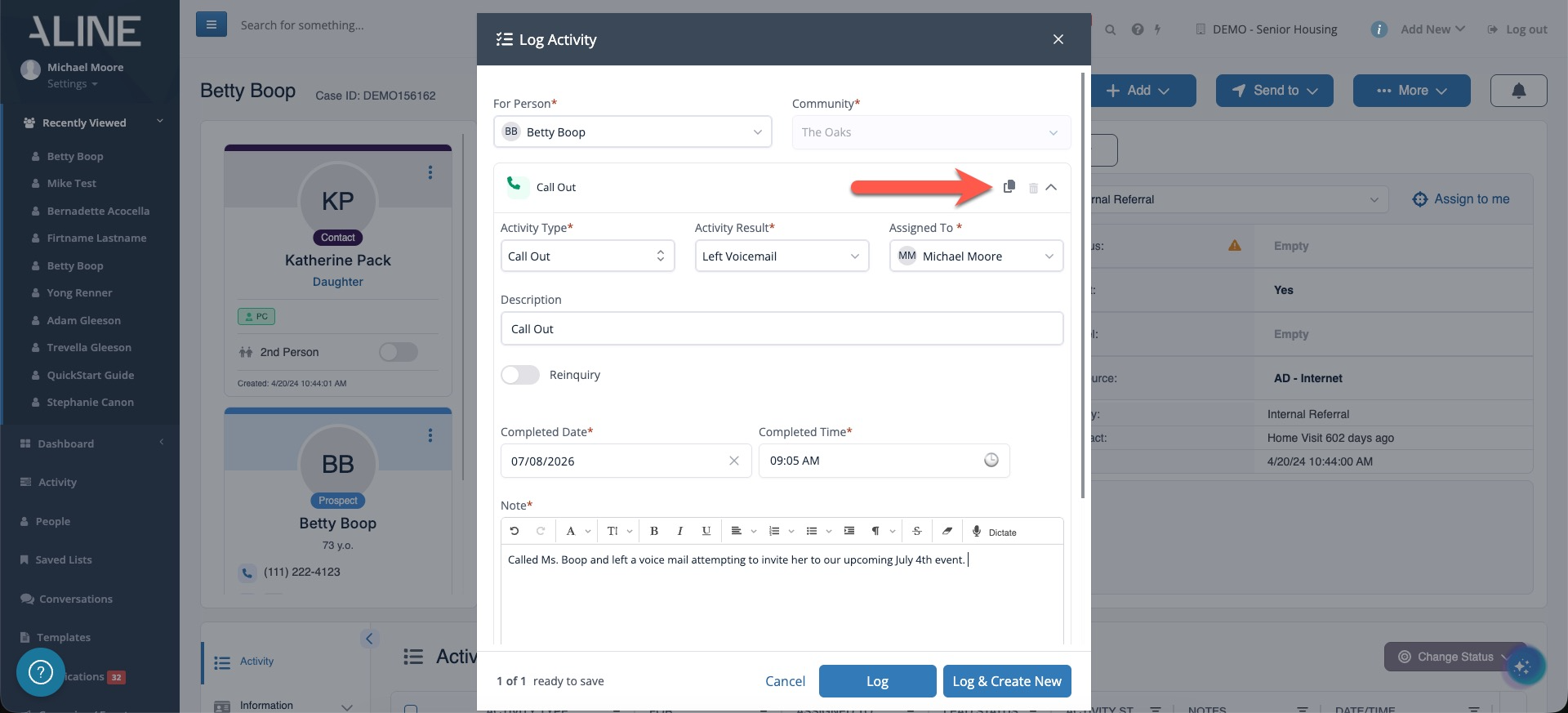
- Review the information that has been carried over.
- Make any necessary updates, such as the date, time, result, or notes.
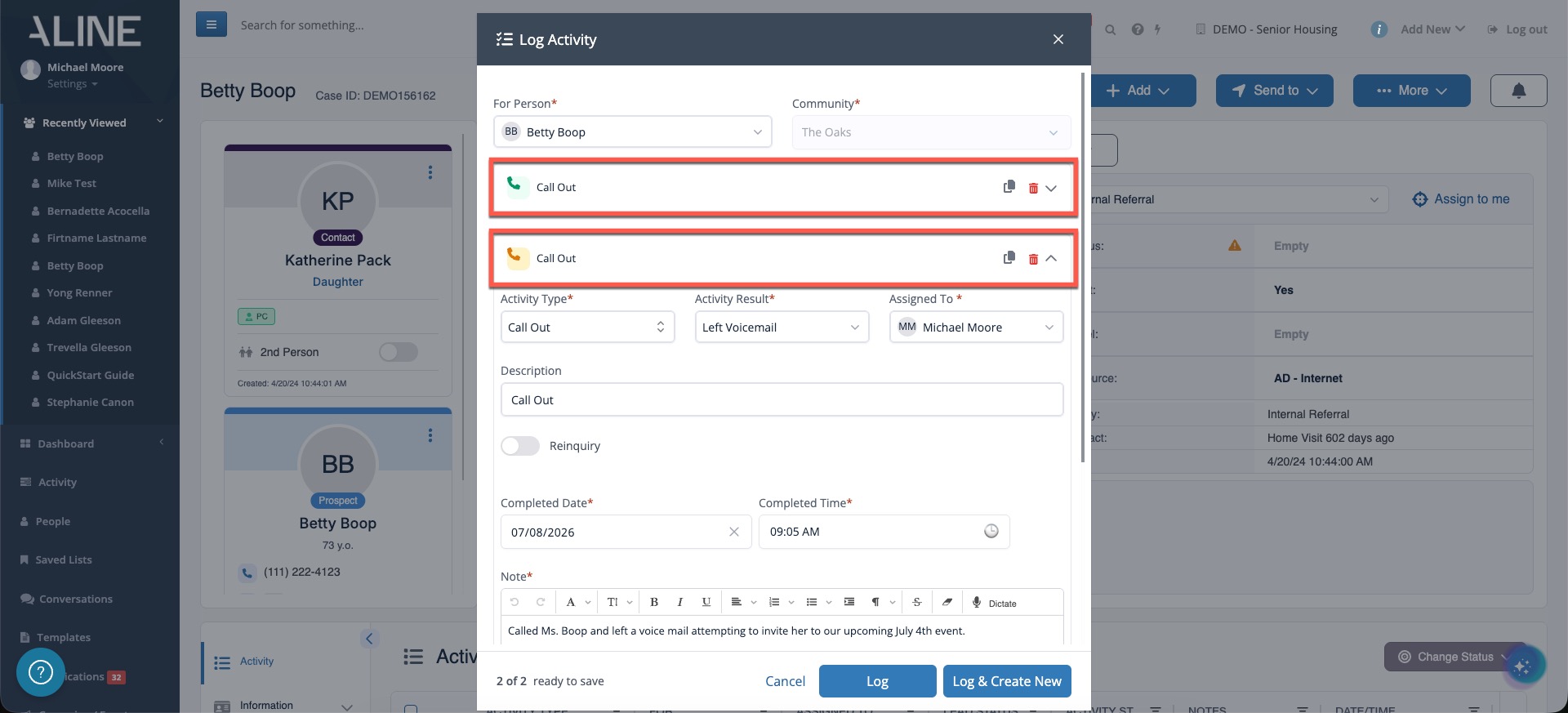
- Select Log or Schedule / Log & Create New or Schedule & Create New to save the activity.
The new activity will be created using the copied information while preserving the original activity record.
Best Practice: Before saving a copied activity, take a moment to review the details and ensure any dates, times, notes, or activity-specific information accurately reflect the new interaction.
Configuring Goals Widgets on the Dashboard
Goals provide a powerful way to establish performance targets and monitor progress directly from your CRM dashboard.
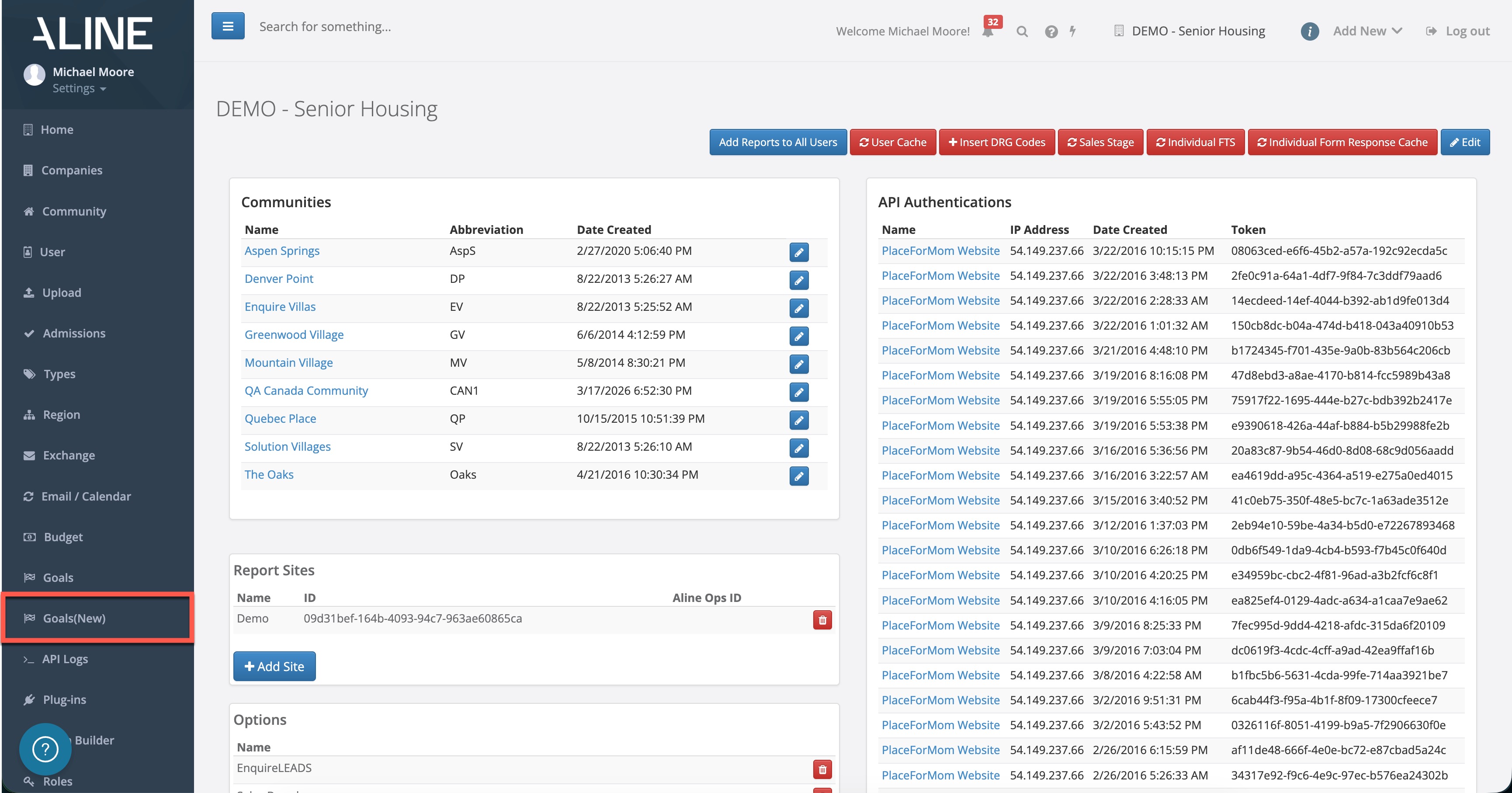
In this section, we'll review how to configure goals and explore where users can view goal progress throughout Aline CRM. To get started, the Goals page must first be enabled as a company option.
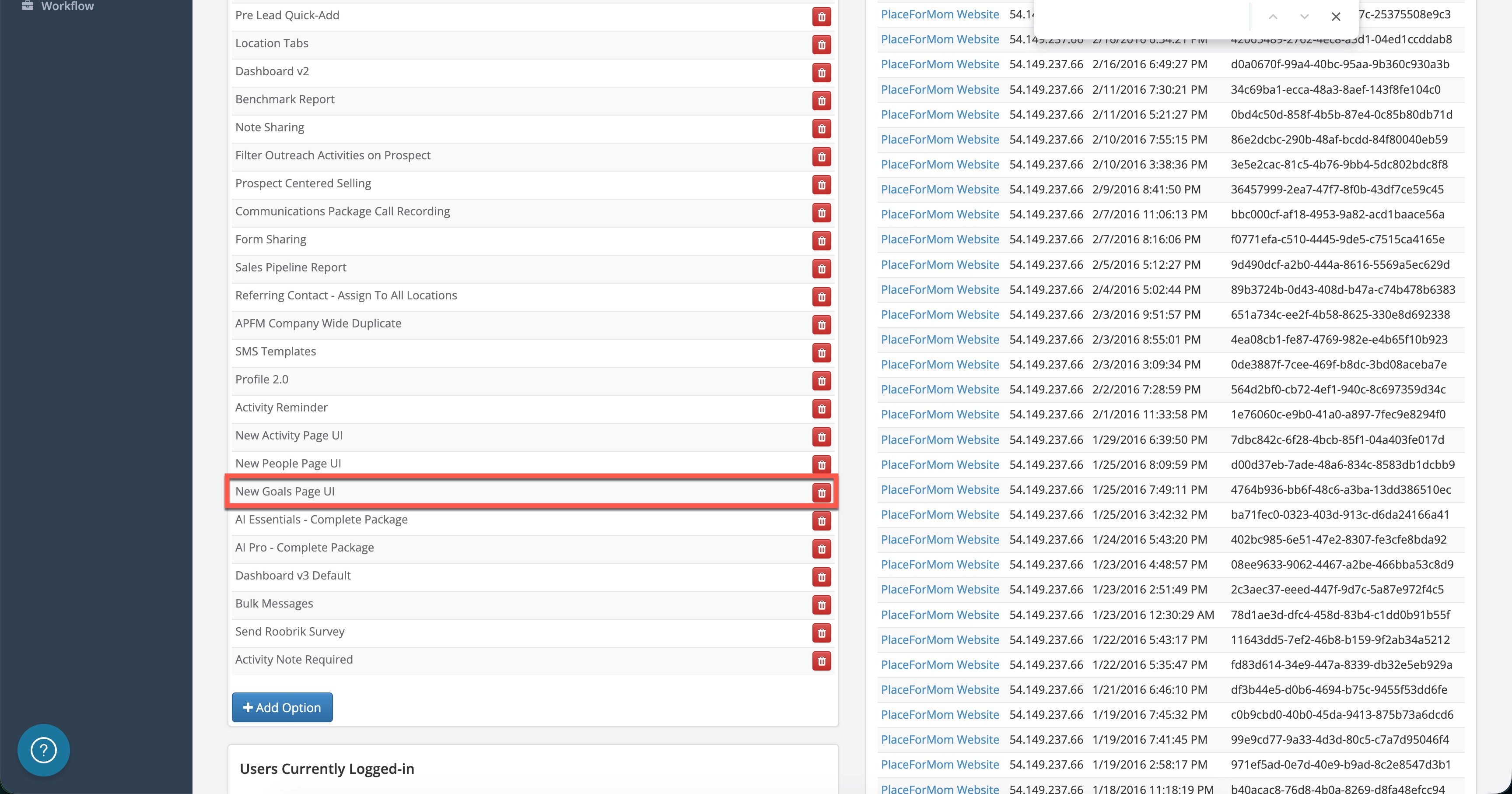
Once enabled, administrators will see a new Goals page available within Admin.
To create a goal, select Add Goal.
From here, you'll choose between:
- Activity Goals
- Performance Goals
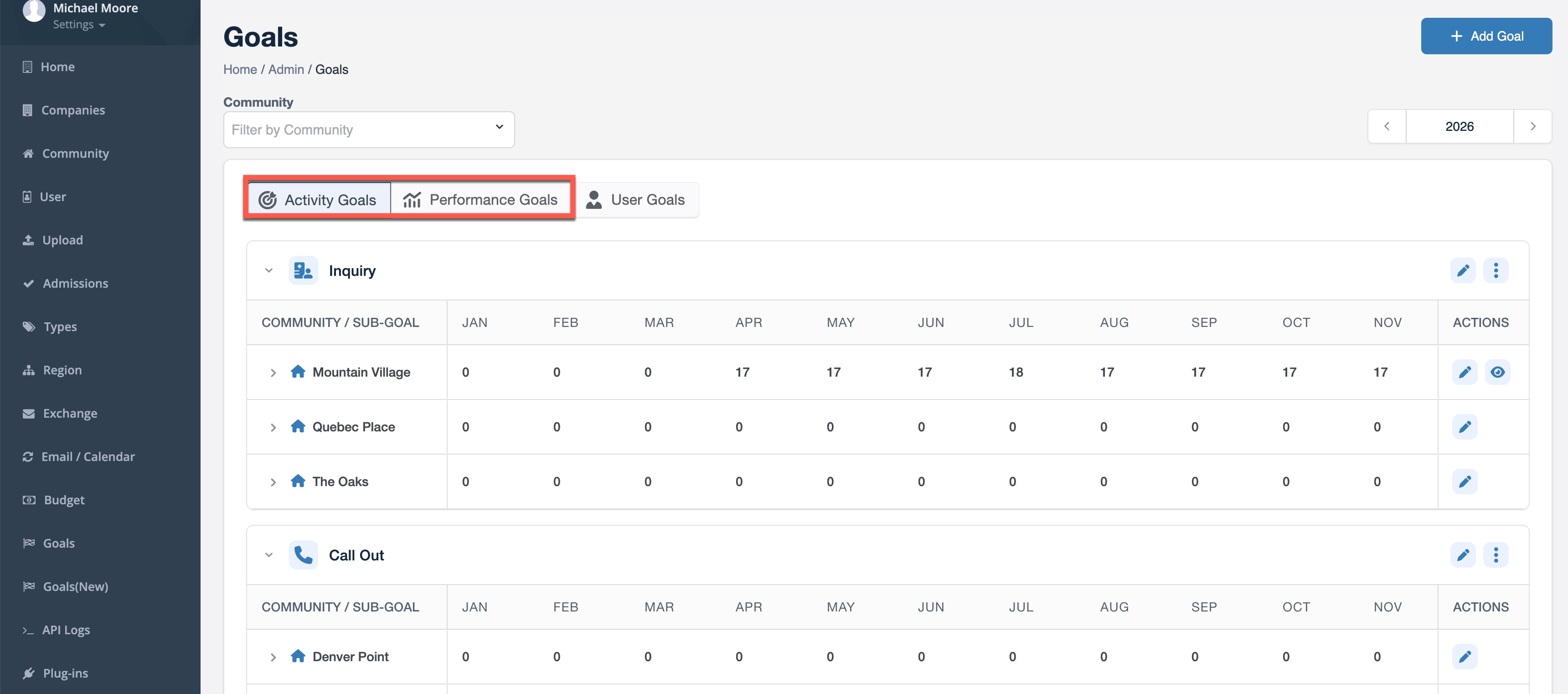
Activity Goals allow organizations to track specific activities, while Performance Goals support broader business objectives such as tours, occupancy, and Speed to Lead metrics.
After selecting a goal type, choose the communities and user roles that should be included.
Administrators can configure individual goals, manage sub-goals, hide or display specific categories, and control which users and communities participate in goal tracking.
Once goals have been configured, progress becomes visible throughout the CRM dashboard experience.
Depending on your organization's configuration, users may see progress toward:
- Speed to Lead
- Tour Goals
- Occupancy Goals
- Sales Summary Goals
- Community Performance Metrics
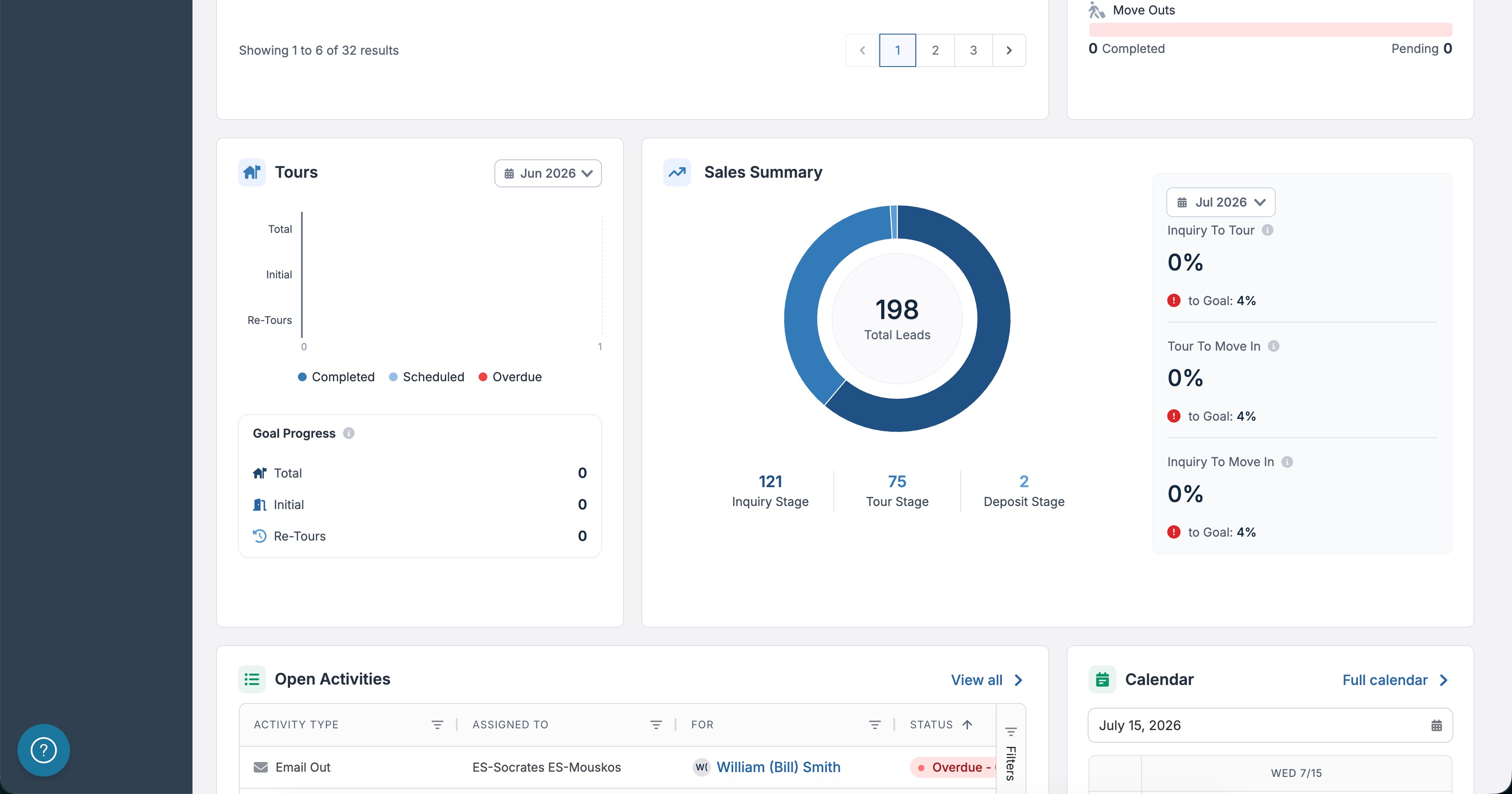
Administrators can also review progress at both the individual user and community level.
By establishing measurable goals and displaying progress directly within the dashboard, organizations can better align teams around key performance objectives and maintain visibility into sales performance.
And that's how easy it is to configure and monitor goals in Aline CRM!
QUESTIONS?
We're happy to help! Please reach out to our Aline Support Team:
- Click here to email our Support Team
- Click here to schedule a support call
Click the "back/menu" buttons to explore more Help Center articles
Was this article helpful?
That’s Great!
Thank you for your feedback
Sorry! We couldn't be helpful
Thank you for your feedback
Feedback sent
We appreciate your effort and will try to fix the article