Overview
The Profile Management feature allows users the ability to transfer data between individuals on the record. For example, when needing to swap the Prospect with the Contact on the same profile.
Some Common Case Scenarios Include:
- Contact Inquires on Behalf of a Prospect
- Prospect is Lost, but the Contact Remains a Prospect
- Primary Resident Moves Out, and the Secondary Resident Remains in the Unit
Reassigning the Prospect on the Record
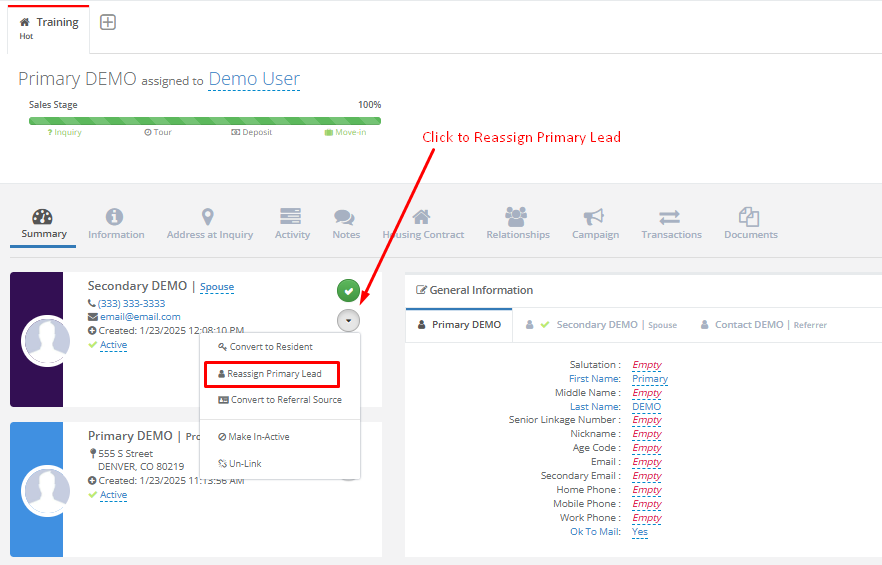
Step 1: Navigate to the Contact card you wish to Convert to a Prospect and click the Drop Down Arrow
Step 2: Select Reassign Primary Lead
Step 3: Update the Profile Management module with your desired selections
a. Select which Forms to Transfer to the New Prospect by clicking the appropriate check boxes
b. Use the drop down menu options to designate the additional Contacts' relationship to the New Prospect
c. Click Save to make the changes
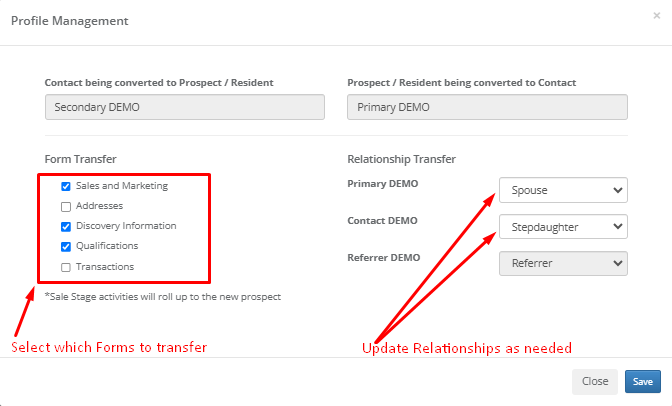
NOTE: The General Information form is excluded. Also, while Referring Contacts will display, the relationship type is not editable.
Results:
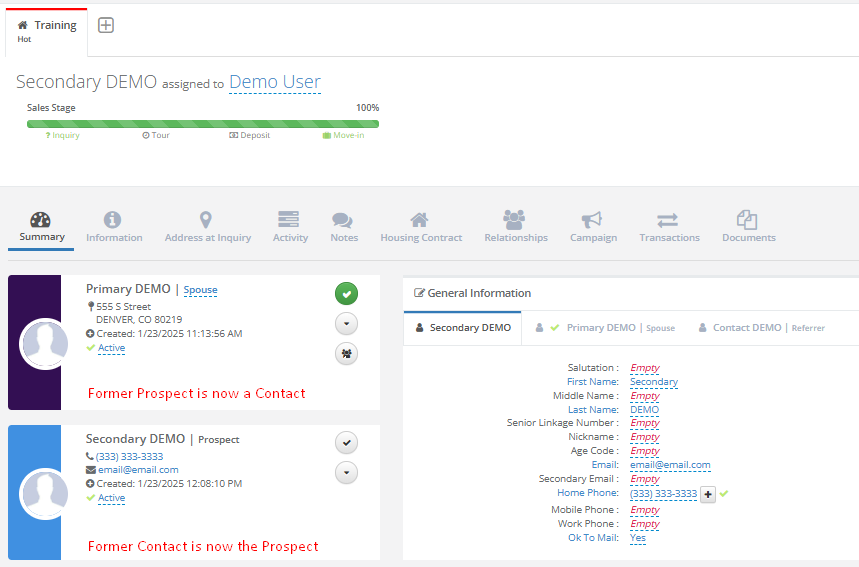
- The selected Contact and Prospect have been swapped
- Relationships have been updated
- The selected Forms and data are maintained and visible on the new Prospect
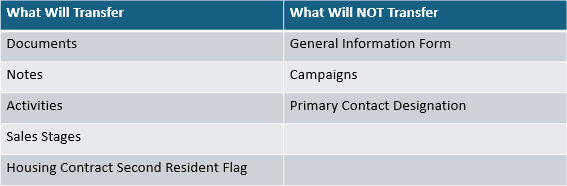
NOTE: Outside of Form Data, several Case Modules will by design transfer to the New Prospect. However, Individual Data will not. See below for a list of what will/will not transfer
Reassigning the Primary Resident on the Record
NOTE: The Primary Resident is the Individual that Displays at the top of the Profile and has the Resident designation on the business card. The Co-Resident is the Individual who has the relationship type next to his or her name.
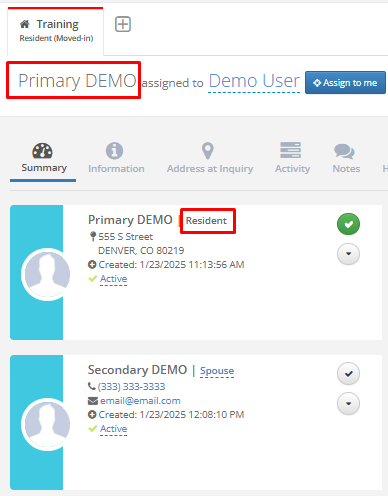
Step 1: Navigate to the Second Resident and click the Drop Down Arrow
Step 2: Select Reassign Primary Lead
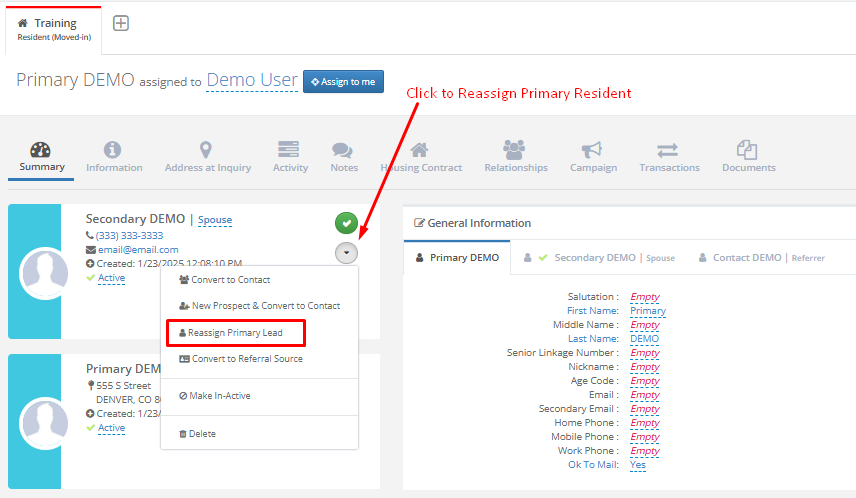
Step 3: Update the Profile Management module with your desired selections
a. Select which Forms to transfer to the new Primary Resident by clicking the appropriate check boxes
b. Use drop down menu options to designate the Contacts' relationship to the new Primary Resident
c. Click Save to make the changes
NOTE: The General Information form is excluded. Also, while Referring Contacts will display, the relationship type is not editable.
Results:
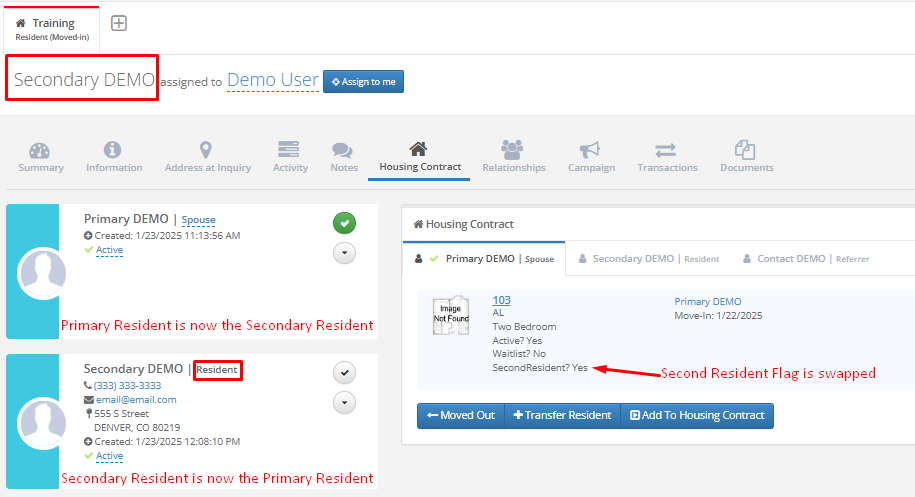
- The selected Primary and Secondary Residents have been swapped
- Relationships have been updated
- Selected Forms and data are maintained and visible on the new Primary Resident
- Second Resident Flag on the Housing Contracts have been swapped
- If you are needing to move out the new Second Resident from the Housing Contract, you can now do so at this point in the process
FAQ's:
Can my changes be undone?
Yes! If the wrong contact was chosen, or the incorrect Forms were selected, users can simply repeat the steps to convert back.
Example: If I forgot to select the Qualifications Form, I can simply click the Reassign Primary Lead option from the new Contact, reselect my forms, and click Save. The profile will be reverted back and the existing data will be present on the Qualifications Form.
Does the Contact have to have a Spouse Relationship type?
No. Any Contact on the profile can be converted to the New Prospect
Was this article helpful?
That’s Great!
Thank you for your feedback
Sorry! We couldn't be helpful
Thank you for your feedback
Feedback sent
We appreciate your effort and will try to fix the article