Overview
Click-to-Call lets you call a prospect, contact, or professional contact directly from their profile in Aline CRM, without dialing a phone manually. When you place a call, Aline calls your phone first. Once you answer and press any key, Aline connects you to the individual you're calling. Aline automatically logs the call as an activity on their profile, so there's nothing to enter manually afterward.
Don't have Click-to-Call set up yet? Contact Aline Support to get the Communications Package configured for your community.
This video also covers Click-to-Text and Call Recording & Transcription.
Before You Start
Each user must add a mobile phone number in their personal settings before they can place calls. This is the number Aline calls first to connect you to the individual you're dialing.
- Click Settings in the left-hand navigation bar.
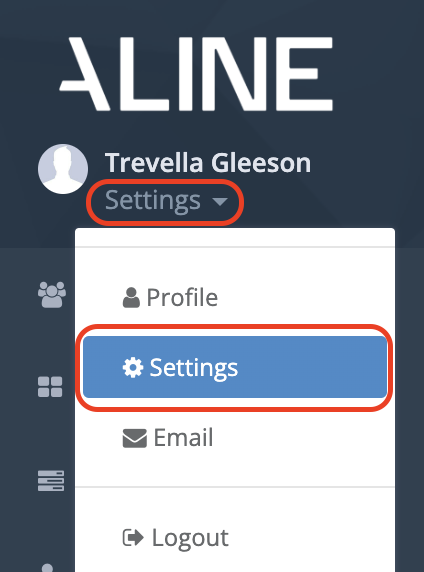
- On the Your Settings page, find the Mobile Phone field.
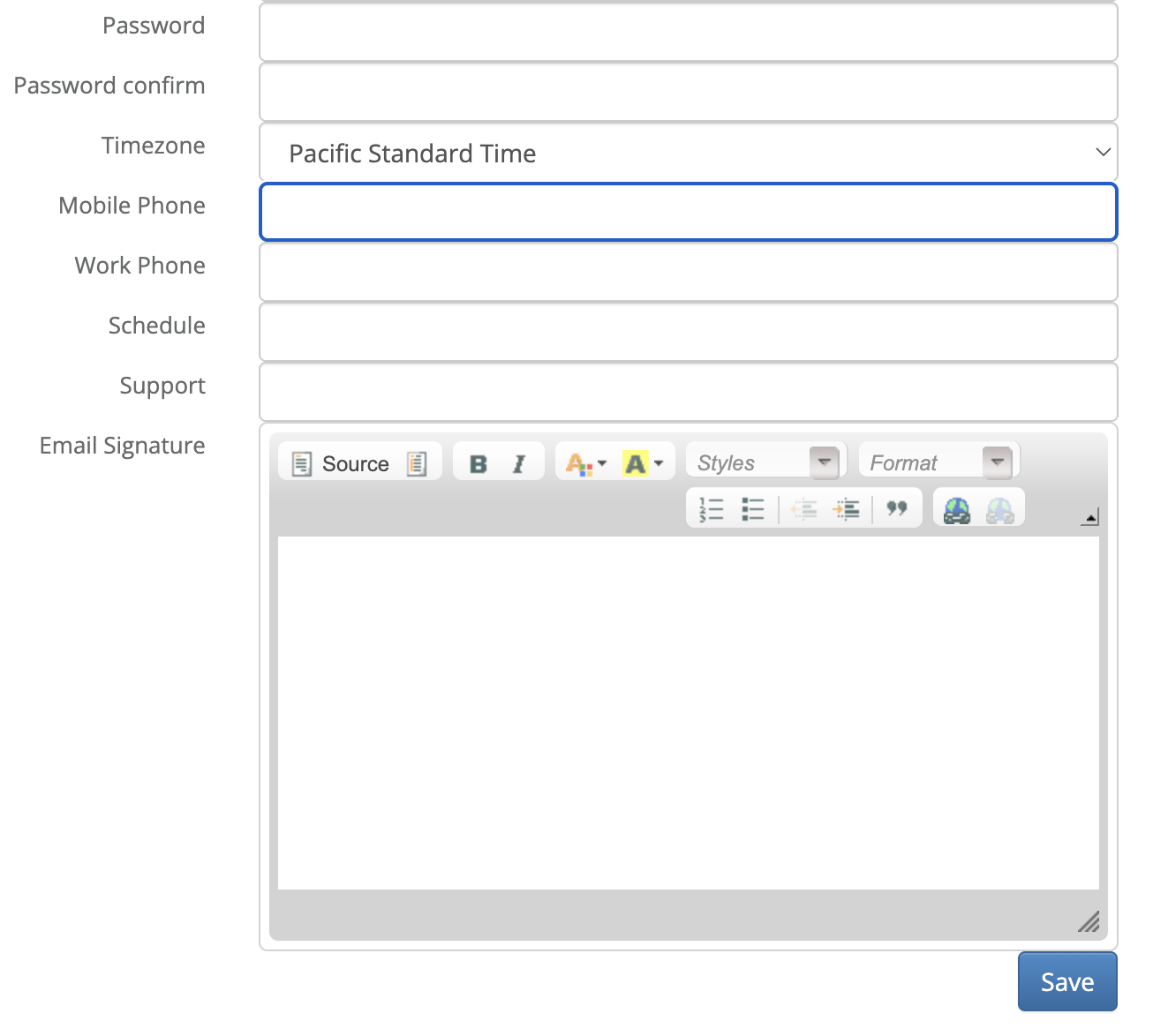
- Enter a direct phone number that reaches you personally.
- Save your changes.
Important: A number tied to a phone tree or auto-attendant menu won't work in this field. Use a direct line that reaches you personally. A work phone works well if you have one, but any direct number is fine.
If you leave this field blank, Click-to-Call won't work, and no error message appears when you try to place a call. If clicking the call icon does nothing, check this field first.
Placing a Call
- Navigate to any Prospect, Contact/Influencer, or Professional Contact record that has at least one phone number saved, and click the call icon next to the number.
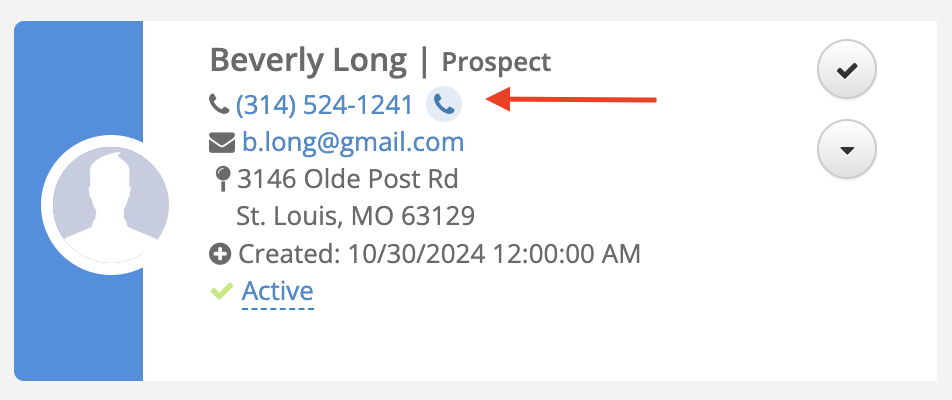
- Aline calls the phone number saved in your Mobile Phone field. When you answer, you'll hear: "Welcome to Aline Communications, press any digit to connect your call." Press any key on your phone's keypad to continue. If you don't press a key, the call ends automatically and Aline never dials the individual.
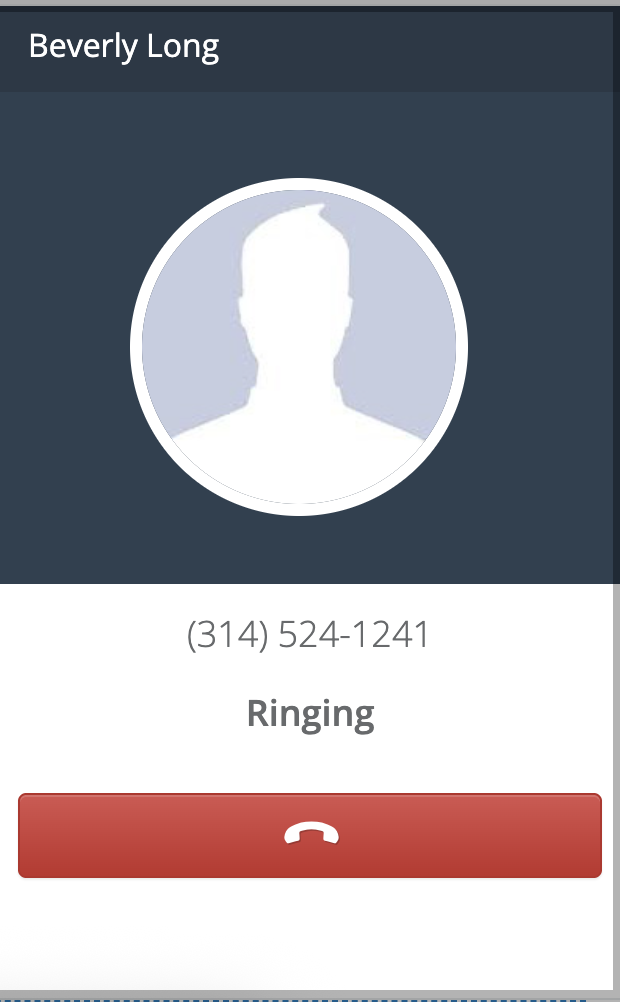
- Once you press a key, Aline dials the individual and connects both of you.
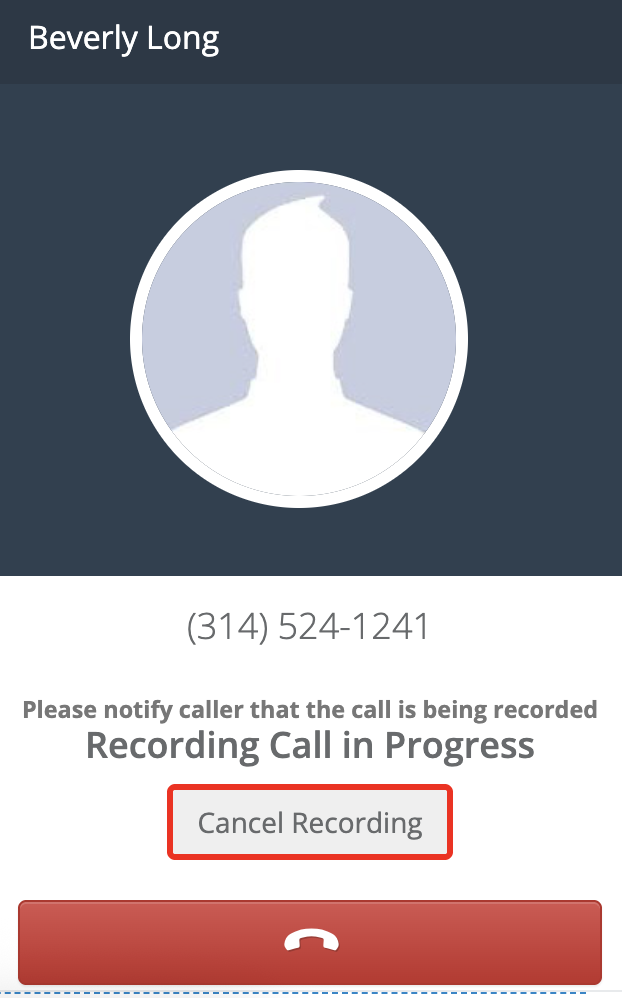
If your community has the Call Recording & Transcription add-on enabled, this call may be recorded automatically. You can cancel the recording at any point during the call. See Call Recording & Transcription for details.
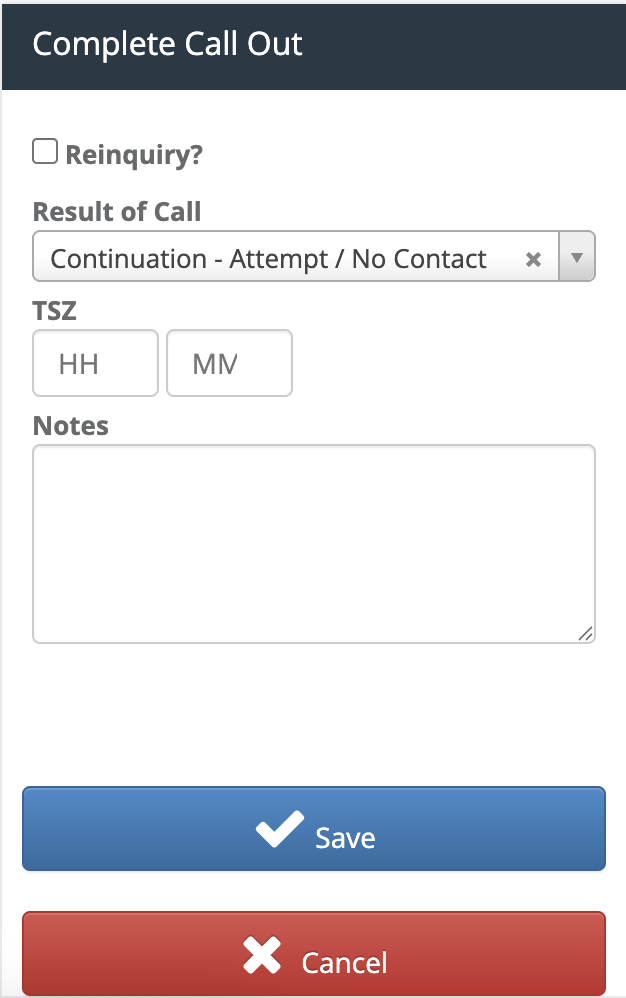
- When the call ends, a form appears in Aline. Select the outcome of the call and add any notes.
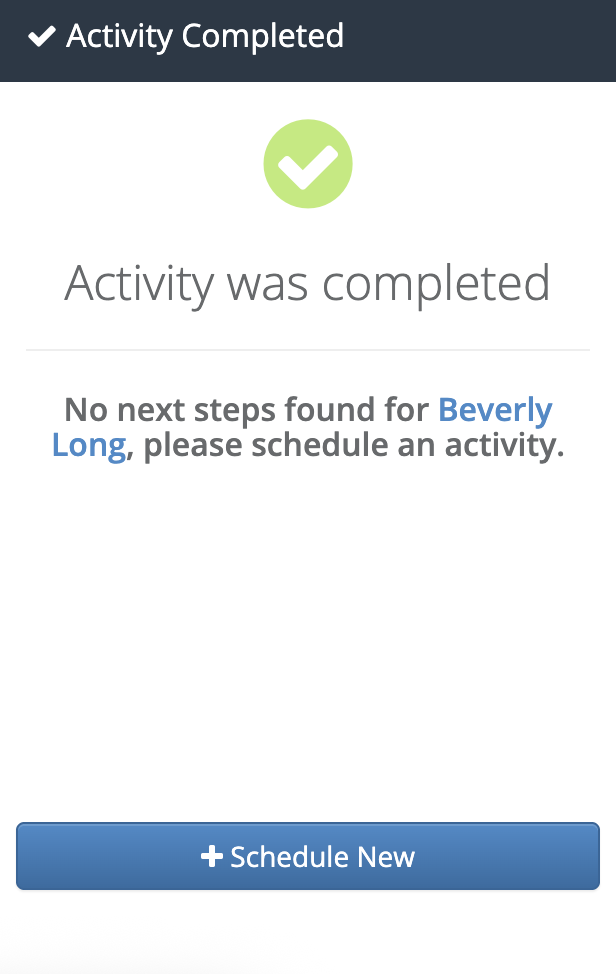
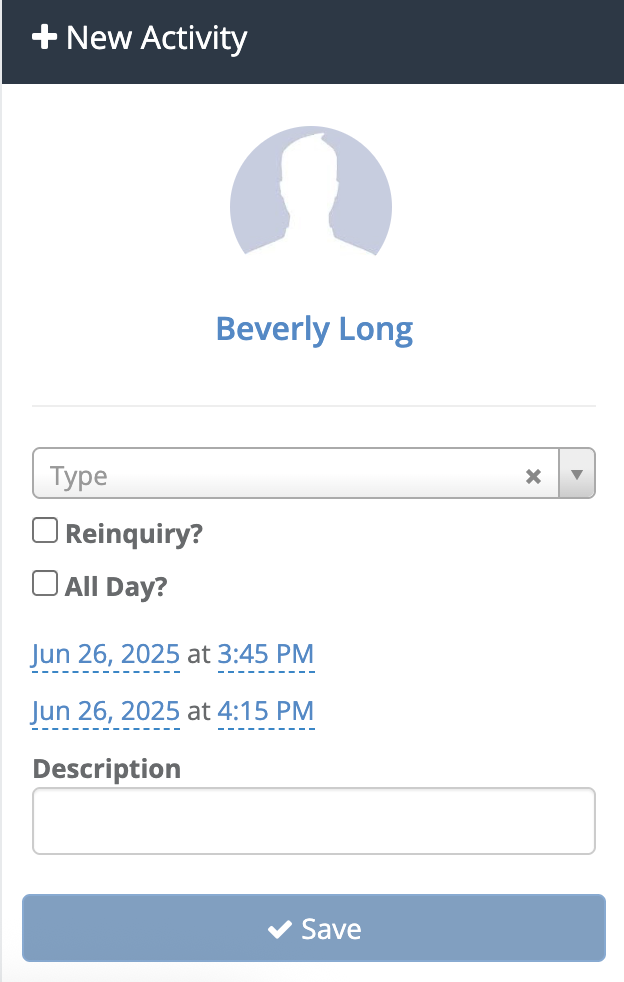
- If no next step is scheduled for this individual, Aline prompts you to schedule one. Click + Schedule New, fill in the details, and click Save.
- Aline automatically saves your call as an activity on the individual's profile, along with your notes, so there's nothing to log manually.
FAQ
Can each user set their own caller ID or callback number?
No. Callback numbers are set at the community level, not per user.
What caller ID will prospects see when I call them?
By default, we set up your community's Click-to-Call number so prospects see your community's own phone number, not a generic one. If you notice a different number showing up, contact Aline Support and we'll look into it.
Can I choose a specific area code for my community's Click-to-Call number?
A number is assigned automatically based on your community's zip code. Depending on your area, more than one area code may be available, or none may be available for that specific area code. If your community has caller ID set up so prospects see your own phone number (see above), the area code of the assigned number generally won't matter. If it's still a concern, contact Aline Support and we'll do what we can to accommodate your preference.
Nothing happens when I click the call icon. What's wrong?
Check that you've saved a Mobile Phone number in your personal Settings. Click-to-Call doesn't work without one, and no error message appears when the field is empty.
Was this article helpful?
That’s Great!
Thank you for your feedback
Sorry! We couldn't be helpful
Thank you for your feedback
Feedback sent
We appreciate your effort and will try to fix the article