Overview
In this article, we will review how to utilize the Click-to-Dial integration to call and text from the Aline CRM. Saving you time on inputting your calls or text message activities with those individuals at a later time.
Don't have the Click-to-Dial integration configured and interested in leveraging the Communications Package? Please reach our to our friendly Support Team for more details and/or to complete the initial set up.
Click-to-Dial/Text User Setup:
Step 1: To begin calling and texting from the CRM, each user will need to be independently set up to utilize the Communications Package. To get started, first navigate to your settings on the left-hand navigational bar and select Settings:
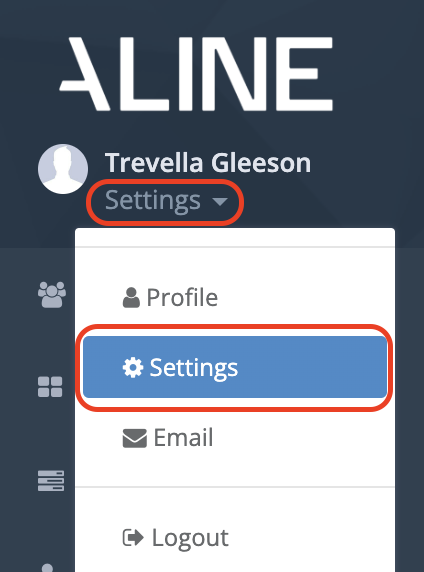
Step 2: This will take you to Your Settings page. In the box where it says “Mobile Phone” you will add the preferred dial-out phone number you want to link to the Communications Package.
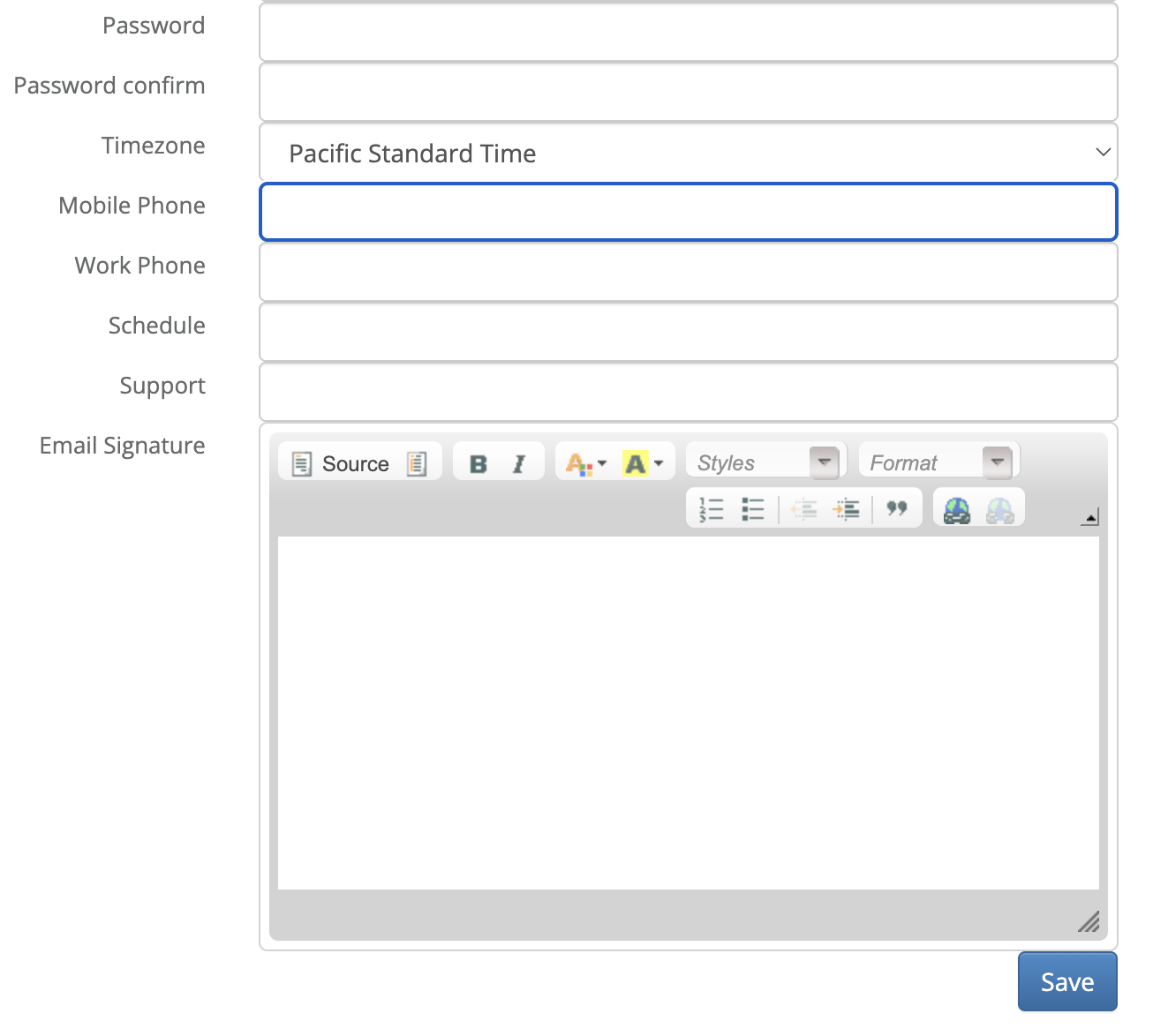
Important Note - Lines with phone trees will not work in this field, the phone number must be a direct line to reach the user for each call out. If you have a work phone, we would recommend using those, however, any number will do.
Using Click-to-Call:
The click-to-call workflow provides the following features:
- Call icon button alongside each Prospect, Contact/Influencer, and Professional Contact's phone number to initiate a new voice conversation.
- Option to record the conversation to then receive a call recording, transcription, and AI generated summary of the phone call (if enabled at the company level)
- Option to enter notes after your conversation has ended
- Automatically record the activity on the profile, eliminating manual activity logging.
To place a call in Aline, do the following:
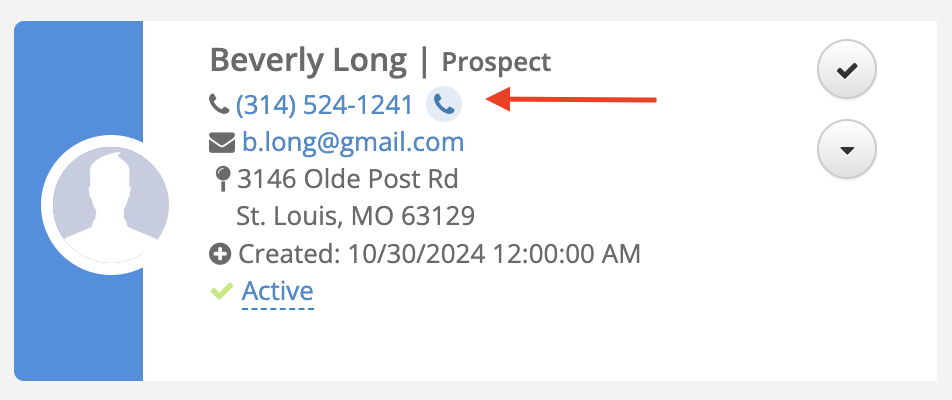
Step 1: Navigate to any Prospect, Contact/Influencer, or Professional Contact that has at least one available phone number, and click the phone icon as indicated in the below example:
Step 2: Aline's Click-to-Call form will appear and you will receive an automated call on the mobile number specified in your user settings. Once answered, Aline will playback the following automated message: “Welcome to Aline communications, press any digit to connect your call” if it does not receive a digit after a period of time, the automated machine will announce “ending your call” and the call will be ended.
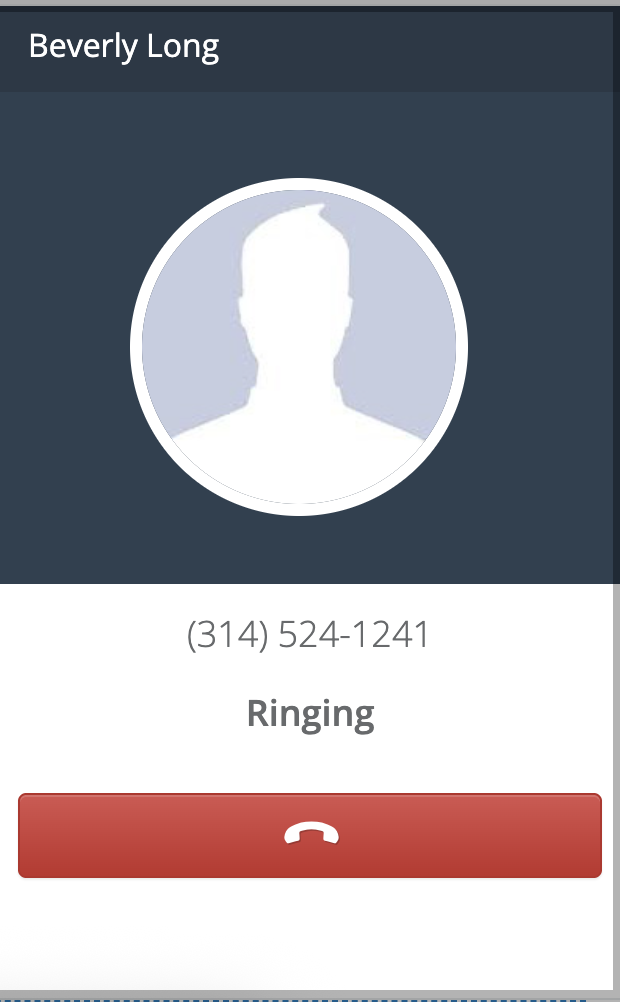
Step 3: If a digit was successfully pressed, it will then automatically connect to you the number you are attempting to dial.
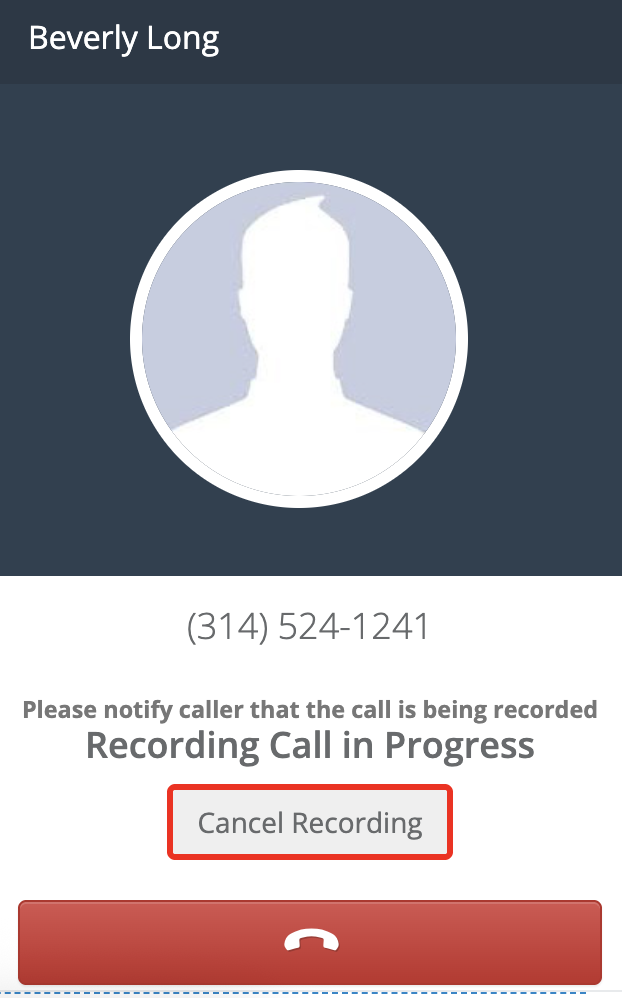
Note: If you have the call recording company option turned on, it will automatically begin recording the phone call. You can choose to cancel the recording at any point during the duration of the call.
Step 4: After the call is commenced, you will see the pop-up update to allow you to complete the Call Out activity. It will automatically default to the result of the call (attempt or contacted), please update as necessary. Be sure to input your Time in the Selling Zone (applicable only to customers leverage the PCS Template), and add any relevant notes to the activity.
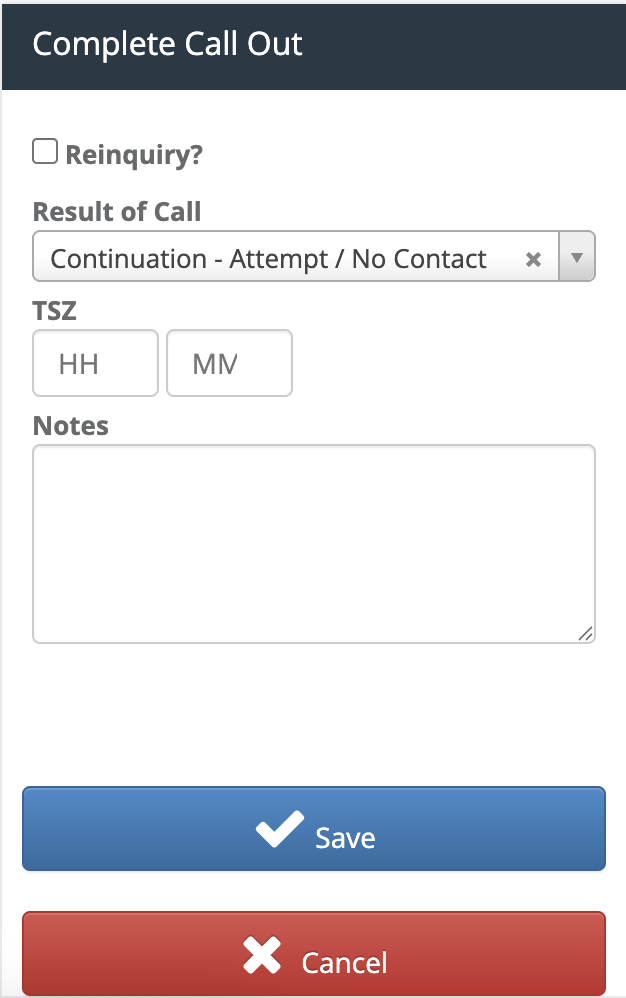
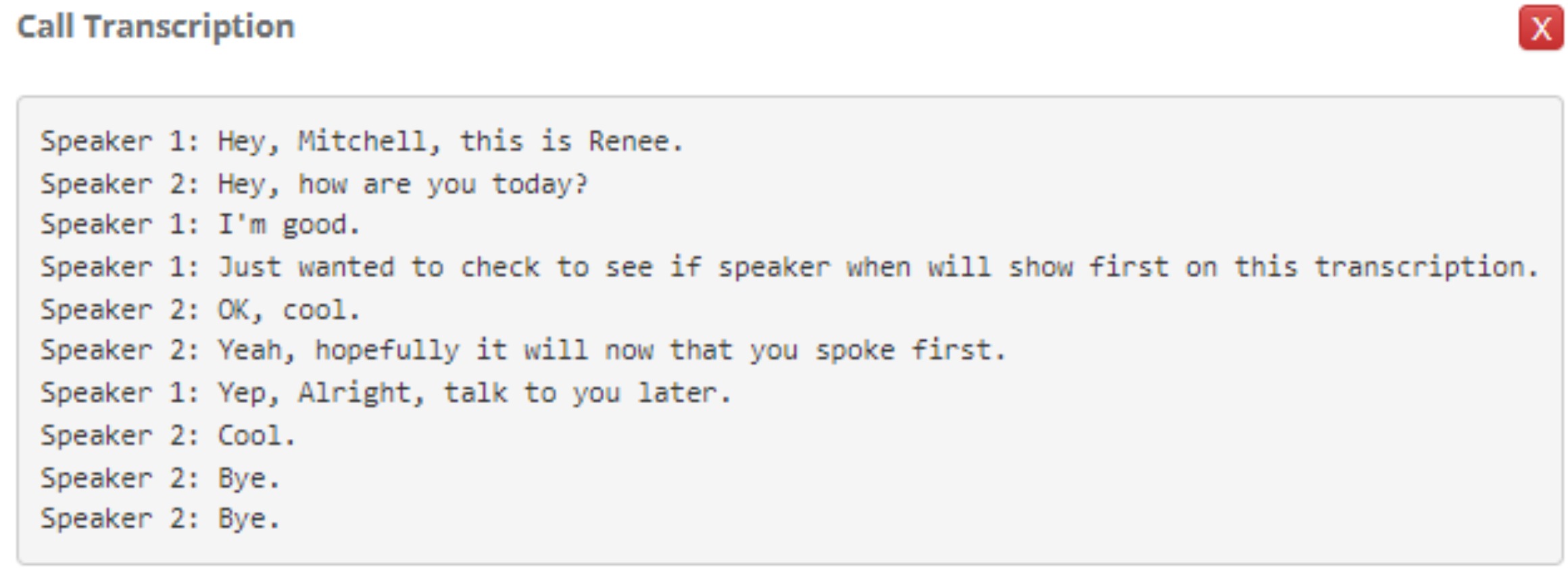
Note: If leveraging the call recording feature, it will automatically create a transcription and AI-generated summary of the phone call for you.
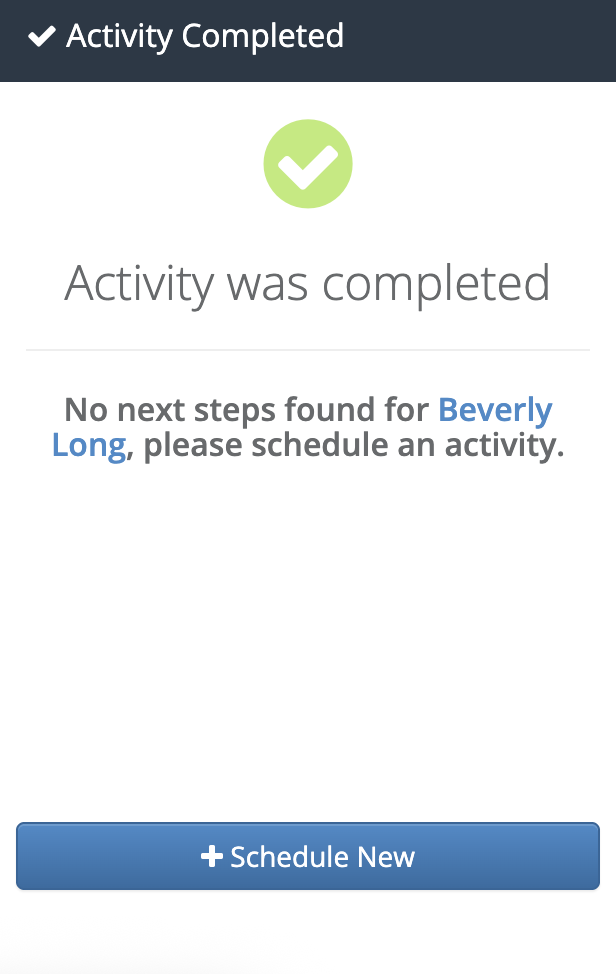
Step 5: If no next steps were found for this prospect, it may prompt you to schedule a new activity. To do so, click +Schedule New and fill in the activity details. Once done, click Save.
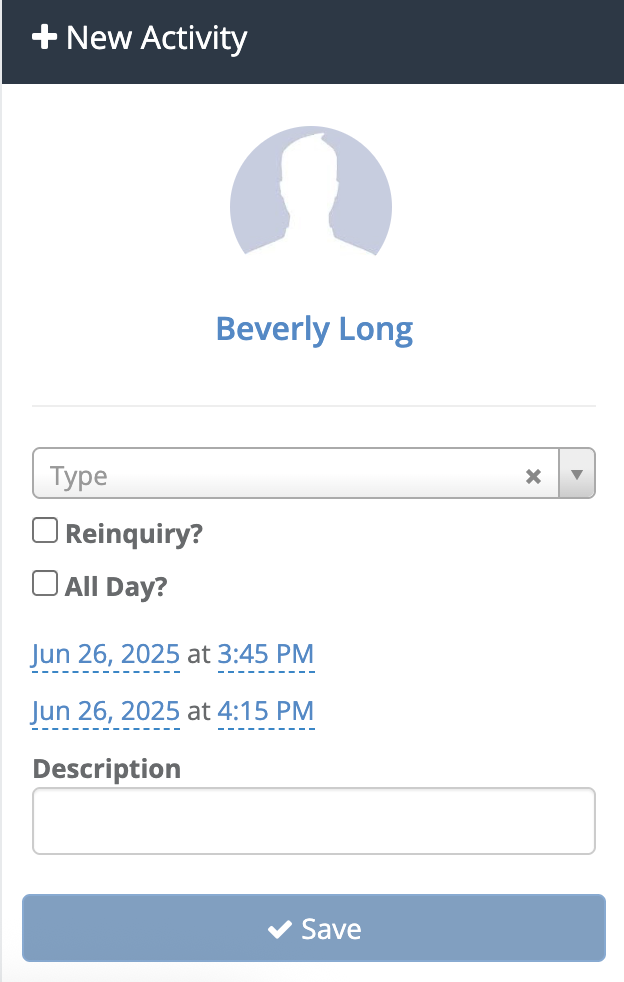
Step 6: Your Call Out will be automatically recorded as an activity on the Prospect profile. If leveraging the call recording feature, this activity will have the recording, transcription and AI generated summary within the activity details. Please note that if the call is not recorded, a transcription or summary will not generate on the activity.
Activity Details:
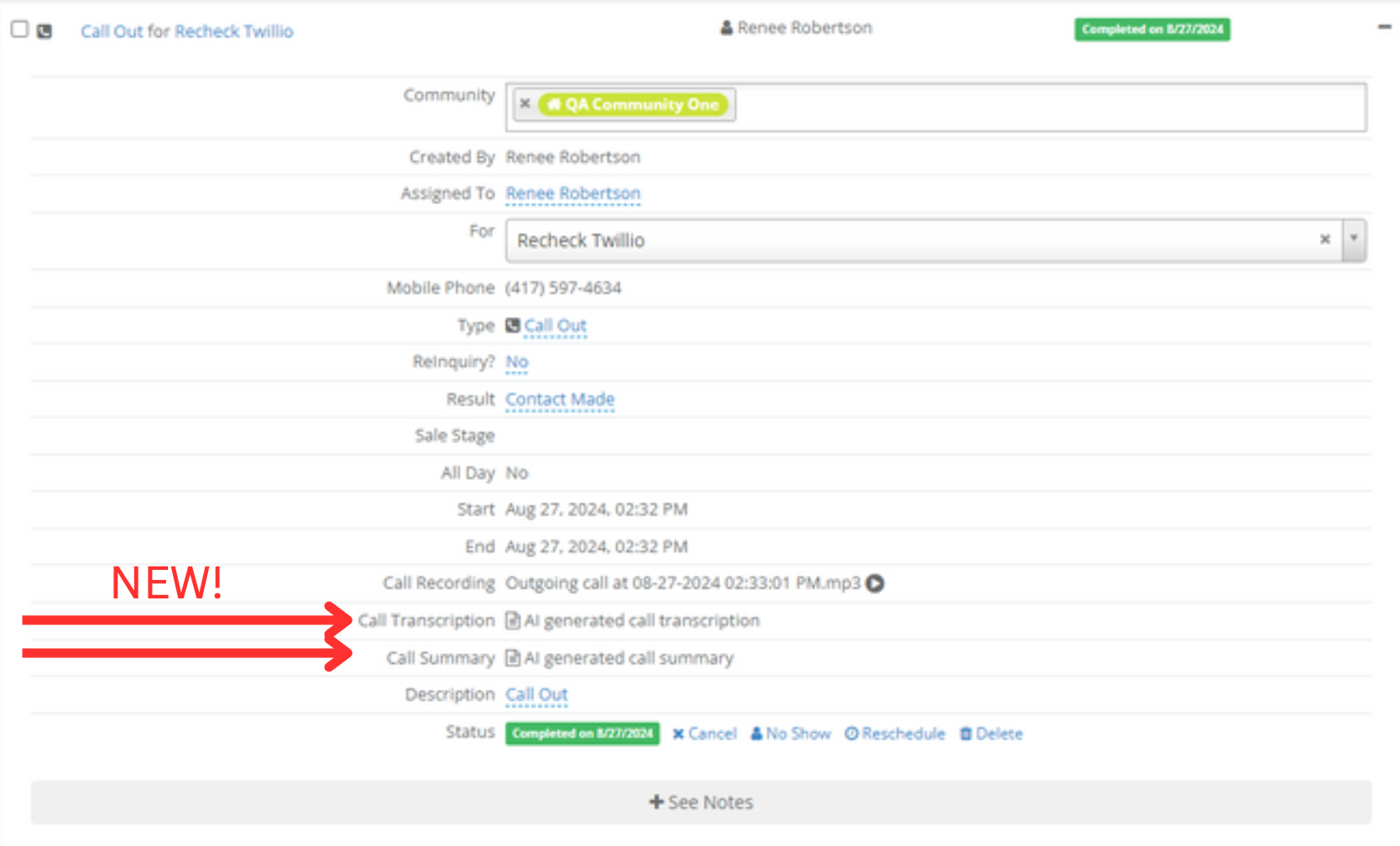
Call Transcription:
Call Summary:

Using the Click-to-Text Feature:
The click-to-text workflow provides the following features:
- Message bubble icon button alongside each Prospect, Contact/Influencer, and Professional Contact's mobile phone number to initiate a new text conversation
- CRM notifications for incoming text messages
- Conversation thread hosted in the Conversations section of the CRM
- Push notifications available via the mobile app
- Automatically record the activity on the profile, eliminating manual activity logging.
To send a text in Aline, do the following:
Step 1: Navigate to any Prospect, Contact/Influencer, or Professional Contact that has a mobile phone number, and click the message bubble icon as indicated in the below example:
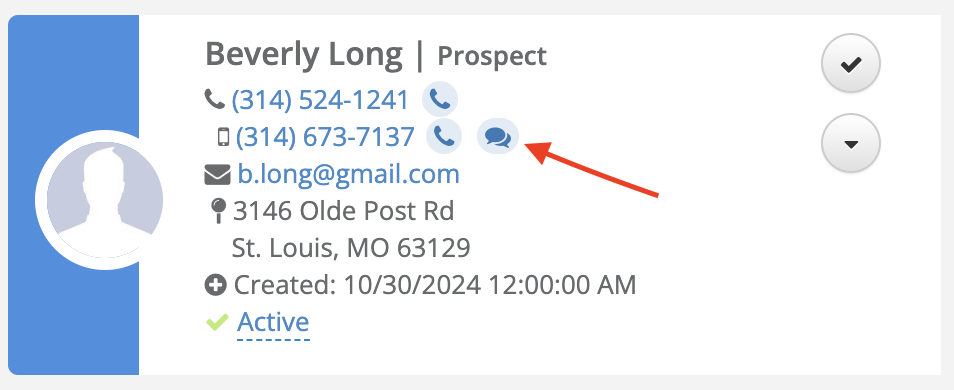
Note: To have a text conversation with a Prospect, Contact/Influencer, or Professional Contact, you must be the Assigned User to that individual. If you are not the Assigned User, you will still have the capability to use the Click-to-Call feature.
Step 2: Clicking the message bubble icon will redirect to Aline's Conversations page. This is where you can then start your new message. Type out your message in the "Start a new message" field and click Send once completed.
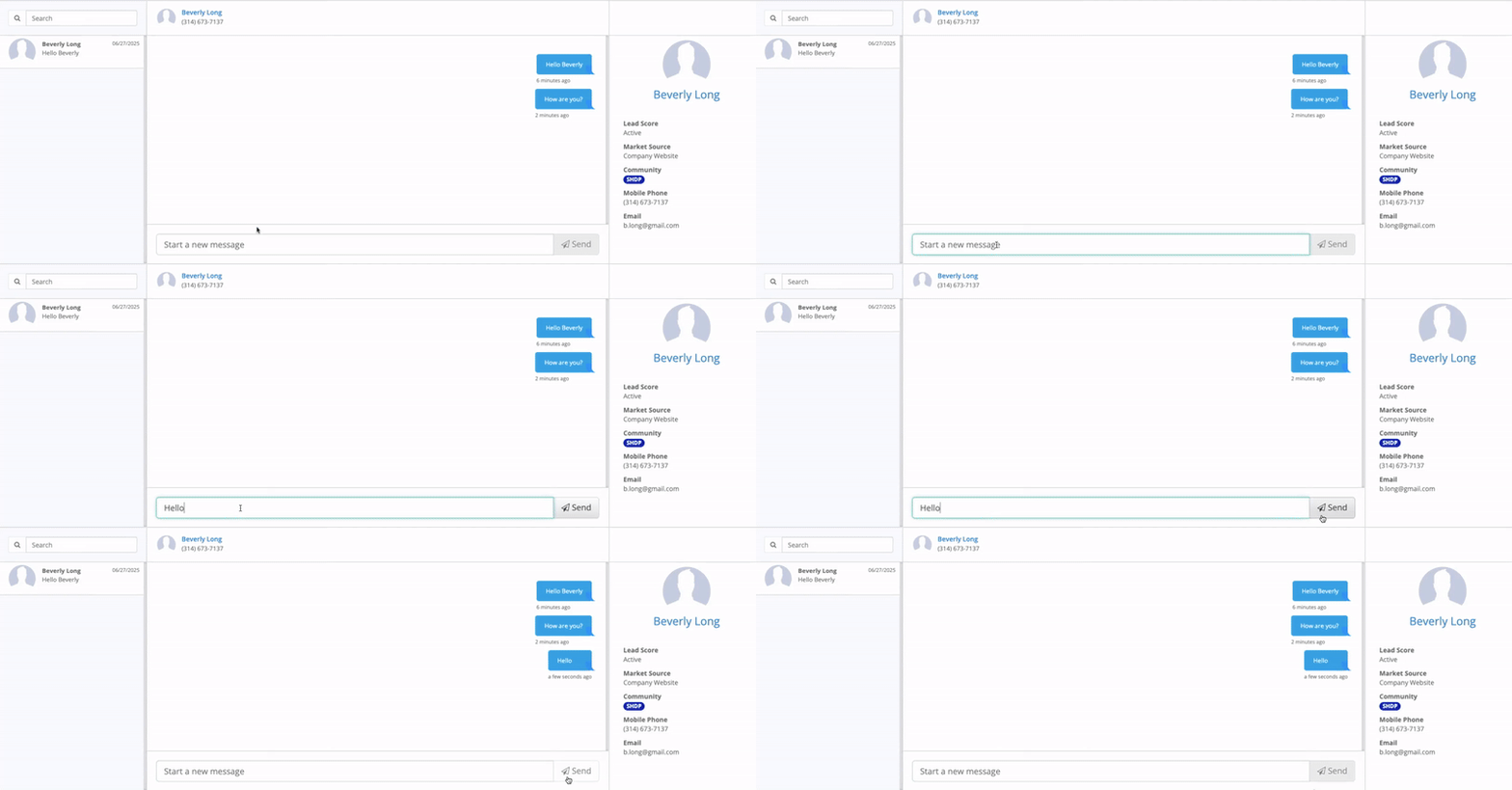
Step 3: After a message has been sent, this will automatically record a Text Out activity with the outgoing message appearing in the notes on the Individual's profile.
Step 4: Incoming messages will be appear in the Conversations. Within this page, you can see all individuals assigned to you that has a mobile phone on their profile. You can search for the individual's name or select their name from the list of individuals to see that conversation. Like outgoing messages, incoming messages will automatically record a Text In activity with the incoming message appearing in the notes on the Individual's profile.
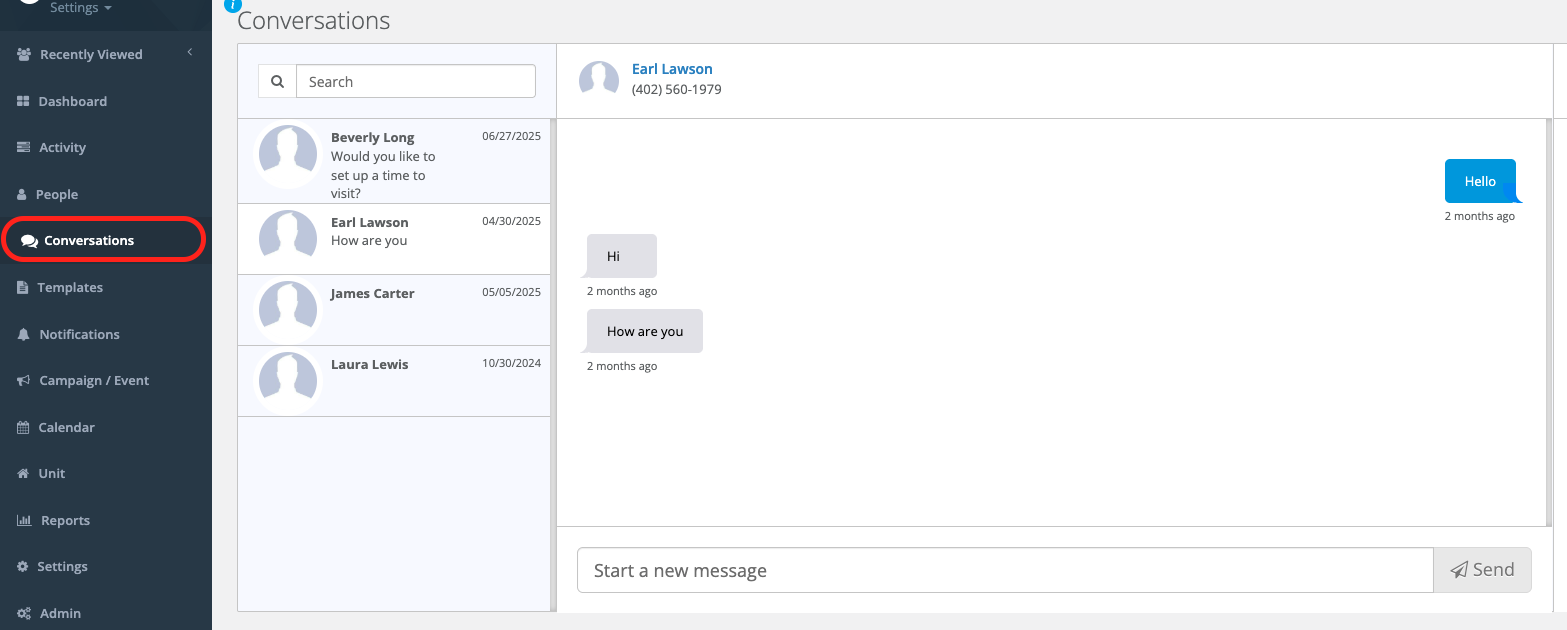
Note: The texting feature is similar to an instant chat function. When you receive an incoming message, not only will you see it in the Conversations, you will instantly receive a notification that an SMS text has been received. This notification can be found in your notifications bell icon or on the Individual's profile.
Common Questions
How does calling or texting from my CRM save me time?
- Aline CRM will log those phone call and text activities with the individuals you are engaging with at the time the activity is being done. In sales, we often get pulled in different directions, and by using this feature it can give you back some time from inputting those activities manually after the activity is completed. If you are using the call recording feature, you don’t have to worry about inputting call notes into the CRM at a later time. This allows you to be fully present with the person you are engaging with!
What number will the individual see when I make a phone call?
Depending on how your Click-to-Dial feature was configured, the individual you are calling will see a phone number generated by the feature. If desired, your community can set up call spoofing by connecting with our Integrations Team. By setting up call spoofing, this will instead show your community phone number to the individual you are dialing instead of a generated number from Aline.
If I am texting with an individual, will the conversation appear on my phone?
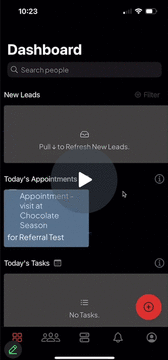
Yes! If you have the the mobile app downloaded, you can continue your texting conversation with the individual via your phone. From you phone, you will also receive push notifications to let you know you received a new text message. Please see a screenshot below of where you will be able to see those texting conversations within the app:
Aline CRM - Click-to-text via Mobile App - Watch Video
What number will the individual see when I send a text message?
- When texting an individual from the CRM or within the mobile app, they will see a phone number generated by the Click-to-Dial feature.
QUESTIONS?
We're happy to help! Please reach out to our Aline Support Team:
- Click here to email our Support Team
- Click here to schedule a support call
Click the "back/menu" buttons to explore more Help Center articles
Was this article helpful?
That’s Great!
Thank you for your feedback
Sorry! We couldn't be helpful
Thank you for your feedback
Feedback sent
We appreciate your effort and will try to fix the article