Overview
Location Tabs allow your team to work together and see the leads journey at locations other than their own. Your team will also be able to send a lead to another location as they see fit.
Send a Prospect to Another Location
Step 1: Navigate to the profile you would like to send.
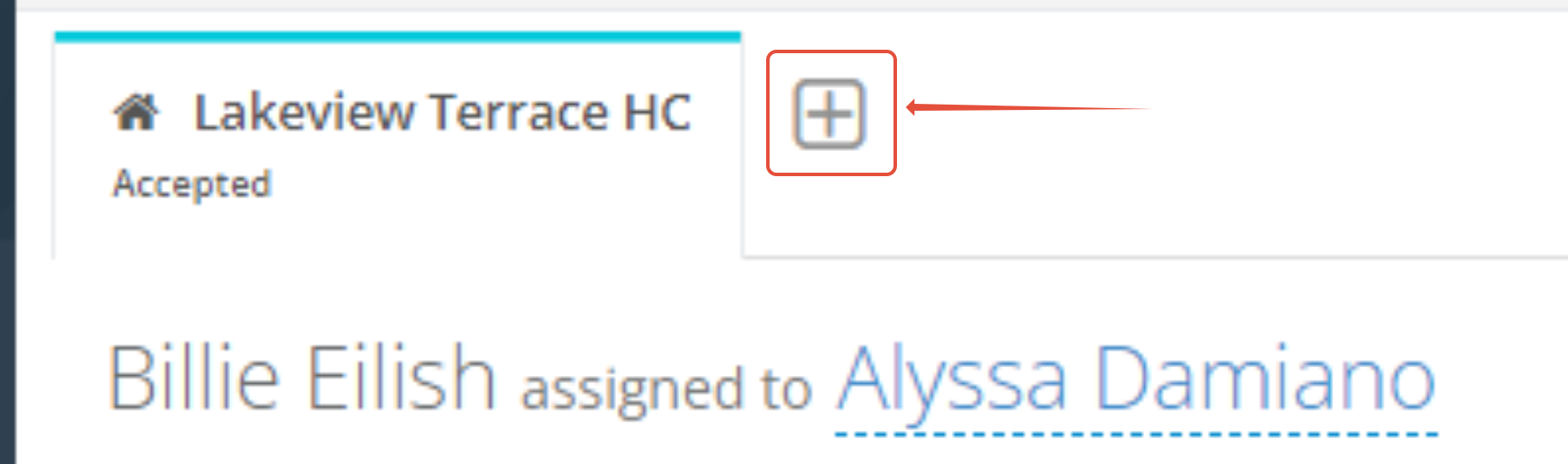
Step 2: Along the top of the profile next to the existing tabs, click the grey plus button.
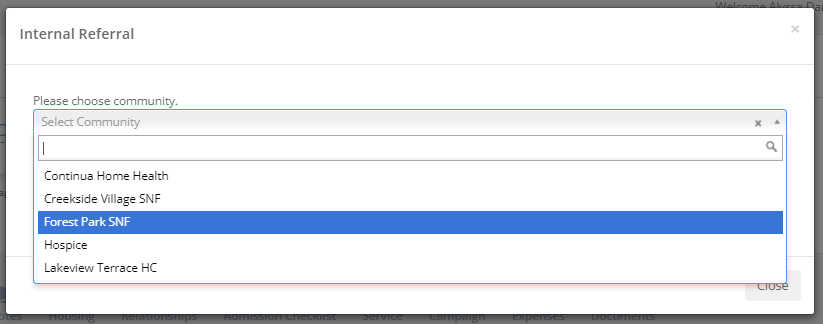
Step 3: A modal will appear asking you to specify a location to send the Prospect to.
Step 4: Click Save & Create New.
Step 5: A new tab will be added with the location you sent the lead to.
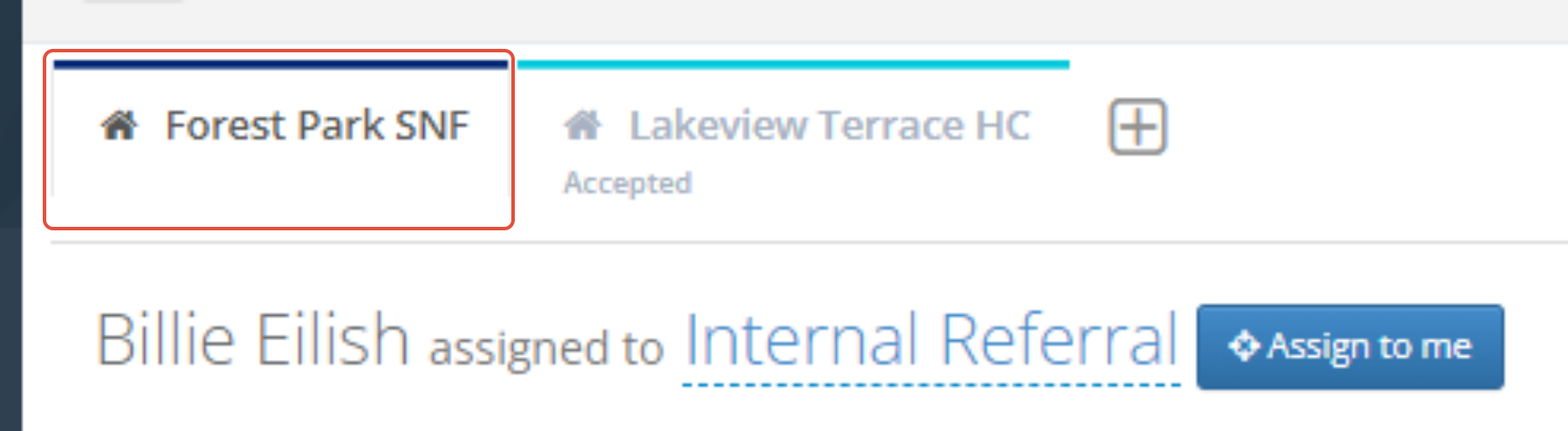
Once the prospect has the blue confirmation ribbon, you can work in the profile as usual if you have access the the community it was sent to.
Read-Only Profiles
If you click a tab for a location you do not have access to, you will see the following notification letting you know the profile you are viewing is read-only.

Read-only profiles will only have the following information displayed:
- Forms and fields
- The profile history/timeline
- Notes
New Prospect Updates
Once a Prospect is sent to the specified location a few things will happen:
- Only the General Information form data (i.e. First Name, Last Name, Phone Numbers, Email, etc.), addresses, and relationships will be copied.
- The Market Source for the newly created individual is set to the location that sent the individual.
- The Prospect will display in the New Leads box of the location's Dashboard with a created user of Internal Referral.
Note: The profile is created and treated like a new digital lead. This means that the location will need to assign the new Internal Referral to a user at the location for them to be removed from the New Leads box.
Was this article helpful?
That’s Great!
Thank you for your feedback
Sorry! We couldn't be helpful
Thank you for your feedback
Feedback sent
We appreciate your effort and will try to fix the article