Overview
In this article, we will review how to assign user roles to a users profile. Roles allow certain access in the CRM.
Managing Role Permissions
Step 1: Navigate to the Admin Section by clicking on Admin from the left hand menu.
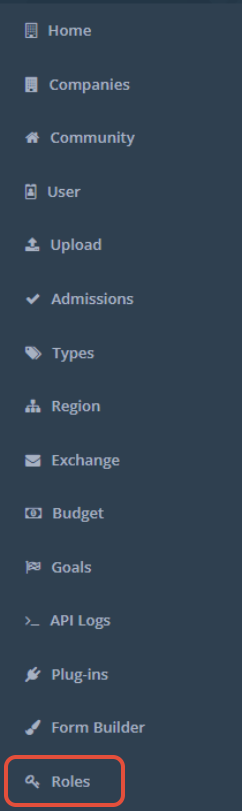
Step 2: From the Admin Menu select Roles.
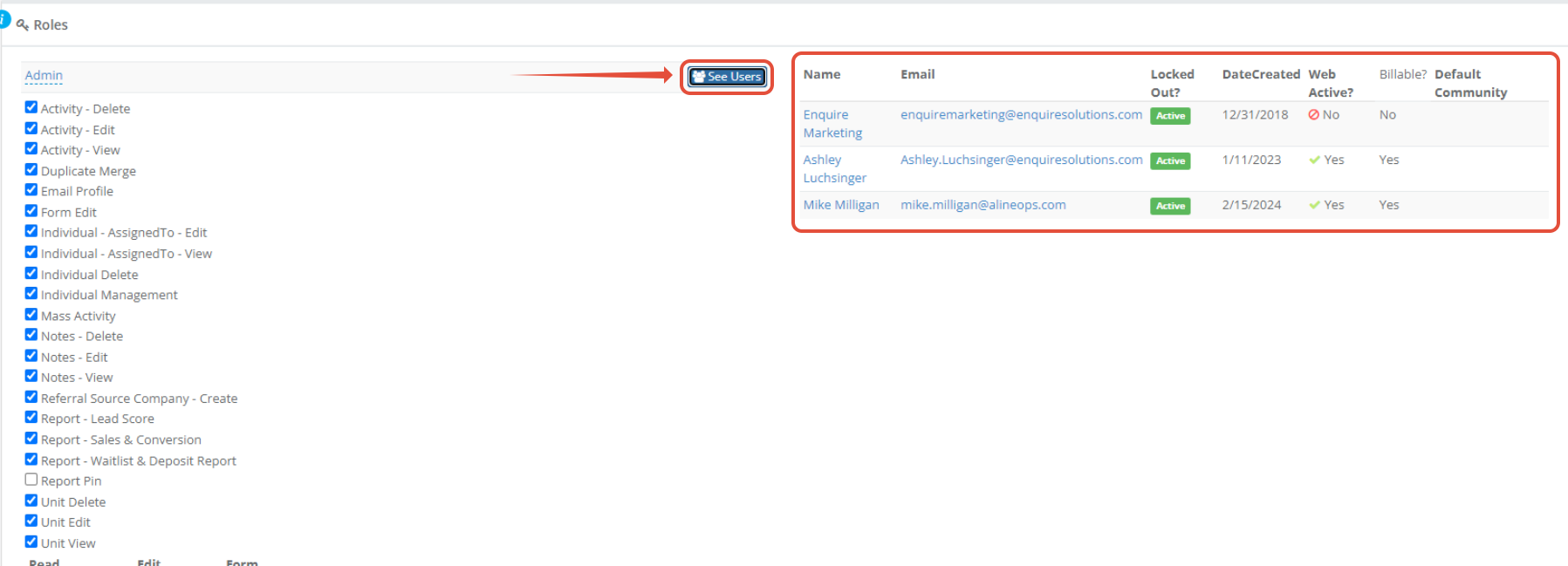
 Step 3: This will bring you to the Roles page. From here, you will be able to view all current roles and users that are assigned to each role.
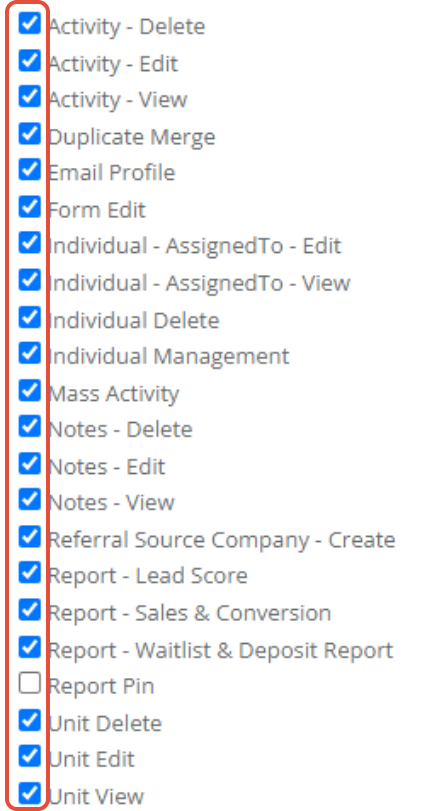
Step 4: Use the check boxes under each role to change or add permissions.
Step 5: After making changes to a role, click Save at the bottom of the page.
Adding a New Role
Step 1: Use the bottom field on the Roles page to create a new role.
 Step 2: Click into the Empty field to name your new role.
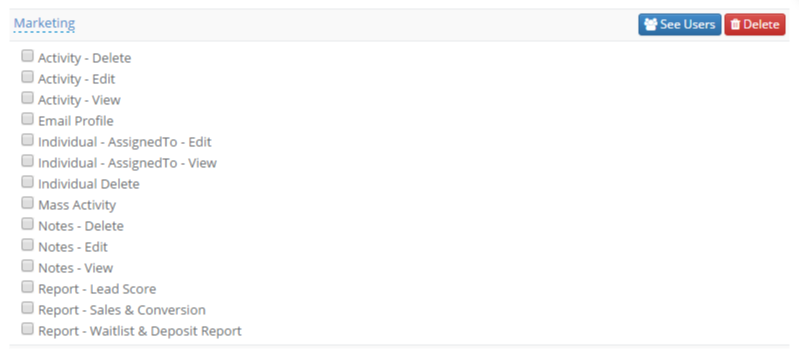
 Step 3: This will create the new role and display the permissions you can enable or disable for this role.
 Step 4: After you are finished editing the permissions of your new role, click Save.
Add/Update a User Role
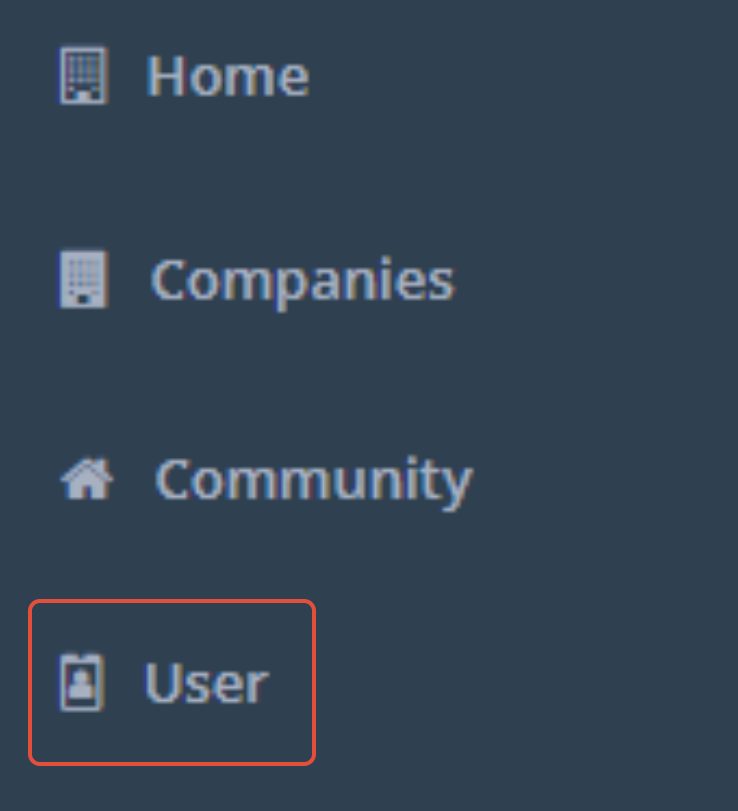
Step 1: From the Admin Section, select User from the Admin Menu.
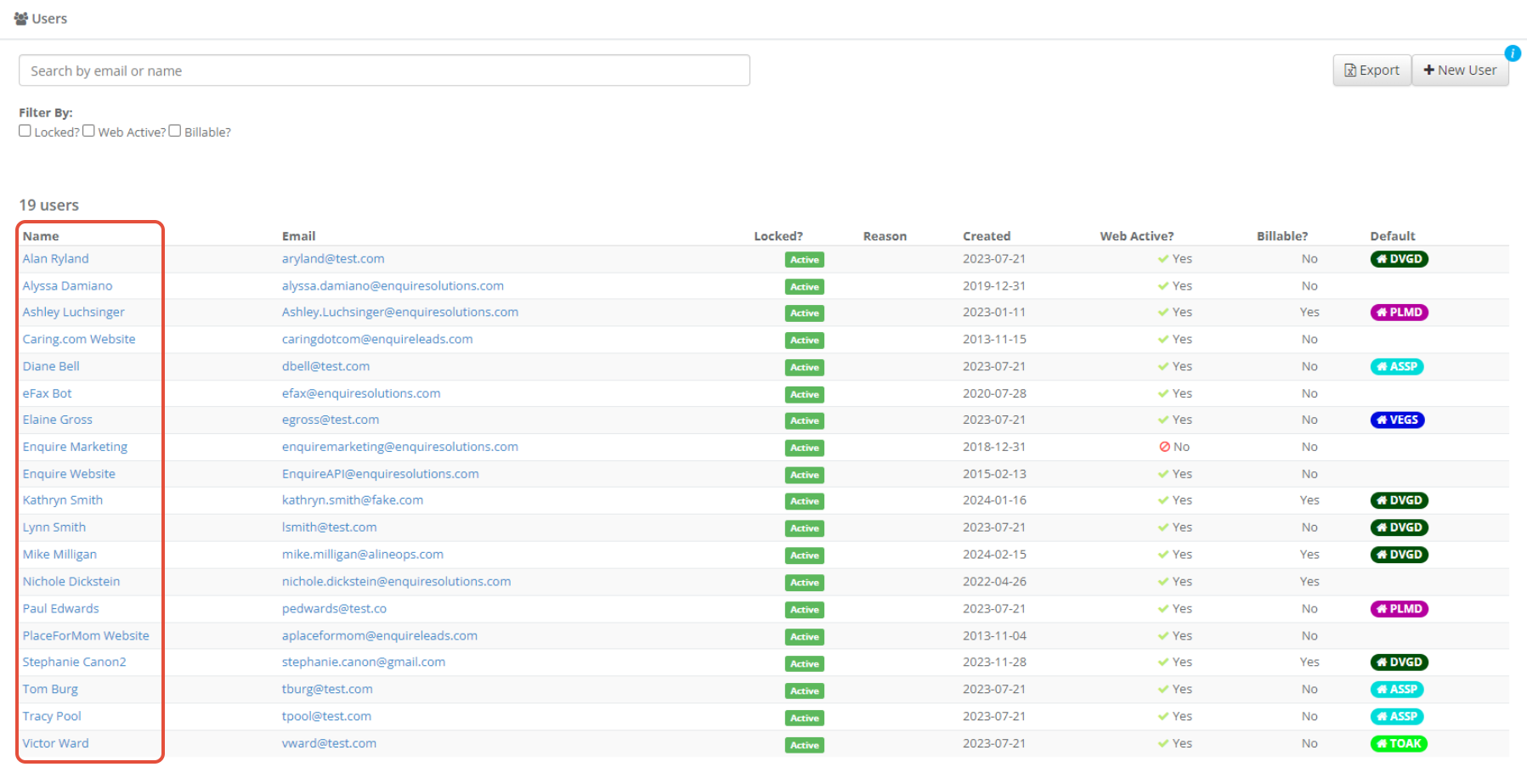
 Step 2: Click on the user you would like to add a role to.
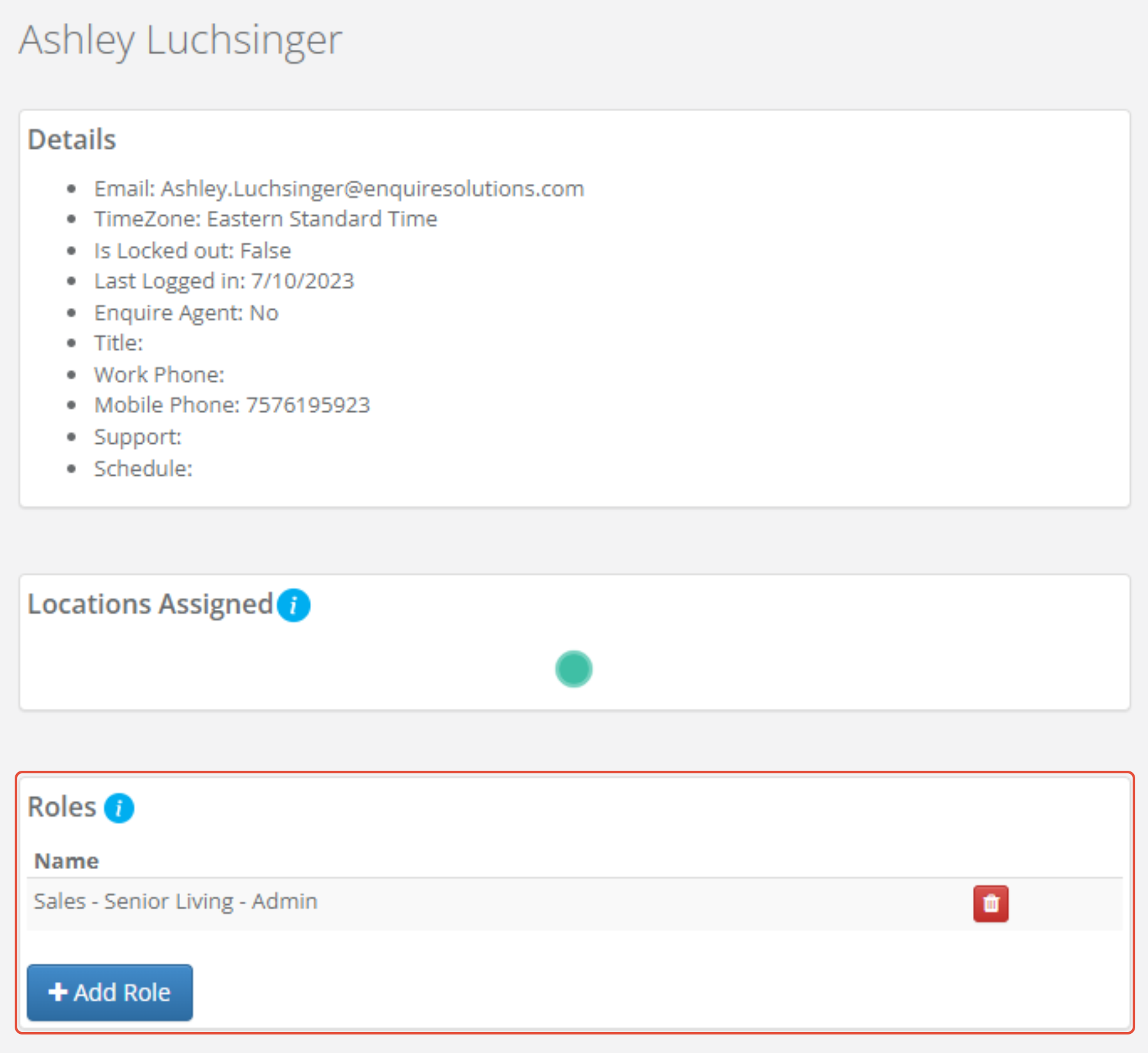
Step 3: In the user's page, click Add Role in the Roles Box.
 Step 4: From the pop-up window, select the appropriate Role you want to add to the user.
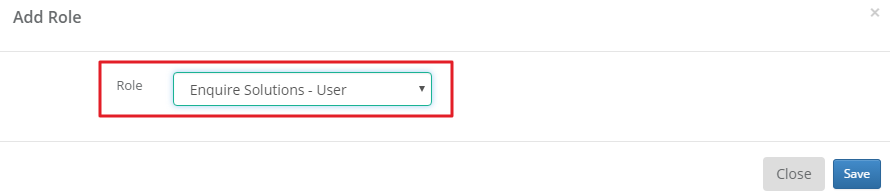 Step 5: Click Save.
Note: If you are updating a users role make sure to remove the old role by clicking the red trashcan next to the role on the users profile so permissions are accurate to what is needed for the user.
Was this article helpful?
That’s Great!
Thank you for your feedback
Sorry! We couldn't be helpful
Thank you for your feedback
Feedback sent
We appreciate your effort and will try to fix the article