Dashboard Basics
The Enquire MAP dashboard system is a very powerful platform for creating, sharing, assigning, updating user dashboards. A dashboard is a collection of KPI report widgets that a user sees when they log into the platform. The dashboard can be accessed from anywhere on the platform by
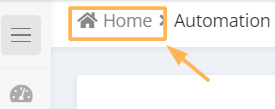
- clicking the 'Home' breadcrumb
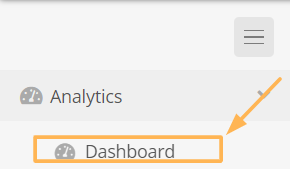
- Selecting the left menu item Analytics->Dashboard
Note:
The dashboard is the only aspect of the platform that is unique to the user who is viewing the dashboard. Thus if a user logs in, browses to the dashboard, and makes any changes to the dashboard they see, it will not impact any other user. There is no way of viewing a user's dashboard without logging in as that user.
Terminology
Dashboard: A set of report widgets and tabs that a user sees when they log into the platform and browse to the dashboard area. It is the current set of widgets, the widget settings (time ranges, filters, etc), the layout of the widgets, and the set of tabs on the dashboard page.
Dashboard Widget: A single report element that is on a dashboard tab. This is the list of available dashboard widgets available in the platform:
Dashboard Widgets Reference
Dashboard Tab: A collection of dashboard widgets
Dashboard Template: A dashboard template is a saved instance of a dashboard configuration including:
- the set of dashboard widgets
- the dashboard widget configuration settings
- the widget layout
- the set of dashboard tab names, location
Dashboard Templates
Dashboard templates can be:
- Saved
- Updated
- Deleted
- Loaded
- Used to update user's dashboards
- Shared
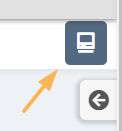
Dashboard templates are managed within the platform by clicking the computer icon on the top right of the breadcrumb bar. This icon only shows up when the user is viewing a dashboard.
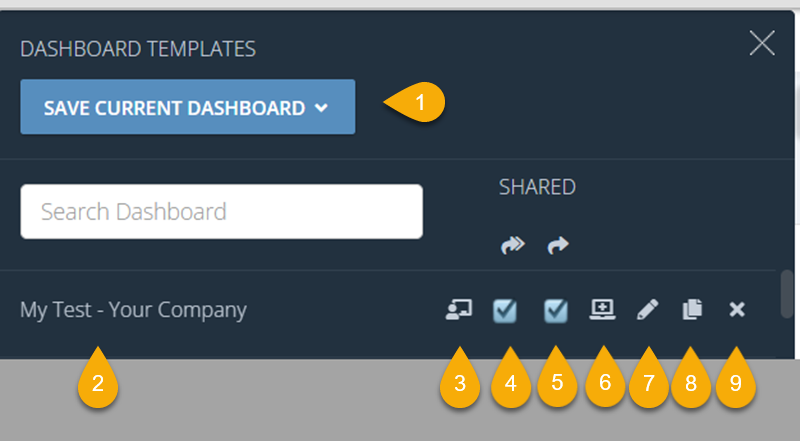
Dashboard Template Management Menu
Save Dashboard as Template: This allows you to save the current Dashboard as a Dashboard Template.
Dashboard Template Name - Account Name: This is the Dashboard name followed by the Account the Dashboard template is stored in.
Update User Dashboard with Template: for users that have Dashboard management permissions. this button allows the administrator to replace other users' current Dashboards with the selected Dashboard Template.
Share Dashboard Template with its sub-accounts: If checked, this Dashboard Template will be visible to all users within the subaccounts the Dashboard Template is currently saved in. If it is not checked, no other users in the sub-accounts of the account the Dashboard Template is saved in, will see that Dashboard Template in the Dashboard Template management menu
Share Dashboard Template with its account: If checked, this Dashboard Template will be visible to all users who log into the account the Dashboard Template is saved in.
Load Dashboard Template: The user who clicks this button will have their current loaded Dashboard replaced with a new Dashboard that is based on the selected Dashboard Template.
Clone Dashboard Template: This will clone the selected Dashboard Template into a specific account.
Delete Dashboard Template: This will delete the selected Dashboard Template.
Note:
Editing, overwriting, or deleting Dashboard Templates will have no impact on any users' Dashboards. A Dashboard Template is not linked in any way to existing users' loaded Dashboards.
Note:
There is no 'share with all parent account' option for sharing Dashboard Templates. Thus you have to have an account selected that has visibility to a shared Dashboard Template created by another user.
Saving Dashboard Templates
If you click the 'Save Current Dashboard' button, a new menu will appear.
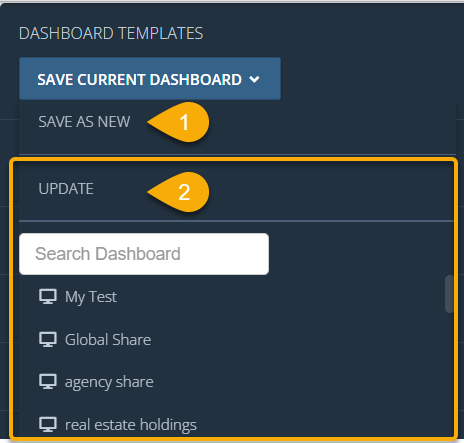
Save Current Dashboard as Template
Save As New: This option will save the current loaded Dashboard as a new Dashboard Template
Update: This option will overwrite an existing template. Only Dashboard Templates that the user is able to edit (i.e. they see a pencil in the Dashboard Template Management list) will show in the list of Dashboard Templates that can be 'updated'
Updating/Setting User Dashboards
Administrators with 'Manage User Dashboard' permissions have the ability to set users' Dashboards. This can be done using these methods:
- Using the user role/permission edit dialog:
From the Administration->Users left menu, you can manage users' roles, permissions, and current loaded Dashboard.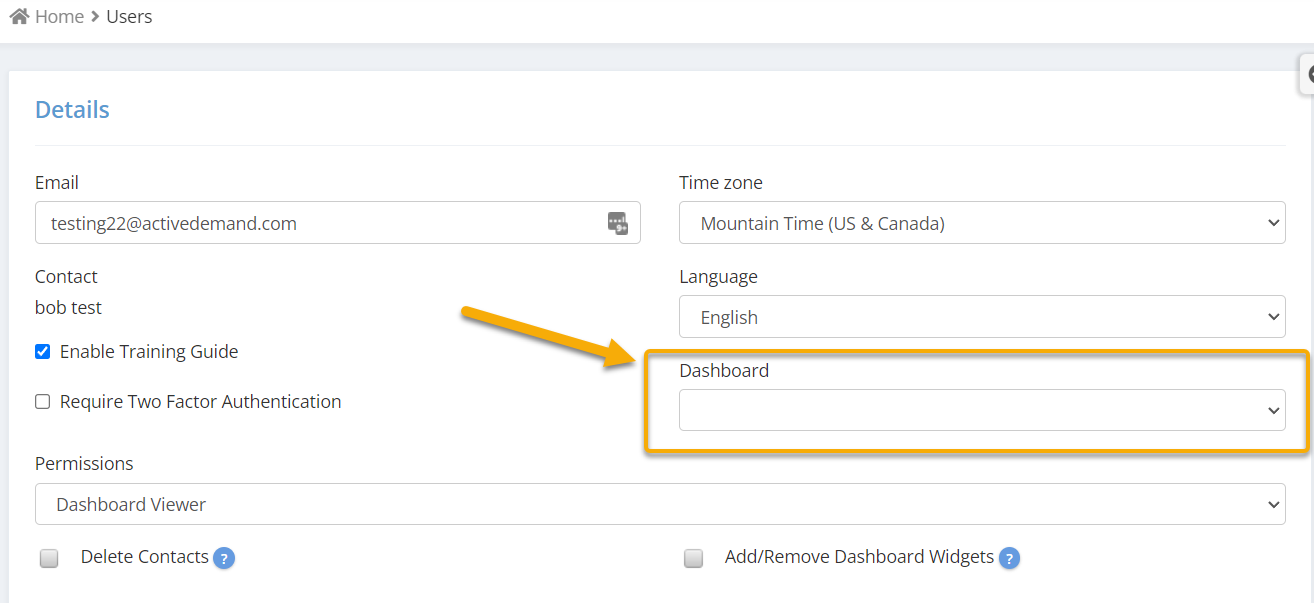
- On a users' profile:
When the administrator is in the Account Administration screen, under the Employee's tab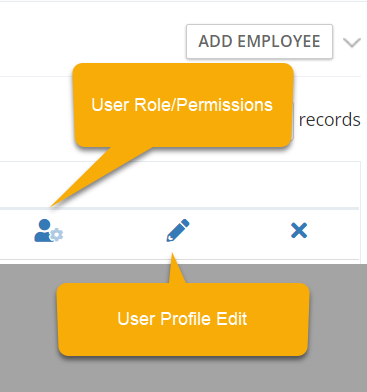
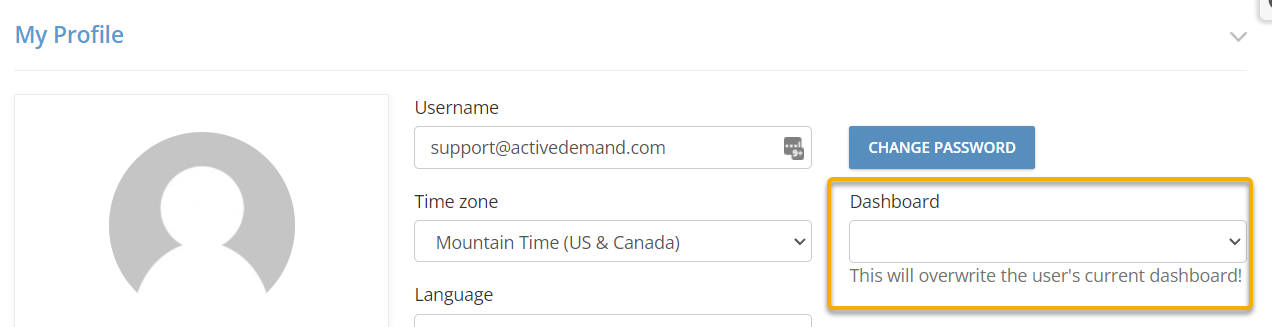
- Using the Dashboard Template Management Menu:
From The Dashboard Template Management menu, you are able to mass deploy Dashboard Templates across a wide range of user accounts. This is one of the more powerful features of the Dashboard management system. For the selected Dashboard Template, the administrator can select the set of users who will have their current Dashboards replaced with a new Dashboard based on the selected Dashboard Template.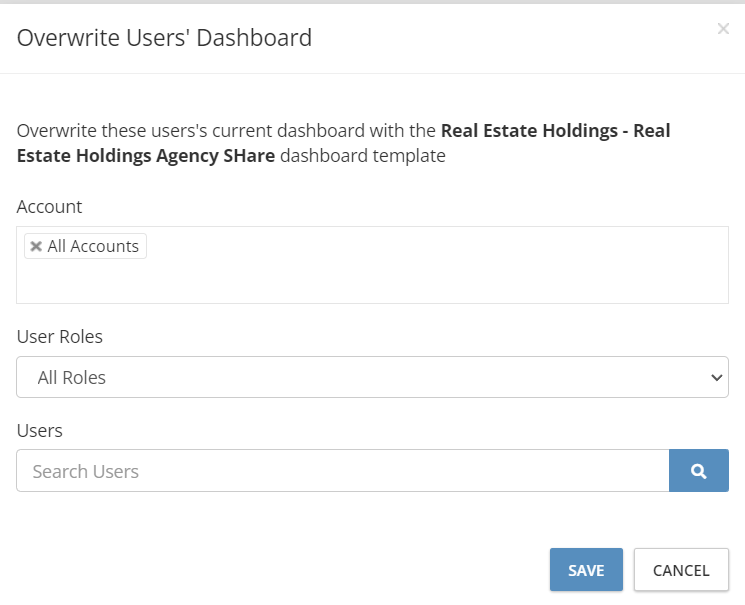
Note:
When updating a user's Dashboard based on a Dashboard Template, the user will not see the update until they visit the Dashboard page after the new Dashboard was deployed. Thus if they are currently logged into their account, and viewing their Dashboard when the update happens, they will not see the update until they leave that page and return to the base at a later time (or refresh their browser).
Managing Dashboard Template Access
Dashboard Template Menu Visibility:
The Dashboard Template selector button appears for all users that have:
- have the Administrator role
- have the Marketer role
- Have the Dashboard user role and have the Add/Remove Dashboard Widgets permission
Dashboard Template Visibility
A specific Dashboard Template will only be visible in the Dashboard Template assignment drop down or on the Dashboard Template management menu if:
- The Dashboard Template was created by the logged-in user, regardless of sharing options or which account the Dashboard Template was created in
- The Dashboard Template was created by some other user in the selected account and has account level sharing enabled
- The Dashboard Template was created by some other user in a parent account to the selected account and has 'sub account' sharing enabled
Dashboard Edit/Delete/Clone
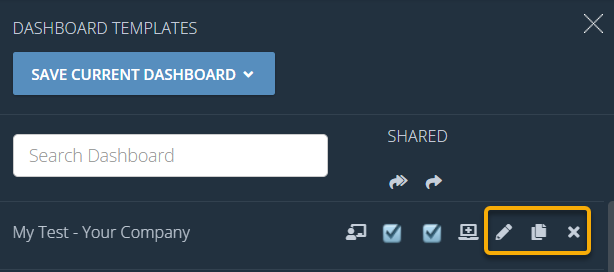
A specific Dashboard Template can only be edited/deleted/cloned if:
- The logged-in user created the specific Dashboard Template
- The Dashboard Template was created by someone and is saved in the account the user is logged into and is visible to the logged-in user
Dashboard Sharing
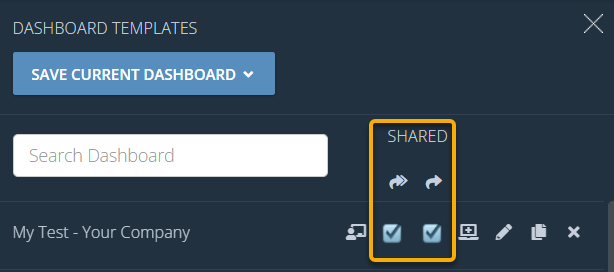
Dashboard sharing can only be done by:
- Administrators (i.e. an Administrator can share any Dashboard Template that has been shared with them)
- The user that created the Dashboard Template
Updating User Dashboards
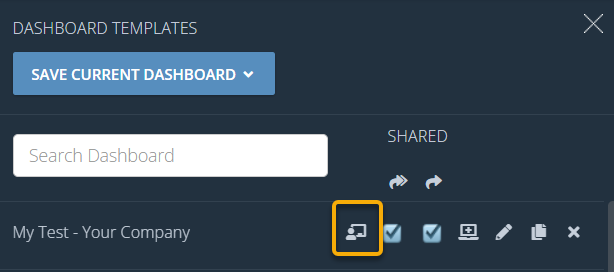
Only users with the Administrator role and who have the 'Manage User Dashboards' can update users' Dashboards with a Dashboard Template.
Embedding Dashboards In Other Platforms/Portals
The Dashboard system supports embedding Dashboard Widgets and/or Dashboard Templates as iframe web/parts. Users with the Administrator role and the ' Share Report Widgets Externally' permission, you will be able to share dashboard elements with external platforms (like Google Data Studio, your Custom portal, your Saas platform, etc).
Embedding a Dashboard Template
If you click the edit icon on a given Dashboard Template, the Dashboard Template edit dialog will have an embed code button:

If you click this button, it will create a new sharable asset that can be accessed under Administration->Shared Assets
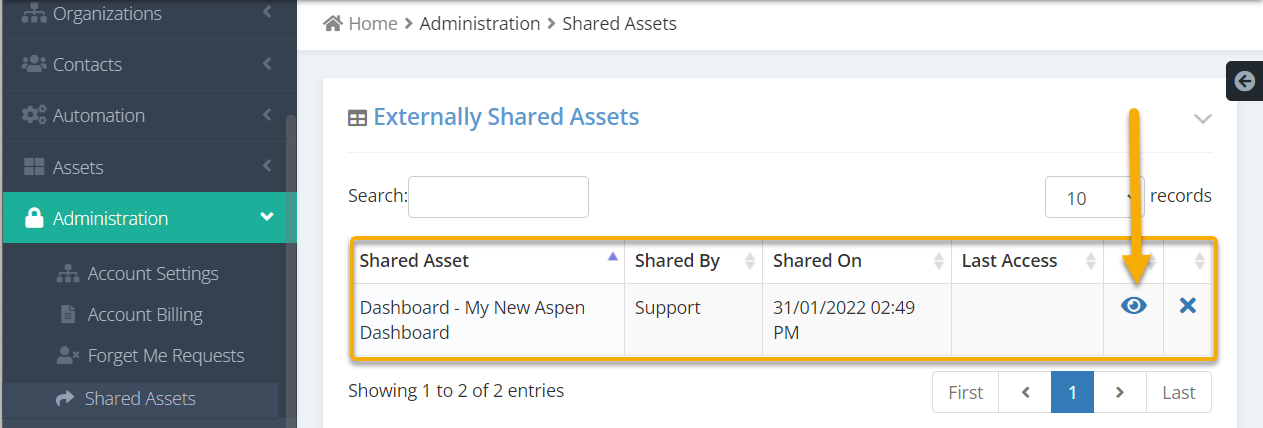
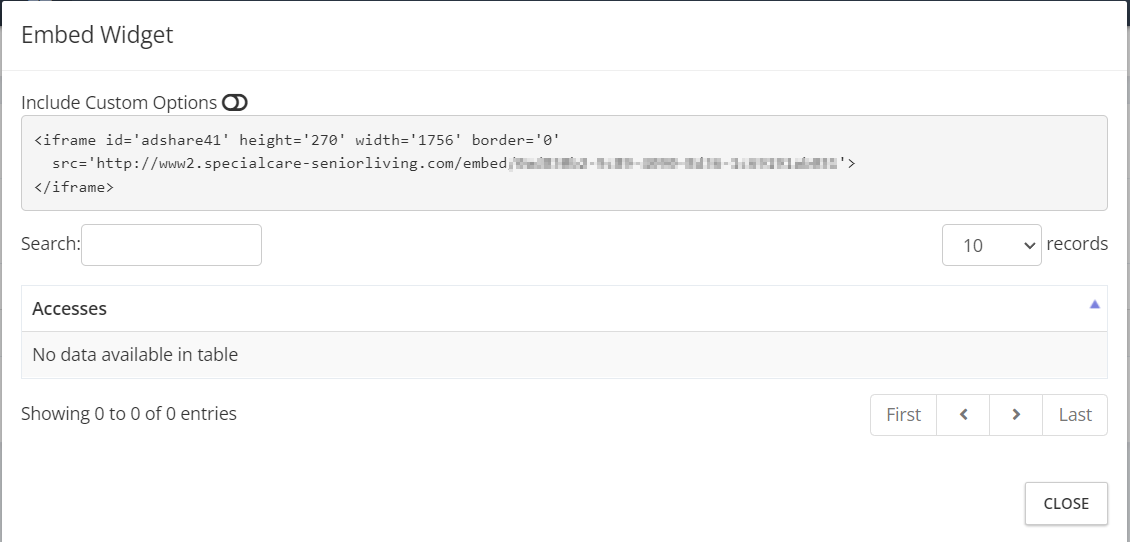
Clicking the 'eye' icon will expose the modal with your new object embed code:
Sharing dashboard data does have security ramifications thus it is very important that you monitor who has the share asset permission, and which assets are being shared.
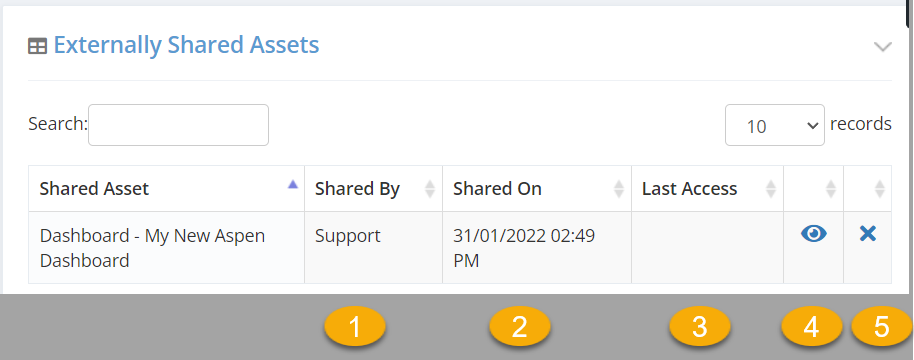
- Which user shared the asset
- When it was shared
- Last time the exported asset was accessed by an external user
- the embed code
- delete the share
Not all dashboard widgets are exportable with an external share. Most are, but there are a few that currently do not support exports.
Was this article helpful?
That’s Great!
Thank you for your feedback
Sorry! We couldn't be helpful
Thank you for your feedback
Feedback sent
We appreciate your effort and will try to fix the article