Overview
The Senior Living Dashboard is comprised of various widgets that provide an overview of individuals, goals, and activities so you can better plan your next steps.
Dashboard Overview
This is the view of the V2 Dashboard. Here you will find your communities occupancy percentage, user goals, user calendar, take action box where digital leads fall into, and user history.
Welcome Widget - Occupancy Widget
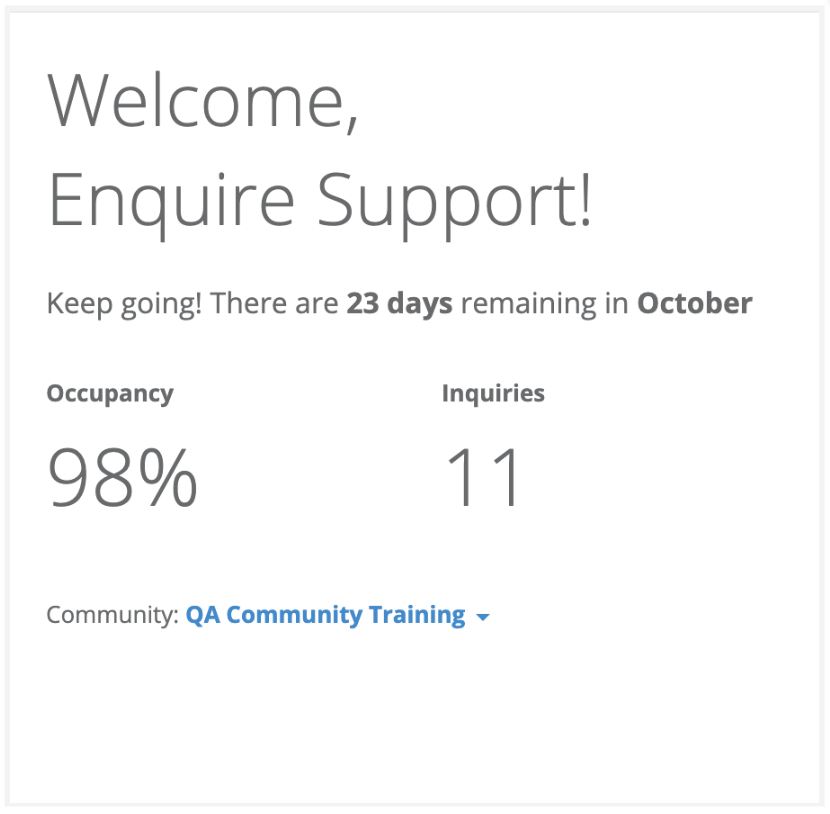
The Welcome widget displays your current default location's occupancy and total inquiries for the current month. If you have access to more than one location, click the "Community" drop down to select a different location.
Goals Widget
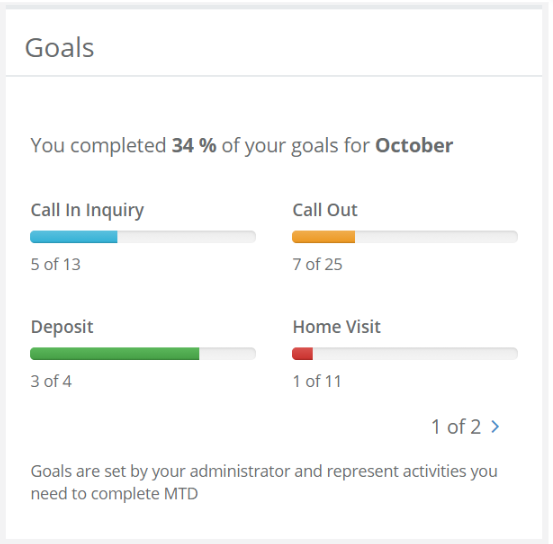
The Goals widget displays your Activity goals for the current month for your default location and your progress towards each goal. This widget will show your progress towards all goals as a percentage and each goal is broken down and displayed with the number of activities you have completed towards the goal's total.
Calendar Widget
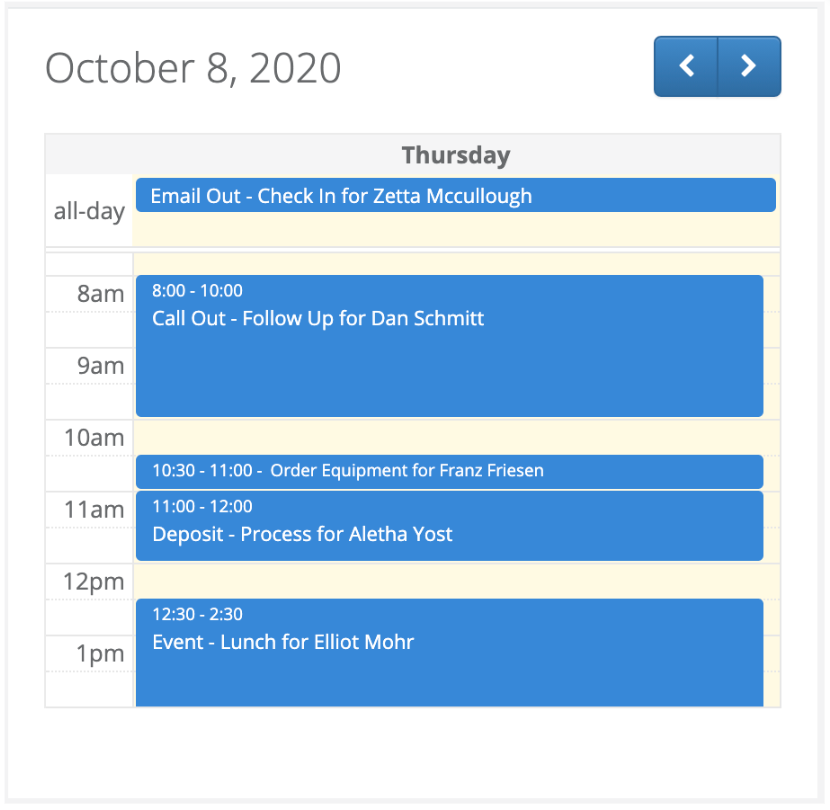
The Calendar widget displays your due activities by day and time with all-day activities (activities without a specified start and end time) displayed at the top of each day. This widget will default to the current day, but you can click the left and right arrow buttons in the upper right to go back or forward days. If you click on the activity, you will be re-directed to the individual's profile and can complete the activity from the profile. Completed activities will no longer display on the Calendar widget.
Take Action Widget
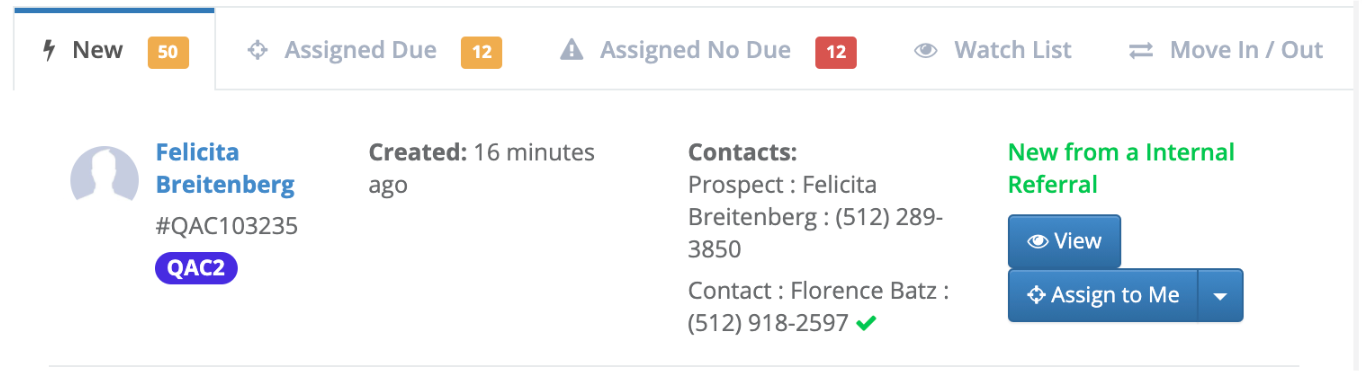
The Take Action widget is a series of tabs displaying new leads, individuals with and without assigned activities, your Watch List, and move ins and outs. Click each tab to change the view of displayed data.

New
The New tab displays new leads from your company's digital lead integrations, like A Place For Mom, Caring.com, and your company website. Each individual is displayed with their contact info and their primary contact's phone number. The way you get the profile to no longer appear in this tab is to update the Assigned User. You can quickly assign the individual to yourself using the Assign to Me button or click the drop down arrow to assign them to another user at your location.
For Senior Living customers, it's important to note that individuals will only appear on the New Tab for 15 days before falling off.
For Post Acute customers, you will continue to see Referrals in this tab until the Assigned User is updated.
Assigned Due
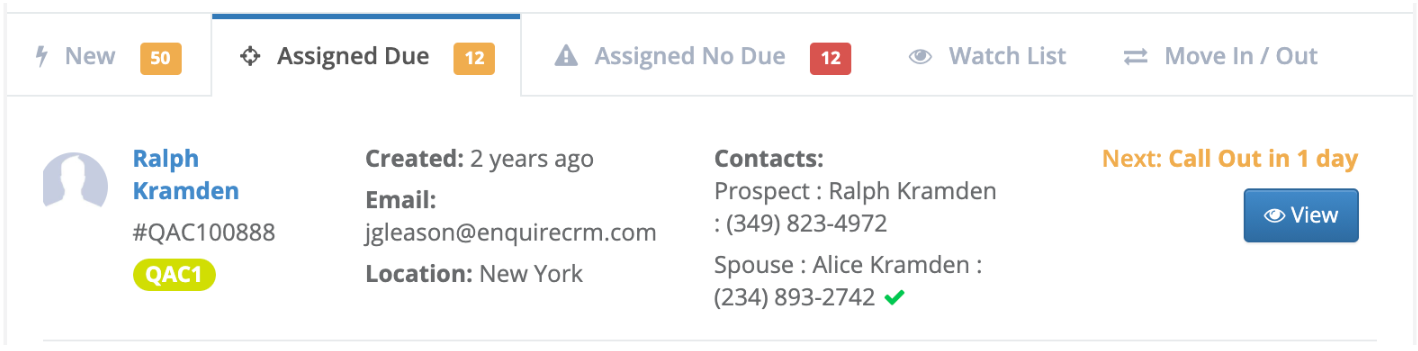
The Assigned Due tab displays the active individuals currently assigned to you with a next scheduled activity. Each individual is displayed with their contact info and their primary contact's phone number. The next activity type will display on right side in orange text.
Assigned No Due
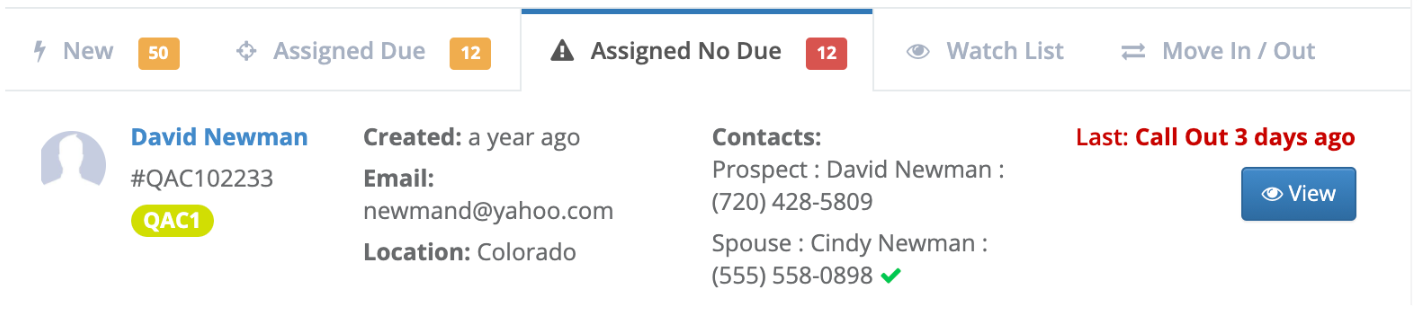
The Assigned No Due tab displays the active individuals currently assigned to you that do not have a next activity scheduled. Each individual is displayed with their contact info and their primary contact's phone number. The last completed activity type and time for the individual will display on the right side in red text.
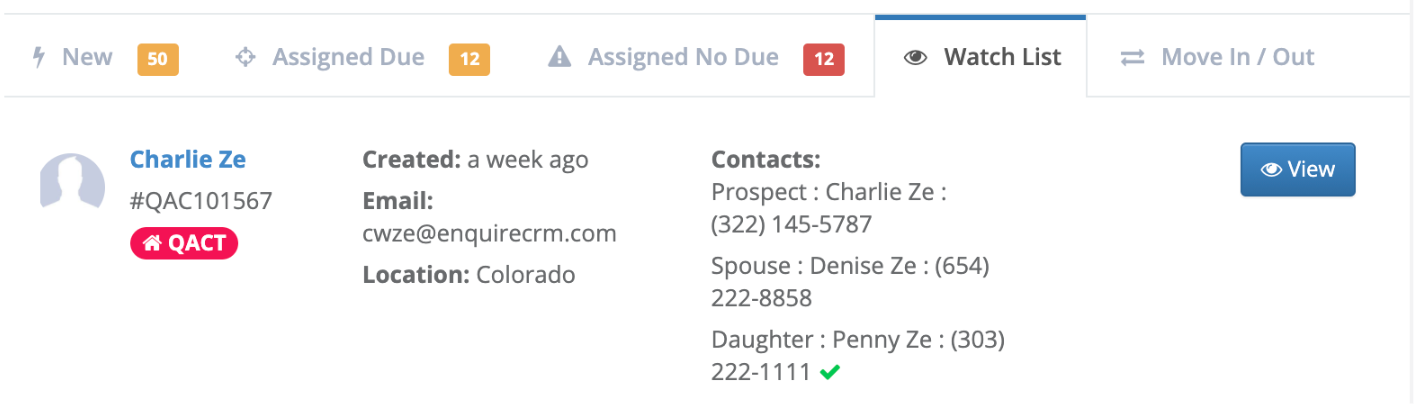
The Watch List tab displays individuals currently assigned to you that have the Watch List field on their profile set to Yes.
Move In / Out
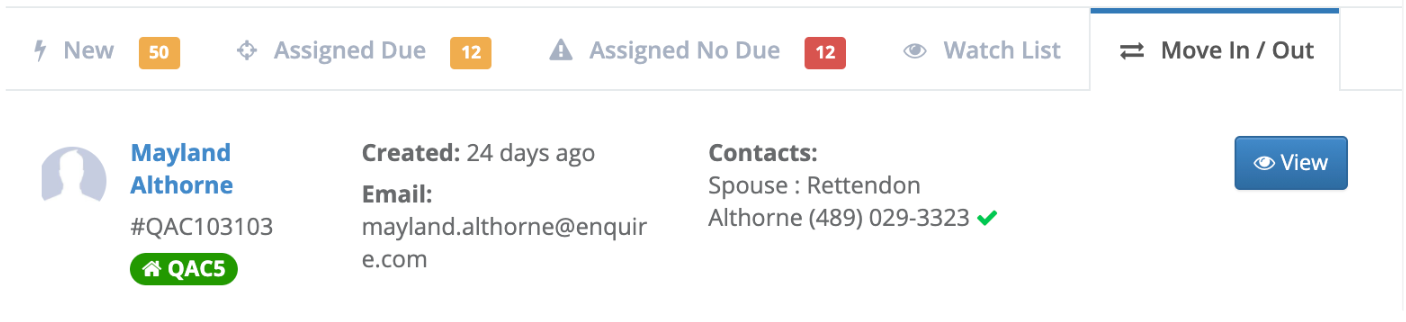
The Move In / Out tab displays individuals with a Move In or Move Out date in the last 7 days as well as individuals with a Move In or Move Out date in the next 60 days. Move Ins and Move Outs are determined by the individual's Housing Contract Move In or Move Out date.
Your History Widget
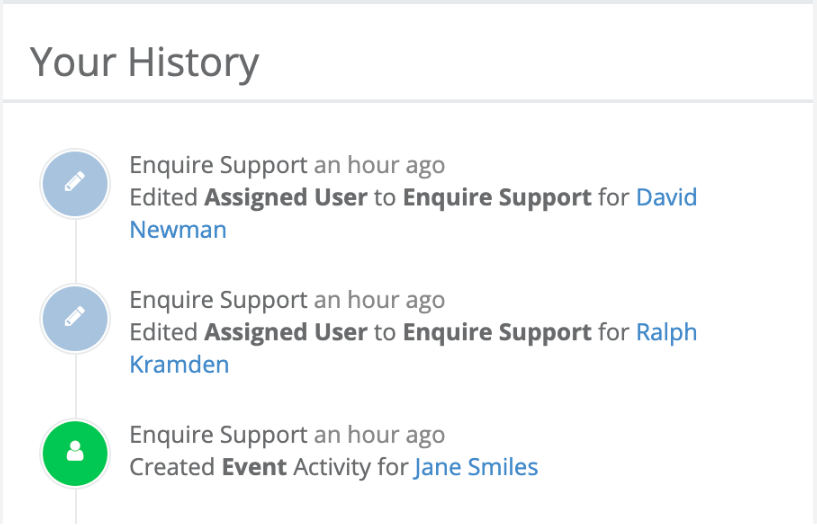
The Your History widget displays recent changes you have made to individuals. This includes actions like field updates, user assignment, and creating activities. Click the individual's name to navigate to their profile.
Your Pipeline Widget
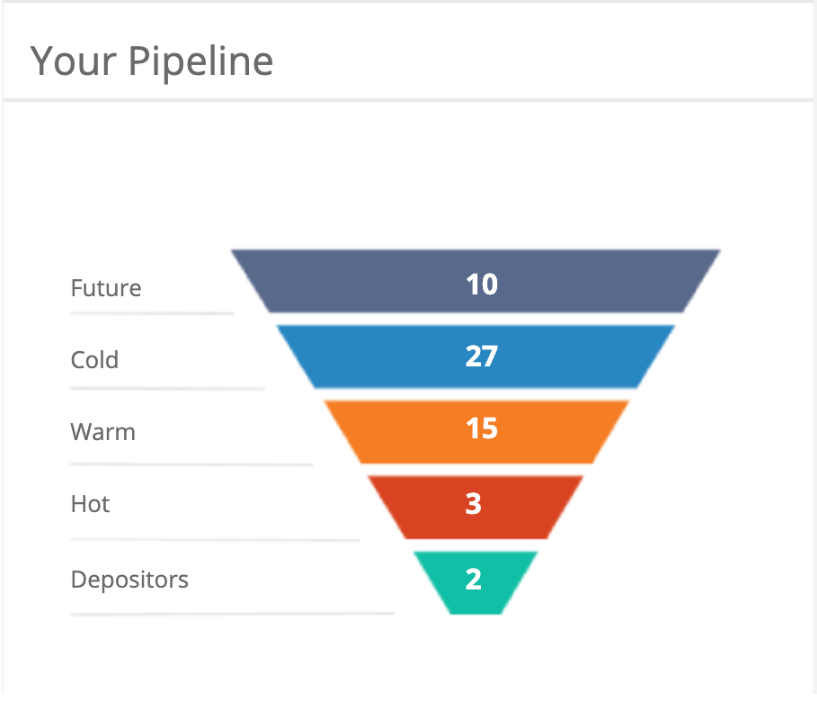
The Your Pipeline widget displays the count of all active individuals with a Lead Score that has a Master Type of Future, Cold, Warm, Hot, or Depositor. Click this widget to navigate to the Sales Pipeline Report for more detail.
Was this article helpful?
That’s Great!
Thank you for your feedback
Sorry! We couldn't be helpful
Thank you for your feedback
Feedback sent
We appreciate your effort and will try to fix the article