Overview
In this article, we will review using the basic search in the CRM.
Fuzzy Search
Step 1: In the top menu, click the box "Search for Something".
 Step 2: Begin typing to search for individuals. This search supports searching by email, phone numbers (home, mobile, work), and names (first and last). As you type, suggestions will be displayed. This is called the "Fuzzy Search".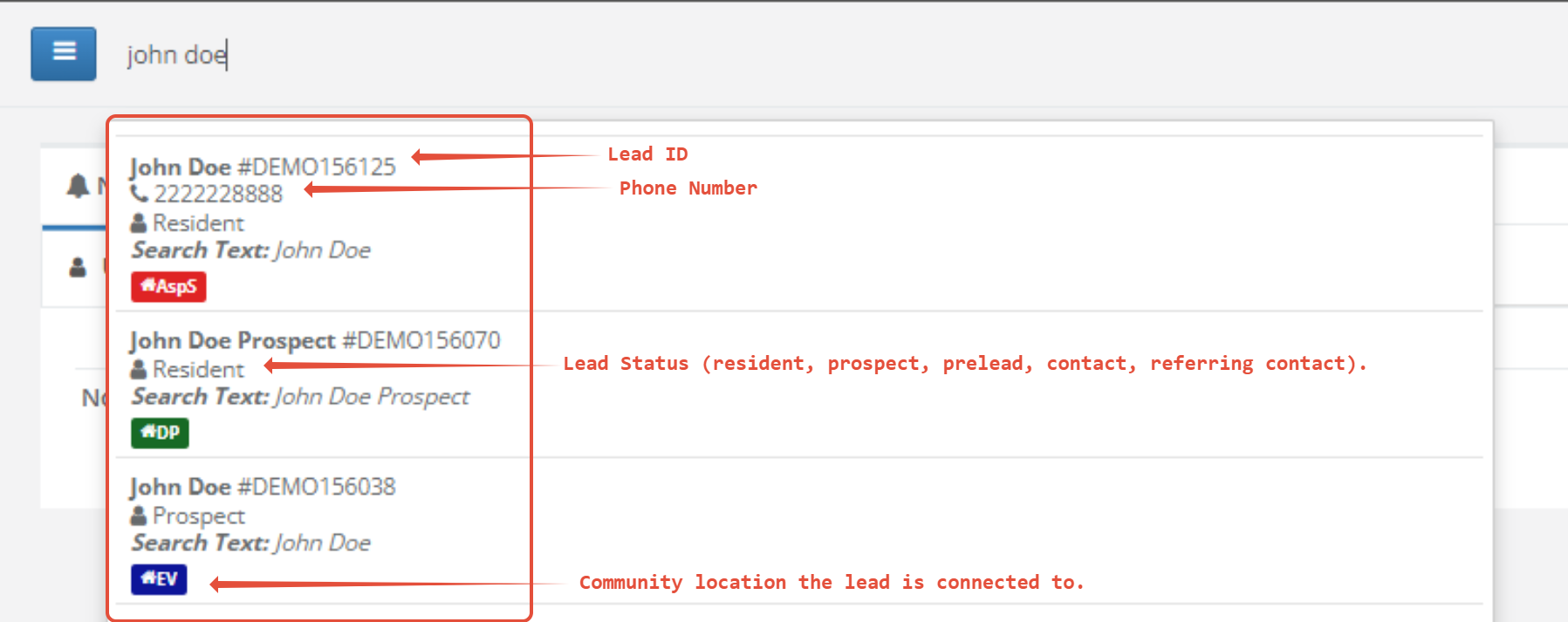
Step 3: Click on an individual to navigate to their profile.
Hard Search
Step 1: In the top menu, click the box "Search for Something".
 Step 2: Begin typing to search for individuals. This search supports searching by email, phone numbers (home, mobile, work), and names (first and last). As you type, suggestions will be displayed.
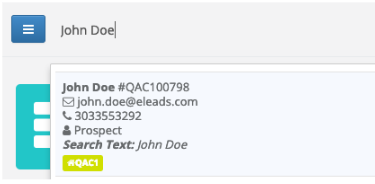
Step 3: Hit enter on the keyboard to bring up the hard search
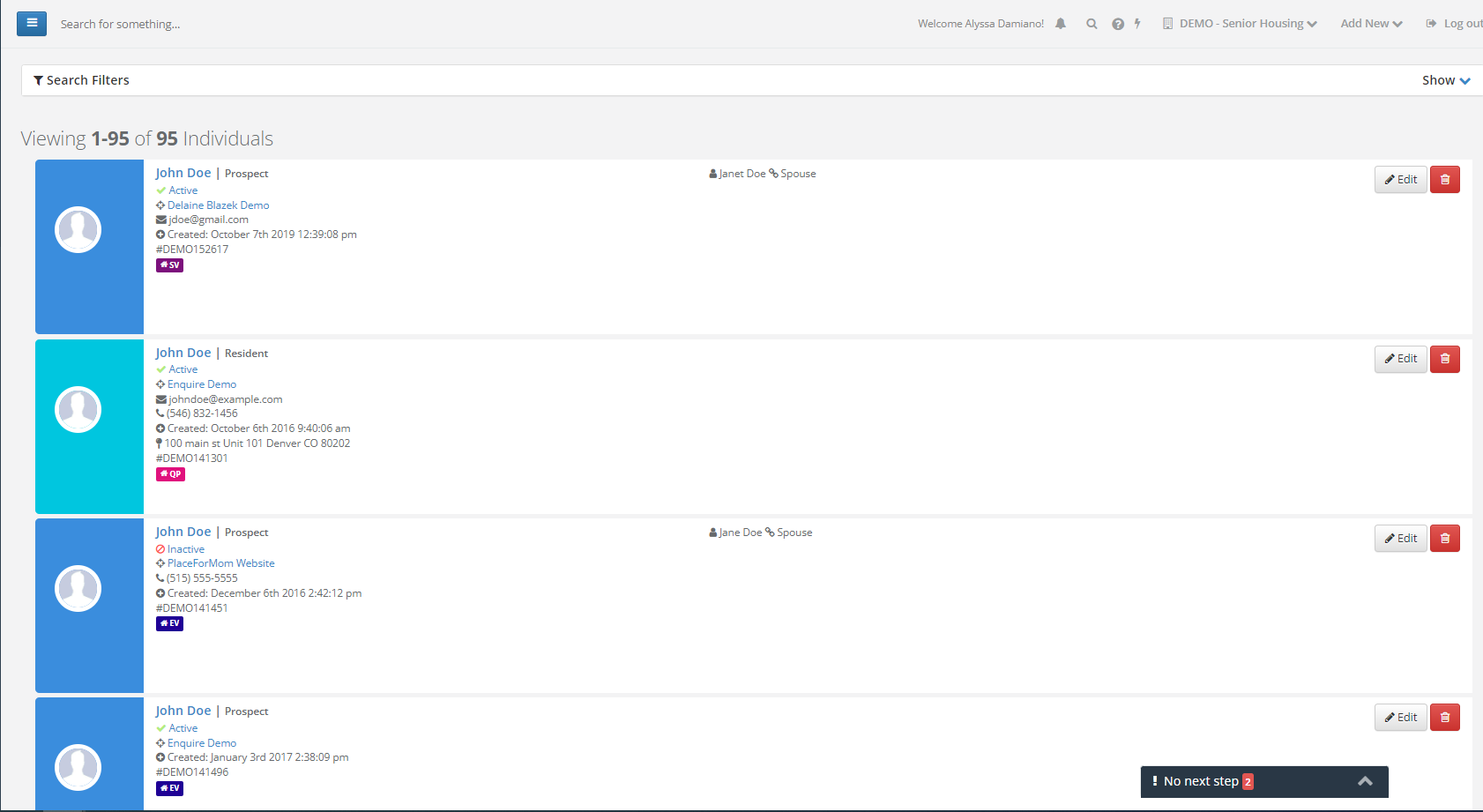
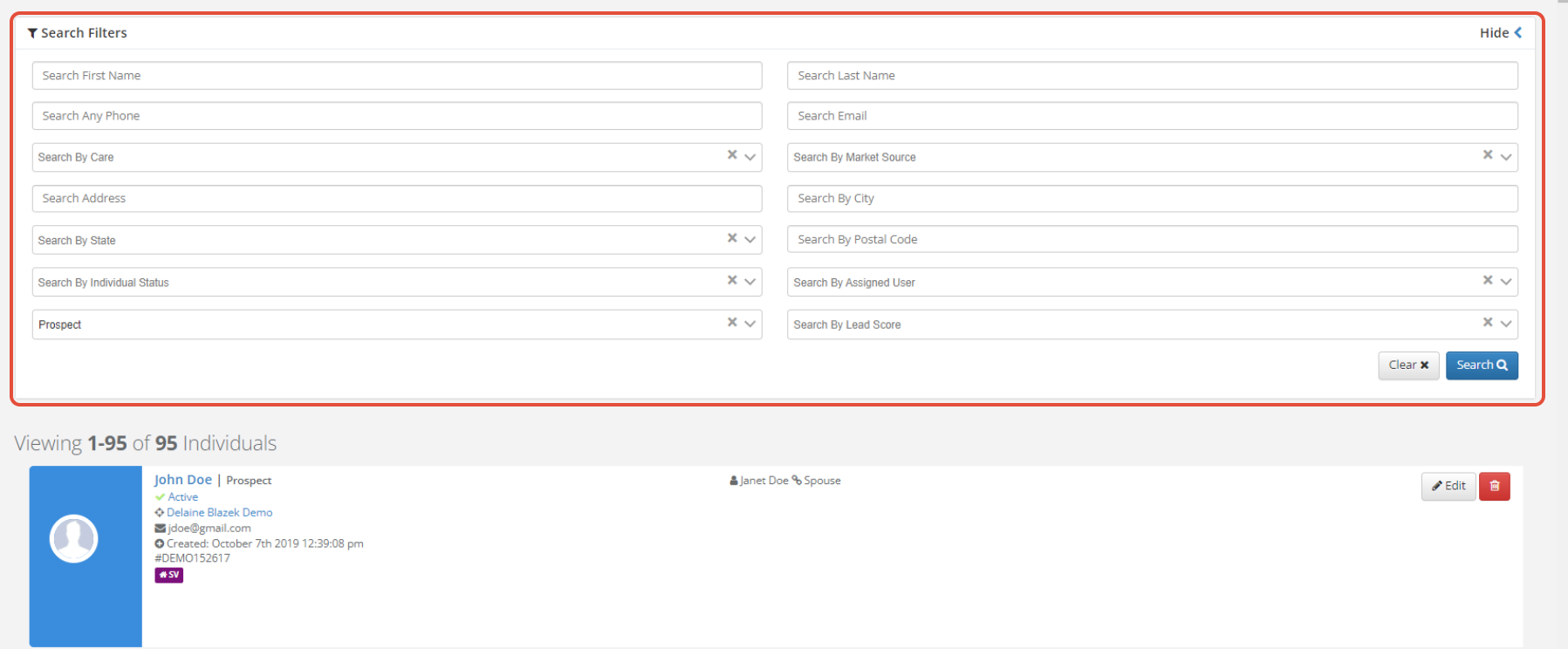
Step 4: The search filters section allows you to narrow down the search criteria listed.
Step 3: Click on an individual to navigate to their profile.
Hard Search
Step 1: In the top menu, click the box "Search for Something".
Step 2: Begin typing to search for individuals. This search supports searching by email, phone numbers (home, mobile, work), and names (first and last). As you type, suggestions will be displayed.
Step 3: Hit enter on the keyboard to bring up the hard search
Step 4: The search filters section allows you to narrow down the search criteria listed.
Was this article helpful?
That’s Great!
Thank you for your feedback
Sorry! We couldn't be helpful
Thank you for your feedback
Feedback sent
We appreciate your effort and will try to fix the article