Overview
In this article, we will review how to add a list to a campaign. Please note that a list needs to be saved from the advanced search section before adding a list to a campaign.
Adding a List to a Campaign
In order to add a list to a campaign, you must already have a saved list.
Step 1: Navigate to the Campaign page by clicking on the Campaign tab on the left hand menu.
Step 2: Select the campaign you want to add the list to.
Step 3: In the Invitees section of the campaign's summary page, click on List from the add options.
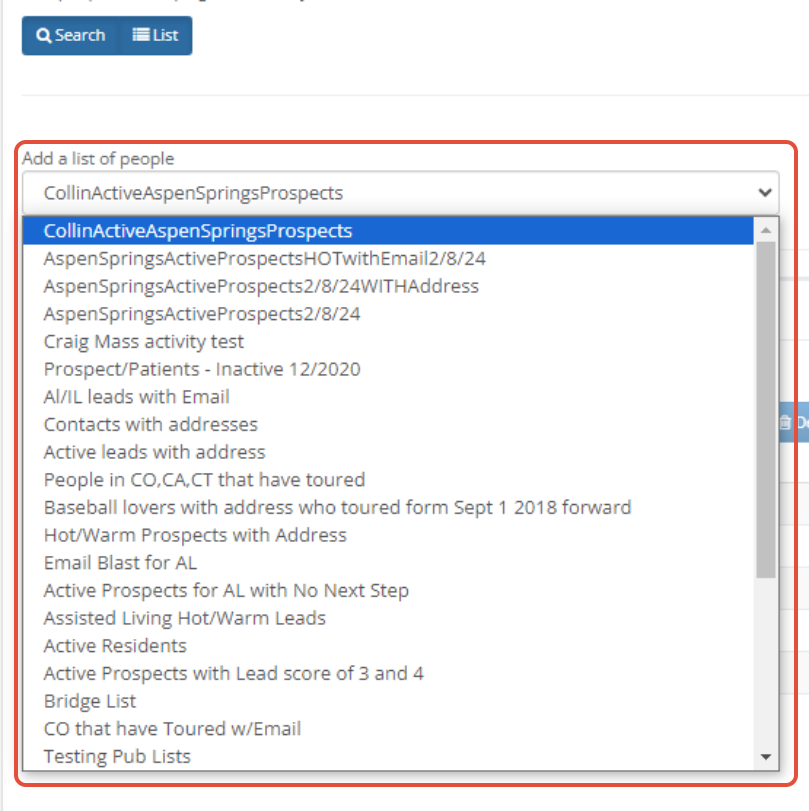
Step 4: Select the list you want to add to the campaign.
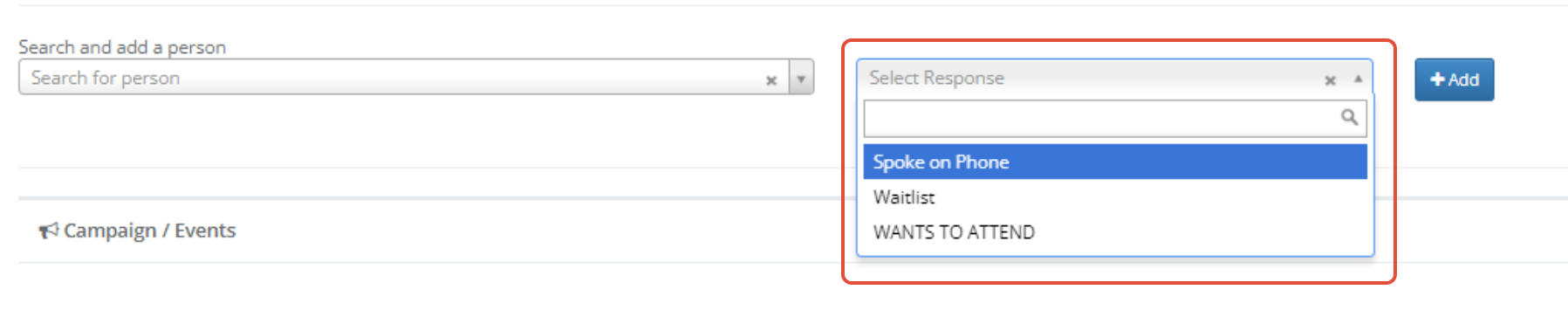
Step 5: If the campaign does have custom responses, select the response you want to add to each individual in the list.
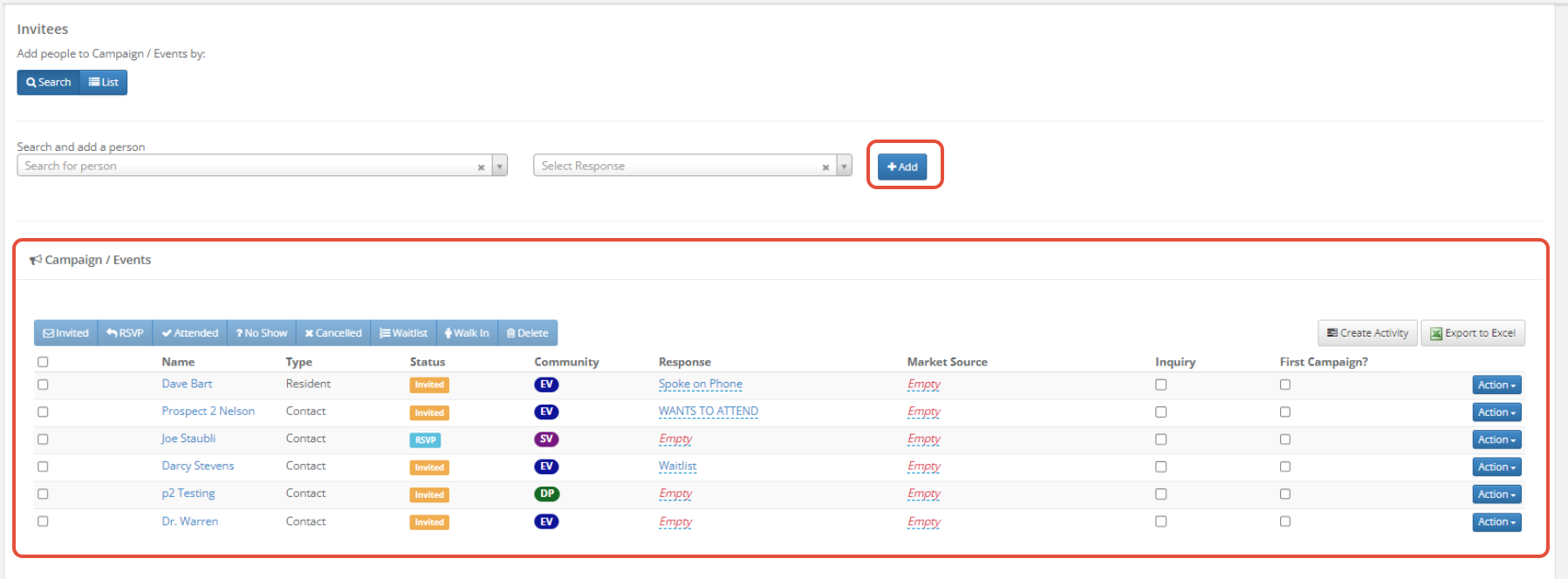
Step 6: Click the +Add button and the list will appear below
Was this article helpful?
That’s Great!
Thank you for your feedback
Sorry! We couldn't be helpful
Thank you for your feedback
Feedback sent
We appreciate your effort and will try to fix the article