Overview
In this article, we will review how to create and edit a campaign.
Create a Campaign
Step 1: Click Campaign on the left menu.
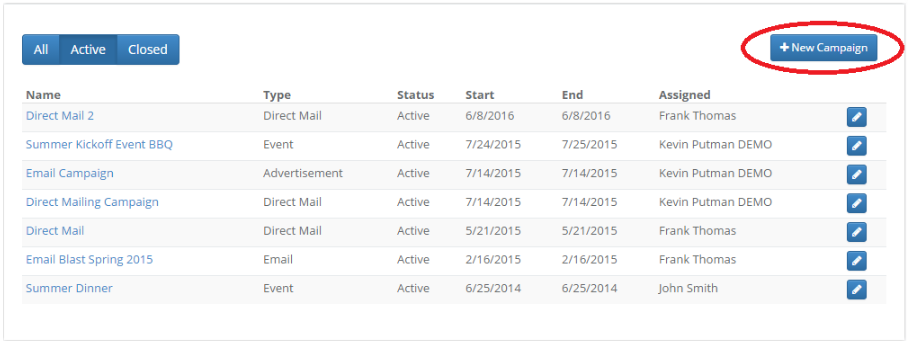
Step 2: Click New Campaign.

Step 3: Fill out the form and click Save. The required fields will need to be filled out:
- Name
- Community
- Type
Start and End Date
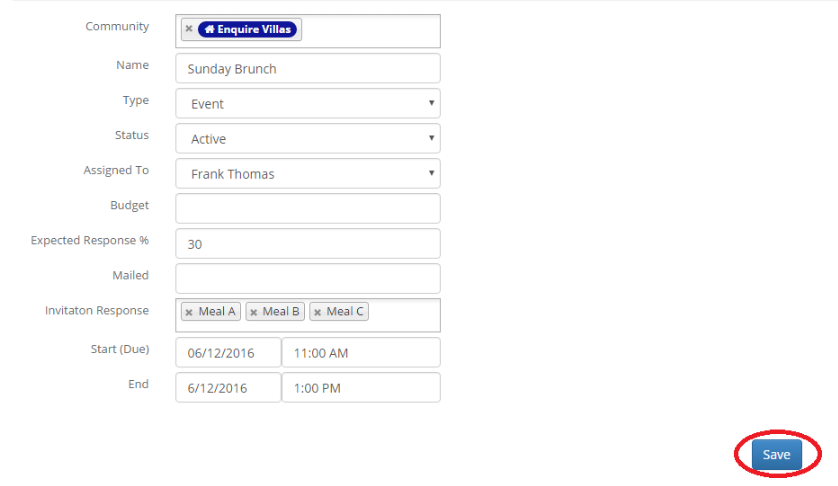
 Expected Response
- The percentage of people you expect to respond to the campaign.
Mailed
- Total Number of Invitations Sent for the campaign.
Invitation Response
- Custom responses for the campaign.
Edit a Campaign
Step 1: Click Campaign on the left menu. 
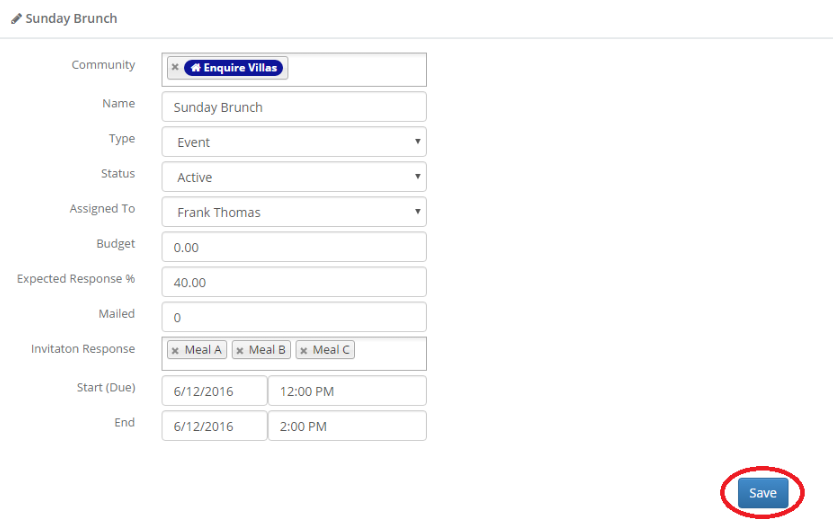
Step 2:Click the small pencil icon to the right of the campaign you would like to edit.


Step 3:Make your changes and click Save.

Change a Campaign from Active to Closed
Has a campaign for your community come to an end? Make sure to close it!
Step 1: Click Campaign on the left menu.
Step 2: Click the small pencil icon to the right of the campaign you would like to edit.
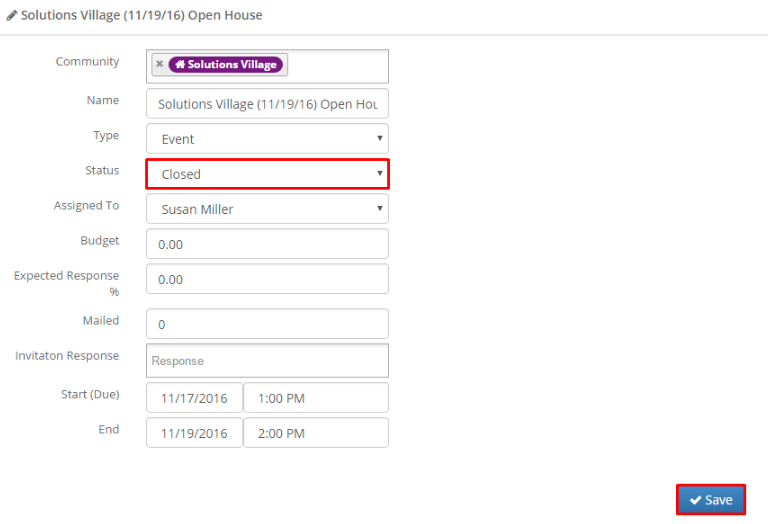
 Step 3: Click into the Status field and choose Closed. Click the blue Save button to confirm your changes.
Was this article helpful?
That’s Great!
Thank you for your feedback
Sorry! We couldn't be helpful
Thank you for your feedback
Feedback sent
We appreciate your effort and will try to fix the article