Overview
In this article, we will review how to add an individual to a campaign.
From the profile page
Step 1: Navigate to the profile you want to add to a campaign.
Step 2: Click on the Campaign tab (depending on your community, the verbiage may vary). 
Step 3: Click on the Add to Campaign button.
Step 4: In the pop up window select the Campaign you want to add them to and their Status in the campaign.
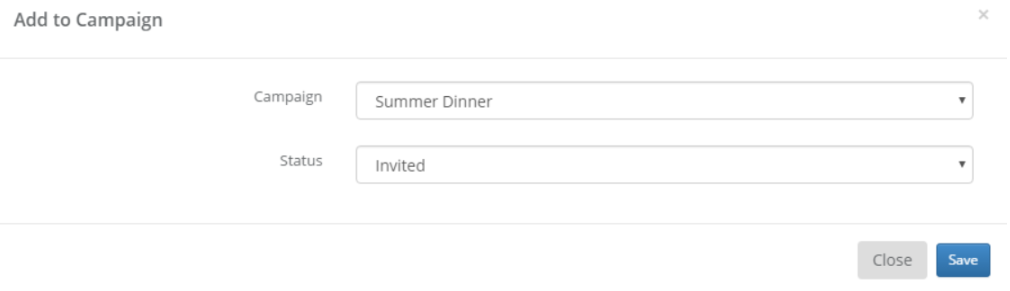 Step 5: Click Save.
From a Campaign Page
Step 1: From the left hand menu select Campaigns.
Step 2: Select the campaign you want to add the individual to.
Step 3: Navigate to and click into the Search for Person field.
 Step 4: Search for the person's name in the search field.
Step 5: Select the person from the search results.
Step 6: If there are custom responses, select the appropriate option from the Response field.
 Step 7: Click Add.
Was this article helpful?
That’s Great!
Thank you for your feedback
Sorry! We couldn't be helpful
Thank you for your feedback
Feedback sent
We appreciate your effort and will try to fix the article