Overview
In this article, we'll cover how to use your Aline CRM Calendar to manage your prospect's, contact's, and referral source's activities. Included topics are calendar navigation, filtering the calendar, and working with calendar activities.
Calendar Navigation
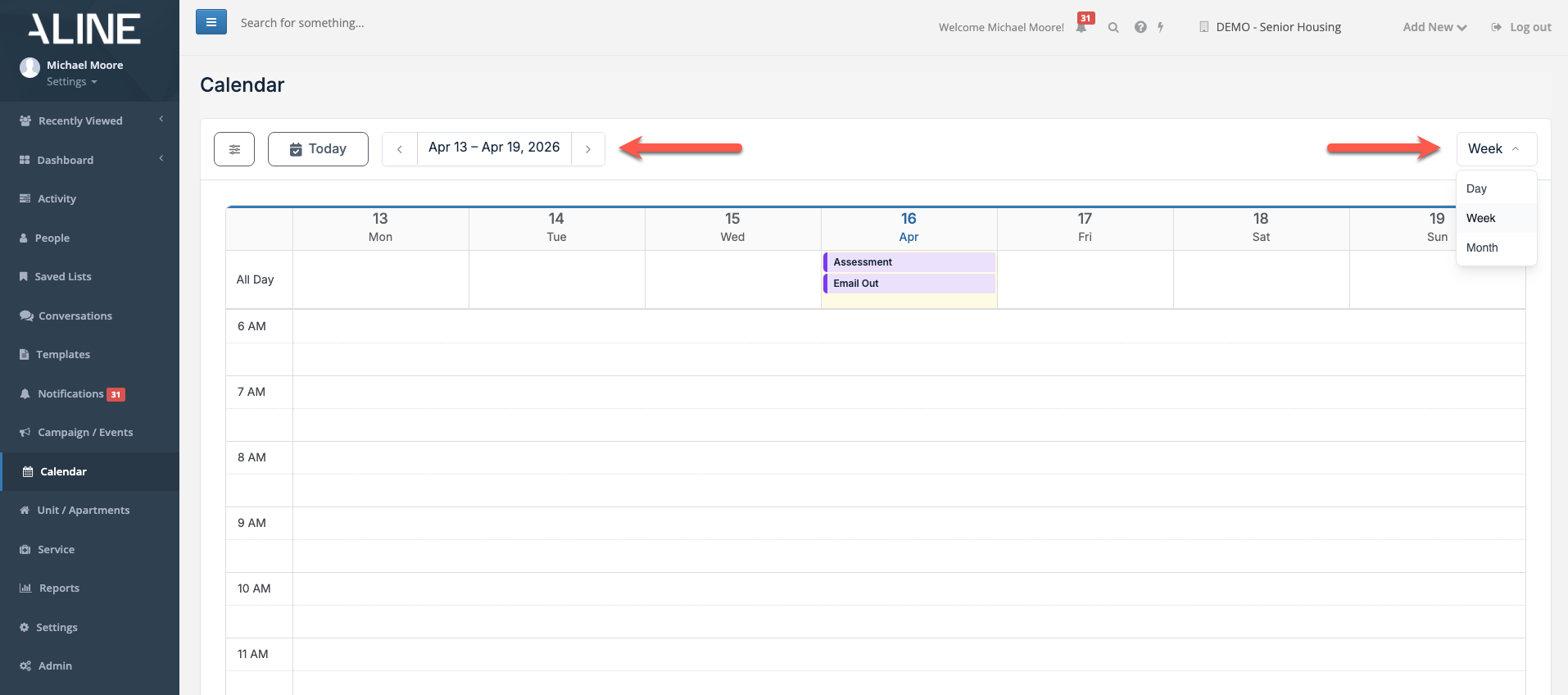
On the calendar page, navigational items can be found at the top of the page above the main calendar view. Selecting Monthly, Weekly, or Daily will display the calendar in monthly, weekly, or daily views. Users can use the date range selector to change the displayed date range.
Selecting "Today" will snap the calendar display back to the current date range.
Filtering the Calendar
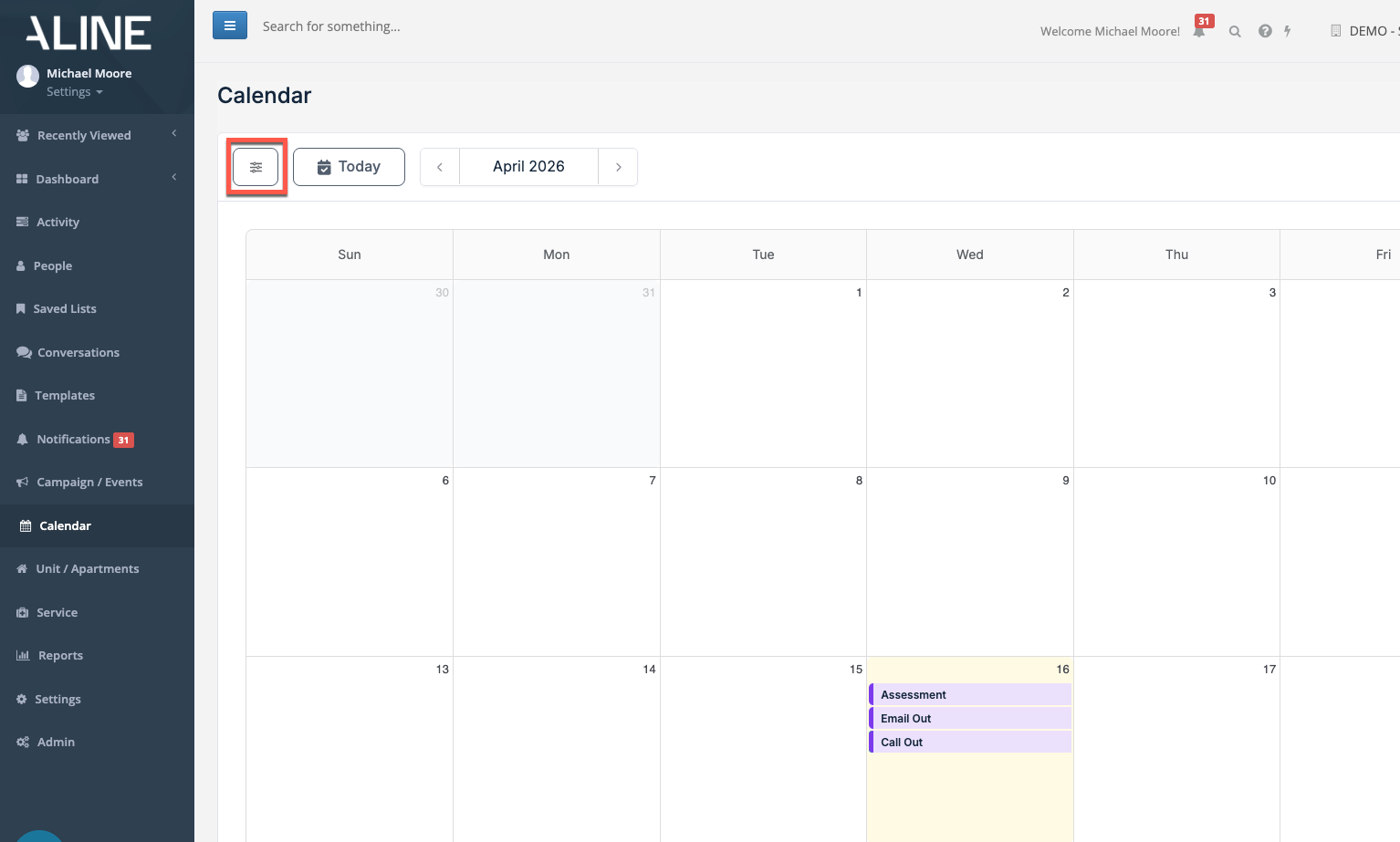
Aline CRM's activity calendar can be filtered in a variety of ways including by activity type, by activity status, by community, and by specific sales users. To interact with the calendar filters, select the Filters Icon.
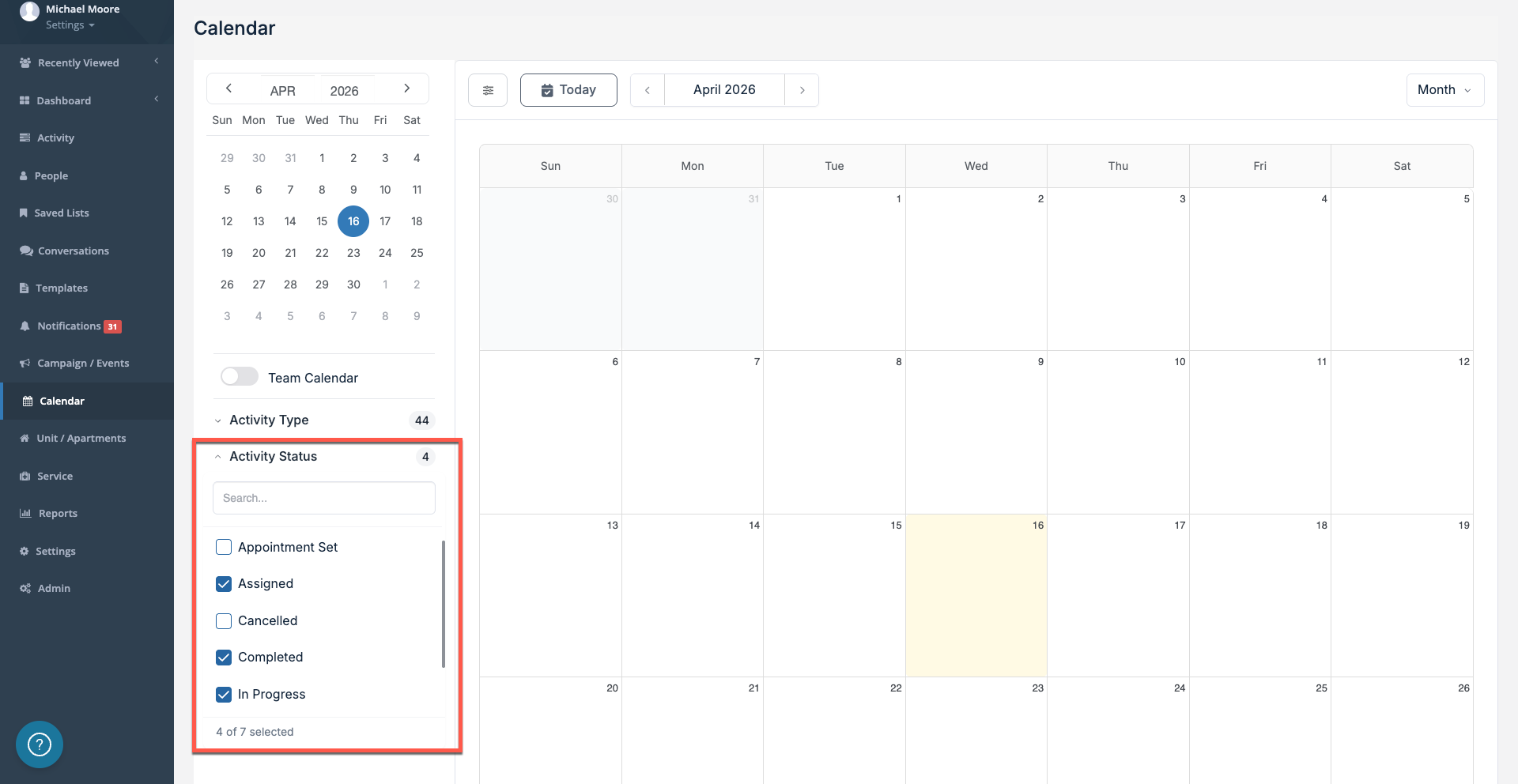
To filter, select the dropdown arrow on the desired filter and then select items to include or deselect items to omit.
By default, all Activity Types are included. By default, only In Progress and Assigned are included in the Activity Status filter. Arrange the filters in whatever view drives your activity priorities.
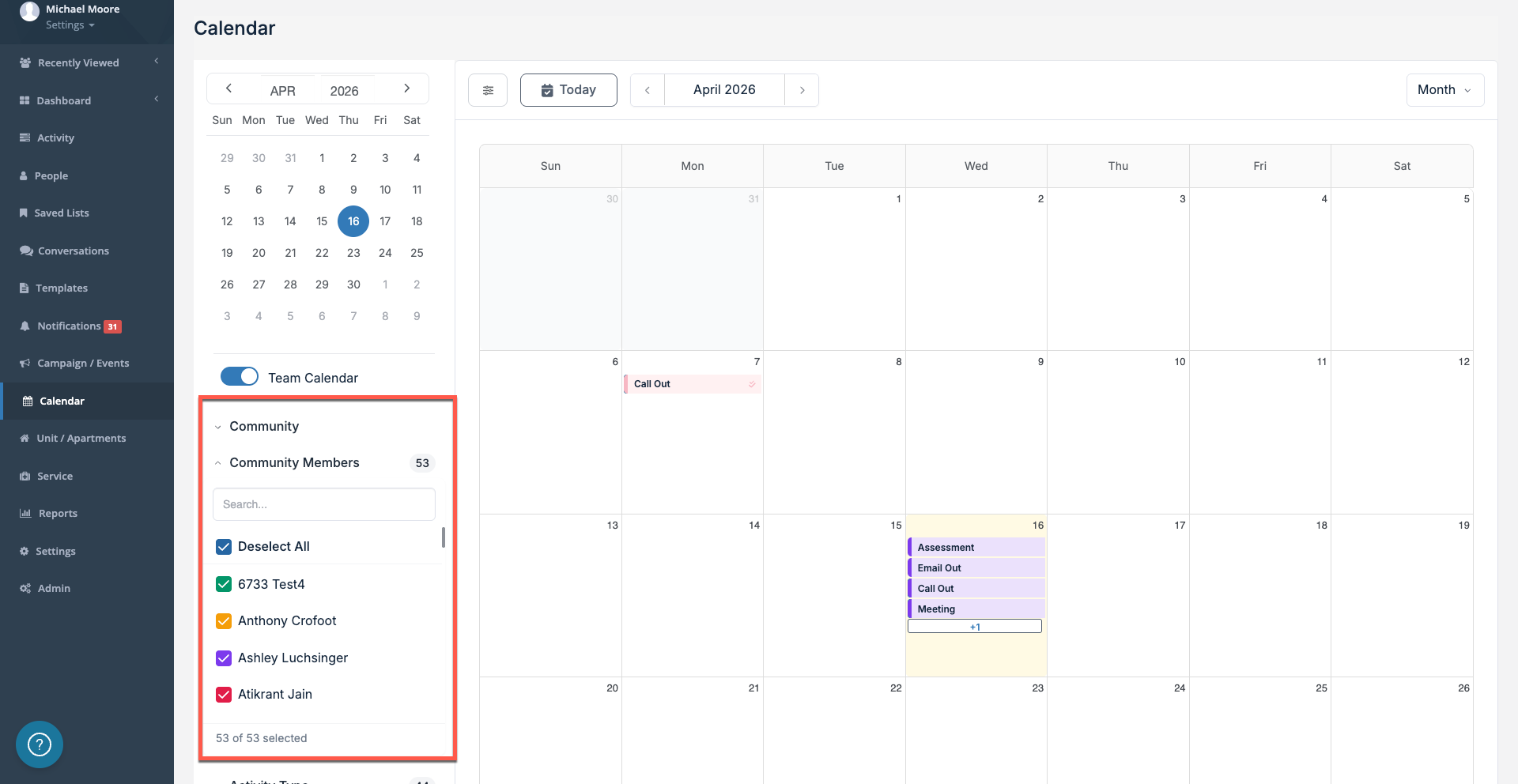
Enable to Team Calendar to utilize Community and Community Member filters. Note that only one Community can be selected at a time. Community Members can be added individually or as a whole.
Calendar Activities
When properly filtered for, activities will display in the calendar view. Selecting an activity will display the activity details and allow users to edit, complete, reschedule, cancel, mark as a no show, or delete the activity. Note that users may also drag and drop activities on the calendar in order to reschedule them.
Completed activities will disappear from the calendar unless the Completed filter is selected within Activity Status filters.
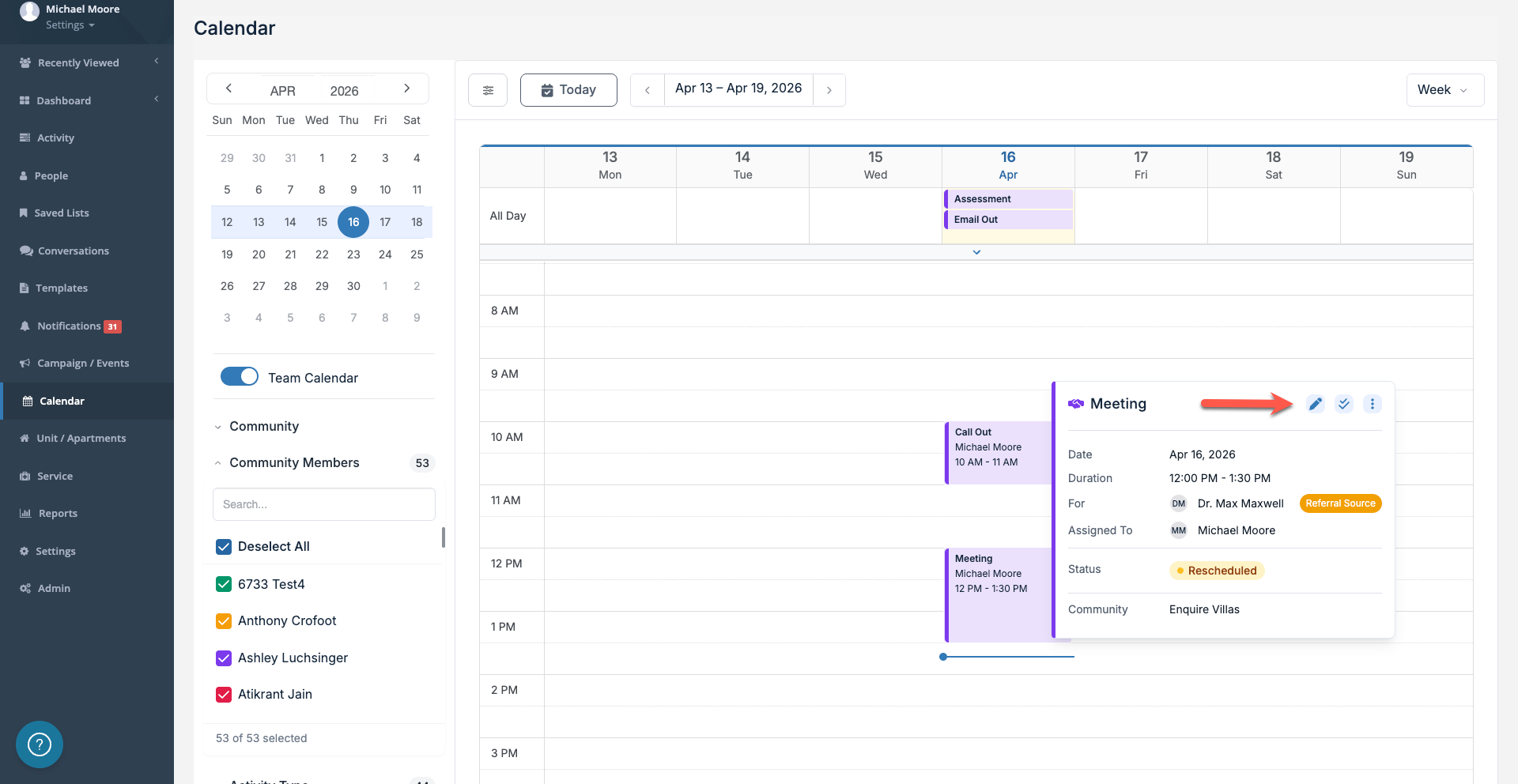
Select the Edit Icon to edit the activity, select the Complete Icon to complete the activity, or select the Three-Dots Icon to reschedule, cancel, mark as a no show, or delete the activity.
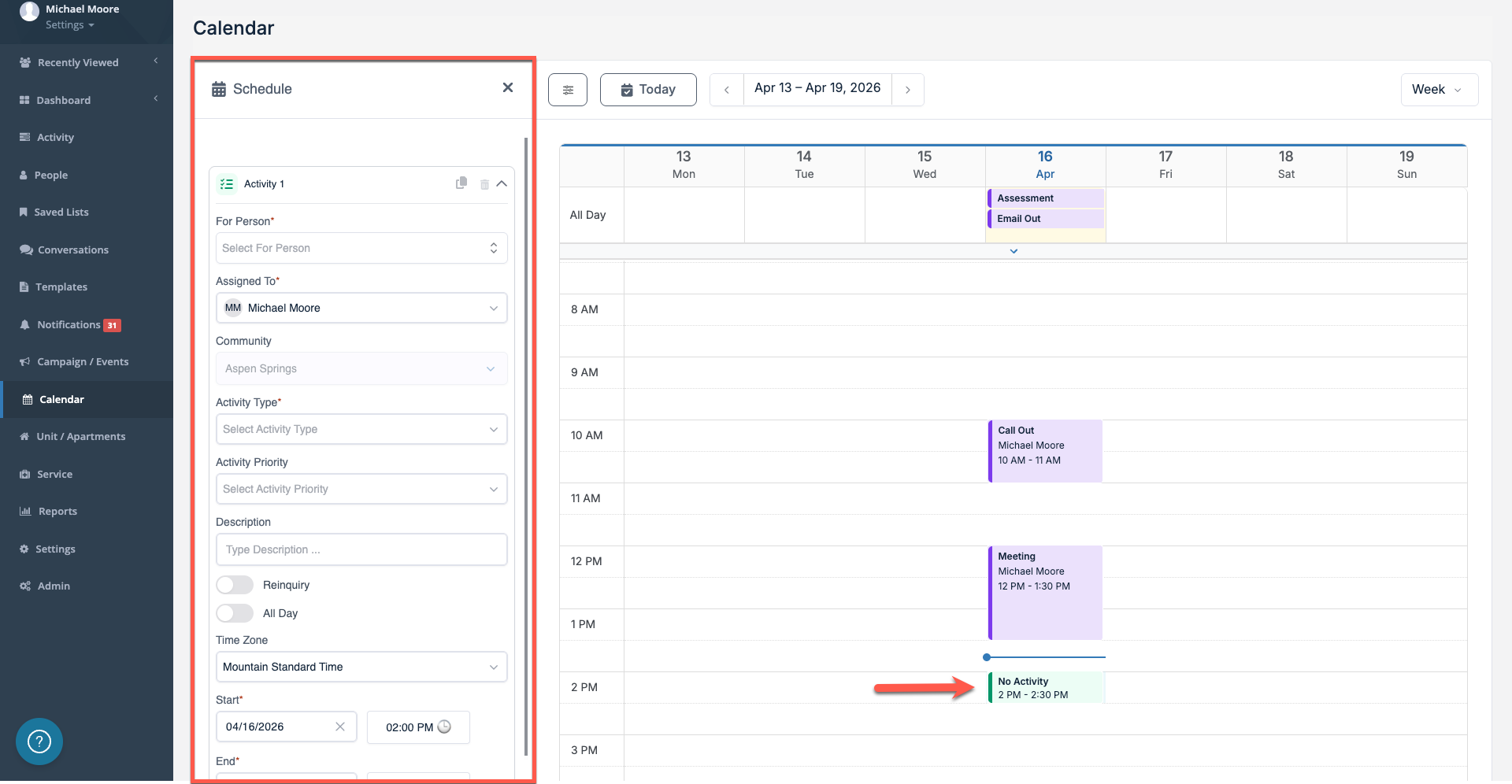
On the weekly and daily views, users can select any empty time slot to schedule a new activity. Selecting an empty slot will display the Schedule Activity Window.
Was this article helpful?
That’s Great!
Thank you for your feedback
Sorry! We couldn't be helpful
Thank you for your feedback
Feedback sent
We appreciate your effort and will try to fix the article