Overview
In this article, we will review how to connect to a Power BI dataset with a guest account. This is only needed for users that need temporary access to Power BI.
Provider Flow Requirements
- Issue guest invitation to external account through Azure AD
- Assign Power BI pro license to guest user
Consumer Flow Requirements
Accepting Guest Access Invitation
Note: Before accessing any content within the provider tenant, you must first accept the guest invitation sent to your email.
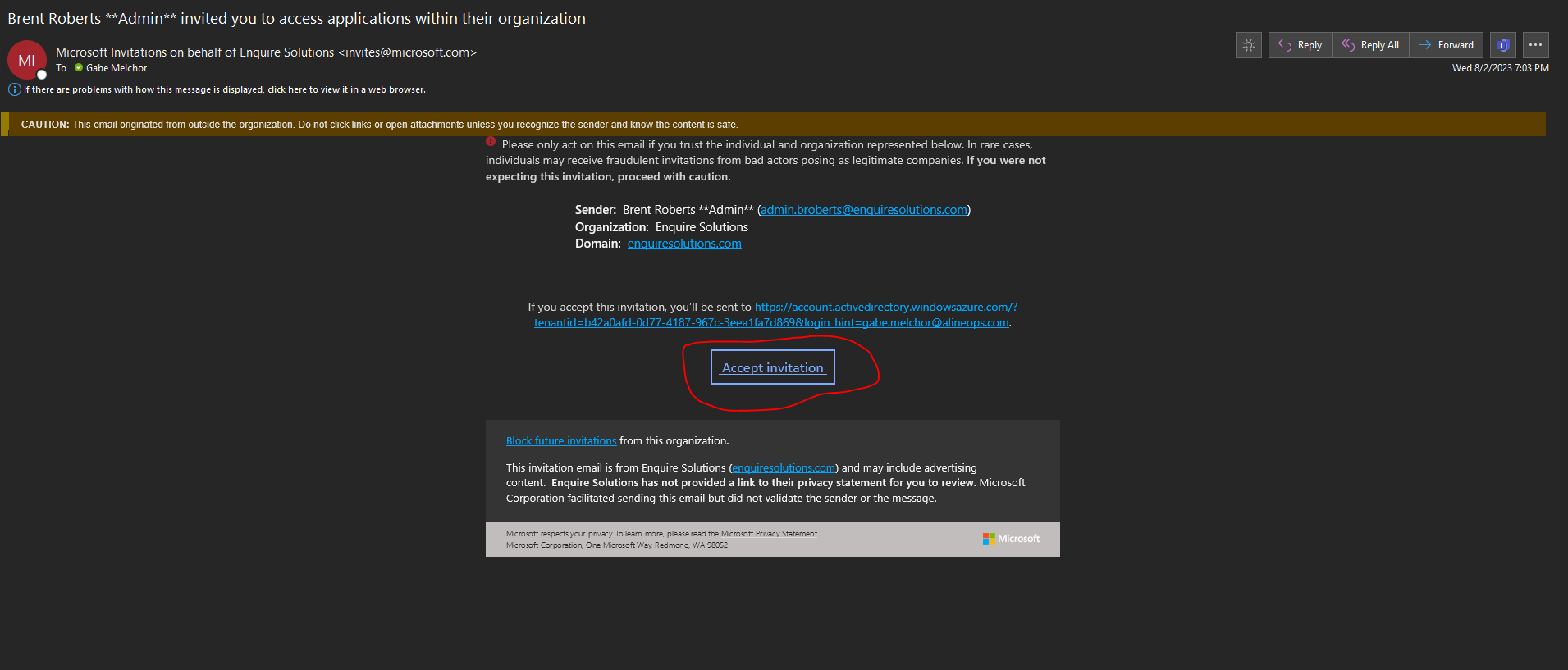
For more information on guest access, please refer to this documentation
Connecting to a Dataset with a Guest Account
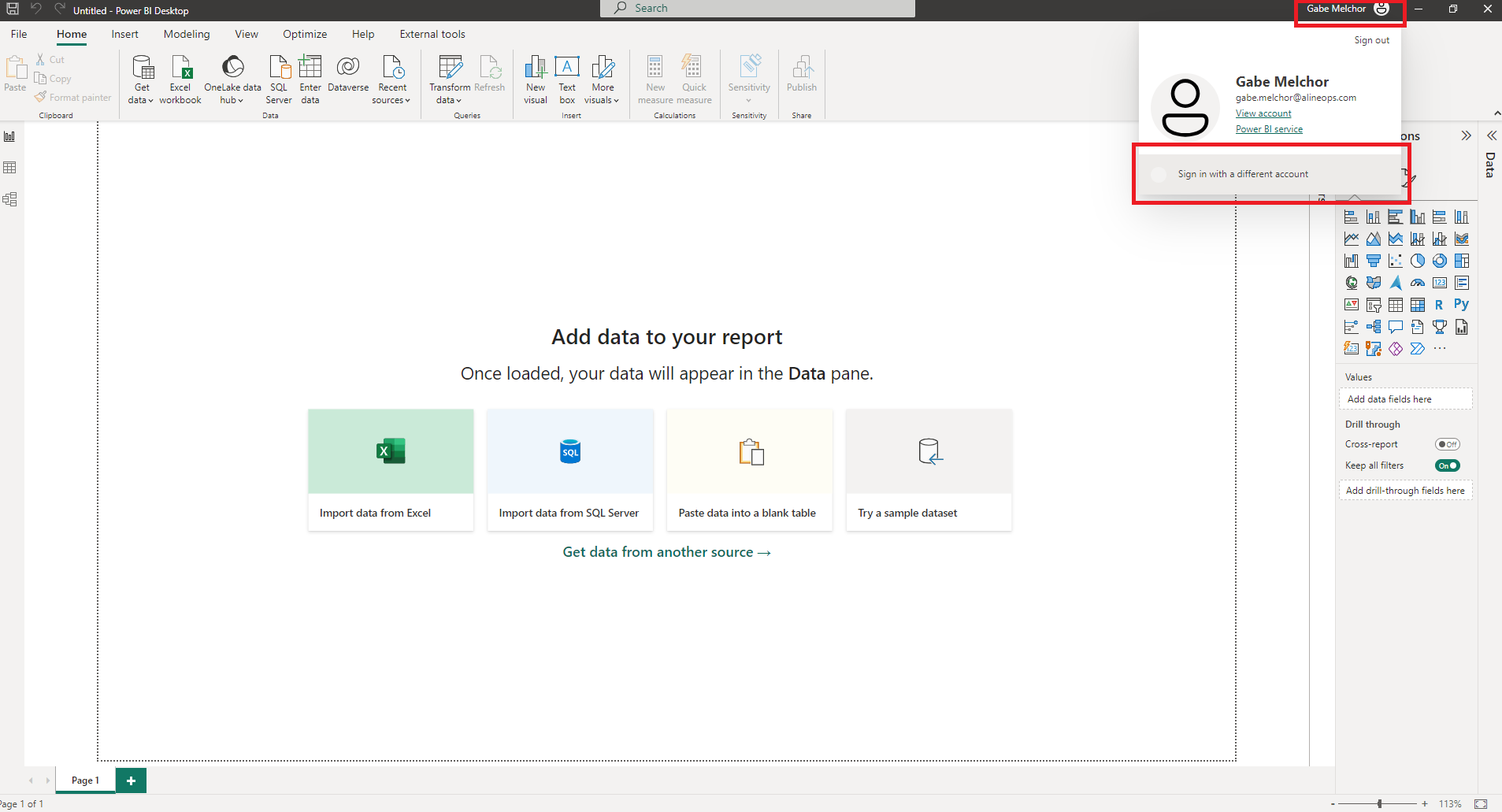
Step 1: From within the Power BI desktop application, click the account icon in the top right and select Sign in with a different account.
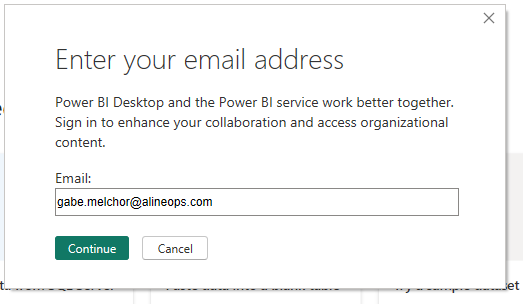
Step 2: When prompted, enter the email address from your company's domain and Continue.
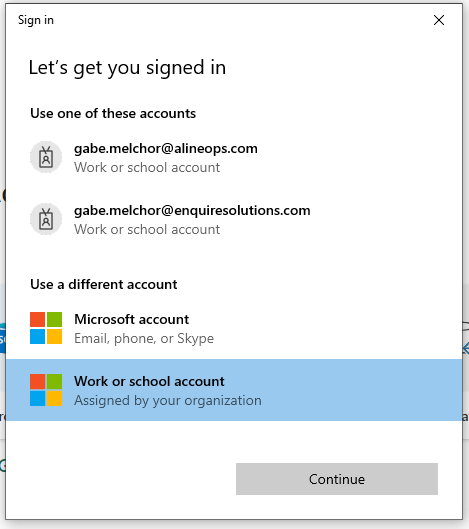
Step 3: When prompted, select Work or school account from Use a different account and Continue.
Step 4: When prompted, select Sign-in options.
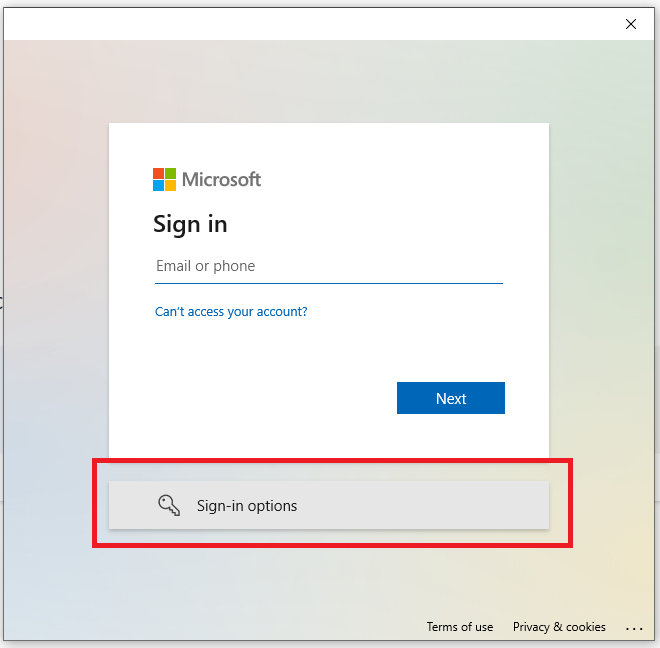
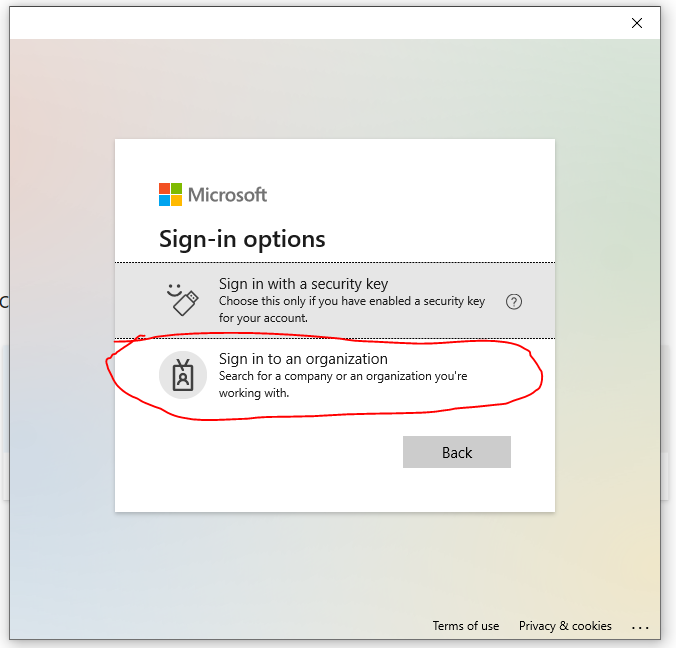
Step 5: When prompted, select Sign in to an organization.
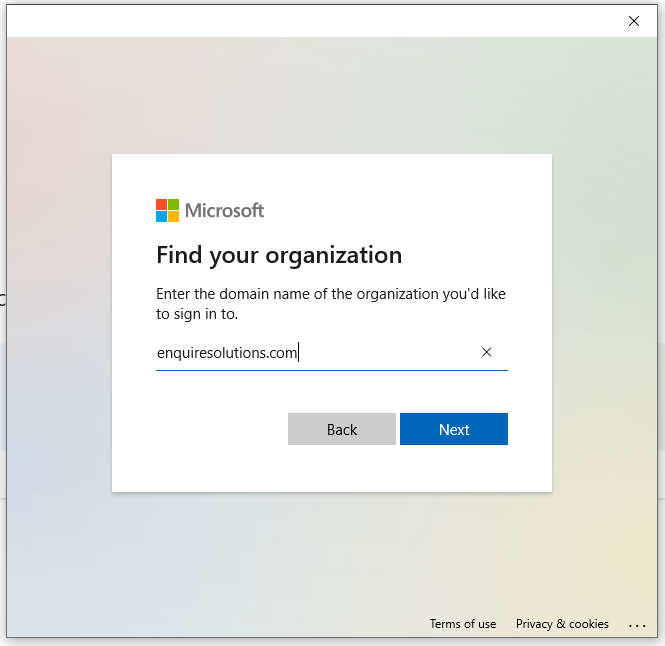
Step 6: When prompted, enter enquiresolutions.com as the domain name of the organization you'd like to sign in to and Next.
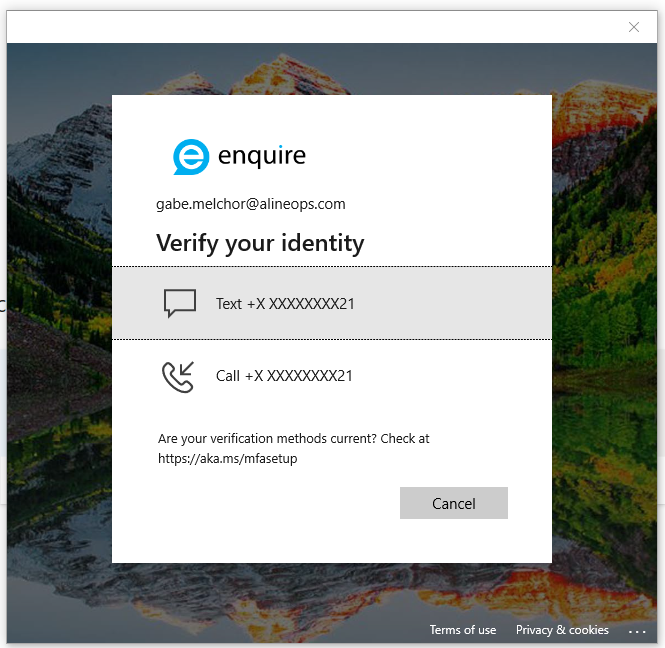
Step 7: When prompted, enter the email address from your company's domain on the sign in screen (do not enter an @enquiresolutions.com email address here) and Next.

Step 8: Complete the MFA prompts as required by your organization
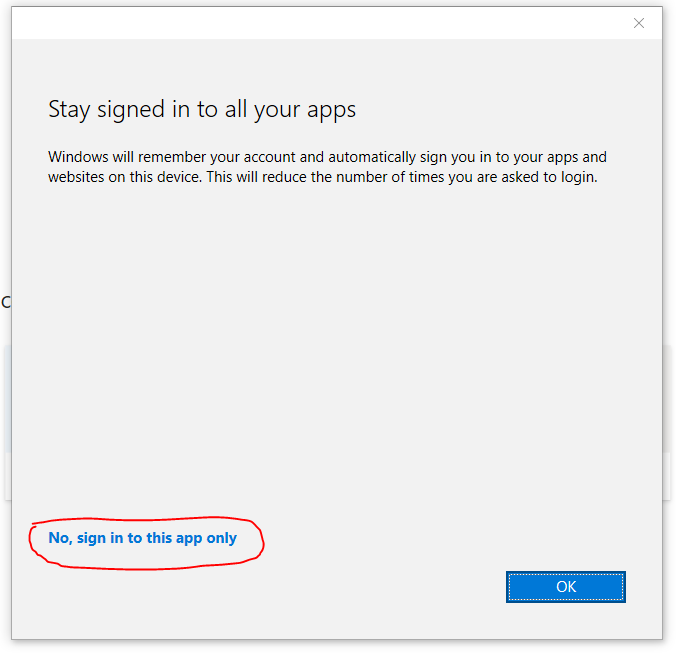
Step 9: When prompted, select No, sign in to this app only.
Step 10: Once the dialog box closes, navigate to Get data > Power BI datasets.
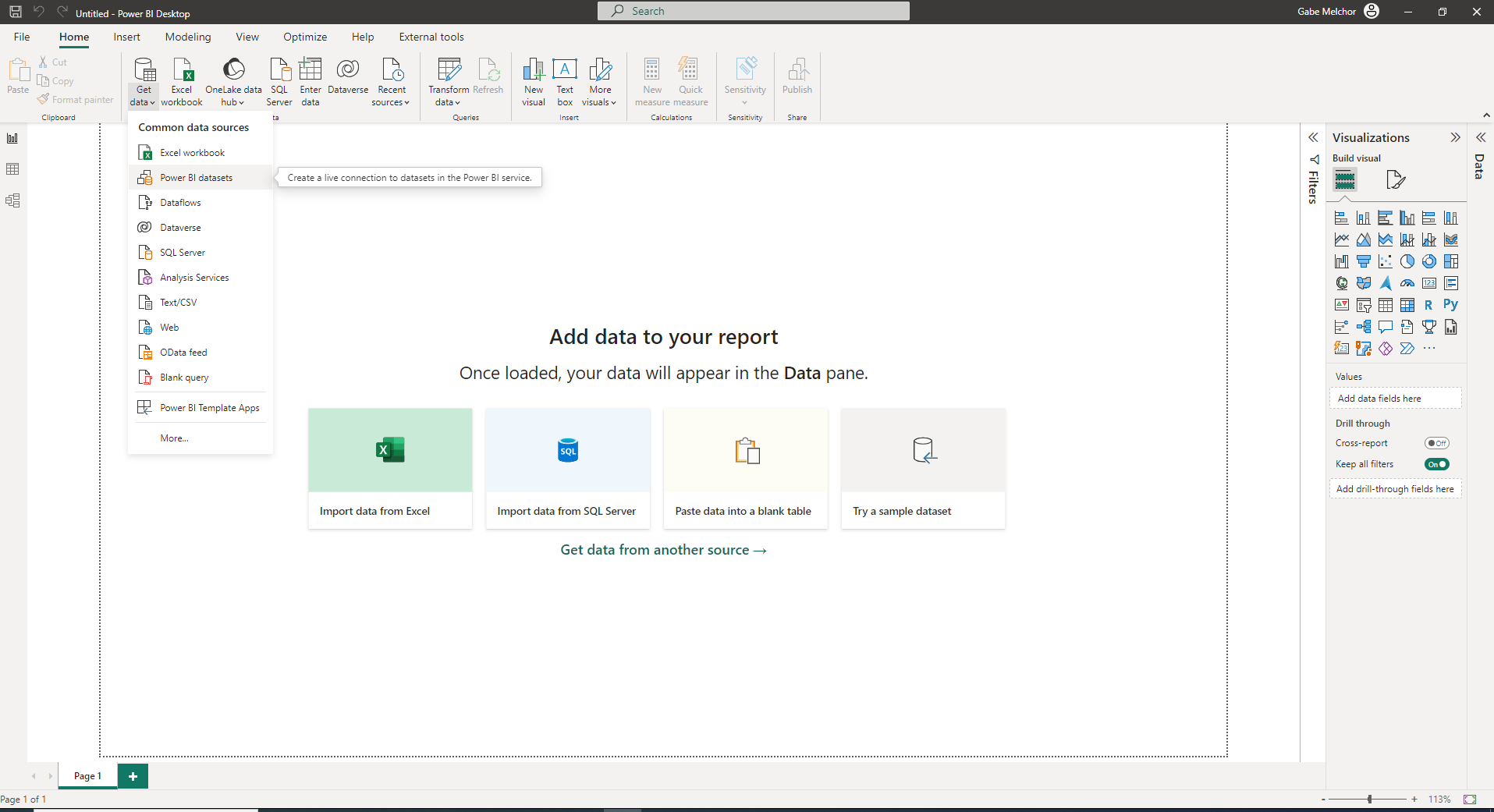
Step 11: You should now be able to see workspaces and datasets from within the Enquire Solutions tenant

Was this article helpful?
That’s Great!
Thank you for your feedback
Sorry! We couldn't be helpful
Thank you for your feedback
Feedback sent
We appreciate your effort and will try to fix the article