How to Use ValueTrack Parameters in Enquire MAP
If using Google Ads, there is an advantage of using ValueTrack parameters to pass extra data to Enquire MAP to assist in reporting and tracking.
Set up or edit a tracking template with ValueTrack parameters at the account level in Google Ads
Click Settings in the left hand menu.
Click Account Settings.
Click Tracking.

- Next to Tracking template, click Blank Field.
Enter
{lpurl}, a question mark ?, and any ValueTrack parameters selected to use, separated by ampersands &s.See the following example to use: {lpurl}?device={device}&keyword={keyword}&placement={placement}&adgroup={adgroupid}&campaign={campaignid}
where
Campaign label: campaign
Placement label: placement
AdGroup label: adgroup
Keyword label: keyword
Device label: device
- Click Save.
The format of the parameters is: label={parameter}, for example kywd={keyword}
The label above refers to the kywd, and Google will replace the parameter placeholder {keyword}
with the keyword data related to the AdClick.
In Enquire MAP, the labels of some of the more commonly used parameters can be customized. When setting up the labels in Enquire MAP, it will capture and store the data in the parameter for the visitor. This data is used in reporting and can be accessed via dynamic fields in emails.
To configure the custom ValueTrack parameters in Enquire MAP, go to Administration then Account Settings to find Google Integration to fill in the custom labels.

For the example:
{lpurl}?&device={device}&keyword={keyword}&placement={placement}&adgroup={adgroupid}&campaign={campaignid}
where
Campaign label: campaign
Placement label: placement
AdGroup label: adgroup
Keyword label: keyword
Device label: device
Click Save.
As the format of the parameters are
label={parameter}
for example
kywd={keyword}
the label here is 'kywd', google will replace the parameter placeholder {keyword} with the keyword data related to the ad click.
In Enquire MAP you can customize the labels of some of the more commonly used parameters. If you set up the labels in Enquire MAP, Enquire MAP will capture and store the data in the parameter for the visitor. This data is used in reporting and can be accessed via dynamic fields in emails.
To configure the custom ValueTrack parameters in Enquire MAP, go to your account settings (Administration->Account Settings), find the Google Integration and fill in your custom labels
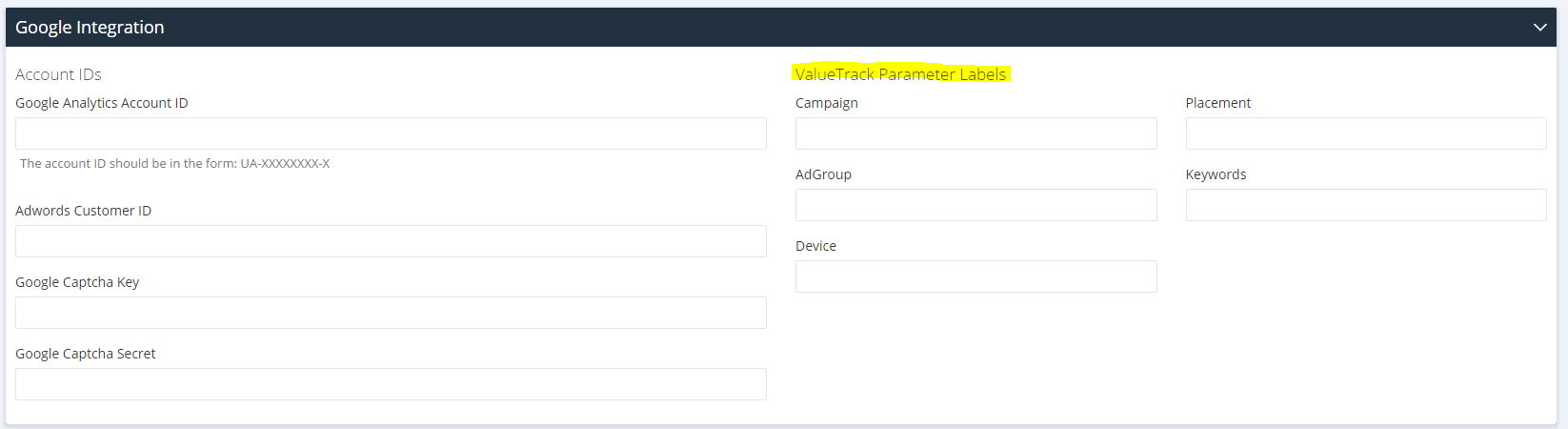
For the example template
{lpurl}?&device={device}&keyword={keyword}&placement={placement}&adgroup={adgroupid}&campaign={campaignid}
where
Campaign label: campaign
Placement label: placement
AdGroup label: adgroup
Keyword label: keyword
Device label: device
The settings in Enquire MAP are:
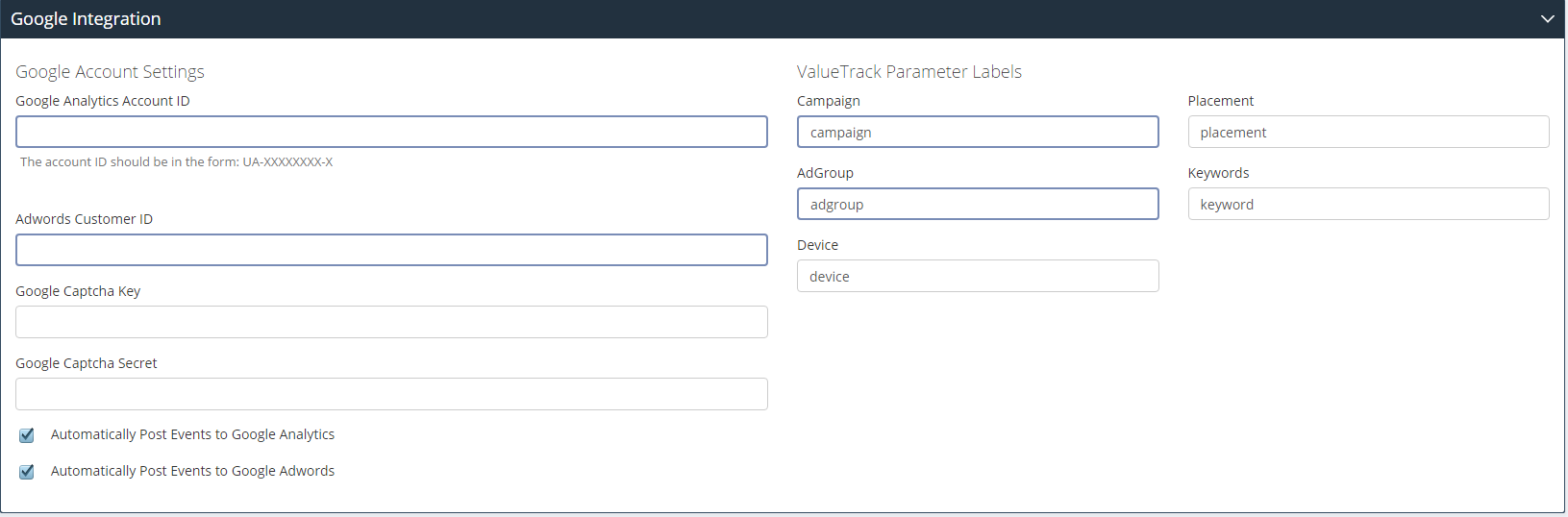
Note: Enquire MAP provides access to the data using the following dynamic fields in in emails and landing pages:
- %CONTACT_HISTORY.VALUETRACK_CAMPAIGN%
- %CONTACT_HISTORY.VALUETRACK_ADGROUP%
- %CONTACT_HISTORY.VALUETRACK_DEVICE%
- %CONTACT_HISTORY.VALUETRACK_PLACEMENT%
- %CONTACT_HISTORY.VALUETRACK_KEYWORDS%
This is a good reference article on all the ValueTrack parameters by Google:
https://support.google.com/google-ads/answer/6305348
Please reach out to the dedicated Enquire Account Manager or Enquire MAP Support team for further assistance.
Was this article helpful?
That’s Great!
Thank you for your feedback
Sorry! We couldn't be helpful
Thank you for your feedback
Feedback sent
We appreciate your effort and will try to fix the article